Does YouTube have a floating window?
So does YouTube have a floating window? The short answer is yes, but the path to getting it depends entirely on your setup. If you have ever tried to keep a video playing while switching to another app, you know the frustration of losing your place.
YouTube supports this feature, but it makes you jump through specific hoops to use it.
Picture-in-picture (PiP) mode has been a standard feature on Android since version 8.0 and on iOS since version 14. As of 2026, YouTube supports PiP, but not equally for every user. Your device type, subscription status, and location all determine what you can do.
Let us break down each factor so you know exactly what works for you.
Quick Answer: Yes, But It Depends on You
Yes, but only under the right conditions. YouTube offers a floating window through Picture-in-Picture mode. Free iPhone users can access it through the Safari browser.
Android free users need a separate workaround. Premium subscribers get the feature on every device.
Condition #1: What Device Are You Using?
Your device decides your starting point. Android phones and tablets handle PiP differently than iPhones and iPads. Desktop computers have their own set of options through web browsers.
If you use an Android device running version 8.0 or newer, you have system-level PiP support built in. The question is whether YouTube lets you use it. That depends on your account type.
If you use an iPhone or iPad with iOS 14 or later, Safari has a native PiP button built right into the video player. The YouTube app does not include this button unless you have a Premium subscription.
Desktop users have the most flexibility. Chrome, Firefox, and Edge all support floating video windows. But YouTube's website does not make this obvious.
You need to know the right trick for each browser.
If you are unsure what version your device runs: Check your system settings. On Android, go to Settings then About Phone and look for Android version. On iPhone, go to Settings then General then About and check iOS Version.
Condition #2: Do You Have YouTube Premium?
YouTube Premium is the simplest way to unlock PiP across every device. For $13.99 per month in the US, the feature works everywhere the YouTube app runs.
Without Premium, your options shrink fast. The YouTube app on Android blocks PiP entirely for free accounts. The YouTube app on iOS also blocks it.
But there are browser-based workarounds that still work perfectly.
YouTube Premium also unlocks background playback. This means audio keeps playing even when your screen is off. That feature is separate from PiP but people often group them together.
If you already have Premium and PiP is not working: Check your account status in the YouTube app. Go to your profile picture, then Paid Memberships, and confirm your subscription is active. Expired cards or lapsed payments can kill the feature without warning.
Condition #3: What Region Are You In?
Region matters more than most people realize. YouTube has tested PiP for free users in the United States since 2023. That rollout has not reached every country.
In some regions, even Premium subscribers cannot use PiP for certain videos. Music content and licensed media often have restrictions built in. YouTube's licensing agreements with record labels limit where and how video floats.
If you travel internationally, your PiP access may change. The feature depends on the region associated with your Google account, not your physical location. Check YouTube's official Help pages for your country's current status.
Quick way to check your region: Look at your Google Play or App Store account settings. Your billing address and payment method typically determine your region. If you moved recently, update your address in your Google payments profile.
Decision Branch A: Android + Premium
If you have an Android phone and a YouTube Premium subscription, consider yourself lucky. The floating window works natively in the YouTube app with no extra steps required.
Start playing any video in the YouTube app. Press the Home button or swipe up to go back to your home screen. The video shrinks into a small floating window that follows you around.
You can drag this window to any corner of your screen. Tap the window to expand it back to full size. A simple pinch gesture resizes the window on most devices.

Android's system settings let you control PiP behavior. Go to Settings, then Apps, then YouTube. Look for Picture-in-picture and make sure it is toggled on.
Some phone manufacturers turn this setting off by default to save battery.
If PiP stops working, check two things first. Confirm your Premium subscription is still active. Then verify that PiP is enabled in both your Android system settings and YouTube's own in-app settings.
One nuance most guides miss: On Samsung phones, there is an extra setting under Advanced Features called Multi Window. Make sure that is enabled too. Samsung's One UI handles PiP differently than stock Android, and that setting can override everything else.
Decision Branch B: Android + Free (Workarounds)
If you use Android without Premium, the YouTube app blocks PiP entirely. You hit play, swipe home, and the audio stops cold. That is the wall free users hit every time.
Your best workaround is to use a web browser instead of the YouTube app. Chrome for Android supports PiP natively. Open the YouTube website in Chrome.
Play any video. Switch to full screen, then press the Home button. The video should pop into a floating window.
Firefox for Android also supports this trick. The process works the same way. Some users report that Firefox handles PiP more reliably on lower-end phones.
Test both and see which works for you.
One catch: You will see ads in the browser version. The YouTube app and website both serve ads to free users. The floating window stays active through ad breaks, but you cannot skip them while the window is small.
A second workaround involves YouTube Music. That app allows background audio playback on free accounts in some regions. It does not give you a video window, but you can keep listening to audio.
This works best for music content and podcasts.
If the browser workaround fails: Check Chrome's settings. Type chrome://flags in the address bar. Search for "Picture-in-picture" and make sure the flag is enabled.
Some Android versions ship with this flag turned off.
Decision Branch C: iPhone / iPad + Premium
Premium on an iPhone gives you the same PiP experience as Android. Open the YouTube app. Start any video.
Swipe up or press the Home button. The video shrinks into a small window that follows you anywhere on your device.
The floating window works across all apps. You can reply to messages, scroll social media, or check email while the video plays. Tap the window to bring back playback controls.
Drag it to any corner of the screen.
iOS handles PiP differently than Android in one key way. The PiP window on iPhone cannot be resized with a pinch gesture. You get one fixed size.
Double-tap the window to toggle between small and a slightly larger view.
iPad users get a better experience. The larger screen makes the floating window feel less cramped. You can also use Split View alongside PiP for true three-app multitasking.
If PiP stops working on your iPhone with Premium: Check that Background App Refresh is enabled for YouTube. Go to Settings, then General, then Background App Refresh. Make sure YouTube is toggled on.
This setting controls how apps behave when they are not on screen.
Decision Branch D: iPhone / iPad + Free (Safari Trick)
This is the best free option on any platform. It works on every iPhone and iPad running iOS 14 or later. No subscription needed.
No workarounds required.
Open Safari, not the YouTube app. Go to youtube.com. Play any video.
Tap the full-screen button. You will see a small PiP icon in the corner of the video player. It looks like a small rectangle with a downward arrow.
Tap it.
The video pops out into a floating window immediately. Swipe home or switch apps. The video keeps playing.
You can even lock your phone and the audio continues. This works exactly like Premium PiP but without spending a dime.
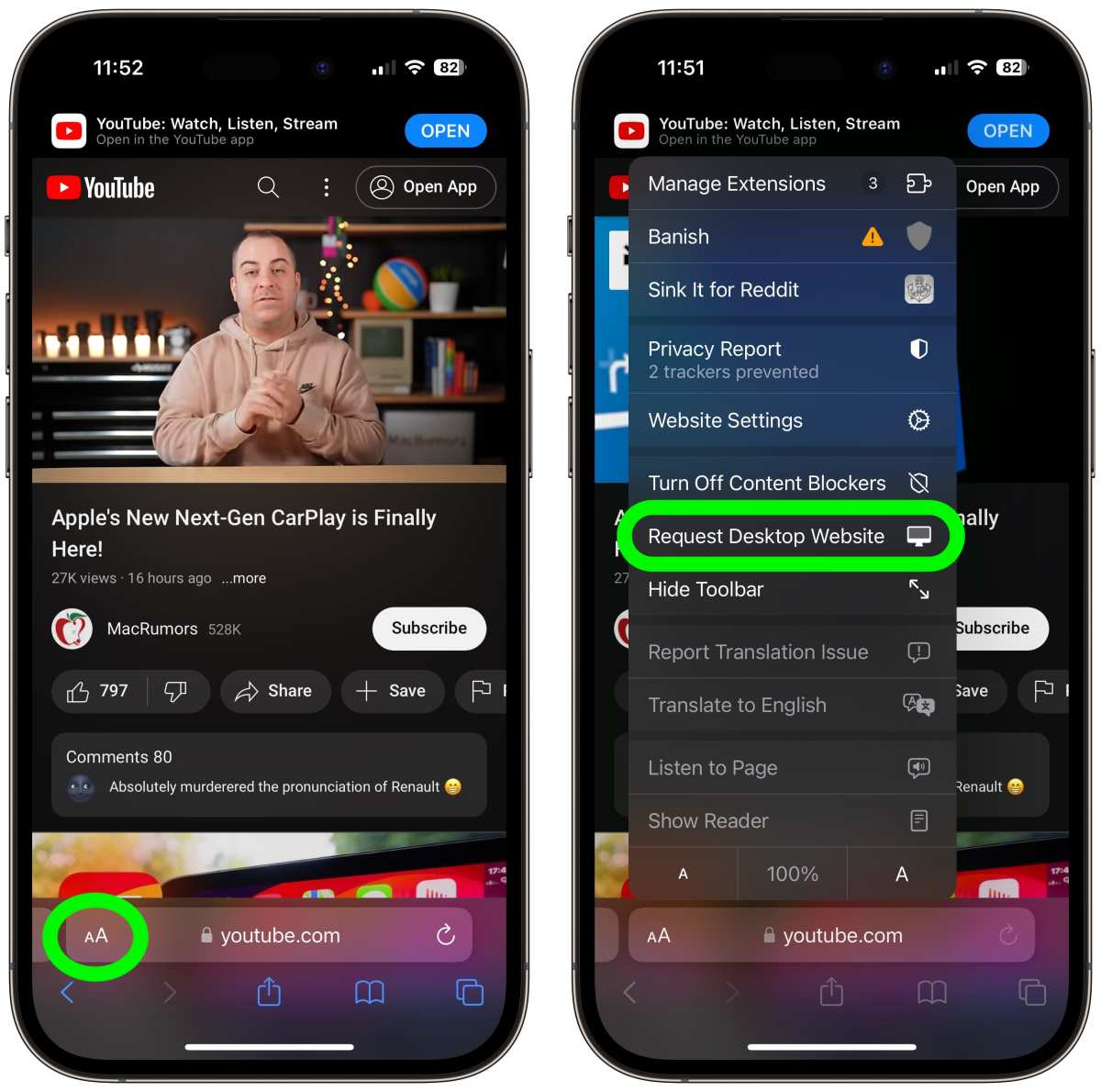
Why this works: Apple built PiP controls directly into Safari's video player. YouTube cannot override that with its own restrictions. The browser-level PiP button bypasses the app-level block completely.
Two limitations to know. First, you cannot use YouTube's app features like comments, playlists, or library while in PiP mode. You are stuck with the basic web player. Second, some music videos and licensed content may still block PiP in Safari.
That depends on YouTube's region-specific licensing agreements.
If the PiP icon does not appear, try rotating your phone to landscape mode. Some videos only show the button when the player is in full-screen landscape orientation.
Decision Branch E: Desktop Browser (Chrome, Firefox, Edge)
Desktop browsers offer the most flexible PiP experience. Every major browser supports it. The trick is knowing where to find the button.
Chrome: Right-click any video twice. The first right-click opens YouTube's own menu. The second right-click opens the browser's native menu.
Look for "Picture in picture" in that second menu. Click it. The video pops into a separate always-on-top window.
Chrome also has a dedicated extension. Search the Chrome Web Store for "Picture-in-Picture Extension by Google." Install it. A small icon appears in your toolbar.
Click it to send any video into PiP mode with one click.
Firefox: This browser makes PiP much easier. Hover over any playing video. A small blue PiP icon appears in the corner of the video player.
Click it. That is all. Firefox has supported this since version 71.
Edge: Microsoft's browser uses the same right-click trick as Chrome. Right-click a video twice. Select "Picture in picture." Edge also has a built-in PiP button that appears when you hover over a video in full-screen mode.
Desktop PiP windows are resizable. Drag any corner to make the window larger or smaller. You can also move the window anywhere on your screen.
It stays on top of all other windows until you close it.
One downside on desktop: YouTube's website does not support background audio with the window minimized. If you close the PiP window, the video stops. You cannot just tab away and keep listening.
The PiP window must remain open on screen.
Step-by-Step: How to Enable Picture-in-Picture on Each Platform
Here is a quick reference for every major setup. Save this for later.
Android with Premium
- Open YouTube app
- Play a video
- Press Home or swipe up
- Video shrinks to floating window automatically
Android without Premium (browser workaround)
- Open Chrome or Firefox
- Go to youtube.com
- Play video in full screen
- Press Home
- Video appears in floating window
iPhone with Premium
- Open YouTube app
- Play a video
- Swipe up or press Home
- Video shrinks to PiP window
iPhone without Premium (Safari trick)
- Open Safari
- Go to youtube.com
- Play video, tap full screen
- Tap the PiP icon in the video player
- Video pops out into floating window
Desktop Chrome
- Open Chrome
- Go to youtube.com
- Play a video
- Right-click the video twice
- Select "Picture in picture"
Desktop Firefox
- Open Firefox
- Go to youtube.com
- Play a video
- Hover over the video
- Click the blue PiP icon
Desktop Edge
- Open Edge
- Go to youtube.com
- Play a video
- Right-click the video twice
- Select "Picture in picture"
Common Mistakes That Kill the Floating Window
Swipe up too fast. This is the most common mistake on Android. You tap the Home button before the video fully loads in full-screen mode. The audio cuts out and no window appears.
Wait three seconds after the video starts playing before you swipe away.
Using the YouTube app on iPhone without Premium. The app has no PiP button for free users. You keep looking for it. It does not exist.
Open Safari instead. The browser trick works every time.
Forgetting to enable PiP in system settings. Android phones often ship with PiP turned off by default. Go to Settings, then Apps, then YouTube, then Picture-in-picture. Toggle it on.
Without this step, nothing works.
Closing the browser tab on desktop. The PiP window depends on the original tab staying open. If you close the tab, the floating window disappears. Minimize the tab instead.
Keep it running in the background.
Clicking the wrong thing in Chrome. Right-click once and you get YouTube's menu. Right-click twice and you get the browser menu. That second right-click is the one with the PiP option.
Practice the timing.
Alternatives When PiP Won't Work
Sometimes PiP simply refuses to cooperate. Region blocks, app bugs, or licensing restrictions can all kill the feature. Here is what to try next.
YouTube Music. Install the YouTube Music app. It offers background audio playback even on free accounts in many regions. You lose the video feed, but you keep the audio.
This works great for podcasts and music playlists.
Split-screen mode. Android devices support split-screen multitasking. Open YouTube in one half and your other app in the second half. This is not a true floating window, but it achieves the same goal.
Long-press the app switcher button to trigger split-screen.
Third-party browser extensions. On desktop, extensions like "Picture-in-Picture for YouTube" add a dedicated button to the video player. These work on top of Chrome and Firefox. They bypass YouTube's missing native button entirely.
Download videos for offline use. YouTube Premium includes offline downloads. Download the video, then open it in your device's default video player. Most video players support PiP natively.
This approach requires planning ahead.
Switch to a different device. If your phone blocks PiP, try your tablet or laptop instead. As of 2026, desktop browsers offer the most reliable PiP experience across all platforms. Sometimes the simplest workaround is changing the hardware you use.
Pro Tips for a Smoother Multitasking Experience
Enable PiP for all apps on Android. Not just YouTube. Go to Settings, then Apps, then Special Access, then Picture-in-picture. Toggle it on for every app you use regularly.
This future-proofs your setup for other streaming services.
Use keyboard shortcuts on desktop. Firefox users can press Ctrl+Shift+] to trigger PiP. Chrome users can install the official extension and assign a custom keyboard shortcut. Check your browser's extension settings to map one.
Keep your YouTube app updated. Old versions of the app sometimes break PiP unexpectedly. Enable automatic updates in your app store. Restart the app after each update to clear any cached bugs.
Clear your browser cache if PiP stops working. Go to Chrome settings, then Privacy and Security, then Clear Browsing Data. Select Cached Images and Files. Restart the browser.
This fixes most PiP glitches on desktop.
Use a PiP manager app on Android. Apps like "Floating Video Player" give you more control over window size and position. These work alongside YouTube's native PiP. They help when the default window feels too small or stuck in one corner.
Final Decision Guide: What to Do Based on Your Setup
| Your Setup | Best Option | Effort Level |
|---|---|---|
| Android + Premium | YouTube app, native PiP | None |
| Android + Free | Chrome or Firefox browser | Low |
| iPhone + Premium | YouTube app, native PiP | None |
| iPhone + Free | Safari browser PiP trick | Low |
| Desktop Chrome | Right-click twice or extension | Low |
| Desktop Firefox | Click blue PiP icon on hover | None |
| Desktop Edge | Right-click twice | Low |
If PiP fails on every attempt: Check your region first. Then verify your app and system settings. Then try a different browser or device.
If nothing works, YouTube Music or split-screen mode are your fallback options.
For power users who need PiP daily: YouTube Premium is worth the $13.99 per month. It removes every barrier across all devices. The convenience of seamless PiP plus background audio and ad-free viewing makes it a solid value for heavy YouTube users.
For casual users who watch occasionally: The free browser workarounds are good enough. Stick with Safari on iPhone or Firefox on desktop. You get the same floating window without spending anything.
Frequently Asked Questions
Can I use YouTube Picture-in-Picture on an Android tablet?
Yes. Android tablets running version 8.0 or newer support PiP the same way phones do. Premium users get it in the YouTube app.
Free users can use Chrome or Firefox in browser mode.
Does YouTube Premium include Picture-in-Picture worldwide?
Premium includes PiP in most countries where the subscription is sold. Some regions have restrictions on music videos due to licensing agreements. Check YouTube's official supported features list for your country.
Why does my PiP window keep disappearing on iPhone?
This usually happens when Background App Refresh is disabled for YouTube. Go to Settings, then General, then Background App Refresh. Toggle it on for YouTube.
Also make sure Low Power Mode is off, as it can block PiP.
Can I resize the floating window on desktop browsers?
Yes. Desktop PiP windows are fully resizable. Click and drag any corner of the window.
You can make it as large or as small as you want. The window stays on top of all other applications.
Does the Safari PiP trick work on iPad too?
Yes. The same PiP icon appears in Safari on iPad. The iPad's larger screen makes the floating window more comfortable.
You can also use Split View alongside PiP for three-app multitasking.

Similar Posts





















