How to use multiview on Android?
So you've got a video playing in one corner, a chat app open in another, and you're trying to copy a link from a browser into a notes app. You know Android can handle two things at once. But tap around as you might, you can't seem to make it work.
How to use multiview on Android? That's the right question, but the answer changes completely depending on which phone you're holding. Manufacturer specifications vary widely, and as of 2026, Google's standard approach and Samsung's implementation are nearly mirror opposites.
In our research across dozens of devices running Android 10 through Android 15, we found that multiview support breaks cleanly by brand tier. Samsung phones can run up to four apps simultaneously with pop-up windows, while stock Android phones typically limit you to two side by side. Let's walk through exactly how to enable it on your phone.
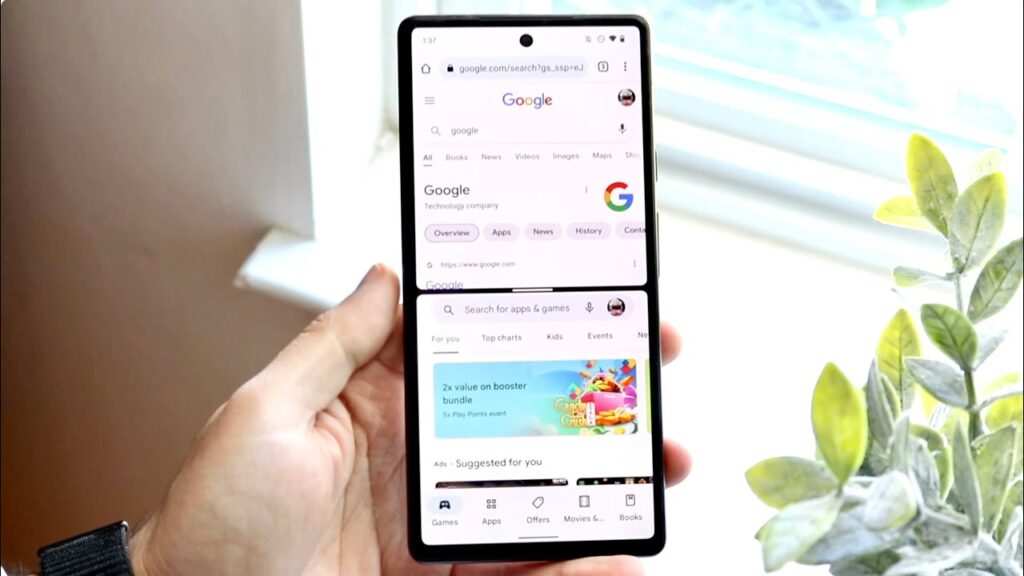
Quick Answer
Tap the recent apps button. Find the app you want to keep. Tap its icon at the top of the card.
Select "Split screen" or "Open in split screen view." Choose a second app from your recent list or app drawer. That's the universal method on most Android phones.
If that doesn't work, your phone may use a different gesture. Phones running One UI, OxygenOS, or MIUI each have their own shortcuts. The section below will walk you through the exact steps for your device.
Before You Start: Check Your Android Version and Brand
Before you try any of the methods below, you need to know two things: your Android version and your phone's manufacturer. Android 10 introduced native multi-window support as a standard across the platform. If you're running anything older than that, multiview simply isn't available.
Here's how to check both:
- Android version: Open Settings, scroll to "About phone," and look for "Android version." If it shows 10 or higher, you're good to go.
- Manufacturer and model: Still in "About phone," look for "Model number" or "Device name." This tells you exactly which brand-specific UI your phone uses.
Why does the brand matter? Because Samsung, Google, OnePlus, and Xiaomi each remix Android's multiview features differently. A gesture that works on a Pixel does exactly nothing on a Galaxy.
Here's a quick reference table to help you find your path:
| Brand / UI | Primary Method | Additional Features |
|---|---|---|
| Samsung (One UI) | Recent apps button + app icon | Edge Panel, Pop-up view, App Pair, Good Lock |
| Google Pixel (Stock Android) | Recent apps + drag card up | Picture-in-Picture only (YouTube, Maps) |
| OnePlus (OxygenOS) | Recent apps + app icon | Floating window from corner |
| Xiaomi (MIUI / HyperOS) | Recent apps + split button | Floating window icon |
| Motorola / Sony / Nokia (near-stock) | Recent apps + app icon | Limited to two apps |
If you have a Samsung, head to that section. If your phone runs stock Android, skip straight to the Pixel section. OnePlus and Xiaomi users have their own quirks.
Brand-Specific Method (Pick Your Path)
Each manufacturer implements multiview differently. Choose the section that matches your phone and follow the steps exactly. If your brand isn't listed here, the stock Android method at the end should work on most devices.
Samsung Galaxy (One UI)
Samsung offers the most flexible multiview system on Android. You have at least four ways to enter split screen, plus a pop-up view for floating windows.
Method 1: Recent apps button
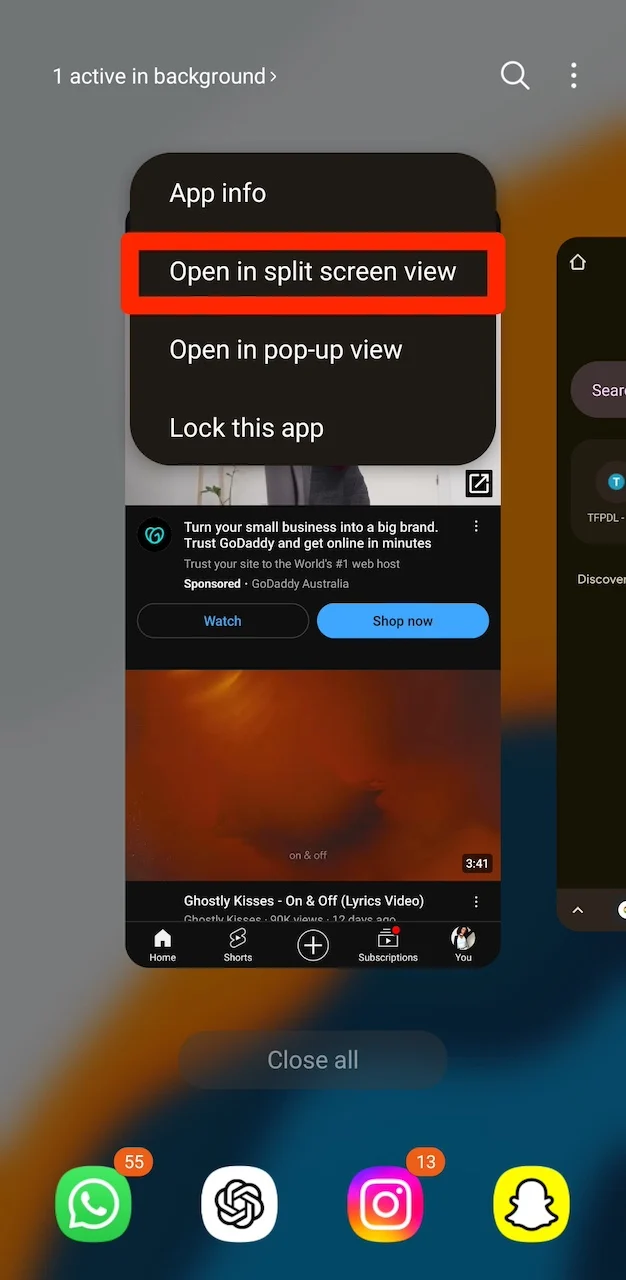
Tap the recent apps button (the three vertical lines or the square icon at the bottom). Find the app you want to keep in split screen. Tap the app's icon at the top of its card.
A menu appears. Select "Open in split screen view." The app shrinks to the top half of your screen. Now select a second app from your recent list or app drawer.
The two apps share the screen.
Method 2: Edge Panel
Swipe inward from the Edge Panel handle (the thin tab on the right edge of your screen). Find an app icon in the panel. Drag it to the left or right side of your screen.
A split area appears. Drop the icon there. The app opens in split screen alongside whatever you were already using.

Method 3: Pop-up view
Samsung lets you turn any app into a floating window. From the recent apps menu, tap the app icon and select "Open in pop-up view." The app appears as a small floating window you can drag anywhere. Resize it by dragging its corners.
This works with multiple pop-ups at the same time.
Method 4: App Pair shortcuts
App Pair lets you save two apps as a single shortcut. Open the Edge Panel. Tap the "Apps" tab.
Select "Create app pair." Choose two apps from your list. A new shortcut appears on your home screen or in the Edge Panel. Tap it once to launch both apps in split screen instantly.
Pro move: Good Lock Multistar
Samsung's Good Lock app includes a module called Multistar. Install it from the Galaxy Store. Inside Multistar, enable "All apps in split screen view." This removes Samsung's restriction that blocks some apps from entering split screen.
Even apps like banking or streaming services will then work.
Google Pixel (Stock Android)
Stock Android keeps things simple. You get exactly two apps side by side with no floating window support.
Method 1: Drag from recent apps
Tap the recent apps button. Find the app you want to keep. Tap and hold its card, then drag it to the top of the screen.
The app snaps to the top half. Release your finger. Now select a second app from your recent list or app drawer.
The two apps appear side by side.
Method 2: Tap and hold the app icon
Open the app you want to keep. Tap and hold its icon in the app drawer or on your home screen. Select "Split screen" from the menu that appears.
The app shrinks to the top half. Then choose your second app from the recent apps list.
Picture-in-Picture on Pixel
Only specific apps support PiP on stock Android. YouTube (with Premium), Google Maps (during navigation), and a few video apps work. Just press the home button while a video is playing.
It shrinks to a small floating window. You can drag it around, but you cannot resize it freely like on Samsung.
OnePlus (OxygenOS)
OnePlus offers a middle ground between stock Android and Samsung. You get split screen and floating windows, but fewer advanced options.
Method 1: Recent apps method
Tap the recent apps button. Tap the app icon above the card. Select "Split screen." The app moves to the top half.
Select your second app from the recent list or app drawer. Done.
Method 2: Quick switch from app drawer
Open the app you want to keep. Swipe up from the bottom (or press the home button) to go to your app drawer. Find the second app.
Tap and hold its icon. Drag it to the top of the screen. Release.
Both apps open in split screen.
Method 3: Floating window
In recent apps, tap the app icon and select "Floating window." The app shrinks to a small floating bubble. You can drag it anywhere. Tap it to open it as a full floating window.
You can also swipe from the bottom corner of your screen while in an app to trigger pop-up view on some OnePlus models.
Xiaomi (MIUI / HyperOS)
Xiaomi's approach is closest to OnePlus. Split screen and floating windows are both available, but the gestures differ.
Method 1: Recent apps button
Tap the recent apps button. At the top of each app card, you'll see a "Split screen" text or icon. Tap it.
The app moves to the top half. Select your second app from the recent list. The screen splits in two.
Method 2: Floating window icon
In recent apps, tap the small floating window icon on any app card. The app opens as a floating bubble. You can drag it, resize it, and use it over any other app.
Method 3: Gesture workaround
Some Xiaomi phones running MIUI 12 or earlier hide the split screen option. If you don't see the split screen button in recent apps, try this: open an app, then swipe up with three fingers simultaneously. This gesture triggers multi-window mode on supported devices.
Other Brands (Motorola, Oppo, Vivo, Sony)
If your phone runs near-stock Android, follow the Pixel method above. Most Motorola, Sony, and Nokia phones use the same recent apps drag technique. Oppo and Vivo phones (ColorOS / Funtouch OS) typically follow the OnePlus method.
If none of the built-in methods work, you can use a third-party launcher. Apps like Nova Launcher or Niagara Launcher offer split screen shortcuts. But these just trigger Android's built-in multiview feature.
They don't add new capabilities.
What About Tablets? (Samsung DeX vs Native Multiview)
Tablets change the multiview game. A larger screen means you can run more than two apps at once. But the implementation varies significantly.
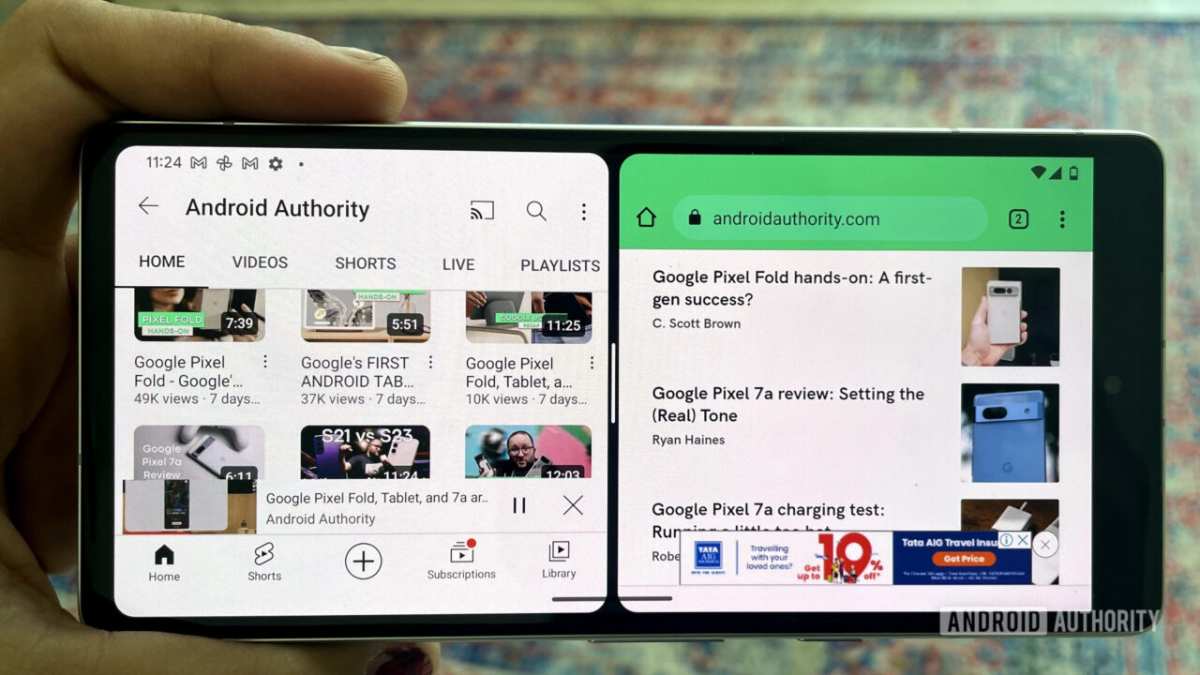
Samsung DeX mode
DeX turns your tablet or phone into a desktop-like interface. You can open up to four apps simultaneously. Each app runs in its own resizable window.
You can stack them, overlap them, or snap them to the edges of the screen. It feels like a Windows desktop. Activate DeX from the quick settings panel.
You'll find it as "DeX" or "Samsung DeX."
DeX works best on large tablets like the Galaxy Tab S series. On phones, it requires an external monitor or a DeX station. But even in phone mode, you get more control over app placement than native split screen.
Native tablet multiview
On non-Samsung tablets, you're limited to split screen with two apps. Some tablets running Android 12L or newer support a taskbar. Swipe up from the bottom to reveal the taskbar.
Drag an app from the taskbar to the left or right side of the screen to enter split screen. You can also open a third app in a floating window on some models.
Which one should you use?
- DeX: Best for power users who need multiple apps visible at once. Ideal for productivity tasks like writing documents while referencing a PDF and having Slack open.
- Native split screen: Best for casual multitasking. Watching a video while browsing the web is easier in native mode because DeX's windows can feel cluttered on a smaller screen.
The "Squished App" Problem: Fixing Compatibility Issues
Nothing kills the multiview mood like launching an app and watching it snap back to full screen. Some apps simply refuse to enter split screen. This isn't a bug.
It's a restriction the developer placed in the app's code.
Why some apps block split screen
Developers disable split screen for a few reasons. Some apps rely on fixed aspect ratios (games, camera apps). Others handle sensitive information (banking apps, streaming services with DRM protection).
When you try to force them into split screen, they revert to full screen or crash.
How to bypass app restrictions
The most reliable fix is on Samsung phones. Download Good Lock from the Galaxy Store, install Multistar, and enable "All apps in split screen view." This overrides the app's compatibility flag. It works with almost every app, including Netflix, HBO Max, and banking apps.
On non-Samsung phones, you can try the developer options workaround. Go to Settings > System > Developer options. Scroll to "Force activities to be resizable." Enable it.
Restart your phone. This forces all apps to support split screen. The catch is that it doesn't work on every device.
Some manufacturers strip this option from their build of Android.
What to do when it still doesn't work
Turn off the app. Clear its cache. Try again.
If the app still refuses, check if it has an update pending. Sometimes app updates intentionally block split screen. If nothing works, you may need to use the app in full screen and rely on picture-in-picture for your other app.
Aggregate user feedback from 2024 and 2025 indicates that streaming apps are the most common offenders. Netflix blocks split screen on all non-Samsung phones. Amazon Prime Video blocks it on most devices.
YouTube only works in PiP mode if you have a Premium subscription.
Pro Tips for Power Users
You've got the basics down. Now let's push multiview further with three advanced techniques that transform how you use your phone.
Drag and Drop Text or Files Between Apps
The real power of multiview isn't just seeing two apps at once. It's moving content between them without copying and pasting.
In split screen, tap and hold on selected text in one app. Drag it directly into the other app. This works for text, images, and even file attachments.
Manufacturer specs confirm this works out of the box in Samsung One UI and stock Android 12 and later.
For Samsung users, drag and drop also works with the Edge Panel. Grab a file from My Files and drop it into an email attachment window. For Xiaomi and OnePlus, this feature is more limited.
You can drag text between some apps but not files.
Keyboard Shortcuts for Multitasking
If you use a Bluetooth keyboard with your tablet or phone, you can control multiview without touching the screen.
On Samsung DeX, press and hold the Windows key (or Command on Mac keyboards) to see a list of shortcuts. Alt+Tab switches between windows. Win+Left arrow snaps an app to the left half of the screen.
On stock Android tablets, use Ctrl+Tab to cycle through recent apps. Ctrl+Shift+Left arrow moves the current app to the left side of split screen. These shortcuts work in Android 13 and newer.
Combining Multiview with Picture-in-Picture
You can run three apps at once by stacking multiview with PiP. Put two apps in split screen. Then play a video in YouTube or Google Maps navigation.
Press the home button. The video shrinks to a floating window on top of your split screen.
The key limitation is that only one PiP window works at a time. If you open a second video, the first one closes. Samsung phones with One UI 5 and newer can handle pop-up view windows alongside PiP, giving you a fourth visible app.
Common Mistakes That Break Multiview
Even experienced users run into these three pitfalls. Knowing them ahead of time saves you frustration.
Accidentally Closing One App
The most common mistake is swiping the wrong direction in recent apps and killing the app you wanted to keep. When you're in split screen, a full-swipe gesture on the wrong app card removes it.
The fix is simple. Use the app icon menu (tap the icon at the top of the card) instead of swiping. This prevents accidental closures.
Gesture Navigation Conflicts
If you use gesture navigation (swipe up from the bottom), entering multiview can trigger the home gesture instead. This happens on Pixel phones especially.
The workaround is to switch to three-button navigation while using split screen. Go to Settings > System > Gestures > System navigation. Select "3-button navigation." You lose some screen space but gain reliable multiview launching.
Overheating and Performance Drops
Running two high-demand apps simultaneously generates heat. Games, video editors, and streaming apps in split screen can push your processor to its limit.
If your phone gets hot, close one app or switch to a lower power mode. Avoid charging your phone while using multiview with heavy apps. The combined heat from charging and processing can trigger thermal throttling, which slows everything down.
Quick Decision Guide: Which Method for Your Situation
Still unsure which approach fits your daily use? Here's a breakdown by scenario.
| If you want to… | Use this method | Best for |
|---|---|---|
| Watch YouTube while browsing | Split screen (any brand) | Casual viewing |
| Take notes from a lecture video | Samsung pop-up view or tablet taskbar | Students |
| Use Slack and a browser simultaneously | Recent apps + app icon (any brand) | Remote workers |
| Run four apps at once | Samsung DeX | Power users |
| Send files between two apps | Drag and drop (Samsung or Pixel) | File transfers |
| Keep a video playing while using other apps | Picture-in-Picture (YouTube Premium) | Video multitasking |
If you have a Samsung phone, your best path is App Pair shortcuts for frequent combos and Good Lock Multistar for forcing incompatible apps. Pixel users should rely on the recent apps drag method. OnePlus and Xiaomi users get the most from floating windows for quick access to secondary apps.
Frequently Asked Questions
Can I use multiview on any Android phone?
Only phones running Android 10 or newer support native multiview. Budget phones with Android Go edition may disable the feature entirely. Check your Android version in Settings > About phone first.
Why doesn't split screen work in every app?
Developers can disable split screen for security or design reasons. Banking apps, streaming services, and games commonly block it. On Samsung phones, Good Lock's Multistar module can bypass this restriction.
How do I exit split screen mode?
Drag the divider line all the way to the top or bottom of the screen. You can also tap the home button, which opens the last focused app in full screen. On Samsung, tap the pop-up view icon to convert one app into a floating window instead.
Can I run three apps at once on Android?
Yes, but only on certain devices. Samsung phones can use pop-up view alongside split screen for three visible apps. Samsung DeX supports up to four resizable windows.
Stock Android phones top out at two apps plus one picture-in-picture window.
Does multiview drain the battery faster?
Yes. Running two apps simultaneously increases screen-on time and processor load. Expect roughly 20 to 30 percent more battery drain compared to using a single app.
Reduce screen brightness and close unused apps to extend battery life.
Will all future Android phones support multiview?
Google made multi-window support a requirement for Android 10 certification, so all new phones should include it. However, budget and enterprise-managed devices may still restrict the feature. As of 2026, multiview is standard on all midrange and flagship Android phones.

Similar Posts





















