How to split screen in Android?
You ever try to run two apps side by side on your Android phone, only to end up frustrated because nothing works the way you expected? You are definitely not alone. How to split screen in Android?
That simple question has about six different answers depending on the phone you carry, the version of Android it runs, and whether you use gestures or old-school buttons. As of 2026, Google’s official documentation confirms that multi-window support has been part of the operating system since Android 7.0 Nougat, but manufacturers have layered on their own shortcuts and limitations. Let’s walk through the actual methods.

Quick Answer: The Three Universal Methods
In our research, three techniques cover nearly every Android phone made since 2017. You open the recent apps screen. You tap or long-press the app icon.
Then you select “Split screen.” That is the core routine.
The first method uses the recent apps button (the square icon on 3-button navigation). The second uses a gesture: swipe up and hold to open recent apps, then long-press the app’s icon. The third is a manufacturer shortcut, like swiping down on the app window in Samsung’s One UI.
The exact steps vary, but the logic stays the same.
Why Split Screen Can Feel Like a Mystery
Android is not one uniform experience. Google gives manufacturers the freedom to change the interface, and they use that freedom aggressively. Samsung’s One UI has its own gestures for split screen.
Xiaomi’s HyperOS uses a different swipe. Pixel phones stick closest to stock Android, but even there, the gesture navigation path changed with Android 10 and again with Android 12.
The confusion grows because many apps simply refuse to split. Games, banking apps, and certain social media apps block multi-window mode for security or performance reasons. Android’s official developer guidelines allow developers to disable resizing, and many do.
So when you try to split screen with your favorite mobile game, the option may not appear at all. That is not your fault. That is the app’s choice.
Another layer of mystery: the language. Some phones call it “split screen,” others say “multi-window,” and a few label it “pop-up view” or “app pair.” The inconsistency makes it hard to even find the feature in settings.
How Android Multi-Window Actually Works
Under the hood, Android splits the screen into two task stacks. Each stack runs its own app independently. The system allocates a portion of the display’s width or height to each app.
You can drag the divider bar to resize the ratio, 50/50 by default, but you can slide it to 70/30 or 30/70 depending on your device and Android version.
Android 7.0 Nougat introduced split screen as a core feature. Android 10 added drag-and-drop support between apps in split mode. Android 12 refined the gesture controls.
Android 14 and 15 brought better stability for large screens and foldables.
The technical requirement: your app must declare android:resizeableActivity="true" in its manifest. If the developer set it to false, the app runs full screen only. Some phones let you override this through Developer Options, but that can cause visual glitches.
Does Your Phone Support Split Screen?
Most modern phones do. The quick way to check: open the recent apps screen and look for the app icon at the top of each card. If tapping that icon shows a “Split screen” option, you are good.
If not, your Android version may be too old, or the manufacturer removed the feature in a low-cost model.
Here is a quick compatibility table based on manufacturer specs as of 2026:
| Manufacturer | Minimum Android version | Notes |
|---|---|---|
| Google Pixel | 7.0 (Nougat) | Full support on all Pixel models |
| Samsung Galaxy | 7.0 (Nougat) | One UI adds app pairs and edge panel shortcuts |
| Xiaomi | 8.0 (Oreo) | HyperOS hides split screen in settings; gesture required |
| OnePlus | 7.0 (Nougat) | OxygenOS uses recent apps method |
| Motorola | 8.0 (Oreo) | My UX supports split screen but requires 3-button nav in some models |
| Oppo / Vivo | 9.0 (Pie) | ColorOS and Funtouch OS offer split screen but it is buried in settings |
You also need at least 3 GB of RAM for a smooth experience. Phones with 2 GB or less may split screen but you will feel the lag, especially if one app is a browser with many tabs.
Step-by-Step: The Right Method for Your Device
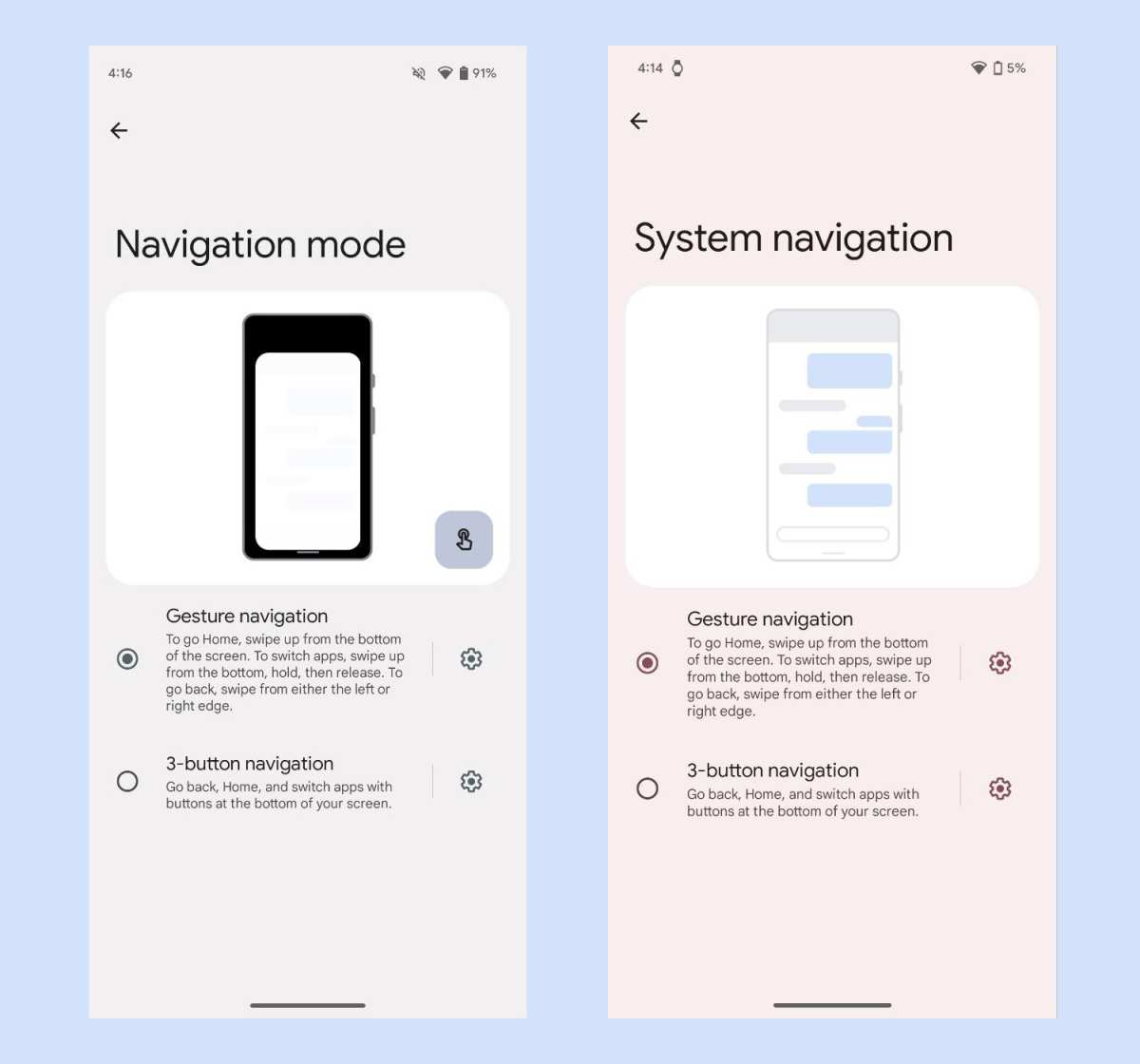
Let’s get specific. Follow the method that matches your phone’s navigation style. If you are unsure which navigation system you use, check your Settings > System > Gestures or Settings > Display > Navigation bar.
For Pixel and Stock Android (Gesture Navigation)
- Swipe up from the bottom and hold. This opens the recent apps screen.
- Tap the app icon at the top of the card you want to split.
- Select “Split screen” from the menu.
- The app shrinks to the top half. Your recent apps appear below.
- Tap the second app you want in the bottom half.
That is it. You can drag the divider bar up or down to resize.
For Pixel and Stock Android (3-Button Navigation)
- Open the first app you want to use.
- Tap the Recent Apps button (the square icon).
- Long-press the app card or tap the icon above it.
- Choose “Split screen.”
- Select the second app from the recent apps carousel.
For Samsung One UI
Samsung offers multiple routes. The most reliable method through recent apps:
- Open your first app.
- Tap the Recent Apps button (or swipe up and hold if using gestures).
- Tap the app icon at the top of the card.
- Select “Open in split screen view.”
- The app moves to the top half. Tap a second app from the recent apps or home screen.
Samsung gesture shortcut: In the recent apps screen, swipe down on an app card to immediately trigger split screen mode. This is one of the fastest methods.
Edge panel method: Enable the Edge panel in Settings > Display. Then swipe inward from the edge handle, find the split screen option, and drag your app into the upper portion.
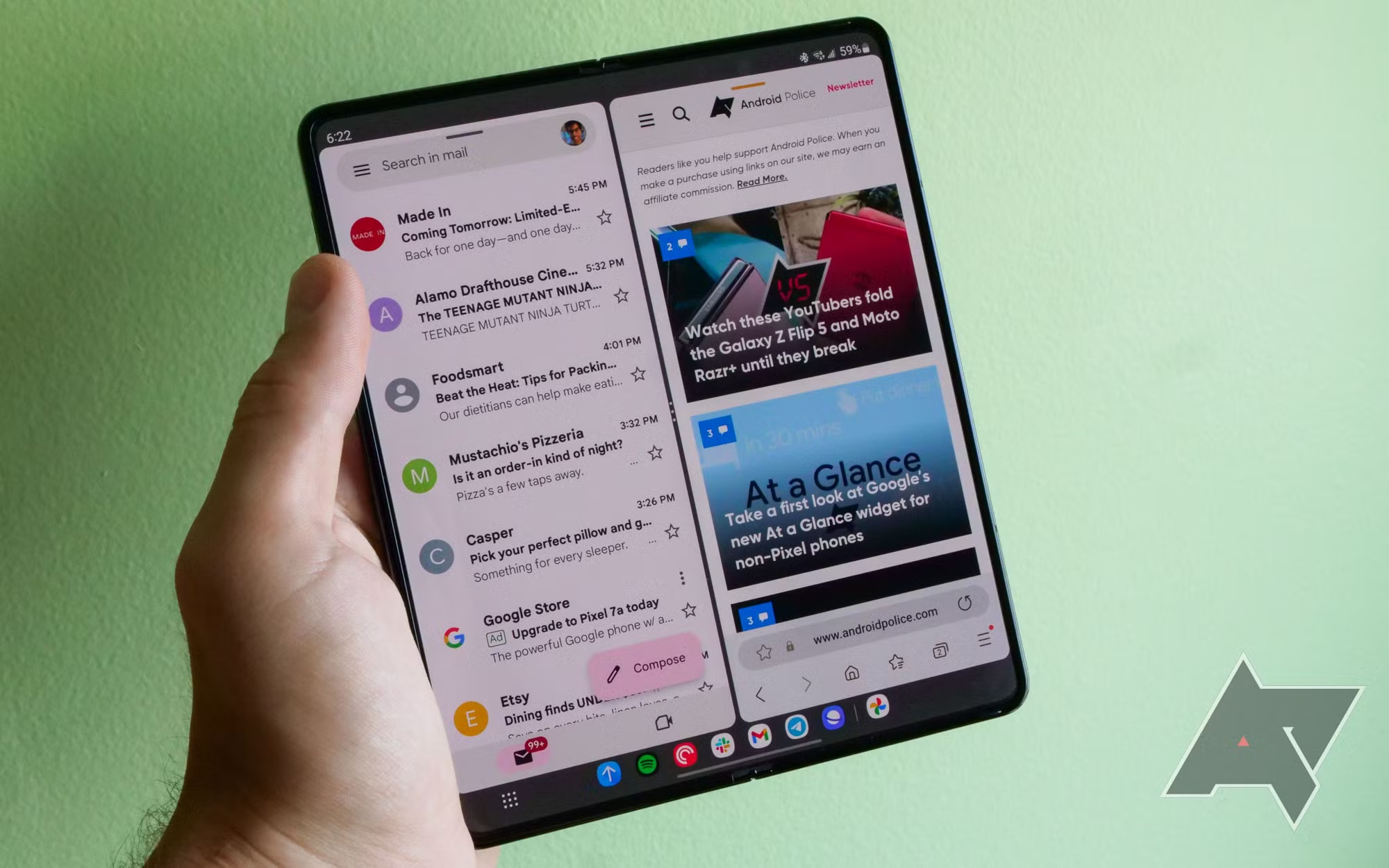
For Xiaomi MIUI and HyperOS
Xiaomi’s approach is less obvious. You need to open the recent apps screen, then look for a small “Split screen” icon at the top of the screen (it looks like two rectangles). Tap it.
The first app will shrink to the top. Then pick a second app from the list.
If you cannot find that icon, go to Settings > Special features > Floating windows and split screen. Enable the feature. On HyperOS, you can also long-press the recent apps button to trigger split screen.
For OnePlus OxygenOS
OnePlus keeps it close to stock. Open recent apps. Long-press the app card.
Select “Split screen.” Alternatively, you can enable a three-finger swipe gesture in Settings > Convenience tools > Quick gestures > Three-finger swipe to split screen.
For Motorola, Oppo, Vivo, and Others
Most of these phones follow the stock Android method with minor label changes. In Motorola’s My UX, open recent apps, tap the app icon, and choose “Split screen.” On Oppo’s ColorOS, you may need to go to Settings > Special features > Split screen and turn it on first. On Vivo’s Funtouch OS, open recent apps and tap “Multi-tasking” at the bottom.
If your phone has a custom skin and you cannot find the option, search your Settings for “split screen” or “multi window.” That usually leads you to the toggle.

Similar Posts





















