How To Access Iphone Screen Broken Effectively In 2023
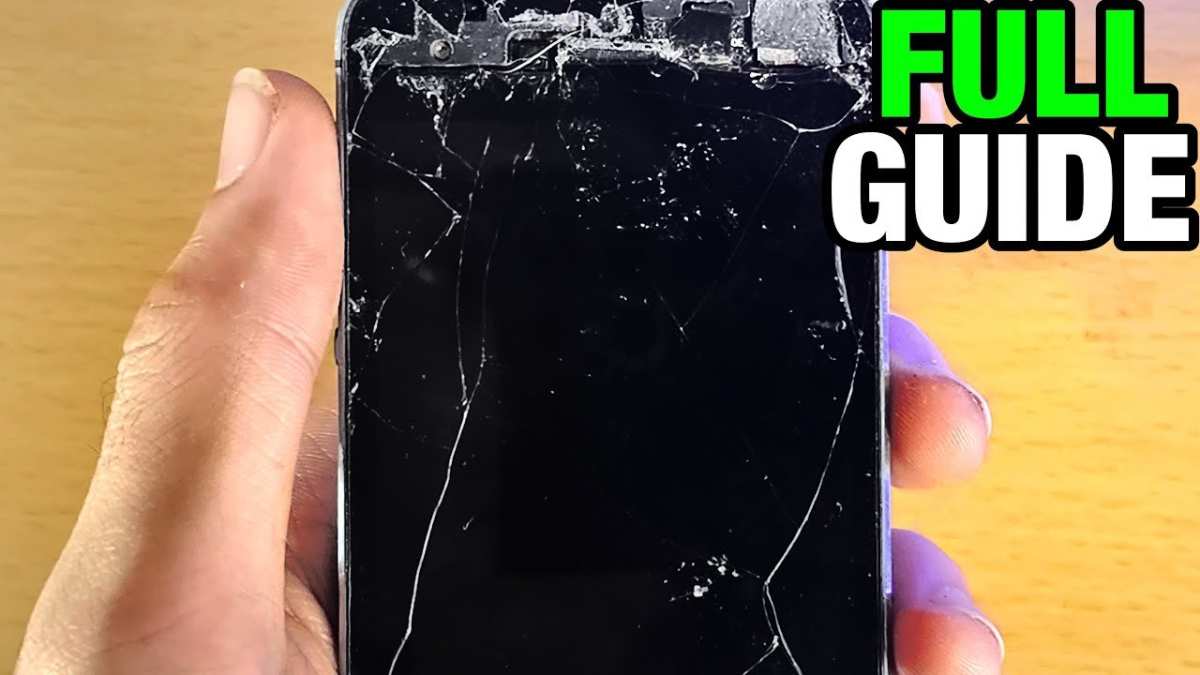
If your iPhone screen is broken, **you can still access your device using external tools or software**. Knowing how to access iPhone screen broken situations helps you retrieve important data quickly. You might consider connecting your iPhone to a computer and using screen mirroring or data recovery software. These methods offer practical solutions without needing to repair the screen immediately. Staying calm and exploring these options ensures you won’t lose vital information or access essential apps.

How to Access iPhone Screen Broken: A Complete Guide
When your iPhone screen gets shattered or stops responding, it can feel like you’re locked out of your device. Whether the screen is cracked, black, or unresponsive, you might worry about losing important data or not being able to use your phone at all. The good news is, there are several ways to access your iPhone even when the screen is broken. This guide walks you through the most effective methods, explaining each step clearly so you can choose the best option for your situation.
Assessing the Damage and Your Needs
Before jumping into solutions, take a moment to understand what kind of damage your screen has sustained. Is it just cracked but still responsive? Or is the display entirely blank? Knowing this helps determine the right approach for accessing your data.
- Cracked but functional screen: You can see and interact with your content, but the display looks damaged.
- Black or unresponsive screen: The display is off, and taps do not produce responses.
- Touch sensitivity issues: The screen responds intermittently, making navigation difficult.
Depending on the damage, some methods work better than others. For minor cracks, you might be able to use your device normally with a screen protector. For more severe damage, you’ll need alternative strategies like connecting your iPhone to a computer or using accessibility features.
Connecting Your iPhone to a Computer
One of the simplest ways to access your iPhone when the screen is broken is by connecting it to a Mac or Windows PC. If your device is recognized by your computer, you can manage files, backup data, or even control your device.
Using iTunes or Finder on a Mac
In macOS Catalina and later, Finder replaces iTunes. Here’s what you need to do:
- Connect your iPhone to your computer using a Lightning or USB-C cable.
- Open Finder or iTunes depending on your Mac version.
- Trust the computer if prompted on your iPhone. This might be difficult if the screen is unresponsive, but if you previously trusted the device, it might connect automatically.
- Access your data or perform a backup. You can copy photos, videos, or other important files.
**Note:** If the device requires unlocking and the screen isn’t responsive, this method may not work unless you’ve set up automatic trust or enabled certain settings beforehand.
Using Third-Party Data Recovery Tools
Some software programs can access your iPhone data without needing to use the screen. These tools can scan your device and extract data such as contacts, photos, messages, and more.
- Reputable options include Dr.Fone, iMobie PhoneRescue, or Tenorshare UltData.
- Download and install the software on your computer.
- Connect your iPhone via USB and follow the tool’s instructions.
- Choose the data you want to recover and save it to your computer.
**Important:** Always pick trusted software from reputable sources to avoid security risks.
Using Accessibility Features to Control Your iPhone
If your device’s screen is unresponsive but the device still recognizes taps or touches, you can enable certain accessibility features to help navigate.
Using VoiceOver
VoiceOver reads what’s on screen aloud, allowing you to control your device without looking.
- Connect a Bluetooth keyboard if possible for easier navigation.
- Activate VoiceOver by asking Siri: “Hey Siri, turn on VoiceOver.”
- Use swipe gestures or a keyboard to navigate through menus and control your device.
Using AssistiveTouch
AssistiveTouch creates a virtual home button and menu for easier control, which can be helpful if the touchscreen is partially responsive.
- Activate AssistiveTouch through Settings > Accessibility > Touch > AssistiveTouch (if you can access these settings beforehand).
- If the screen is unresponsive, this might be difficult without prior setup, but in some cases, Siri can turn it on for you.
Using External Keyboards and Accessories
Connecting an external keyboard via Bluetooth or a Lightning-to-USB adapter can help if the touchscreen doesn’t work at all.
- Ensure your keyboard is paired with your iPhone.
- Use keyboard shortcuts to navigate, select, and control your device.
- This approach allows you to unlock your device, open apps, or copy data without relying on the fragile screen.
Performing a Force Restart
Sometimes, a simple force restart can temporarily fix unresponsive screens and make your device accessible.
Steps for Force Restart
Depending on your iPhone model:
- iPhone 8 or later: Press and release the volume up button, then press and release the volume down button. Hold the side button until the Apple logo appears.
- iPhone 7 or iPhone 7 Plus: Hold both the volume down button and the Sleep/Wake (side) button until the Apple logo shows up.
- iPhone 6s or earlier: Hold the Home button and the Sleep/Wake button simultaneously until the Apple logo appears.
This may temporarily fix glitches, enabling access to your device.
Replacing or Repairing the Screen
If none of the above options work, consider getting your screen repaired. While this involves a cost, it restores full access to your device.
Finding a Repair Shop
Look for certified Apple repair centers or trusted third-party technicians:
- Visit Apple’s official support website to locate authorized service providers.
- Check online reviews to find reputable repair services near you.
- Compare prices and warranty options before committing.
DIY Repair Tips (If You Have Experience)
Some users with technical skills may attempt to repair or replace the screen themselves:
- Order genuine or compatible replacement screens.
- Use proper tools and follow detailed guides or videos.
- Be aware that DIY repairs can void your warranty or cause further damage.
Preventive Measures to Avoid Screen Breakage
Once you’ve managed to access your device, consider steps to protect your iPhone from future damage:
- Use a sturdy protective case.
- Apply a tempered glass screen protector.
- Avoid placing your phone in risky situations, like pockets with keys or bags with heavy items.
- Handle your device with care to prolong its lifespan.
Final Tips for Accessing Your iPhone with a Broken Screen
– Always keep your device backed up regularly. This way, if your screen breaks, you won’t lose important data.
– Enable features like iCloud Backup and Find My iPhone for easy data management and device recovery options.
– In emergencies, leveraging third-party tools or professional repair services can save time and hassle.
– Remember that patience is key—sometimes, simple steps like force restarting or connecting to a computer solve the problem swiftly.
Whether you’re dealing with a cracked display or a completely unresponsive screen, these strategies help you regain control of your iPhone and safeguard your data. Taking proactive steps now can make your device easier to manage if and when mishaps occur.
Frequently Asked Questions
What options do I have if my iPhone screen is broken and I can’t see anything?
If your iPhone screen is entirely unresponsive and you can’t see anything, you can connect your device to a computer and use iTunes or Finder to back up your data. You may also attempt to operate your phone blindly by identifying and pressing specific buttons if you remember their positions. For a more comprehensive solution, consider visiting an authorized service provider or Apple store to have the screen repaired or replaced.
Is there a way to access my iPhone’s data without the functioning screen?
Yes, you can access your iPhone data by connecting it to a computer and using iTunes or Finder. If you’ve previously trusted the computer, you can back up and sync your data without viewing the screen. If not, you may need to repair or replace the screen first or utilize data recovery services that connect directly to the device’s hardware.
Can I operate my iPhone with a broken touchscreen if I have an external keyboard or mouse?
Using an external keyboard or mouse is generally not possible for iPhones since they do not support external input devices in the same way computers do. However, if you enable assistive features like VoiceOver or switch to accessibility options before the screen breaks, you might navigate your device using voice commands or other accessible tools. Otherwise, repairing the screen remains the most effective way to regain full control.
What tools or accessories can help me access an iPhone with a damaged screen?
Adapters like Lightning to USB or USB-C can connect your iPhone to external peripherals if supported. However, most iPhones do not support external display connections directly. To access your data or operate the device, you’ll likely need professional tools or services that repair or bypass the damaged screen. Seeking assistance from certified technicians ensures safety and proper functionality.
Are there any manual steps I can follow to enable data transfer from a broken iPhone?
To transfer data from a damaged iPhone, connect it to a computer with authorized software like iTunes or Finder. If your device is recognized, you can create a backup without needing to view the screen. If it isn’t recognized, professional repair services can help recover your data by temporarily replacing or fixing the screen to access your device properly.
Final Thoughts
To access an iPhone screen broken, you can try connecting your phone to a computer and using iTunes or Finder to back up your data. If the screen is unresponsive, enabling VoiceOver or using AssistiveTouch can help navigate your device.
In some cases, you may need professional repair services or third-party tools to retrieve your information. Understanding these methods helps you manage your device efficiently.
How to access iPhone screen broken becomes manageable with the right techniques. These approaches ensure you can recover your data without unnecessary difficulty.

Similar Posts