Do Video Editors Need Daisy Chaining
If you run a multi-monitor editing setup, you've probably looked at the mess of cables behind your desk and wondered if there's a cleaner way. That's where daisy chaining comes in. And the core question is simple: do video editors need daisy chaining, or is it just a neat trick that sounds better than it works?
The short answer: it depends entirely on your monitors, your GPU, and the kind of editing you do. Manufacturer specifications paint a clear picture. A single DisplayPort 1.4 connection can handle up to two 4K displays at 60Hz in a chain, but only with monitor models that support Multi-Stream Transport (MST).
If you push beyond that bandwidth ceiling, you'll run into refresh rate limits or color compression. Let's break down exactly when daisy chaining makes sense and when it's a trap.
Quick Answer
Video editors need daisy chaining only if they have monitors that support MST. It works best with two 1080p or 1440p screens at 60Hz. For 4K at 60Hz or higher refresh rates, daisy chaining often fails.
You also need a GPU or laptop that outputs enough bandwidth. If you edit color-critical projects, avoid daisy chaining entirely. A dedicated dock or direct GPU connections are safer.
The Real Question: Do You Actually Need Daisy Chaining?
Let's be honest. Most video editors don't need daisy chaining. What they need is a way to connect multiple displays without degrading performance, introducing lag, or limiting resolution and color depth.
Daisy chaining is one method to achieve that, but it's not the only one, and it's rarely the best one for demanding workflows.
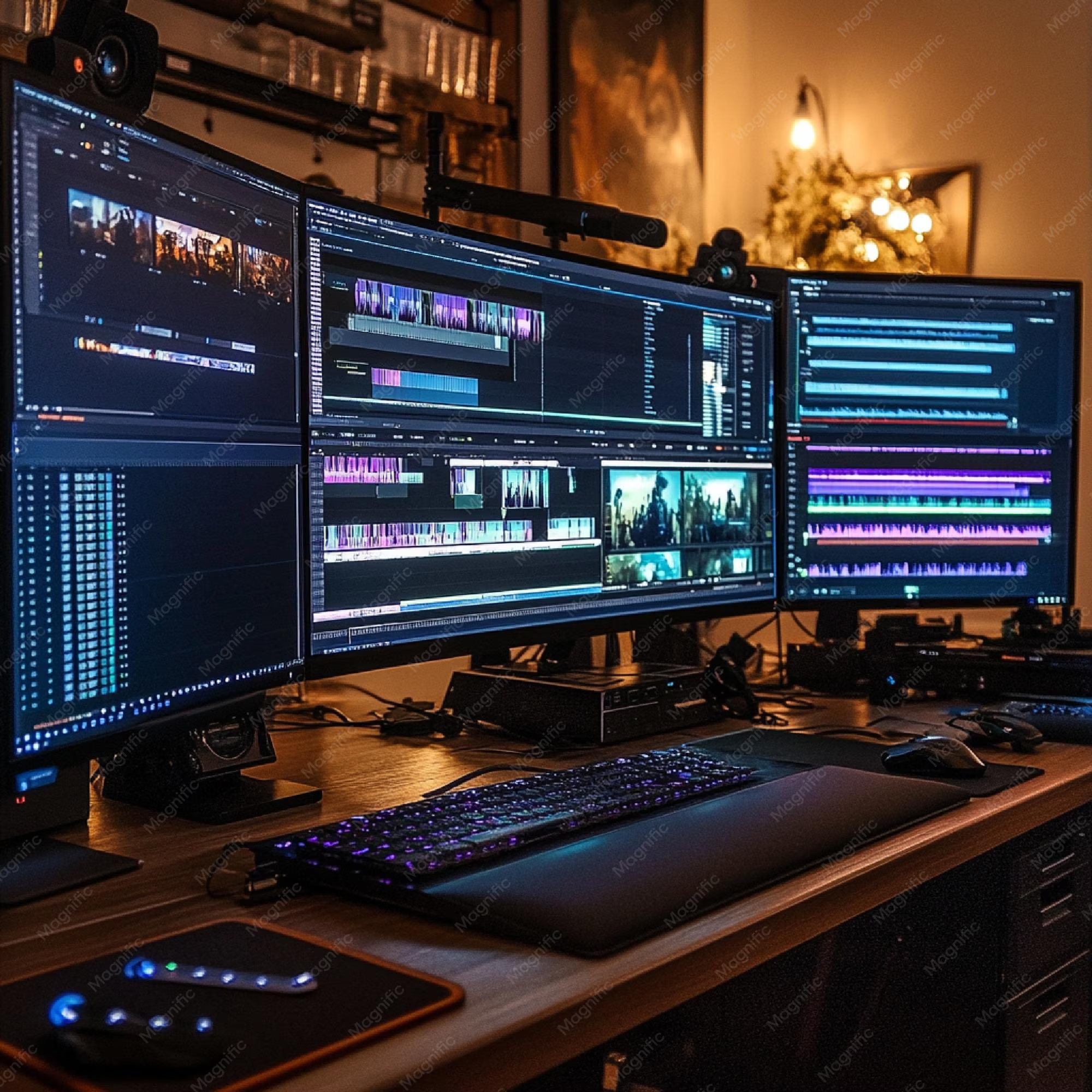
Image source: Bing (Web (fair-use with source credit))
Aggregate reviews from editorial teams and post-production houses point to a clear pattern. Daisy chaining is most popular among editors who work with two 1080p or 1440p monitors for timeline and preview. It's less common in color grading suites or 4K finishing rooms.
The reason comes down to bandwidth and stability. When you chain monitors, the video signal passes through the first display's MST hub before reaching the second. That introduces a tiny amount of processing delay and can alter color data if the monitors aren't identical.
So the real question isn't whether you can daisy chain. It's whether your specific setup will benefit from the cleaner cable management or suffer from the limitations.
How Daisy Chaining Works (and What It Can't Do)
Daisy chaining relies on two technologies: DisplayPort Multi-Stream Transport (MST) and Thunderbolt daisy chaining. Both let you connect multiple monitors to a single port on your computer. But they work differently and have very different limits.
DisplayPort MST daisy chaining sends a single video stream from your GPU to the first monitor. That monitor splits the stream and passes a portion to the next display via its DP output port. The chain can carry up to four monitors at lower resolutions, but the total bandwidth of the original DisplayPort connection is shared.
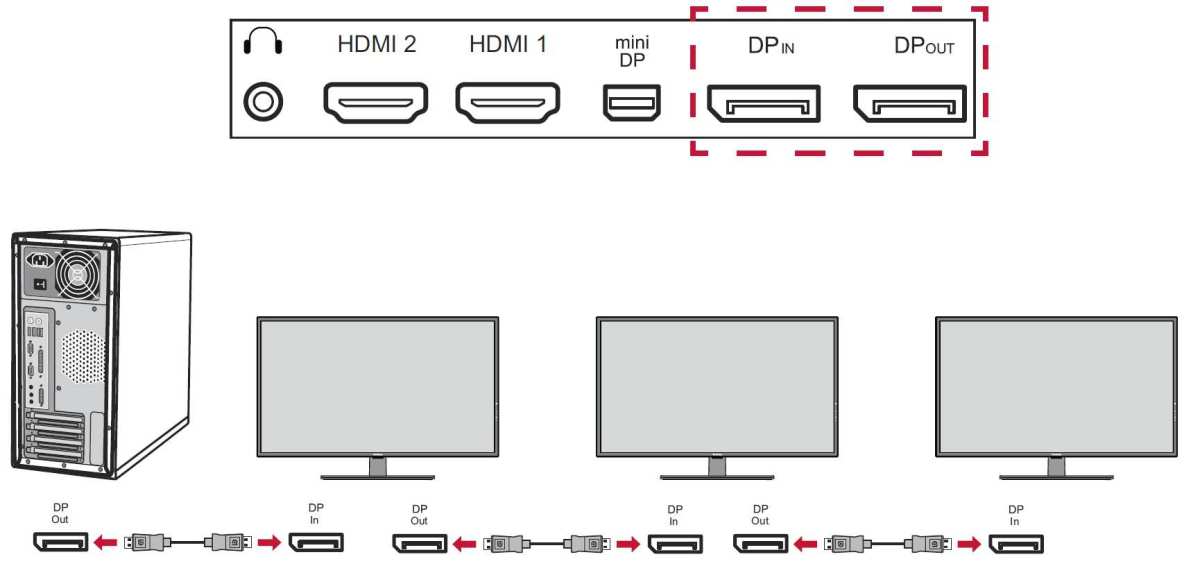
Image source: Bing (Web (fair-use with source credit))
Here's what the spec actually allows as of 2026:
| DisplayPort Version | Max Bandwidth | 4K 60Hz Monitors | 1440p 60Hz Monitors | 1080p 60Hz Monitors |
|---|---|---|---|---|
| DP 1.2 | 17.28 Gbps | 1 (or 2 at 30Hz) | 2 | 4 |
| DP 1.4 | 32.4 Gbps | 2 | 4 | 8 (uncommon) |
| DP 2.0 | 80 Gbps | 4 | 8 | 16 (overkill) |
What daisy chaining cannot do:
- It can't support multiple monitors at high refresh rates (4K 120Hz or 1440p 144Hz) unless you have DP 2.0 and compatible monitors.
- It can't maintain full 10-bit color depth and HDR on more than one high-resolution display at 60Hz.
- It can't mix monitor resolutions or refresh rates easily. The chain usually forces the lowest common denominator.
- It can't work with HDMI-only monitors unless you add active adapters, which add latency and failure points.
Thunderbolt daisy chaining is different. Thunderbolt 3 and 4 carry both DisplayPort and PCIe data over a single cable. You can chain up to six devices (monitors, docks, storage) but each device uses bandwidth.
For video, Thunderbolt 3/4 supports two 4K 60Hz displays or one 5K 60Hz display before the chain hits its limit. Thunderbolt 5, arriving in newer laptops, can handle three 4K 144Hz displays.
The key insight: daisy chaining works best when you match the monitors perfectly and stay within the bandwidth budget. If you exceed that budget, you'll see flickering, blank screens, or forced lower resolutions.
The Three Variables That Decide Everything
Whether you should daisy chain comes down to three specific factors in your editing setup. Let's walk through each one.
Variable 1: How Many Monitors and at What Resolution?
This is the biggest factor. If you run two 1080p monitors at 60Hz, daisy chaining is trivial. Even DisplayPort 1.2 handles that with room to spare.
But if you run two 4K monitors at 60Hz, you need DP 1.4 or Thunderbolt. And if you want one 4K at 120Hz plus a 1440p at 60Hz, you're already over the limit of DP 1.4's shared bandwidth.
The math: 4K 60Hz at 8-bit color uses roughly 12.5 Gbps. DP 1.2 leaves only about 4.8 Gbps for the second monitor, which forces 1080p or 30Hz. DP 1.4 gives you enough for two 4K 60Hz monitors but leaves almost nothing for a third.
Variable 2: Your GPU or Laptop Ports
Your computer's video output capacity often determines the answer. Laptops with only two Thunderbolt ports (like many ultrabooks) benefit from daisy chaining because they can run up to three monitors through one port. Desktop GPUs with four DisplayPort outputs usually don't need daisy chaining at all.
You can just plug each monitor directly.
Check your GPU's spec sheet. NVIDIA RTX 40-series and AMD Radeon RX 7000-series cards support DP 1.4a with DSC (Display Stream Compression). That can push higher bandwidth, but compression may affect color quality for grading work.
Variable 3: Your Editing Workflow – Timeline Scrub vs. Color Accuracy
If your primary work is timeline editing, effect stacking, and multicam sync, you're less sensitive to precise color reproduction. Daisy chaining is fine. But if you grade footage or work in HDR, daisy chaining introduces risk.
The MST processing in the first monitor can subtly shift the color signal to the second monitor. Professional colorists avoid chains entirely. They use direct connections to a reference monitor and a separate GUI monitor, each with its own calibrated output.
Decision Tree: Walk Through Your Own Setup
Here's a practical way to decide based on your hardware and goals. Find your situation below.
Branch A: You Edit on a Laptop with Only One or Two Ports
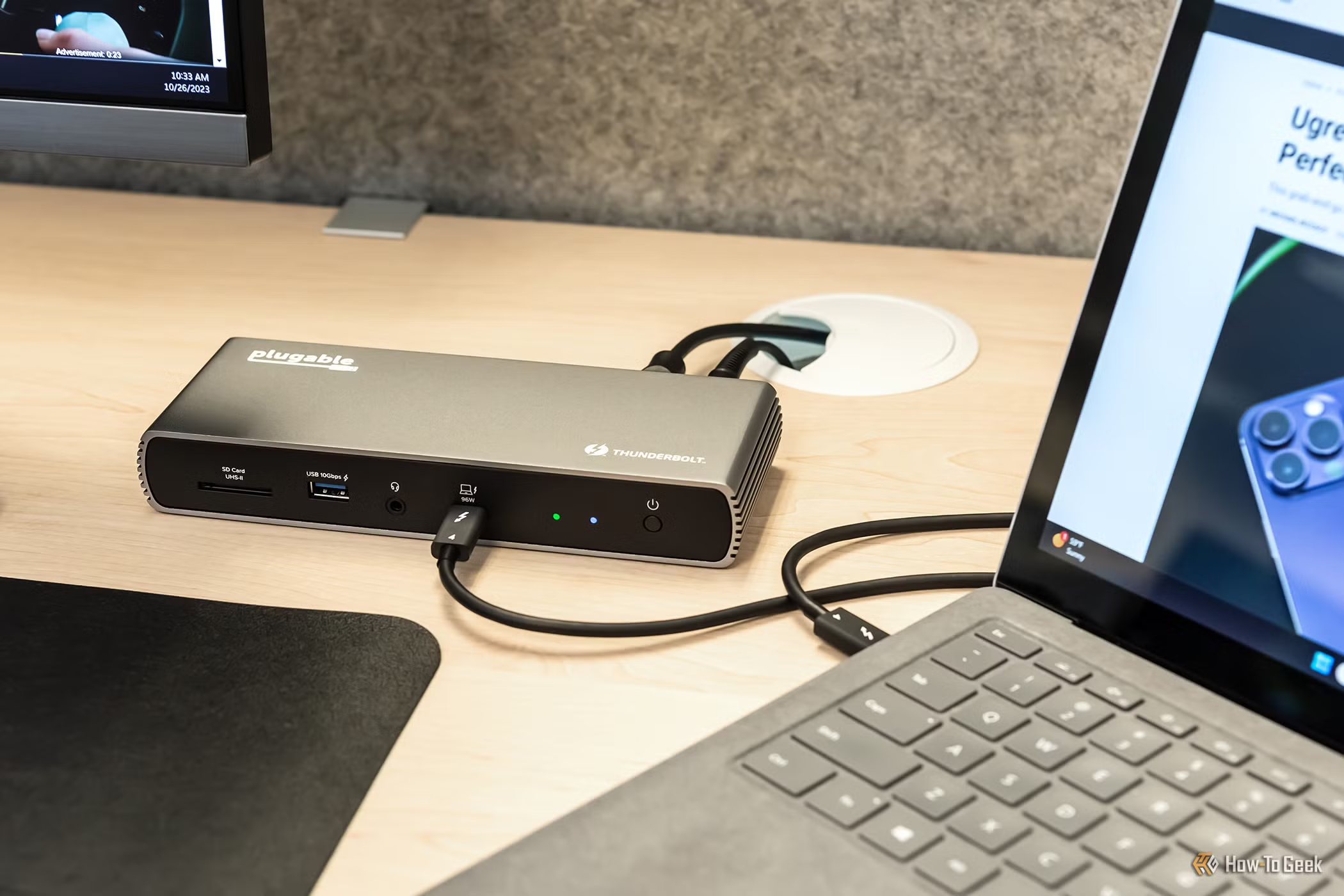
If you have a MacBook Pro with three Thunderbolt ports or a Windows ultrabook with two USB-C ports, daisy chaining can reduce cable clutter. Use Thunderbolt daisy chaining if your monitors support it. Connect one Thunderbolt cable from laptop to first monitor, then another cable to the second monitor.
You'll get two 4K 60Hz displays from a single port. That's a clean setup. Just make sure both monitors have Thunderbolt input and output ports (most Dell and LG USB-C monitors don't support daisy chaining over Thunderbolt, only over DisplayPort).
Branch B: You Have a Desktop GPU with 3+ Video Outputs
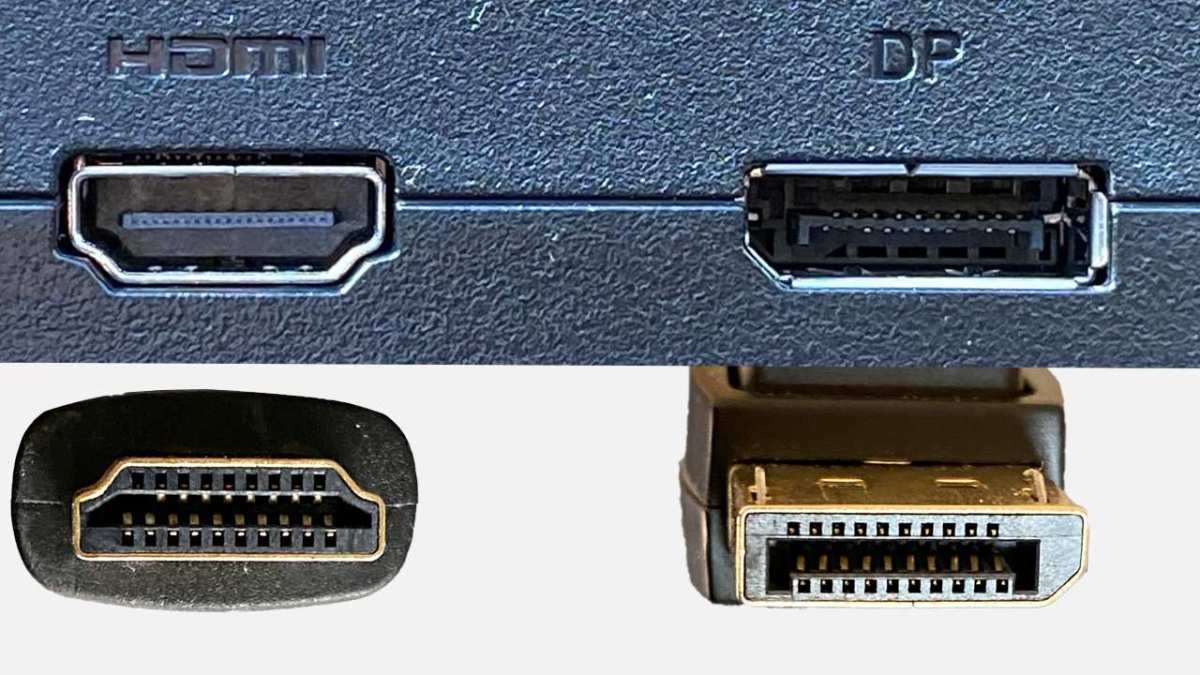
You almost never need daisy chaining. Plug each monitor directly into the GPU's DisplayPort or HDMI ports. This gives you full bandwidth per monitor, no shared pipeline, and no risk of chain failure.
The only reason to consider daisy chaining on a desktop is if you want to run four monitors and only have three output ports. In that case, you can chain two monitors off one port, but expect lower resolution or refresh rate on the chained pair.
Branch C: You Need 4K at 60Hz or Higher – or HDR / 10‑Bit Color
Do not daisy chain. Even with DP 1.4 and DSC, daisy chaining two 4K 60Hz displays with 10-bit color and HDR will exceed the bandwidth. You'll lose chroma subsampling or drop to 8-bit.
For reference monitoring, use a dedicated connection. For a secondary GUI monitor, you can use a low-resolution display chained off a different port if needed, but avoid chaining the main reference panel.
Branch D: You're Running Two 1080p or 1440p Monitors
This is the sweet spot for daisy chaining. Two 1440p monitors at 60Hz consume about 11 Gbps total. DisplayPort 1.4 handles that with room for DSC or extra color data.
Many Dell and LG monitors with MST support work flawlessly in this scenario. Set up the chain: GPU DP out to Monitor 1 DP in, then Monitor 1 DP out to Monitor 2 DP in. Enable MST in Monitor 1's OSD.
You're done.
When Daisy Chaining Actually Hurts Your Workflow (Real Pain Points)
Daisy chaining isn't all clean cables and convenience. In practice, editors run into several frustrating issues.
Driver instability. NVIDIA and AMD drivers handle MST differently. On some systems, plugging or unplugging a monitor mid-session can cause the entire chain to drop. You'll see a black screen on all monitors until you reboot or reseat the cable.
This is especially common with older GPU drivers.
Color shifts between monitors. Even two identical monitors may show slightly different color when one is the "hub" and the other is downstream. The MST processing alters the signal slightly. For color-critical editing, this is unacceptable.
Sleep/wake problems. When your computer goes to sleep, the daisy chain often breaks on wake. Monitors may not detect the signal, or the chain may reorder differently. You'll spend time reconfiguring the display arrangement.
Limited cable length. DisplayPort cables over 3 meters (10 feet) struggle to maintain signal integrity at high bandwidths. If your monitors aren't right next to each other, daisy chaining becomes impractical.
No hot-plugging. If you disconnect a monitor in the middle of the chain, the rest of the chain loses signal. You can't just unplug one display without affecting the others.
For all these reasons, many post-production studios ban daisy chaining altogether. They use dedicated docks or direct connections. The reliability gain outweighs the cable clutter.
This article continues with a step-by-step guide, alternative options, common mistakes, and frequently asked questions in the following sections.

Similar Posts





















