Is 5k Ultrawide Monitor Good for Editing
The question of whether a 5K ultrawide monitor works for editing isn't something you can answer with a simple yes or no. You need to look at the question "is 5k ultrawide monitor good for editing" through the lens of your specific workflow. The honest answer changes completely depending on what kind of editing you do, what software you use, and what hardware is powering your setup.
Manufacturer specifications for monitors like the Dell U4025QW and LG 40WP95C show impressive color accuracy and pixel count. But aggregate reviews from professional editors reveal a clear split. Video editors tend to love the format.
Photo editors often return the display within two weeks. As of 2026, the hardware has improved with better Thunderbolt 4 connectivity and IPS Black contrast ratios, but the usability problem remains the same. Let's walk through the conditions that determine whether this monitor will speed up your workflow or slow it down.
Quick Answer
A 5K ultrawide is excellent for video editing. It is often frustrating for photo editing. The 5120 by 2160 resolution gives you a wider timeline in DaVinci Resolve and Premiere Pro.
But you lose critical vertical space compared to a standard 5K 27-inch display. The decision hinges on your editing type, your GPU power, and your software compatibility. Know your workflow before you buy.
When a Single 5K Ultrawide Makes You Question Your Whole Setup
You have a powerful editing workstation. You are ready for an upgrade. The idea of one massive curved screen replacing two monitors sounds clean and modern.
You can picture it, a single cable connecting your laptop to a gorgeous 40-inch panel with 5K resolution. No bezel cutting through your timeline. No cable clutter.
No juggling windows across two displays.
The reality is more complicated. The 5K ultrawide format, which runs at 5120 by 2160 pixels on a 21:9 aspect ratio, sits in an awkward middle ground. It is not as sharp as a 5K 27-inch 16:9 display, which packs the same horizontal pixels into a smaller area.
It is not as wide as a proper dual-monitor setup. And it demands significantly more from your graphics card than a standard 4K display.
Before you spend anywhere from $1,500 to $2,500 on a monitor like the Dell U4025QW or LG 40WP95C, you need to check three conditions. Your editing type. Your GPU.
Your software. If any one of those conditions works against you, the investment will not pay off.
The Quick Answer: It Depends on What You Edit (and How You Edit It)
The most important question you can ask yourself is simple. What kind of editing do you do most of the time? The answer determines whether a 5K ultrawide is a tool that saves you hours each week or a monitor that makes your day harder.
For video editors who work with long timelines, multiple audio tracks, and multicam footage, the 5K ultrawide format can be genuinely transformative. The horizontal space lets you see more of your project without zooming out until the clips become unreadable. For photo editors who work in Photoshop or Lightroom, the extra width often becomes dead space.
The tools and panels push out to the sides, leaving your image no larger than it would be on a standard 16:9 display.
The split is not about skill or experience. It is about how different editing applications use screen real estate. Some software was built to benefit from width.
Some software was built around height.
Video Editors: Where 5K Ultrawide Actually Shines
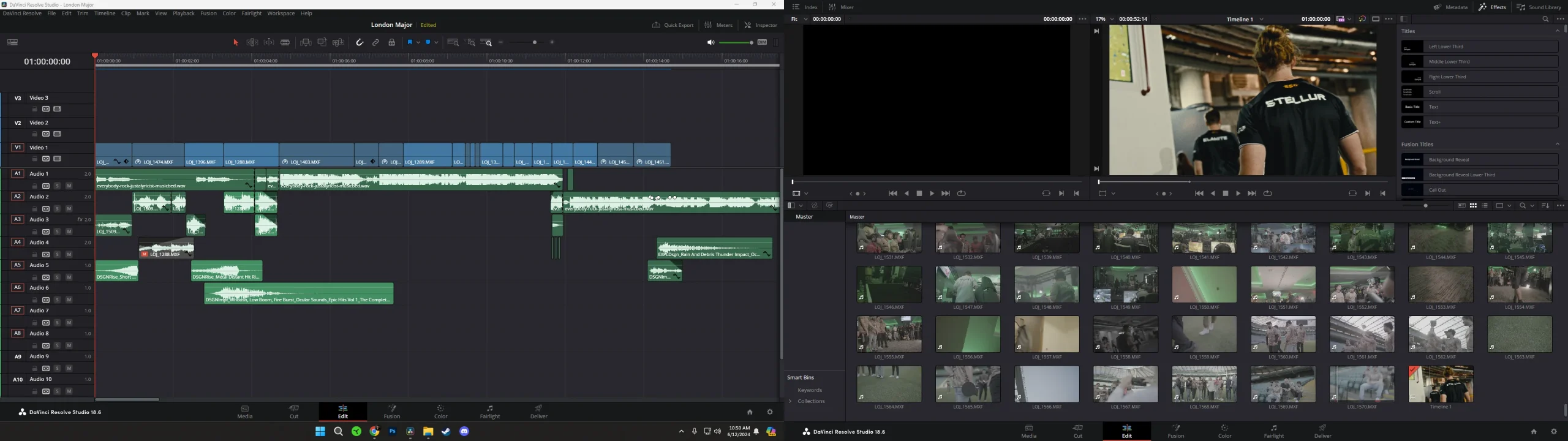
If you spend your day in DaVinci Resolve, Premiere Pro, or Final Cut Pro, the 5K ultrawide format offers a measurable benefit. You can see more tracks in your timeline without scrolling. You can keep your source monitor, program monitor, and effects panel all visible at once.
You can work with multicam footage where each camera angle appears in its own window without covering up your edit.
Think about the layout of a typical video editing session. You have a timeline at the bottom. A source monitor on the left.
A program monitor on the right. Maybe a bin of clips or an effects library along one edge. On a standard 16:9 display, something gets squeezed.
The timeline becomes too short to show enough tracks. The program monitor gets pushed smaller. With a 5K ultrawide at 5120 by 2160, you spread those elements horizontally.
The timeline gains tracks. The monitors stay readable.
Aggregate reviews from video editors who use the Dell U4025QW report timeline improvements of about 20 to 30 percent in terms of visible tracks without zooming. That is a real productivity gain for anyone who does heavy multicam or long-form editing.
Photo Editors: The Hidden Cost of Horizontal Space
Now let's flip the script. If you work in Photoshop, Lightroom, or Capture One, the 5K ultrawide format works against you. The reason is simple.
Those applications were designed around a vertical workflow. Your image sits in the center. Tool panels, layers, and adjustments sit on the sides.
The more horizontal space you add, the further those panels spread. Your image does not get bigger. It just sits in a smaller portion of the screen.
Here is the hard data point. A 5K ultrawide monitor at 40 inches has a pixel density of about 140 pixels per inch. A standard 5K 27-inch 16:9 display has a pixel density of about 218 PPI.
That difference matters for photo editing. You want high pixel density so your image looks sharp at 100 percent zoom without needing to scale the whole interface down.
Photo editors who buy a 5K ultrawide often report one of two frustrations. If they view the image at full resolution, the tool panels eat up the sides and the image stays small. If they zoom in to 100 percent, the image is sharp but the navigation becomes clumsy. The extra width does not give you more usable workspace. It gives you more empty space between your panels.
Colorists: Why Curve Radius and Uniformity Matter More Than Resolution
If color grading is your primary work, the decision gets more technical. The 5K ultrawide monitors in this category typically use a 2500R curve. That means the screen bends enough to fill your peripheral vision at a normal viewing distance.
For a colorist, a curved panel introduces a potential problem. The color and brightness can shift slightly from the center to the edges of the curve.
Manufacturer specifications for the LG 40WP95C and Dell U4025QW show factory calibration with Delta E values under 2. That is excellent for general editing work. But colorists working to broadcast or cinema standards may notice the uniformity shift.
IPS Black technology improves contrast to about 2000:1, which helps with shadow detail. But the curve still means you are not looking at a perfectly flat viewing plane.
If you do color critical work for clients who will view the final project on a flat reference monitor, you should pair a 5K ultrawide with a secondary flat reference display. Do not use the ultrawide as your sole color grading monitor.
GPU Demands: Why Your Graphics Card Might Kill the Dream
A 5K ultrawide monitor pushes about 27 percent more pixels than a standard 4K display. That is roughly 11 million pixels per frame. Your GPU has to render each one.
If you are editing video, the GPU also handles timeline playback, effects rendering, and color grading in real time. If your graphics card cannot keep up, you will see stuttering, dropped frames, and sluggish timeline scrubbing.
Let's be direct about what works and what does not. On a Mac, any M1 Pro chip or newer handles the Dell U4025QW at its native 5120 by 2160 resolution without major issues. The M1 and M2 base chips can struggle with timeline playback in DaVinci Resolve when you add effects.
The M3 Max and M4 Pro are the safe choices for smooth performance.
On Windows, you need at least an NVIDIA RTX 3060 or AMD equivalent to drive the monitor smoothly. That is for basic editing. If you work with 4K or 6K footage, bump that recommendation to an RTX 4070 or better.
An RTX 3080 or 4080 gives you headroom for effects and color grading.
Mac Users: Scaling Traps with macOS and 5K2K
Here is the trap that catches many Mac users. macOS handles nonstandard resolutions in a specific way. If you run the Dell U4025QW at its native 5120 by 2160, the interface elements become very small. Most users end up using a scaled resolution, typically 2560 by 1080 or 3008 by 1269, to make text readable.
The problem is that macOS scaling is not a simple pixel doubling like it is with a standard 5K 16:9 display. The operating system renders the image at a higher resolution and then scales it down. That process uses additional GPU resources and can cause a slight performance hit.
On an M1 Mac, the scaling overhead can add noticeable lag in timeline scrubbing. On an M3 or newer chip, the impact is minimal.
Always test the monitor with your specific Mac model before committing. The manufacturer's return policy is your safety net here.
Windows Users: Fractional Scaling Headaches
Windows handles the situation differently but not necessarily better. The operating system offers fractional scaling, typically 125 percent or 150 percent, to make interface elements readable on high resolution displays. The problem is that not every application renders cleanly at fractional scaling.
Photoshop at 125 percent scaling can look slightly blurry. Premiere Pro handles it better, but some third party plugins do not. DaVinci Resolve on Windows at 125 percent scaling is generally fine, but the interface can feel cramped if you run it at native resolution with no scaling.
The safe approach on Windows is to run the monitor at its native resolution and adjust font sizes within individual applications. That avoids the scaling problems but means some dialog boxes and menus will be very small.
Software Compatibility: What Works and What Breaks
The third condition is software. Even if your editing type fits the format and your GPU can handle the load, your specific applications may not play well with a 5K ultrawide display.
DaVinci Resolve and Premiere Pro: The Good, The Bad, The Timelines
DaVinci Resolve is the best case scenario for a 5K ultrawide. The software was designed with a flexible workspace layout. You can arrange the timeline, color page, and edit page to take full advantage of the horizontal resolution.
The timeline expands naturally. You see more tracks. The source and record monitors can sit side by side without feeling cramped.
Premiere Pro is good but not perfect. The workspace handles the width well in the standard editing layout. The timeline benefits.
But the effects controls and color correction panels are fixed width panels. They do not stretch to fill the available space. You end up with blank areas around those panels.
For both applications, the vertical limitation becomes noticeable when you work with many audio tracks or nested timelines. The 2160 vertical pixels are enough for most sessions. If you do heavy audio editing with dozens of tracks, you will still need to scroll.
Photoshop, Lightroom, and Affinity: Where the Width Goes to Waste
This is where the 5K ultrawide format fails most clearly. Photoshop and Lightroom were designed for a 16:9 or even 4:3 aspect ratio. The image sits in the center.
The tool panels and layers sit on the left and right. When you add more horizontal space, you do not get a bigger canvas. You get wider gaps between panels.
Affinity Photo handles the ultrawide format slightly better than Photoshop. The UI is more flexible. You can move panels around and save custom workspaces.
But the core problem remains. A photograph is a vertical or square composition most of the time. A horizontal monitor does not help you see more of it.
If editing portraits, product shots, or any vertical composition, a 5K ultrawide actually reduces the usable height of your image compared to a 27-inch 5K display. The image is smaller on screen and needs more zooming to work at pixel level.
Desk Space and Viewing Distance: A Practical Reality Check
A 40-inch ultrawide monitor is physically large. It measures about 37 inches wide and 17 inches tall. It needs a desk that is at least 30 inches deep from front to back.
If your desk is only 24 inches deep, you will sit too close. Your eyes will need to scan left and right to take in the full screen. That causes neck strain and eye fatigue over an eight hour editing session.
The ideal viewing distance for a 40-inch curved ultrawide is about 32 to 36 inches from your eyes to the center of the screen. That requires a desk deep enough to set the monitor back or a monitor arm that pushes it away from you.
Measure your desk before you buy. A monitor arm with VESA 100 by 100 or 200 by 100 compatibility can help if your desk is borderline. Do not assume the included stand will work in your space.
The Dell U4025QW stand alone is about 11 inches deep, which eats into your usable desk area.
Single Monitor vs. Dual Monitors vs. 5K Ultrawide: The Real Trade-Offs
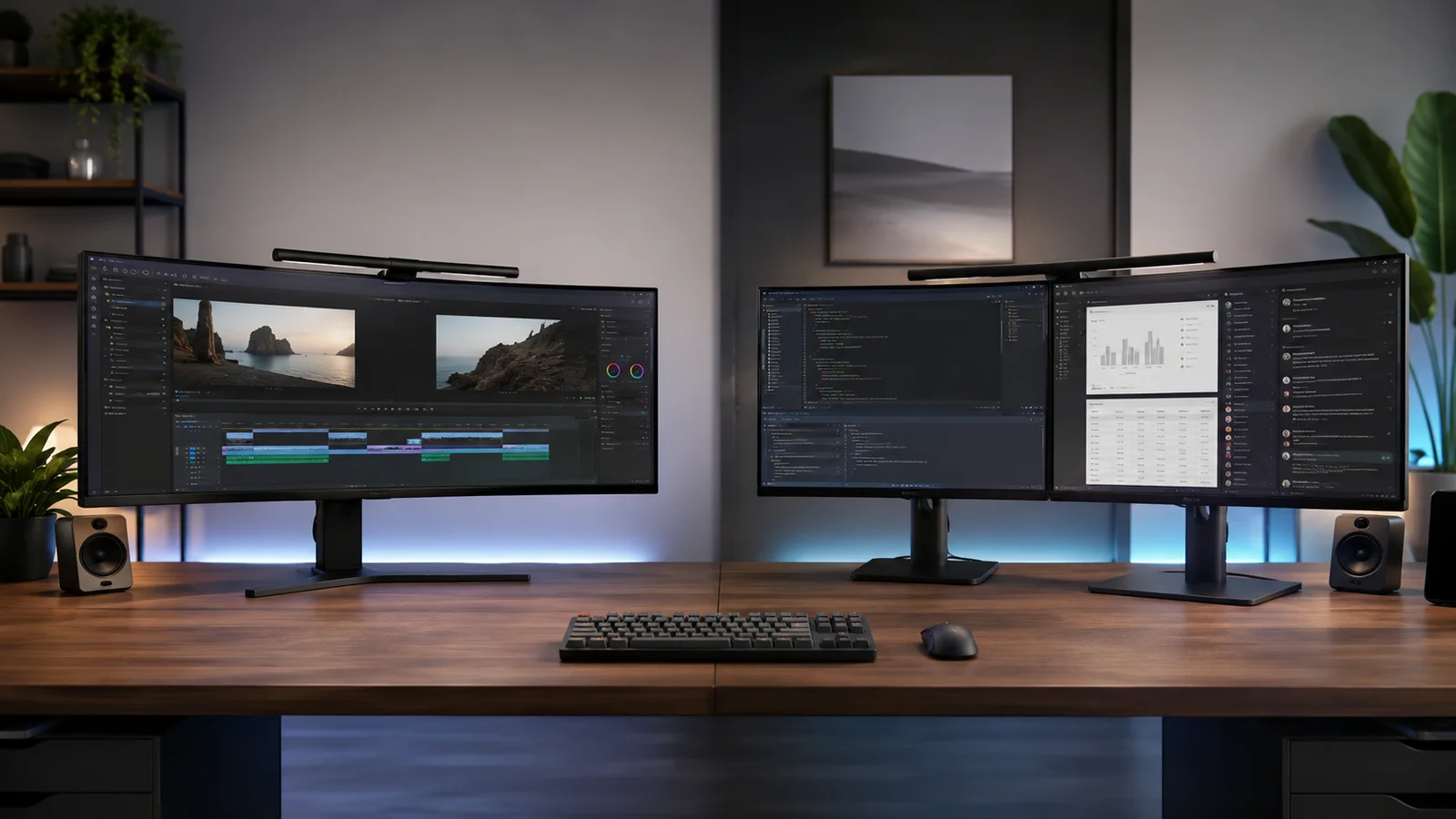
The most common alternative to a 5K ultrawide is a dual monitor setup. Two 27-inch 4K displays. One for your timeline and project files.
One for your preview monitor and tool panels. That setup gives you more total screen real estate than a single 40-inch ultrawide. But it introduces a bezel gap in the middle and takes up more desk width.
Here is the comparison in practical terms. A dual monitor setup with two 27-inch 4K displays gives you about 5120 by 2880 total pixels if you align them horizontally. That is more vertical resolution than a 5K ultrawide.
But the bezel in the middle means you cannot drag a single timeline across both screens. You have to split your workspace.
A 5K ultrawide gives you a continuous surface. No bezel. No gap.
That matters for video editing where you want to see the full timeline in one uninterrupted view. It matters less for photo editing where the bezel does not interfere with your workspace.
The other alternative is a standard 5K 27-inch 16:9 monitor. That gives you higher pixel density at 218 PPI versus 140 PPI. It gives you more vertical space.
And it costs significantly less, typically $1,200 to $1,600 versus $1,500 to $2,500 for the ultrawide. For photo editing, the standard 5K display is usually the better choice.
The Hidden Cost: Price vs. Pixel Density vs. Vertical Real Estate
Let's talk numbers. A 5K ultrawide monitor like the Dell U4025QW costs around $2,000 as of early 2026. The LG 40WP95C is similar at $1,900 to $2,200.
A standard 5K 27-inch display like the Apple Studio Display costs $1,600. A pair of 27-inch 4K monitors costs about $1,000 total for good models.
The price difference matters. But the real cost is in how the monitor affects your daily workflow. A monitor that does not match your editing type costs you time every single day.
The productivity loss adds up faster than the purchase price.
For video editors who can use the width, the 5K ultrawide pays for itself in reduced timeline scrolling and better workspace organization. For photo editors, the lower pixel density and wasted horizontal space mean the monitor never reaches its potential.
Three Decision Paths: Which One Fits Your Workflow?
Now that we have covered the conditions, you can place yourself in one of three paths.
Path A: Full Speed Ahead. If You Meet All the Conditions
You should buy a 5K ultrawide if every statement below is true. You edit video in DaVinci Resolve or Premiere Pro. You use a Mac with M3 Pro or newer or a Windows PC with an RTX 4070 or better.
You have a desk at least 30 inches deep. You work with multicam footage or long timelines. You do not do heavy photo editing as your primary work.
If that describes you, the Dell U4025QW or LG 40WP95C will improve your editing speed and reduce the time you spend scrolling and rearranging windows.
Path B: The Compromise. When 4K Ultrawide Makes More Sense
If you edit video but your GPU is older, an RTX 3060 or M1 Mac, a 4K ultrawide at 3840 by 1600 is a better fit. It demands less from your graphics card. It still gives you the wide timeline view.
And it costs $800 to $1,200, roughly half the price of the 5K version.
The pixel density at 3840 by 1600 on a 38-inch panel is about 110 PPI. That is less sharp than the 5K version. But it is still workable for video editing.
Many editors never notice the difference once they start working.
Path C: Walk Away. When a Standard 5K 27-Inch Is the Smarter Buy
If your primary work is photo editing, color grading, or graphic design, skip the ultrawide entirely. Buy a standard 5K 27-inch 16:9 monitor. You get higher pixel density, more vertical space, and better compatibility with Photoshop, Lightroom, and color grading software.
The Apple Studio Display is the obvious choice for Mac users. For Windows, a 27-inch 5K display from Dell or ASUS gives you similar specs at a lower price. The vertical resolution at 2880 pixels gives you room for tool panels above and below your image.
Common Mistakes Editors Make When Shopping 5K Ultrawide
The first mistake is buying for the timeline without checking the software. DaVinci Resolve is great with ultrawide. Premiere Pro is good.
Final Cut Pro has some quirks with full screen mode on ultrawide displays. Test your specific software before you buy.
The second mistake is underestimating the GPU requirement. A 5K ultrawide needs real graphics power. If you are on a laptop with an integrated GPU, you will have problems.
The timeline will stutter. The interface will feel sluggish. You will blame the monitor when the real issue is the GPU.
The third mistake is ignoring the vertical limitation. The 2160 vertical pixels sound like a lot. But compared to a 27-inch display at 2880 vertical pixels, you lose over 700 pixels of height.
That matters for photo editing. It matters for web design. It matters for any workflow where you need to see more top to bottom.
The fourth mistake is not checking the return policy. A 5K ultrawide is not a standard monitor. It may not work for your workflow.
Buy from a retailer with a 30 day return window and no restocking fee. Give yourself time to test the monitor with your actual projects.
Frequently Asked Questions
Can a 5K ultrawide replace two monitors for editing?
It can replace two monitors for video editing if your main concern is a continuous timeline. For photo editing or general productivity, two monitors offer more total screen real estate and better vertical space.
Is the Dell U4025QW good for color grading?
The Dell U4025QW is factory calibrated with Delta E under 2 and covers 98 percent DCI-P3. It works for color grading if you are not working to strict broadcast standards. The 2500R curve can cause slight uniformity shifts at the edges.
Does Photoshop work well on a 5K ultrawide monitor?
Photoshop works but does not benefit from the width. The tool panels spread out. Your image stays the same size.
A standard 5K 27-inch display gives you a better experience for photo editing.
What GPU do I need for a 5K ultrawide monitor?
On Mac, you need M3 Pro or newer for smooth performance in video editing. On Windows, start with an RTX 4070 or better. An RTX 3060 can handle the desktop but will struggle with video timeline playback.
Is the LG 40WP95C better than the Dell U4025QW for editing?
Both monitors use similar IPS Black panels with comparable color accuracy. The Dell U4025QW offers 120Hz refresh rate versus the LG at 72Hz. The LG has Thunderbolt 4 with 96W power delivery.
The Dell delivers 140W. Choose based on your laptop power requirements.
Will a 5K ultrawide work with Final Cut Pro?
Final Cut Pro works with 5K ultrawide displays but has a quirk. The interface scales differently than DaVinci Resolve. The timeline does not stretch as naturally to fill the width.
It is usable but not optimal.

Similar Posts





















