why is my second monitor not working
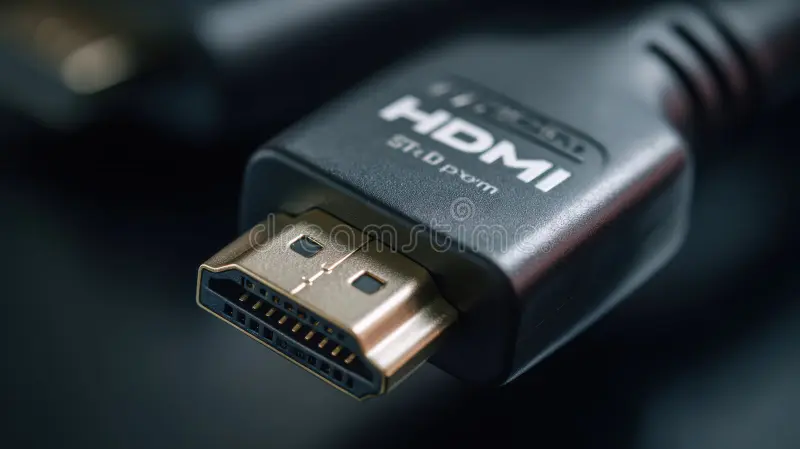
You’re sitting down to work. You plug in your second monitor, press the power button on both screens, and… nothing. The second display stays black.
Maybe it flashes “No Signal” or just sits there in power-save mode. If you’ve ever asked yourself why is my second monitor not working, you’re not alone. It’s one of the most common desk frustrations out there.
The good news? In most cases the fix takes about five minutes. Per DisplayPort and HDMI standards, the handshake between your graphics card and monitor is usually reliable, but a loose cable, wrong input source, or driver hiccup can break it.
Let’s walk through the steps logically so you can get your second screen up and running without calling IT.

Image source: Wikimedia Commons / J Brew (CC BY-SA)
Problem / Pain Point
So what does “not working” actually mean? It can look different depending on where the breakdown is.
- No signal message, the monitor is on but says “No Signal” or “No Input”. That usually means the monitor isn’t receiving any video data.
- Black screen, power light on, the monitor has power, but the screen stays dark. Could be a cable issue, EDID handshake failure, or GPU driver stall.
- Monitor detected but blank, your operating system sees the second display in settings, but the screen shows nothing. This often points to a resolution or refresh rate mismatch.
- Flickering or unstable image, the picture appears briefly then cuts out. Usually a cable bandwidth problem or loose connection.
- Not detected at all, Windows or macOS simply doesn’t show a second display anywhere. The OS has no idea it exists.
Each of these tells you something different about where to start looking. The first step is to understand what your exact symptom is.
Quick Answer
Your second monitor probably isn’t working because of a loose cable, wrong input source, or driver issue. Check the cable connection at both ends. Press the input button on the monitor to cycle through HDMI and DisplayPort.
Press Windows + P and select Extend. If that fails, restart your computer. Most problems solve in under two minutes.
Core Explanation / How Monitor Detection Works
Modern monitors and graphics cards talk to each other through a protocol called EDID (Extended Display Identification Data). When you plug in a monitor, the video output sends a tiny data packet over the cable. The packet includes the monitor’s native resolution, supported refresh rates, and manufacturer info.
The GPU reads that data and configures the output accordingly.
If the cable is loose, the wrong type, or the port is disabled, that handshake never happens. The GPU never learns what the monitor can do, so it sends nothing. That’s the “No Signal” message, the monitor is alive but has nothing to display.
Windows and macOS rely on the GPU to report connected displays. If the GPU doesn’t see a valid EDID, it won’t show a second display in the OS settings. That’s why sometimes the monitor powers on but you can’t find it in Display Settings or System Preferences.
As of 2026, most modern cables and ports support hot‑plug detection, you can plug in a monitor while the computer is running and the OS should detect it automatically. But even hot‑plugging can fail if the GPU driver is stuck or the EDID is corrupt.
Step 1 – The Obvious Checks (Cables, Power, Input Source)
Before you dig into software or BIOS settings, do the cheap and easy stuff. These four checks solve probably 70 percent of second‑monitor problems.
Power cycle the monitor. Turn off the monitor, unplug it from the wall, wait 30 seconds, plug it back in, and turn it on. This clears any internal state that might be stuck.
Reseat the cable at both ends. Unplug the cable from the monitor and the computer, then plug it back in firmly. Push until you feel the click on HDMI and DisplayPort. A loose connector is the number one cause of “No Signal”.
Check the monitor’s input source. Press the input or source button on the monitor itself. Cycle through HDMI 1, HDMI 2, DisplayPort, USB-C, and so on. Many monitors don’t automatically switch to the active input.
You might be looking at an empty port.
Test with a different cable and a different port. If you have a spare HDMI or DisplayPort cable, try it. Also try a different port on your graphics card or motherboard. If the monitor works with a different cable, the original one is bad.
If it works on a different port, your original port might be damaged or disabled.
Image source: Bing (Web (fair-use with source credit))
Step 2 – Does Your OS See the Monitor?
:max_bytes(150000):strip_icc()/003-add-a-second-monitor-2640288-ee23fe346f8744a78fb9a4ce7892ab61.jpg)
Image source: Bing (Web (fair-use with source credit))
Now let’s find out if your computer actually knows the monitor is plugged in.
On Windows 10 and 11:
Press Windows key + P. A sidebar will pop up with four options: PC screen only, Duplicate, Extend, Second screen only. Click Extend if it isn’t already selected.
If the second monitor stays black, open Settings > System > Display. Scroll down to “Multiple displays” and click Detect. Windows will rescan the ports.
If a second display appears in the preview area, you’re halfway there.
On macOS:
Go to System Settings > Displays. Hold the Option key and click Detect Displays (the button may appear as a small icon in the bottom‑right corner). If the monitor is detected, you’ll see it in the display arrangement diagram.
What to look for:
- If the monitor appears in the settings but the screen is black, the OS has a handshake. The issue is likely a resolution or refresh rate mismatch. Try setting a lower resolution or 60 Hz.
- If the monitor does not appear at all, the hardware handshake (EDID) failed, or the GPU port is not outputting. Move on to the next step.
:max_bytes(150000):strip_icc()/003-add-a-second-monitor-2640288-ee23fe346f8744a78fb9a4ce7892ab61.jpg)
Image source: Bing (Web (fair-use with source credit))
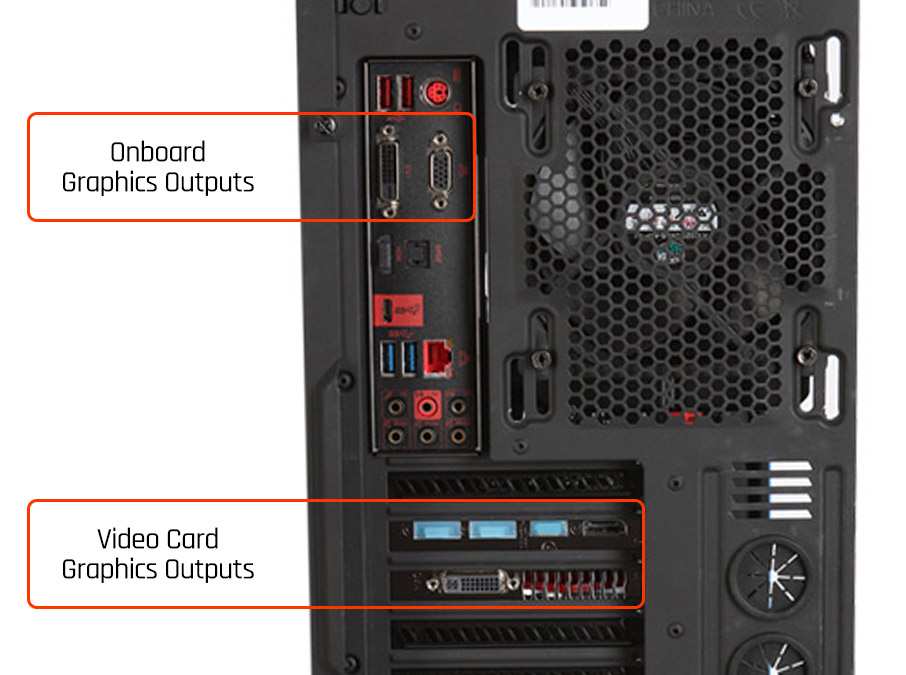
Image source: Bing (Web (fair-use with source credit))

Similar Posts































