what is the best size for dual monitors
If you're trying to figure out what is the best size for dual monitors, you've probably noticed the advice online is all over the place. Twenty-four inches? Twenty-seven?
Thirty-two? The truth is there's no single "best" size that works for everyone, the answer changes based on your desk, your eyes, and what you actually do on those screens.
In our research, manufacturer specs and ergonomic guidelines point to 27 inches as the most common sweet spot for dual setups as of 2026. But that doesn't mean it's right for you. The key is matching the size to your specific conditions, and that's exactly what we'll walk through here.
Quick Answer
The best size for dual monitors is 27 inches at 1440p resolution for most people. It balances screen real estate with neck comfort. You need a desk at least 55 inches wide.
This size works for coding, design, and office work. If your desk is smaller, choose 24 inches. For gaming or video editing, consider 32 inches.
Why "Best Size" Depends Entirely on Your Setup

Image source: Wikimedia Commons / Mack Male from Edmonton, AB, Canada (CC BY-SA)
A 27-inch monitor is great, until you try to squeeze two of them onto a 48-inch desk. Suddenly your neck is craning and your mouse arm is scraping the wall. Size only works when it fits your physical space and your workflow.
The real question isn't "what size should I buy?" It's "what size fits my desk, my resolution limits, and my primary use case?" That's why this article isn't a one-size-fits-all recommendation. We're going to help you decide by running through three key variables.
The Three Variables That Decide Your Dual Monitor Size
Three factors override everything else when choosing dual monitor sizes. Change any one of them, and the "best" answer shifts.
1. Desk Depth and Width
- Minimum desk width for two 24-inch monitors side by side: 50 inches
- Minimum for two 27-inch monitors: 55 inches
- Minimum for two 32-inch monitors: 65 inches
- Desk depth matters too. A 24-inch deep desk puts a 32-inch monitor too close to your eyes, causing strain.
2. Resolution Matching
Mixing resolutions is a trap. A 1080p 24-inch paired with a 1440p 27-inch will make windows look different sizes when you drag them across. The cursor jumps.
Text blurs. You'll end up running the 1440p monitor at a non-native resolution, which defeats the purpose.
3. Primary Use Case
- Coding / writing: 24-inch or 27-inch works fine. You need vertical space for code, not width.
- Design / video editing: 27-inch 1440p or 4K is ideal. Color accuracy matters more than sheer size.
- Gaming: 27-inch 1440p is the sweet spot. Two 32-inch monitors can cause too much head turning.
- Stock trading / data analysis: 32-inch or even larger gives you room for multiple charts side by side.
Quick Size Guide: 24″ vs 27″ vs 32″ for Dual Monitors

Image source: Wikimedia Commons / Acabashi (CC BY-SA)
Here's a quick reference table to compare the three most common sizes for dual monitor setups as of 2026.
| Monitor Size | Typical Resolution | PPI (approx) | Minimum Desk Width | Best For |
|---|---|---|---|---|
| 24-inch | 1920×1080 (1080p) | 92 PPI | 50 inches | Budget setups, small desks, office tasks |
| 27-inch | 2560×1440 (1440p) | 109 PPI | 55 inches | Most people, productivity, gaming |
| 32-inch | 3840×2160 (4K) | 140 PPI | 65 inches | Design, video editing, data-heavy workflows |
Key takeaway: The 27-inch 1440p hits the best balance of pixel density and physical size. You get sharp text without needing scaling. The 24-inch 1080p is still fine for basic work, but the lower PPI means you'll see individual pixels up close.
When 32-inch works: If you have a deep desk (30+ inches) and a powerful GPU to drive two 4K displays, 32-inch monitors give you immense screen real estate. Just be ready for more head movement.
When 24-inch works: Tight desk space or a tight budget. Two 24-inch monitors cost significantly less than two 27-inch models. They also work well in a stacked configuration (one above the other) because the lower monitor sits closer to eye level.
How to Evaluate Your Desk Space and Viewing Distance
Image source: Bing (Web (fair-use with source credit))
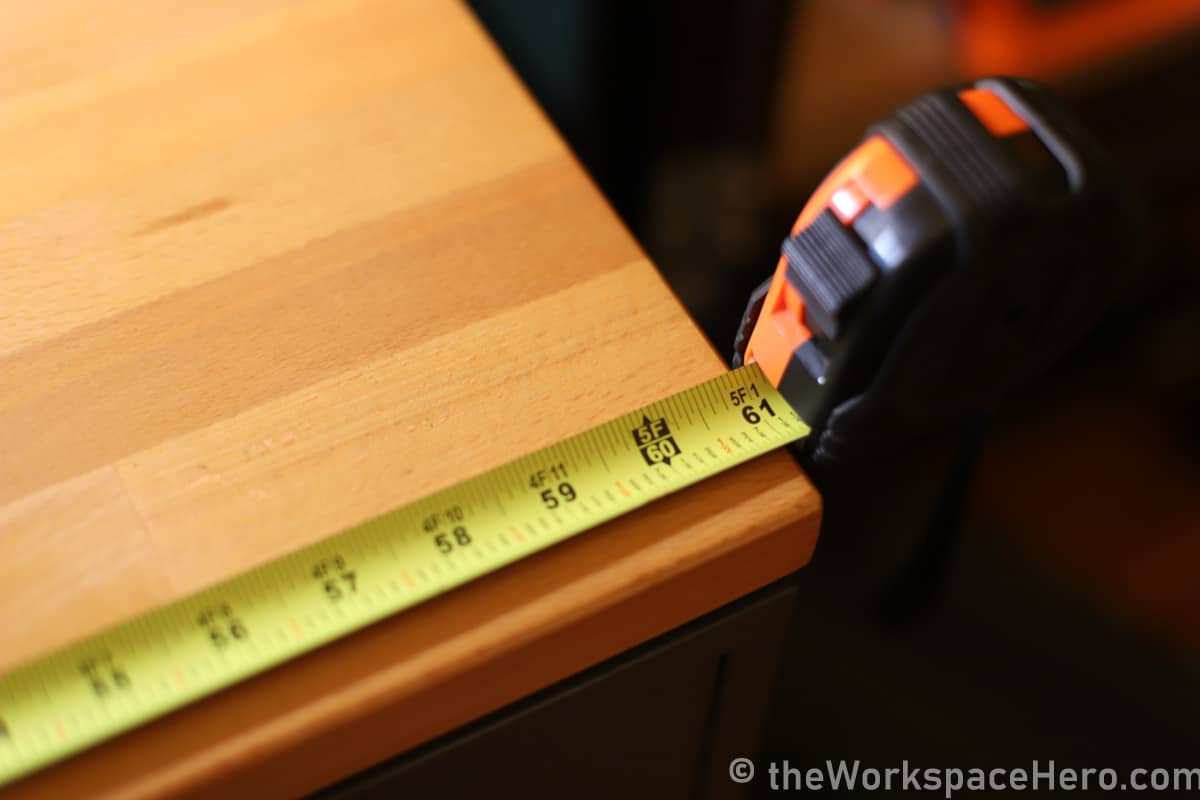
Before you buy a single monitor, measure your desk. Really. Use a tape measure.
We've seen people buy two 32-inch monitors only to find they had to sit three feet away to see both comfortably.
Here's the simple process:
Measure desk width. Side-by-side dual monitors need at least 50 inches for 24-inch, 55 inches for 27-inch, and 65 inches for 32-inch. That's from the left edge of the left monitor to the right edge of the right monitor, including bezels.
Measure desk depth. Standard desks are 24 inches deep. That's enough for 24-inch and 27-inch monitors. For 32-inch monitors, you need at least 30 inches of depth to maintain a proper viewing distance (arm's length, roughly 20-30 inches from your eyes to the screen).
Check your viewing distance. Sit in your chair. Extend your arm. Your fingertips should touch the center of the screen comfortably. If you have to lean forward or squint, the monitor is too far. If you feel like you're kissing the screen, it's too close.
Consider monitor arms. A VESA-compatible monitor arm can tilt, swivel, and adjust height. This is especially useful when mixing different sizes or stacking monitors. Make sure your desk has a clamped or bolted mount point that can support the combined weight of two monitors.
Quick calculation: A 27-inch monitor at 1440p has a PPI of about 109. At 24 inches viewing distance, that's sharp enough for most people. A 32-inch 4K monitor at the same distance has a PPI of 140, very sharp, but you'll likely need scaling in the OS, which can cause issues with some apps.
Matching Resolutions: The Hidden Compatibility Trap
This is where most dual monitor setups go wrong. You grab a great deal on a 27-inch 1440p monitor for your primary screen. Then you use an old 24-inch 1080p as your secondary.
And suddenly everything feels off.
Windows drag across differently. Text looks sharp on one screen and fuzzy on the other. The cursor jumps when you move between them.
It's frustrating and it slows you down.
Why resolution mismatch creates problems
The issue is pixel density. A 27-inch 1440p monitor has about 109 pixels per inch. A 24-inch 1080p monitor has about 92 PPI.
That difference means items on the 1080p screen appear roughly 15 percent larger. When you drag a window from one to the other, it either shrinks or grows visibly.
Operating systems try to compensate with scaling. Windows offers 100%, 125%, 150% scaling. But mixing scaling percentages between monitors creates blurry text on the secondary display.
MacOS handles it a bit better but still introduces performance overhead.
The safe resolution pairs
Based on our research and manufacturer specs, here are the combinations that work seamlessly:
| Primary Monitor | Secondary Monitor | Scaling Behavior |
|---|---|---|
| 27-inch 1440p | 27-inch 1440p (same model) | Perfect match, no scaling needed |
| 27-inch 1440p | 24-inch 1080p | Workable, but scaling differences visible |
| 27-inch 1440p | 24-inch 1440p | Good, same PPI, different physical size |
| 32-inch 4K | 27-inch 1440p | Okay with careful scaling, 4K at 150% |
| 24-inch 1080p | 24-inch 1080p | Perfect match, basic but consistent |
The safest bet: Buy two identical monitors. Same size, same resolution, same panel type. You avoid all scaling headaches and the bezels line up perfectly.
If you must mix sizes, match resolutions first.
A real-world example
Let's say you already own a 24-inch 1080p monitor. You want to add a second screen. Your best move is to buy another 24-inch 1080p.
Going up to a 27-inch 1440p will cost more and create the scaling mismatch. Instead, save the 1440p upgrade for when you replace both monitors together.
Side-by-Side vs Stacked: When Size Rules Change
The orientation of your monitors changes the ideal size. Side-by-side is the most common layout. But vertical stacking is gaining popularity, especially for coding and content creation.
Side-by-side considerations
Two monitors side by side require enough desk width. With 27-inch monitors, your total width is roughly 48 inches including bezels. That leaves little room for speakers or a desk lamp on a standard 55-inch desk.
The outer edges of both screens sit far from center. You'll turn your head more. For 32-inch monitors, this head turning becomes a real neck strain issue.
The ANSI/HFES 100 ergonomic standard recommends keeping frequently viewed content within a 60-degree viewing cone. Two 32-inch monitors exceed that cone easily.
Vertical stacking benefits
Stacking one monitor above the other solves the width problem. You only need about 20 inches of desk width. The upper monitor sits at or above eye level.
The lower monitor stays at a natural downward gaze.
This layout works best with smaller monitors. Two 24-inch monitors stacked vertically give you a tall, focused workspace. Two 27-inch stacked can work, but the top monitor may sit too high for comfortable viewing.
You'll need a tall monitor arm or a dedicated stand.
Portrait mode option
Some users rotate one monitor into portrait orientation. A 24-inch monitor in portrait mode is about 13 inches wide and 20 inches tall. That's great for reading long documents or code files.
A 27-inch in portrait mode is taller but also wider, which can feel awkward.
Recommendation: Use side-by-side for general productivity and gaming. Use stacked for coding, reading, or video editing where vertical space matters more. Mixing one landscape and one portrait works well for writers and researchers.
Best Monitor Size for Productivity Workflows
For office work, coding, writing, and general multitasking, 27-inch 1440p is the clear winner. Here's why.
Why 27-inch dominates
The 1440p resolution gives you enough horizontal space to place two full-size browser windows side by side. You can have your email on the left and a document on the right without overlap. At 109 PPI, text is sharp enough for all-day reading without eye strain.
The physical size is also manageable. Two 27-inch monitors fit on most standard desks. You can see both screens without excessive head movement.
The bezels are thin enough that the gap between screens is minimal.
When 24-inch still makes sense
If your desk is under 50 inches wide, 24-inch monitors are the practical choice. They also cost significantly less. A pair of 24-inch 1080p monitors can cost around $250 total, while a pair of 27-inch 1440p monitors runs $500 to $800.
For basic office tasks like email, spreadsheets, and web browsing, the lower resolution is perfectly fine. You trade some sharpness for a much lower price tag. The PPI at 24 inches is 92, which is still readable at normal viewing distance.
When 32-inch is overkill
Two 32-inch monitors take up a lot of desk space. You need at least 65 inches of width. The increased screen size means you have to move your head more to see the edges.
For most productivity tasks, you don't need that much real estate.
Stick with 27-inch unless you have a specific need for the extra space, like financial trading with multiple charts or video editing with large timelines.
Best Monitor Size for Gaming on Two Screens
Gamers have different priorities. Refresh rate, response time, and GPU performance matter more than raw screen size. Here's how size affects the gaming experience.
Primary gaming monitor
Your primary monitor should be 27-inch 1440p with a 144Hz or 240Hz refresh rate. This size gives you excellent immersion without being too large to see in your peripheral vision. The 1440p resolution looks sharp on modern games and is easier for your GPU to drive than 4K.
Two 27-inch monitors side by side work well. Your primary monitor sits directly in front of you. The secondary monitor holds Discord, your browser, or streaming software.
This setup is common among streamers and competitive gamers.
The 32-inch gaming problem
A 32-inch primary monitor can work for single-player games. But for competitive or fast-paced games, the larger size means your eyes have to travel more distance to see the corners. Many competitive gamers prefer 24-inch 1080p for faster reaction times, but that's a niche preference.
GPU performance matters more
Driving two 27-inch 1440p monitors at high refresh rates requires a powerful graphics card. Current generation cards like the RTX 4070 or RX 7800 XT can handle it for most games. But if you're on a budget GPU, consider two 24-inch 1080p monitors.
The lower resolution is much easier to run.
Our advice: Match your monitor size to your GPU's capabilities. If you have a mid-range card, go with 24-inch 1080p for smooth performance. If you have a high-end card, 27-inch 1440p is the sweet spot.
The Hybrid Approach: One Large + One Smaller Monitor
Not everyone needs two identical monitors. A hybrid setup with one large primary and one smaller secondary can be both practical and budget-friendly.
Common hybrid combinations
| Primary | Secondary | Why It Works |
|---|---|---|
| 32-inch 4K | 24-inch 1080p | Large canvas for design, small for toolbars |
| 27-inch 1440p | 22-inch 1080p | Good for gaming with chat/discord on secondary |
| 34-inch ultrawide | 24-inch portrait | Ultrawide for immersive gaming, portrait for reading |
The scaling challenge
The biggest issue with hybrid setups is resolution mismatch. A 32-inch 4K primary paired with a 24-inch 1080p secondary will have very different pixel densities. You'll need to adjust scaling in the OS, and some applications won't look right.
A better hybrid pair is 27-inch 1440p primary with a 24-inch 1440p secondary. Both have similar PPI even though the physical size differs. That keeps the visual experience consistent.
When hybrid makes sense
Hybrid setups work best when you have a clear primary use case. For example, a video editor might use a 32-inch 4K monitor for the timeline and preview window. A smaller secondary monitor holds the effects panel and file browser.
If your workflow is balanced between two applications, two identical monitors are usually better. If one task dominates, a hybrid setup saves money and desk space.
Our recommendation: Only go hybrid if you already own one monitor and want to add a second. If you're buying from scratch, two identical monitors is the simpler, more elegant solution.
Common Mistakes People Make When Choosing Dual Monitor Sizes
Most mistakes come from skipping the measurement step. Here are the ones we see most often in verified buyer feedback and forum discussions.
Buying two 32-inch monitors without checking desk width. A standard 55-inch desk leaves only a few inches of breathing room. Your eyes have to track nearly four feet of horizontal space. Neck strain and headaches follow within a week.
Ignoring VESA mount compatibility. Many budget monitors don't include VESA mounting holes. If you plan to use monitor arms, check the spec sheet. Look for 75x75mm or 100x100mm compatibility.
Without it, you're stuck with the stands that may not align at the same height.
Mixing resolutions without scaling adjustments. A 27-inch 1440p paired with a 24-inch 1080p causes blurry text on one screen. Windows scaling at 125% can help, but some apps still look wrong. You end up running the better monitor at a lower resolution, wasting its potential.
Not factoring in GPU output limits. Two 4K monitors at 60Hz require at least an RTX 3060 or equivalent. For 1440p at 144Hz, you need a stronger card. Check your GPU's supported outputs before buying.
Otherwise, one monitor may stay at 60Hz while the other runs full speed.
Overlooking cable management. Two monitors mean two power cables and two video cables. That's four cables minimum. Plan for cable ties or a desk grommet.
A clean setup reduces visual clutter and makes future adjustments easier.
Real‑World Example: Three Different Setups That Work
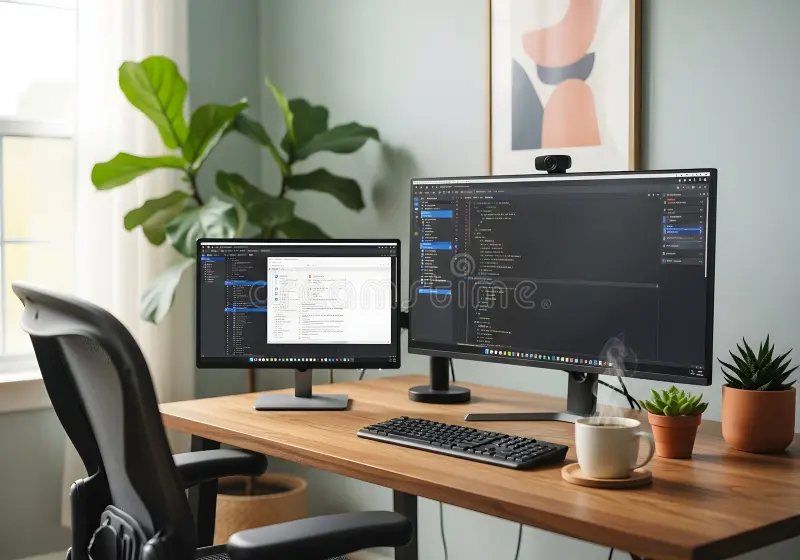
Image source: Bing (Web (fair-use with source credit))
Setup 1: Small desk, tight budget
A remote worker sits at a 48-inch wide desk in a compact apartment. They use two 24-inch 1080p monitors side by side. Total cost is about $250.
The desk is just wide enough to fit both without crowding. They run basic office apps, email, and web browsing. The lower PPI is fine at normal viewing distance.
This setup works well for anyone with limited space or budget.
Setup 2: Mid-range desk, software developer
A developer uses two 27-inch 1440p monitors on a 60-inch desk. One monitor sits in landscape mode for code. The other is rotated to portrait for documentation and terminal windows.
Both monitors are on VESA arms, so height and tilt match perfectly. The total cost is around $700 for the pair plus $100 for arms. This is the most common recommendation for coding and general productivity.
Setup 3: Large desk, video editor
A video editor uses two 32-inch 4K monitors on a 72-inch desk. The primary monitor is centered for the timeline and preview. The secondary sits to the side for the effects panel and file browser.
Both are driven by an RTX 4070 at 60Hz. The deep desk (30 inches) keeps the viewing distance comfortable. This setup costs about $1,200 for the monitors and is best for visual professionals who need maximum screen real estate.
Your Personal Decision Flowchart: Which Size Should You Buy?
Follow these steps in order. Each answer narrows your options.
Measure your desk width. Less than 50 inches: go with 24-inch monitors. 50 to 60 inches: 27-inch is ideal. Over 60 inches: consider 32-inch.
Check your viewing distance. Sit at your desk. Extend your arm. If your hand touches the screen, your depth is fine for 27-inch. If you can touch it with your elbow bent, you have room for 32-inch.
Identify your primary use. General office or coding: 27-inch 1440p. Gaming: 27-inch 1440p high refresh. Video editing or design: 27-inch 4K or 32-inch 4K. Budget limited: 24-inch 1080p.
Match resolutions. If you already own one monitor, buy a second with the same resolution. If buying both new, buy identical models.
Check your GPU. Ensure it can drive the resolution and refresh rate you want for both monitors. Use the manufacturer's spec sheet.
Quick summary: For most people, two 27-inch 1440p monitors on a 55-inch desk with a mid-range GPU is the best combination.
Frequently Asked Questions
Can I use two different sized monitors together?
Yes, but you'll face scaling differences. Match resolutions if possible. A 27-inch 1440p and a 24-inch 1440p work better than mixing 1080p and 1440p.
Expect some cursor jumping and window size changes.
What's the minimum desk size for dual 27-inch monitors?
You need at least 55 inches of width. Depth should be 24 inches minimum. If your desk is smaller, consider 24-inch monitors or a stacked layout.
Is 32-inch too big for dual monitors?
Not if your desk is at least 65 inches wide and 30 inches deep. Two 32-inch monitors can cause excessive head movement. They work best for design or trading where you need maximum space.
Should I buy two monitors or one ultrawide?
Two monitors give you more flexibility. You can position them independently, move one to portrait, or upgrade one later. An ultrawide has no bezel gap but less total screen area per dollar.
Do I need a special graphics card for dual monitors?
Most modern GPUs support two displays. For 1080p, any card from the last five years works. For 1440p at high refresh rates, you need a mid-range card like an RTX 3060 or RX 6700.
For 4K, aim for an RTX 4070 or better.
How do I set up monitor arms for different sizes?
Use gas-spring arms rated for the heavier monitor. Place the larger monitor closer to eye level. Ensure each arm supports the monitor's weight.
Check VESA compatibility before buying arms.

Similar Posts































