What Is Battery Optimization Android And How It Works
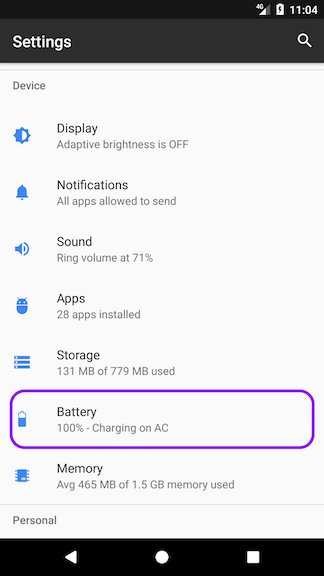
Battery optimization on Android is designed to extend your device’s battery life by managing apps and processes efficiently. **It involves systems and settings that reduce unnecessary power consumption.** If your phone’s battery drains quickly, understanding what is battery optimization android can help you control background activity and save energy. By adjusting these settings, you can ensure your device stays powered longer throughout the day. This article explores how battery optimization works and how you can make the most of it for better device performance.

What Is Battery Optimization on Android?
Battery optimization on Android refers to a set of features and settings designed to make your device’s battery last longer. Since smartphones are used for so many tasks — from calling and messaging to gaming and browsing — they tend to drain their battery quickly. To help manage this, Android provides various tools and options to improve battery life without sacrificing performance too much. In this section, we’ll explore what battery optimization really means, how it works, and why it’s important for your device.
Understanding How Android Uses Battery
Before diving into how battery optimization functions, it’s helpful to understand how your phone consumes power. Your Android device uses a variety of components and processes:
- Screen: The biggest battery eater. The brighter and longer your screen stays on, the faster your battery drains.
- Apps: Every app you run, whether in the foreground or background, uses power. Some apps consume more than others, especially those streaming videos or using GPS.
- Wireless Connections: Wi-Fi, Bluetooth, and mobile data all work to keep your device connected but also use significant battery power.
- Processors and System Processes: Background processes and system updates require CPU activity, which consumes energy.
Knowing which parts consume the most power helps us understand how battery optimization can help extend your device’s battery life.
How Battery Optimization Works on Android
Android’s battery optimization features work by managing and controlling the activity of apps and system functions to reduce unnecessary power drain. Here are some key ways it achieves this:
Limiting Background Activities
Android restricts apps from running tasks in the background when not in use. This means apps will not fetch data, send notifications, or perform operations unless you actively use them, saving power.
Adjusting App Behavior
The system can adjust how apps function—limiting their permissions, restricting background updates, or delaying their syncs—depending on your settings or battery level.
Managing Hardware Usage
Battery optimization also controls hardware components. For example, limiting Wi-Fi or Bluetooth usage when the device is idle or when battery is running low.
Battery Optimization Settings in Android
You can access and customize these settings to fit your usage habits. Let’s explore the main options available:
Battery Saver Mode
A simple toggle that reduces performance to extend battery life. When enabled, it adjusts several system behaviors:
- Decreases screen brightness
- Limits background data and app activity
- Reduces device performance slightly
App-Level Battery Restrictions
Android allows you to control which apps are optimized individually:
- You can choose to restrict or allow background activity for specific apps
- Some apps may be exempted if they need to run continuously, like navigation or fitness apps
Adaptive Battery and Adaptive Brightness
These features learn your usage habits over time:
- Adaptive Battery predicts which apps you’ll use soon and limits others to save power
- Adaptive Brightness adjusts screen brightness based on your environmental lighting and preferences, conserving energy
The Role of Do Not Disturb and Other Features
Besides battery-specific settings, Android offers features that indirectly help conserve power:
- Do Not Disturb: Silences notifications and reduces activity, saving power
- Airplane Mode: Disables wireless connections, perfect for conserving battery when you don’t need connectivity
- Sleep Mode/Screen Timeout: Automatically turns off the display after a period of inactivity to preserve energy
Best Practices for Effective Battery Optimization
Even with Android’s built-in tools, your habits play a big role. Here are tips to maximize battery life:
Monitor App Usage
Regularly check your battery usage stats in settings to see which apps drain the most power. Consider restricting or uninstalling power-hungry apps.
Keep Your Software Updated
Updates often include improvements to battery performance and bug fixes that prevent unnecessary battery drain.
Use Wi-Fi Over Mobile Data When Possible
Wi-Fi consumes less power compared to mobile data, especially for streaming or browsing.
Turn Off Unused Wireless Features
Switch off Bluetooth, NFC, or location services when not in use.
Optimize Screen Brightness and Timeout
Set brightness to a comfortable level and reduce screen timeout duration to minimize display usage.
Advanced Battery Management Techniques
For users seeking more control, Android offers advanced options:
Developer Options and Battery Stats
Enabling developer options allows you to see detailed battery stats, helping identify power-hungry apps or processes.
Custom Battery Saver Apps
Third-party apps claim to enhance battery life further by managing app behavior and system processes; however, use caution to avoid security issues.
Rooted Devices and Custom ROMs
For tech-savvy users, rooting your device or installing custom ROMs can unlock more fine-tuned control over battery functions, but this comes with risks and voids warranties.
Common Misconceptions About Battery Optimization
Many users have misconceptions about what battery optimization does:
- Turning off all background activity is always better: While limiting background apps helps save power, some apps need background access to function correctly.
- Battery saver mode disables all apps: It primarily reduces activity but doesn’t stop all functionalities.
- Over-optimization can harm your device: Android’s system optimizations are designed to be safe; manually restricting apps excessively may cause issues.
Overall, battery optimization on Android aims to balance performance and power conservation. It provides a set of tools and features to help you stretch your device’s battery life without significantly impacting your experience. By understanding how these features work and applying best practices, you can keep your device running longer between charges and ensure your smartphone remains ready whenever you need it most. Whether through built-in settings like Battery Saver or smarter habits like managing app permissions, taking control of your battery life helps you stay connected and productive throughout the day.
Frequently Asked Questions
How does battery optimization improve Android device performance?
Battery optimization helps Android devices by managing background activities and limiting apps that consume excessive power. This process reduces unnecessary battery drain, which in turn maintains device performance over longer periods. When optimized, your device can function smoothly without frequent interruptions for charging or performance lag caused by power-hungry apps.
Can users customize battery optimization settings on Android?
Yes, Android users can modify battery optimization settings based on their preferences. They can choose which apps to include or exclude from optimization, allowing for a balance between battery life and app functionality. Adjusting these settings gives users more control over how their device conserves power during daily use.
What role does battery optimization play in extending battery lifespan?
Battery optimization directly contributes to extending the lifespan of your device’s battery by preventing excessive drain and reducing stress on the battery cells. When you actively manage background processes and limit unnecessary app activity, it lessens the wear and tear on the battery, helping it stay healthier for longer periods.
Are there any risks associated with disabling battery optimization on Android?
Disabling battery optimization can lead to increased power consumption because apps may run continuously in the background. This can result in faster battery depletion and potentially reduce the overall lifespan of your battery. It’s important to selectively turn off optimization for specific apps rather than disabling it entirely to maintain a good balance between performance and power conservation.
Final Thoughts
Battery optimization on Android helps extend your device’s battery life by managing app activity and system settings. It reduces background processes and limits power drain without affecting your essential functions. Users can customize these settings to balance performance and battery longevity.
In conclusion, understanding what is battery optimization android is key to maximizing your device’s efficiency. It allows you to control how apps consume power, ensuring longer usage between charges.

Similar Posts































