Effective Android Battery Optimization Settings For Longer
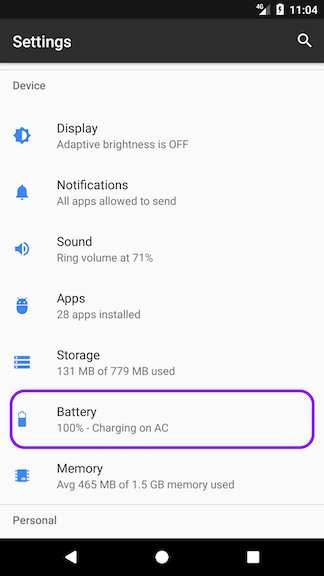

Android Battery Optimization Settings: A Complete Guide to Extending Your Phone’s Battery Life
Maintaining a healthy battery life on your Android device can sometimes feel like a mystery. You may notice your phone running out of juice faster than usual, especially if you’re constantly on the go. Luckily, Android provides a range of battery optimization settings designed to help you get the most out of your device’s power. In this section, we’ll take a deep dive into these settings, explaining how they work and how you can use them to keep your phone running longer throughout the day.Understanding Why Battery Drain Happens
Before exploring specific settings, it’s helpful to understand what causes battery drain. Several factors play a role:- Background apps that run without your knowledge
- High screen brightness and long screen-on times
- Using power-hungry features like location services, Bluetooth, and Wi-Fi
- Outdated apps or system software
- Battery aging and hardware issues
Built-in Android Battery Optimization Features
Android devices come with various pre-installed features aimed at conserving battery life. Understanding these tools is key to optimizing your device. These features include:Battery Saver Mode
This mode reduces background activity, lowers screen brightness, and disables non-essential features to save power. You can activate it manually or set it to turn on automatically when your battery falls below a certain level, such as 15% or 20%. To enable it:- Open your device’s Settings app
- Tap on Battery or Battery & Performance
- Select Battery Saver or Power Saving Mode
- Set your preferred automatic activation threshold
Adaptive Battery
Adaptive Battery learns your app usage patterns over time, restricting power-hungry apps when you’re not actively using them. It helps ensure your most-used apps stay responsive while limiting others. To enable Adaptive Battery:- Go to Settings
- Tap on Battery & Performance
- Find Adaptive Battery and toggle it on
App Battery Restrictions
Android allows you to set specific restrictions for individual apps, limiting background activity or preventing apps from running when the display is off. To manage app restrictions:- Open Settings
- Navigate to Apps & Notifications
- Select the app you want to restrict
- Tap on Battery or Battery Usage & Restrictions
- Choose options like “Restrict background activity” or “Optimize”
Customizing Battery Optimization for Apps
While Android’s default settings are helpful, customizing app-specific battery optimization can bring additional benefits. You can fine-tune which apps are allowed to run in the background and which are restricted.Managing Battery Optimization Settings
To adjust these settings:- Open Settings and go to Battery & Performance
- Tap on Battery Usage or App Battery Usage
- Tap on the specific app to manage its battery settings
- Choose either “Optimized” or “Not optimized”
Adding Exceptions for Critical Apps
If you use certain apps frequently and notice they get restricted in the background, you can set exceptions:- Go to Settings
- Navigate to Battery & Performance
- Choose Battery Optimization or App Optimization
- Tap on the three-dot menu or “All apps”
- Select the app and choose “Don’t optimize”
Managing Location Services and Connectivity
Location services, Bluetooth, and Wi-Fi are common power-hungry features that, if not managed properly, can quickly drain your battery. Here’s how to optimize their use:Location Services
You can control how and when your device uses location services:- Open Settings
- Tap on Location
- Choose Mode:
- High accuracy: Uses GPS, Wi-Fi, and mobile networks (power-consuming)
- Battery saving: Uses Wi-Fi and mobile networks only
- Device only: Uses GPS only (most accurate, but consumes more power)
- Turn off location when not needed or set apps to “While Using” only
Wi-Fi, Bluetooth, and Mobile Data
Turning these features on only when necessary can significantly improve battery longevity:- Switch off Wi-Fi and Bluetooth when not in use
- Use airplane mode in low-signal areas
- Enable Wi-Fi and Bluetooth only when needed for specific tasks
Optimizing Screen Settings to Save Power
Since the display consumes a large portion of smartphone power, adjusting screen settings can make a big difference.Adjust Brightness
Use auto-brightness or manually lower the brightness level:- Open Settings
- Tap on Display
- Select Brightness or Adaptive Brightness and turn it on
- Adjust the slider to a comfortable lower level
Reduce Screen Timeout
Set your device to turn off the screen quickly after inactivity:- Go to Settings
- Tap on Display
- Select Screen Timeout
- Choose a short duration, like 30 seconds or 1 minute
Use Dark Mode
Dark mode helps save power, especially on OLED screens:- Navigate to Settings
- Tap on Display
- Activate Dark Theme or Night Mode
Battery Health and Maintenance Tips
Keeping your battery healthy not only conserves power but also prolongs its lifespan:- Avoid letting your battery drain completely before recharging
- Charge your device in short bursts rather than long, continuous charges
- Keep your device away from excessive heat or cold
- Use only certified chargers and cables
Third-Party Apps and Tools for Enhanced Battery Control
Besides Android’s native features, third-party apps can help you monitor and optimize battery usage:- Battery monitoring apps show detailed usage stats to identify power-hungry apps
- Task killers or RAM cleaners can close unnecessary background processes (though use these cautiously, as they may sometimes hinder performance)
- Automation apps like Tasker allow you to create profiles that turn off features or restrict apps when not needed
Regular Updates and Maintenance
Keeping your device updated benefits both performance and battery life:- Regularly check for system updates
- Update apps from the Google Play Store to ensure bug fixes and optimizations
- Clear cache data periodically to remove unnecessary files that can slow down performance
Practical Tips for Daily Battery Management
Finally, incorporate daily habits to stretch your device’s battery:- Charge your phone before it drops below 20%
- Switch to power-saving modes during long outings or travel
- Limit notifications from apps that aren’t essential
- Close unused apps instead of leaving them running in the background
Frequently Asked Questions
How can I identify which apps are draining my Android device’s battery?
To see which apps consume the most power, go to your device’s Settings. Tap on Battery or Battery Usage to view a detailed breakdown. This section displays the apps that use the most battery, helping you decide which ones may require restrictions or better management.
What steps should I take to prevent background apps from wasting battery life?
Disable background activity for apps that do not need to run constantly. Navigate to Settings, then Apps or Applications, select the specific app, and tap on Battery. Choose the option to restrict background activity or optimize battery usage for that app to conserve power.
How do I modify battery optimization settings for individual apps?
Open Settings and go to Battery or Battery Optimization. Select the app you want to modify, then choose between optimized or unrestricted options. This allows you to control which apps can run in the background and affect your device’s battery life.
Is it advisable to turn off all battery optimization features? What are the risks?
While disabling optimization can improve app performance, it may also lead to increased battery consumption. Turning off these features for many apps can cause faster battery drain and reduce overall device longevity. Use optimization settings judiciously for apps that require background activity while managing your device’s power efficiency.
How can I improve my Android device’s battery life without affecting app functionality?
Adjust screen brightness, enable dark mode, and turn off Wi-Fi, Bluetooth, or location services when not in use. Additionally, limit background activity for unnecessary apps through battery optimization settings to extend your battery life without compromising essential functions.
Final Thoughts
Optimizing your Android battery settings can significantly extend your device’s lifespan. Adjusting screen brightness, turning off unused features, and managing background apps help conserve energy. Accessing the Android battery optimization settings allows you to control which apps run efficiently. Regularly review these settings to prevent unnecessary battery drain. In conclusion, focusing on ‘android battery optimization settings’ ensures better battery life and device performance. Implement these adjustments to maintain longevity and enhance your overall user experience.
Similar Posts