Effective Tips For Android Battery Service Optimization

Android Battery Service: Everything You Need to Know
When you own an Android device, one of the most common frustrations is a battery that doesn’t last as long as you want it to. Whether you’re using your phone for work, fun, or staying connected with loved ones, a reliable battery is essential. That’s where Android battery service comes in. It plays a key role in keeping your device functioning smoothly, optimizing battery life, and diagnosing issues before they become big problems. In this article, we’ll explore what Android battery service does, how it works, and how you can make the most of it to keep your device energized throughout the day. We’ll go into detail about different features, troubleshooting tips, and the best practices for maintaining your battery health.Understanding Android Battery Service
Android battery service is a system component responsible for managing and monitoring your device’s battery. Think of it as the brain behind battery management. It tracks how much power your apps use, how your device charges, and keeps an eye on overall health to prevent problems. This service helps improve your device’s performance by preventing unnecessary battery drain. It can pause background processes for apps that misuse power, adjust screen brightness based on ambient light, and optimize charging behavior to prolong battery life. Some key functions of Android battery service include:- Tracking app power consumption
- Providing battery usage statistics
- Managing background processes efficiently
- Adjusting display brightness and refresh rate
- Controlling charging patterns to preserve battery capacity
How Android Monitors Battery Usage
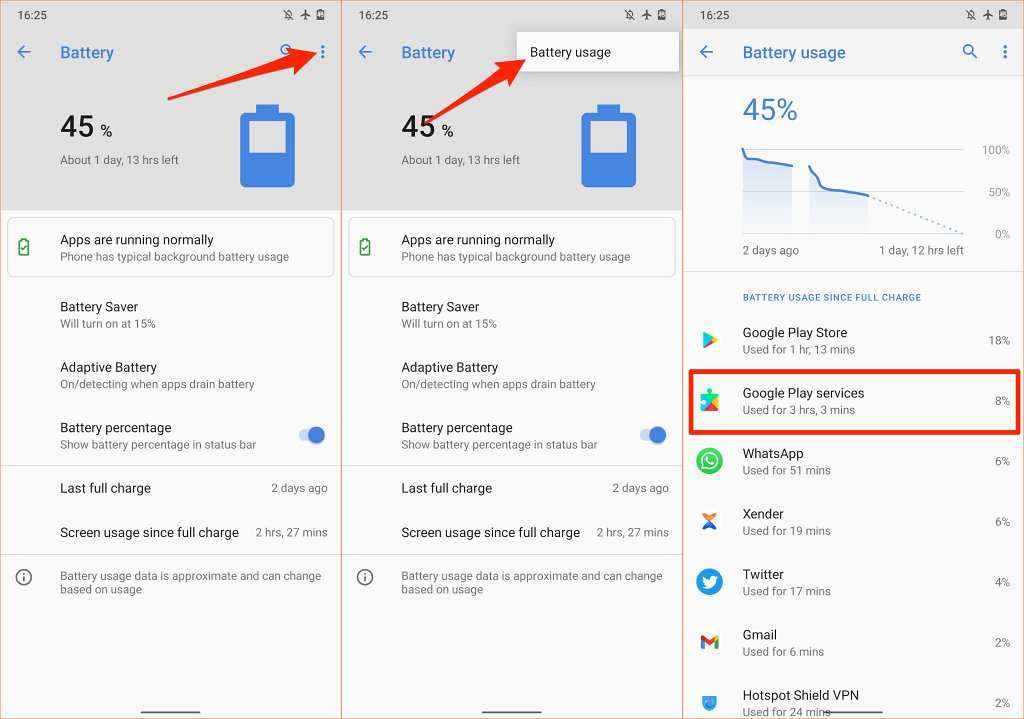
Android offers built-in tools that let you see exactly which apps and services consume the most power. This transparency helps in making informed decisions about app usage and managing battery life effectively. You can access battery usage information by following these simple steps:- Open Settings on your Android device.
- Tap on Battery & device care or a similar option.
- Select Battery usage to view detailed data.
- Identify high-consuming apps and restrict their background activity.
- Disable location services for apps that don’t need it.
- Limit notifications to prevent apps from waking up your device frequently.
Battery Optimization Features in Android
Android has several built-in features designed to extend battery life:Battery Saver Mode
This mode reduces background activity, limiting app updates, decreasing screen brightness, and turning off unnecessary features like Bluetooth or GPS. You can activate it manually or set it to turn on automatically when the battery drops to a certain percentage.Adaptive Brightness
This feature adjusts your screen brightness based on ambient lighting conditions. It not only helps conserve energy but also makes using your device more comfortable.App Background Limits
Android allows you to restrict background activity for specific apps. You can set limits on how often apps can run processes while not in use, helping reduce battery drain.Battery Optimization Settings
You can access battery optimization options for individual apps under Settings > Apps & notifications > Special app access > Battery optimization. Here, you can choose which apps are optimized or exempt from restrictions based on your preferences. Key benefits of these features include:- Prolonged battery life during heavy usage
- Reduced background data consumption
- Fewer interruptions and notifications
Common Causes of Battery Drain
Understanding what causes your battery to drain quickly can help you manage and prevent issues. Here are some of the main culprits:- High Screen Brightness: Your display consumes a significant amount of power. Keeping brightness high or using auto-brightness improperly can drain the battery quickly.
- Background Apps: Apps running in the background, especially those that refresh content or use location services, can use a lot of energy.
- Location Services: GPS and location tracking are power-hungry features. Keeping them on constantly increases battery consumption.
- Connectivity Features: Bluetooth, Wi-Fi, and mobile data use energy to stay active. Leaving these on when not needed can shorten battery life.
- Battery Age and Health: Over time, batteries lose capacity, making it seem like they drain faster even if you’re not using many apps.
Tips to Improve Battery Life on Android Devices
Good habits can significantly extend your device’s battery life. Here are some effective tips:- Keep your screen brightness moderate or enable auto-brightness.
- Use Wi-Fi instead of mobile data whenever possible, as it consumes less power.
- Disable Bluetooth and GPS when not in use.
- Close apps running in the background if they are not needed.
- Turn on battery saver mode during long days without access to charging.
- Limit push notifications and background data for apps that don’t need real-time updates.
- Regularly update your device’s software, as updates often include performance improvements related to battery management.
- Replace your battery if it shows signs of deterioration or age, as aging batteries can cause rapid drain.
When to Consider Battery Replacement
If your device’s battery no longer holds a charge or drains too quickly despite following all these tips, it might be time for a replacement. Symptoms include:- Battery percentage drops suddenly without apparent reason.
- Phone shuts down unexpectedly even when the battery shows some charge.
- Device heats up excessively during charging or use.
- Battery health in settings shows a significant decline (this can be checked in device maintenance or battery health apps).
How to Maintain Healthy Android Battery
Proper maintenance extends your battery’s lifespan and keeps your device performing optimally:- Avoid letting the battery drain to 0% regularly. Instead, recharge when it reaches around 20-30%.
- Don’t leave your device plugged in at 100% for long periods, as overcharging can degrade the battery.
- Charge your device in a cool environment; heat accelerates battery wear.
- Use official or certified chargers for safe and effective charging.
- Perform a full charge cycle (from 0% to 100%) occasionally to calibrate battery sensors, but do not do this frequently.
Frequently Asked Questions
What are common reasons my Android device’s battery drains quickly?
Several factors can cause fast battery drainage on your Android device. Running multiple apps simultaneously, using high-brightness displays, or enabling location services can increase power consumption. Background processes and outdated software may also contribute. Additionally, underlying hardware issues or battery aging reduce overall efficiency, leading to quicker depletion.
How can I extend the battery life of my Android phone without installing new apps?
You can improve battery life by adjusting display brightness or setting it to auto-brightness, reducing screen timeout duration, and switching off Wi-Fi, Bluetooth, and mobile data when not in use. Limiting background activity for apps, disabling location services for unnecessary apps, and updating your device to the latest software version also help conserve power.
What steps should I take if my Android battery is not charging properly?
If your device isn’t charging correctly, start by inspecting the charging cable and adapter for damage or dirt. Use a different power outlet to rule out socket issues. Restart your device, and if the problem persists, try a different cable or charger. Ensure your device’s charging port is clean and free of debris. If none of these steps work, consider replacing the battery or consulting a professional technician.
How can I identify if my Android battery needs replacement?
Signs that indicate a failing battery include rapid power loss, unexpected shutdowns, or the device not holding a charge after being fully charged. If the battery percentage drops sharply even when not in use or if the device heats up excessively during charging, it might be time to replace the battery. Checking battery health through device settings or third-party apps can also give insights into its current condition.
Final Thoughts
Android battery service plays a vital role in maintaining your device’s performance and battery health. Regularly checking and optimizing this service extends your battery life and prevents unexpected shutdowns. By managing background processes and app activity, Android battery service helps users get the most out of their devices. Keeping this feature in good condition ensures a smoother user experience. In summary, proper attention to the Android battery service guarantees better battery longevity and efficiency, enhancing daily device use.
Similar Posts