Effective Android Battery Optimization Tips For Better
Struggling with quick battery drain on your Android device? **The simplest way to improve your battery life is by optimizing your settings and managing background activity.** Android battery optimization is key to extending your device’s usage throughout the day. Adjusting app permissions, reducing screen brightness, and turning off unused features can make a noticeable difference. Implementing these steps helps you achieve longer-lasting power without sacrificing performance. Keep reading to learn effective strategies for keeping your Android device energized and ready whenever you need it.

Effective Android Battery Optimization Tips to Extend Your Phone’s Power
Managing your Android device’s battery life can sometimes feel like a challenge, especially when you’re on the go and need your phone to last all day. Fortunately, there’s a lot you can do to make your Android phone use power more wisely without sacrificing performance or convenience. From simple tweaks to more advanced settings, this guide covers everything you need to know about Android battery optimization to help your device stay alive longer.
Understanding How Your Android Phone Uses Battery Power
Before diving into optimization techniques, it’s helpful to understand what drains your phone’s battery and how Android manages power.
What Drains Your Android Phone Battery?
Various activities and features consume battery power. Knowing what they are helps you target specific areas for improvement. Common battery drainers include:
- Screen Brightness: Your screen uses a significant amount of power, especially when set to high brightness or when the timeout duration is long.
- Background Apps: Apps running in the background can refresh data and perform tasks that consume power without your knowledge.
- Location Services: GPS usage is a major battery hog, especially when multiple apps access your location simultaneously.
- Wireless Connections: Wi-Fi, Bluetooth, and mobile data can all drain your battery when they’re actively searching for signals or syncing data.
- Push Notifications and Syncing: Constant data transfers for email, social media, and other notifications keep your device active and drain power.
How Android Manages Power
Android’s operating system strives to balance performance with battery life. It does this by implementing features like Doze mode, App Standby, and adaptive battery algorithms. These features limit background activity, reduce syncs, and decrease processor usage when your phone is idle or not actively being used.
Practical Android Battery Optimization Strategies
Optimizing your Android device involves multiple steps. Here are key strategies to help keep your battery healthy and extend its lifespan.
Adjust Screen Brightness and Timeout Settings
Since the display is the biggest battery consumer, managing how bright and how long it stays on makes a substantial difference.
- Use Auto-Brightness: Enable auto-brightness so your device adjusts the display brightness based on ambient light conditions.
- Lower Screen Brightness: Manually reduce the brightness level if auto-brightness isn’t enough.
- Reduce Screen Timeout: Set your screen to turn off after 15 or 30 seconds of inactivity to prevent unnecessary power use.
Limit Background Activity and App Usage
Many apps run tasks or refresh in the background, often unnecessarily. Limiting this activity conserves battery power.
Close Unused Apps
Regularly closing apps you aren’t using prevents them from consuming resources in the background.
Disable Background Data
Go to Settings > Apps & Notifications > [App Name] > Data Usage and disable background data for apps that don’t need to sync constantly.
Restrict App Background Activity
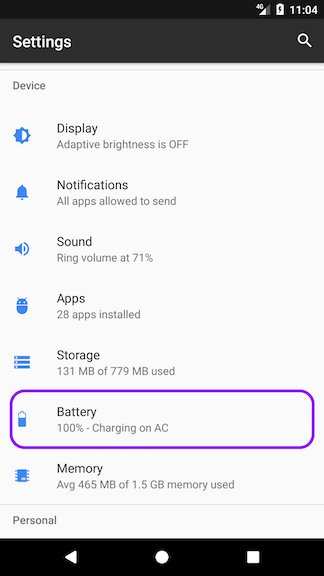
In Settings > Battery > App Usage, you can see which apps consume the most power. Restrict background activity for apps that are not critical.
Optimize Location Services Usage
GPS can be a major drain, especially when multiple apps request your location.
- Use ‘Device Only’ Mode: Limit location access to just GPS without Wi-Fi or mobile networks when precise location isn’t necessary.
- Turn Off Location When Not Needed: Disable location services entirely when you’re not using navigation or location-based apps.
- Adjust App Permissions: Limit or revoke location permissions for apps that don’t need constant access.
Manage Wireless Connections Efficiently
Turning off unnecessary wireless features conserves power.
- Wi-Fi and Bluetooth: Turn them off when not in use.
- Mobile Data: Enable data only when needed, or switch to Wi-Fi whenever possible.
- Airplane Mode: Use airplane mode during extended periods without connectivity, such as when sleeping or traveling.
Use Battery Saver Mode
Most Android devices come with a built-in battery saver mode that reduces background activity and limits some features.
- Activate Battery Saver: Access Settings > Battery > Battery Saver or Power Saving Mode and turn it on when your battery is low.
- Customize Settings: Some devices allow you to customize what features are limited during saver mode, such as screen brightness, background data, and animations.
Advanced Battery Optimization Techniques
For users who desire more control or want to maximize efficiency, here are advanced techniques.
Use Adaptive Battery and App Standby
Android includes features like Adaptive Battery, which learns your usage patterns to limit power to rarely used apps, and App Standby, which restricts background activities for idle apps.
- Ensure these features are enabled in Settings > Battery > Adaptive Battery.
Uninstall Unnecessary Apps
Decluttering your device by removing apps you don’t use can improve battery life.
Keep Your Software Up to Date
Developers regularly release updates that fix bugs and improve power management. Regularly check for system updates in Settings > Software Update.
Maintain Your Battery Health
Over time, batteries degrade, reducing overall capacity. To preserve your battery health:
- Avoid letting your battery drain completely.
- Charge your device when it reaches around 20-30%.
- Don’t leave your phone plugged in after it reaches 100% for extended periods.
- Use the original charger and avoid cheap or incompatible charging cables.
Using Third-Party Apps for Battery Management
Some apps claim to optimize battery life further. Be cautious when choosing these apps.
- Pick trusted apps with good reviews and minimal permissions.
- Avoid apps that promise excessive battery savings as they might be harmful or unnecessary.
Monitoring Your Battery Usage
Regular monitoring helps you identify power-hungry apps and settings.
- Go to Settings > Battery to see a breakdown of power consumption.
- Use built-in tools or third-party apps to track battery health over time.
Summary Table of Key Battery Optimization Settings
| Setting | How It Helps |
|---|---|
| Auto-Brightness | Adjusts screen brightness based on ambient light, saving power. |
| Screen Timeout | Reduces the time your screen stays on when not used. |
| Disable Unnecessary Connectivity | Turns off Wi-Fi, Bluetooth, and mobile data when not needed. |
| Battery Saver Mode | Limits background activity and reduces device performance to conserve power. |
| App Restrictions | Limits background data and activity for apps that don’t need constant updates. |
Implementing these strategies can significantly extend your Android device’s battery life, making your smartphone more reliable throughout the day. Remember, combining simple daily habits with device settings adjustments delivers the best results. Keep an eye on your battery usage, and don’t hesitate to tweak your settings as your usage patterns change.
Frequently Asked Questions
How can I identify which apps drain my Android battery the most?
To see which apps consume the most battery on your Android device, go to Settings > Battery. Here, you’ll find a detailed breakdown of app usage, showing the percentage of battery each app has used over a set period. This information helps you pinpoint apps that might be overly active or running in the background, allowing you to manage or restrict their activity accordingly.
What is the best way to restrict background activity of apps to save power?
You can restrict background activity by going to Settings > Apps & Notifications > See All Apps. Select the app you want to limit, then tap on Battery > Background restriction. Turning this on prevents the app from running in the background, reducing unnecessary battery consumption and improving overall device performance.
How can I optimize my device’s settings to enhance battery life?
Adjusting display brightness, reducing screen timeout duration, and turning off unnecessary connectivity features like Bluetooth, Wi-Fi, or location services when not in use can significantly extend your battery life. Using the built-in Battery Saver mode also limits background activity and lowers performance to conserve power during low battery conditions.
Final Thoughts
In summary, effective Android battery optimization helps prolong your device’s lifespan and enhances daily performance. Adjusting app settings, reducing background activity, and using built-in power-saving modes quickly make a difference. Regular updates and managing notifications also contribute to better battery health. Focusing on these simple strategies ensures your Android device stays charged longer and runs smoothly.

Similar Posts