How To Use Iphone Screen Broken Effectively

If your iPhone screen is broken, **you can still use it by enabling AssistiveTouch or connecting to an external display**. Knowing how to use iPhone screen broken situations helps you stay connected and manage your device until repairs are possible.
First, try to access your phone with AssistiveTouch if the touch screen is unresponsive. Alternatively, connect your iPhone to a monitor or computer to operate it. These simple steps can save you time and frustration while you arrange for a repair.

How to Use iPhone Screen Broken
Having a cracked or broken iPhone screen can feel like a big problem, but you don’t have to stop using your phone right away. With some simple tricks and tools, you can keep using your iPhone even if the screen isn’t in perfect shape. In this guide, we will explore how you can navigate, operate, and get the most out of your iPhone with a broken screen. Whether your screen is just slightly cracked or completely shattered, these tips will help you stay connected and make the best choices for fixing or replacing your device.
Understanding Your Broken iPhone Screen
Before diving into solutions, it’s helpful to understand the different types of screen damage and what they mean for usability.
Types of Screen Damage
- Cracked Screen: Small cracks or spiderweb patterns appear on the glass. Usually, the touch function still works, but the cracks may worsen over time.
- Shattered Screen: The glass is broken into many pieces, often with parts of the display underneath damaged. Navigation may be difficult or impossible.
- Unresponsive Touch: The screen looks fine, but it doesn’t respond to taps or swipes, which can be caused by internal damage.
- Black Screen: The display is completely dark, but the phone might still ring or vibrate when calls come in.
Knowing what kind of damage you’re dealing with helps you decide whether to try using the device as it is or seek repairs.
How to Continue Using Your iPhone with a Broken Screen
Even with a cracked or unresponsive screen, you can still use several features of your iPhone. Here are some methods to keep your device functional.
Enabling Accessibility Features
Many iPhone accessibility tools allow you to operate your phone without needing to see or tap accurately on the broken screen.
- Voice Control: Turn on Voice Control to give spoken commands. To enable it, go to Settings > Accessibility > Voice Control, then toggle it on. Once activated, you can say commands like “Open Messages” or “Scroll down.”
- AssistiveTouch: This feature creates an on-screen home button that you can tap to perform gestures and functions. Enable it via Settings > Accessibility > Touch > AssistiveTouch. Use the floating button to access Control Center, notifications, or home screen without needing to tap on specific parts of the screen.
These features can be particularly useful if parts of your screen are unresponsive or damaged.
Using External Devices
Connecting your iPhone to other devices can help you navigate and manage your data.
Connecting via Bluetooth
If you have Bluetooth accessories like a keyboard or mouse, you can pair them with your iPhone:
- Activate Bluetooth in your iPhone settings or through accessibility shortcuts if the screen is unresponsive.
- Put your device (like a Bluetooth mouse) into pairing mode.
- Use assistive features to navigate to Bluetooth settings, possibly through Voice Control, and connect your device.
Once connected, you can use a physical keyboard or mouse to operate your iPhone more comfortably.
Using an External Display
If your iPhone supports it, connect your device to an external monitor or TV via Lightning to HDMI adapters or similar accessories. This allows you to see what’s happening on a bigger screen, making navigation easier.
Backing Up Data Safely
Continuing to use a broken iPhone raises concerns about data loss. Always back up your data before attempting repairs or replacing your device.
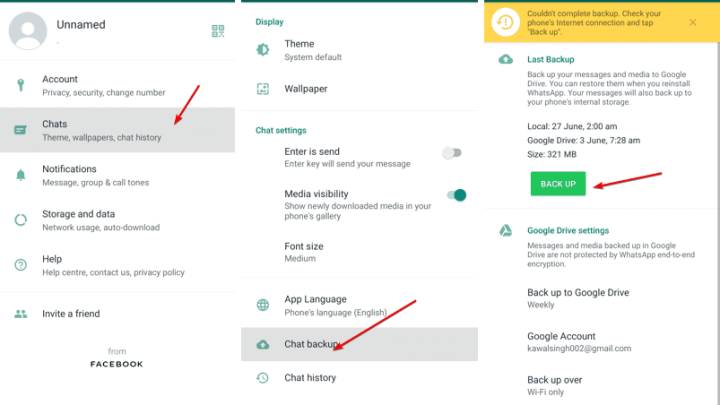
- Connect your iPhone to a computer with iTunes (on Windows or older Macs) or Finder (on macOS Catalina and later).
- Follow the prompts to back up all your photos, messages, and apps.
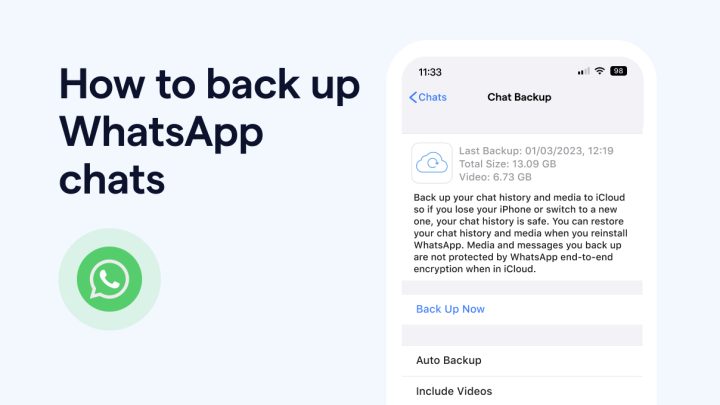
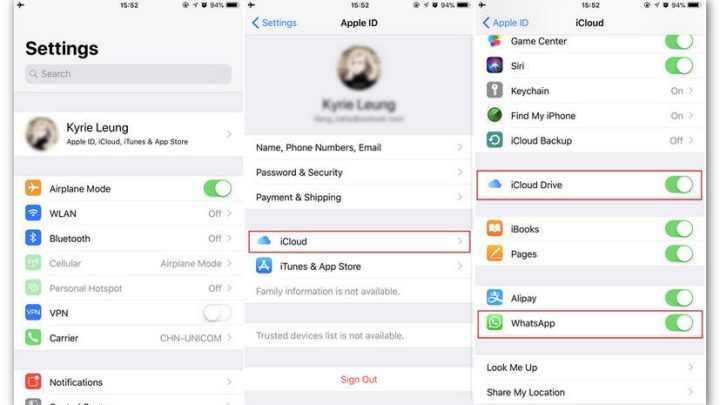
- Consider using iCloud to automatically backup your important data over Wi-Fi.
Having a recent backup ensures your information remains safe even if your device becomes unusable.
Repair or Replace Your iPhone Screen
While it’s possible to keep using your iPhone with a broken screen, repairing the device often becomes necessary for long-term usability. Here’s what you need to know.
DIY Screen Repair Options
For those comfortable with electronics, replacing the screen yourself can save money, but it involves risks.
- Order a replacement screen compatible with your iPhone model.
- Use detailed online guides and tutorials specific to your device model.
- Ensure you have all the necessary tools, like pentalobe screwdrivers, pry tools, and adhesive strips.
- Follow instructions carefully to avoid damaging internal components.
Be aware that DIY repairs can void warranty and might cause further issues if not done correctly.
Professional Repair Services
Most users prefer professional repairs for quality and safety.
- Visit Apple Store or authorized service providers for certified repairs.
- Check local repair shops that specialize in iPhone screens.
- Compare costs and warranty options before choosing a repair shop.
Getting the screen fixed at an authorized location ensures original parts and maintains your warranty, if still valid.
Cost Considerations
| Repair Type | Estimated Cost Range | Notes |
|—————————–|——————————–|—————————————–|
| Apple Store Repair | $99 – $299 | Depends on model and warranty status |
| Third-party Repair Shop | $50 – $200 | Often cheaper, but check reviews |
| DIY Repair | $20 – $60 | Cost of parts, risk of further damage |
Always weigh the cost of repair versus replacing your device, especially if your iPhone is older.
Preventing Future Screen Damage
Once you have fixed or replaced your iPhone, consider ways to protect it from future damage.
Using a Screen Protector
– Tempered glass protectors can absorb impacts and prevent cracks.
– Choose a high-quality protector that fits your iPhone model precisely.
Getting a Durable Case
– Select a case with reinforced corners and shock absorption.
– Many cases feature raised edges to keep the screen off surfaces when dropped.
Be Careful with Handling
– Avoid placing your phone in back pockets or unstable surfaces.
– Keep your device away from keys, coins, or other sharp objects.
Summary
Even with a broken screen, you can still operate your iPhone effectively by enabling accessibility features, connecting external devices, and backing up your data regularly. For a more permanent solution, repairing or replacing the screen remains the best option. Protect your device in the future with good cases and screen protectors to minimize damage. Remember that your phone can still serve its purpose, even with a cracked display, as long as you know how to navigate around its limitations and make the most of its features.
Frequently Asked Questions
How can I operate my iPhone effectively when the screen is cracked?
If your iPhone screen is cracked but still responds to touch, try to minimize pressure on the damaged area to prevent further damage. Use a stylus or your finger carefully to navigate, and consider reducing the screen brightness to improve visibility. You can also enable accessibility features like VoiceOver to control your device through voice commands, making it easier to operate without relying heavily on the damaged screen.
What tools or accessories can help me use my broken iPhone screen more comfortably?
Using screen protectors or plastic overlays can prevent additional cracks and improve touch sensitivity. External keyboards or Bluetooth mice can serve as alternative input devices to navigate your device if the touch screen becomes unresponsive. Additionally, a phone stand or holder can make it easier to see and interact with your iPhone without holding it directly, reducing strain and accidental damage.
Are there software options that assist in using a damaged iPhone screen?>
Yes, you can activate features like AssistiveTouch in your device settings, which creates a virtual button on your screen for easy access to functions. If your touch input is limited, enabling Voice Control allows you to operate your iPhone through spoken commands. Connecting your device to a computer and using iTunes or Finder can also help manage your data and perform repairs without relying solely on the damaged screen.
Final Thoughts
Using a broken iPhone screen may seem challenging, but you can still access essential features. Enable accessibility options like VoiceOver or AssistiveTouch to navigate easily. Consider connecting your iPhone to a computer to back up data or perform repairs.
In conclusion, knowing how to use iPhone screen broken helps you stay connected and productive. Use features like AssistiveTouch for quick access or connect to a computer for backups. Staying proactive ensures you maximize your device’s remaining functionality, even with a damaged screen.

Similar Posts