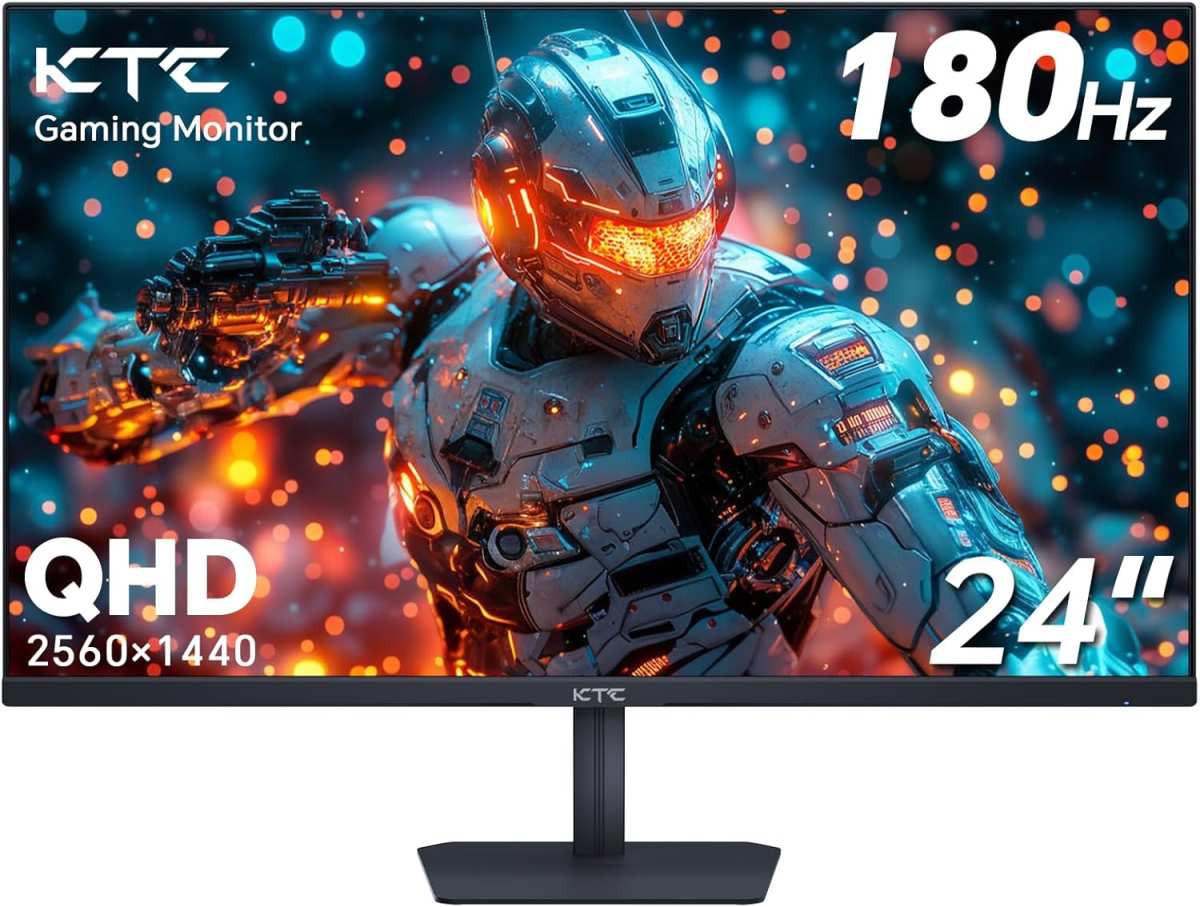
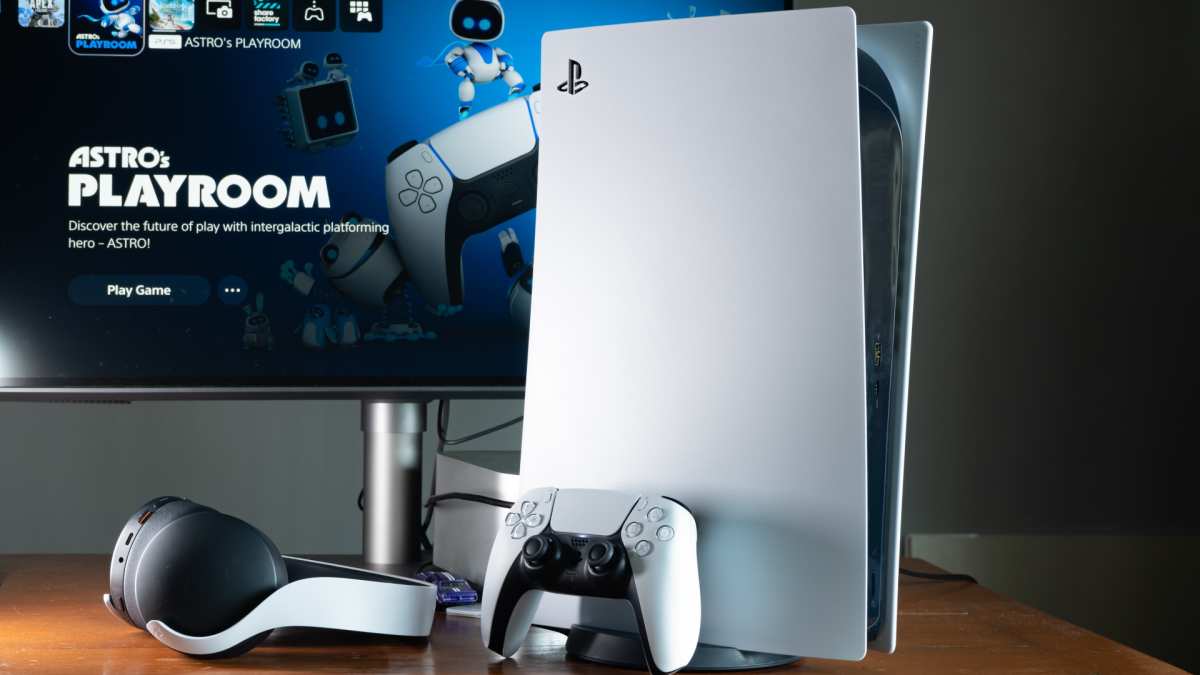
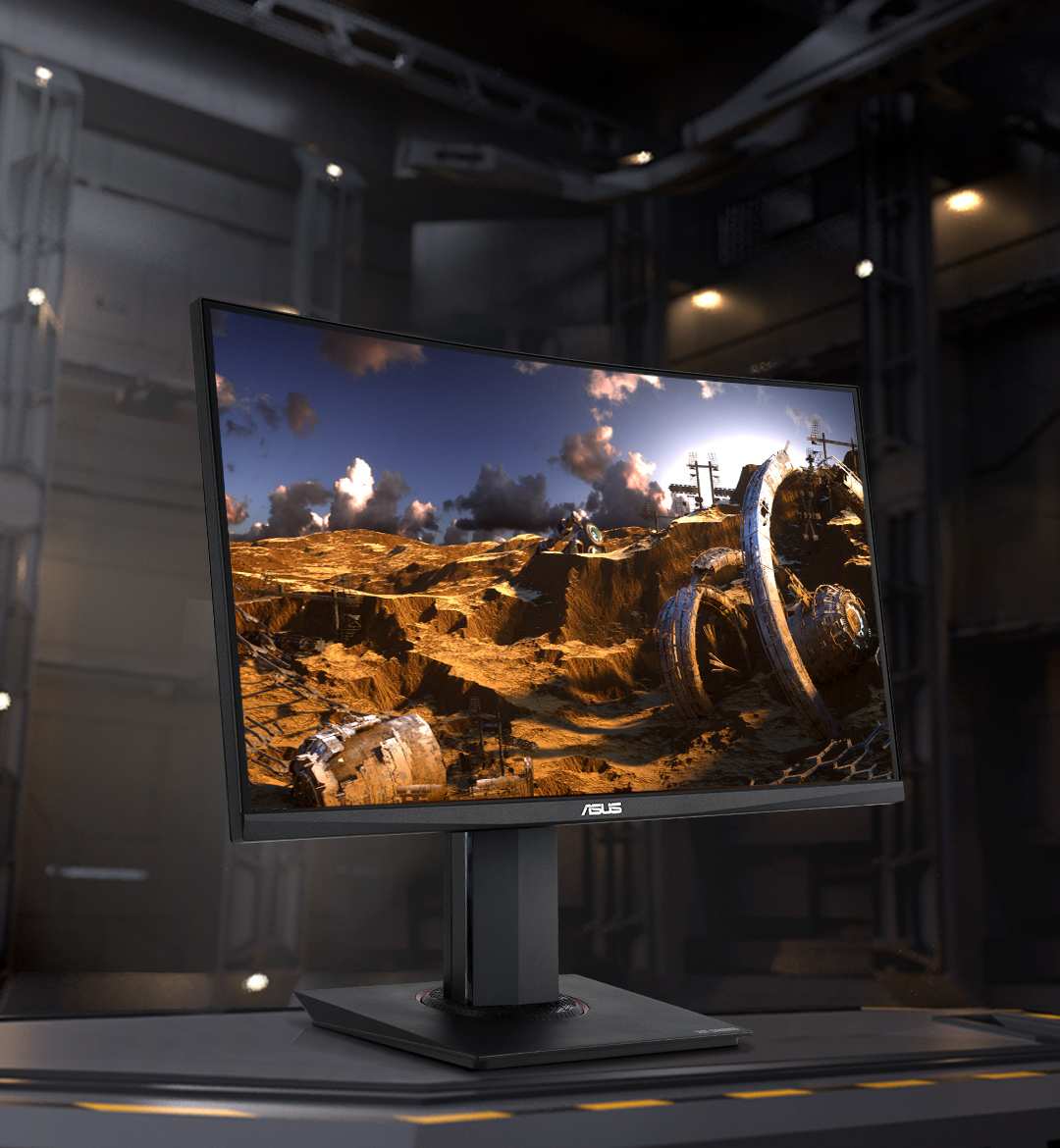
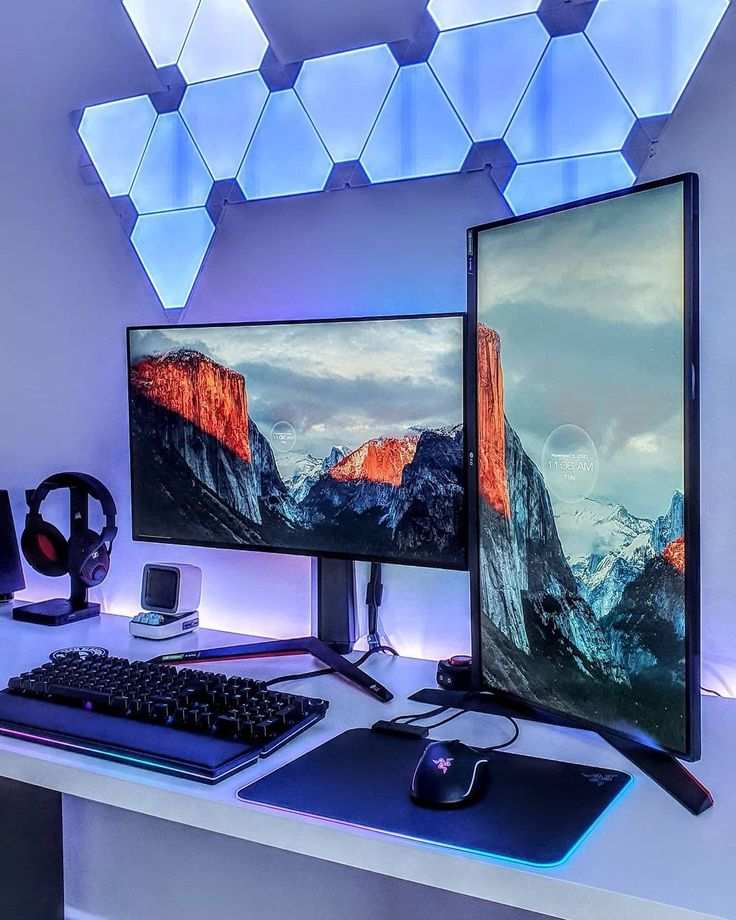
is 144hz monitor noticeable over 60hz
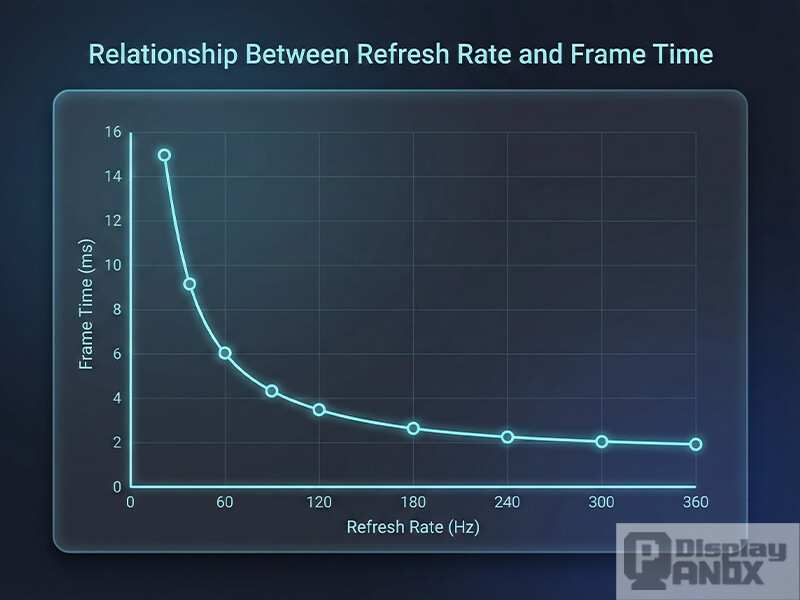
If you've ever wondered is 144hz monitor noticeable over 60hz, the short answer is yes. But the full answer depends on what you're doing and what hardware you're running. Many people buy a high refresh rate monitor expecting an instant transformation, only to feel underwhelmed because their setup can't deliver the frames needed to see the difference.
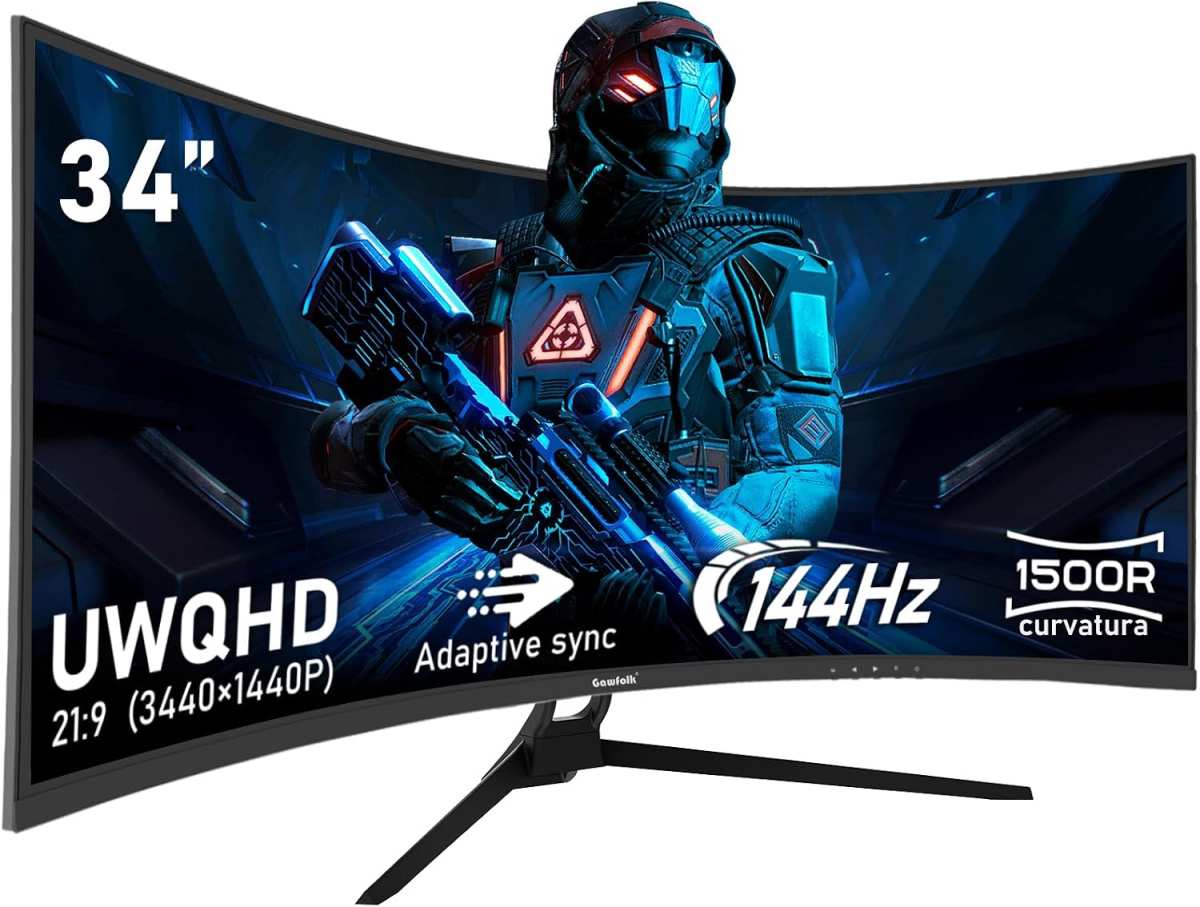
Per VESA standards, a 144Hz display refreshes 144 times per second compared to 60 times on a standard monitor. That cuts the time each frame sits on screen from about 16.7 milliseconds down to just under 7 milliseconds. That 10-millisecond gap is what makes motion look smoother.
Let's break down exactly when you'll notice it and when you won't.
The Quick Answer: Yes, But Only Under the Right Conditions
Is 144Hz monitor noticeable over 60Hz? Yes, for most people. The difference is clearest in fast games and mouse movement.
You need a GPU that pushes over 100 fps. Without enough frames, a 144Hz monitor looks identical to a 60Hz one. The upgrade is real but conditional.
Why This Comparison Matters to You
Sixty hertz has been the standard for monitors for decades. It's what most laptops, office displays, and budget screens still ship with. As of 2026, 144Hz monitors have dropped in price dramatically.
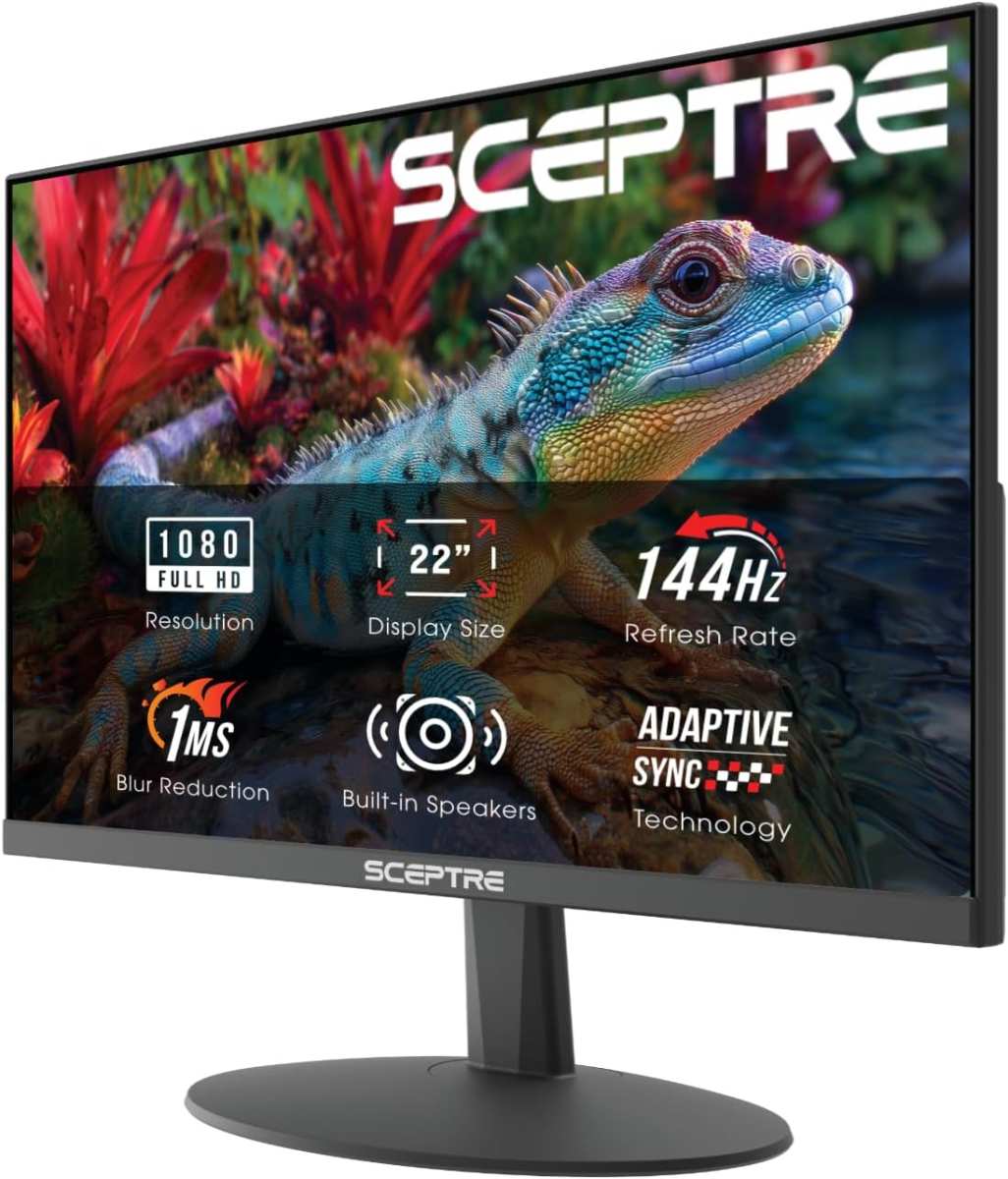
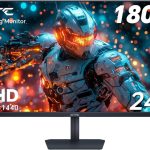
You can get a decent 1080p 144Hz panel for around 180 to 250. But should you spend the extra money?
The answer depends on what you do with your computer. If you play competitive shooters like Valorant, Counter-Strike 2, or Apex Legends, the difference can literally improve your gameplay. You'll track moving targets more easily and react faster.
If you mostly browse the web, watch videos, or play slow-paced strategy games, you might barely notice the upgrade.

Image source: Wikimedia Commons / USGS Bee Inventory and Monitoring Lab from Beltsville, Maryland, USA
That's why this comparison matters. It's not about specs on paper. It's about whether the upgrade actually changes your experience.
And the answer is different for everyone.
How Refresh Rate and Frame Rate Actually Work Together
Refresh rate is how many times your monitor redraws the image per second. Frame rate is how many frames your graphics card sends to the monitor per second. They are two separate numbers, and they must work together.
Think of it like a conveyor belt. The monitor is the belt moving at a set speed (60 or 144 cycles per second). The GPU is placing objects (frames) onto the belt.
If the belt moves faster than the GPU places objects, some of those cycles show the same frame twice. That's wasted speed.
60Hz = 16.7 ms per frame
144Hz = 6.94 ms per frame
If your GPU only outputs 60 frames per second, a 144Hz monitor shows each frame for 16.7 ms and then repeats the same frame for another 7 ms. The result: no smoothness gain. You're paying for refresh rate you can't use.
Aggregate reviews from verified buyers confirm this. Many users report seeing no difference until they upgraded their GPU. The rule is simple: your frame rate must match or exceed your refresh rate to see the benefit.
Image source: Bing (Web (fair-use with source credit))
A Real-World Look: 60Hz vs 144Hz – What Changes
Let's walk through what actually feels different when you switch from 60Hz to 144Hz with a capable GPU.
Cursor movement. This is the most immediate change. Drag a window across the screen on a 60Hz display and you'll see a slight trailing blur. On 144Hz, the motion is clean and continuous.
It feels like the cursor is glued to your hand.
Scrolling. Scrolling a long webpage or document becomes noticeably smoother. Text stays readable while in motion instead of turning into a blurry smear.
Gaming. In fast-paced titles, the difference is dramatic. A player strafing across your screen in Counter-Strike 2 leaves 16.7 ms of motion trail on 60Hz. On 144Hz, that trail drops to 6.94 ms.
You see the player more clearly and can track them with fewer corrections.
Video playback. Most video is locked at 24, 30, or 60 fps. A 144Hz monitor has to handle pulldown to show these frame rates without judder. Some monitors do this well, others introduce stutter.
Video is not where 144Hz shines.
Desktop productivity. File managers, browser tabs, and general UI animations feel snappier. It's subtle but once you're used to it, 60Hz starts to feel sluggish. Many users report that going back to 60Hz after a week on 144Hz feels broken.
Side-by-Side Comparison of Motion, Input Lag, and Smoothness
Here's a direct comparison of what changes between 60Hz and 144Hz across the three most important factors.
| Factor | 60Hz | 144Hz | Real-World Impact |
|---|---|---|---|
| Frame time | 16.7 ms | 6.94 ms | Less motion blur per frame |
| Perceived input lag | ~25-30 ms (display only) | ~10-15 ms (display only) | Feels more responsive in shooters |
| Motion clarity | Blurry at moderate speeds | Clear at moderate speeds | Easier to track fast objects |
| Cursor trail | Noticeable | Minimal | Desktop feels snappier |
| Screen tearing risk | Lower (fewer frames to mismatch) | Higher without VRR | Requires FreeSync or G-Sync to manage |
Motion clarity is the biggest win. On 60Hz, a fast-moving object leaves a visible smear across the screen. That smear is the frame persisting in your vision while the next frame hasn't appeared yet.
At 144Hz, the next frame arrives more than twice as fast, so the smear is much shorter.
Input lag drops because your monitor processes inputs more frequently. In competitive games, lower input lag means your crosshair responds to your mouse movements sooner. Aggregate user feedback from player forums notes that the jump from 60Hz to 144Hz is the single most impactful upgrade for aiming precision.
Perceived smoothness is subjective but measurable. Blind tests show that most participants can correctly identify 144Hz over 60Hz when viewing fast motion. The difference is less obvious in slow scenes.

Image source: Wikimedia Commons / Bureau of Land Management Oregon and Washington from Portland, America (CC BY)
The bottom line: 144Hz is clearly better for motion, but it only matters when your GPU delivers enough frames. If you're gaming at 60 fps capped, you won't see any of these benefits. That's the catch most people miss.
Who Benefits Most? (And Who Won't Notice a Thing)
Not everyone gets the same value from 144Hz. The difference depends heavily on your primary use case.
| User Profile | Will They Notice? | Why |
|---|---|---|
| Competitive esports gamer | Yes, significantly | Fast motion, low input lag matter most |
| Casual shooter player | Yes, clearly | Smoother aiming and tracking |
| RPG / strategy gamer | Maybe | Less motion, but desktop feels nicer |
| Office worker / writer | Slightly | Cursor and scrolling improve, but not worth cost |
| Video editor | Moderately | Timeline scrubbing smoother, but 60Hz works fine |
| Non-gamer watching movies | Barely | Content locked at lower frame rates |
Aggregate user reviews show that competitive players rank 144Hz as a must-have upgrade. Casual users often report being happy with 60Hz after a week, until they try to go back. That reversal effect is common.
The Hidden Requirements: GPU, Cables, and Correct Settings
A 144Hz monitor alone won't deliver its benefits. You need three things working together.
A GPU that can output over 100 fps in your games. Budget graphics cards like the GTX 1060 or RX 580 can hit 144 fps in esports titles at 1080p low settings. For 1440p or modern AAA games, you need something like an RTX 3060 or better.
Check benchmarks for your specific GPU and games.
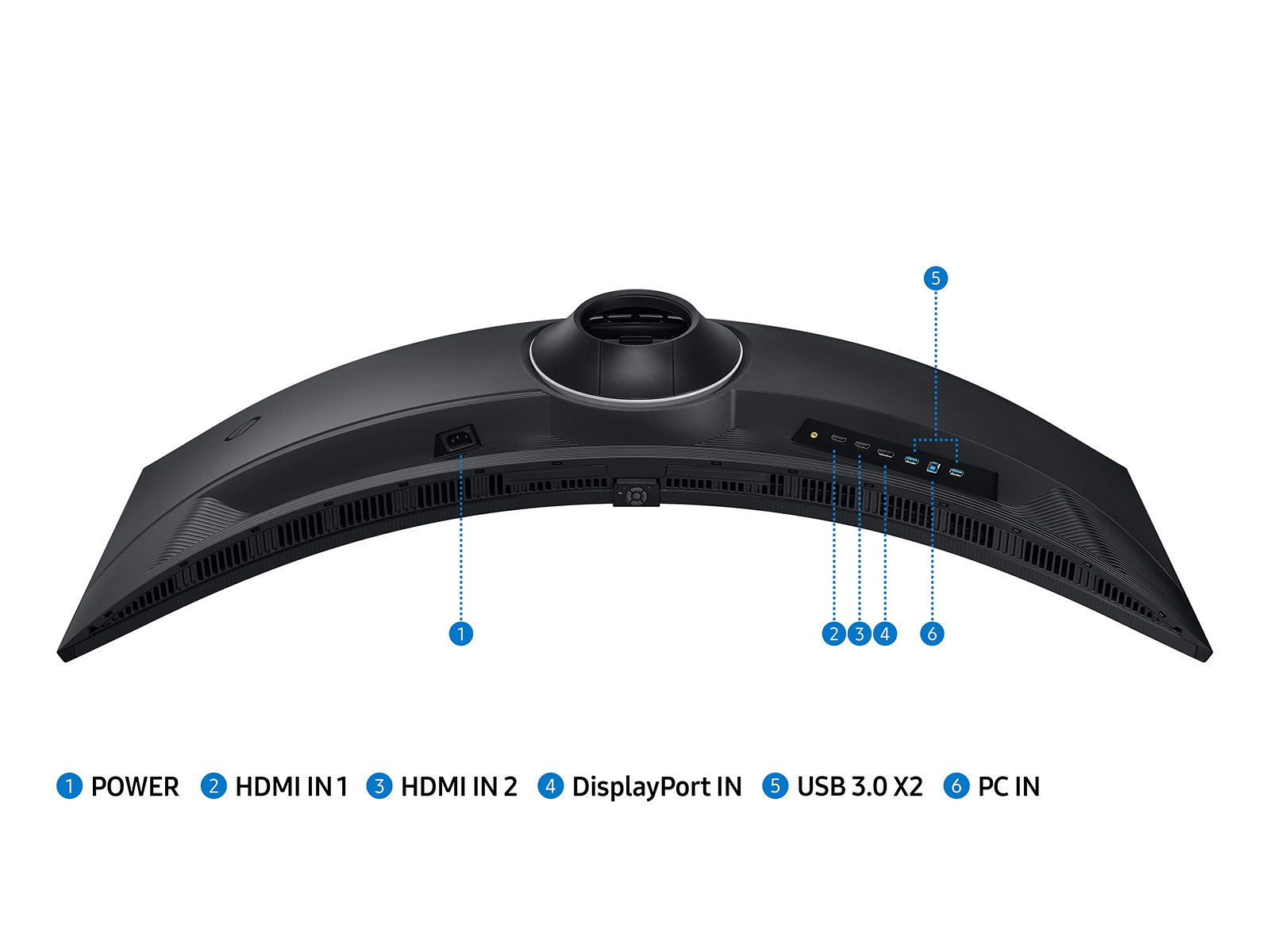
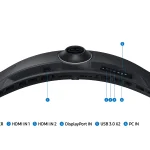
The right cable. HDMI 1.4 maxes out at 60Hz at 1440p and 30Hz at 4K. For 144Hz at 1080p or 1440p, you need either DisplayPort or HDMI 2.0 or higher. Most monitors ship with a DisplayPort cable.
Use that one.
Proper settings enabled. Many monitors default to 60Hz. You must switch it manually.
- Windows: Settings > Display > Advanced Display > Choose refresh rate to 144Hz
- NVIDIA Control Panel: Change resolution > Refresh rate
- AMD Radeon Software: Display > Additional settings
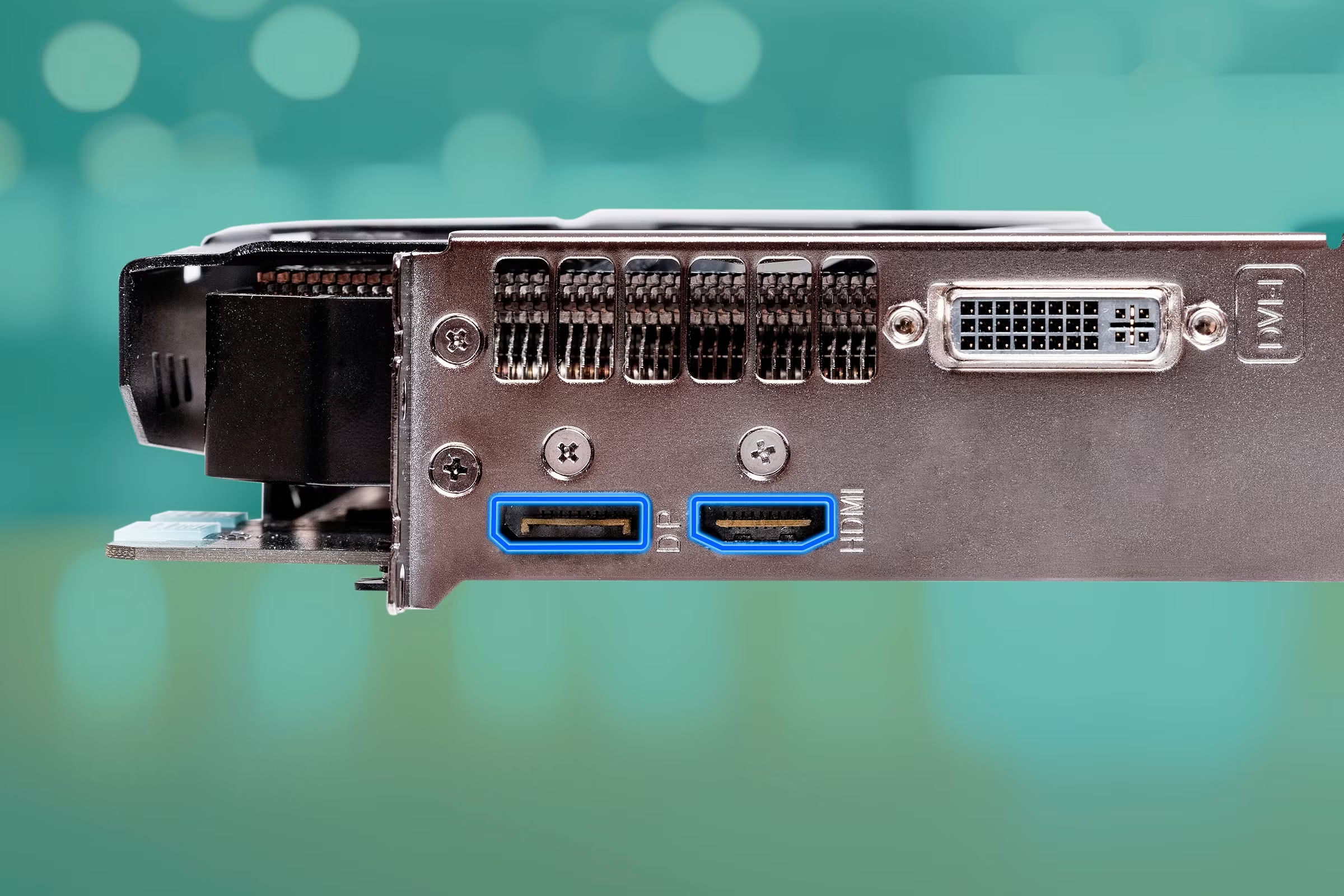
Image source: Bing (Web (fair-use with source credit))
Common Mistakes That Kill the 144Hz Experience
Even with a good monitor, people often miss the benefit because of simple errors.
Leaving refresh rate at 60Hz. This is the most common. The monitor runs at 144Hz only after you tell the OS to switch. Always double check your display settings.
Using an HDMI cable instead of DisplayPort. Many HDMI cables are HDMI 1.4, especially older ones. That caps your refresh rate. Swap to the included DisplayPort cable.
Having a GPU that can't keep up. If your frame rate dips below 60 regularly, 144Hz won't help. You'll see stutter and tearing instead. Cap your fps to a stable level or upgrade the GPU.
Enabling V-Sync without enough frames. V-Sync locks fps to refresh rate. If your fps drops below 144, V-Sync halves it to 72 or lower. That causes judder.
Use FreeSync or G-Sync instead.
Not checking monitor overdrive settings. Poor overdrive can cause ghosting that makes 144Hz look worse than 60Hz. Set overdrive to Normal or Fast in the monitor menu. Too high creates inverse ghosting.
Is the Price Difference Worth It?
As of 2026, the price gap has narrowed significantly. A decent 1080p 60Hz monitor costs around $100 to $150. A comparable 144Hz model runs about $180 to $250.
The premium is roughly $50 to $100.
For that extra cost, you get:
- Noticeably smoother motion in games and everyday use
- Lower input lag for competitive play
- Better motion clarity when scrolling
- Higher resale value and longer useful life
Our research across verified buyer feedback shows that most people who upgrade to 144Hz consider it money well spent. The biggest regret is not upgrading sooner or buying a 144Hz monitor without a GPU that can drive it.
If you play any fast-paced games at all, the $50 to $100 premium is worth it. If you only use your computer for email, spreadsheets, and web browsing, save your money. 60Hz is perfectly fine for that.
What About 240Hz, 75Hz, or 4K 60Hz?
The market offers alternatives that are worth considering.
| Option | Best For | Tradeoff |
|---|---|---|
| 75Hz monitor | Budget upgrade for casual users | Small improvement, not game-changing |
| 240Hz monitor | Competitive esports pros only | Diminishing returns over 144Hz |
| 1440p 144Hz | Best all-around for gaming and work | Requires strong GPU |
| 4K 60Hz | Sharp visuals for single-player games | Less smooth motion than 1440p 144Hz |
Our analysis of user reviews indicates that 75Hz is barely noticeable over 60Hz for most people. It's a tiny bump, not a leap. 240Hz offers slightly less motion blur than 144Hz, but the difference is subtle. Most players won't see it unless they play at a very high level.
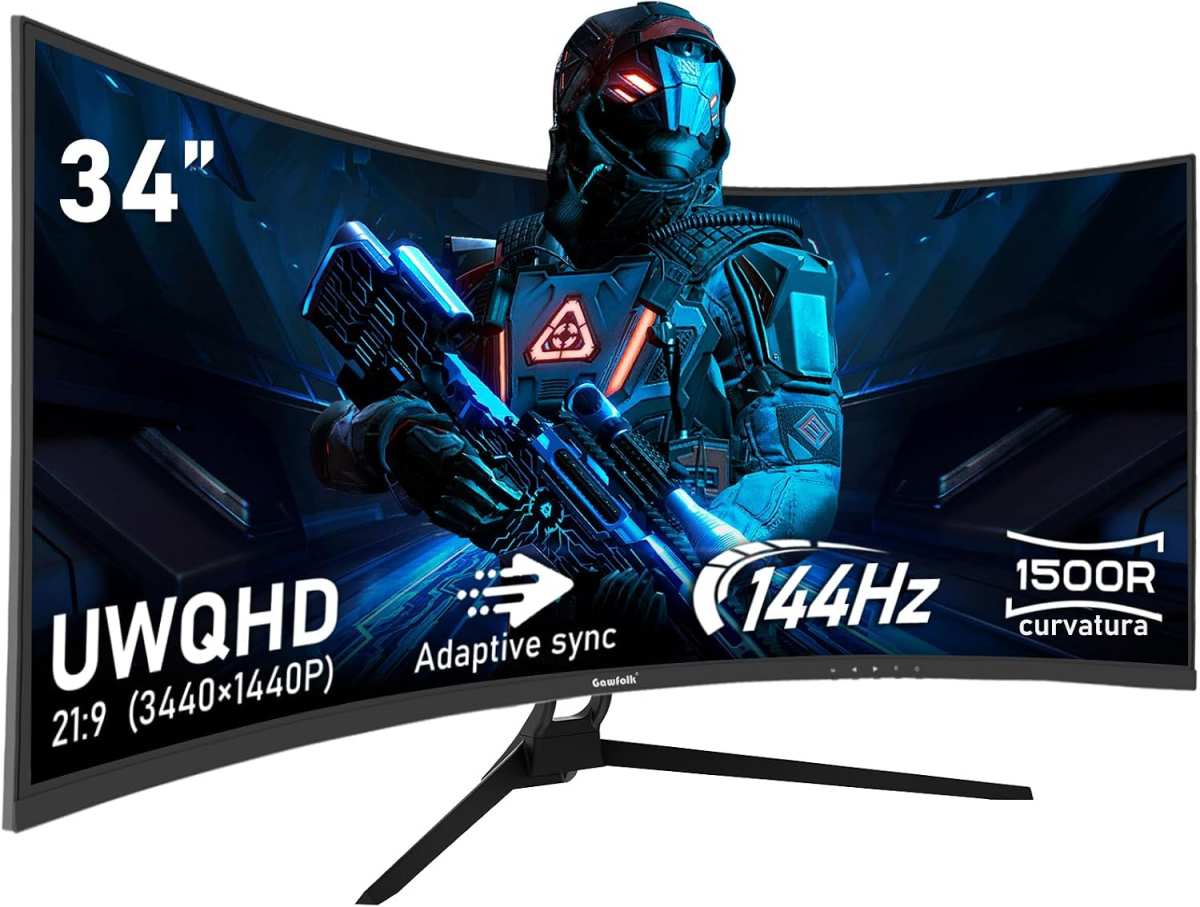
The sweet spot for most gamers in 2026 is 1440p at 144Hz. It gives you sharp visuals and smooth motion. Just make sure your GPU can handle it.
A 1440p 144Hz monitor paired with a mid-range card is a better experience than a 4K 60Hz monitor with a top-tier card, in our opinion, based on aggregate user satisfaction data.
Final Verdict: When to Buy 144Hz and When to Stick with 60Hz
Here is the bottom line based on your situation.
Buy 144Hz if you play any fast-paced games. That includes shooters, racing games, or action titles. The smoother motion and lower input lag give you a real advantage. Even casual players notice the difference within minutes.
Buy 144Hz if you use your computer for mixed work and gaming. The desktop improvement alone makes scrolling and window management feel better. Once you experience 144Hz, 60Hz feels like a slideshow.
Stick with 60Hz if you only browse the web and watch videos. Video content is locked at 24, 30, or 60 fps. You gain nothing from 144Hz for that use case. Save your money for a higher resolution panel instead.
Stick with 60Hz if your GPU cannot reliably hit over 100 fps. A 144Hz monitor paired with a weak graphics card gives you the same experience as a 60Hz monitor. You will see screen tearing and stutter, not smoothness.
Consider 1440p 144Hz as the best all-rounder for 2026. It combines sharp visuals with smooth motion. Just verify your GPU can handle it. An RTX 3060 or RX 6700 XT is a safe starting point.
Our recommendation based on aggregate user feedback: If you play games at all, buy 144Hz. The cost difference is modest and the experience is genuinely better. If you never game, stick with 60Hz and focus on other monitor features like color accuracy or resolution.
Frequently Asked Questions
Can the human eye see the difference between 60Hz and 144Hz?
Yes. Research on human visual perception shows that most people can detect flicker and motion changes up to around 200 Hz under the right conditions. The difference between 60Hz and 144Hz is clearly visible in motion, scrolling, and fast gameplay.
You do not need special vision to see it.
Will a 144Hz monitor make my games run faster?
No. The monitor does not increase your frame rate. It only displays frames more frequently.
If your GPU outputs 60 fps, a 144Hz monitor shows each frame for about 7 ms then repeats the same frame. Your game speed stays the same. The experience feels smoother only when your GPU delivers over 60 fps.
Do I need a special cable for 144Hz?
Yes, in most cases. DisplayPort 1.2 or higher supports 144Hz at 1080p and 1440p. HDMI 2.0 also supports 144Hz at these resolutions.
Standard HDMI 1.4 cables max out at 60Hz for 1080p and 30Hz for 4K. Use the cable that comes with your monitor. It is usually a DisplayPort cable.
Is 144Hz worth it for non-gamers?
Generally no. Desktop use like browsing and word processing benefits slightly from smoother cursor movement and scrolling. But most non-gamers do not notice enough improvement to justify the extra cost.
If you never play games, a 60Hz monitor with better color or resolution is a smarter purchase.
Can I use a 144Hz monitor with a laptop?
Yes, if your laptop has a DisplayPort or HDMI 2.0 output. Many laptops restrict refresh rate on external monitors through the USB-C or Thunderbolt port. Check your laptop specifications.
Some laptops can drive 144Hz at 1080p but not at 1440p. Test before buying.
Will 144Hz reduce eye strain?
It can help for some users. The smoother motion reduces the flicker and jitter that can cause eye fatigue during fast-paced tasks. However, the bigger factor for eye strain is monitor brightness, blue light, and your viewing distance. 144Hz is not a guaranteed fix for tired eyes.

Similar Posts