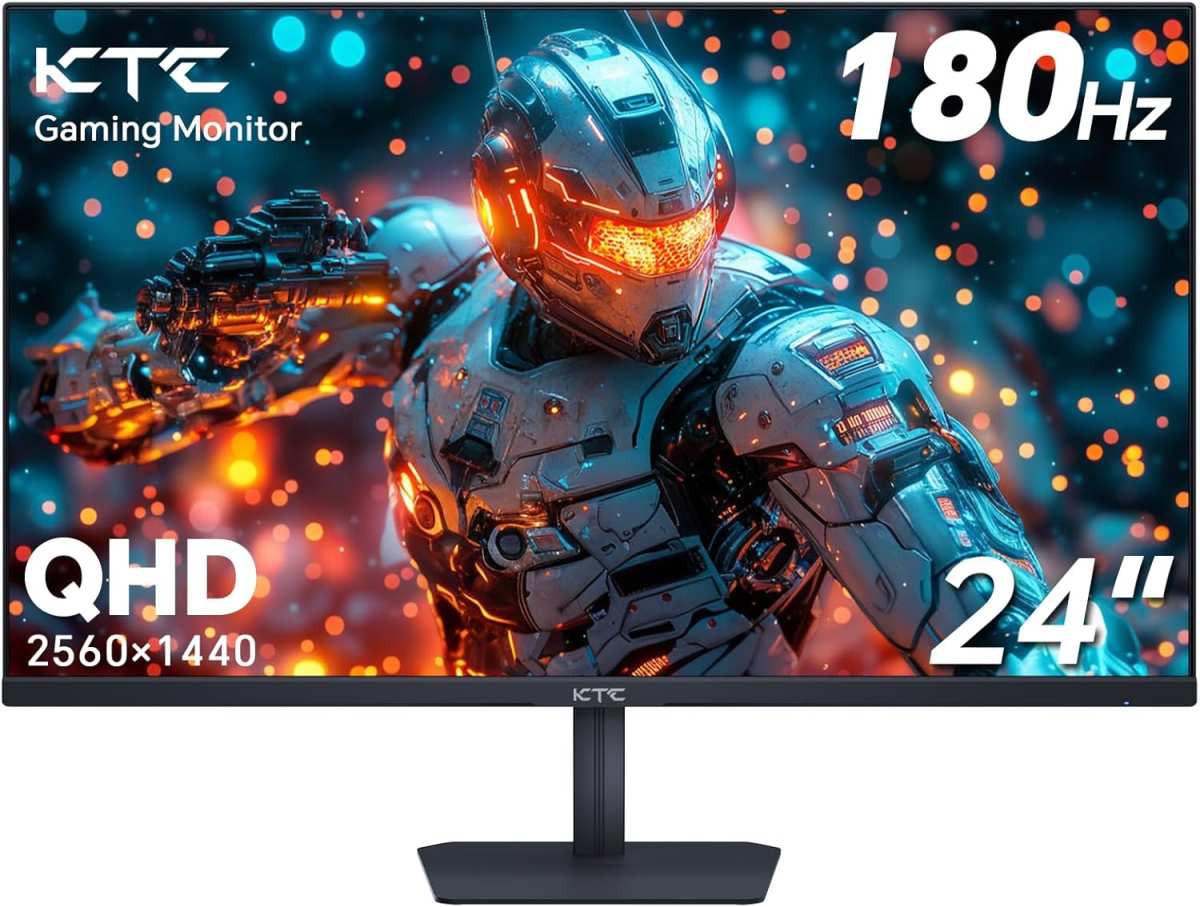
are 144hz monitors good for video editing
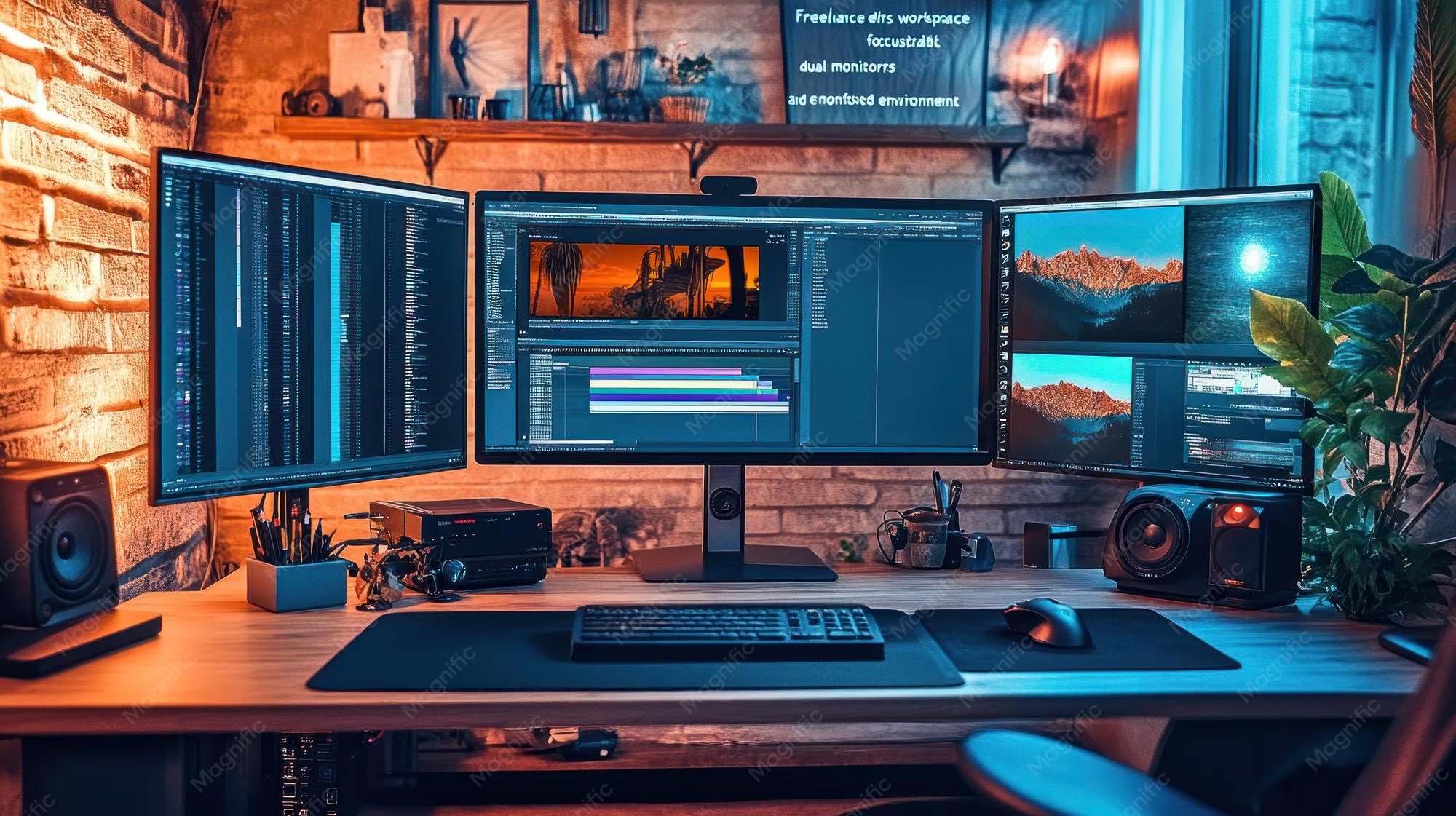
You’ve been reading forums where people argue whether a high refresh rate monitor is worth it for video editing. Some say it’s a waste of money. Others swear it changed their workflow.
The truth is, the answer depends on what you edit, how you work, and what else you use that monitor for.
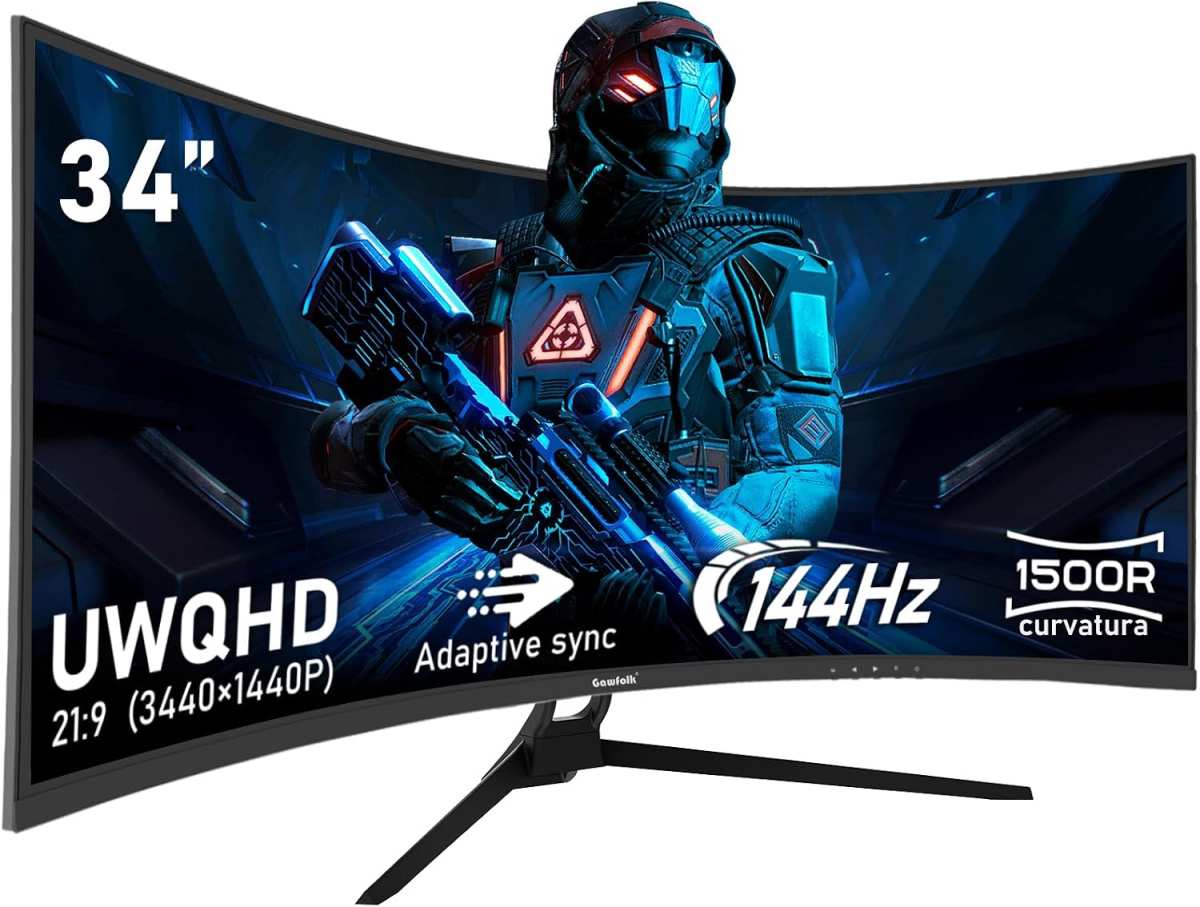
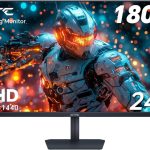
Manufacturer specifications indicate that most 144Hz panels prioritize speed over color reproduction. As of 2026, even budget 144Hz IPS monitors often cover 99% sRGB, but that doesn’t automatically make them good for color-critical work. Let’s walk through what actually changes when you plug a 144Hz monitor into your editing rig, and when you should stick with a slower, more colorful panel.
Image source: Bing (Web (fair-use with source credit))
Quick Answer
144Hz monitors can be good for video editing, but not for every situation. They smooth out cursor movement and timeline scrubbing. They reduce eye strain over long sessions.
But they don’t make your 24fps footage play back any smoother. If you edit 60fps or 120fps content, the higher refresh rate helps you preview motion more accurately. If color accuracy is your top priority, a calibrated 60Hz 4K panel is still the safer choice.
How Refresh Rate Actually Affects Video Editing (It's Not What You Think)
Does a 144Hz monitor make your video playback look better?
No. Your project frame rate, usually 24, 30, or 60 frames per second, is what determines how smooth the video plays back in the preview window. A 144Hz monitor doesn’t change that.
What it does change is how the interface feels.
What actually improves
- Cursor movement. When you drag a slider or move a clip on the timeline, the cursor moves at the monitor’s refresh rate. At 60Hz, each step is 16.6 milliseconds apart. At 144Hz, that drops to about 6.9 milliseconds. You see a smoother, more responsive pointer.
- Timeline scrubbing. Scrolling through a long timeline at 60Hz can feel choppy, you’re jumping 16.6ms at a time. At 144Hz, the scroll is noticeably more fluid. Editors who spend hours scrubbing through footage often report that this alone is worth the upgrade.
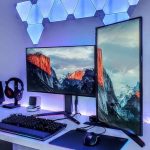
- Window dragging and multitasking. Moving a window from one monitor to another, resizing panels, or switching between apps all feel snappier. The desktop itself becomes more responsive.
What stays the same
The video preview window still runs at your project’s frame rate, 24fps, 30fps, or 60fps. A 144Hz monitor simply repeats each frame multiple times. That doesn’t introduce any extra motion blur or judder, but it doesn’t add smoothness either.
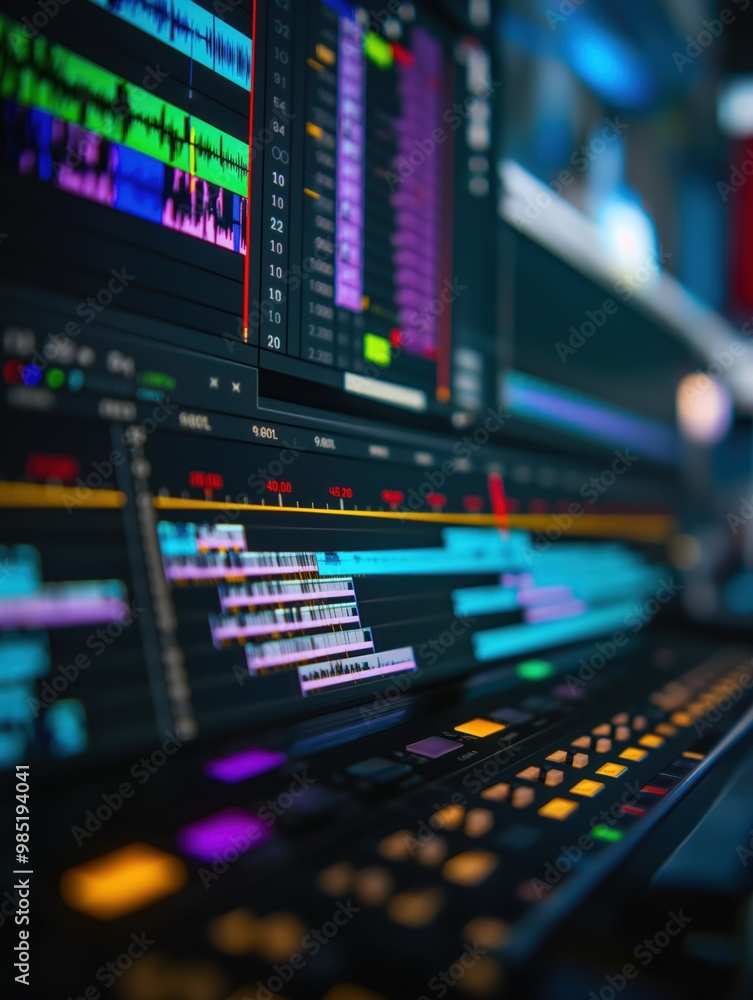
Image source: Bing (Web (fair-use with source credit))
The Color Accuracy Catch: Where 144Hz Monitors Often Fall Short
Why gaming panels compromise on color
Most 144Hz monitors are built for gaming. That means manufacturers often choose faster panel technologies (TN or VA) that can’t reproduce colors as accurately as slower IPS panels designed for graphic design. Even when a 144Hz monitor uses an IPS panel, it may still cut corners to hit a lower price.
Panel type breakdown for video editors
| Panel Type | Typical Color Accuracy | Refresh Rate Range | Best Use Case |
|---|---|---|---|
| IPS (high-end) | Delta E < 2, 99%+ sRGB | 60-165Hz | Professional video editing |
| IPS (budget) | Delta E 3-5, 90-95% sRGB | 60-144Hz | Hobbyist editing with gaming |
| VA | Delta E 3-6, 85-95% sRGB | 144-240Hz | Mixed use (editing + gaming) |
| TN | Delta E 5+, 70-85% sRGB | 144-360Hz | Avoid for any color-critical work |
The bit-depth trap
Many 144Hz monitors advertise “6-bit + FRC”, they simulate 8-bit color by quickly switching between two shades. This works reasonably well for gaming, but for video editing, it can cause visible banding in gradients and skies. True 8-bit panels are the minimum for any editing work. 10-bit panels are preferred for HDR grading.
What to look for on the spec sheet
- Delta E < 2, Industry standard for color-critical work. A Delta E higher than 3 means you’ll see color shifts.
- sRGB coverage 99% or higher, For web and standard video. DCI-P3 coverage above 90% matters for HDR projects.
- 8-bit panel minimum, Avoid 6-bit + FRC if you do any color grading.
- Factory calibration report, Some monitors include a printed report showing measured Delta E and gamma values.
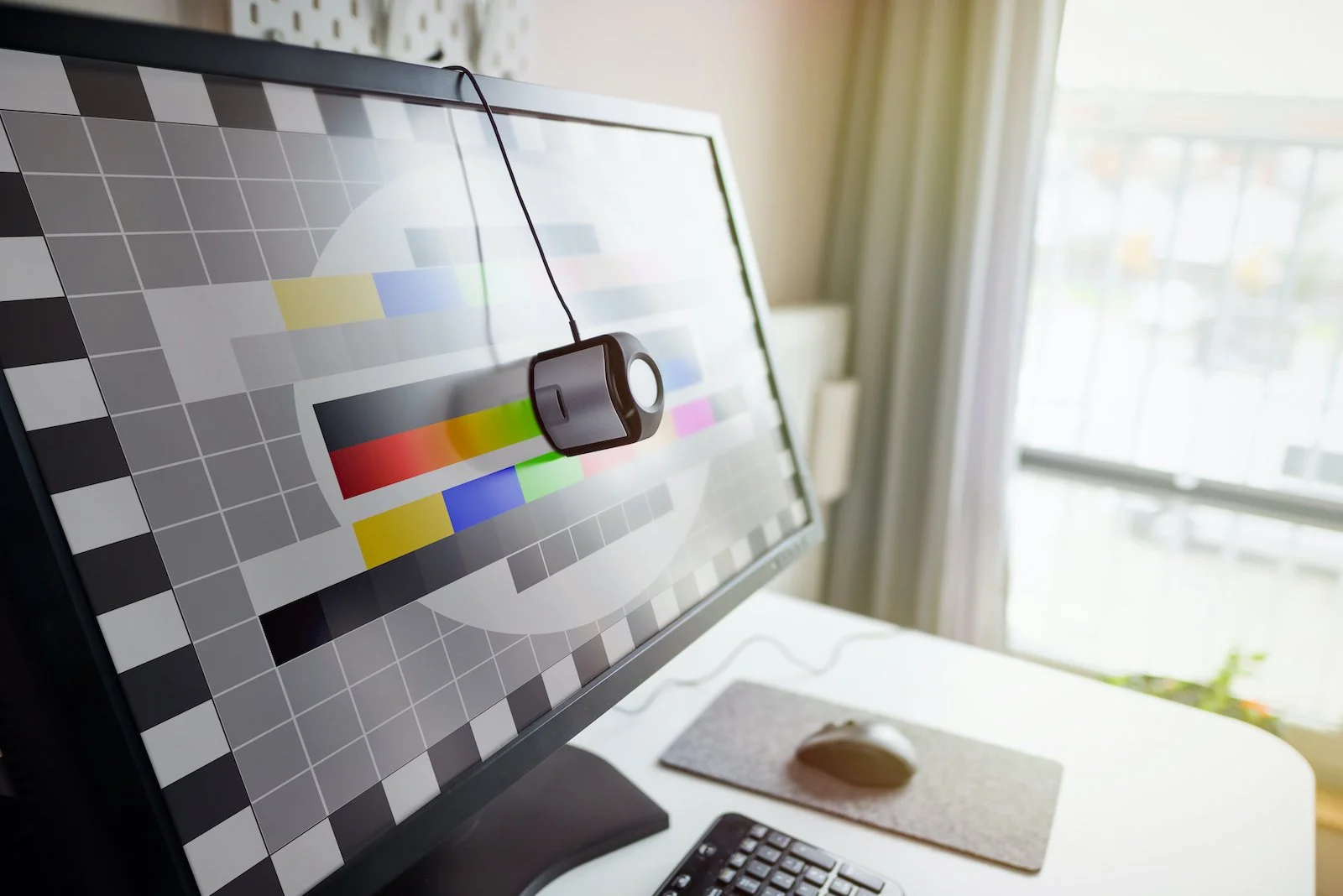
Image source: Bing (Web (fair-use with source credit))
The Great Divide: Panel Types and Their Trade-offs
Which panel technology should you choose?
The monitor industry divides into three main panel types for 144Hz monitors: IPS, VA, and TN. Each has distinct strengths and weaknesses for video editing.
IPS: The video editor’s choice
IPS panels offer the widest viewing angles and best color consistency. They’re the default recommendation for anyone who cares about accurate color. The trade-off?
They’re slower, typically 4ms response time, and they suffer from backlight bleed (light leaking around the edges of the screen). Modern IPS panels have improved contrast ratios, but they still can’t match VA panels for deep blacks.
VA: The middle ground
VA panels offer better contrast and deeper blacks than IPS, making them good for dark room editing or HDR preview. However, they have narrower viewing angles and can shift color when you’re not sitting directly in front. Ghosting and black smearing are more common on VA panels at high refresh rates.
TN: Avoid for editing
TN panels are fast, real 1ms response times, but their color accuracy and viewing angles are poor. Colors wash out as soon as you move your head. TN is fine for competitive gaming, but for video editing, it’s a hard no.
Side-by-side comparison
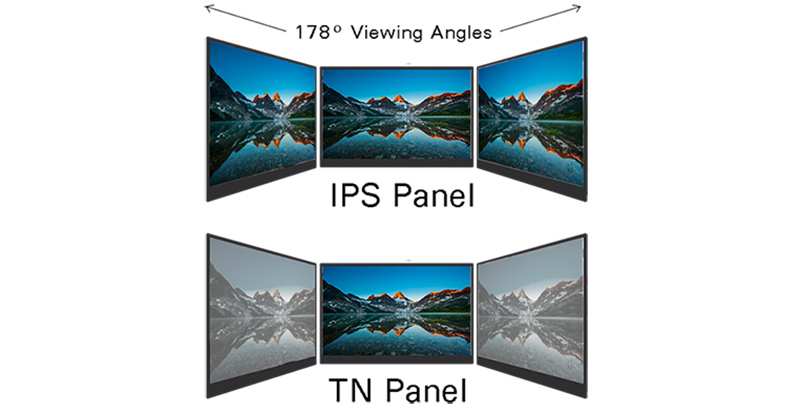
Image source: Bing (Web (fair-use with source credit))
When 144Hz Makes Sense for Video Editing (Decision Branch 1)
You edit high frame rate content
If your projects include 60fps, 120fps, or 240fps footage, think slow-motion, sports videos, or gaming content, a 144Hz monitor lets you preview those clips at their native frame rate. At 60Hz, a 120fps clip will be shown at half speed or with dropped frames. At 144Hz, you can see every frame of a 120fps clip in real time.
You use the same monitor for gaming
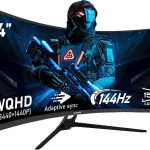
If you game in your downtime and edit in your work hours, a single 144Hz IPS monitor with good color accuracy can serve both roles. The key is to choose a model that offers a dedicated sRGB or DCI-P3 mode with factory calibration. That way, you get fast refresh for gaming and reasonable color for editing.
You spend hours scrubbing through timelines
Editors who cut long-form content, documentaries, wedding videos, corporate projects, often find that smoother scrolling reduces eye fatigue. The difference between 60Hz and 144Hz in timeline scrubbing is subtle at first, but across an eight-hour editing session, it adds up.
You plan to work at 1440p or 4K
At 1440p, a 144Hz monitor gives you more screen real estate than 1080p while still keeping the refresh rate benefits. At 4K, 144Hz monitors are more expensive, but they combine high resolution with smooth motion, ideal for multi-panel timelines and detailed previews.

Similar Posts