How to Organize Projects in Claude
Figuring out how to organize projects in Claude isn't about memorizing a menu of features. It's about understanding how Claude's project containers actually work, then picking a structure that matches the way you already think about your work. Get this right and everything else, the prompts, the context, the team collaboration, all of it gets dramatically easier.
Most people dive in, create a few projects, upload some files, and end up with a cluttered six months later that nobody wants to deal with. As of 2026, Claude offers project-level instructions, document uploads, and hierarchical naming, but no sub-tasks, no sub-projects, and no cross-project search. That constraint is actually useful once you stop fighting it and start building around it.
Quick Answer
To organize projects in Claude, create a separate project for each distinct work area, write a clear project description that defines purpose and constraints, upload shared documents before starting work, and split conversations by task rather than lumping everything into one long thread. Use hierarchical naming like Category > Subcategory > Project to keep related work grouped, and start each conversation with a brief context summary so Claude knows which project you're working in.
Why Most People Struggle with Claude Projects
The Real Problem Isn't the Tool
Claude's Projects feature is deceptively simple. You create a project, add documents, start chatting. Frustration doesn't come from complexity.
It comes from expecting the tool to organize itself.
Based on reviews and support discussions, the most common failure mode is treating Claude Projects like a file cabinet where everything gets dumped with no structure. People create one or two "General" projects, stuff them with dozens of documents, run fifty conversations in a single thread, then wonder why Claude can't keep track of anything.
The tool gives you containers. You have to provide the system.
What Claude Projects Actually Do (and Don't Do)
Let's be clear about the boundaries. Understanding these will save you hours of frustration.
What projects do:
- Act as a dedicated workspace with its own context window
- Store uploaded documents that Claude can reference across conversations
- Support a project-level description that persists across all conversations
- Allow hierarchical naming using the > separator for visual grouping
- Support team access control in Bedrock and Teams plans
What projects don't do:
- No sub-projects or nested project hierarchies beyond naming conventions
- No cross-project search or document sharing between projects
- No task management, deadlines, or progress tracking
- No automatic organization of documents or conversations
- No context sharing between projects (each is a sealed container)
That last point trips people up constantly. When you switch from Project A to Project B, Claude doesn't carry anything over. Every switch is a clean slate.
The Mistake That Makes Everything Harder
Here's the single biggest mistake we see. People try to use one project as a catch-all for an entire role or department. A "Marketing" project that contains every campaign, every brief, every asset, every conversation from the past eight months.
This creates three problems simultaneously. The context window gets overloaded and Claude starts losing track of details. Documents pile up with no organization, so finding anything becomes a scroll-fest.
Team members who need access to one campaign wade through irrelevant material from six others.
The fix is thinking in terms of bounded work areas, not departments. More on that in the next section.
Setting Up Your First Project the Right Way
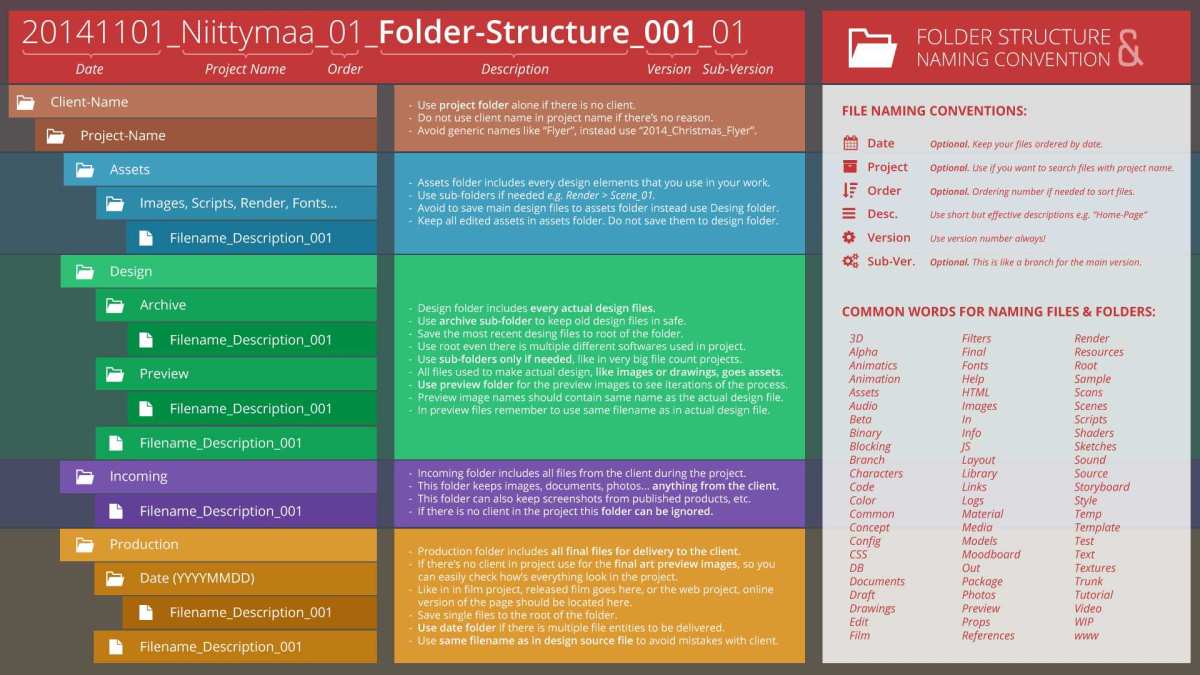
Image source: Bing (Web (fair-use with source credit))
Step 1: Name It So Future You Won't Be Confused
Your project name is the first thing you see every time you open Claude. Make it count.
The naming convention that works best uses the > separator to create visual hierarchy. This isn't just cosmetic. It determines how your projects sort and group in the sidebar.
Good naming patterns:
| Pattern | Example | When to Use |
|---|---|---|
| Category > Project | Clients > SmithCo | Standard client work |
| Category > Subcategory > Project | Content > Blog > SEO Posts | Deep hierarchy (3+ levels) |
| Status > Project | Active > Website Redesign | Status-based organization |
| Team > Function > Project | Marketing > Email > Newsletter | Team-based organization |
| +Template Name | +Client Setup Template | Template projects |
Patterns to avoid:
- "Stuff" or "Miscellaneous" or "Other" (these become black holes)
- "Final" or "Final v2" or "Final FINAL" (version control by naming never works)
- Single vague words like "Work" or "Project1" (zero context)
- All caps or all symbols (hard to scan, easy to ignore)
Spend thirty seconds on a good name now. You'll thank yourself in three months.
Step 2: Write a Project Description That Actually Helps Claude
This is the most underused feature in Claude Projects. The project description sits at the top of the context stack, meaning Claude sees it in every single conversation within that project. A good description acts as a persistent briefing document.
The minimum viable description covers four things:
- What this project is for (one sentence)
- Who the audience or stakeholders are
- What outcome you're working toward
- Key constraints like format, tone, timeline, or style requirements
Here's an example for a content marketing project:
"Blog posts for our SaaS company's content marketing blog. Audience is technical founders at startups. Each post should be 1500 to 2500 words, practical and example-heavy, no fluff. Tone is knowledgeable but casual. We're targeting SEO keywords in the project management space."
That's it. No novel needed. But those five sentences give Claude more useful context than fifty pages of uploaded documents with no framing.
Step 3: Upload and Organize Your Documents Before You Start
Before you send your first prompt, get your documents in place. This is like setting up your kitchen before cooking. Do it once, benefit every time.
The order of operations that works:
- Create the project with a good name
- Write the project description
- Upload all foundational documents (style guides, research data, templates, reference material)
- Organize documents into logical groups using naming conventions
- Then start your first work conversation
Document naming conventions that scale:
| Pattern | Example | When to Use |
|---|---|---|
| descriptive-name.md | brand-guidelines.md | Standard documents |
| descriptive-name-YYYY-MM-DD.md | report-2025-07-01.md | Versioned documents |
| category-descriptive-name.md | seo-blog-post-ai-tools.md | When category helps discovery |
| YYYY-MM-DD-descriptive-name.md | 2025-07-10-meeting-notes.md | Chronological organization |
| descriptive-name-v2.md | style-guide-v2.md | Simple versioning |
The key principle is semantic naming. Every document should be identifiable by its name alone, without having to open it.
Step 4: Start Your First Conversation with Clear Context
Even though Claude has your project description and documents, don't assume it knows what you want to do right now. Start every conversation with a brief orientation.
The pattern that works:
"I'm in the [Project Name] project. I need to [specific task]. The key constraint is [specific constraint]. Please reference [specific document] as the guide for [specific aspect]."
This takes about ten seconds and eliminates the most common source of bad output: Claude making assumptions about what you want instead of reading your mind.
Choosing the Right Organization Structure for Your Situation
The Decision Tree: Which Structure Fits Your Work?
There's no single "correct" way to organize projects in Claude. The right structure depends on your specific situation. Walk through these questions in order.
Question 1: Are you working solo or with a team?
- Solo, skip to Question 2
- Team, skip to Question 3
Question 2 (Solo): How many distinct project categories do you have?
- 1 to 3 categories: Flat structure works fine. Use clear naming conventions. You don't need hierarchy.
- 4 to 8 categories: Categorical structure. Each category becomes a parent project name, and individual projects sit under them using the > convention.
- 9 or more categories: Hierarchical structure. You need multiple tiers. Plan your two-level hierarchy carefully before creating anything.
Question 3 (Team): Do team members need different access levels?
- No, everyone sees everything: Simpler categorical structure. Everyone's in the same projects. Naming conventions still matter for navigation.
- Yes, some need restricted access: Structured projects with role-based permissions. This means more projects overall, but each one is tightly scoped to specific team members.
Question 4: Are projects independent, or do they have handoff points?
- Independent: Each project stands alone. Standard naming and document organization. Keep them clean.
- Handoffs exist: You need a shared resources layer. Plan for handoff protocols explicitly.
- Heavy handoff dependency: Full launch-style structure with phased folders, explicit handoff documents, and strict permission boundaries.
Question 5: How complex is each individual project?
- Simple (1 to 5 documents, 1 to 2 conversations): Keep it light. Don't over-engineer. A few documents and a clean name will do.
- Moderate (5 to 15 documents, multiple conversations): Subfolder organization for documents. Separate active conversations by task.
- Complex (15+ documents, many conversations): Hierarchical document folders. Regular maintenance required. Consider whether this should be broken into multiple linked projects.
Hierarchical Organization Using the Naming Convention
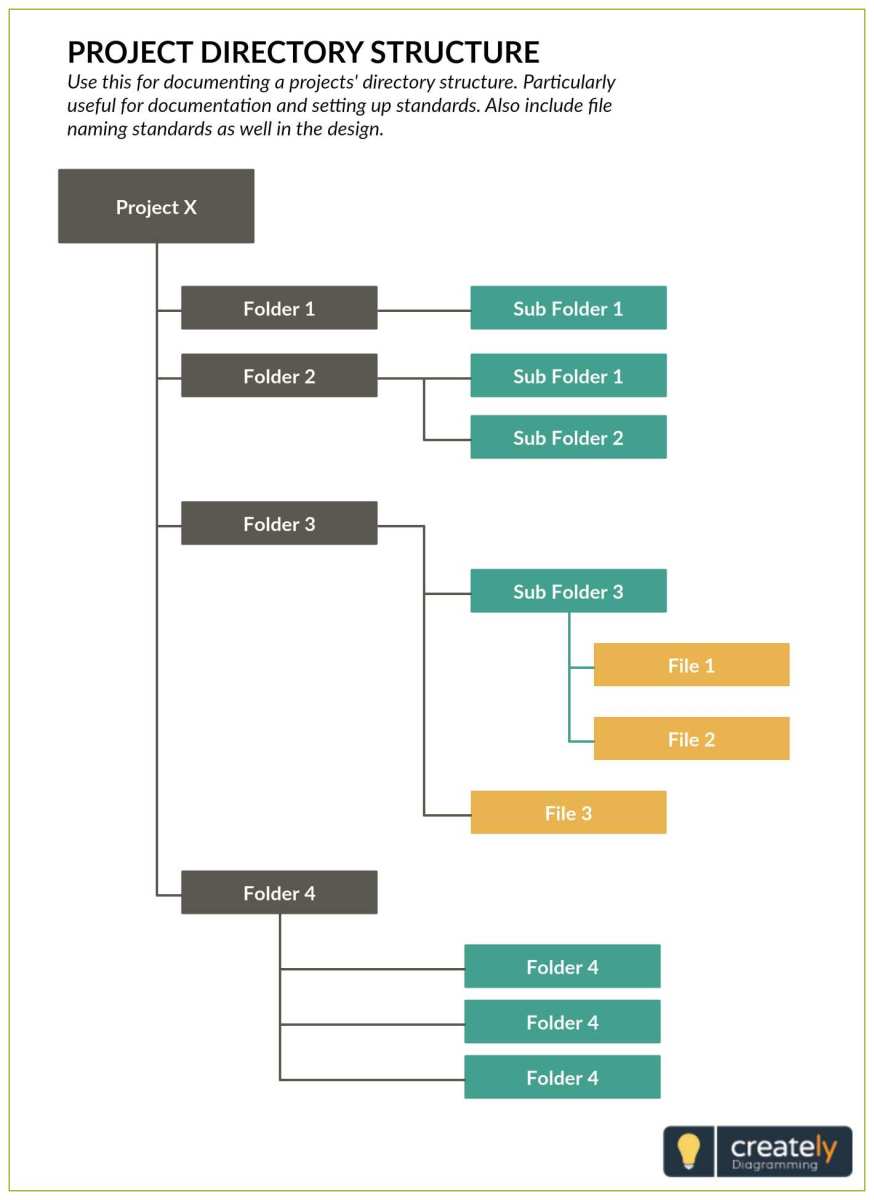
The > separator is your best friend for creating visual hierarchy in Claude's project sidebar. It doesn't create actual sub-projects (Claude doesn't support nested projects), but it creates visual grouping that makes navigation dramatically easier.
Example structure for a solo consultant with four clients:
Clients > SmithCo
Clients > TechStart
Clients > GreenLeaf
Clients > GreenLeaf > Strategy
Clients > GreenLeaf > Reports
Example structure for a content team:
Content > Blog Team
Content > Case Studies
Content > Email Team
Content > White Papers
Content > Shared Resources
Example structure for a product launch:
Launch > FeatureName > Discovery
Launch > FeatureName > Design and Dev
Launch > FeatureName > Marketing
Launch > FeatureName > Support Prep
Launch > FeatureName > Shared Resources
The pattern is consistent. Broad category on the left, specific project on the right. Your eyes learn to scan the sidebar quickly, and you stop wasting time looking for things.
When to Keep It Flat vs. When to Go Deep
Not every situation needs hierarchy. Here's when flat works and when it doesn't.
Flat structure works when:
- You have fewer than five active projects
- Each project is clearly distinct from the others
- You're the only person accessing them
- Projects don't share documents or hand off to each other
Hierarchical structure becomes necessary when:
- You have more than seven projects active at once
- Multiple people need to find projects quickly
- Projects naturally group into categories
- You're managing both active and archived work
The trap is over-organizing too early. If you have three active projects, don't build a five-tier hierarchy "for when things grow." Start flat. Add hierarchy when the clutter actually appears.
Organizing Documents Inside a Project
Document Naming Conventions That Scale
The documents you upload are only useful if you can find them later. Semantic naming is the single highest-leverage habit you can build.
Here's the principle. Every document should be identifiable by its name alone, without opening it. That means dates go at the beginning for chronological sorting.
Version numbers go at the end. Category prefixes help when documents from different workstreams live in the same folder.
The naming patterns that actually work:
2025-07-10-meeting-notes.md(chronological, sorts naturally)brand-guidelines-v2.md(simple version control)seo-brief-ai-tools.md(category prefix for filtering at a glance)report-Q1-2025.md(quarterly or period-based naming)
The patterns that fall apart:
final.docxandfinal-v2.docxandfinal-v2-REALLY.docx(we've all been here)Document1.md(meaningless three months later)notes.md(notes about what, from when, written by whom)
Pick a convention for each project and stick with it. Consistency matters more than cleverness.
Folder Structures by Project Size
Not every project needs a folder system. In fact, most shouldn't have one. Here's the breakdown by size.
Small projects (1 to 7 documents):
Keep them flat. Name the documents well. Done.
Adding folders to five documents is organizational theater.
Medium projects (8 to 20 documents):
Group by type. The three-folder system covers most needs:
deliverable-docs(work product)reference-docs(source material and research)archive(completed or deprecated items)
Large projects (20+ documents):
You need a taxonomy. Plan it before you upload anything, or you'll be reorganizing at 11pm on a Thursday when someone asks for a file you can't find.
The hierarchy works like this: category folders, then document-type subfolders, then individual files. For example, under a product launch project:
Launch > Marketing > Messaging > feature-announcement.md
Launch > Marketing > Launch Assets > landing-page-copy.md
Launch > Support > FAQ > troubleshooting-guide.md
Version Control Without the Headache
Claude doesn't have built-in version control for documents. You manage this through naming conventions and discipline.
The simplest approach that works for teams: date-based naming with a changelog. When you create a new version, date it. Keep a single changelog.md in the project that tracks what changed and when.
Example changelog entry:
## Changelog

### 2025-07-10 — Brand Guidelines v3
- Updated typography section with new heading fonts
- Added dark mode color palette
- Removed deprecated logo usage examples
- Approved by marketing lead
For solo work, just use filename-YYYY-MM-DD.md and archive old versions to a subfolder. No changelog needed. Your future self can spot the latest date instantly.
Managing Conversations Without Losing Your Mind
One Conversation vs. Many: When to Split
This is where most project organization falls apart. People treat a conversation like a living room that needs to hold every topic forever. Then they blame Claude when things get messy.
The rule is simple. One conversation per deliverable or distinct task. Not one conversation per project.
Not one conversation per day. One per specific output.
Here's why. Every message in a conversation eats into the context window. After about 40 to 60 messages, Claude starts losing the thread.
Responses get shorter, less nuanced, and details from earlier in the conversation start getting dropped.
Splitting conversations is like starting a fresh meeting with a clear agenda instead of trying to pick up a meeting that's been running for six hours.
How to Switch Between Projects Without Context Bleed
Claude treats every project as a sealed container. When you switch from Project A to Project B, it doesn't carry anything over. This is a feature, not a bug.
But it requires you to be deliberate about re-establishing context.
The context refresher pattern:
Every time you start working in a project, especially after being away for more than a few hours, give Claude a quick orientation. This takes ten seconds and saves you from re-explaining everything.
"I'm in the Clients > SmithCo project. Last time we worked on the Q1 report. The key decisions were to focus on recurring revenue and drop the one-time project income from the main analysis. The style guide is in the project documents. Today I need to finalize the executive summary."
That's it. Project name, last task, key decisions, document references, current request. Claude is back up to speed.
The Checkpoint Technique for Long Conversations
Sometimes a single deliverable takes more than one conversation's worth of context. When you hit that point, use a checkpoint.
Mid-conversation, at a natural stopping point, ask Claude to summarize:
"Let's pause for a checkpoint. Summarize what we've accomplished so far, the key decisions we've made, and what the next steps would be if we were continuing. Save that as a note."
Then start a new conversation in the same project. Paste the checkpoint summary as your opening message. Claude picks up right where you left off, and you get a fresh context window.
This technique also works for handoffs between team members. The outgoing person creates a checkpoint. The incoming person starts a new conversation with that checkpoint as context.
No information lost. No redundant explanation needed.
Real-World Setup Walkthroughs
The Solo Consultant Managing 4 Clients
A consultant we researched had four active clients, each with multiple service types: strategy documents, implementation reporting, and presentations. Everything was going into a single "Client Work" project and getting tangled.
Here's the structure that works:
Clients > SmithCo
Clients > TechStart
Clients > GreenLeaf
Clients > Northwind > Strategy
Clients > Northwind > Reports
Each client gets their own project. For clients with multiple service types that each have distinct content, split into sub-projects using the naming convention.
Every work session starts with a context refresher that takes about fifteen seconds. During deep work on a single client, they don't switch between projects at all. They batch client work by day or by half-day to minimize context-switching overhead.
Weekly routine: Monday morning review all four client projects for pending items. Friday afternoon archive completed conversations and update any documents that changed during the week.
Phased Product Launch with 4 Teams and Handoffs
This is the scenario where structure matters most. Four teams, four phases, handoff points between each.
The project structure:
Launch > FeatureName > Discovery
Launch > FeatureName > Design and Dev
Launch > FeatureName > Marketing
Launch > FeatureName > Support Prep
Launch > FeatureName > Shared Resources
Each team works in its own project. Shared Resources stays accessible to everyone and holds brand guidelines, product vision, user personas, and the master timeline.
The handoff protocol:
- Discovery phase wraps up. Lead exports key findings as handoff documents into Shared Resources.
- Design and Dev team starts their first conversation by reviewing those handoff docs in their own project.
- Both leads confirm the handoff by creating a record in a Launch Archive.
This prevents the "I thought YOU had that information" problem. Everything documented. Everything findable.
No reliance on Slack memory or someone's notes from a meeting three weeks ago.
Content Team Editorial Workflow
For a small-to-medium content team producing blog posts, case studies, email newsletters, and white papers, here's a proven setup.
Per week, between eight and fifteen documents might get created. Here's the structure:
Content > Blog Team
Content > Case Studies
Content > Email Team
Content > White Papers
Content > Shared Resources (style guides, editorial calendar, voice/tone docs)
Content > Performance Analytics
Blog posts have the volume, so they get their own project with an internal structure:
Blog Team > 2025-07 (month)
Blog Team > In Draft
Blog Team > In Review
Blog Team > Published Archive
Writers work in Blog Team with their assigned pieces. Editor picks up from In Review. SEO specialist reviews near-final pieces in the same project, leaves notes via Claude, and the writer implements.
When published, the post moves to Archive and performance data gets logged in Performance Analytics for later review.
The editorial calendar in Shared Resources shows what's due when. The actual work happens in the content-type-specific projects. Clean separation, clear ownership.
Personal Knowledge Management Second Brain
Your own thinking deserves the same structured treatment. Here's the setup built around the Second Brain methodology:
Knowledge > Inbox (fleeting notes)
Knowledge > Literature Notes
Knowledge > Project Notes
Knowledge > Maps of Content
Knowledge > Archive
Capture daily into Inbox. Process weekly into Literature Notes and Project Notes. As themes emerge, create Maps of Content that tie related ideas together across time.
Claude becomes genuinely useful here because it can help surface connections you might miss when drafting these MOCs.
The Friday Cleanup: Weekly Maintenance Routine
Every Friday, spend ten minutes on housekeeping. This prevents the slow decay that turns organized projects into clutter.
The checklist:
- Review all active projects for anything that should be archived
- Archive completed conversations that are no longer active
- Update project documents with latest versions
- Verify naming conventions are being followed (someone uploaded
Untitled.mdthis week, guaranteed) - Check that project descriptions still reflect reality
- Clear out any cluttered or disorganized areas
This is boring work. It's also the difference between a project system that lasts six months and one that falls apart in six weeks. Put it on your calendar.
Treat it as non-negotiable.
Frequently Asked Questions
How many projects should I create in Claude?
As few as you can get away with, but no fewer. Each project should represent a distinct work area with its own documents and context. If you find yourself creating more than fifteen active projects, it's time to audit and consolidate.
More projects isn't better. The right number of projects is better.
Can I move conversations between projects in Claude?
No. Conversations are locked to the project they were created in. This is why the "one conversation per task" pattern matters.
If you anticipate needing a conversation in a different project, start it there. The workaround is creating a new conversation in the correct project and copying over a context summary from the old one.
What happens to documents when I archive a project?
Archived projects retain all their documents and conversations. Nothing gets deleted. You just can't start new conversations in an archived project until you un-archive it.
Archiving is reversible, so don't hesitate to use it for completed work.
Can two team members work in the same Claude project at the same time?
Yes, on Bedrock and Teams plans. Multiple team members can access and contribute to the same project. Just remember that conversations are individual.
Each person has their own conversation thread, but they share access to the same documents and project description.
Should I use one project per client or one project per client type?
One project per client. Client types are too broad. A "Marketing Clients" project with fifteen clients' worth of documents and conversations will hit context limits fast.
Each client gets their own bounded workspace. Use hierarchical naming (Clients > ClientName) to group them visually without merging their context.
How do I handle projects that overlap across teams?
Use a Shared Resources project that multiple teams can access. Each team still works in their own project. The shared project holds only the documents that multiple teams need, things like brand guidelines, master timelines, or research findings.
This avoids the cross-contamination risk of putting teams in the same project while still giving them access to common reference material.
Image source: Bing (Web (fair-use with source credit))

Similar Posts