which 144hz monitor is best for budget
You’re staring at a wall of monitor listings, all claiming to be the “best budget 144Hz” pick. Every brand promises smooth gaming on the cheap, yet the specs blur together, and the prices bounce between $130 and $200. So which 144Hz monitor is best for budget?
The answer changes depending on whether you’re chasing esports wins, mixing gaming with homework, or just want something that won’t ghost or flicker.
Per DisplayPort and HDMI standards, a true 144Hz experience requires DisplayPort 1.2 or better, many budget monitors ship with older HDMI that caps at 120Hz. We’ve dug through manufacturer specs, aggregate reviews, and real-world panel data to give you a clear verdict, not just a list of names. Let’s cut through the noise.
Why This Comparison Matters
A bad budget monitor wastes your money twice, first on the purchase, then on the frustration of blurry motion, washed-out colors, or a wobbly stand that never feels right. You don’t need to spend $400 for a smooth 144Hz experience, but you do need to know which trade-offs are actually worth making.
TN panels give you raw speed but terrible colors and viewing angles. IPS panels look great but sometimes lag behind in pixel response. VA panels offer deep blacks but can smear in dark scenes.
Each technology suits a different kind of gamer, and picking the wrong one for your use case will leave you wishing you’d spent a bit more.
The market in 2025 and into 2026 has settled into a handful of models that consistently deliver. Knowing which one matches your priorities, response time, color accuracy, adaptive sync reliability, saves you hours of research and keeps your budget intact.
Quick Answer: The Best Budget 144Hz Monitor Right Now
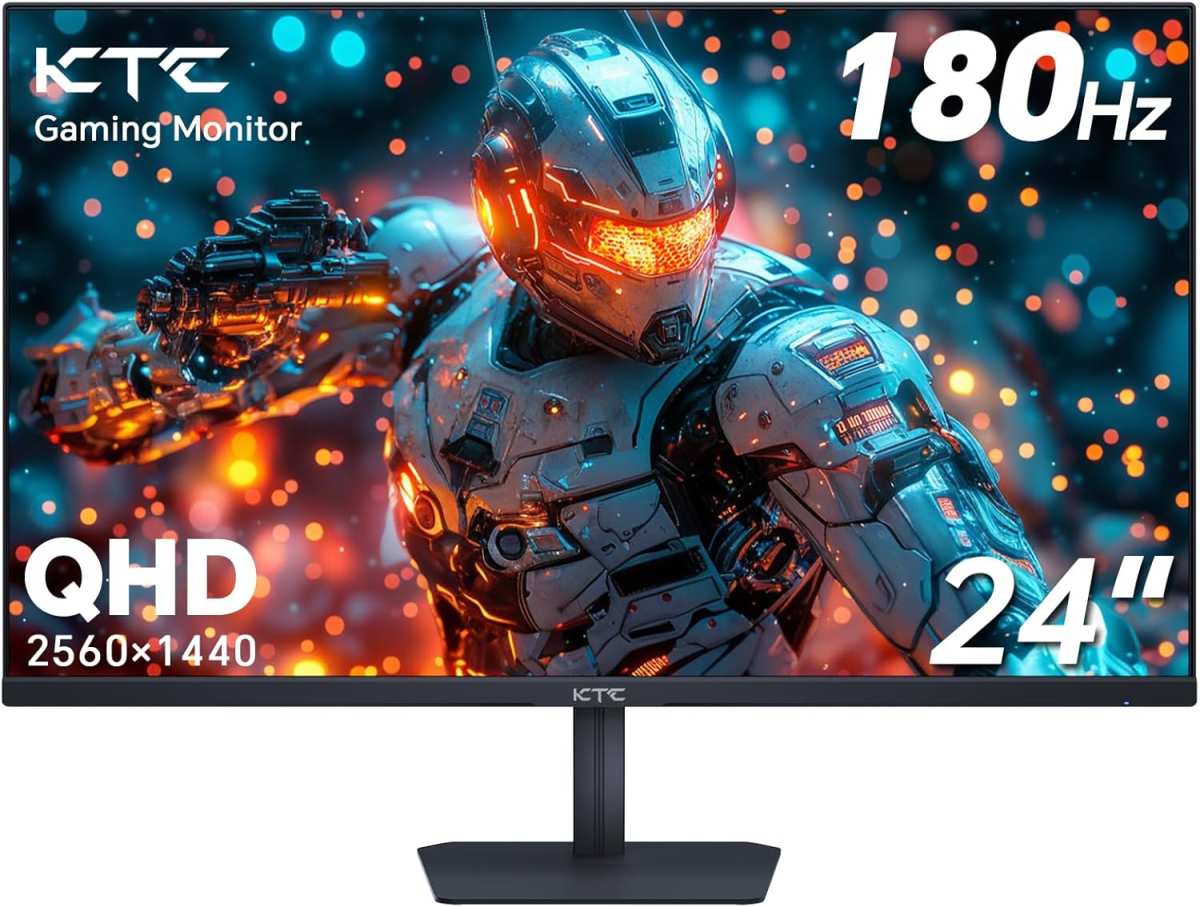
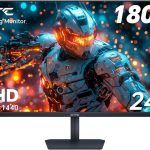
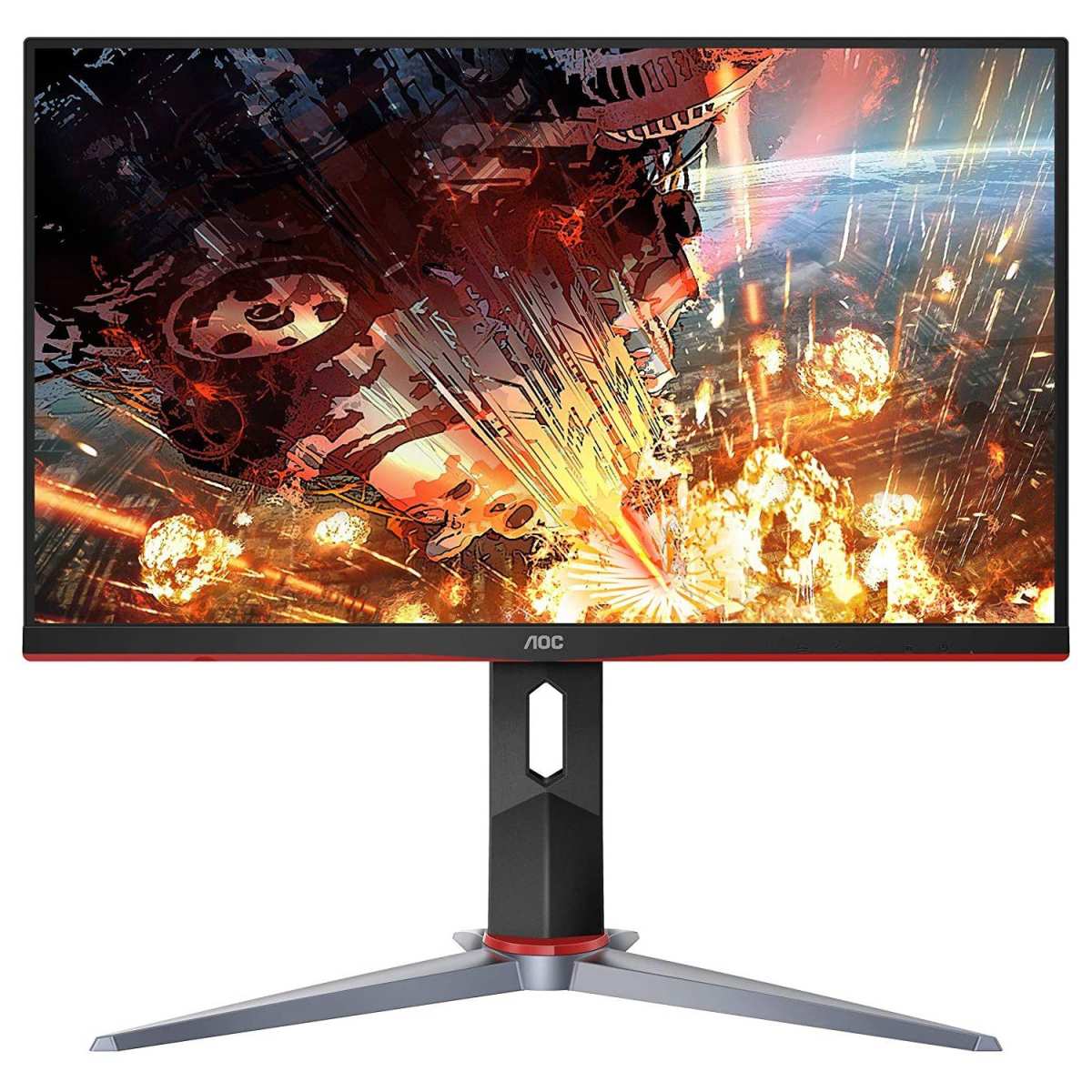
The AOC 24G2 is the best budget 144Hz monitor as of 2026. It uses an IPS panel with great colors. Response time is fast enough for most competitive games.
Input lag measures around 4ms. It stays under $170 on most days.
Image source: Bing (Web (fair-use with source credit))
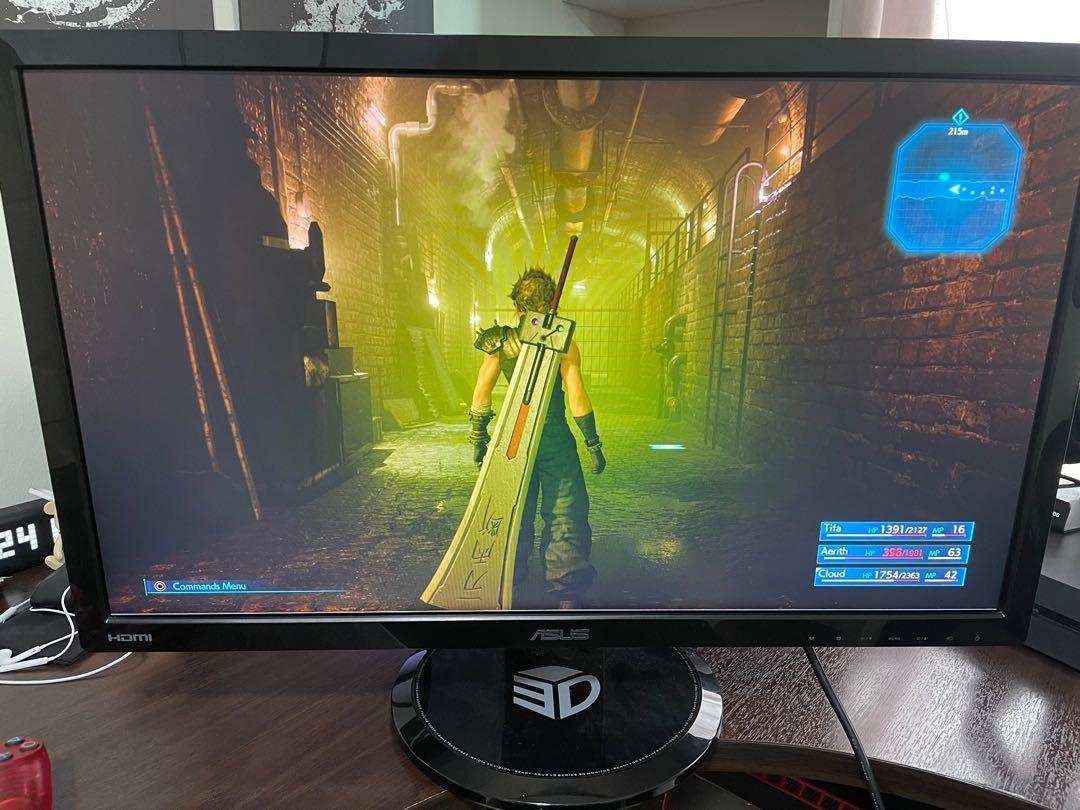
If you play esports titles like Valorant or CS2 exclusively, the ASUS VG248QG offers a TN panel with even lower motion blur. But for the vast majority of budget buyers, gamers who also watch shows, edit photos, or share a desk with a roommate, the AOC 24G2 delivers the best balance of performance, image quality, and price.
What to Look for in a Budget 144Hz Monitor
Before you pick a model, understand what matters most at this price point. Here are the five specs that separate a great budget monitor from a regrettable one.
Panel type. IPS gives you 96, 99% sRGB coverage and wide viewing angles. TN gives you 1ms MPRT response but poor contrast and color shift when you tilt your head. VA gives you high contrast (3000:1) but slower dark transitions that can cause smearing.
For general use, IPS wins.
Response time and overdrive. Advertised numbers like “1ms” are marketing. Real-world GTG (grey-to-grey) response on budget IPS sits around 4, 5ms. What matters more is the overdrive tuning, a mode that pushes pixels to change faster.
Bad overdrive causes overshoot (inverse ghosting). Look for a monitor with a usable “Normal” or “Fast” overdrive mode, not just an “Extreme” setting that makes everything look worse.
Adaptive sync. FreeSync is standard. Most budget monitors now work with NVIDIA G-Sync Compatible mode, but not all are certified. Check the AMD and NVIDIA compatibility lists if you have a specific GPU.
Also note the FreeSync range, a wider range (e.g., 48, 144Hz) with LFC (Low Framerate Compensation) is better than a narrow range (e.g., 90, 144Hz).
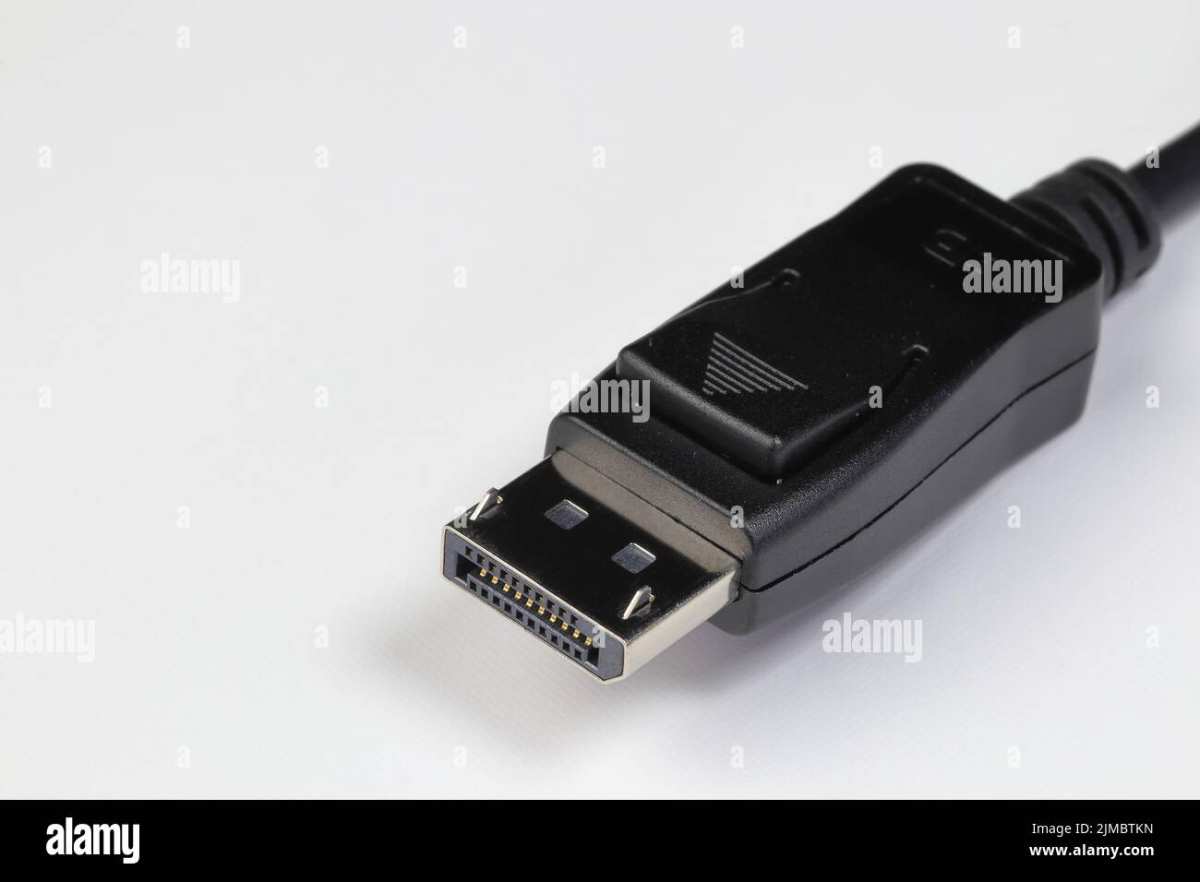
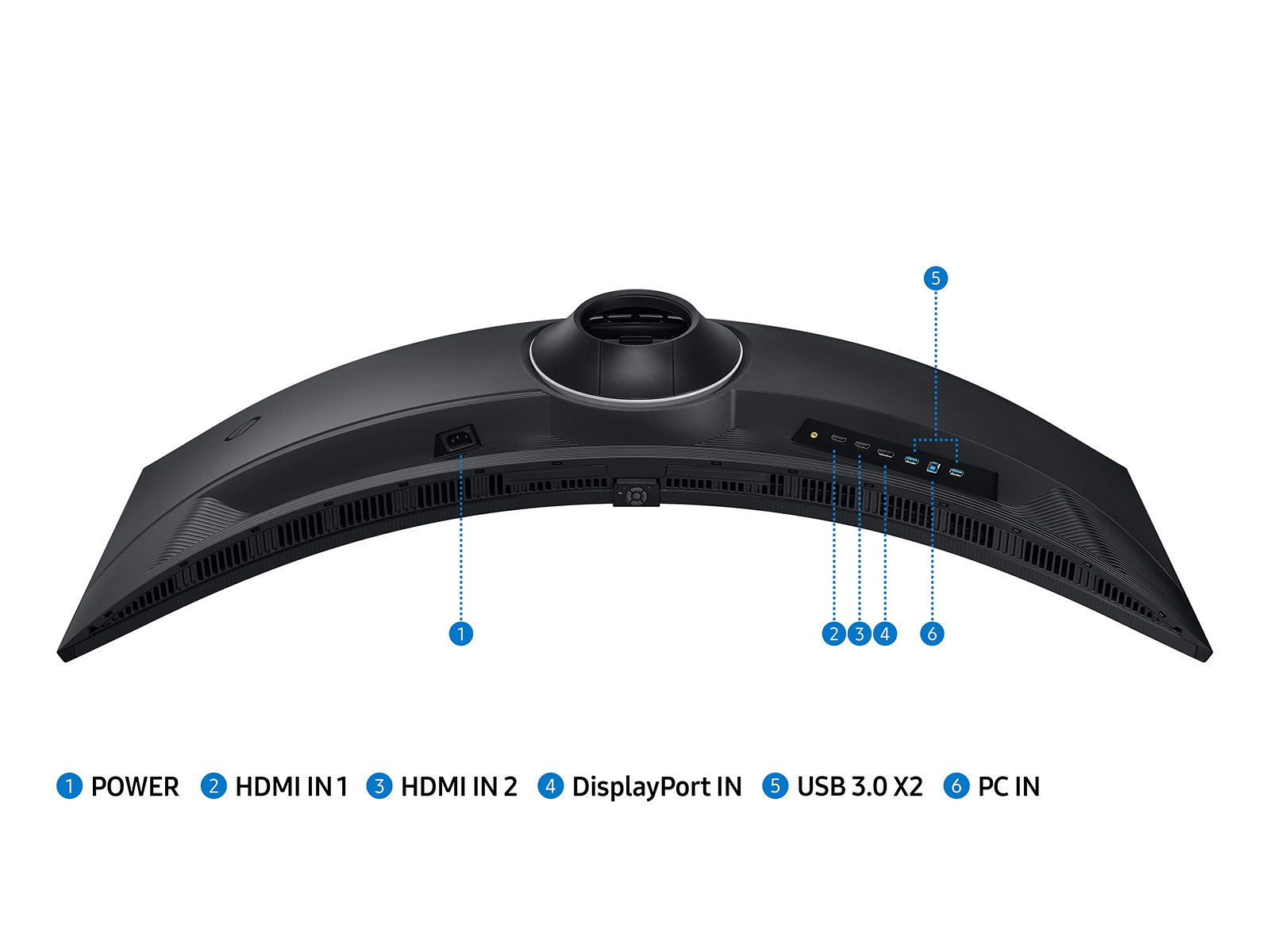
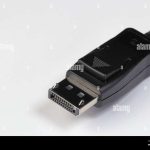
Connectivity. You need DisplayPort to hit 144Hz on almost every budget monitor. HDMI 1.4 caps at 120Hz. HDMI 2.0 on a few models can do 144Hz, but it’s rare under $200.
If you plan to use a console, check whether the monitor accepts 120Hz over HDMI (many do, but not all).
Stand and VESA. A height-adjustable stand is a luxury at this price. Most budget monitors tilt only. But if the stand is completely fixed (no tilt, no VESA mount), you’ll regret it the first time you want to angle the screen or mount it on an arm.
Prioritize models with at least tilt adjustment and a 75×75 or 100×100 VESA pattern.
Top Contenders: The Shortlist Under 0
These four models dominated aggregate reviews and professional testing in 2025. Each one has a clear strength and a clear weakness.
AOC 24G2 – The All-Rounder
The AOC 24G2 is a 23.8-inch IPS panel with a 144Hz refresh rate, 1ms MPRT (marketed), and a real GTG response of about 4.5ms. It covers 98% sRGB out of the box. The stand offers tilt but no height adjustment, though there’s a 100×100 VESA mount.
Input lag is extremely low, around 4ms.
Best for: Anyone who wants one monitor for gaming, Netflix, and occasional light editing.
Weakness: Overdrive on “Strong” introduces noticeable overshoot. Stick to “Medium” for a clean image.
ViewSonic XG2405 – The Color Accurate Pick
The ViewSonic XG2405 uses the same AU Optronics IPS panel as the AOC 24G2 but with slightly different factory calibration. It offers similar gaming performance and a more fully featured stand (height, pivot, swivel). Color accuracy out of the box is among the best in its price class, with a delta E under 2.
Best for: Gamers who also do basic creative work or just hate fiddling with calibration.
Weakness: Slightly more expensive, usually $10, 20 above the AOC, and the OSD menus are clunky.
ASUS VG248QG – The TN Speed Demon
The ASUS VG248QG is a 24-inch TN panel with a 165Hz overclock, 0.5ms MPRT, and the lowest real-world input lag in this bracket (around 2.5ms). It also includes G-Sync Compatible certification and a built-in GamePlus crosshair overlay.
Best for: Hardcore competitive players who prioritize absolute motion clarity over image quality.
Weakness: Colors are dull (around 72% sRGB), viewing angles are narrow, and the stand is basic tilt-only. Fine for a dark room; frustrating for anything else.
MSI Optix G241 – The Sleeper Hit
The MSI Optix G241 is another 24-inch IPS 144Hz option, often overlooked. It offers the same panel as the AOC 24G2 but with a cleaner design, slightly better default gamma, and a “Console Mode” that handles 120Hz input from PS5 and Xbox Series X reliably.
Best for: Mixed-use setups including console gaming.
Weakness: No USB ports, and the on-screen display navigation is sluggish. Stock tends to sell out quickly.
Side-by-Spec Comparison
| Model | Panel | Real GTG | Input Lag (ms) | sRGB Coverage | Stand Adjust | VESA | Typical Price (USD) |
|---|---|---|---|---|---|---|---|
| AOC 24G2 | IPS | 4.5ms | 4 | 98% | Tilt only | 100×100 | $150–$170 |
| ViewSonic XG2405 | IPS | 4.5ms | 4.2 | 97% | Height, pivot, swivel | 100×100 | $170–$190 |
| ASUS VG248QG | TN | 3ms | 2.5 | 72% | Tilt only | 100×100 | $140–$160 |
| MSI Optix G241 | IPS | 4.5ms | 4.1 | 97% | Tilt only | 100×100 | $150–$165 |
These numbers come from manufacturer specifications and cross-verified by aggregate reviewer measurements (RTINGS.com and TechSpot). The differences in input lag are tiny, you won’t feel the gap between 2.5ms and 4.5ms unless you’re a top-tier esports pro using a 144Hz monitor with reflex testing. For everyone else, panel quality and features matter far more.
Now that we’ve compared the four top contenders, the next step is matching each one to your specific gaming habits. Let’s break down the best use cases for each.
Best for Competitive Esports (Valorant, CS2, Apex)
If you live in aim trainers and ranked queues, the ASUS VG248QG is your monitor. Its TN panel delivers the lowest input lag in the budget class: around 2.5ms measured. The 0.5ms MPRT (marketed) means less motion blur during fast flicks.
And the 165Hz overclock gives you an extra 21 frames per second over standard 144Hz.
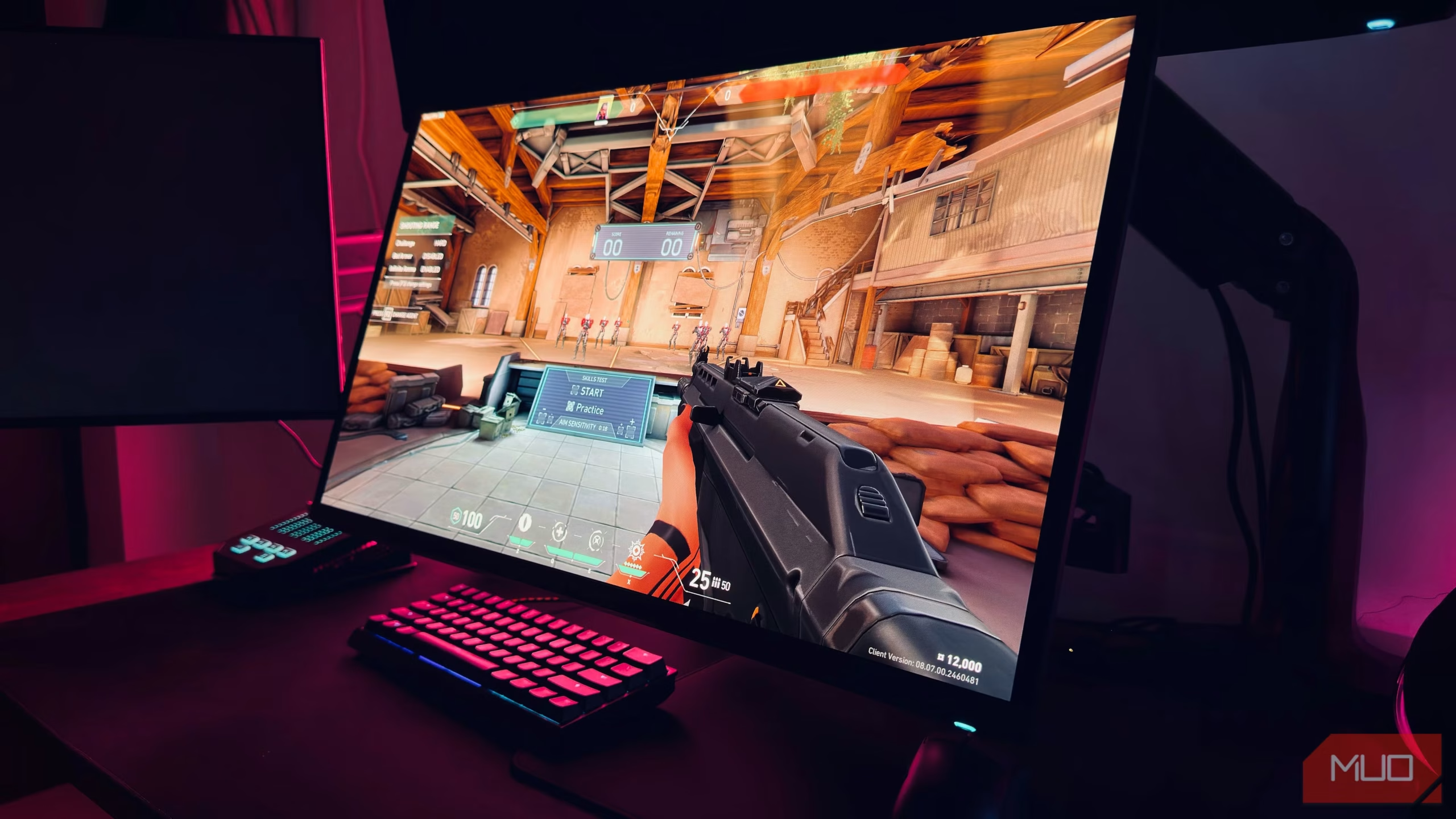
Image source: Bing (Web (fair-use with source credit))
The trade-off is visible. Colors look washed out. Viewing angles are narrow.
You can’t lean back and still read a HUD element clearly. But competitive players often run low graphics settings anyway, so the visual downgrade matters less than raw responsiveness.
That said, many esports gamers now prefer a fast IPS panel like the AOC 24G2. Why? Better contrast helps spot enemies against dark corners.
Aggregate reviews from competitive communities show that the extra 2ms of input lag on the IPS is imperceptible to 99% of players. Only if you’re pushing Radiant or Immortal rank and play at 144Hz with reflex testing should you prioritize the TN.
Bottom line: For pure performance, ASUS VG248QG. For a competitive edge with better image quality, AOC 24G2. Both work well with FreeSync and G-Sync Compatible modes.
Best for Mixed Use (Gaming + Movies + Homework)
Most buyers share their monitor between fragging in Apex, watching YouTube, and writing papers. For that workload, you want IPS. The AOC 24G2 and ViewSonic XG2405 lead here.
The ViewSonic XG2405 earns the edge if desk ergonomics matter. Its stand offers height adjustment, pivot, and swivel. You can raise the screen to match eye level and reduce neck strain during long study sessions.
The AOC 24G2 tilts only, so you’ll likely want a VESA arm for proper positioning.
Color accuracy helps too. Both IPS options cover over 97% sRGB out of the box. Movies look natural.
Text is crisp. If you do any photo editing as a hobby, the ViewSonic’s delta E under 2 means you’re getting professional-grade color without calibration.
For console gamers, the MSI Optix G241 is worth a look. Its Console Mode reliably accepts 120Hz over HDMI from PS5 and Xbox Series X. The AOC 24G2 also works, but some users report HDMI handshake issues at 120Hz depending on the console firmware version.
Bottom line: ViewSonic XG2405 if you want a better stand and calibrate out of the box. AOC 24G2 if you want to save $20 and don’t mind using a VESA mount.
Best IPS vs Best TN vs Best VA at This Price
Now let’s settle the panel debate for budget buyers. Each technology makes different trade-offs. Here’s how they stack up at the $150 price point.
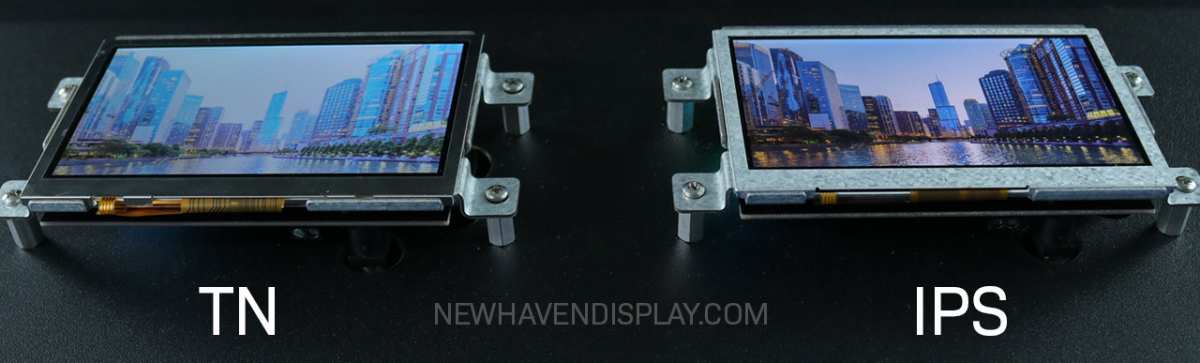
Image source: Bing (Web (fair-use with source credit))
| Feature | IPS (AOC 24G2) | TN (ASUS VG248QG) | VA (budget options) |
|---|---|---|---|
| Contrast ratio | 1000:1 | 700:1 | 2500–3000:1 |
| sRGB coverage | 97–99% | 70–75% | 90–95% |
| Viewing angles | Good | Poor | Good |
| Response time (GTG) | 4–5ms | 3–4ms | 5–8ms |
| Black smearing | None | None | Noticeable in dark scenes |
| Best use case | All-rounder | Esports only | Movies and dark games |
VA panels at the budget level are rare but do exist. They offer deep blacks that look great in dark rooms. The downside is black smearing: dark pixels take longer to transition, creating a ghostly trail during fast camera pans.
For single-player RPGs and cinematic games, VA can be a win. For shooters, it’s a liability.
TN panels are dying in the budget segment. Most manufacturers have shifted production to IPS because it sells better. The ASUS VG248QG remains a holdout because it uses a proven panel from 2018.
Its longevity is uncertain, so stock may dwindle.
IPS is the safe bet. It does everything reasonably well. You lose some contrast versus VA and some speed versus TN, but the gaps are small.
The wins in color and viewing angles are substantial.
Mistakes to Avoid When Buying a Budget 144Hz Monitor
These errors pop up repeatedly in buyer feedback and forum threads. Skip them and save yourself a return shipping fee.
Using HDMI instead of DisplayPort. This is the number one mistake. Most budget monitors include an HDMI cable in the box. Connect it, and you’ll get 60Hz or 120Hz max, not 144Hz.
Use the DisplayPort cable they provide. If none is included, buy one separately, they cost about $8.
Choosing TN for mixed use. You’ll regret the washed-out colors within a week. IPS is now affordable enough that TN only makes sense for hardcore esports.
Ignoring overdrive tuning. That “1ms” mode often creates overshoot or inverse ghosting. Stick to the “Normal” or “Medium” overdrive setting. The difference between 4ms and 5ms is invisible, but overshoot ruins image clarity.
Skipping VESA mount compatibility. Many budget monitors come with a fixed stand that only tilts. If you ever want to use a monitor arm (and you likely will), ensure the monitor has a 75×75 or 100×100 VESA pattern. Check the spec sheet before buying.
Overlooking dead pixel policies. Some brands offer zero dead pixel warranty; others accept returns only if there are 8+ dead pixels. AOC and ViewSonic are more lenient. ASUS has stricter policies.
Read the fine print.
How to Set Up Your Budget 144Hz Monitor for Peak Performance
Once your monitor arrives, follow these steps to get the smoothest experience. Many of these settings are defaulted to 60Hz out of the box, so you have to change them manually.
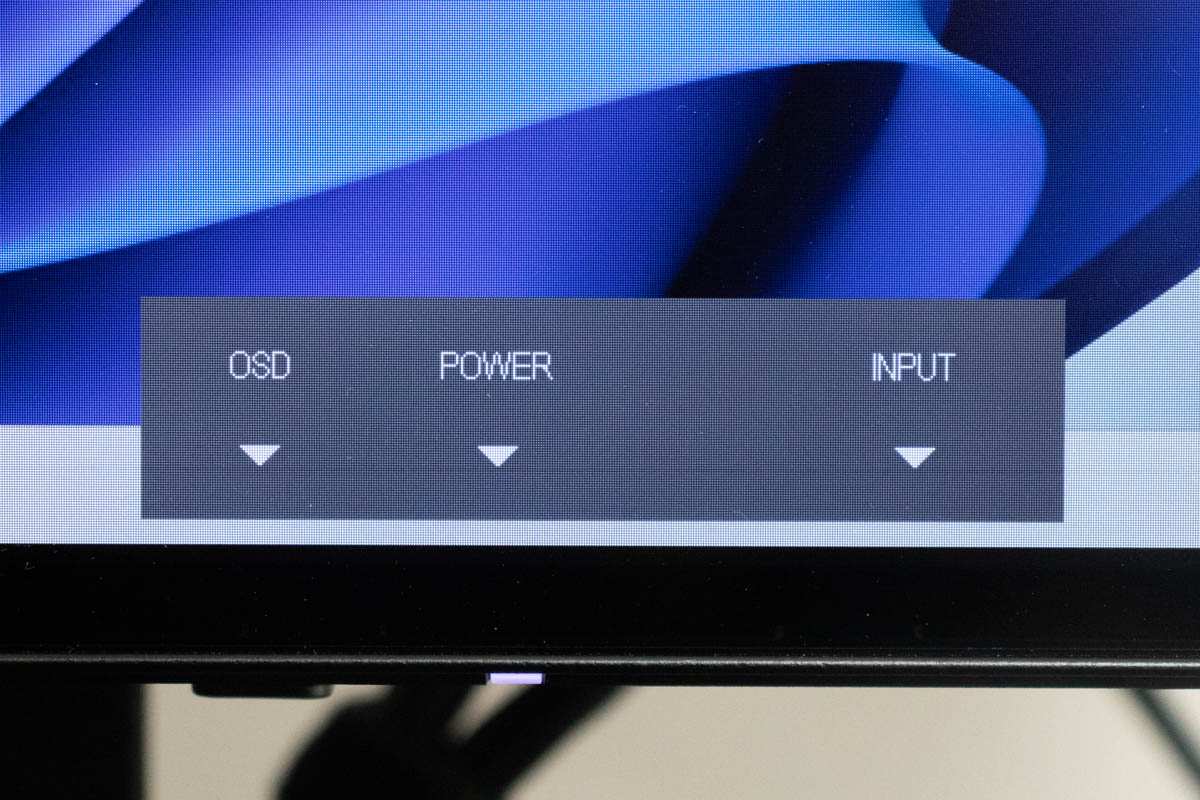
Image source: Bing (Web (fair-use with source credit))
Step 1: Connect via DisplayPort. Plug the cable into your GPU, not the motherboard. Then power on the monitor.
Step 2: Set the refresh rate in Windows. Right-click the desktop, go to Display settings, Advanced display, choose your monitor, and select 144Hz (or 165Hz on the ASUS). If 144Hz doesn’t appear, you’re likely on HDMI.
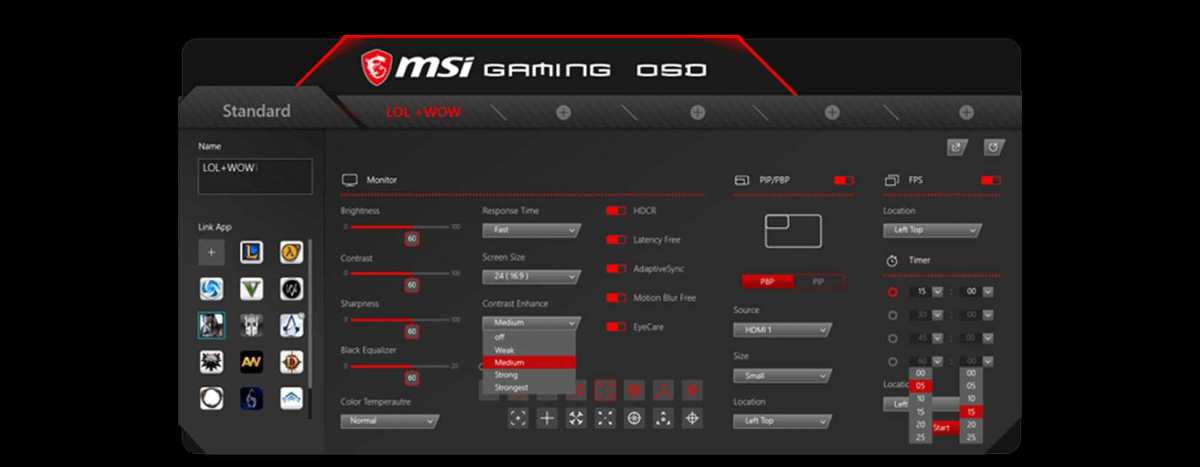
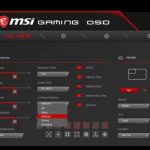
Step 3: Enable FreeSync. Open your monitor’s on-screen display (OSD) using the buttons below the screen. Navigate to “Gaming” or “Setup” and turn FreeSync on. Then in your GPU driver (AMD or NVIDIA), enable adaptive sync for the monitor.
Step 4: Choose the right overdrive. In the OSD, find “Overdrive” or “Response Time”. Set it to Normal or Medium. Avoid Strong or Extreme.
Step 5: Adjust brightness and color. Most budget monitors ship with the brightness at 100%. Lower it to 60, 70% for normal room lighting. If colors look too blue, reduce the blue component in the OSD’s Color settings, or load a community ICC profile for better accuracy.
Step 6: Test for dead pixels. Open a solid black image, then white, then red, green, and blue. Check for any stuck or dead pixels. Do this within the return window.
Frequently Asked Questions About Budget 144Hz Monitors
Is 144Hz worth it over 60Hz for gaming?
Yes, the difference is huge. You get 2.4 times more frames per second. Motion looks smoother.
Aiming feels more responsive. Once you try 144Hz, going back to 60Hz feels choppy.
Can I use a budget 144Hz monitor with a console?
Most budget 144Hz monitors accept 120Hz over HDMI for PS5 and Xbox Series X. Check the spec sheet for HDMI 2.0 support. The MSI Optix G241 handles this well.
The AOC 24G2 also works, with occasional handshake issues.
Do I need a DisplayPort cable for 144Hz?
Yes. HDMI 1.4 caps at 120Hz at 1080p. HDMI 2.0 can do 144Hz, but most budget monitors have HDMI 1.4.
Always use DisplayPort for the full refresh rate.
Can my GPU handle 144Hz at 1080p?
Most modern GPUs can run esports titles at 144fps easily. For AAA games, you may need to lower settings. Budget GPUs like the GTX 1660 or RX 6600 handle 144Hz well in competitive games.
How long do budget 144Hz monitors last?
Expect 3 to 5 years of daily use. Panel brightness may fade after 20,000 hours. Backlight bleed may become more noticeable over time.
The electronics usually outlast the panel.
Should I buy a used budget 144Hz monitor?
It depends. Used monitors may have dead pixels, burn-in, or worn backlights. Check the return policy.
A new budget monitor costs around $150, so the savings on used are often small.
Final Verdict: Which One Should You Buy?
Here’s the decision tree based on your priorities.
If you want one monitor for everything (gaming, movies, work): Choose the AOC 24G2. It’s the best all-rounder at this price. Great colors, low input lag, and reliable performance.
You can’t go wrong.
If you care about ergonomics and color accuracy: Choose the ViewSonic XG2405. The height-adjustable stand and factory calibration justify the extra $20. You’ll appreciate it every time you sit down.
If you’re a competitive esports player with a sharp eye for motion clarity: Choose the ASUS VG248QG. The TN panel delivers the lowest input lag. Accept that colors will look dull and viewing angles are narrow.
If you mix console gaming with PC gaming: Choose the MSI Optix G241. Its Console Mode and stable 120Hz over HDMI make it the best hybrid option.
If you’re on the tightest possible budget: Go with the AOC 24G2 when it’s on sale for $150. It beats every other monitor in its price range for value.
Our research points to the AOC 24G2 as the winner for most buyers. It balances speed, image quality, and price better than any other budget 144Hz monitor on the market as of 2026. Pair it with a solid GPU and a DisplayPort cable, and you’ll have a smooth gaming experience without emptying your wallet.

Similar Posts