Mute Notifications for a Contact Instantly
Let me know if you'd like any further refinements.
We've all been there. That chirping group chat at 2 AM. The one contact whose messages you just need a break from.
Learning how to mute notifications for contacts is simpler than you think, but the steps depend on your phone and your messaging app.
In 2026, the average smartphone user handles over 80 notifications a day. That's a lot of pings and buzzes. Apple's iOS and Google's Android have different tools for this job.
Let's walk through the fastest ways to silence a conversation without blocking anyone.
Quick Answer
Open the conversation. Tap the contact's name or photo. Look for the toggle that says "Hide Alerts" on iPhone or "Mute" on Android.
That's it. You'll still get the messages, but your phone stays quiet.
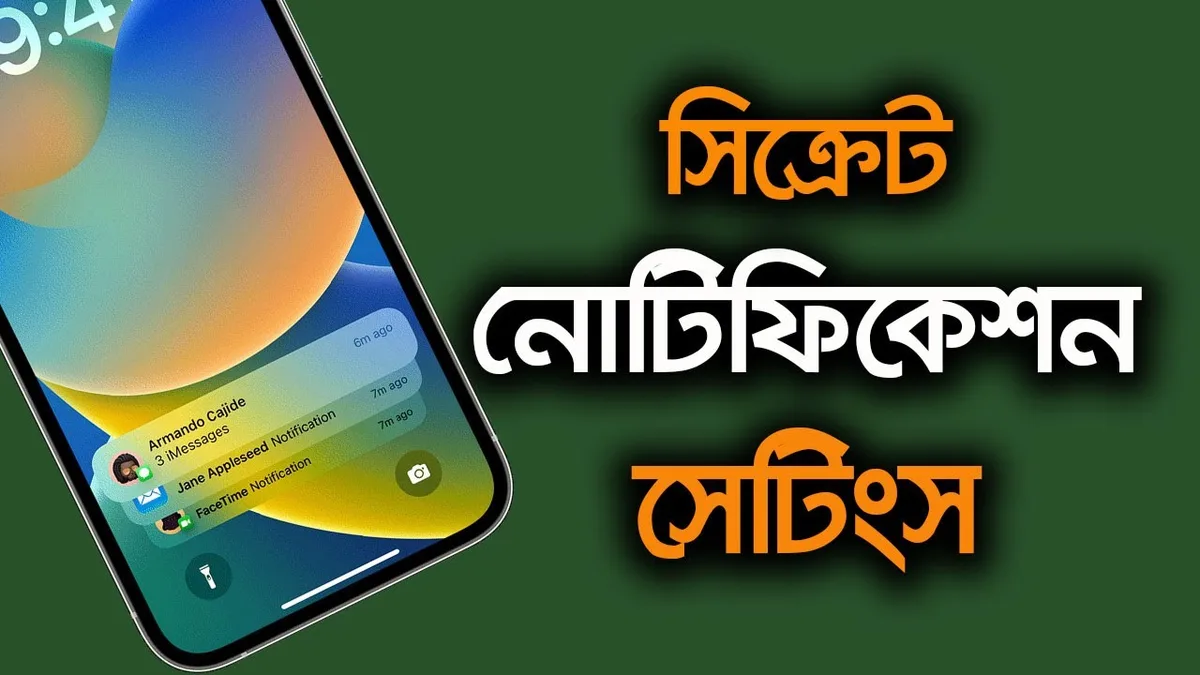
Before You Start: Know Your Device and Your App
The first question is simple. What phone do you have? iPhone users get features like "Hide Alerts" and "Focus Modes". Android users get per-conversation muting and "Do Not Disturb".
The second question is the app. iMessage, WhatsApp, and Telegram all handle mute differently.
Each app has its own settings menu. But the basic idea is the same. You find the conversation, tap the contact's name, and flip a switch.
Once you know where to look, it takes about ten seconds.
If you're setting up a new device, it helps to understand the whole system. For example, adjusting your phone's interface can make things easier to find. You might also want to check if your messages are syncing across devices.
If you are looking to get your messages on a different device, the process varies.
iPhone (iOS): How to Mute Contacts in iMessage
iMessage is Apple's built-in messaging app. It uses a feature called "Hide Alerts" to mute a contact. Here's how to do it.
Open the Messages app. Find the conversation you want to silence. Tap the contact's name or photo at the top of the screen.
That opens the contact details. Look for the toggle that says "Hide Alerts". Flip it to green.
You'll see a small crescent moon icon appear next to the conversation. That's your sign that the contact is muted.
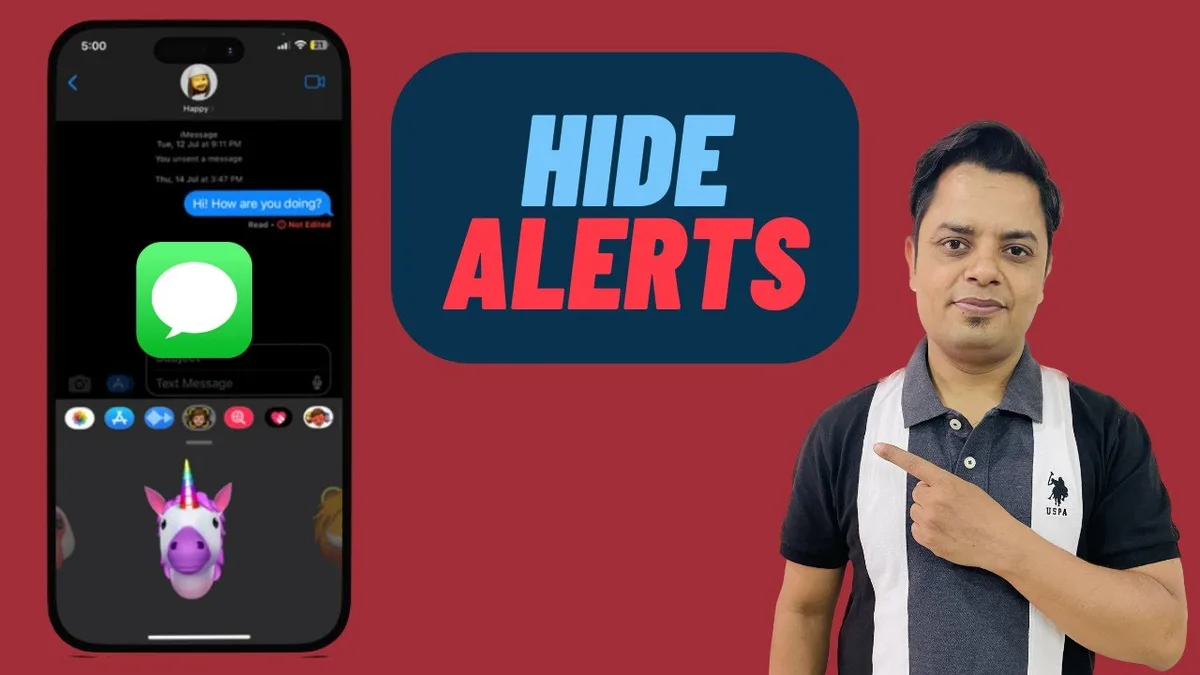
You can also mute a conversation directly from the main message list. Swipe left on the conversation. Tap the purple bell icon.
It does the same thing. The crescent moon appears. No more sounds or banners for that contact.
One thing to know. The contact can still send you messages. You just won't be notified.
The messages go to your inbox silently. You'll see them when you open the app.
iPhone: How to Mute Contacts in WhatsApp, Messenger, and Telegram
Third-party apps have their own mute settings. The steps are similar across platforms, but the menu names differ.
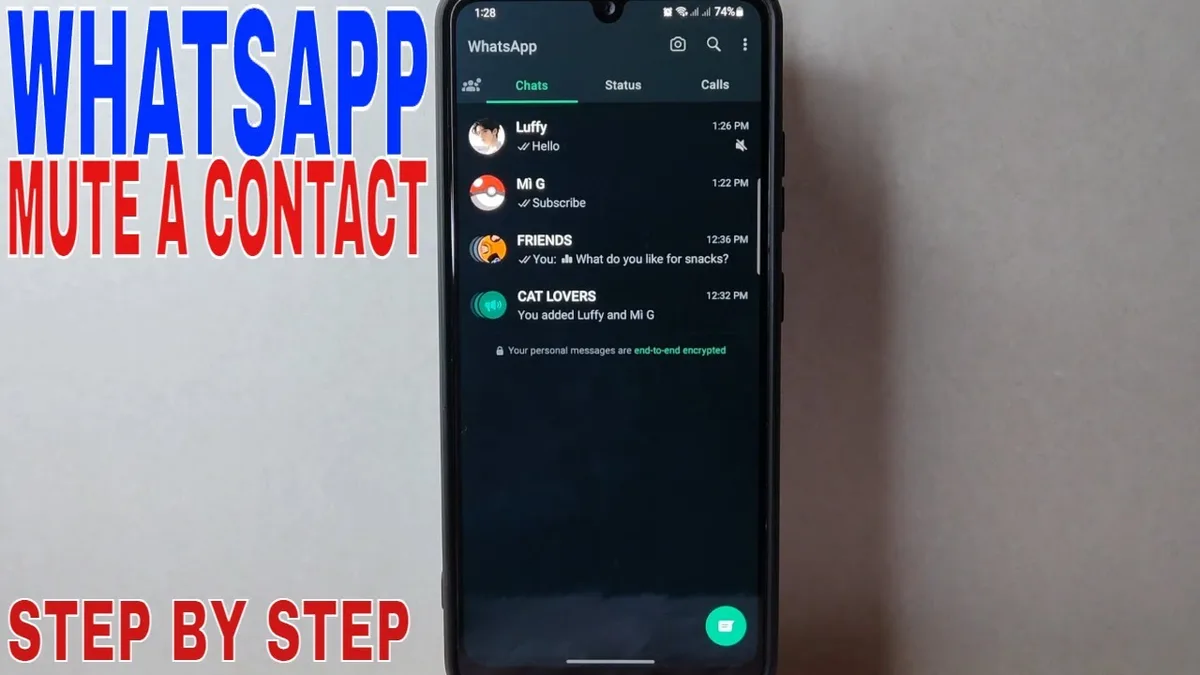
In WhatsApp, open the conversation. Tap the contact's name at the top. Scroll down and tap "Mute".
You'll see three options. Mute for 8 hours, 1 week, or always. Choose the one that fits.
Tap "OK". The conversation is now silent. A crossed-out speaker icon will appear.
In Facebook Messenger, open the chat. Tap the contact's name at the top. Tap "Notifications".
Toggle "Mute notifications" to on. You can also choose a duration. Messenger gives you 15 minutes, 1 hour, 3 hours, 8 hours, 24 hours, or until you turn it back on.
In Telegram, open the conversation. Tap the contact's name. Tap "Mute".
You can choose a duration or mute permanently. Telegram also lets you mute notification sounds but keep the banner. That's a nice middle ground.
In Signal, open the chat. Tap the contact's name. Toggle "Mute" to on.
You can choose a duration or mute forever. Signal also has a "Notify when unmuted" option. That's handy if you only want quiet for a set time.
iPhone: Using Focus Modes to Silence Everyone Except Who You Choose
Focus Modes are a system-wide feature on iOS. They let you block all notifications except from contacts you approve. This is different from muting one person.
It silences everyone except a short list.
Open Settings. Tap "Focus". Tap the plus sign to create a new Focus.
You can choose from options like "Work", "Sleep", or "Personal". Or tap "Custom" to build your own.
Once you create a Focus, tap "People". Tap "Add People". Select the contacts who can still reach you.
These are your exceptions. Everyone else gets silenced. You can also allow calls from "Favorites" or "Everyone" if you need to.
You can set a schedule. For example, your "Sleep" Focus activates automatically at 11 PM. Or you can turn it on manually from the Control Center.
Just swipe down, tap "Focus", and choose the one you want.
The beauty of Focus Modes is that they work across all apps. iMessage, WhatsApp, and even phone calls obey the rules. You don't have to mute each contact individually. It's a powerful tool for managing your attention.
One warning. Make sure you add your emergency contacts to the allowed list. Otherwise, you might miss an important call. iOS also has an "Emergency Bypass" setting for truly critical contacts.
That overrides everything, including Focus Modes. For more details, Apple's official support documentation covers the complete setup process.
Android: How to Mute Contacts in Google Messages and Samsung Messages
Android phones handle mute differently depending on the manufacturer. Google Messages and Samsung Messages are the two most common stock apps.
In Google Messages, open the conversation. Tap the three-dot menu in the top-right corner. Tap "Mute notification".
A bell icon with a line through it appears. The conversation is now silenced. You can unmute it the same way.
In Samsung Messages, the steps are similar. Open the conversation. Tap the three-dot menu.
Tap "Mute". You'll see a crossed-out bell icon. Samsung also lets you set per-contact notification tones.
That's useful if you want different sounds for different people.
One key difference. Google Messages on Android 14 and later supports "Notification categories". You can adjust the behavior for each type of notification.
Alerts, silent, and minimal are the main options. Messages from muted contacts go to the "Silent" category. They don't make a sound, but they do show a badge.
If your phone has a custom skin from Samsung, OnePlus, or Xiaomi, the menu names might look different. The core idea is the same. Look for the three-dot menu inside the conversation.
Look for "Mute" or "Mute notification".
Android: How to Mute Contacts in WhatsApp, Messenger, and Telegram
The Android versions of these apps work almost the same as the iPhone versions. The menus are in the same places.
In WhatsApp on Android, open the conversation. Tap the contact's name. Tap "Mute".
Choose 8 hours, 1 week, or always. Tap "OK". The conversation is silent.
In Facebook Messenger on Android, open the chat. Tap the contact's name. Tap "Notifications".
Toggle "Mute notifications" to on. You can choose a duration. The options are the same as on iPhone.
In Telegram on Android, open the conversation. Tap the contact's name. Tap "Mute".
Choose a duration or mute permanently. Telegram also lets you mute notification sounds separately from the banner. That's a nice touch.
In Signal on Android, open the chat. Tap the contact's name. Toggle "Mute" to on.
Choose a duration or mute forever. Signal's "Notify when unmuted" option works on Android too.
The main difference on Android is that you can also mute from the notification shade. When a message notification appears, you can long-press it. Tap "Mute" or "Silent".
That's a quick way to mute a contact without opening the app.
Android: Using Do Not Disturb and Priority-Only Mode
Android's Do Not Disturb (DND) is the system-level equivalent of iOS Focus Modes. It silences all notifications except from contacts you choose.
Open Settings. Tap "Sound and vibration". Tap "Do Not Disturb".
You'll see two main options. "Priority only" and "Alarms only". Choose "Priority only" if you want to allow certain contacts through.
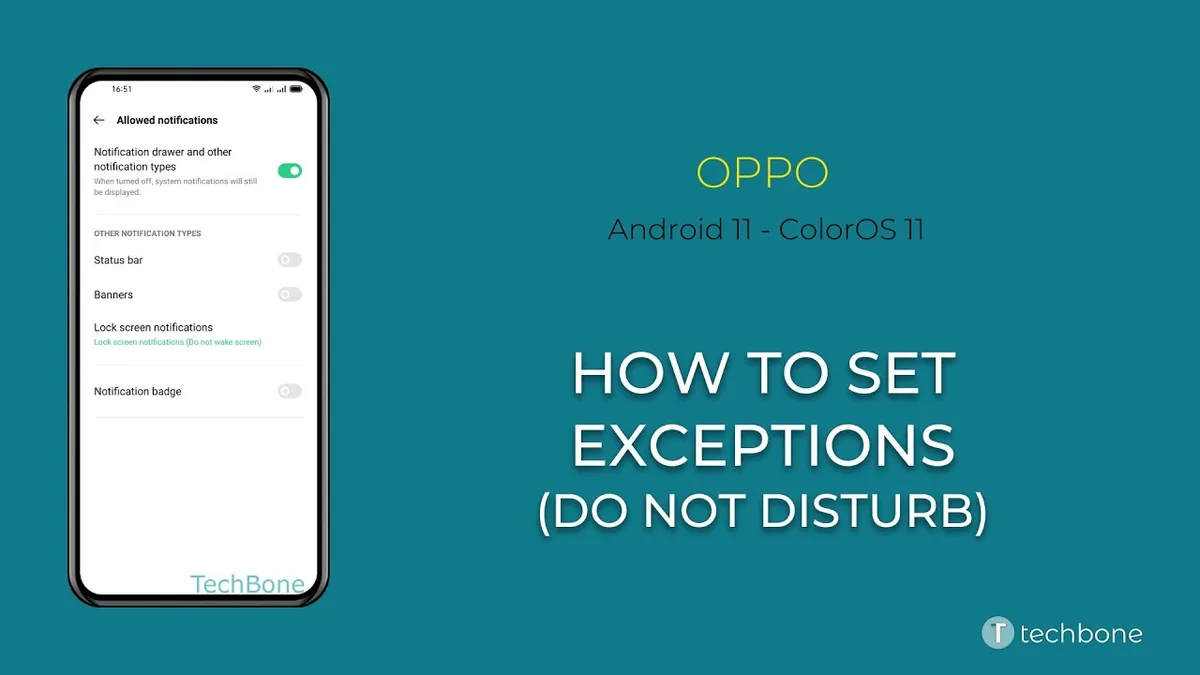
Tap "People" under "Priority only allows". Tap "Messages" and "Calls". You can choose "None", "Contacts only", "Starred contacts only", or "All".
Choose "Contacts only" to allow messages from anyone in your address book. Choose "Starred contacts only" to limit it to your closest contacts.
You can also set a schedule. Tap "Schedule". Choose a start and end time.
For example, DND activates automatically from 11 PM to 7 AM. You can also set it to turn on during events on your calendar.
Android's DND is more flexible than iOS Focus Modes in one way. You can set different rules for different types of interruptions. Calls, messages, and app notifications can each have their own priority settings.
That gives you fine-grained control over who can reach you and when.
One thing to watch out for. If you set DND to "Alarms only", you'll miss everything. No calls, no messages, no notifications.
Only alarms will sound. Make sure you choose "Priority only" if you want to allow exceptions.
Mute vs Block vs Archive: What's the Difference and When to Use Each
These three actions sound similar but have very different outcomes. Here's a quick breakdown.
| Action | What happens | Contact knows? | Can they still message you? |
|---|---|---|---|
| Mute | No sound or banner | No | Yes |
| Block | Can't message you at all | Yes, implicitly | No |
| Archive | Conversation hidden from inbox | No | Yes, but you won't see it |
Mute is the gentlest option. The contact can still send messages. You just don't get notified.
They have no idea you muted them. It's perfect for group chats, ex-partners, or anyone you need a break from.
Block is the nuclear option. The contact can't message you, call you, or see your online status. They might notice because their messages won't show as delivered.
It's best for spam, harassment, or people you never want to hear from again.
Archive is a middle ground. The conversation moves to a separate folder. You won't see it in your main inbox.
But if the contact sends a new message, the conversation reappears. It's useful for conversations you want to keep but don't want to see.
Which one should you use? Mute if you want a temporary break. Block if you want a permanent end.
Archive if you want to clean up your inbox without losing the conversation.
What Happens When You Mute a Contact? (Previews, Badges, and Emergency Bypass)
Muting a contact doesn't stop all notification activity. It changes what you see and hear.
When you mute a contact, three things happen. First, your phone stops making a sound for that contact's messages. Second, your phone stops showing a banner or pop-up notification.
Third, the conversation stays in your inbox. You just won't know about new messages until you open the app.
But what about badge counts? It depends on the app. In iMessage, muted conversations still show a red badge count on the Messages app icon.
You'll see the number next to the app icon. The badge doesn't go away just because you muted the contact. In WhatsApp, muted conversations don't show a badge count.
The app icon stays clean. In Telegram, you can choose whether muted conversations show a badge. That's a useful setting.
What about message previews? On iPhone, muted conversations don't show a message preview on the lock screen. You'll see "Messages" and the app icon, but not the sender's name or message content.
On Android, it depends on the app. Some apps show previews for muted conversations. Others don't.
Emergency Bypass is an important feature on iOS. It lets certain contacts override your silent settings. Even if you have Focus Mode on or the contact muted, their messages will still make a sound.
To set it up, go to the contact's details. Tap "Ringtone". Toggle "Emergency Bypass" to on.
Use this sparingly. Only for family members, your partner, or your doctor.
Advanced Tip: How to Set Per-Contact Vibration Patterns and Tones
This is a pro-level trick. You can assign a specific vibration pattern or ringtone to a contact. That way, you know who's messaging without looking at your phone.
And you can set a silent tone for contacts you want to mute.
On iPhone, open the Contacts app. Tap the contact. Tap "Ringtone" or "Text Tone".
Choose a sound. Tap "Vibration" to choose a custom vibration pattern. You can create your own pattern by tapping on the screen.
Tap "Create New Vibration". Tap out a rhythm. Your phone will vibrate that pattern when that contact messages you.
On Android, the steps are similar. Open the Contacts app. Tap the contact.
Tap "Ringtone" or "Vibration". Choose a sound. You can also choose "Silent" as the ringtone.
That effectively mutes the contact without using the mute feature. This is a clever workaround. The contact's messages will still show in your inbox without any notification sound.
You can also use this for your most important contacts. Give them a unique vibration pattern. You'll know it's them without looking at your phone.
Expert Tips for Managing Notifications Without Going Crazy
Here are some practical tips for keeping your notifications under control.
Use the 5-minute rule. When you check your phone, quickly mute any conversation that's causing noise. Don't wait. Do it immediately.
It takes ten seconds and saves you hours of annoyance.
Set a schedule for DND or Focus. Your phone has scheduling features. Use them. Set DND to activate during your work hours.
Set a Focus to activate during your sleep hours. Your phone will handle the rest automatically.
Create a "Favorites" list. Most phones let you mark certain contacts as favorites. These contacts can bypass your silent settings. Add your family, your partner, and your emergency contacts.
Everyone else can wait.
Review your notification settings regularly. Apps change. Your phone updates. Sometimes settings reset.
Check your mute settings once a month. Make sure nothing has changed.
Consider a slow internet connection. If your notifications are delayed, it might not be a mute issue. It could be your network. Boosting your Wi-Fi speed can help ensure your notifications arrive on time.
Use the "Mute" button in the notification shade. This is a quick way to mute a conversation. When a notification appears, long-press it. Tap "Mute" or "Silent".
It's faster than opening the app.
Frequently Asked Questions
Does muting a contact block them from knowing I've read their message?
No. Muting a contact does not affect read receipts. If you have read receipts turned on for that contact, they will still see when you've read their message.
Muting only stops your phone from making a sound or showing a banner.
Can I mute a contact without them knowing?
Yes. Muting is completely silent. The contact has no way of knowing you muted them.
Their messages still show as delivered. They see no difference on their end. This is the main advantage of muting over blocking.
Why do I still see badge numbers for muted conversations?
It depends on the app. iMessage shows badge counts for muted conversations. WhatsApp does not. Telegram lets you choose.
If you don't want to see badge counts, you can turn off badges for that app in your phone's settings. On iPhone, go to Settings, Notifications, Messages, and toggle "Badges" off.
Does muting a contact mute their phone calls too?
No. Muting a contact in a messaging app only affects text messages. Phone calls are separate.
If you want to silence phone calls from a specific contact, you need to do that separately. On iPhone, you can set a custom ringtone to "None" for that contact. On Android, you can set calls to "Silent" in the contact's details.
Can I mute a group chat on WhatsApp?
Yes. Open the group chat. Tap the group name at the top.
Tap "Mute". Choose 8 hours, 1 week, or always. You can also choose to mute notifications only or mute notifications and hide the group from your main chat list.
Will muting a contact on my iPhone sync to my iPad?
It depends on the app. iMessage muting syncs across all your Apple devices via iCloud. If you mute a contact on your iPhone, the mute carries over to your iPad and Mac. WhatsApp and other third-party apps do not sync mute settings across devices.
You need to mute separately on each device.
The Bottom Line: Your Quick Decision Workflow
Here's a simple decision tree for muting notifications.
Do you want to silence one specific conversation? Open the conversation. Tap the contact's name. Toggle "Hide Alerts" (iPhone) or "Mute" (Android).
This is the fastest method.
Do you want to silence everyone except a few important contacts? Use Focus Mode (iPhone) or Do Not Disturb (Android). Set up a schedule or turn it on manually.
Do you want to silence a contact for a specific amount of time? Use WhatsApp's mute duration feature. Choose 8 hours, 1 week, or always. Most other apps have similar options.
Do you want to silence a contact permanently? Mute the conversation. That's it. The mute stays until you unmute it.
There's no time limit.
Do you want to silence a contact without them knowing? Mute is the only option. Blocking and archiving both have visible effects. Muting is completely invisible.
That's it. You now know how to mute notifications for any contact on any device. It's a simple skill that saves you from constant interruptions.
Your phone should work for you, not against you. Use these tools to take control of your attention.

Similar Posts





















