How To Make Someone An Emergency Contact On Android
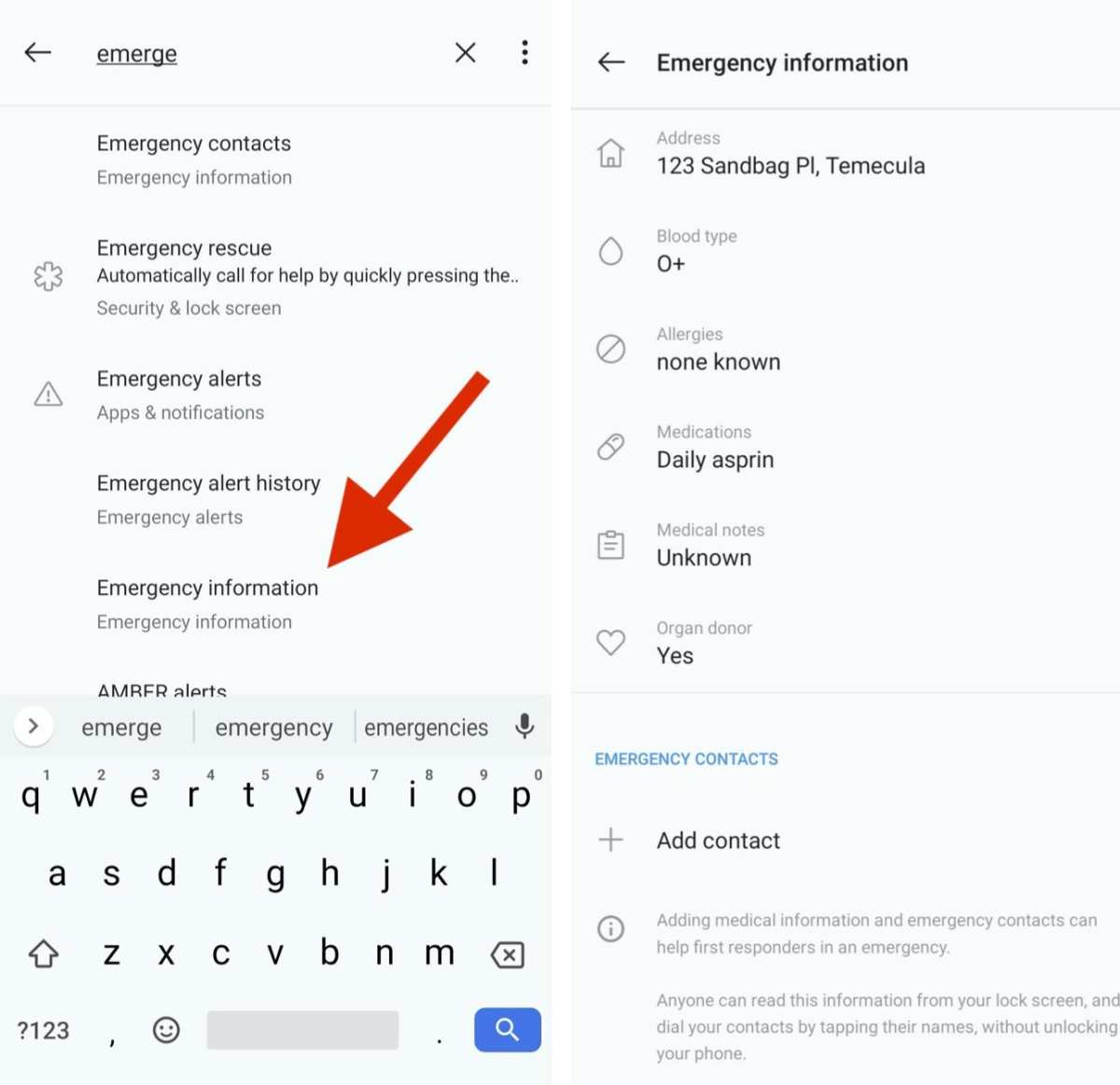
To make someone an emergency contact on Android, you simply add their details in the Contacts app and set it as an emergency contact. If you’re unsure how to do it, don’t worry—it’s quick and straightforward. Knowing how to make someone an emergency contact on Android ensures your loved ones are reachable in urgent situations. Just follow a few simple steps to set up this vital feature and gain peace of mind.

How to Make Someone an Emergency Contact on Android
When it comes to safety, knowing how to set up emergency contacts on your Android device can make a big difference. Whether you’re trying to ensure loved ones can reach you quickly in case of an emergency or want others to have your contact information, setting this up is simple and important. This guide will walk you through everything you need to know about making someone an emergency contact on Android, covering different phone models, settings, and tips to keep your contacts safe.
Understanding the Importance of Emergency Contacts
Before diving into the steps, let’s talk about why emergency contacts matter. In emergencies such as accidents, health issues, or if you get lost, first responders or passersby might need to contact someone who knows your vital information. Similarly, family members or friends can reach out if they are worried about you or if something happens.
By setting up emergency contacts, you ensure that your loved ones can be easily reached, and your personal details are accessible when needed most. It’s a simple step that provides peace of mind and can be a lifesaver.
Getting Familiar with Your Android Device’s Emergency Contact Features
Most Android phones have built-in features designed to make emergency contacts easy to set up. These features are often tucked away in settings like the Safety or Emergency section of your phone. Some models and brands, like Samsung or Google Pixel, may have slightly different options, but the core idea remains the same.
Common features include:
- Emergency Contact lists in the Contacts app
- Medical ID or Emergency Information accessible from the lock screen
- Adding contacts directly from the Phone or Contacts app
- Using the Safety or Emergency app pre-installed on some phones
Knowing where to find these options on your device helps you set up your emergency contact list quickly and efficiently.
Step-by-Step Guide to Making Someone an Emergency Contact on Android
Now let’s explore the process step by step. The instructions can vary slightly based on your phone’s manufacturer and Android version, but these general steps will guide you through most devices.
Adding Emergency Contact through Contacts App
- Open your Contacts app: Usually represented by a person icon, you can find it on your home screen or app drawer.
- Select the contact you want to designate as an emergency contact: Tap on their name to open their details.
- Edit contact information: Tap the “Edit” or pencil icon.
- Find the “Emergency” or “Emergency Contact” field: If available, add a label or note indicating their role as an emergency contact.
- Save the changes: Confirm by tapping “Save” or the checkmark icon.
Note: Not all contacts have a dedicated “Emergency” label. You may need to add this information manually or use a special section like Medical ID.
Using Medical ID Feature in Google Fit or Health Apps
Many Android devices support storing emergency information via health or medical apps.
- Open the Health or Google Fit app on your phone.
- Navigate to Settings or Medical Information.
- Enter your emergency contacts in the designated section.
- Fill in critical health details like allergies, medications, and emergency contacts.
- Ensure this information is set to be accessible from the lock screen when needed.
This feature makes sure first responders can access your emergency info even if your phone is locked.
Setting Emergency Contacts via the Phone’s Safety or Emergency App
Some phones come pre-installed with safety apps that facilitate adding emergency contacts directly.
- Locate the Safety, Emergency, or SOS app on your device—commonly found in the app drawer or quick settings.
- Open the app and look for options like “Add Emergency Contact” or “Manage Emergency Contacts.”
- Select contacts from your list or add new ones specifically for emergency purposes.
- Follow prompts to set up or confirm your emergency contacts.
This method is often the most straightforward for quickly adding emergency contacts with minimal steps.
Designating Emergency Contacts on Samsung Devices
Samsung phones have a dedicated feature called “Emergency Contacts” that you can customize for quick access.
Using Samsung’s Emergency Contacts Feature
- Open the Phone app and go to the “Contacts” tab.
- Tap the three-dot menu icon, then select “Settings” or “Manage Contacts.”
- Look for “Emergency Contacts” or similar options.
- Add contacts from your contact list, or input new numbers explicitly for emergencies.
- Save your selections, making sure they are easily accessible from your lock screen or via quick access.
Furthermore, Samsung allows users to set up the “SOS” feature, which can send instant alerts along with your location to selected contacts when you trigger it.
Using the Emergency or SOS Feature for Quick Access
Many Android phones include an Emergency or SOS function that allows users to alert contacts quickly.
Activating the SOS or Emergency Button
- Navigate to Settings > Safety & Emergency (or similar).
- Set up the SOS feature by selecting the contacts you want to notify.
- Configure triggers for the SOS button—such as pressing the power button multiple times or a specific gesture.
- Test the feature to make sure it’s working correctly, and contacts will receive alerts with your location.
This feature provides a quick way to notify someone if you are in danger, even if you haven’t already called for help.
Best Practices for Managing Emergency Contacts on Android
Setting up your emergency contacts is just the beginning. Here are some tips to get the most out of your setup.
- Keep your emergency contacts updated regularly—phone numbers change, and new contacts might be more relevant.
- Inform your contacts that they are designated as emergency contacts. This helps them know what to expect if they are contacted unexpectedly.
- Include multiple contacts if possible—family members, close friends, trusted neighbors—so there’s always someone available to help.
- Store emergency contacts in your Medical ID or Health app for quick access.
- Check your device’s emergency features periodically to ensure they’re functioning correctly and that your contacts are notified properly.
Maintaining current and accurate emergency contact information ensures you get the help you need when it matters most.
Additional Tips for Enhancing Your Phone’s Safety Features
Besides setting emergency contacts, explore other safety options your Android device might offer.
- Enable lock screen notifications so emergency contacts can be reached without unlocking your phone.
- Set up a unique lock screen password or biometric security to prevent unauthorized access.
- Customize quick settings tiles to include Emergency or SOS buttons for fast access.
- Share your location with trusted contacts through messaging or dedicated apps for real-time updates during emergencies.
By combining these features, you create a comprehensive safety plan tailored to your needs.
Common Challenges and How to Overcome Them
Some users might face difficulties when trying to set up their emergency contacts. Here are common issues and solutions:
- Contacts Not Showing Up as Emergency Contacts: Make sure you have properly labeled or flagged contacts as emergency contacts within your phone or health app.
- Emergency Info Not Accessible from Lock Screen: Check your device’s lock screen settings to enable displaying emergency information without unlocking your phone.
- Feature Not Available on Your Device: Some older or budget Android phones might lack advanced emergency features. In such cases, manually add contacts and use quick dial options or third-party apps for emergency alerts.
Always keep your device’s software updated to access the latest safety features and improvements.
Adding someone as an emergency contact on your Android device is a straightforward process that enhances your safety and ensures loved ones can help in critical moments. By exploring your phone’s built-in options, like medical ID features or emergency apps, and keeping your contacts updated, you develop a reliable safety network. Regularly reviewing these settings and informing your contacts about their role ensures you’re prepared for unexpected situations. Remember, taking these simple steps could make a significant difference when it matters most.
Frequently Asked Questions
What steps should I follow to add someone as an emergency contact on my Android device?
To add someone as an emergency contact, open the Contacts app on your Android device. Find and select the contact you want to designate. Tap the options menu (usually three dots) and choose ‘Add to Emergency Contacts’ or a similar option. Confirm the addition, and the contact will now be listed as an emergency contact in your device settings.
Can I set multiple emergency contacts on my Android phone?
Yes, most Android devices allow you to add multiple emergency contacts. Navigate to your device’s Safety or Emergency section within Settings. From there, you can add several contacts to ensure that emergency services or trusted individuals can be reached in different situations.
How do I update or remove an emergency contact on Android?
To update an emergency contact, go to your device’s Emergency or Safety settings and select the contact you want to change. Make the necessary edits or delete the contact if needed. To remove a contact, simply select the contact and choose the delete or remove option within the emergency contacts menu.
Are there specific apps that help manage emergency contacts on Android?
Yes, several apps are available that enhance the management of emergency contacts. Apps like ‘ICE – In Case of Emergency’ or built-in safety features in Android allow you to organize contacts, send alerts, or even trigger automatic messages to emergency contacts during urgent situations.
What should I do if I cannot find the emergency contacts option on my Android device?
If you can’t locate the emergency contacts feature, check your device’s user manual or update your operating system to the latest version. Some manufacturers may have different pathways to access these settings, often found under ‘Safety,’ ‘Security,’ or ‘Health’ sections within Settings. Alternatively, you can use third-party apps to set and manage your emergency contacts.
Final Thoughts
To make someone an emergency contact on Android, start by opening the Contacts app or Phone app. Select the contact you want to designate and tap on their profile. Then, access the Emergency Information section, often found in the contact details or via the Settings menu.
Add relevant details such as name, phone number, and any medical information. Save these changes to ensure your selected contact is accessible during emergencies. Making someone an emergency contact on Android helps keep your loved ones safe and easily reachable in urgent situations.
In conclusion, knowing how to make someone an emergency contact on Android ensures quick communication during emergencies. Follow these simple steps to set up trusted contacts efficiently.

Similar Posts































