How To Make Snapshot On Android Phone

How to Make a Snapshot on Android Phone
Taking a snapshot on your Android phone is a simple process, but understanding the different methods and options available can help you capture images more effectively. In this section, we’ll walk through everything you need to know to take clear, crisp snapshots with your Android device. Whether you want to save a precious moment, capture important information, or just want to experiment with different techniques, this guide covers it all.Understanding the Basics of Android Camera Functionality
Before diving into how to take a snapshot, it’s helpful to understand how your Android camera works. Modern Android phones are equipped with sophisticated camera systems that include features like autofocus, image stabilization, and various shooting modes. These features improve your chances of capturing a great photo, especially if you’re new to photography. When you open your camera app, you’ll be greeted with a viewfinder display showing what your camera is capturing. On the screen, you’ll see several options such as zoom controls, flash settings, and modes like panorama or portrait. Familiarizing yourself with these options will make taking snapshots more intuitive.Preparing Your Android Phone for a Perfect Snapshot
To get the best possible picture, follow these preparation tips:- Clean your camera lens: Use a soft, lint-free cloth to wipe away fingerprints or dirt that can cause blurry images.
- Ensure good lighting: Natural light works best, so aim to take photos during daytime or near windows. If indoors, consider using the flash wisely.
- Adjust your camera settings: Explore your camera options to set the resolution, aspect ratio, or other preferences before capturing your snapshot.
- Check your composition: Think about what you want in the frame. Use the rule of thirds for more engaging photos by placing subjects along grid lines.
How to Take a Snapshot Using Your Android Phone’s Camera App
The most straightforward way to make a snapshot on your Android phone is through its built-in camera app. Here’s a step-by-step guide:Opening the Camera App
Different Android models may have slightly different ways to access the camera, but generally:- From the Home Screen: Tap on the camera icon, usually located on the main screen or in the app drawer.
- Using the Lock Screen: Swipe the camera icon or shortcut at the bottom corner of the lock screen for quick access.
- Through Power Button: Some devices allow you to double-press the power button to launch the camera.
Focusing and Framing
Once the camera app is open:- Point your camera: Find the subject you want to photograph and frame it within the viewfinder.
- Tap the screen: Tap on the area where you want the camera to focus. Most cameras automatically focus when you open the app, but tapping ensures clarity for your snapshot.
Adjusting Settings for Better Photos
Before capturing, consider adjusting settings:- Flash: Tap the flash icon to turn it on, off, or set to auto depending on lighting conditions.
- Zoom: Use pinch gestures or the zoom slider to get closer or wider shots.
- Camera Modes: Switch between modes like portrait, panorama, or night mode to suit your scene.
Capturing the Snapshot
When everything looks perfect:- Press the shutter button, usually a large circular icon at the bottom of the screen.
- Hold the device steady to avoid blurry images.
- The photo will save automatically to your phone’s gallery or photos app.
Using Hardware Buttons to Capture Photos
Many Android phones support taking snapshots by pressing physical buttons, which can be more convenient in certain situations.Volume Buttons as Shutter Triggers
– Press the volume up or down button to take a photo if your device supports this feature. – This method helps stabilize your phone because you don’t have to tap the screen.Power Button for Quick Capture
– Some phones allow double-pressing the power button to open the camera. – Check your device settings to enable or customize this feature if available.Additional Tips for Improving Snapshot Quality
To enhance your photo-taking skills, consider these extra tips:- Hold your phone steady: Use both hands and keep elbows close to your body for stability.
- Use grid lines: Enable grid lines in camera settings to help with composition and symmetry.
- Avoid digital zoom: Instead, move closer to your subject when possible to retain image quality.
- Experiment with different angles: Changing your perspective can lead to more interesting and dynamic photos.
Saving, Editing, and Sharing Your Snapshot
After taking a snapshot, you might want to tweak or share it:Finding Your Photo
– Open your Gallery or Photos app. – Locate the “Camera” album or folder where your pictures save by default. – Tap the photo to view it full-screen.Editing Your Snapshot
– Many Android phones have built-in editing tools: – Crop or rotate the image. – Adjust brightness, contrast, or color. – Add filters or text. – Tap the edit icon (usually a pencil or magic wand) to access these options.Sharing Your Photo
– Use share icons to send your snapshot via messaging apps, email, or social media platforms. – Select the desired method and follow the prompts to send or post your image.Exploring Advanced Snapshot Techniques
If you want to take your photography to the next level:Using Pro or Manual Mode
– Some Android phones offer a Pro mode, allowing manual control over ISO, shutter speed, and focus. – Adjusting these settings helps you take better snapshots in challenging lighting or scenes.Utilizing Additional Accessories
– Consider using tripods or stabilizers for sharper images. – External lenses can expand your creative options, such as wide-angle or macro shots.Taking Multiple Shots
– For best results, take several photos of the same scene with slight variations. – Review and select the best one later.Troubleshooting Common Snapshot Problems
If you experience issues when trying to make a snapshot:- Blurry images: Ensure your camera lens is clean and hold your phone steady.
- Low light photos are dark: Turn on the flash or move to a brighter area.
- Images not saving: Check your phone’s storage space. Clear space if necessary.
- Camera app crashes: Update your device software or restart your phone.
Frequently Asked Questions
How can I take a screenshot on an Android device using physical buttons?
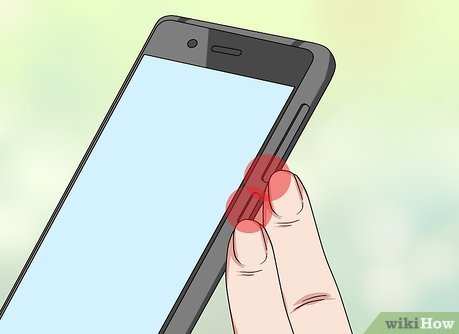
Press and hold the Power button and the Volume Down button simultaneously until you see a visual confirmation, such as a flash or a shutter sound. This method works on most Android phones and captures the current screen quickly.
Is there a built-in option to capture a screenshot on my Android phone?
Yes, many Android phones include a built-in screenshot feature accessible through the quick settings menu. Swipe down from the top of your screen to open the menu, then look for the “Screenshot” icon and tap it to capture the current display.
Can I take a screenshot on my Android by using gesture controls?
Some Android devices support gesture-based screenshot methods, such as swiping three fingers down the screen. Check your phone’s settings under “Gestures” or “Motions” to enable and customize these features if available.
How do I capture a long or scrolling screenshot on an Android phone?
If your device supports it, after taking a standard screenshot, tap the “Scroll” or “Capture More” option that appears. This feature allows you to extend the screenshot vertically to include more content, useful for capturing entire pages or conversations.
Are there any third-party apps I can use to take screenshots on my Android device?
Yes, several apps in the Google Play Store, such as AZ Screen Recorder or Screenshot Easy, offer advanced screenshot features. Download and install these apps, then follow their instructions to capture and customize your screenshots effectively.
Final Thoughts
Making a snapshot on an Android phone is quick and simple. You typically press the power button and volume down button simultaneously. Some devices may have a palm swipe feature or a quick settings option to take a screenshot. Always check your phone’s user guide if these methods vary. Practice a few times to get comfortable with the process. In summary, how to make snapshot on android phone involves using the physical buttons or specific gestures. Follow these steps to capture your screen easily whenever needed.
Similar Posts































