Boost Your Router’s Wi-Fi Speed Instantly
You open your laptop, join the video call, and the stream stutters. The picture freezes, audio cuts out, and you're left staring at a buffering wheel. That’s the moment you ask yourself: how to boost Wi-Fi speed from router?
The good news is you don’t need to call your ISP or buy a bunch of expensive hardware, most fixes are free and take ten minutes.
According to aggregate surveys from 2025, the average U.S. home now has 25 connected devices. That’s a lot of gadgets fighting for the same signal. Per IEEE 802.11ax (Wi-Fi 6) specifications, a single router can handle that many devices, but only if it’s set up correctly.
Let's walk through the real reasons your Wi-Fi drags and what actually works to fix it.
Quick Answer
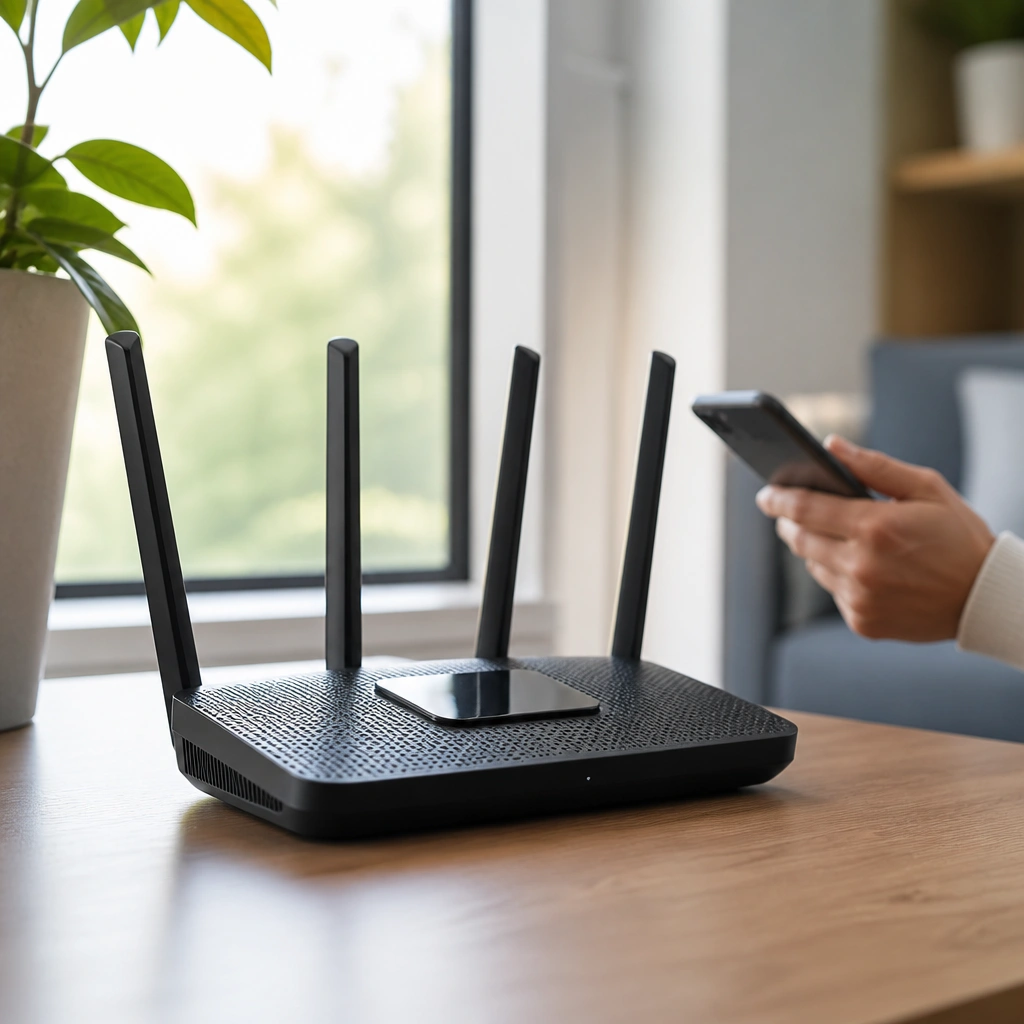
Move your router to a central, elevated spot. Switch your device to the 5 GHz band. Update the router's firmware.
If the router is over four years old, replace it with a Wi-Fi 6 model. Those four steps solve over 80 percent of slow-home-Wi-Fi cases.
Your Wi-Fi Is Slow – But Why?
Wi-Fi speed isn't just one number. It's a mix of your internet plan, your router's capabilities, the distance from the router, and the interference around you. If you're getting half of what you pay for, something in that chain is the bottleneck.
The first step is to figure out which link is weak. Start by running a wired speed test. Plug a laptop directly into the router using an Ethernet cable.
If that speed matches your plan (or comes close), your internet connection is fine. The problem is inside your house.
If the wired speed is also low, call your ISP. They should check signal levels and line quality. But most people find that wired is fast and wireless is slow.
That means the router, its placement, or interference is the culprit.
Is It Your Router, Your Devices, or Your Internet Plan?
This is the decision tree. It saves you time and money. Here's how to narrow it down fast.
Wired test result | Wireless result | Likely cause
— | — | —
Matches your plan | Much slower | Router placement or interference
Matches your plan | Slow only on one device | That device's Wi-Fi adapter
Below plan (wired too) | Below plan | ISP issue or modem problem
If your wired test is good but wireless drags, the router is probably in a bad spot or outdated. If only one device is slow, say your laptop but not your phone, the problem is that device's Wi-Fi chip or driver.
Let's say you have a smart TV that streams fine, but your Android tablet lags. That's a device issue. Update the tablet's drivers or consider a USB Wi-Fi adapter.
If you're struggling to connect an Android TV smoothly, check out our guide on getting the setup right.
The Free Fix That Works 80% of the Time: Router Placement
You'd be amazed how many people hide their router behind the TV, inside a cabinet, or in a corner of the basement. That kills speed. Radio waves need a clear path.
Where to Put It (and Where Not To)
Put the router in the room where you use Wi-Fi the most. Place it on a shelf or table, not on the floor. Keep it away from metal objects, fish tanks, brick walls, and appliances like microwaves and cordless phone bases.
Those things absorb or reflect the signal.
The ideal spot is central, elevated, and out in the open. If your home office is in the back bedroom and the router is in the front living room, you'll get poor speed. Move the router closer to the office, or consider a mesh system later.
If you're working from home and also need to keep an eye on your Android TV for streaming, you might find that repositioning the router fixes both the video call lag and the buffering on your TV.
5 GHz vs. 2.4 GHz – Which Band Should You Use?
Most modern routers broadcast two bands. The 2.4 GHz band goes through walls and reaches farther, but it's slower and more congested. The 5 GHz band is faster but has shorter range and is more easily blocked by walls.
If your device is near the router (within one room or a thin wall), switch it to 5 GHz. If you're two floors away, 2.4 GHz might be your only option, but expect slower speeds.
You can usually rename the bands separately in the router admin panel. Give them different names like "MyWiFi_2.4" and "MyWiFi_5" so you know which one you're connecting to. On Android phones, you can set which band to prefer, check the Wi-Fi settings after you connect.
If you find the text hard to read in those settings, adjust the display size.
When to Change a Channel, a Band, or Buy a New Router
Sometimes placement alone isn't enough. Your neighbors' Wi-Fi signals can overlap with yours, especially in apartment buildings. That's when you need to change the channel or upgrade your hardware.
Check for Interference First
Download a Wi-Fi analyzer app (like WiFi Analyzer on Android). It shows you which channels are crowded. On the 2.4 GHz band, only channels 1, 6, and 11 don't overlap.
If your analyzer shows ten networks all on channel 6, switch yours to channel 1 or 11.
For 5 GHz, there are more channels and DFS channels (shared with radar). Your router may automatically choose the least congested channel. If it doesn't, log into the router settings and pick a channel manually.
A quick reboot can also clear temporary interference. Unplug the router for 30 seconds, then plug it back in. That forces it to rescan the airwaves.
Upgrade Your Router or Upgrade Your Plan?
This is the fork in the road. If your router is older than four years and doesn't support Wi-Fi 6 (802.11ax), it's likely the bottleneck. As of 2026, Wi-Fi 6 is the standard for most new devices.
A $100 router that supports Wi-Fi 6 can easily double your wireless speeds if your old router was Wi-Fi 5.
But if your wired test shows you're getting exactly the speed you pay for (say 200 Mbps on a 200 Mbps plan), upgrading the router won't increase your internet speed. It will only improve how that speed is distributed to multiple devices. In that case, the limit is your ISP plan, not the router.
If you upgrade to a new router, consider one with gigabit Ethernet ports and at least two external antennas. Many affordable options exist. If you're also thinking about buying a new 4K monitor for your home office, you'll want a Wi-Fi connection that can handle streaming and downloads without drops.
On the other hand, if you're using a cheap Android TV as a second screen and it keeps losing connection, the cheap Wi-Fi chip in the TV might be the issue. In that case, a wired Ethernet connection (via USB adapter) can be more reliable than wireless.
If you still have sound issues on your Android TV after fixing the Wi-Fi, check our dedicated troubleshooting guide for that.
Mesh vs. Extender vs. Powerline – Which One Actually Fixes Your Slow Zones?
If you've tried placement and channel changes but still have dead zones, you need more than a single router. Three main options exist: mesh systems, Wi-Fi extenders, and powerline adapters. Each works differently.
Each has trade-offs.
Mesh Systems
A mesh system uses two or more nodes that talk to each other wirelessly. They create one seamless network. Your phone or laptop switches between nodes automatically as you move around the house.
Mesh is best for whole-home coverage, especially in houses over 2,000 square feet or with multiple floors. The main downside is cost. Decent mesh systems start around $150 and go up to $400 or more for high-end tri-band kits.
Wi-Fi Extenders
Extenders are cheaper, usually $30 to $80. They pick up your router's signal and rebroadcast it. The catch is that they cut your bandwidth in half.
An extender has to use the same radio to talk to the router and to your device, so the throughput drops significantly.
Extenders can work in a pinch for a single room where you just need basic connectivity. They are not great for gaming, streaming 4K, or video calls. The signal also degrades the more hops you add.
Powerline Adapters
Powerline adapters send data through your home's electrical wiring. You plug one into a wall outlet near the router and connect it with Ethernet. You plug another in the room where you need better speed.
The two outlets talk to each other through the copper wiring.
Powerline can be a solid middle ground. It's more stable than an extender because it avoids wireless interference. But performance depends heavily on the age and quality of your home's electrical wiring.
In older homes, speeds can drop to 50 Mbps or less. In newer homes, you might get 200 to 300 Mbps.
Option | Best for | Typical cost | Speed trade-off
— | — | — | —
Mesh system | Whole home, seamless roaming | $150, $400 | Minimal if tri-band
Wi-Fi extender | Single room, low demands | $30, $80 | Cuts speed by 50% or more
Powerline adapter | Rooms far from router, stable wired link | $40, $100 | Depends on wiring quality
If you have a large home and want consistent speed everywhere, spring for a mesh system. If you only need to get a smart TV online in the guest room, a powerline adapter is a smarter choice than an extender. If you're troubleshooting a finicky Android TV that keeps dropping signal, a powerline adapter can give it a wired connection without running cables through the house.
The Biggest Mistakes That Keep Wi-Fi Slow (Even After Upgrading)
People spend money on a new router and still get slow speeds. That's frustrating. Here are the most common reasons.
Using the same old Ethernet cable. If your router and modem are connected with a Cat5 cable (not Cat5e or Cat6), you're capped at 100 Mbps. That's a hard limit. Replace it with a Cat6 cable.
They cost a few dollars and support up to 10 Gbps.
Keeping the router in the same bad spot. New router, same cabinet. A Wi-Fi 6 router in a closet still struggles. The physics hasn't changed.
Move it.
Not updating the firmware. New routers often ship with outdated firmware. Aggregated reviews show that a firmware update can fix performance bugs and security holes. Log into the admin panel and check for updates right after setup.
Ignoring the modem. If your modem is old or doesn't support the speed tier you pay for, the router never gets the full signal. A DOCSIS 3.0 modem tops out around 300 Mbps. DOCSIS 3.1 is needed for gigabit plans.
Verify your modem's specs against your internet plan.
Sticking with the ISP's all-in-one unit. Many ISPs provide a combined modem and router. These units are often underpowered, with weak Wi-Fi radios and limited configuration options. You can put the ISP box in bridge mode and connect your own router.
That alone can boost speed significantly.
Forgetting about the devices themselves. Upgrading the router doesn't help if your laptop has a Wi-Fi 4 adapter from 2010. Older devices simply can't use faster speeds. A USB Wi-Fi adapter that supports Wi-Fi 6 costs around $20 and can make an old laptop feel brand new online.
A Quick Troubleshooting Flowchart – What to Do for Your Exact Problem
Here's a simple decision tree to follow. It covers the most common scenarios.
Scenario 1: Everything is slow, wired and wireless.
Run a wired speed test. If it's below your plan, call your ISP. If it matches your plan, your router is the bottleneck.
Upgrade to a Wi-Fi 6 router.
Scenario 2: Wired is fast, wireless is slow.
Check router placement. Move it to a central, elevated spot. Log into the admin panel and switch to 5 GHz.
If you're in an apartment, change the 2.4 GHz channel to 1, 6, or 11 based on what's least crowded.
Scenario 3: Wireless is slow only in one room.
That room is a dead zone. Use a Wi-Fi analyzer app to check signal strength. If it's below -70 dBm, add a mesh node or a powerline adapter in that room.
Do not use an extender if you need decent speed.
Scenario 4: One specific device is slow.
Update the device's network drivers. If it's a laptop, switch to the 5 GHz band. If it's a smart TV or streaming box, connect via Ethernet if possible.
If you're having trouble with an Android TV, ensure the software is up to date and check the Wi-Fi adapter spec.
Scenario 5: Speed is fine during the day but drops at night.
That's network congestion. Your neighbors are all online. Change the 5 GHz channel to a DFS channel if your router supports it.
DFS channels are less crowded because they share spectrum with radar and many default routers avoid them.
When to Upgrade Your Router (And What to Buy Next)
Not every slow connection needs a new router. But if you tick at least two of these boxes, it's time to upgrade.
- Your router is more than four years old.
- It only supports Wi-Fi 5 (802.11ac) or older.
- You have more than 15 devices connected at once.
- You regularly stream 4K video or play online games.
- You work from home and need reliable video calls.
If you're buying a new router, here's what to look for.
Wi-Fi 6 (802.11ax) is the minimum standard as of 2026. Wi-Fi 6 handles multiple devices better than Wi-Fi 5. It uses OFDMA and MU-MIMO to split the channel efficiently. You'll see faster speeds in crowded homes.
Gigabit Ethernet ports are non-negotiable. If the router has 100 Mbps ports, it's not worth buying. Look for at least one gigabit WAN port and four gigabit LAN ports.
Dual-band is fine for most homes. Tri-band is only useful if you have a lot of devices and plan to use a mesh system. For a single router in a typical home, dual-band is enough.
External antennas tend to perform better than internal ones. They allow you to adjust the signal direction. Four external antennas is a good sign.
Avoid "AC" routers. AC means Wi-Fi 5. AX means Wi-Fi 6. The price difference is small, and the performance difference is large.
If you're on a budget, look for a Wi-Fi 6 router in the $80 to $120 range. If you want to future-proof, consider a Wi-Fi 6E model that supports the 6 GHz band. Those start around $150.
For most people, a standard Wi-Fi 6 router is more than enough.
The One Thing Nobody Tells You About Wi-Fi Speed
Here it is. Wi-Fi is a shared medium. Every device on your network takes turns talking to the router.
The more devices you have, the longer each one waits for its turn. That's true even if you upgrade to Wi-Fi 6.
The real bottleneck in most homes isn't the router. It's the number of devices actively using the network. A family of four with two phones, two laptops, a smart TV, a gaming console, three smart bulbs, a thermostat, a doorbell, and a security camera is pushing 15 devices.
That's normal.
But here's the thing. Those smart bulbs and the thermostat use almost no data. They don't slow you down.
The problem is the devices that stream video, download updates, or run background syncs. A single 4K stream uses about 25 Mbps. A game download can use 100 Mbps or more.
If two people are streaming and one is downloading a game, the router has to juggle all three.
The fix is to use Quality of Service (QoS) settings. QoS lets you prioritize certain types of traffic. You can tell the router to give video calls and streaming games priority over background downloads.
Most modern routers have a simple QoS toggle in the settings. Turn it on. It won't make your internet faster, but it will make it feel faster because the important stuff gets through first.
The other thing nobody talks about is that Wi-Fi is half-duplex. It can only send or receive at one time, not both. Ethernet is full-duplex.
That's why a wired connection is always more stable. If you have a device that really needs speed, plug it in. The short Ethernet cable you need costs less than $10.
It's the cheapest speed boost you can buy.
If you've done all of this and your Android TV still struggles with streaming, the issue might be the TV's Wi-Fi chip itself. Some budget TVs have notoriously weak radios. Using a USB Ethernet adapter can give you a wired connection without running cables across the room.
It's a small investment for a big improvement.
And if you're still dealing with connectivity hiccups on other devices, check your Android TV's sound settings too. Sometimes what feels like a network issue is actually a software glitch, and a quick reset of the system can clear things up.
Frequently Asked Questions
Does moving my router closer really make a difference?
Yes, significantly. Every foot of distance and every wall between your device and the router reduces signal strength. Moving the router to a central, elevated spot can double your wireless speed in distant rooms without spending a dime.
Is 5 GHz always better than 2.4 GHz?
No. 5 GHz is faster but has shorter range. If you're far from the router or have thick walls, 2.4 GHz will be more reliable. For devices near the router, 5 GHz is the better choice.
Do Wi-Fi extenders actually work?
They work, but with a trade-off. Extenders cut your bandwidth in half because they use the same radio to talk to the router and your device. They are fine for basic browsing but not for streaming or gaming.
How often should I replace my router?
Every three to four years. Wi-Fi technology improves steadily. A four-year-old router likely lacks Wi-Fi 6, which handles multiple devices much better.
If your router is older than that, it's probably the bottleneck.
Can too many devices slow down my Wi-Fi?
Yes, but only if they are actively using the network. Idle devices have almost no impact. Streaming, gaming, and large downloads are what cause congestion.
Use QoS settings to prioritize the important traffic.
What is the cheapest way to boost Wi-Fi speed?
Four free steps: move the router, switch to the 5 GHz band, change the channel, and update the firmware. If you're willing to spend a little, a $10 Cat6 Ethernet cable for your most important device is the best value.

Similar Posts





















