Close Menu
    Facebook X (Twitter) Instagram
    Facebook X (Twitter) Instagram
    TechBink
    • Home
    • Android
    • Apple
    • Chat GPT
    • Windows 11
    • Contact Us
    TechBink
    Android

    How To Make Text Smaller On Android Phone: Simple Guide
    Chris NolanBy Chris NolanMay 17, 2026No Comments8 Mins Read

    To make text smaller on an Android phone, simply adjust the font size in settings. **Go to Settings > Display > Font size and slide to make the text smaller.** Knowing how to make text smaller on Android phone helps you customize your screen for comfort.

    You can easily reduce the font size for better readability or to fit more content on your screen. No need for complicated steps—just a quick tweak in your device settings. This simple change makes your Android experience more personalized and comfortable.

    How to Make Text Smaller on Android Phone: Simple Guide

    How to Make Text Smaller on Android Phone

    When the text on your Android device feels too big or difficult to read comfortably, adjusting its size can make a huge difference. Whether you’re trying to fit more information on your screen, reduce eye strain, or customize your device to suit your preferences, knowing how to make text smaller is essential. In this guide, we’ll walk through all the ways you can adjust text size on your Android phone, step by step, so you can find the perfect fit for your needs.

    Understanding Why Text Size Matters

    Before diving into the how-to, it’s helpful to understand why changing text size can improve your Android experience. Larger text can be easier to read for those with visual impairments, but sometimes, bigger text reduces how much information you see at once. Smaller text allows more content on the screen, which is great for productivity and browsing. Additionally, customizing text size helps reduce eye strain, especially if you spend hours looking at your device.

    Using Display Settings to Adjust Text Size

    The most straightforward way to change text size on an Android phone is through the display settings. Here’s how you can do it:

    Step-by-step Guide to Change Text Size

    1. Open the Settings app on your Android device. This app usually looks like a gear icon and is often found on your home screen or app drawer.
    2. Scroll down and tap on “Display.”
    3. Look for the option labeled “Font size” or “Basic font” and select it.
    4. You’ll see a slider that lets you adjust the font size. Move it to the left to make text smaller or to the right to make it larger.
    5. Once you’ve set the size to your preference, tap “Apply” or simply exit. Your changes should take effect immediately.
    See also  How To Spot Battery Drain Caused By Rogue Apps Efficiently

    Quick Tips for Adjusting Font Size

    • If you want even more control, some devices offer a “Font size and style” menu where you can change both the size and the font style.
    • Some Android versions include a preview window so you can see how the text will look before confirming your choice.
    • Remember, changing font size affects most apps and system menus, making your entire device more comfortable to read.

    Adjusting Display Zoom for More Precise Control

    In addition to changing the font size, many Android phones offer a display zoom feature. This can help you fine-tune how content appears on your screen.

    How to Use Display Zoom

    1. Open Settings and navigate to “Display.”
    2. Look for the “Display size” or “Display zoom” option and select it.
    3. Use the slider to make icons and text appear smaller or larger.
    4. Confirm your choice and see the changes immediately.

    Display zoom doesn’t just adjust text; it also changes the size of app icons, buttons, and other interface elements, creating a balanced viewing experience.

    Changing Text Size in Specific Apps

    Sometimes, adjusting system-wide text size isn’t enough. Certain apps, such as browsers or e-readers, have their own text size settings. Let’s look at how to change text size within popular apps.

    Web Browsers (Chrome, Firefox, Edge)

    Most mobile browsers allow you to customize text size for easier reading:

    • Open your browser and go to its menu (usually three dots or lines).
    • Find the “Settings” or “Options” menu.
    • Look for “Accessibility” or “Text size.”
    • Adjust the slider or select a predefined size, such as “Small,” “Medium,” or “Large.”

    Some browsers also support zoom gestures—pinch-to-zoom—to temporarily enlarge or reduce webpage text.

    E-Reader Apps (Kindle, Google Play Books, Audible)

    E-reader apps typically have their own text size controls:

    • Open the app and access the reading view.
    • Look for an “Aa” icon or menu option for text settings.
    • Use the slider or buttons to decrease font size.
    • Adjust background color, line spacing, and margins if available, to further customize your reading experience.

    Using Accessibility Features to Make Text Smaller

    Android provides various accessibility options that can help when you need fine-tuned control over text size:

    See also  How To Make Sure Your Android Is Not Hacked: Essential Tips

    Screen Magnification and Font Size Adjustment

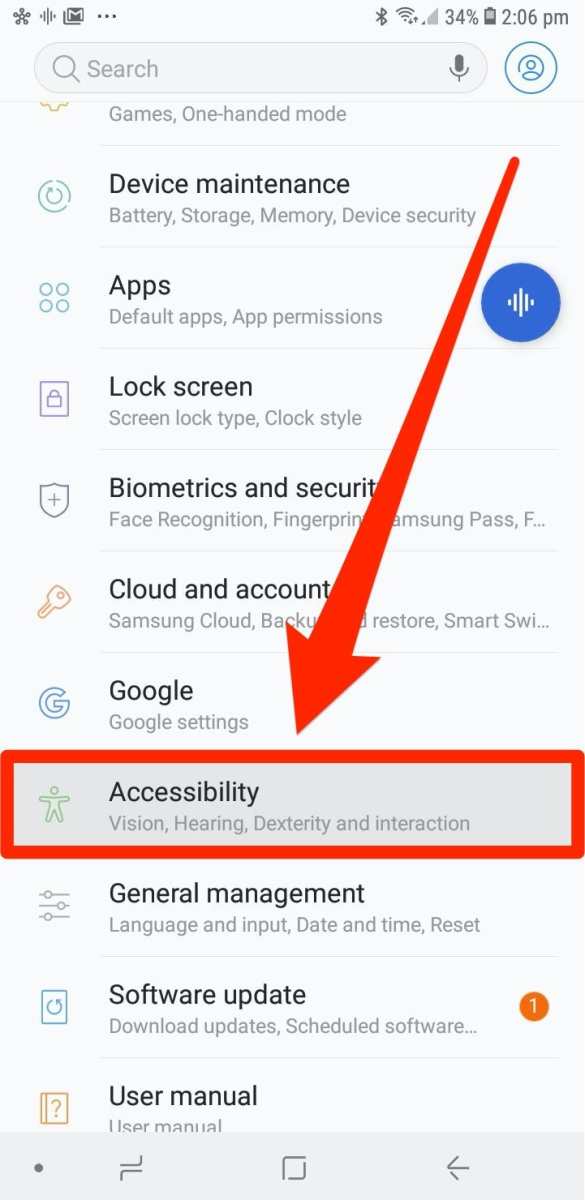
    1. Navigate to Settings and select “Accessibility.”
    2. Tap on “Font size” or “Display size.”
    3. Adjust the sliders to make text smaller or larger according to your preference.
    4. If available, enable “High contrast text” or “Simplified view” for easier readability.

    Some devices also support accessibility shortcuts, allowing you to quickly toggle text size or magnification features without navigating through menus.

    Additional Tips and Tricks for Making Text Smaller

    To optimize your device further, consider the following tips:

    • Combine font size adjustments with wallpaper and brightness settings to reduce eye strain and improve contrast.
    • If you find text still too large, disable any custom display zoom or font scaling features to revert to default settings.
    • Use third-party apps or launcher themes that offer additional customization options for font size and style.
    • Keep your device’s software updated; newer updates often include better customization features.

    Troubleshooting Common Issues

    Even with these settings, some problems may occur:

    Text Not Resizing as Expected

    – Ensure you’ve confirmed your changes properly and exited settings.
    – Restart your device to apply display adjustments fully.
    – Check if your app has separate font settings overriding system defaults.

    Text Becomes Too Small or Hard to Read

    – Use accessibility features like “Magnification” or “Color inversion” to improve visibility temporarily.
    – Increase contrast settings for better clarity.

    Adjusting text size on your Android device helps create a more comfortable viewing experience tailored to your needs. Whether you prefer system-wide settings, app-specific controls, or accessibility options, there’s a method suitable for everyone. Taking a few moments to customize your device can reduce eye fatigue, improve readability, and make your Android experience more enjoyable. Remember to experiment with different settings to find the perfect balance that works for you.

    Frequently Asked Questions

    How can I adjust the font size on my Android device without changing system settings?

    You can change the font size within individual apps that support text size adjustments. For example, in some messaging or e-reading apps, go to the app’s settings menu, find the display or text options, and select a smaller font size. This allows you to customize text size for specific applications without affecting overall device settings.

    See also  How To Make Shortcuts On Android For Quick Access

    Is there a quick way to reduce text size on the lock screen or notification panel?

    While there isn’t a direct option to modify text size only on the lock screen or notification panel, reducing overall text size through system settings impacts these areas. Adjust the font size in your device’s display settings to make text appear smaller everywhere, including notifications and the lock screen.

    Can I use accessibility features to make text smaller on my Android phone?

    Yes, Android provides accessibility options that let you customize the display. However, these features are primarily intended to increase text size for better readability. To make text smaller, you should adjust the font size in the display settings. Accessibility tools mainly focus on enlarging text rather than decreasing it.

    How do I manually resize text in specific apps that don’t offer font size options?

    If an app lacks font size controls, you can try adjusting your device’s overall font size settings. Go to your device’s Settings, select Display, then Font size, and move the slider to a smaller size. Keep in mind that this change affects all apps that use system font settings, so it may make text smaller across your device.

    Will changing the screen resolution affect text size on my Android phone?

    Adjusting the screen resolution can impact how content appears, including text size. Lowering the resolution may make everything, including text, appear larger or smaller depending on the device. However, for precise control over text size, use the font size settings rather than resolution adjustments.

    Final Thoughts

    To make text smaller on Android phone, start by opening the Settings app. Navigate to Display and select Font size. Adjust the slider to reduce the size to your preference.

    Alternatively, you can pinch inward on the screen in supported apps to zoom out and decrease text size temporarily. Some apps also have their own text size settings for more control.

    In conclusion, knowing how to make text smaller on Android phone allows for a more customized viewing experience. Adjusting font size ensures comfort and clarity.

    Chris Nolan

    Related Posts

    How To Make Youtube Floating Window In Android: Step-By-Step Guide

    May 19, 2026

    How To Make Youtube Run In The Background Android

    May 19, 2026

    How To Make Youtube Run In Background Android Efficiently

    May 19, 2026
    Leave A Reply Cancel Reply

    Facebook X (Twitter) Instagram Pinterest
    • Home
    • Contact
    • About Us
    • Disclaimer
    • Privacy Policy
    • Terms & Condition
    © 2026 ThemeSphere. Designed by ThemeSphere.

    Type above and press Enter to search. Press Esc to cancel.