How to Use Gemini Workspace
Learning how to use Gemini Workspace isn't about memorizing a feature list. It's about knowing which AI tool to reach for inside which app, and when the output is good enough to trust. Google has baked Gemini into Gmail, Docs, Sheets, Slides, and Meet, but the experience looks different in each one.
Gemini for Workspace requires a paid add-on or a Google One AI Premium subscription on top of your existing Workspace plan. As of 2026, that's $20 per user per month. Once it's active, you'll see a side panel and contextual "Help me write" buttons appear across your apps.
Let's walk through exactly what that looks like in practice.
Quick Answer
Gemini for Workspace is an AI assistant built into Gmail, Docs, Sheets, Slides, and Meet. You access it through a side panel or contextual buttons like "Help me write." It requires a Google One AI Premium subscription or a Workspace add-on at $20 per user per month. You can also reference your own Drive files directly in prompts using the @ symbol.
How Gemini Works Across Gmail, Docs, Sheets, Slides, and Meet
Gemini isn't one single tool. It shows up differently depending on which Workspace app you're in. Understanding that distinction is the key to actually getting value from it.
Gmail: Help Me Write and Smart Replies
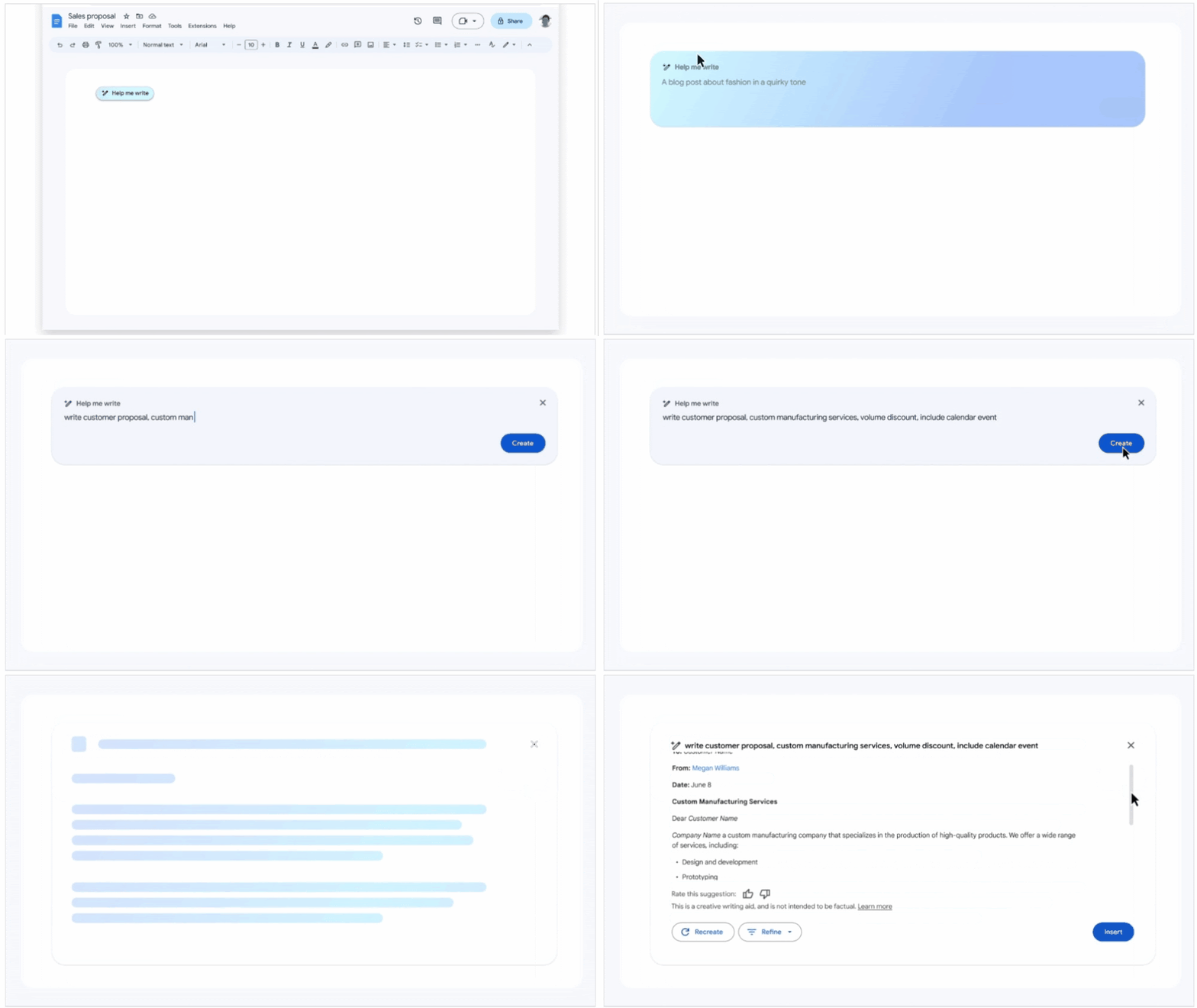
In Gmail, Gemini's "Help me write" feature drafts emails from short prompts. You click the button, type something like "Follow up on last week's proposal and ask for feedback," and it generates a full draft. You can then adjust the tone, make it longer or shorter, or regenerate entirely.
The side panel also works as a conversational assistant. You can ask it to summarize long email threads, suggest responses, or pull context from other conversations. It's genuinely useful for anyone who handles high email volume daily.
Docs: Drafting, Rewriting, and Research
Docs is where Gemini shines brightest. "Help me write" generates full documents from prompts. But the real power is in the rewrite tools.
You can highlight a paragraph and ask Gemini to make it more formal, more concise, or adjust the tone entirely.
The side panel lets you ask questions about the document you're working on. You can also use the @ symbol to reference files stored in Drive, so Gemini pulls from your actual content instead of generating generic text.
Sheets: Formulas, Organization, and Analysis
In Sheets, "Help me organize" is the headline feature. Gemini can auto-categorize data, create tables, and generate formulas from plain English descriptions. You can type "calculate monthly growth rate from column B" and it'll write the formula for you.
This is a big time-saver for people who aren't spreadsheet power users. You don't need to know every function. Just describe what you want and Gemini handles the syntax.
Slides: Visuals and Design Help
Slides uses Gemini primarily for image generation and design suggestions. You can prompt it to create custom visuals for your presentation without leaving the app. It also helps with content suggestions for individual slides.
The image generation is decent for placeholder graphics and conceptual visuals. It's not going to replace a designer for polished client-facing decks, but it's handy for quick internal presentations.
Meet: Note-Taking and Summaries
In Meet, Gemini's "Take notes for me" feature automatically captures meeting summaries, action items, and key discussion points. This is a game-changer for remote teams who rely on video calls.
The notes appear in a doc that's automatically shared with attendees. If you join late, Gemini can catch you up with a summary of what you missed. It's not perfect with complex technical discussions, but for standard meetings it works well.

Step-by-Step: How to Start Using Gemini in Your Workspace
Getting Gemini up and running involves a few prerequisites. Here's the actual process from start to finish.
Step 1: Check Your Subscription and Admin Access
Before anything else, confirm your plan. You need either a Google One AI Premium subscription ($19.99/month with 2TB storage) or a Gemini for Workspace add-on ($20/user/month) on top of an existing Workspace Business or Enterprise plan.
If you're on a Workspace plan, your admin needs to enable Gemini in the Admin Console. Navigate to Apps > Google Workspace > Gmail > Gemini, then turn it on for the organizational units you want. Without this step, users won't see any Gemini features.
Step 2: Open the Gemini Side Panel
Once enabled, you'll see a Gemini icon in the right sidebar across Gmail, Docs, Sheets, and Slides. Click it to open the side panel. This is your conversational workspace where you can ask questions, generate content, and reference files.
The side panel persists across apps, so you can start a task in Docs and continue it in Gmail without losing context. It's the most consistent way to interact with Gemini throughout your workflow.
Step 3: Use "Help Me Write" in Gmail and Docs
In Gmail, compose a new email and look for the "Help me write" button in the compose window. Click it, enter a brief prompt, and Gemini generates a draft. In Docs, the same button appears in the toolbar or by right-clicking in the document.
The quality of output depends heavily on your prompt specificity. "Write a professional email" gives you generic text. "Write a polite follow-up to a client who hasn't responded in two weeks, referencing our last proposal and offering a call" gives you something you can actually send.
Step 4: Use "Help Me Organize" in Sheets
Open a spreadsheet and look for the Gemini side panel. Describe what you want to accomplish. You can ask it to create a project tracker, categorize expenses, or generate formulas.
For formulas specifically, be as precise as possible. "Calculate the percentage change between cells B2 and B25" works better than "figure out the growth." Gemini will write the formula and insert it into the correct cell.
Step 5: Use "Take Notes for Me" in Meet
During a Meet call, open the Gemini side panel and click "Take notes for me." Gemini starts capturing the meeting in real time. When the call ends, it generates a summary document with action items and key points.
The doc is saved to the meeting organizer's Drive and shared with all attendees. You can review and edit it afterward. If you missed the meeting, you can open the notes doc to catch up quickly.
Step 6: Reference Your Own Files With @ Mentions
This is the feature most people overlook. In the Gemini side panel, type the @ symbol and select a file from your Drive. Gemini will use that file's content as context for your prompt.
This means you can ask Gemini to summarize a long report, draft a response based on a proposal, or pull data from a spreadsheet. It's what separates Gemini from a generic AI chatbot. It actually knows your content.
What Gemini Gets Right (and Where It Falls Short)
Gemini for Workspace has genuine strengths, but it's not without limitations. Here's an honest breakdown based on aggregate user feedback and editorial analysis.
What works well:
- Deep integration: No need to switch between apps. Gemini lives inside the tools you already use.
- File grounding: The @ mention feature lets you reference your actual Drive files, which is a real differentiator.
- Meeting summaries: "Take notes for me" in Meet is one of the most practical AI features Google has shipped.
- Formula generation in Sheets: Huge time-saver for non-technical users who need spreadsheet help.
Where it falls short:
- Hallucinations: Gemini can generate plausible-sounding but factually wrong content. Always verify before sharing externally.
- Prompt dependency: Vague prompts produce vague outputs. You need to be specific to get useful results.
- Cost: $20 per user per month on top of existing Workspace pricing adds up fast for larger teams.
- Language limitations: Performance is strongest in English. Other languages may produce less polished results.
- Admin complexity: IT admins need to configure access carefully, which can slow rollout in larger organizations.
The bottom line is that Gemini for Workspace is a solid productivity tool when used thoughtfully. It's not a magic button. It rewards users who invest time in learning how to prompt effectively.
Pricing Breakdown: What Gemini for Workspace Actually Costs
Let's talk numbers. Gemini for Workspace isn't included in standard Workspace plans. You're paying extra, and the total cost depends on your setup.
| Plan | Base Cost (per user/month) | Gemini Add-on | Total with Gemini |
|---|---|---|---|
| Google One AI Premium | $19.99 (includes Gemini + 2TB) | Included | $19.99 |
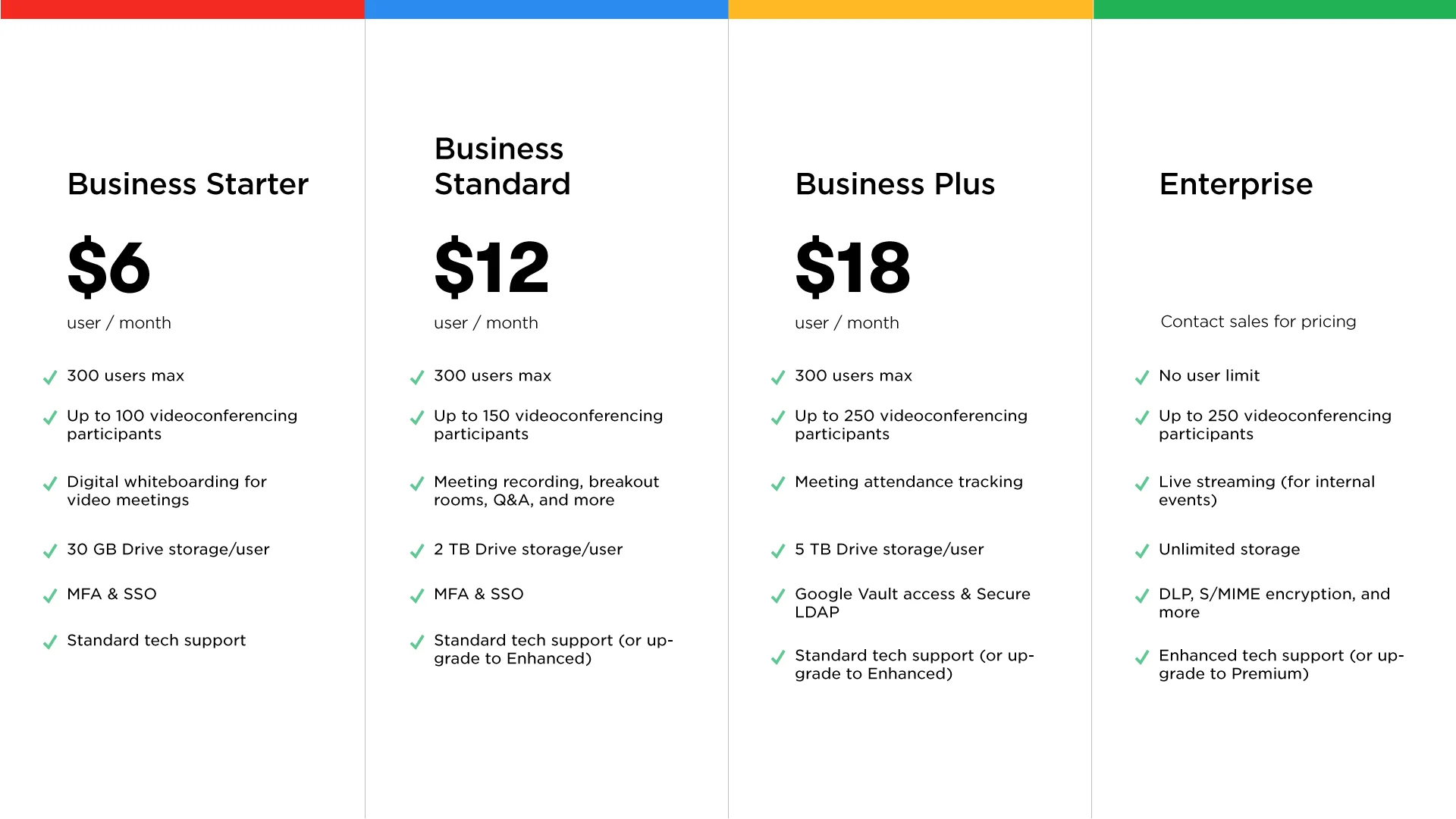
| Workspace Business Plus | $18 | $20 add-on | $38 |
| Workspace Enterprise | Custom pricing | $20 add-on | Custom + $20 |
| Workspace Business Standard | $12 | $20 add-on | $32 |
If you're an individual or small team already paying for Google One AI Premium, you're getting the best value. The Gemini features are bundled in at no extra cost alongside 2TB of storage.
For businesses on Workspace plans, the $20 per user add-on is the main consideration. A team of 50 people pays an extra $1,000 per month just for Gemini access. That's $12,000 annually on top of existing Workspace costs.
There's no free tier for Gemini in Workspace features. Google offers a limited free version of Gemini at gemini.google.com, but the Workspace integration (side panel, file grounding, Meet notes) requires the paid subscription.
Common Mistakes People Make When Using Gemini in Workspace
Most frustrations with Gemini come down to how people use it, not the tool itself. Here are the mistakes we see most often.
Writing vague prompts. Typing "write an email" gives you generic filler. Gemini needs context, audience, purpose, and tone. The more specific your prompt, the less editing you'll do afterward.
Trusting output without verification. Gemini can generate confident-sounding text that contains factual errors. This is especially risky in Sheets formulas and data summaries. Always check the work before sharing it externally.
Ignoring the @ file reference feature. A lot of users don't realize they can pull content from their Drive files into prompts. This is what makes Gemini genuinely useful versus a generic chatbot. Use it.
Expecting polished final drafts. Gemini gives you a strong first pass. It rarely produces something ready to send or publish without human review. Think of it as a drafting assistant, not a finished product.
Not adjusting tone and length settings. Before accepting a generated response, try the tone and length adjustments. A single click can transform a stiff draft into something that actually sounds like you.
How Gemini for Workspace Compares to Microsoft Copilot and ChatGPT
The AI assistant space is crowded. Here's how Gemini stacks up against its two biggest competitors for workplace use.
| Feature | Gemini for Workspace | Microsoft Copilot | ChatGPT (standalone) |
|---|---|---|---|
| Native app integration | Gmail, Docs, Sheets, Slides, Meet | Word, Excel, PowerPoint, Outlook, Teams | None (separate app) |
| File grounding (your content) | Yes, via @ Drive references | Yes, via Microsoft Graph | Limited, requires manual upload |
| Meeting summaries | Yes (Meet) | Yes (Teams) | No native integration |
| Side panel assistant | Yes | Yes | No |
| Pricing (per user/month) | $20 add-on | $20 add-on | $20 (ChatGPT Pro) |
| Best for | Google Workspace shops | Microsoft 365 shops | General AI tasks across platforms |
Gemini is the right choice if your team lives in Google Workspace. The integration is seamless. You don't leave your apps. You don't copy-paste between tools.
Everything happens where you already work.
Microsoft Copilot wins for Microsoft 365 teams. Same concept, different ecosystem. If your company runs on Outlook, Teams, and Excel, Copilot is the natural fit.
ChatGPT is better for cross-platform flexibility. If you use a mix of tools or need more creative or technical AI tasks, ChatGPT offers broader capability. But it lacks the native integration that makes Gemini and Copilot so convenient.
The honest answer is that no AI assistant is dramatically better than the others in 2026. The best one is the one that fits the tools you already use.
Real Scenarios: How Different Teams Use Gemini Day to Day
Let's look at how Gemini for Workspace actually plays out across different types of work.
Sales teams use Gmail's "Help me write" to draft follow-ups and proposals faster. Instead of staring at a blank compose window, they prompt Gemini with the client name and context, then polish the result before sending.
Project managers rely on Meet's note-taking feature to auto-generate meeting summaries. The notes doc gets shared with the team immediately. Nobody spends the first 10 minutes of the next meeting trying to remember what was decided.
Finance and operations folks use Sheets' formula generation to build tracking spreadsheets without memorizing complex function syntax. They describe the calculation in plain English and Gemini writes the formula.
Marketing teams use Slides' image generation for internal presentations and brainstorming decks. It's not replacing their design team for client work, but it speeds up the early creative phases.
Executive assistants use the Gemini side panel to summarize long documents, draft responses, and pull information from multiple Drive files without switching between apps constantly.
The common thread across all these scenarios is that Gemini works best as a starting point. It accelerates the first draft. The human in the loop is still essential for quality control.
Privacy, Data, and Compliance: What You Need to Know
This matters more than most people realize. When you use Gemini in Workspace, you're feeding your work content into an AI system. Here's what Google says and what you should watch for.
Google states it does not train its models on your Workspace data. Your prompts and content are not used to improve the Gemini model. This is a critical distinction from consumer AI tools that may use conversations for training.
Admins control access at the organizational unit level. IT admins can enable Gemini for specific departments and disable it for others. This gives organizations control over who has access to AI features.
Data Loss Prevention (DLP) compatibility exists. Gemini works with Google Workspace's DLP policies. If your organization has rules about sensitive data, Gemini respects those boundaries.
HIPAA compliance is available on Enterprise plans. Organizations that sign a Business Associate Agreement with Google can use Gemini in covered healthcare contexts. This is not available on lower-tier plans.
Review outputs before external sharing. Even though Google doesn't train on your data, the content Gemini generates could contain sensitive information pulled from your files. Treat AI-generated content the same way you'd treat content a colleague drafted.
EU and GDPR considerations apply. Organizations operating in Europe should review Google's data processing terms. Gemini for Workspace is subject to the same data handling commitments as the rest of Google Workspace.
The practical takeaway is that Gemini for Workspace is built for enterprise use with proper safeguards. But you still need to configure it correctly and train your team to use it responsibly.
Frequently Asked Questions
Do I need a separate subscription for Gemini in Workspace?
Yes. Gemini for Workspace requires either a Google One AI Premium subscription ($19.99/month) or a Gemini for Workspace add-on ($20/user/month) on top of your existing Workspace plan. It's not included in standard Workspace pricing.
Can Gemini access my Drive files?
Yes. Use the @ symbol in the Gemini side panel to reference files from your Drive. Gemini will use those files as context for your prompts.
This is one of its most practical features.
Does Gemini work in Google Chat?
Gemini's integration focuses on Gmail, Docs, Sheets, Slides, and Meet. As of 2026, Chat integration is limited compared to the core apps. Check Google's official documentation for the latest feature availability.
Is Gemini for Workspace available in languages other than English?
Gemini supports multiple languages, but performance is strongest in English. Output quality may vary in other languages. Google continues to expand language support with updates.
Can I turn off Gemini for specific users in my organization?
Yes. Workspace admins can enable or disable Gemini at the organizational unit level through the Admin Console. You can give access to some departments while restricting it for others.
How accurate are Gemini's meeting summaries in Meet?
Gemini's "Take notes for me" feature works well for standard meetings with clear discussion points. Accuracy may drop with technical jargon, overlapping speakers, or poor audio quality. Always review the summary before relying on it.
Final Verdict: Should Your Team Use Gemini for Workspace?
Gemini for Workspace is a practical productivity tool for teams already invested in the Google ecosystem. It saves real time on drafting, spreadsheet work, meeting notes, and document research. The native integration means zero context switching.
But it's not for everyone. The $20 per user add-on cost is significant for large teams. If your organization runs on Microsoft 365, Copilot is the better fit.
If you only need occasional AI help, the free gemini.google.com chat works fine.
Use Gemini for Workspace if your team lives in Google apps daily and wants AI assistance without leaving Gmail, Docs, Sheets, Slides, or Meet. Skip it if you're on a tight budget, use Microsoft tools primarily, or only need AI occasionally.
The tool is solid. The value depends entirely on how your team works.

Similar Posts





















