How to Upload Documents to Gemini
Figuring out how to upload documents to Gemini sounds like it should be simple. In some ways it is. But the steps change depending on whether you're on your phone, your laptop, or working inside Google AI Studio.
And if you've ever stared at the interface wondering where the upload button actually is, you're not alone.
Here's what makes it tricky: Google offers multiple paths to get your documents into Gemini, and each one works a little differently. Supported formats include PDFs, Google Docs, CSVs, and plain text files, with limits that vary by platform. Let's walk through each method so you can use the right one for your situation.

(Image source: Wikimedia Commons / Rillke and others)
Quick Answer
You can upload documents to Gemini in several ways. On desktop, use the web interface at gemini.google.com and either drag a file onto the prompt bar or click the attachment icon. On mobile, tap the "+" button or the paperclip icon inside the Gemini app.
Google AI Studio also supports file uploads with drag-and-drop or file picker options. Gemini Advanced users can upload up to 10 files per prompt.
Why Uploading Documents to Gemini Isn't Always Straightforward
Most AI chatbots keep things simple. One upload button. One method.
Done.
Google Gemini doesn't work that way. There are separate interfaces for the consumer app, the mobile app, and the developer-focused AI Studio. Each one has its own layout, its own upload path, and its own limits on what you can attach.
Then there's the question of what you're trying to do. Are you asking Gemini to summarize a 30-page report? Are you cross-referencing three spreadsheets?
Are you testing document processing through the API? The right upload method depends on exactly that.
People also run into confusion between Google Drive imports and local file uploads. Both work, but they follow different steps. And if you're on mobile instead of desktop, the whole experience shifts again.
So rather than giving you one set of instructions and hoping they match your setup, let's break it down by platform and situation. That way you get the steps that actually apply to what you're working with.

(Image source: Wikimedia Commons / Google)
What You Can Upload to Gemini (File Types, Sizes, and Limits)
Before you try to upload anything, it helps to know what Gemini actually accepts. Nothing's more frustrating than finding the upload button only to get an error message about an unsupported format.
Supported File Types
Gemini supports a solid range of common document formats. Here's what works across the platform:
- PDF files, the most common option for reports, papers, and forms
- Google Docs, import directly from your Google Drive
- Plain text files (.txt), simple and universally supported
- CSV files, useful for spreadsheet data and structured datasets
- Some image formats, Gemini can also read document photos and screenshots in many cases
Size and Quantity Limits
This is where things diverge based on your setup. Manufacturer documentation and aggregate user reports indicate the following as of 2026:
| Platform | Max Files Per Prompt | File Size Limit | Notes |
|---|---|---|---|
| Gemini web (free) | 1 file | Varies; roughly 500,000 characters per document | Works for PDFs, Google Docs, TXT |
| Gemini Advanced (paid) | Up to 10 files | 500,000 characters per document, up to 1 million token context window | Best option for heavy document work |
| Gemini mobile app | 1 file | Similar to web limits | Upload via "+" or paperclip icon |
| Google AI Studio | Varies by model configuration | Depends on model context window | Developer-oriented; good for testing |
A few things worth noting. Character limits matter more than page counts. A 50-page PDF with mostly images eats up context differently than a 50-page document of dense text.
If Gemini seems to "lose track" of information in a very long file, that's likely why.
Also, when uploading to the free version of Gemini (web or mobile), you can't always add multiple files to a single prompt. That's a Gemini Advanced feature. If you're on the free tier and need Gemini to compare two documents, you'll need to handle that differently.
We'll cover that in the comparison sections.
How to Upload Documents to Gemini on Desktop (Web Browser)
Desktop is where most people do serious document work. The Gemini web interface at gemini.google.com gives you two main options for getting your files into the chat.
Option 1: Drag-and-Drop or Browse Upload
This is the fastest method once you know where to look. Here's the step-by-step process:
- Open gemini.google.com in your web browser and sign in to your Google account.
- Look at the prompt bar at the bottom of the screen. You'll see a plus (+) icon or a paperclip/attachment icon on the right side of the text input field.
- Click that icon. A file picker window will open on your computer.
- Navigate to the document you want to upload, select it, and click "Open."
- Alternatively, you can drag the file directly from your file explorer (Windows) or Finder (Mac) and drop it right into the prompt bar.
- The file will upload and appear as a thumbnail or chip inside the prompt bar, showing the file name and type.
- Now type your prompt. Something like "Summarize the key findings in this report" or "Extract all action items from this document."
- Hit enter. Gemini will process the document and respond based on your prompt.
This method works for PDFs, text files, and CSVs. If you're uploading a make-sure-you're-signed-into-the-right-Google-account situation, double-check that first. Gemini pulls from the account that's currently active in the browser.
Option 2: Import from Google Drive
If your document already lives in Google Drive (and let's be honest, a lot of them do), you can skip the local file route entirely:
- In the Gemini web interface, click the same attachment icon in the prompt bar.
- Instead of browsing your local files, look for a Google Drive option. It usually shows up as a tab or button within the file picker.
- Browse your Google Drive folders or use the search bar to find your document.
- Select the file and click "Insert" or "Add."
- The Google Doc or PDF will link directly into your Gemini prompt without downloading and re-uploading.
This Drive import method has a neat advantage: it keeps everything within Google's ecosystem. No worrying about local file paths or overwritten versions. If you update the Google Doc later and want Gemini to re-analyze it, you can just re-import it.
One thing to watch out for. If the Google Drive file has restricted sharing permissions, Gemini may not be able to read it properly. Make sure the file is set to "Anyone with the link can view" or that the account you're using in Gemini has at least view access.
How to Upload Documents to Gemini on Mobile (Android and iOS)
Mobile works a bit differently. The Gemini app (available for both Android and iOS) has a slightly streamlined interface, but the upload process is still pretty straightforward once you know where things are.
Here's the basic flow:
- Open the Gemini app on your phone or tablet.
- Start a new conversation or open an existing one.
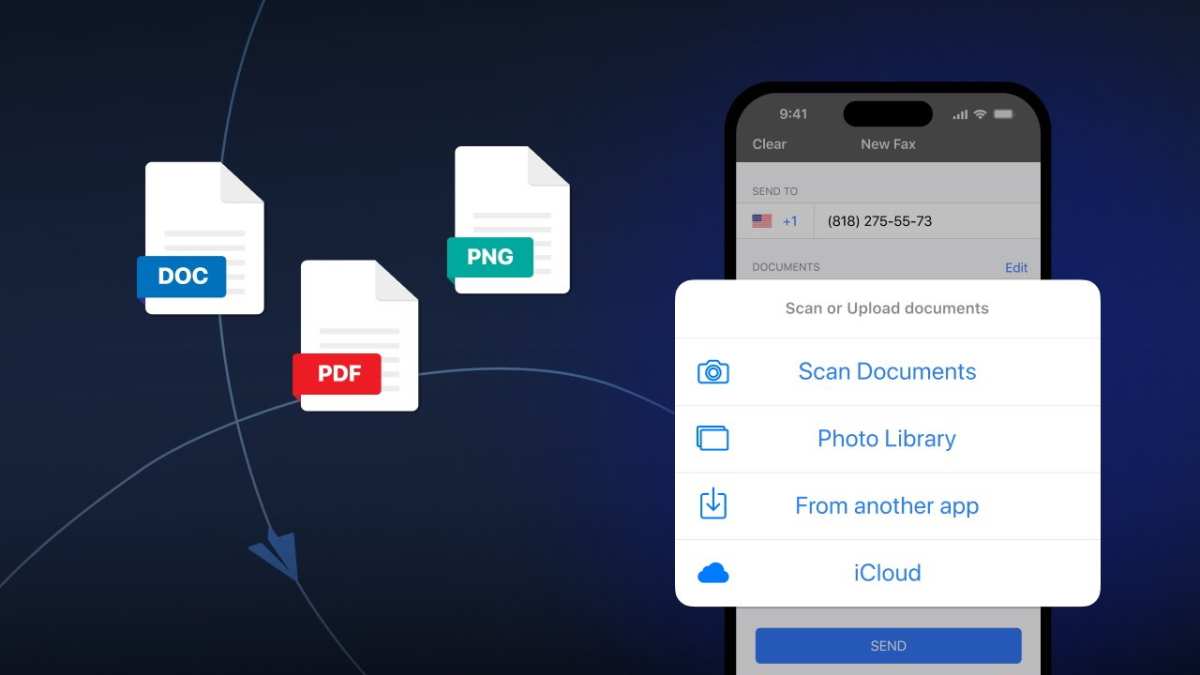
- Look for the plus (+) button near the text input area at the bottom of the screen. On some versions, this appears as a paperclip icon instead.
- Tap it. You'll see options to attach a file, take a photo, or import from your device storage.
- Select "Upload file" or "Attach document" (the exact label varies slightly between Android and iOS versions).
- Choose the file from your phone's storage. On Android, this opens your file manager or Downloads folder. On iOS, it may open the Files app.
- Pick your document. It'll appear as a preview chip inside the conversation bar.
- Type your prompt and send it.
(Image source: Bing (Web))
A few mobile-specific things to keep in mind. First, drag-and-drop does not work on mobile. That's a desktop-only feature.
You have to use the file picker. Second, on some iOS versions, if you've connected Gemini to your Google account, you may see a Google Drive import option right alongside the local file picker. That's handy.
If the upload button doesn't appear at all in your app, check that you're running the latest version of the Gemini app. Google has updated the interface several times, and older versions sometimes lack full document upload support.
One more tip. If your document is buried deep in folders on your Android device, it's sometimes easier to open the file in another app first, then use the "Share" function to send it directly into Gemini. Not everyone knows this works, but it's a quick shortcut that saves you from hunting through directories.
How to Upload Documents in Google AI Studio (Developer Path)
Google AI Studio (at ai.google.dev) serves a different audience than the consumer Gemini app. It's built for developers and teams who want to test prompts, fine-tune models, or prototype AI-powered applications. But it also supports document uploads, and if that's the tool you're working with, the process looks slightly different.
Here's how file upload works in AI Studio:
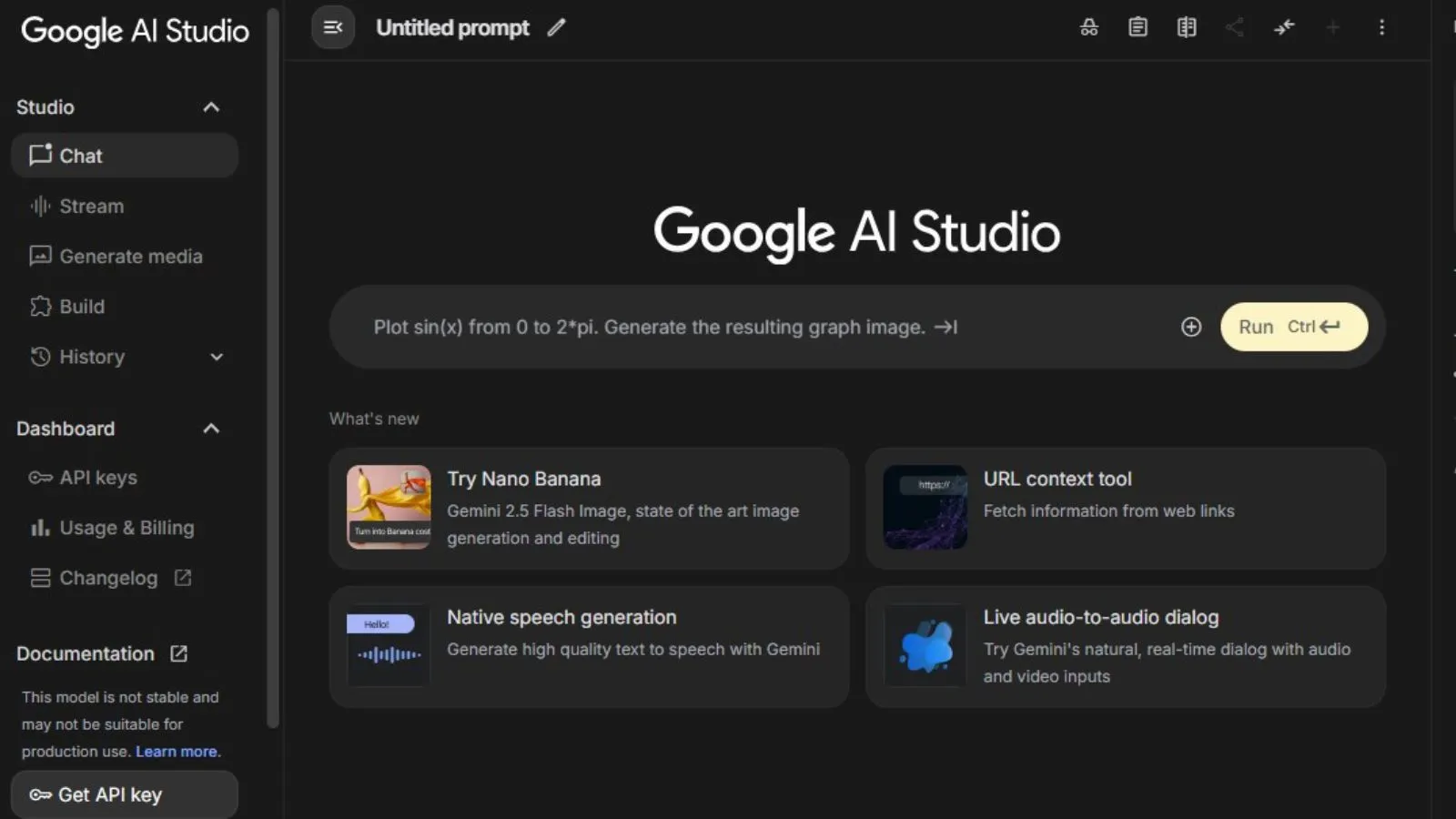
- Go to ai.google.dev and sign in with a Google account that has access to Google AI Studio.
- Open an existing prompt or start a new one.
- You'll see a prompt editor on the left or center of the screen. Look for a drag-and-drop zone labeled something like "Drop files here" or an upload button in the prompt configuration area.
- Drag your document onto that zone, or click to browse your local files.
- The file will appear in the prompt context area, and you can add your text prompt alongside it.
- Adjust model settings if needed (model selection, temperature, token limits). Then click "Run" to generate your response.
(Image source: Bing (Web))
Key Differences Between AI Studio and the Gemini App
AI Studio gives you more control over model configuration. You can switch between different Gemini models, adjust the temperature (which affects how creative or precise the output is), and set output token limits. That's useful when you're building something that needs consistent, reproducible results from document processing.
The consumer Gemini app, by comparison, hides all of that. It "just works," but you're stuck with whatever model and settings Google decides to use behind the scenes.
AI Studio also tends to handle larger context windows more transparently. You can see how many tokens your uploaded document is consuming, which helps you figure out whether your file is too long for Gemini to process accurately.
If you're just asking Gemini to summarize a PDF quickly, the consumer app is the easier path. If you're building a workflow or application that processes documents at scale, AI Studio (or the API) is the better fit.
One important note. AI Studio's terms and data handling differ from the consumer Gemini app. Documents uploaded through AI Studio are treated differently in terms of model training and retention.
Review the terms on ai.google.dev if you're handling sensitive or proprietary content.
What Happens After You Upload (Context, Prompts, and Limitations)
Uploading the document is only half the battle. The quality of what Gemini gives you back depends heavily on how you prompt it and what limits you're working within.
Context Window Tokens Explained Simply
Think of Gemini's context window as its "working memory." It determines how much of your document the AI can "see" at one time. If your uploaded document exceeds that window, Gemini may lose track of details from the beginning by the time it reaches the end.
As of 2026, Gemini Advanced supports up to 1 million tokens. That's a lot. For reference, that's roughly equivalent to 750,000 words or about 1,500 pages of text.
However, the free tier has smaller context windows, and very long documents can still cause issues even within Advanced.
Writing Effective Prompts After Upload
Once your document is attached, your prompt tells Gemini what to do with it. "Read this file" is vague. These work much better:
- "Summarize the top five findings from this research paper."
- "Extract all dates, names, and action items from this meeting notes document."
- "Compare the data in column A with column C and highlight any discrepancies."
- "Translate the executive summary into plain language for a non-technical audience."
The more specific you are, the better Gemini handles the document. Vague prompts tend to produce surface-level or incomplete responses.
Limitations to Keep in Mind
Gemini can misread scanned PDFs, especially if the text quality is low. Handwritten notes, complex tables, and heavily formatted documents can also cause parsing errors. If Gemini's response seems off, it might not be the model.
It might be the file.
For very large documents, consider breaking them into sections and uploading them separately with targeted prompts. That often produces better results than dumping a 200-page file into a single prompt and hoping for the best.
Common Mistakes and Why Your Upload Might Not Work
Even when you follow the steps correctly, things can go sideways. Here are the most common issues people run into, and what to do about them.
File format not supported. Gemini won't open everything. Trying to upload a Word document (.docx) directly may fail on some platforms. Convert it to PDF first.
File too large. If your document exceeds the character or token limit, Gemini may reject it silently or produce a truncated response. Split it into smaller chunks.
Wrong Google account. If you're signed into one account in your browser and Gemini is tied to another, permissions can get weird. Double-check which account is active in both the Gemini interface and Google Drive.
Drive permission errors. Shared files with "restricted" access sometimes block Gemini's ability to read them. Change sharing settings to "Anyone with the link" or grant explicit view access to the account you're using.
Upload button missing. This usually means the app is out of date. Update the Gemini app through the Play Store or App Store.
Gemini garbles the content. Scanned documents, low-resolution images of text, and complex formatting all challenge Gemini's extraction abilities. A typed PDF works far better than a scanned one.
- Check your file type: PDFs work best.
- Check your permissions: Open in Drive first, then import.
- Check your prompt: Specific language beats vague requests.
Gemini Advanced vs. Free Gemini: What Changes for Document Uploads
If you're wondering whether upgrading to Gemini Advanced is worth it for document work, here's a quick breakdown.
| Feature | Free Gemini | Gemini Advanced |
|---|---|---|
| Files per prompt | 1 | Up to 10 |
| Context window | Smaller (varies by model) | Up to 1 million tokens |
| Supported formats | PDF, Google Docs, TXT, CSV | Same formats, better handling |
| Model options | Default model only | Access to newer models, better reasoning |
| Price | Free | $19.99/month (Google One AI Premium) |
Gemini Advanced is the clear winner for serious document analysis. Being able to upload 10 files at once and ask Gemini to cross-reference them is a game-changer for research-heavy work.
For casual use, say you just want to summarize a single PDF now and then, the free tier handles that fine. But if you're regularly working with large documents, comparing multiple files, or need more accurate results on complex content, Advanced earns its price quickly.
Also, Gemini Advanced subscribers get priority access to new features and models. That means better document handling over time compared to the free version.
Privacy and Security: What You Should Know Before Uploading
This matters more than most people realize. When you upload a document to Gemini, you're sending that content to Google's servers. What happens next depends on your account type and settings.
For personal Google accounts, Google may use uploaded content to improve its models, depending on your Gemini activity settings. You can review and adjust these settings in your Google Account dashboard under "Gemini Apps Activity."
For Google Workspace accounts (business or education), the rules are stricter. Enterprise data is generally not used for model training. Admins can also control whether document upload features are available to users in their organization.
Either way, a good rule of thumb: don't upload anything to Gemini that you wouldn't be comfortable emailing to a third party. Documents containing personal financial information, medical records, legal privilege, or proprietary business data should be uploaded with caution, or not at all unless you've confirmed your organization's policy.
If document privacy is a core concern, Google AI Studio with a Workspace account offers more transparency around data handling. Always check your settings before uploading sensitive content.
Frequently Asked Questions
Can I upload a PDF to Gemini?
Yes. PDF is one of the most straightforward formats to upload. Use the attachment icon on desktop or the upload button on mobile.
Gemini reads the text content of most PDFs, though scanned or image-based PDFs may not work as well.
How do I upload multiple documents at once?
Multiple file upload per prompt is available on Gemini Advanced. Free users typically need to upload one document at a time. Start with Advanced if you need to cross-reference documents regularly.
What file types does Gemini not support?
Gemini may not support Word documents, Excel files, or PowerPoint presentations directly. Convert them to PDF or CSV first for the best results.
Can Gemini read handwritten documents?
Gemini can sometimes read handwriting, but accuracy depends on clarity. For best results, use typed text documents rather than handwritten notes.
Is my uploaded document saved by Google?
That depends on your account settings. Review your Gemini activity controls in your Google account to understand how uploaded content is handled and stored.
Can I upload documents through Google Drive instead of local files?
Yes. On the desktop Gemini web interface, look for the Google Drive import option in the file picker. It's a clean alternative that keeps everything within your existing Drive workflow.
Real Scenarios That Help Explain This Whole Process
Take the same upload steps we've been walking through. Now imagine you're doing them in different real-life situations. Each one changes what makes sense to do.
Let's say you're preparing for a meeting while commuting on your train. Your coworker sends a 12-page PDF to the team group chat. You open Gemini mobile, tap the plus icon, select the file from your Downloads, and type, "Summarize the top decisions and action items." You can be reading a solid summary before you even sit down at your desk.
That's mobile upload doing exactly what it should.
Now picture yourself at your desk. You have three documents: last quarter's sales spreadsheet, a competitor's press release, and your own company's product brief. Gemini Advanced lets you attach all three files to one prompt.
You type, "Compare our product features against the competitor's announcement and suggest three positioning talking points based on last quarter's sales data." That's cross-document analysis that would take an hour by hand. Gemini does it in seconds.
Here's another one. You realize you signed into Gemini with your personal account instead of your work account. Your sensitive company report goes to the wrong place.
Always match the account in your browser to the files you're handling. One wrong click can be a privacy issue.
Sometimes a user tries to upload a 94-page PDF through the free version of Gemini on the web. They get a response that feels short, like Gemini only read the first section. What likely happened: the free tier's context window couldn't absorb the entire document.
Splitting the PDF into sections and asking targeted questions often solves that problem. Upgrading to Gemini Advanced helps too, since it supports much larger context windows.
Developers working in Google AI Studio have their own version of this. They might wire up a workflow that lets their team upload internal documents and run custom prompts against them. For them, some key advantages are model selection, temperature control, and token visibility.
It's more work to set up, but it gives you control that the consumer app doesn't offer.

Similar Posts





















