Can Gemini Analyze Images
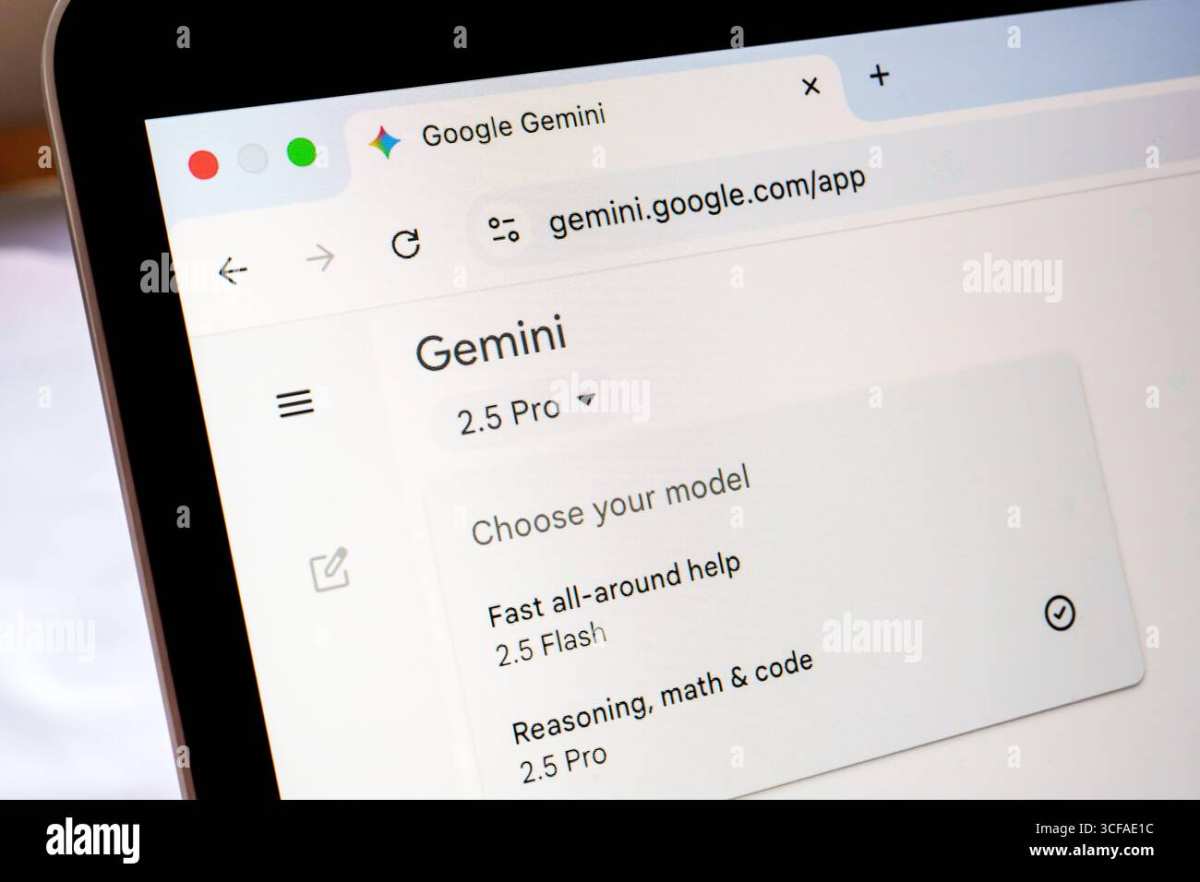
Yes, Gemini can analyze images, and it does so natively within the chat interface. You don't need a separate tool or plugin. Just upload a photo, screenshot, or document scan, and Gemini will interpret it alongside your text prompt.
Google's multimodal models process visual input as part of the same reasoning pipeline that handles text. That means you can ask follow-up questions about an image, compare two photos, or extract data from a chart without switching contexts. As of 2026, Gemini Pro and Gemini 2.5 Pro support image inputs up to roughly 7MB per file in the consumer app, with JPEG, PNG, WEBP, HEIC, and HEIF formats accepted.
Let's break down exactly how this works, what it handles well, and where you'll want to double-check its output.
Quick Answer
Yes, Gemini analyzes images directly in the chat window. You can upload photos, screenshots, charts, and document scans. It reads text in images, interprets diagrams, and answers visual questions.
Both the free tier and Gemini Advanced support this feature. Results vary based on image quality and complexity.
How Gemini's Image Analysis Works Under the Hood
Gemini isn't running a separate OCR tool and then feeding the result into a text model. Google built it as a native multimodal architecture from the start. That means the model processes pixels and tokens through the same transformer layers simultaneously.
When you upload an image, the vision encoder converts visual features into embeddings that the language model can reason over. This is fundamentally different from older workflows where you'd run OCR first, copy the text, then paste it into a chatbot. Gemini sees the whole image at once, including layout, spatial relationships, and visual context.
The practical benefit is that Gemini understands charts, diagrams, and screenshots as structured visual content rather than flat text. It can tell you that a bar is taller than another bar, that a wire connects to a specific terminal, or that a UI element sits in the top-right corner. That spatial awareness is what separates multimodal models from text-only systems with an OCR add-on.
Google DeepMind's research publications describe this as "native multimodal fusion," where visual and textual signals merge early in the processing pipeline. The result is more coherent reasoning across both modalities compared to bolted-together systems.
Gemini Models That Support Image Input
Not every Gemini variant handles images the same way. Here's a breakdown of the main options as of early 2026.
| Model | Image Support | Best For | Access |
|---|---|---|---|
| Gemini 2.5 Pro | Full multimodal, highest accuracy | Complex analysis, charts, detailed reasoning | Gemini Advanced, AI Studio, Vertex AI |
| Gemini 2.0 Flash | Full multimodal, faster, lower cost | Quick lookups, simple extraction, high volume | Free tier, AI Studio, Vertex AI |
| Gemini Pro (earlier versions) | Full multimodal | General use, stable performance | Free tier, API |
| Gemini Nano | Limited, on-device | Mobile tasks, offline use | Pixel phones, select Android devices |
| Gemma (open weights) | Varies by fine-tune | Developer experimentation | Hugging Face, open download |
Gemini 2.5 Pro is the strongest option for image work. It handles dense documents, complex diagrams, and multi-step visual reasoning better than Flash. Flash trades some accuracy for speed and lower API cost, which matters if you're processing hundreds of images programmatically.
Gemini Nano runs locally on select Pixel devices through Android's AI Core. Its image capabilities are narrower but work without an internet connection. That's useful for quick tasks like identifying objects through the camera, though it won't match the cloud models for document analysis.
File Types, Size Limits, and Technical Constraints
Gemini accepts JPEG, PNG, WEBP, HEIC, and HEIF in the consumer app. The web interface tends to be pickier about HEIC files, so converting to JPEG first avoids upload errors. PDFs work too, though Gemini processes them page by page rather than as a single continuous document.
The practical file size limit in the Gemini app sits around 7MB per image. Larger files get rejected or compressed unpredictably. If you're working with high-res photos from a modern phone, you may need to resize before uploading.
A quick downscale to 2000px on the long edge usually keeps text and details readable while staying well under the limit.
For API users through Vertex AI or Google AI Studio, the limits differ slightly. Image inputs get tokenized, and each image consumes a set number of input tokens regardless of content. That means a blank white image and a dense architectural drawing cost roughly the same in token terms.
Budget accordingly if you're processing images at scale.
There's also a practical limit on how many images you can include in a single conversation turn. The consumer app typically handles two to four images per prompt reliably. Beyond that, the model may ignore later images or return an error.
For batch work, send images in smaller groups.
One constraint worth noting: Gemini doesn't process video frames as a sequence. You can upload a video file in some contexts, but it won't analyze motion or temporal changes the way a dedicated video model would. Stick to still images for reliable results.
Step-by-Step: How to Upload and Analyze an Image with Gemini
The process is straightforward whether you're on mobile or desktop. Here's the exact flow.
On the Gemini web app (gemini.google.com):
- Sign in with your Google account.
- Click the image upload icon in the prompt bar (it looks like a picture or plus symbol).
- Select your image file from your computer, or drag and drop directly into the chat window.
- Type your question or instruction in the prompt field. Be specific about what you want Gemini to do with the image.
- Press Enter and wait for the response.
On the Gemini mobile app (iOS or Android):
- Open the app and tap the image icon in the bottom toolbar.
- Choose to take a new photo or select one from your gallery.
- Add your text prompt, then send.
- For live camera analysis through Gemini Live, tap the camera icon during a voice conversation.
For developers using the API:
- Set up a project in Google Cloud Console and enable the Gemini API.
- Use the
google-genaiPython SDK or REST endpoint. - Pass the image as base64-encoded data or a Google Cloud Storage URI in your request.
- Include your text prompt in the same
contentarray as the image part.
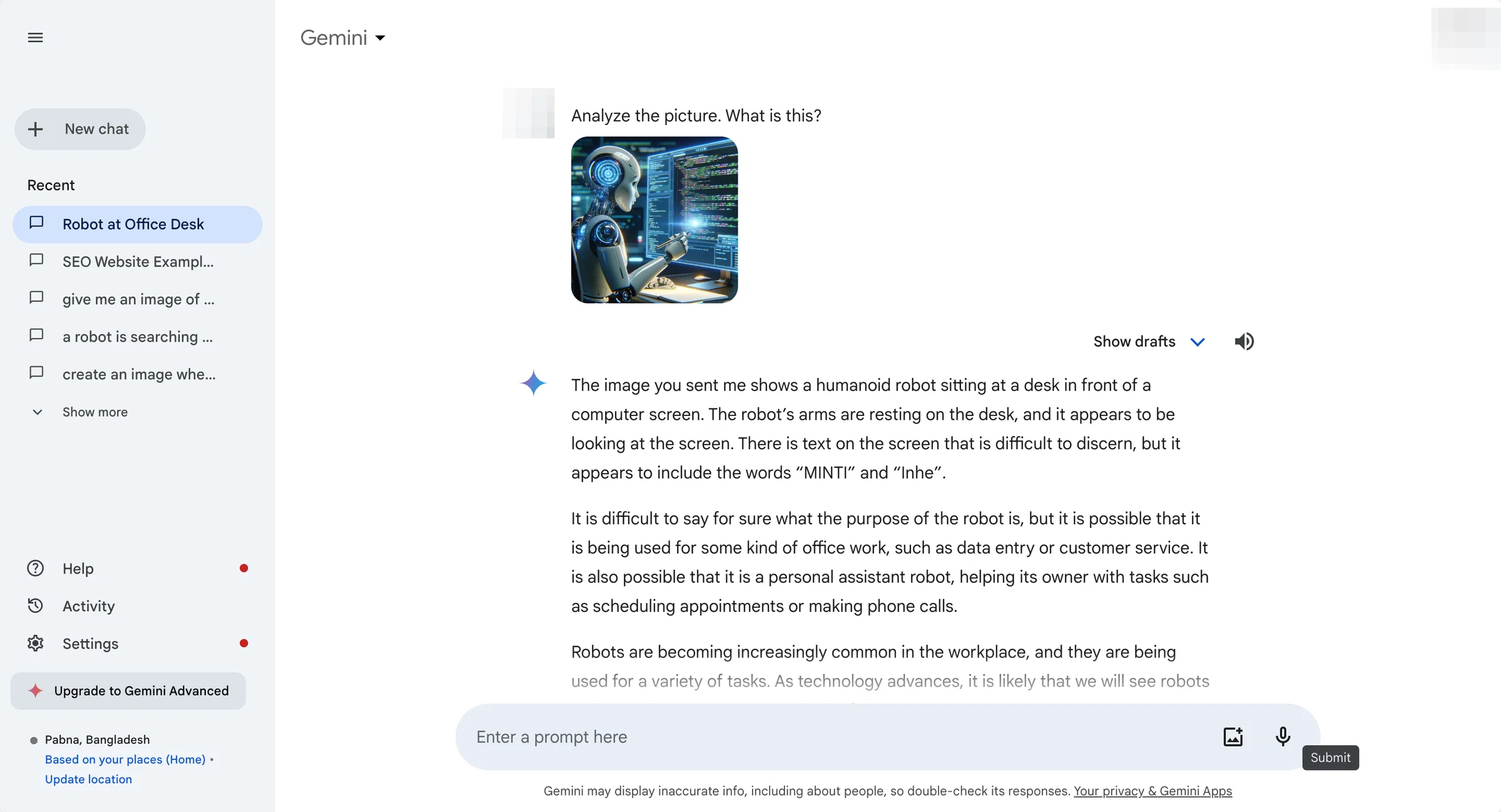
The key to good results is your prompt. "What's in this image?" gets you a general description. "Extract all the numerical data from this chart and format it as a markdown table" gets you structured output.
The more specific your instruction, the more useful Gemini's response becomes.
What Gemini Does Well vs. Where It Falls Short
Gemini's image analysis is genuinely useful for a wide range of tasks, but it's not magic. Knowing where it shines and where it stumbles saves you time and frustration.
Where Gemini excels:
- Chart and graph interpretation. It reads bar charts, line graphs, pie charts, and scatter plots accurately in most cases. Ask it to summarize trends or extract specific data points.
- Screenshot analysis. UI screenshots, error messages, and code screenshots are handled well. Gemini can explain what's happening in a settings menu or debug a snippet from a screen capture.
- Document structure understanding. It grasps the layout of forms, invoices, and reports, not just the text. That means it can tell you which field corresponds to which value.
- Diagram and flowchart reading. Technical diagrams, process flows, and organizational charts are interpreted with reasonable accuracy.
- Translation from images. Point Gemini at a sign, menu, or document in another language and it'll translate the visible text.
Where Gemini struggles:
- Small or low-contrast text. Tiny footnotes, watermarks, or light gray text on white backgrounds often get missed or misread.
- Handwritten content. Neat block letters work reasonably well. Cursive or messy handwriting produces mixed results.
- Precise numerical extraction. Gemini occasionally invents numbers or misreads digits in dense tables. Always verify critical figures against the original.
- Complex multi-page documents. It processes one image at a time, so analyzing a 50-page report requires breaking it into individual page images and managing context across turns.
- Visual similarity tasks. Distinguishing between two nearly identical product photos or identifying subtle differences in medical imagery is unreliable.
The pattern is clear: Gemini handles structured, high-contrast, clearly laid out visual content best. Anything requiring pixel-perfect precision or subjective visual judgment needs human verification.
Tasks Gemini Handles Naturally from Images
Here are specific tasks where Gemini's image analysis tends to deliver solid results with minimal back-and-forth.
- Extracting data from charts. Upload a bar chart or line graph and ask Gemini to list the values. It'll usually return a clean table you can copy into a spreadsheet.
- Reading receipts and invoices. Snap a photo of a receipt and ask for a line-item breakdown. Gemini identifies vendor, date, line items, and totals in most cases.
- Explaining error messages. Screenshot an error dialog and Gemini can often identify the cause and suggest fixes.
- Summarizing presentation slides. Upload a slide image and get a concise summary of the key points.
- Identifying plants, animals, and objects. Point the camera at something and ask what it is. Accuracy is decent for common species and everyday objects.
- Translating text in images. Menus, signs, and labels in foreign languages get translated on the spot.
- Converting screenshots to code. A screenshot of a website layout can generate starter HTML and CSS. The output won't be production-ready, but it gives you a working foundation.
- Solving math problems from photos. Snap a picture of a handwritten or printed math problem and Gemini walks through the solution step by step.
For each of these, the quality of your prompt matters as much as the image quality. "Extract the data" is vague. "Create a markdown table with columns for year and revenue, using the values from this bar chart" gives Gemini a clear target.
Common Mistakes People Make When Using Gemini for Images
Most frustration with Gemini's image analysis comes from a handful of avoidable errors. Here's what trips people up.
- Uploading blurry or low-resolution images. If you can't read the text on your screen, Gemini won't either. Retake the photo or use a higher-quality scan.
- Being vague with prompts. "Tell me about this image" produces a generic description. Specify exactly what you need: data extraction, translation, comparison, or explanation.
- Assuming perfect accuracy on numbers. Gemini can misread digits, especially in dense tables or small fonts. Verify any figure you'll use for decisions, reporting, or payments.
- Ignoring file format issues. HEIC files from iPhones sometimes fail to upload on the web app. Convert to JPEG first to avoid the headache.
- Overloading a single prompt with too many images. Stick to two or four images per turn. More than that and Gemini may skip some inputs entirely.
- Expecting video or motion analysis. Gemini processes still frames. It won't analyze a video clip for temporal changes or movement patterns.
- Uploading sensitive documents to the free tier. The consumer Gemini app may use inputs for model improvement. Use Vertex AI with data governance controls for anything confidential.
- Not iterating on the first response. If Gemini's output is close but not quite right, refine your prompt. Ask it to focus on a specific region of the image or reformat the output.
The biggest mistake is treating Gemini's output as ground truth. It's a strong first pass, not a final answer. Treat its analysis as a draft you review rather than a result you trust blindly.
Realistic Use Cases Where Gemini Saves Actual Time
Let's move beyond the marketing examples and look at situations where Gemini's image analysis genuinely reduces workload.
Data entry from visual sources. Instead of manually typing figures from a PDF report into a spreadsheet, snap a screenshot of each page and ask Gemini to extract the numbers into a table. You'll still spot-check the output, but the bulk of the typing disappears.
Quick document triage. Got a stack of scanned documents and need to find the one with a specific clause or figure? Upload them in batches and ask Gemini to flag which ones mention your target term or contain relevant data.
Accessibility support. Gemini can describe images for users who are visually impaired, though it's not a replacement for dedicated accessibility tools. It works as a quick "what's in this photo?" helper when nothing else is available.
Language barriers in the field. Travelers and field workers use Gemini to read signs, labels, and instructions in unfamiliar languages. It's faster than typing text into a translator and works on stylized fonts that trip up simpler OCR tools.
Debugging visual issues. Screenshot a broken UI layout and Gemini can often identify the CSS problem or suggest what's causing the misalignment. It's not a substitute for browser dev tools, but it speeds up initial diagnosis.
Education and tutoring. Students photograph textbook diagrams, maps, or worked examples and ask Gemini to explain the concepts. The multimodal approach lets them ask follow-up questions about specific parts of the image.
In each case, the time savings come from eliminating the manual step of transcribing or describing visual content before you can work with it. Gemini collapses that step into a single upload.
Gemini Advanced vs. Free Tier for Image Work
Both tiers support image analysis, but the experience differs in a few meaningful ways.
The free tier gives you access to Gemini's image capabilities with standard model selection. You can upload photos, ask questions, and get results without paying anything. The main limitations are daily request caps and occasional queue delays during peak usage.
Gemini Advanced, included with a Google One AI Premium subscription, unlocks Gemini 2.5 Pro as the default model. That matters for image work because 2.5 Pro handles complex visual reasoning better than the standard Pro model. Charts with multiple data series, dense technical diagrams, and multi-step visual problems all see noticeable quality improvements.
Advanced also provides higher usage limits, which helps if you're doing image analysis throughout the workday. The free tier can feel restrictive once you're processing more than a handful of images in a session.
For most casual use, the free tier is perfectly adequate. If you're regularly extracting data from images, analyzing technical documents, or relying on Gemini for work tasks, Advanced's stronger model and higher limits justify the subscription cost.
How Gemini Compares to ChatGPT Vision and Claude Image Features
Gemini isn't the only multimodal model in the game. Here's how it stacks up against the main alternatives for image analysis.
| Feature | Gemini 2.5 Pro | ChatGPT (GPT-4o) | Claude 3.5 Sonnet |
|---|---|---|---|
| Image formats | JPEG, PNG, WEBP, HEIC, HEIF | JPEG, PNG, GIF, WEBP | JPEG, PNG, GIF, WEBP |
| Max images per turn | ~2-4 | ~4-8 (varies) | ~5-10 |
| Chart interpretation | Strong | Strong | Strong |
| Handwriting recognition | Moderate | Moderate | Moderate |
| Document layout understanding | Strong | Strong | Very strong |
| API availability | Vertex AI, AI Studio | OpenAI API | Anthropic API |
| Free tier image support | Yes (limited) | Yes (limited) | Yes (limited) |
Gemini's main advantage is its native integration with Google's ecosystem. If you're already working in Google Drive, Gmail, or Docs, pulling images into Gemini feels seamless. ChatGPT offers a polished experience with slightly more generous image limits per conversation.
Claude tends to produce more careful, nuanced descriptions of complex images, particularly for document analysis.
For pure image analysis quality, the three are close enough that ecosystem fit matters more than capability differences. Pick the one that fits your existing workflow.
When Gemini Gets Image Details Wrong (and How to Catch It)
Gemini's image analysis is impressive, but it makes predictable types of errors. Knowing what to watch for helps you catch mistakes before they cause problems.
Numeric hallucination. Gemini sometimes invents numbers that aren't in the image or misreads digits. A "7" becomes a "1", or a decimal point shifts. Always cross-check extracted figures against the original, especially for financial data, measurements, or statistics.
Spatial confusion. When an image contains multiple similar elements, Gemini may mix up their positions. It might describe the left chart when you asked about the right one. Specify location in your prompt ("the chart in the top-left corner") to reduce this.
Context omission. Gemini may ignore parts of an image it deems irrelevant. If you need it to analyze everything, explicitly say "describe every element in this image" rather than assuming it'll cover everything.
Language misidentification. Mixed-language images can confuse Gemini's language detection. It might translate only part of a bilingual document or misidentify the primary language. Specify the languages present if you know them.
Overconfident wrong answers. Gemini doesn't say "I'm not sure" as often as it should. When it's guessing, it presents the guess as fact. If something seems off, verify it independently.
The best defense is a verification habit. Use Gemini for the first pass, then spot-check its output against the original image. For critical work, verify every number and fact.
For casual use, a quick glance is usually enough.
Safety, Privacy, and Compliance With Uploaded Images
Uploading images to any AI service raises legitimate privacy questions. Here's what you need to know about Gemini specifically.
Consumer Gemini app (free and Advanced). Google states that conversations may be reviewed and used to improve its AI models, though the company says it disconnects inputs from your Google Account during review. If you're uploading anything sensitive, assume it could be seen by human reviewers.
Gemini API through Vertex AI. Enterprise customers get stronger data governance. Google Cloud's terms specify that customer data isn't used for model training by default. You can also configure data residency controls to keep processing within specific geographic regions.
What not to upload. Avoid sending medical images, government IDs, financial account details, or confidential business documents through the consumer app. Use enterprise-grade API access with appropriate agreements for regulated data.
EU AI Act considerations. If you're operating in the European Union, Gemini's image analysis may fall under certain transparency requirements depending on your use case. High-risk applications like medical diagnosis or biometric identification face additional regulatory scrutiny.
Retention policies. The consumer app retains conversation history in your Google Account. API users can configure retention settings through Google Cloud Console. Check your organization's data retention policies before integrating Gemini into workflows involving sensitive images.
The bottom line: treat the consumer Gemini app as a convenient but semi-public tool. For anything confidential, use the API with proper enterprise controls in place.
Frequently Asked Questions
Can Gemini analyze images for free?
Yes. The free tier of the Gemini app supports image uploads and analysis. You'll face daily usage limits and may experience slower responses during peak times, but the core functionality is available without a subscription.
What image formats does Gemini accept?
Gemini accepts JPEG, PNG, WEBP, HEIC, and HEIF files in the consumer app. PDFs are also supported for document analysis. HEIC files from iPhones sometimes cause issues on the web interface, so converting to JPEG first is a reliable workaround.
Can Gemini read text in images?
Yes. Gemini performs OCR natively as part of its multimodal processing. It reads printed text in images across multiple languages.
Handwritten text recognition works for neat print but struggles with cursive or messy handwriting.
Is Gemini's image analysis accurate enough for business use?
Gemini is reliable for first-pass analysis, data extraction, and document triage. For business-critical decisions, treat its output as a draft that requires human verification. Numeric data, legal language, and regulated content all need independent review before use.
Can Gemini analyze multiple images at once?
Yes, but with limits. The consumer app typically handles two to four images per prompt reliably. Sending more than that may cause Gemini to ignore some images.
For batch processing, break your images into smaller groups across multiple turns.
Does Gemini store the images I upload?
The consumer app retains conversation history, including uploaded images, in your Google Account. API users through Vertex AI can configure data retention and residency settings. Review Google's privacy documentation for the most current details on data handling practices.
Pro Tips for Getting Better Results from Gemini Vision
After working through the capabilities and limitations, here are practical tips that consistently improve Gemini's image analysis output.
Crop to the relevant area. Don't upload a full-page screenshot when you only need one section. Cropping removes distractions and helps Gemini focus on what matters.
Specify your desired output format. "Give me a markdown table" or "list the items as bullet points" produces more usable results than an open-ended request.
Reference specific regions. "Read the text in the red box" or "analyze the chart on the right side" reduces spatial confusion when images contain multiple elements.
Chain your prompts. Start with a broad question, then drill down. "What's in this image?" followed by "Now extract just the dates and amounts from the table" works better than trying to get everything in one shot.
Improve image quality before uploading. Increase contrast, straighten crooked scans, and ensure text is legible at actual size. Gemini can't recover detail that isn't there.
Use Gemini 2.5 Pro for complex work. If you have access to Gemini Advanced, the stronger model handles dense documents and multi-step visual reasoning noticeably better than the standard free tier model.
These aren't tricks. They're just good prompt engineering applied to visual inputs. The same principles that improve text-based Gemini interactions apply to images with a few visual-specific adjustments.
Costs, Pricing, and Data
The free tier has no cost but limits daily requests and queues you during heavy traffic. Gemini Advanced runs $19.99 per month as part of the Google One AI Premium plan.
Enterprise API pricing is token-based. Images consume input tokens regardless of content density. Budget higher than you'd expect for text-only workloads.
Expert Tips and Pro Advice
For developers building image analysis into applications, several practices stand out.
Batch similar images together. Gemini performs more consistently when consecutive prompts involve the same type of visual content, because the model calibrates its reasoning approach within a session.
Set explicit temperature parameters in the API. Lower values around 0.1 to 0.3 produce more consistent outputs for extraction tasks. Save higher temperatures for creative description work.
Use system instructions to define output format. Telling Gemini "Always respond with valid JSON" in the system prompt reduces parsing failures downstream.
Implement retry logic for rate-limited responses. The API returns 429 errors under heavy load. A simple exponential backoff retry handles most cases gracefully.
Log your inputs and outputs during development. When Gemini misreads an image, comparing the original against its response helps you refine prompts faster than guessing what went wrong.
Maintenance and Long-Term Optimization
Gemini's capabilities evolve as Google updates the underlying models. Staying current with release notes on the Google AI for Developers blog ensures you're aware of new features and changed limits.
Prompt libraries matter. If your team uses Gemini for recurring image tasks, build a shared library of prompts that produce reliable results. Document which prompts work for which image types.
Monitor accuracy over time. Model updates can change performance on specific tasks. A prompt that worked perfectly last month may behave differently after a model refresh.
Quarterly spot-checks catch regressions early.
Final Recommendation and Verdict
Gemini handles image analysis well for most everyday and professional tasks. It excels at chart reading, document extraction, screenshot interpretation, and translation from images. It struggles with precise numeric accuracy, messy handwriting, and highly sensitive visual content.
For casual users, the free tier covers the basics without friction. For professionals who rely on image analysis daily, Gemini Advanced's stronger model and higher limits are worth the subscription. For enterprise workloads with compliance requirements, the Vertex AI API provides the governance controls that the consumer app lacks.
Treat Gemini as a capable assistant that drafts and interprets, not as an authoritative source that replaces verification. With that mindset, it's one of the more practical multimodal tools available right now.
Frequently Asked Questions
Can Gemini analyze images for free?
Yes. The free tier of the Gemini app supports image uploads and analysis. You'll face daily usage limits and may experience slower responses during peak times, but the core functionality is available without a subscription.
What image formats does Gemini accept?
Gemini accepts JPEG, PNG, WEBP, HEIC, and HEIF files in the consumer app. PDFs are also supported for document analysis. HEIC files from iPhones sometimes cause issues on the web interface, so converting to JPEG first is a reliable workaround.
Can Gemini read text in images?
Yes. Gemini performs OCR natively as part of its multimodal processing. It reads printed text in images across multiple languages.
Handwritten text recognition works for neat print but struggles with cursive or messy handwriting.
Is Gemini's image analysis accurate enough for business use?
Gemini is reliable for first-pass analysis, data extraction, and document triage. For business-critical decisions, treat its output as a draft that requires human verification. Numeric data, legal language, and regulated content all need independent review before use.
Can Gemini analyze multiple images at once?
Yes, but with limits. The consumer app typically handles two to four images per prompt reliably. Sending more than that may cause Gemini to ignore some images.
For batch processing, break your images into smaller groups across multiple turns.
Does Gemini store the images I upload?
The consumer app retains conversation history, including uploaded images, in your Google Account. API users through Vertex AI can configure data retention and residency settings. Review Google's privacy documentation for the most current details on data handling practices.

Similar Posts





















