do curved gaming monitors support hdr
So you’re staring at a curved gaming monitor, the price tag looks right, and the box says “HDR.” But you’ve seen enough forum threads to know it’s not that simple. Do curved gaming monitors support HDR in a way that actually improves your games, or is it just another checkbox on a spec sheet? The short answer: yes, most curved gaming monitors support HDR on paper, but the real question is whether they support it well enough to matter.
The difference between “HDR compatible” and “good HDR” comes down to three numbers: peak brightness in nits, local dimming capability, and color gamut coverage. According to VESA’s DisplayHDR standard, a monitor needs at least 400 nits of peak brightness to earn the baseline certification, but many curved monitors in the budget range barely hit that mark. As of 2026, the gap between marketing claims and real-world performance is still wide enough to walk through.
Let’s break down what you actually need to check.
Quick Answer
Yes, most curved gaming monitors support HDR in some form. But not all HDR is equal. Real HDR needs high brightness and local dimming.
Many budget curved monitors only accept the HDR signal without the hardware to display it well. Look for VESA DisplayHDR 600 or higher for a meaningful experience.
Why “Does This Monitor Support HDR?” Is Trickier Than It Sounds

Image source: Wikimedia Commons / Evan0512 (CC BY-SA)
The confusion starts with the word “support.” To a monitor manufacturer, “supports HDR” simply means the display can accept an HDR10 signal and switch into HDR mode. That’s a low bar. Your curved monitor might light up, accept the metadata, and even look a bit different, but if it can’t hit the brightness or contrast ratio needed, the image will look washed out or dim compared to what HDR content is supposed to deliver.
A curved panel adds another layer. The curve itself doesn’t hurt HDR performance directly, but it does change how you perceive brightness and color across the screen. VA panels, the most common panel type in curved monitors, offer excellent native contrast ratios, which helps HDR.
But many of them use edge-lit local dimming with very few zones, leading to blooming and uneven brightness. IPS curved panels have better viewing angles but lower contrast, which makes HDR highlights less punchy. OLED curved monitors do HDR right, but they come at a premium.
So when you see “HDR” on a curved gaming monitor, treat it as a starting point, not a guarantee.
The Short Truth – Yes, But Not All HDR Is Equal
Here’s the honest breakdown: nearly every curved gaming monitor sold today supports HDR10 at a baseline level. That includes models from Samsung, ASUS, MSI, LG, and Acer. But “baseline” is the key word.
Many of these monitors are certified at DisplayHDR 400, which only requires 400 nits peak brightness and no mandatory local dimming. That’s enough to not look broken, but it rarely delivers the dramatic bright highlights and deep shadows you get from a good HDR TV or OLED panel.
If you want HDR that actually impresses, aim for DisplayHDR 600 or higher. At that level, you get at least 600 nits peak brightness, mandatory local dimming, and a wider color gamut requirement. On curved monitors, that usually means VA or QD-OLED panels with either FALD (full-array local dimming) or mini-LED backlighting.
OLED curved monitors like the Samsung Odyssey G8 OLED or the LG UltraGear OLED series hit true black levels and infinite contrast automatically, no local dimming zones needed.
The takeaway: don’t buy a curved gaming monitor for HDR alone unless you’re willing to spend enough to get real HDR hardware. For most people, HDR is a nice bonus, not the main reason to buy.
What HDR Actually Needs (Brightness, Local Dimming, Color) and How Curved Panels Affect It
HDR is not a single feature. It’s a combination of three hardware capabilities:
- Peak brightness: The monitor needs to hit at least 600 to 1000 nits for highlights to pop. Most curved monitors under $500 struggle to reach 400, 500 nits.
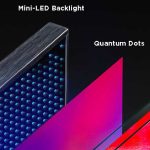
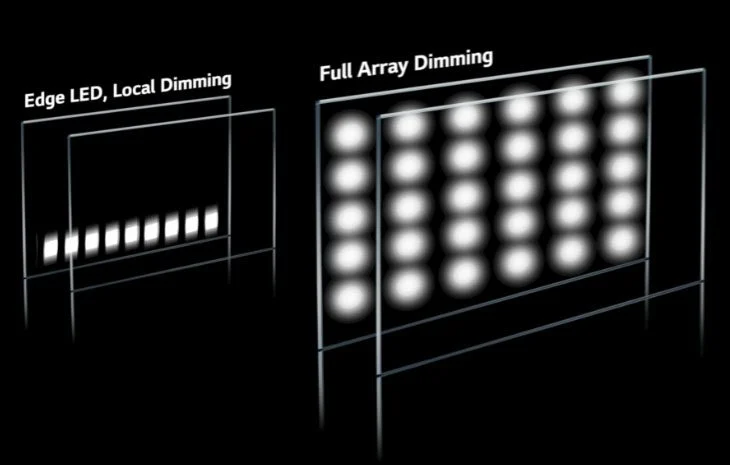
- Local dimming: The ability to darken parts of the screen independently. Without it, bright objects cause the whole screen to wash out. Edge-lit dimming is common on curved monitors but offers poor zone control. Mini-LED and OLED are better.
- Color gamut: HDR content is mastered to the DCI-P3 color space. A curved HDR monitor should cover at least 90% of DCI-P3 to avoid dull, desaturated colors. 8-bit panels with FRC can look close, but true 10-bit is better.
Curved panels affect this in two ways. First, the curve means you tend to sit closer to the center of the screen. That’s good, you get the full benefit of peak brightness and contrast in your primary viewing angle.
Second, the curve can exaggerate off-axis brightness drop-off on VA panels. If you sit at an angle, the edges of a curved VA monitor lose brightness faster than a flat IPS would. For HDR, that means highlights at the edges may not look as vivid.
It’s not a dealbreaker, but it’s worth knowing.
The Three Specs That Decide If HDR Is Real or Fake
Image source: Bing (Web (fair-use with source credit))
You don’t need to be a display engineer to spot fake HDR. You just need to know which specs matter and where to find them. These three are your checklist.
Peak Brightness: The Make-or-Break Number
Peak brightness is the single most important spec. Without enough nits, HDR loses its punch. The VESA DisplayHDR standard defines these tiers:
| Certification | Minimum Peak Brightness | Typical Experience |
|---|---|---|
| DisplayHDR 400 | 400 nits | Minimal improvement over SDR. Often disappointing. |
| DisplayHDR 600 | 600 nits | Decent highlights. Good for mid-range gaming. |
| DisplayHDR 1000 | 1000 nits | Strong HDR with noticeable pop. |
| DisplayHDR True Black 400/500/600 | Varies (OLED focus) | Excellent black levels and contrast. |
If you see a curved monitor advertised as HDR but without a DisplayHDR badge, treat it as “HDR ready” at best, it may accept the signal but won’t perform well.
Local Dimming: Edge-Lit vs FALD vs Mini-LED vs OLED
Local dimming controls how precisely the monitor can turn off or dim parts of the backlight. Edge-lit dimming, common on budget curved monitors, lights up in large horizontal strips. That means a bright star in a dark scene causes the whole top band of the screen to glow, that’s blooming.
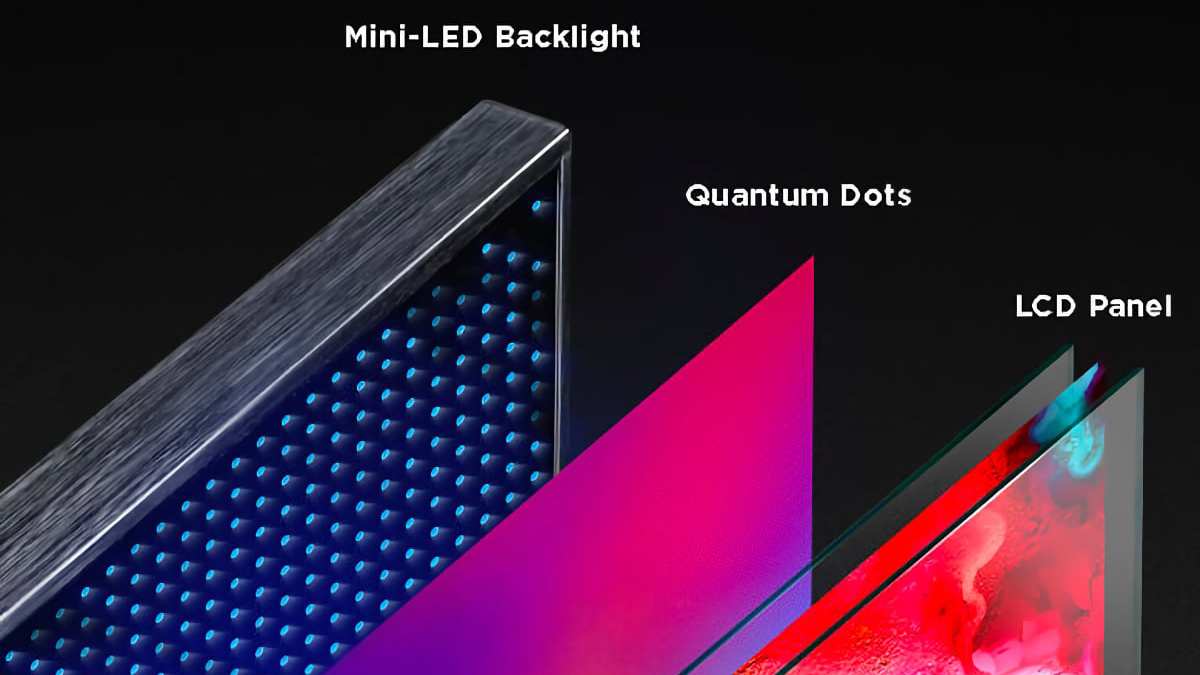
FALD (full-array local dimming) uses a grid of zones behind the panel. More zones means better control. Mini-LED takes this further, packing hundreds or thousands of tiny LEDs.
OLED has no backlight at all, each pixel lights itself, so black is truly black.
Curved VA monitors often use edge-lit dimming. A few premium models, like some from Samsung’s Odyssey Neo series, use mini-LED. If local dimming is not listed in the specs, assume it’s edge-lit and prepare for blooming in HDR scenes.
Color Gamut: DCI-P3 Coverage and Bit Depth
HDR content is graded in the DCI-P3 color space, which is wider than the standard sRGB. If your monitor covers less than 90% of DCI-P3, colors will look washed out in HDR mode. Aim for 95% or higher for a convincing experience.
Bit depth matters too. 8-bit panels can show 16.7 million colors. With FRC (frame rate control), they fake 10-bit, which works okay for most people. True 10-bit panels show over a billion colors and handle gradients smoothly.
Curved gaming monitors at the $800+ price point often include true 10-bit panels.
Your Situation – Budget, Console vs PC, Competitive vs Immersive
Now the decision tree. Whether a curved HDR monitor is worth it depends entirely on how you use it.
Budget Under 0
At this price, you’ll find many curved monitors with HDR support, but nearly all are DisplayHDR 400. The HDR experience will be subtle at best. You’re better off focusing on good SDR image quality and a high refresh rate.
HDR is a bonus, not a reason to buy.
Console Gamer (PS5 / Xbox Series X)
Consoles force HDR on by default in many games. A curved monitor with at least DisplayHDR 600 will give you a noticeable upgrade over an SDR screen. Look for HDMI 2.1 support to get 4K at 120Hz with HDR.
Most curved monitors under 32 inches don’t have HDMI 2.1 at this price, so check carefully.
Competitive eSports Player
You want high refresh rates and low input lag. HDR adds processing overhead that can increase latency. Many competitive players disable HDR anyway to keep response times razor‑sharp.
Skip HDR on your curved monitor and put the money into faster refresh or lower response time.
Single‑Player / Sim / Immersive Gamer
This is where curved HDR shines. Games like Cyberpunk 2077, Red Dead Redemption 2, or Microsoft Flight Simulator benefit from both the curve and real HDR. Invest in a mini‑LED or OLED curved monitor with at least DisplayHDR 600 or True Black 400.
The immersion is worth the premium.
How to Check If YOUR Curved Monitor Supports HDR
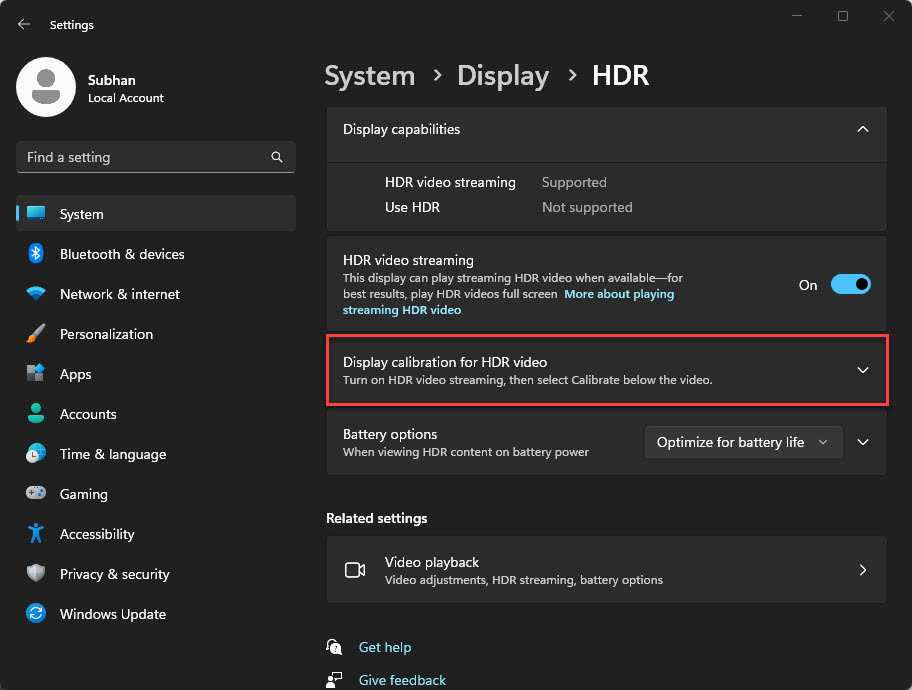
Image source: Bing (Web (fair-use with source credit))
You don’t need a lab to figure out whether your curved monitor delivers real HDR. A few simple checks in the settings and on the spec sheet tell you everything.
Step 1: Find the VESA DisplayHDR badge. Look on the box or the manufacturer’s product page. If you see “DisplayHDR 400,” “600,” or “1000,” you have a baseline. No badge means the monitor accepts HDR signals but has no guaranteed performance level.
Step 2: Check the peak brightness in nits. This number is almost always listed in the technical specs. Below 400 nits, HDR is essentially SDR with a wider color range. Above 600 nits, you start to get real highlights.
At 1000 nits, you get the full HDR experience.
Step 3: Look for local dimming type. The spec sheet will say “edge-lit,” “FALD,” “mini-LED,” or “OLED.” Edge-lit on a curved VA panel is common at budget prices. It creates visible blooming. Mini-LED or OLED gives you the tight control HDR needs.
Step 4: Verify DCI-P3 coverage. Look for a percentage like “95% DCI-P3” or “100% sRGB.” If you see only sRGB, the monitor cannot display the full HDR color range. Aim for 90% DCI-P3 or higher.
Step 5: Test with a real game or video. Windows has a built-in HDR calibration tool (Windows 11) that walks you through brightness and color sliders. But the real test is loading a game with good HDR support. Cyberpunk 2077, Ori and the Will of the Wisps, or Forza Horizon 5 all show HDR flaws clearly. If highlights look washed out or black areas look gray, the monitor isn’t doing its job.
Mistakes to Avoid – Don’t Fall for Marketing Gimmicks
Manufacturers know “HDR” sells monitors. They also know most buyers never check the specs beyond the badge. Here are the traps you need to avoid.
“HDR10 Compatible” means almost nothing. HDR10 is a metadata format, not a performance standard. Any monitor can claim HDR10 compatibility by accepting the signal. It does not guarantee brightness, contrast, or color volume.
Always look for a DisplayHDR certification instead.
DisplayHDR 400 is often disappointing. VESA designed this tier as an entry point. It requires only 400 nits peak brightness and does not mandate local dimming. On a curved VA panel, you get decent contrast from the panel’s native black levels, but highlights rarely impress.
Many users report turning HDR off after trying it on a 400‑nit monitor.
Assuming a curved VA panel automatically gives great HDR. VA panels have excellent native contrast, which helps. But without proper local dimming, the contrast advantage is limited to dark scenes with no bright objects. Add a bright highlight, and the whole backlight zone lights up, washing out nearby dark areas.
Forgetting about cable bandwidth. HDMI 2.0 can handle 4K at 60Hz with HDR, but you need HDMI 2.1 for 4K at 120Hz with HDR. Using an older cable or a low‑bandwidth HDMI port forces the monitor to drop color depth or resolution. Check your cable version and port specs before troubleshooting HDR issues.
Who Gets Real Value From Curved HDR – And Who Can Skip It
Not every gamer needs curved HDR. Here is the honest breakdown of who benefits and who should spend their money elsewhere.
Best for: single‑player story games, sim racing, flight sims, and immersive RPGs. If you are playing Red Dead Redemption 2, Microsoft Flight Simulator, or Starfield, the combination of curve and HDR creates a sense of depth that flat monitors cannot match. The curve wraps the image around your peripheral vision, and HDR adds realistic lighting.
Best for: console gamers who want a cinematic experience. PS5 and Xbox Series X push HDR aggressively. A curved monitor with at least DisplayHDR 600 gives console games the same visual impact as a good TV, but with faster response times.
*Skip it if: you play competitive shooters or fast‑paced eSports titles. In Valorant, Overwatch 2, or Apex Legends, you want maximum refresh rate and minimum input lag. HDR adds processing overhead that can introduce latency. Many competitive players disable HDR entirely to keep response times under 1ms.
Skip it if: you share a desk with someone else or work in a bright room. Curved monitors have a narrow sweet spot for viewing angle. If you are not sitting directly in front of the center, the image loses brightness and color accuracy. HDR highlights at the edges will look dimmer.
For a shared desk or a sunlit room, a flat IPS monitor with good anti‑glare coating is a better choice.
Curved HDR vs Flat HDR – Which Should You Choose?
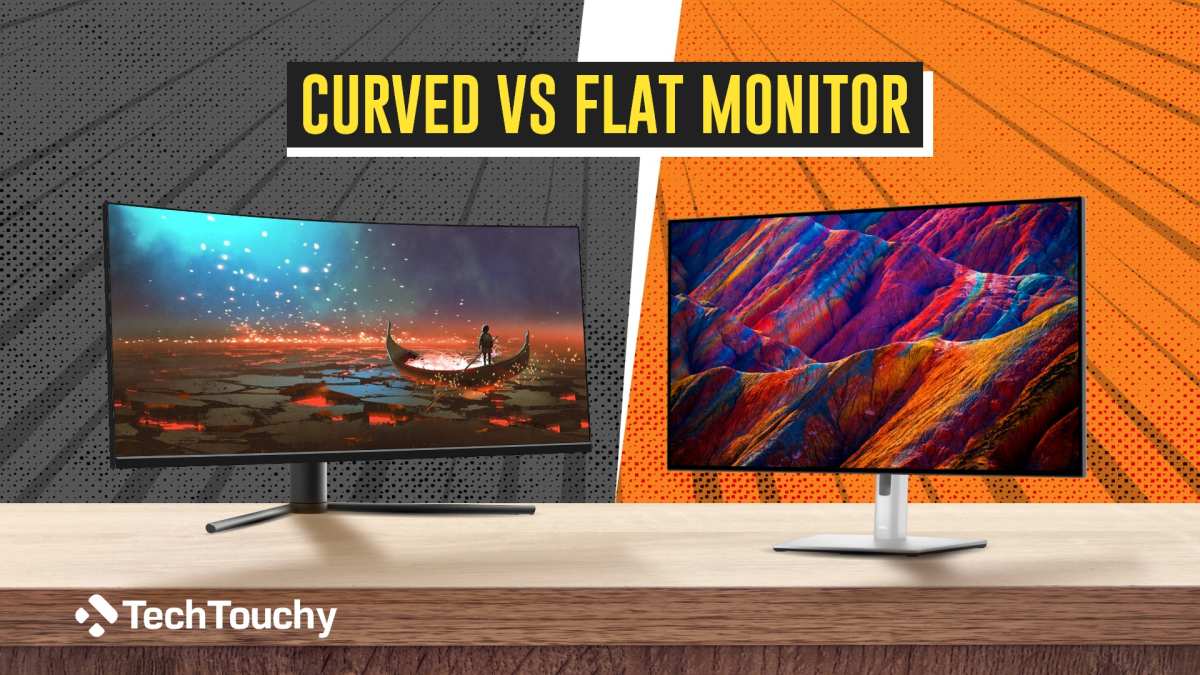
Image source: Bing (Web (fair-use with source credit))
If you are already investing in HDR quality, should you go curved or stay flat? The answer depends on what you value most.
Curved advantages for HDR: The curve increases the perceived immersion. Bright highlights in a game’s environment feel more enveloping. The curve also reduces reflections from ambient light, which helps HDR contrast in a room with windows or overhead lights.
VA curved panels offer high native contrast, which benefits HDR shadow detail.
Flat advantages for HDR: Flat IPS monitors usually have better color accuracy out of the box. If you do any photo or video work alongside gaming, a flat monitor with an IPS panel will give you more consistent color across the screen. Flat monitors are also easier to mount on arms or VESA stands without worrying about the curve shifting the center of gravity.
When the curve hurts HDR perception: On curved VA panels, the viewing angle is tighter than on flat IPS. If you sit at a slight angle, the edges of a curved screen lose brightness. In HDR mode, that means bright highlights near the edges look dimmer than the center.
For competitive gaming where you move your head to track targets, this can be distracting.
The pricing reality: A curved monitor with mini‑LED or OLED and real HDR (DisplayHDR 1000 or True Black 600) typically costs 20, 30% more than a flat equivalent with the same panel technology. You are paying for both the curve and the HDR hardware. If your budget is tight, a flat monitor with good HDR will give you more performance per dollar.
Pro Tips for Getting the Most Out of Curved HDR
Once you have a curved monitor with decent HDR, a few tweaks can make the difference between “meh” and “wow.”
Calibrate HDR inside each game, not just Windows. Every game has its own HDR brightness slider and paper white setting. Use a reference image or the game’s built‑in calibration tool. Most games look best with peak brightness set to your monitor’s max nits and paper white around 200, 300 nits.
Use the Windows HDR Calibration tool (Windows 11). It walks you through three sliders: minimum luminance, maximum luminance, and color saturation. Run it once after setting up the monitor. It writes a profile that many games and apps read automatically.
Turn off local dimming in SDR mode. Many curved monitors apply local dimming even when you are not in HDR mode. This can cause blooming during desktop use or web browsing. In the OSD menu, set local dimming to “off” or “low” for SDR and only enable it for HDR content.
Update your monitor’s firmware. Manufacturers release firmware updates that fix HDR flickering, VRR stability, and color accuracy. Check the support page for your exact model. Some curved monitors from Samsung and ASUS have had known HDR + VRR issues that were patched after launch.
Adjust room lighting to minimize reflections on the curve. A curved screen catches light from overhead fixtures and windows differently than a flat screen. If you see glare washing out HDR highlights, reposition the monitor or use bias lighting behind the screen to reduce contrast in the room.
FAQs – Quick Answers to Common Questions
Does the curve cause blooming or haloing in HDR?
No, the curve itself does not cause blooming. Blooming comes from poor local dimming. A curved VA panel with edge-lit dimming will show more blooming than a flat mini-LED monitor.
The curve can make blooming more noticeable near the edges.
Can I add HDR to an older curved monitor via software?
No. HDR requires hardware capable of high brightness and wide color gamut. Software tricks like Windows Auto HDR can simulate the effect on an SDR monitor, but the result looks washed out and lacks real dynamic range.
Is HDR on a curved OLED monitor better than on a curved VA?
Yes, significantly. OLED has per-pixel lighting, meaning true blacks and infinite contrast. Curved OLED monitors like the Samsung Odyssey G8 OLED deliver real HDR without blooming.
Curved VA panels depend on local dimming zones, which are never as precise.
Do I need HDMI 2.1 for good HDR on a curved monitor?
Only if you want 4K at 120Hz with HDR on a console. HDMI 2.0 can handle 4K at 60Hz with HDR. For PC gaming, DisplayPort 1.4 works just as well.
Check your monitor’s port version before buying an expensive HDMI 2.1 cable.
Your Decision Guide – A Simple Checklist to Pick the Right Curved HDR Monitor
Use this checklist when comparing models. Every item matters.
- DisplayHDR 600 or higher (or True Black 400+ for OLED)
- Peak brightness at least 600 nits (1000+ for premium)
- Local dimming type: FALD, mini-LED, or OLED. Avoid edge-lit at this price point.
- 90%+ DCI-P3 coverage (95% or higher preferred)
- True 10-bit or 8-bit + FRC that performs well
- Curvature matches your viewing distance. 1000R if you sit close, 1500R or 1800R for farther back.
- Return policy. You should test HDR in your own room before committing.

Similar Posts