Are Mini LED Monitors Good for Programming
If you're wondering whether Mini LED monitors are good for programming, the short answer is yes, with some real caveats. Mini LED technology offers excellent brightness, solid contrast, and no burn-in risk, which makes it a strong contender for long coding sessions. But it's not a perfect fit for every developer.
Per VESA DisplayHDR standards, Mini LED monitors with 1152 dimming zones can hit 1000+ nits peak brightness while maintaining deep blacks. That's a big step up from standard edge-lit LED panels. However, the blooming effect around bright text on dark backgrounds can be distracting, especially if you code in dark mode for hours.
Let's break down exactly what you need to know before you buy.
Quick Answer
Mini LED monitors are good for programming if you prioritize brightness and contrast. They work well in well-lit rooms and for mixed-use workflows. Dark mode coders may notice blooming around text.
They offer better value than OLED for most developers as of 2026.
How Mini LED Actually Works (And Why It Matters for Code)
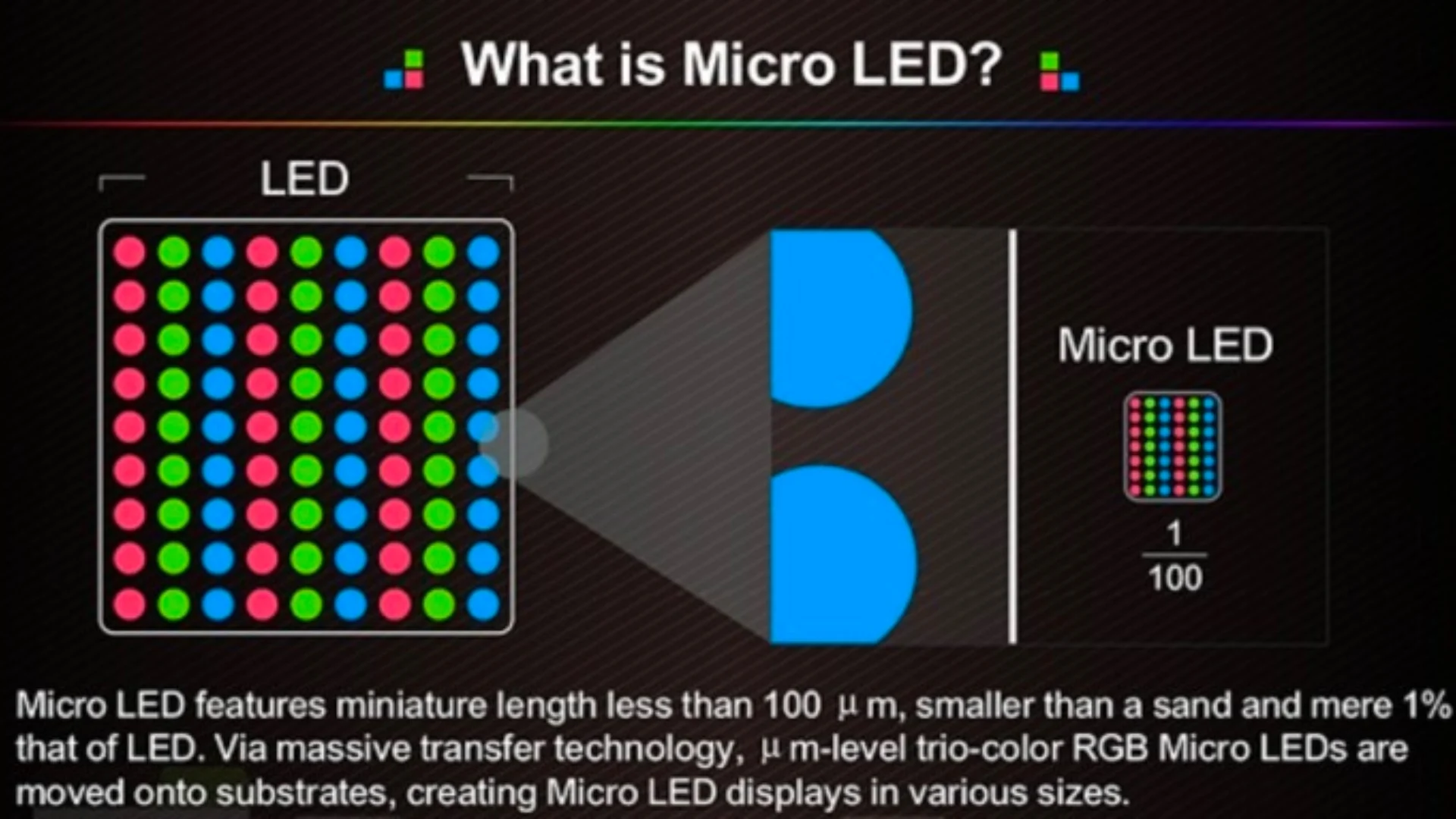
Mini LED is a backlighting technology, not a panel type like IPS or VA. The panel still handles color and viewing angles. The Mini LED backlight handles how light gets pushed through it.
Here's the key difference. Standard LED monitors use a few dozen large LED zones along the edges or behind the panel. Mini LED monitors use thousands of tiny LEDs arranged in hundreds of dimming zones.
A 32-inch 4K Mini LED monitor might have 1152 zones. Each zone can dim or brighten independently based on what's displayed.
This local dimming is what creates the "HDR effect." When part of your screen shows dark code and another part shows a bright website, the backlight adjusts zone by zone. The result is deeper blacks next to bright whites. That's why Mini LED monitors routinely hit contrast ratios of 100,000:1 or higher, compared to 1000:1 on a standard IPS panel.
For programming specifically, this means your code editor's dark background looks genuinely dark while your browser or documentation window stays crisp and readable. The effect is most noticeable in dimly lit rooms.
But here's what matters for text work. The quality of the dimming algorithm varies wildly between manufacturers. A well-tuned Mini LED with a good algorithm will handle transitions smoothly.
A poorly tuned one will create visible halos, slow transitions, or aggressive dimming that makes text look inconsistent across the screen.
The panel type underneath matters too. Most Mini LED monitors use IPS panels for their color accuracy and viewing angles. Some use VA panels for better contrast but narrower viewing angles.
A few high-end models use Nano IPS or IPS Black technology. The panel determines your color accuracy and viewing experience. The Mini LED backlight determines your contrast and HDR capability.
The Real Problem: Blooming and Halo Effects on Dark Code Editors
This is the issue that trips up most developers who buy Mini LED monitors for coding. And it's the one generic reviews rarely explain well enough.
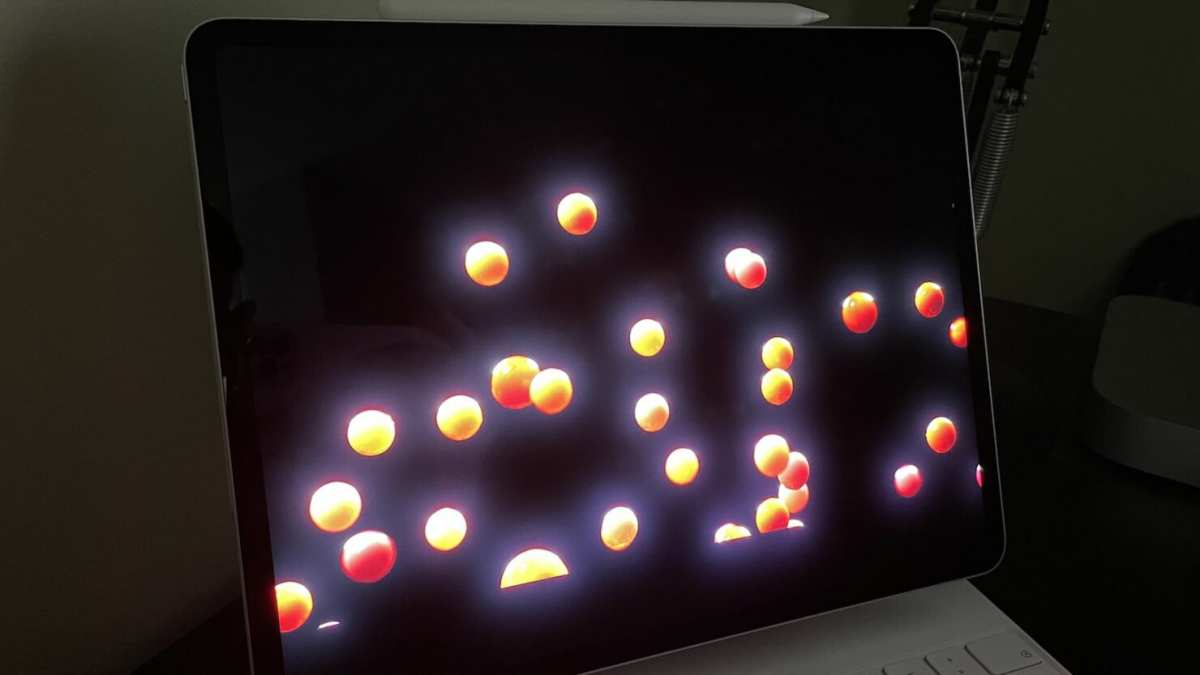
Blooming, sometimes called halo effect, happens when light from a bright zone bleeds into an adjacent dark zone. On a Mini LED monitor, this shows up as a faint glow around bright objects on dark backgrounds. White text on a black code editor background is the worst-case scenario.
If you use VS Code with a dark theme, IntelliJ with Darcula, or Vim with a dark colorscheme, you'll likely notice this. The glow around your cursor, selected text, or bright syntax highlighting can create a subtle halo. It's not always severe.
But after a few hours of staring at code, some developers find it fatiguing.
The severity depends on three things:
- Zone count. More zones mean smaller dimming areas and less visible bleed. A monitor with 192 zones will show more blooming than one with 1152 zones.
- Dimming algorithm. Aggressive algorithms dim zones quickly and deeply, which reduces blooming but can cause visible transitions. Conservative algorithms keep the image smoother but let more light bleed through.
- Viewing distance and screen size. Sitting close to a 32-inch 4K monitor makes blooming more noticeable than sitting farther from a 27-inch display.
There's a practical workaround. Many Mini LED monitors let you adjust local dimming intensity or turn it off entirely in the OSD (on-screen display) settings. Turning local dimming off eliminates blooming but also eliminates the contrast advantage.
You're back to a standard LED backlight with an IPS panel underneath.
Some developers run their Mini LED monitor with local dimming on for media consumption and off for pure coding sessions. Others find the blooming on a high-zone-count model (576+ zones) mild enough to ignore. It really comes down to personal sensitivity.
A few monitors also offer an "sRGB mode" or "creator mode" that locks the display to a standard color gamut and sometimes adjusts the backlight behavior. This can reduce aggressive dimming behavior in certain scenarios, though results vary by model.
Text Clarity: How Mini LED Handles Small Fonts and Long Coding Sessions
Text clarity on a Mini LED monitor is primarily determined by the panel type, resolution, and pixel density, not the Mini LED backlight itself. But the backlight does play a supporting role.
Most Mini LED monitors come in 27-inch or 32-inch sizes at 4K (3840×2160) resolution. At 27 inches, that gives you about 163 pixels per inch. At 32 inches, it's around 138 PPI.
Both are sharp enough for crisp text rendering at standard font sizes. Some newer models offer 5K2K (5120×2160) resolution at 38 or 40 inches, pushing PPI even higher.
The subpixel layout matters here. Most IPS panels use a standard RGB stripe layout, which works perfectly with Windows ClearType and macOS font rendering. Some VA panels use the same layout.
If you're on Linux, font rendering depends more on your distribution's freetype configuration than the monitor itself, but a standard RGB stripe panel gives you the best starting point.
Where Mini LED backlighting affects text clarity is in uniformity. A well-implemented full array local dimming system can improve black uniformity across the screen. On a standard IPS panel, you might see backlight bleed in the corners or a slight clouding effect.
Mini LED with good zone control reduces this. The result is a more uniform dark background, which makes text pop more consistently across the entire display.
For long coding sessions, the other factors matter more than the backlight technology:
- Flicker-free technology. Most Mini LED monitors use DC dimming or high-frequency PWM (typically 1920Hz or higher), which reduces eye strain during extended use. Check the specs for "flicker-free" certification from TÜV Rheinland.
- Blue light modes. Built-in low blue light modes reduce the blue spectrum output. Useful for late-night coding sessions, though they shift color temperature warmer.
- Matte vs glossy coatings. Most Mini LED monitors use a matte anti-glare coating. Some coatings have a slight graininess that can make text look slightly less sharp at small sizes. This is a coating issue, not a Mini LED issue, but it's worth checking reviews for mentions of "coating grain" or "sparkly effect."
- Refresh rate. Most Mini LED productivity monitors run at 60Hz, which is perfectly fine for coding. Some newer models offer 120Hz or 144Hz, which makes scrolling through long files and documentation noticeably smoother.
The bottom line on text clarity: a 4K Mini LED monitor with an IPS panel and flicker-free backlighting is excellent for programming. The Mini LED backlight itself doesn't degrade text quality. It can actually improve perceived contrast and uniformity, which helps during marathon coding sessions.
Mini LED vs OLED vs Standard LED: Which Is Actually Best for Developers?
This is the comparison that actually matters. Mini LED sits between standard LED and OLED in terms of price, performance, and trade-offs. Each technology has a clear winner depending on your priorities.
Mini LED vs OLED for Programming
OLED monitors deliver perfect per-pixel dimming. Each pixel produces its own light and can turn off completely. That means zero blooming, perfect blacks, and infinite contrast ratio.
For dark mode coding, OLED is technically superior in every way.
But OLED has real drawbacks for programming:
- Burn-in risk. Static elements like your taskbar, IDE sidebar, and status bar can leave permanent image retention over time. This is the biggest concern for developers who keep the same UI layout visible for 8+ hours daily.
- ABL (Automatic Brightness Limiter). OLED panels reduce brightness on large bright areas. A full white browser window will appear dimmer than a small white element on a dark background.
- Price. A 32-inch 4K OLED monitor costs $900 to $1500+. Comparable Mini LED models run $500 to $900.
- Text fringing. Some OLED panels use WRGB or other non-standard subpixel layouts that can cause slight color fringing on small text. This varies by panel type (LG's WOLED vs Samsung's QD-OLED).
Mini LED avoids all of these issues. No burn-in risk. No ABL on large bright areas.
Lower price. Standard RGB subpixel layout on IPS panels. The trade-off is visible blooming and less perfect blacks.
Mini LED vs Standard IPS for Programming
A standard edge-lit IPS monitor is the baseline most developers are used to. It offers good color accuracy, wide viewing angles, and decent uniformity. But it can't match Mini LED's contrast or brightness.
Standard IPS contrast ratio: roughly 1000:1. Mini LED with local dimming: 100,000:1 to 1,000,000:1 depending on zone count. That's a massive difference for dark mode coding where you want the background to actually look dark rather than gray.
Standard IPS peak brightness: 250 to 400 nits. Mini LED peak brightness: 600 to 2000+ nits. If you work near a window or in a bright room, Mini LED maintains visibility better.
The downside of Mini LED over standard IPS is cost (roughly $200 to $400 more), potential blooming, and slightly higher power consumption. Some Mini LED monitors also have a slightly thicker chassis due to the backlight hardware.
Side-by-side Comparison Table
| Feature | Standard IPS | Mini LED (IPS) | OLED |
|---|---|---|---|
| Contrast Ratio | 1000:1 | 100,000:1+ | Infinite |
| Peak Brightness | 250-400 nits | 600-2000+ nits | 400-1000 nits |
| Blooming | None | Moderate (zone dependent) | None |
| Burn-in Risk | None | None | Yes |
| Text Clarity | Excellent | Excellent | Good to Excellent |
| Price (32" 4K) | $300-500 | $500-900 | $900-1500+ |
| Best For | Budget coding | Mixed use + HDR | Dark room, dark mode |
| Power Consumption | Low | Moderate to High | Low to Moderate |
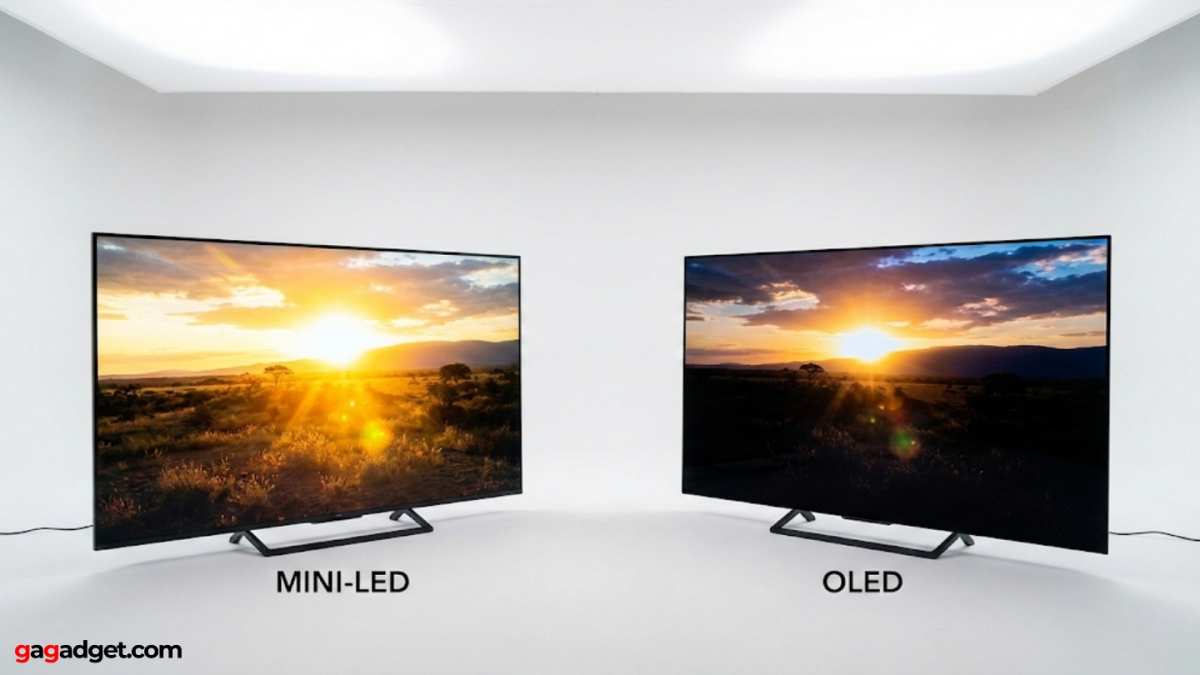
The practical takeaway: if you code in dark mode exclusively and work in a dim room, OLED is technically better but carries burn-in risk. If you code in light mode or mixed themes, Mini LED gives you the best balance of contrast, brightness, and value. If you're on a budget and don't need HDR, a good standard IPS monitor is still perfectly fine for programming.
Who Should Actually Buy a Mini LED Monitor for Coding?

Not every developer benefits from Mini LED. The value depends on your coding environment, your visual preferences, and what else you do with your monitor besides writing code.
Best For Dark Mode Developers in Bright Rooms
If you code in a room with windows or strong overhead lighting, Mini LED's high peak brightness (1000+ nits) keeps your screen readable without cranking up font sizes. The improved contrast over standard IPS makes dark themes look better during daytime hours. You'll still see some blooming around bright UI elements, but the overall experience is more pleasant than a washed-out standard IPS panel.
Best For Mixed-Use Developers (Code + Media)
Many developers spend part of their day coding and the rest watching videos, reviewing designs, or gaming. Mini LED excels here. You get HDR1000+ for media consumption and solid text clarity for coding.
A standard IPS monitor can't compete on HDR content. An OLED carries burn-in risk from static IDE elements. Mini LED sits in the sweet spot.
Best For Color-Critical Frontend Work
Frontend developers and UI designers who need accurate color reproduction benefit from Mini LED's wide color gamut coverage. Many models cover 95% to 99% of DCI-P3 and 98% of Adobe RGB. Combined with factory calibration (Delta E under 2), these monitors handle color-accurate work that standard IPS panels can't match at the same price point.
Who Should Skip Mini LED
If you exclusively code in dark mode, in a dim room, and you're sensitive to blooming, a standard IPS monitor or an OLED (with burn-in management) might serve you better. Budget-conscious developers should also consider that a good 4K IPS monitor at $350 to $450 handles coding perfectly well without the premium.
Developers who work primarily with light mode themes won't see as much benefit from Mini LED's contrast advantages. The blooming issue is less noticeable in light mode, but so is the HDR benefit. You're paying for capabilities you won't fully use.
The Fan Noise and Heat Problem Nobody Talks About
This is a genuine drawback that most reviews mention briefly but don't explain well. Mini LED monitors with high zone counts generate more heat than standard LED monitors. Some manufacturers solve this with passive cooling (larger chassis, heat sinks).
Others add small fans.
Fan noise on Mini LED monitors typically ranges from 20 to 35 dB at normal viewing distances. For reference, 20 dB is barely audible in a quiet room. 35 dB is comparable to a whisper. Most people won't notice it during coding.
But if you work in a very quiet environment or use a microphone for calls, it can be distracting.
The fan usually only spins up during HDR content or when local dimming is active at high intensity. During standard SDR coding sessions, many models run fanless or at near-silent levels. Check reviews for specific noise measurements on any model you're considering.
Heat generation is more of a long-term concern. Mini LED monitors run warmer than standard LED models. This doesn't affect performance in normal use, but it can impact longevity in poorly ventilated setups.
If you're mounting a Mini LED monitor in an enclosed space or against a wall with no airflow, give it some breathing room.
Power consumption is also higher. A 32-inch 4K Mini LED monitor might draw 40 to 60 watts during normal use, compared to 20 to 30 watts for a standard IPS. During HDR content at peak brightness, power draw can spike above 100 watts on some models.
It's not a huge electricity cost difference, but it's worth noting for anyone running multiple monitors.
What Zone Count Actually Means for Your Use Case
Zone count is the spec most manufacturers highlight. It's also the spec most buyers overestimate the importance of.
More zones generally means less blooming and better contrast control. But the relationship isn't linear. Going from 192 to 576 zones makes a visible difference.
Going from 576 to 1152 zones is noticeable in side-by-side comparisons but harder to spot in daily use. Going beyond 1152 zones yields diminishing returns for most programming tasks.
Here's a practical breakdown:
- 192 zones. Entry-level Mini LED. Visible blooming on dark mode. Acceptable for light mode coding and general use. Budget-friendly.
- 384 to 576 zones. Mid-range. Blooming reduced to mild levels. Good balance of price and performance for most developers.
- 1152 zones. High-end. Minimal blooming in most scenarios. Best choice if dark mode coding is your primary use and you're sensitive to halo effects.
- 2304+ zones. Premium. Blooming is barely visible. Diminishing returns for coding. More relevant for video editing and HDR content creation.
The dimming algorithm matters as much as zone count. A well-tuned 576-zone monitor can outperform a poorly tuned 1152-zone model. Manufacturer specs don't tell you about algorithm quality.
Independent reviews that test blooming with actual code editors or test patterns are your best resource.
For programming specifically, you don't need the highest zone count available. A 384 to 576-zone Mini LED monitor handles coding well at a reasonable price. Save the 1152+ zone models for developers who also do photo or video editing work where gradient handling matters.
Top Mini LED Monitors Worth Considering for Programming (2025)
The Mini LED monitor market has matured significantly. There are now solid options across different price points and sizes. Here are models that consistently perform well for programming use cases.
Dell U3225QE
32-inch 4K IPS Black panel with Mini LED backlight. Excellent text clarity, USB-C with 140W power delivery, and a KVM switch built in. Factory calibrated with Delta E under 2.
Strong choice for developers who want a single-cable laptop docking setup. Price around $900 to $1000.
LG 32U883SA
32-inch 4K Nano IPS with Mini LED. Covers 98% DCI-P3. USB-C with 90W power delivery.
Good ergonomic stand with height, tilt, and pivot adjustment. Clean design that works well in professional setups. Price around $700 to $800.
Samsung ViewFinity S80PB
32-inch 4K IPS with Mini LED. 1152 dimming zones. Matte coating with minimal graininess. USB-C with 90W delivery and built-in KVM.
Samsung's Tizen OS provides smart monitor features if you want them. Price around $600 to $750.
ASUS ProArt PA32UCG
32-inch 4K IPS with Mini LED. 1152 zones. Factory calibrated for color-critical work. Thunderbolt 4 connectivity.
Premium build quality. Designed for creators who also code. Price around $1200 to $1500.
Cooler Master Tempest GP27U
27-inch 4K IPS with Mini LED. 576 zones. More affordable entry point at around $450 to $550. Good value for developers who want Mini LED benefits without the premium price.
Smaller size means higher PPI at 163 pixels per inch.
KTC M32P10
32-inch 4K VA with Mini LED. 1152 zones. Budget-friendly at around $400 to $500. VA panel offers better native contrast than IPS but narrower viewing angles.
Worth considering if budget is your primary concern.
When choosing, prioritize these features for programming: USB-C power delivery (65W minimum), flicker-free certification, matte coating with minimal grain, and an IPS panel for color accuracy and viewing angles. Zone count matters, but don't overshoot your actual needs.
Common Mistakes People Make When Buying a Mini LED for Programming
Buying the wrong Mini LED monitor, or the right one for the wrong reasons, leads to disappointment. Here are the mistakes we see most often.
Ignoring blooming reviews. Manufacturer specs won't tell you how much blooming you'll see. Look for reviews that show the monitor displaying actual dark mode interfaces. A spec sheet can't capture the halo effect around white text on a black background.
Overpaying for zone count. A 1152-zone monitor costs significantly more than a 576-zone model. For coding, the difference is often not worth the price jump. Unless you're also doing color-critical creative work, a mid-range zone count handles programming well.
Forgetting about the fan. Some Mini LED monitors have active cooling fans. If you work in a quiet space or record audio, check noise specifications. Not all models have fans, and those that do often only spin them up during HDR content.
Assuming all Mini LED monitors are the same. The panel type, dimming algorithm, coating, and firmware quality vary significantly between models. A Mini LED monitor with a VA panel behaves differently than one with an IPS panel. The backlight technology is just one part of the equation.
Not checking USB-C wattage. If you plan to connect a laptop via USB-C, verify the power delivery wattage. Some Mini LED monitors only provide 15 to 30 watts, which won't charge most performance laptops. Look for 65W or higher for reliable charging.
Buying too large without considering scaling. A 32-inch 4K monitor at 138 PPI works well at 150% scaling on Windows or at "default for display" on macOS. But if you prefer 100% scaling, text will be very small. A 27-inch 4K model at 163 PPI gives you more flexibility with scaling options.
Expecting OLED-level blacks. Mini LED is better than standard LED for contrast, but it's not OLED. If you've used an OLED display and expect the same level of black depth, you'll be disappointed. Set realistic expectations based on the technology's actual capabilities.
How to Set Up a Mini LED Monitor for the Best Coding Experience
Once you've got the right Mini LED monitor, proper setup makes a real difference in daily use.
Calibrate the local dimming setting. Start with the medium or high local dimming option in the OSD. Test it with your actual code editor in dark mode. If you notice distracting halos around text, drop to the low setting or turn local dimming off during coding sessions.
Set the right color profile. Most Mini LED monitors ship with an sRGB mode and a wider gamut mode (DCI-P3 or Adobe RGB). For standard coding and web development, use sRGB mode to avoid oversaturated colors. Switch to the wider gamut mode only when doing color-critical frontend work.
Adjust your room lighting. Mini LED's contrast advantage is most visible in dim environments. If you work in a bright room, the benefits are less pronounced but the high brightness still helps with visibility. Avoid placing the monitor directly against a window to reduce glare on the matte coating.
Configure display scaling properly. On Windows, 150% scaling works well for 27-inch 4K and 125% to 150% for 32-inch 4K. On macOS, use the default "for display" option which handles HiDPI correctly. On Linux, GNOME and KDE both support fractional scaling for 4K displays.
Update the firmware. Some early Mini LED monitors had blooming issues that improved with firmware updates. Check the manufacturer's support page for your specific model. This is especially important for models released before 2024.
Frequently Asked Questions
DoesMini LED work well for dark mode coding?
It works, but you may see some blooming around bright text on dark backgrounds. Higher zone counts reduce this. If you're very sensitive to halo effects, test before buying or consider a standard IPS instead.
Will a Mini LED monitor burn in from coding?
No. Mini LED uses an LCD panel with LED backlighting. There's no organic material to degrade.
You can leave your IDE taskbar and sidebar on screen indefinitely without image retention risk.
Is a 27-inch or 32-inch Mini LED better for programming?
Both work well. A 27-inch 4K model gives you 163 PPI for sharper text at default scaling. A 32-inch model provides more screen real estate at 138 PPI.
Choose based on your desk space and preference for screen size versus pixel density.
How many dimming zones do I need for coding?
384 to 576 zones handles programming well for most people. Going above 1152 zones yields diminishing returns for text work unless you also do photo or video editing.
Is Mini LED worth the extra cost over standard IPS?
If you value contrast, HDR content, or work in a bright room, yes. If you're on a tight budget and only need a coding monitor, a good standard IPS panel handles the job at a lower price.
Can I use a Mini LED monitor with a laptop via USB-C?
Yes, but check the power delivery wattage. Look for 65W or higher for reliable laptop charging. Some Mini LED monitors only deliver 15 to 30 watts which won't charge most performance laptops.
Final Verdict: Should You Actually Get One?
The answer depends on your workflow. Mini LED is a solid choice for developers who want one monitor that handles coding and media well. The contrast and brightness improvements over standard IPS are real.
The lack of burn-in risk compared to OLED matters for anyone with static UI elements on screen all day.
If you're choosing between technologies for a dedicated coding monitor: standard IPS works great and costs less. OLED offers better dark mode quality but carries burn-in risk. Mini LED sits in the middle with no burn-in and good all-around performance.
For most developers in 2026, a 32-inch 4K Mini LED with 384 to 576 zones, an IPS panel, and USB-C power delivery offers the best balance of text clarity, contrast, and value. You'll get excellent coding performance plus solid HDR for everything else you do. Just verify the specific model's blooming behavior and fan noise before you buy.

Similar Posts