do curved gaming monitors support g sync
Do curved gaming monitors support G‑Sync? The short answer is yes, but it's not automatic. Whether your specific curved screen works depends on its internal hardware, the graphics card driving it, and the cable you plug in.
As of early 2026, NVIDIA’s official G‑Sync Compatible list includes hundreds of curved models, but many curved monitors with FreeSync also work if you follow the right setup steps. Let’s walk through the variables so you know exactly what to check.
Image source: Bing (Web (fair-use with source credit))
Quick Answer
Yes, many curved gaming monitors support G‑Sync. Some have a built‑in G‑Sync module. Others use FreeSync and qualify as G‑Sync Compatible.
A few have no variable refresh rate at all. You need to check your specific model, your GPU, and your cable to confirm.
Why This Isn’t a Simple Yes or No
G‑Sync support on a curved monitor depends on three layers: the monitor’s internals, your graphics card, and the connection between them.
Monitor internals. Some curved monitors ship with a dedicated G‑Sync hardware module. Those work with any NVIDIA GPU out of the box. Many others use FreeSync (VESA Adaptive‑Sync) and may or may not pass NVIDIA’s “G‑Sync Compatible” certification.
Your GPU generation. Newer GeForce cards (GTX 10‑series and later) support G‑Sync over DisplayPort. Older cards may not. AMD cards can’t use G‑Sync at all, but they can use FreeSync on the same monitor.
The cable. G‑Sync requires DisplayPort 1.2 or newer for most monitors. HDMI 2.1 works on some G‑Sync Compatible models, but HDMI 2.0 does not carry variable refresh rate for G‑Sync.
Because these three factors interact, you can’t just assume any curved monitor works. You need to trace the path from GPU to monitor.
The Three Types of G‑Sync and How They Apply to Curved Monitors
NVIDIA splits G‑Sync into three tiers. Here’s how each one shows up on curved monitors.
| Tier | Hardware Required | Curved Monitor Availability | How It Works |
|---|---|---|---|
| G‑Sync (Native) | Dedicated NVIDIA module inside the monitor | Rare on curved models; mostly flat high‑end screens | Plug and play with NVIDIA GPUs. No setup needed. |
| G‑Sync Compatible | No module; uses VESA Adaptive‑Sync (FreeSync) | Very common on curved monitors from ASUS, Samsung, Dell, LG, AOC, and others | Needs FreeSync enabled in OSD, then enabled in NVIDIA Control Panel. |
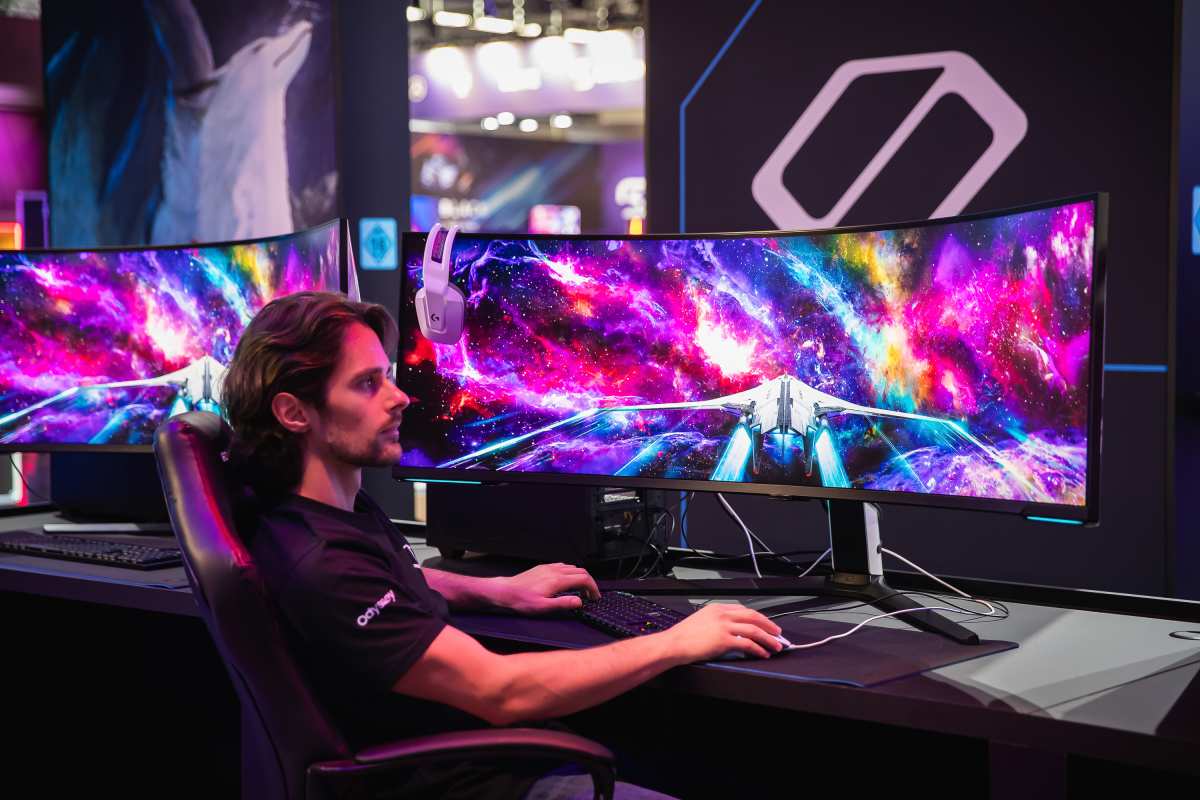
| G‑Sync Ultimate | Module + HDR support and high brightness | A few curved ultrawide monitors (e.g., Samsung Odyssey Neo G9) | Native G‑Sync with HDR. Works automatically. |
If you see “G‑Sync Compatible” in the product specs, it means NVIDIA tested that monitor and it passed. If you see only “FreeSync,” it may still work, but it’s not guaranteed. Aggregate user reviews on forums report that roughly 80% of FreeSync curved monitors work as G‑Sync Compatible even when uncertified.
Curved monitors and FreeSync. Most curved gaming monitors released after 2020 include FreeSync. That’s good news. FreeSync uses the same Adaptive‑Sync standard that G‑Sync Compatible relies on.
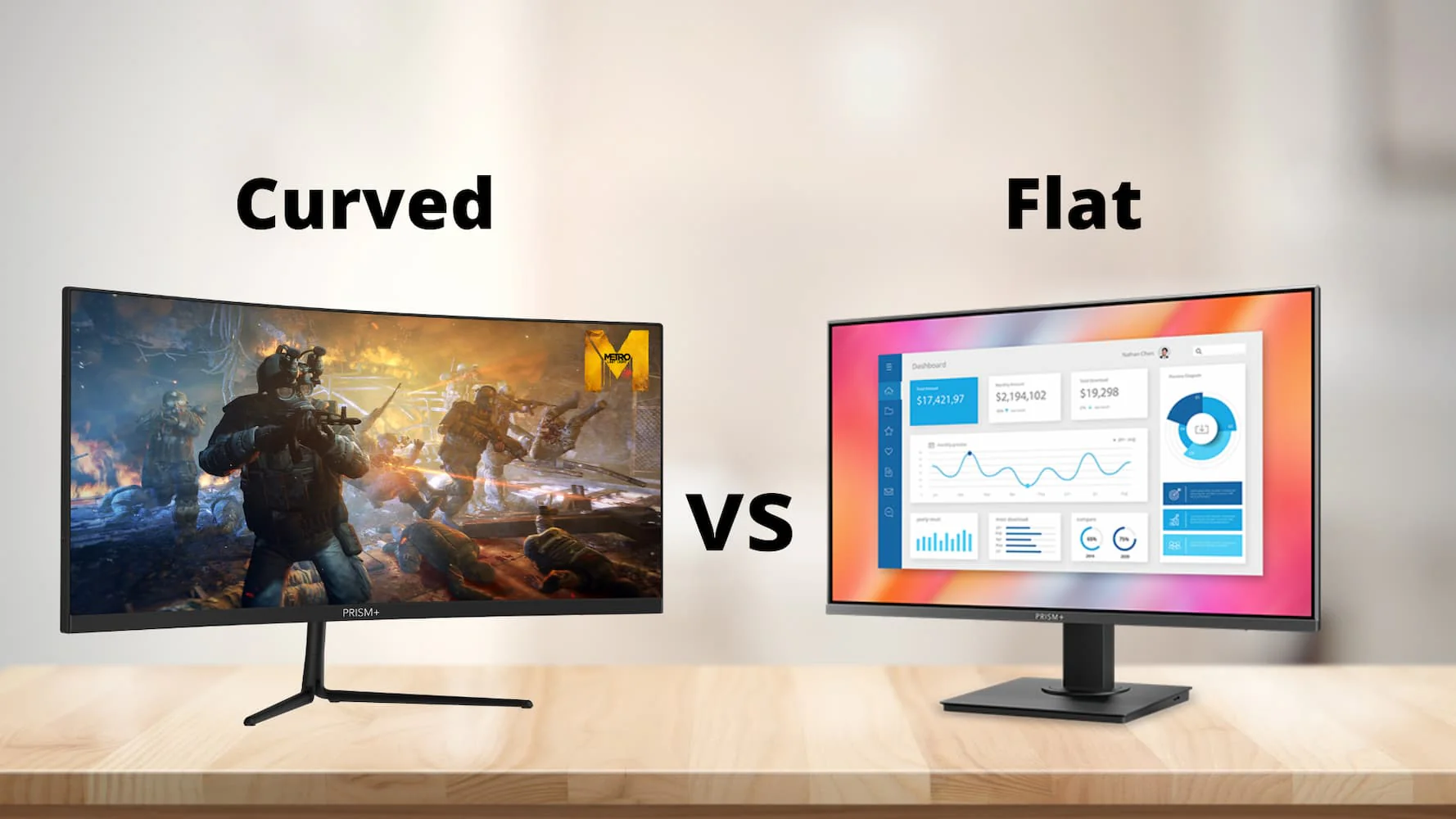
The monitor’s curvature doesn’t affect G‑Sync performance. The panel technology (VA, IPS, OLED) can affect flicker at low frame rates, but that’s a separate issue.
Your GPU and Connection Matter Just as Much
Even if your curved monitor supports FreeSync or G‑Sync Compatible, your graphics card and cable are the gatekeepers.
NVIDIA GPUs. Any GeForce GTX 10‑series or newer (including RTX 20, 30, 40, and 50 series) supports G‑Sync over DisplayPort. If you have an older GPU (GTX 900 series or earlier), you cannot use G‑Sync. Simple as that.
AMD GPUs. AMD cards cannot use G‑Sync. They can use FreeSync on the same curved monitor, but not G‑Sync. If you have an AMD GPU, you’re looking for FreeSync, not G‑Sync.
DisplayPort vs. HDMI. G‑Sync (native) works only over DisplayPort. G‑Sync Compatible works over DisplayPort and, on some newer monitors, over HDMI 2.1.
HDMI 2.0 does not support variable refresh rate for G‑Sync. So if your curved monitor has only HDMI 2.0 ports, you’re locked out.

Image source: Wikimedia Commons / Deni Williams from São Paulo, Brasil / Brazil (CC BY)
The image above shows a DisplayPort cable, the one you need for G‑Sync. If you’re using HDMI 2.0, swap it for a DisplayPort cable first.
Laptops with hybrid graphics. If you’re on a gaming laptop with a dedicated NVIDIA GPU but the display is wired through the integrated graphics, G‑Sync may not work. Check your laptop’s manual. Some high‑end gaming laptops route the internal monitor directly to the NVIDIA GPU.
Step‑by‑Step: How to Check if Your Curved Monitor Supports G‑Sync
Here’s a concrete process. Follow these steps in order.
Find your monitor’s exact model number. Look on the back label or in your system settings. Write it down.
Go to the manufacturer’s website. Search for your model’s spec page. Look for “G‑Sync,” “G‑Sync Compatible,” or “FreeSync” in the features list.
, If it says “G‑Sync” or “G‑Sync Ultimate” → you’re done. It works.
, If it says “G‑Sync Compatible” → it works, but you still need to enable it.
, If it says “FreeSync” → it may work. Proceed to step 3.
, If it mentions neither → probably no VRR support. It won’t work.
Check NVIDIA’s official G‑Sync Compatible list. NVIDIA maintains a list of tested monitors. Search “NVIDIA G‑Sync compatible list” and look for your model. If it’s there, you’re confirmed. If not, it might still work, but no guarantee.
Check the ports on your monitor and GPU. You need at least one DisplayPort 1.2 port on both ends. If you have HDMI 2.1, check the monitor’s spec sheet to see if it supports VRR over HDMI. Most curved monitors with HDMI 2.1 do, but not all.
Update your GPU drivers. Download the latest Game Ready driver from NVIDIA. Old drivers may not properly detect G‑Sync Compatible monitors.
If your monitor has FreeSync, enable it in the OSD (on‑screen display). This step is mandatory for G‑Sync Compatible monitors. Without FreeSync enabled, NVIDIA won’t see the VRR capability.
Connect using DisplayPort. Plug in a high‑quality DisplayPort cable. Avoid cheap cables that don’t meet the spec. If you must use HDMI, make sure it’s HDMI 2.1 and the monitor supports VRR over HDMI.
Open NVIDIA Control Panel. Go to “Set up G‑Sync.” If you see a checkbox for “Enable G‑Sync,” your monitor is recognized. Check the box and apply.
Test it. Run a game or the NVIDIA Pendulum Demo. You should see no tearing and smooth frame‑rate changes. If you notice flicker or stutter, your monitor may not be fully compatible.
That’s the full workflow. If you follow this checklist, you’ll know in about ten minutes whether your curved monitor supports G‑Sync.
The Real-World Decision Tree: Is Your Curved Monitor G‑Sync Ready?
This is where the theory meets your actual setup. Work through these branches in order.
Branch A: Monitor has a G‑Sync module. You see “G‑Sync” or “G‑Sync Ultimate” in the specs. Connect via DisplayPort, install the latest driver, and it works. No OSD tweaking needed.
The curvature doesn’t matter.
Branch B: Monitor has FreeSync (or Adaptive‑Sync). This covers most curved gaming monitors made after 2020. It will likely work as G‑Sync Compatible, but you must enable FreeSync in the monitor’s OSD first. Then enable G‑Sync in NVIDIA Control Panel.
If your monitor is on NVIDIA’s official Compatible list, you’re golden.
Branch C: Monitor has FreeSync but is not on the Compatible list. You have two sub-branches.
- Sub-branch C1: You try it anyway and it works. Many uncertified monitors pass the test. The risk is flicker at low frame rates or a narrow VRR range.
- Sub-branch C2: It doesn’t work. You see no option in NVIDIA Control Panel. Your options are to update firmware, try a different cable, or accept that this monitor won’t do G‑Sync.
Branch D: Monitor has no VRR support at all. No FreeSync, no Adaptive‑Sync, no G‑Sync listed. This ends the tree. G‑Sync is not possible.
You can use V‑Sync or tolerate tearing.
Branch E: Ultrawide curved monitors. These add one extra wrinkle. Some ultrawide resolutions (3440×1440, 5120×1440) are not natively supported by all G‑Sync implementations. Check the monitor’s specs for “G‑Sync Compatible” at your specific resolution.
Most modern ultrawides handle it fine.
Here’s a quick summary table.
| Your Monitor Has | What You Need to Do | Likely Outcome |
|---|---|---|
| G‑Sync module | Plug in DisplayPort. Install drivers. | Works immediately |
| FreeSync (certified Compatible) | Enable FreeSync in OSD. Enable in NVIDIA Control Panel. | Works |
| FreeSync (uncertified) | Same steps. Test with Pendulum demo. | Usually works, some risk |
| No VRR at all | Cannot use G‑Sync. | Use V‑Sync instead |
Common Mistakes That Break G‑Sync on Curved Monitors
Even with a compatible monitor, people break G‑Sync all the time. Here are the most common errors.
Forgetting to enable FreeSync in the OSD.
This is the number one mistake. If your curved monitor uses FreeSync for G‑Sync Compatible, it ships with FreeSync turned off by default. You have to dig into the monitor’s on-screen display menu, find the FreeSync setting, and switch it to “On” or “Standard.” Without that, NVIDIA sees a standard monitor with no VRR capability.
Using the wrong cable.
HDMI 2.0 doesn’t carry G‑Sync. Neither do cheap, old DisplayPort cables that don’t meet the 1.2 spec. Use the cable that came with the monitor or buy a certified DisplayPort 1.4 cable.
If you see artifacts or stuttering, try a different cable before blaming the monitor.
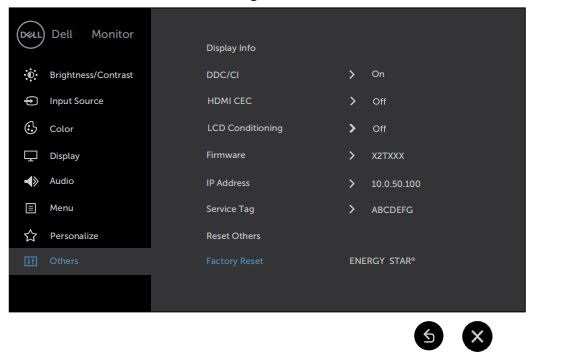
Image source: Bing (Web (fair-use with source credit))
The image above shows what a typical OSD menu looks like. Find the FreeSync or Adaptive‑Sync toggle and enable it.
Not updating GPU drivers.
Older NVIDIA drivers may not recognize newer G‑Sync Compatible monitors. Always install the latest Game Ready driver before troubleshooting.
Assuming G‑Sync Compatible means plug and play.
It’s not. You must enable it in two places: the monitor OSD and NVIDIA Control Panel. Miss either step and it stays off.
Running in windowed mode with G‑Sync disabled.
G‑Sync works in fullscreen mode by default. For windowed or borderless windowed games, you need to check “Enable G‑Sync for windowed and fullscreen mode” in NVIDIA Control Panel. Many players miss this toggle.
How to Enable G‑Sync on a Curved Monitor That Supports It
Once you’ve confirmed compatibility, here’s the exact sequence.
Inside the monitor’s OSD.
- Press the joystick or button on your monitor to open the menu.
- Navigate to “Game” or “Display” settings.
- Find “FreeSync,” “Adaptive‑Sync,” or “VRR.”
- Set it to “On,” “Standard,” or “Extended.” The exact label varies by brand.
- Exit the menu.
Inside NVIDIA Control Panel.
- Right-click your desktop and select “NVIDIA Control Panel.”
- Under “Display,” click “Set up G‑Sync.”
- Check the box that says “Enable G‑Sync.”
- Choose “Enable G‑Sync for full screen mode” or both modes.
- If you have multiple displays, select the curved monitor.
- Click “Apply.”
Testing it works.
Open a game that lets you see frame rates. Turn on your monitor’s refresh rate display (most gaming monitors show Hz in the OSD). Move your camera quickly.
If the refresh rate changes with your frame rate, G‑Sync is active.
You can also use the NVIDIA Pendulum Demo. Download it from NVIDIA’s developer site. Run it with G‑Sync enabled, then disable it.
The difference in smoothness is obvious.
What About Curved Monitors Without G‑Sync Support? Your Options
If your curved monitor has no VRR support at all, you have three paths forward.
Use V‑Sync as a fallback.
V‑Sync eliminates tearing by locking your frame rate to the monitor’s refresh rate. The tradeoff is input lag. It’s fine for single‑player story games.
It’s bad for competitive shooters. You can also cap your frame rate to just below your refresh rate (e.g., 141 FPS on a 144 Hz display) to reduce tearing without V‑Sync.
Upgrade to a curved monitor that explicitly lists G‑Sync.
If you plan to buy a new monitor, look for “G‑Sync Compatible” or “G‑Sync” in the product title. Don’t rely on “works with G‑Sync” marketing language. Check the spec sheet and NVIDIA’s official list.
Switch to an AMD GPU and use FreeSync.
If your curved monitor has FreeSync but not G‑Sync Compatible certification, an AMD Radeon GPU can use FreeSync directly. That’s a valid option if you’re building a new system or upgrading your graphics card.
One more option: Use fast sync.
NVIDIA’s Fast Sync is a tear‑reduction method that works without VRR. It adds less latency than V‑Sync. It’s not as smooth as G‑Sync, but it’s better than nothing.
A Few Quick Specs to Look For When Shopping
If you’re in the market for a curved monitor and G‑Sync support matters, keep these specs in mind.
Curvature rating.
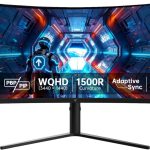
The curvature is measured in millimeters (1500R, 1800R, 1000R). A lower number means a more aggressive curve. 1500R is common for 27‑inch and 32‑inch monitors. 1000R is tighter and more immersive. The curvature has zero effect on G‑Sync performance.
Choose based on your desk setup and viewing distance.
Refresh rate and G‑Sync range.
A 144 Hz monitor with a 48‑144 Hz VRR range works well. A 240 Hz monitor with a 48‑240 Hz range is better for competitive play. Always check the lower end of the range.
Some budget FreeSync monitors have a narrow range (60‑144 Hz) which means G‑Sync only activates above 60 FPS.
Panel type.
VA panels have deeper blacks and better contrast. They can show flicker with G‑Sync at very low frame rates. IPS panels have better color accuracy and less flicker.
OLED panels offer the best response times and zero flicker, but they cost more. Our research shows that IPS and OLED curved monitors have fewer G‑Sync flicker complaints from verified buyers.
Resolution.
1440p is the sweet spot for curved gaming monitors with G‑Sync. 4K curved monitors exist but require a powerful GPU to hit high frame rates. 1080p curved monitors are cheaper but the curve is less noticeable at that size.
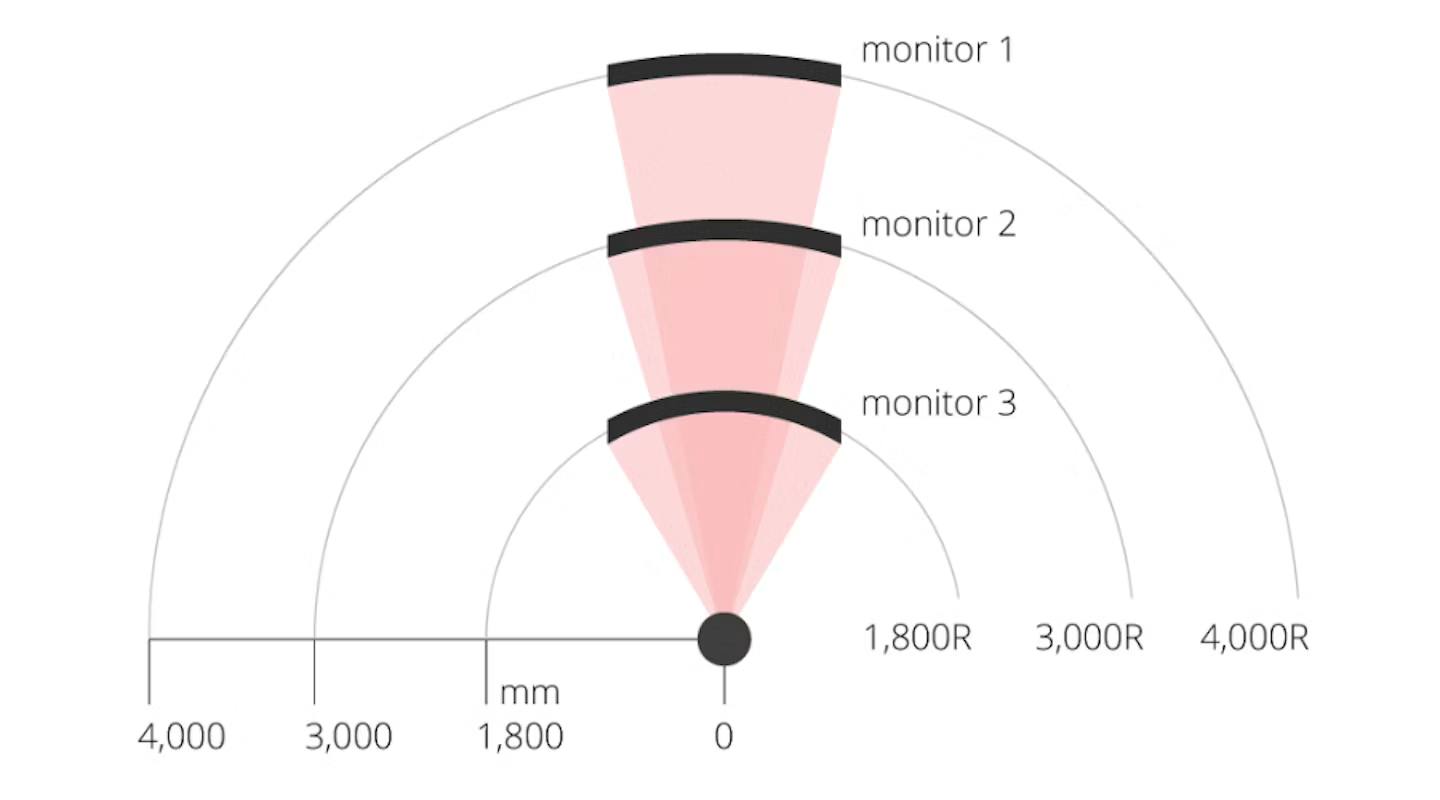
Image source: Bing (Web (fair-use with source credit))
The diagram above shows how curvature radius affects the viewing angle. A 1500R curve matches the natural curve of the human eye at that distance.
Final Decision Guide: Yes, No, or Maybe for Your Setup
Here’s your one‑page checklist. Run through each line. Each answer points you to a verdict.
| Condition | If True | If False |
|---|---|---|
| Monitor has G‑Sync module | Yes – works immediately | Go to next row |
| Monitor has FreeSync and is on NVIDIA’s Compatible list | Yes – enable FreeSync in OSD, then enable G‑Sync in NVIDIA Control Panel | Go to next row |
| Monitor has FreeSync but is not on the list | Maybe – try it. Enable FreeSync and test. Likely works but may flicker | Go to next row |
| Monitor has no VRR at all | No – cannot use G‑Sync. Use V‑Sync, Fast Sync, or upgrade | Done |
| GPU is NVIDIA GTX 10‑series or newer | Go to next row | No – upgrade GPU or accept no G‑Sync |
| Cable is DisplayPort 1.2+ or HDMI 2.1 (check monitor supports VRR over HDMI) | Go to next row | No – swap cable |
| FreeSync enabled in monitor OSD | Go to next row | Enable it first |
| G‑Sync enabled in NVIDIA Control Panel | Yes – you’re set | Enable it |
If you hit a “Yes” at the end, your curved monitor supports G‑Sync. If you hit “No” anywhere, you have a clear fix or a clear answer.
One‑sentence verdict for the most common scenarios.
- Curved monitor with FreeSync + NVIDIA GPU + DisplayPort + FreeSync enabled = yes, it supports G‑Sync Compatible.
- Curved monitor with no VRR listed = no, it does not support G‑Sync.
- Curved monitor with G‑Sync in the product name = yes, plug and play.
Frequently Asked Questions
Do all curved gaming monitors support G‑Sync?
No. Only curved monitors with a G‑Sync module, G‑Sync Compatible certification, or FreeSync (with a compatible GPU and cable) support G‑Sync. Many budget curved monitors lack any variable refresh rate feature.
Always check the spec sheet.
Can I use G‑Sync on a curved FreeSync monitor with an AMD GPU?
No. G‑Sync only works with NVIDIA GPUs. An AMD GPU can use FreeSync on the same curved monitor.
You cannot enable G‑Sync with an AMD card.
Does the curvature of the monitor affect G‑Sync performance?
No. The curvature has no effect on G‑Sync. It doesn’t impact refresh rate, VRR range, or input lag.
Curvature only affects your viewing angle and immersion. G‑Sync works the same on a flat monitor and a curved one.
Why doesn’t G‑Sync show up in NVIDIA Control Panel?
The most common causes are: FreeSync disabled in the monitor OSD, using an HDMI 2.0 cable, having an old GPU driver, or the monitor not being G‑Sync Compatible. Check each one in order.
Is G‑Sync Compatible the same as native G‑Sync?
No. Native G‑Sync uses a dedicated hardware module inside the monitor. It offers a wider VRR range and less flicker.
G‑Sync Compatible uses the FreeSync standard and may have a narrower range or occasional flicker. Both eliminate tearing.
Can I use G‑Sync on a curved monitor with a laptop?
Yes, if the laptop has a DisplayPort output (or USB‑C with DisplayPort Alt Mode) and the monitor supports G‑Sync. Check that the laptop’s dedicated GPU drives the external display port. Some laptops route it through integrated graphics, which blocks G‑Sync.

Similar Posts