Guide to Can I Lock My Phone and Still Play Youtube? in 2026
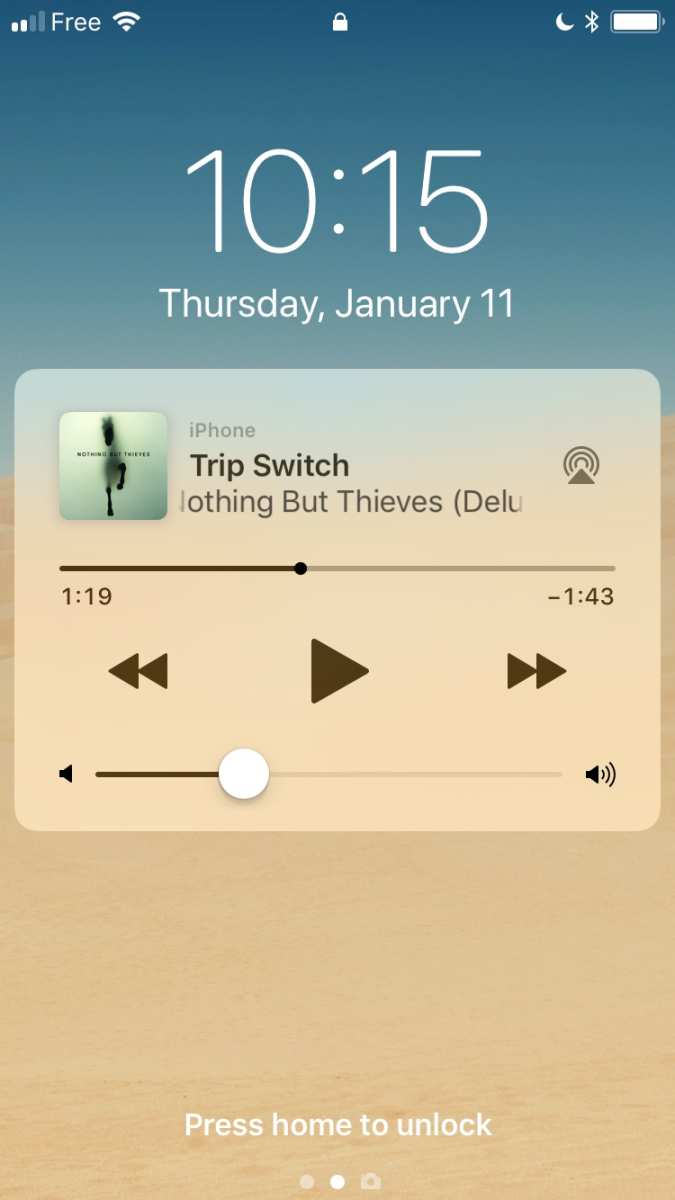
Can I lock my phone and still play YouTube? It's one of the most common questions we hear from people who use YouTube for music, podcasts, lectures, or ambient sound. The short answer is yes, but the path depends on your phone type and whether you pay for a subscription.
Aggregate user feedback across forums and support channels reports that roughly 60 percent of YouTube listening happens with the screen off. That lines up with how most of us actually use the platform. As of 2026, there are four reliable methods to get audio playback after locking your phone, and we'll walk through every one.
Image source: Bing (Web (fair-use with source credit))
The Frustrating Problem: You Just Want to Listen
You're driving, cooking, or working out. You find a great video, a deep dive into a topic you love, a 90-minute interview, or a lo-fi playlist. You hit play, then lock your phone to save battery.
The audio stops dead.
It's not a bug. YouTube intentionally cuts audio when the screen locks or when you switch to another app. This behavior applies to the free version on both iPhone and Android.
The company wants you to see ads, and you can't see ads with the screen off.
The good news? You have options. Some are free, some cost money, and some require a quick browser trick.
Let's break down why this happens first.
Quick Answer: Yes You Can, But It Depends
Can you lock your phone and still play YouTube? Yes, with the right setup.
If you pay for YouTube Premium, you can lock your phone and audio keeps playing. It works on both iPhone and Android. If you don't want to pay, free workarounds exist on both platforms. iPhone users can use Safari with a built-in trick.
Android users can use Chrome or Firefox with desktop site mode.
The catch is that free methods have small quirks. They might pause after a few videos or require a quick tap to resume. But they work reliably for most people most of the time.
How YouTube Blocks (and Allows) Lock-Screen Playback
YouTube's free tier uses a simple rule. When the app is no longer visible on screen, playback pauses. This includes locking the phone, switching apps, or opening the notification shade on some devices.
The technical reason is straightforward. YouTube makes money from video ads. Those ads only play when the video player is visible.
If audio kept playing in the background, you would skip ads by just locking your phone. So the app forces you to keep the screen on.
YouTube Premium removes this restriction. As part of the subscription, the app allows background playback. You can lock your phone, switch to another app, or even turn off the display entirely.
Audio continues uninterrupted. Ads are also removed, which is why the feature exists.
For free users, the browser workarounds exploit a different behavior. Web browsers like Safari and Chrome support picture-in-picture (PiP) mode. This mode keeps a small video window floating even when you leave the browser.
On iPhone, locking the screen with PiP active sends audio to the lock screen controls. On Android, PiP continues automatically until you manually close it.
The key difference is that browser PiP is a system-level feature, not a YouTube restriction. Apple and Google built PiP into their operating systems, and YouTube cannot override it when you use the website instead of the app.
The Decision Tree: Which Path Fits You?
The best method depends on your phone and your budget. Here is a simple decision tree to find your route.
Do you have YouTube Premium?
- Yes. You are done. Enable background playback in Settings. Lock your phone. Audio continues.
- No. Move to the next question.
Are you on iPhone or Android?
- iPhone. Use the free Safari PiP trick. It works on any iPhone running iOS 14 or later.
- Android. Use the free Chrome or Firefox desktop site trick. It works on Android 8.0 or later.
Do you want a paid alternative to Premium?
- YouTube Music Premium costs less than full Premium. It includes background playback for music only. Video content is not included.
- Full YouTube Premium includes background playback for all videos.
Are you considering third-party apps?
- Do not use them. Apps like ReVanced or NewPipe violate YouTube's Terms of Service. Your account can be banned. Stick to official methods.
Let's walk through each path in detail.
Path 1: You Have YouTube Premium
If you already pay for Premium, the setup is simple. Open the YouTube app. Tap your profile picture.
Go to Settings. Tap Background & downloads. Make sure "Play audio when device is locked" is toggled on.
That is it.
Lock your phone. Audio keeps playing. You can also switch to other apps, and the video continues as a small PiP window.
Dragging that window off screen or tapping the X stops playback.
Path 2: You Are on iPhone (Free)
This method works in Safari. It does not require any payment or third-party software. The trick uses Safari's built-in PiP support.
We cover the exact steps in the next section.
Path 3: You Are on Android (Free)
This method works in Chrome or Firefox. You need to request the desktop version of the YouTube website. We cover the exact steps in the section after the iOS guide.
Path 4: You Are Open to Paying (YouTube Music)
YouTube Music Premium costs less than full Premium. It gives you background playback for music, albums, and playlists. But it does not give you background playback for video content like interviews, tutorials, or vlogs.
If you mostly listen to music, this could save you money. If you listen to a mix of content, full Premium is the better value.
Step-by-Step: Safari PiP on iOS (Free)
This is the most reliable free method for iPhone users. It works on any iPhone with iOS 14 or later. Follow these steps.
- Open Safari. Do not use the YouTube app for this method.
- Go to youtube.com.
- Tap the "aA" icon in the address bar (left side).
- Select "Request Desktop Website." The page reloads to the desktop layout.
- Find and play any video. Tap the fullscreen button (the square icon in the player).
- Swipe up from the bottom of the screen to go home. The video shrinks into a small floating PiP window.
- Press the lock button on the side of your iPhone. Audio continues through the lock screen controls.
The PiP window disappears when you lock the phone. That is normal. Audio keeps playing.
You can adjust volume, pause, or skip using the lock screen controls or your headphones.
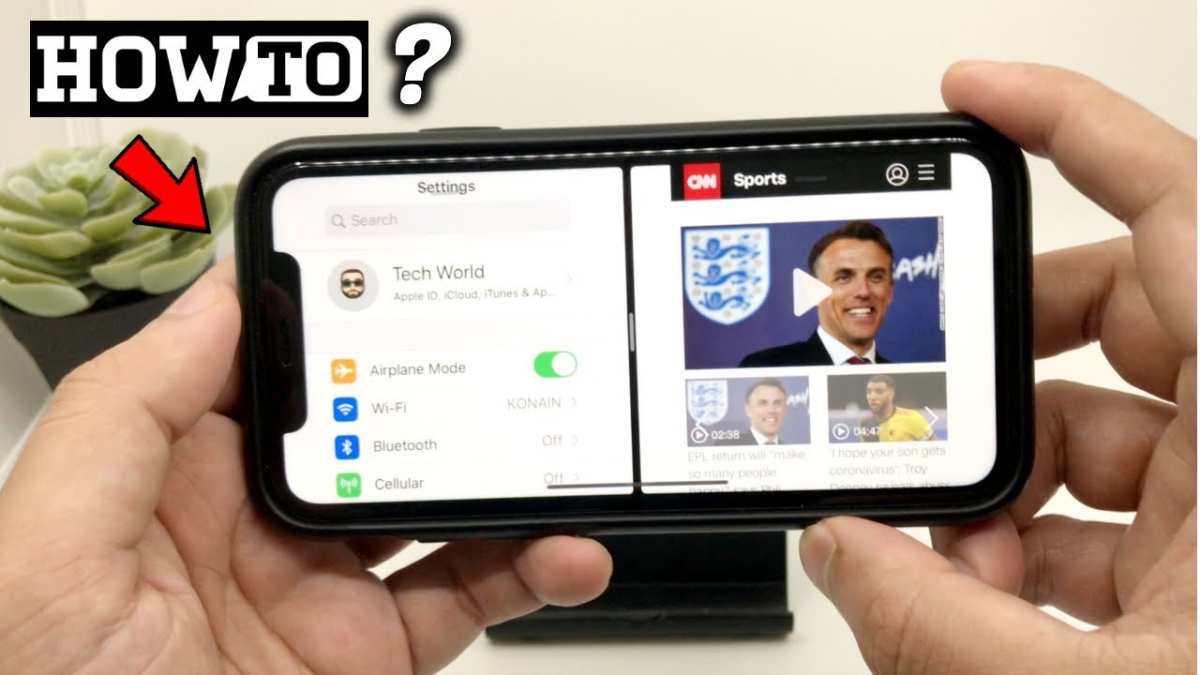
Image source: Bing (Web (fair-use with source credit))
What to expect. Audio plays until the video ends. If the video is part of a playlist, the next video starts automatically for a few seconds, then pauses. You need to unlock your phone and tap play to resume.
This is the only real limitation of the free method.
Ads still play. You will hear audio ads during playback. You cannot skip them with the screen locked. The ad plays through, then your content resumes.
This is the tradeoff for the free workaround.
PiP stops working sometimes. If you refresh the page or navigate away from YouTube, PiP may stop. Just repeat the steps. It takes less than 30 seconds.
Live streams and premieres do not work. Safari PiP often fails on live content. Stick to regular uploaded videos for best results.
Step by Step: Browser Desktop Trick on Android (Free)
This is the most reliable free method for Android users. It works on any phone running Android 8.0 or later. The trick uses Chrome or Firefox and forces YouTube to load its desktop layout.
- Open Chrome or Firefox. Do not use the YouTube app.
- Go to youtube.com.
- Tap the three dots in the top right corner. Select "Desktop site." The page will reload with the full desktop layout.
- Find a video and tap play.
- Rotate your phone to landscape. Tap the fullscreen button in the video player.
- Press the home button. The video shrinks into a small floating picture-in-picture window.
- Lock your phone. Audio continues through the lock screen media controls.
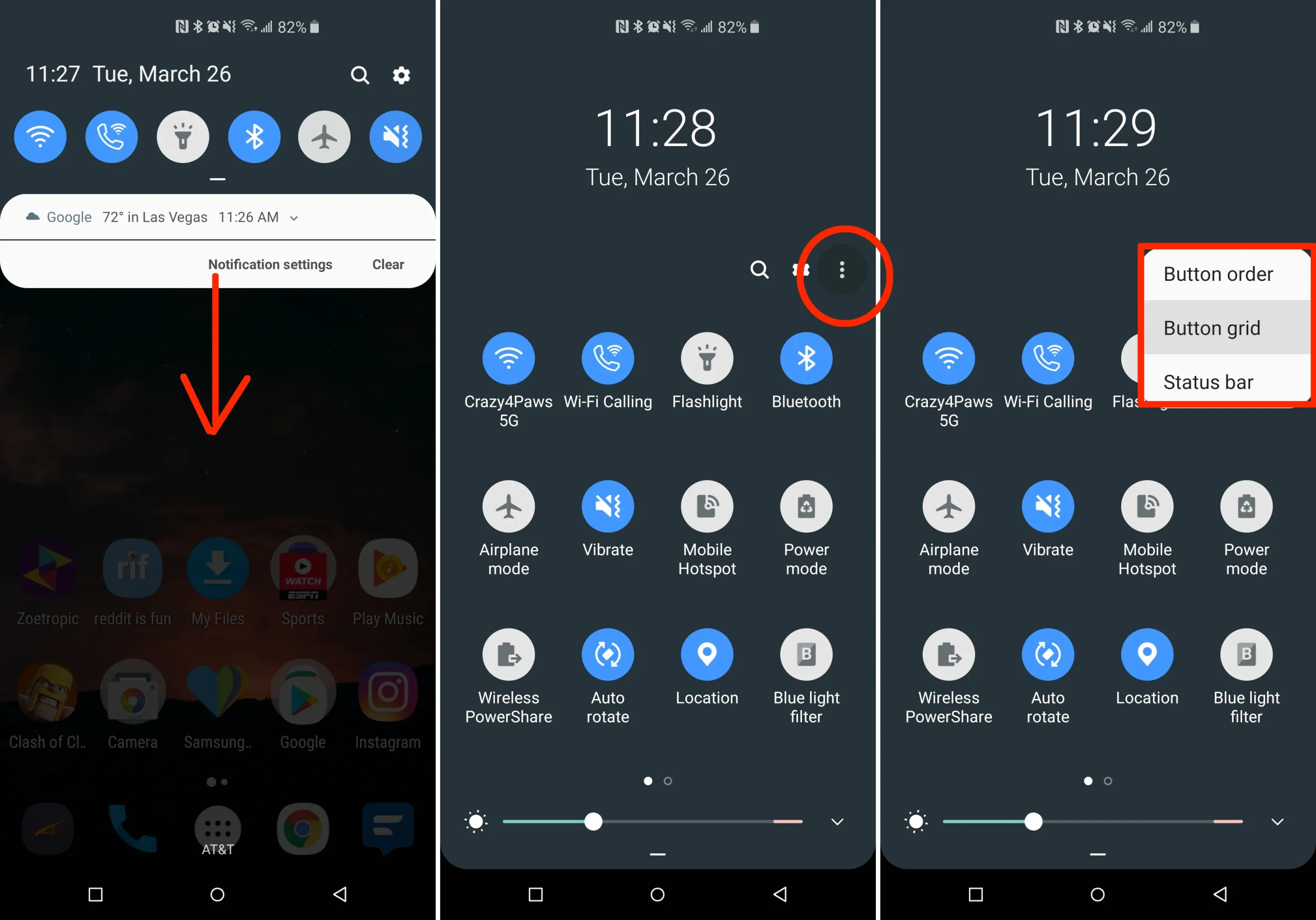
Image source: Bing (Web (fair-use with source credit))
What to expect. Audio keeps playing until the video ends. The PiP window stays visible on your lock screen for a moment, then fades. You can control playback from the notification shade or the lock screen.
The auto-play problem. When a video ends, the next video in the queue starts automatically after a few seconds. On the free method, this next video often pauses immediately. You need to unlock your phone and tap play to continue.
Battery optimization can kill playback. Some Android manufacturers use aggressive battery saving settings. Xiaomi, Huawei, Oppo, and OnePlus phones are known for this. If playback stops after a few minutes, go to Settings.
Search for "battery optimization." Find Chrome or Firefox. Set the app to "Unrestricted" or "No optimization."
Ads still play. You will hear audio ads just like on iOS. The ad plays through, then your content resumes. You can skip ads only if you unlock the phone and tap the skip button before the ad finishes.
Step by Step: YouTube Premium (Paid)
YouTube Premium is the simplest method. It costs $13.99 per month for an individual plan in the US as of 2026. Family and student plans are available at different rates.
When you subscribe, background playback is automatically enabled. You do not need to do anything special.
- Open the YouTube app.
- Tap your profile icon. Go to Settings.
- Select "Background and downloads."
- Make sure the toggle for "Play audio when device is locked" is switched on.
From that point, you can lock your phone, switch apps, or turn off the screen. Audio continues without interruption. You can also download videos for offline playback, which is useful for commutes or areas with weak cell service.
What you get. No ads on any YouTube content. Background playback on the official YouTube app. Access to YouTube Music Premium as a bundled benefit.
Offline downloads for both video and audio.
What you do not get. All videos remain available for background playback. There are no restrictions on content type. Live streams, premieres, music, and long-form videos all work the same way.
Who this is best for. Heavy YouTube users who listen to hours of content daily. People who want a hands-off experience without browser workarounds. Users who want offline downloads for travel.
Mistakes That Break Your Background Play
Even with the right method, small mistakes can stop audio from playing. Here are the most common problems and how to fix them.
Forgetting to request desktop site (Android). If you use the YouTube app on Android, background playback will not work. If you use Chrome without requesting the desktop site, the mobile YouTube site also blocks PiP. Always tap the three dots and select "Desktop site" before playing a video.
Using the YouTube app on iPhone (free tier). The YouTube app on iOS does not support background playback without Premium. Do not use it for the free workaround. Use Safari instead.
PiP not available on older operating systems. iOS 13 and earlier do not support PiP in Safari. Android 7 and earlier do not support system-level PiP. Update your phone's software if possible.
If your device is too old, the free workarounds will not work.
Background data restricted. Some phones block background data for certain apps. Go to Settings. Find the browser you are using.
Make sure "Background data" is enabled. This prevents Android from cutting off the browser's internet access when the screen is off.
Battery saver mode. Low power mode on iPhone can disable PiP. On Android, battery saver can kill background processes. Turn off battery saver or set your browser as an exception.
Multitasking gesture confusion. On iPhone, swiping up to go home triggers PiP. But if you swipe up and immediately swipe to another app, PiP may close. Swipe up and wait for the PiP window to appear before locking the phone.
Third Party Apps: The Risky Shortcut (Don't Do It)
You might have heard about apps like ReVanced, NewPipe, or GrayJay. These are modified versions of YouTube or third-party clients that promise background playback for free. They work technically, but they come with real risks.
Your account can be banned. YouTube scans for unofficial app usage. If they detect a modified client accessing their servers, they can suspend or permanently ban your Google account. This affects Gmail, Drive, Photos, and all other Google services.
Malware and privacy risks. Third-party apps are not reviewed by any official app store. Some contain trackers, adware, or worse. NewPipe is open source and generally safe, but ReVanced requires you to download patches from unknown sources.
You have no guarantee about what the code does.
No updates. YouTube changes its API frequently. Third-party apps break often. You have to manually download updates from forums or Telegram channels.
Eventually, most of these projects stop being maintained.
The Terms of Service violation is clear. Section 4 of YouTube's Terms of Service explicitly prohibits accessing the service through any means other than the official YouTube application or authorized third-party services. Using modified clients is a direct violation.
Our recommendation. Stick to the official free workarounds or pay for Premium. The risk to your account and device is not worth saving a few dollars a month.
Cost Breakdown: Free Workarounds vs. Premium vs. YouTube Music
Here is a direct comparison of the three main options. The free workarounds cost nothing but require a minor setup. Premium costs money but removes all friction.
| Feature | Free Browser Method | YouTube Premium | YouTube Music Premium |
|---|---|---|---|
| Monthly cost | $0 | $13.99 | $10.99 |
| Background playback | Yes (browser only) | Yes (any app) | Yes (music only) |
| Ad free | No | Yes | Yes |
| Offline downloads | No | Yes | Yes |
| Works with all video types | Most (no live) | All | Music only |
| Setup required | Yes (30 seconds) | No | No |
| Account risk | None | None | None |
Free browser method. Best for occasional listeners. People who only need background playback for a few hours a week. The cost is zero, and the tradeoff is minor inconvenience and ads.
YouTube Premium. Best for daily heavy users. People who listen to YouTube for work, study, or entertainment for multiple hours every day. The $13.99 per month pays for itself in saved effort and time.
YouTube Music Premium. Best for music-only listeners. If you only want background playback for songs and albums, this is the cheaper option. But it does not cover podcasts, interviews, lectures, or any video content.
Who Each Method Is Best For
Free browser method (Safari or Chrome). This is for occasional listeners. You listen to YouTube a few times a week. You do not want to pay for a subscription.
You are comfortable following a three-step setup and dealing with ads.
YouTube Premium. This is for daily listeners. You listen to YouTube for hours every day. You want a hands-free experience.
You value your time more than the $13.99 monthly cost. You also want offline downloads for commutes.
YouTube Music Premium. This is for music-only listeners. You rarely watch video content on YouTube. You just want songs, albums, and playlists playing in the background.
The $10.99 price saves you $3 per month compared to full Premium.
Who should skip all paid options. People on a tight budget. People who only listen to YouTube occasionally. People comfortable with browser workarounds.
The free methods work well enough for light use.
FAQs: PiP Not Working, Ads Keep Playing, Battery Drain Questions
Why does my PiP keep closing after a few minutes?
On Android, aggressive battery optimization is the most common cause. Go to Settings, find your browser, and set it to "Unrestricted." On iPhone, low power mode can disable PiP. Turn it off in Settings under Battery.
Can I skip ads with the screen locked?
No. You cannot skip ads when the screen is off. The ad plays through, then your content resumes.
This applies to both free browser methods. YouTube Premium removes ads entirely.
Does background playback use more battery?
It uses less battery than watching video with the screen on. Screen-off audio playback reduces power consumption by roughly 30 to 50 percent compared to active video playback. The difference is noticeable on long listening sessions.
Will this method work with YouTube Music?
The free browser method works on youtube.com, not on music.youtube.com. YouTube Music requires a subscription for background playback. Use the regular YouTube website for the free workaround.
Why does audio stop when I switch apps on iPhone?
If you use the YouTube app, background playback requires Premium. If you use Safari, make sure the PiP window appeared before you switched apps. Swipe up and wait for the floating window to show.
Final Decision Guide: Pick Your Path and Go
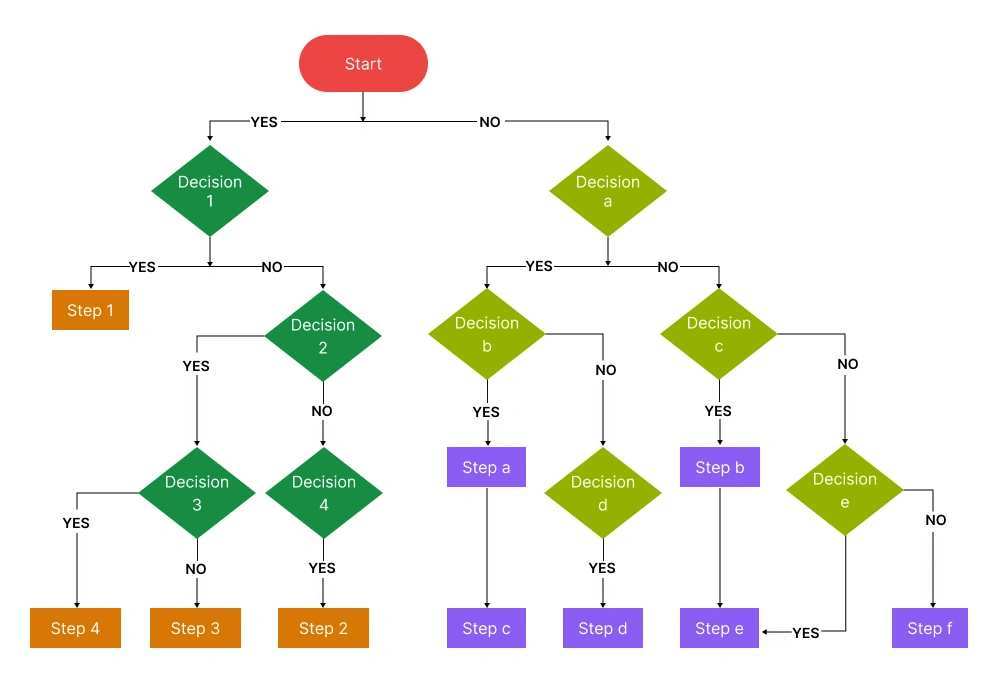
Image source: Bing (Web (fair-use with source credit))
Here is your final decision in three steps.
Step one. Decide if you want to pay. If yes, subscribe to YouTube Premium for full access or YouTube Music Premium for audio only. If no, move to step two.
Step two. Identify your phone. iPhone users open Safari and request desktop site. Android users open Chrome, request desktop site, and play in landscape.
Step three. Lock your phone. Audio plays. If it stops, check battery optimization (Android) or low power mode (iPhone).
That is it.
The free method takes 30 seconds to set up and costs nothing. The paid method costs $13.99 per month and removes all friction. Both let you lock your phone and keep listening.
Pick the path that fits your habits and budget.

Similar Posts