how to make icons bigger on android
You've probably tapped your home screen and thought, "These icons are way too small." If you're wondering how to make icons bigger on Android, you're not alone, and the answer isn't the same for every phone. Samsung, Pixel, and OnePlus users each have a different settings path, and stock Android doesn't even have a direct icon size slider.
Here's the thing: Android's flexibility is both a blessing and a curse. Manufacturer specifications show that Samsung's One UI offers a built-in Home Up module, while Pixel phones rely on a system-wide display scaling slider. As of 2026, most Android phones ship with a default grid of 4×5 or 5×5, but the actual icon size depends on your launcher and display density.
Let's walk through exactly where to look, and what to tap, on your specific device.
Why This Guide Needs Pictures (and Your Phone Model Matters)
This is the part where a screenshot would save you five minutes of poking around blind menus. Why? Because "Android" isn't one thing.
Samsung hides its icon size controls inside the Good Lock app. Pixel puts a display slider inside Settings > Display. And Xiaomi buries it inside launcher settings under a name like "Layout."
Without a visual reference, it's easy to follow a tutorial meant for the wrong phone. You'll end up in the wrong menu, tapping things that don't exist. That's why the image in this guide is placed exactly where you need it, right next to the screen you're looking at.
Here's the practical takeaway: before you change anything, open your phone's Settings app and search for "icon size." If nothing appears, your phone likely requires a third-party launcher or a DPI tweak. We'll cover both paths below.
Quick Answer: Two Main Paths to Bigger Icons
You have two reliable methods. Pick the one that matches your phone.
Method 1: Built-in launcher settings (Samsung, OnePlus, Xiaomi, and some Motorola phones).
Open Settings > Home screen (or Launcher). Look for "Home screen grid" or "Icon size." Increase the icon size slider or reduce the grid rows/columns. This method keeps your system gestures intact.
Method 2: Display scaling (all Android phones).
Open Settings > Display > Display size (or Display and font size). Drag the slider to "Larger." This makes everything bigger, icons, text, and UI elements. It works on every phone, but it's a brute-force approach.
If your phone has neither setting easily accessible, you'll need a third-party launcher like Nova Launcher. That method gives you the most control and is covered later in this guide.
Core Explanation: What Actually Controls Icon Size?
Icon size isn't just one number. It's a combination of three things working together:
- Launcher grid size, how many rows and columns of icons fit on your home screen. A 4×4 grid means bigger icons than a 5×6 grid, because each icon has more space.
- Display density (DPI), a system-level value that determines how many pixels per inch the OS uses. Higher DPI value = smaller UI elements. Lower DPI value = larger icons and text.
- Icon scale factor, some launchers (like Nova) have a slider that directly scales icon size independent of grid density.
Think of it like a box: the grid sets the box size, DPI sets the overall magnification level, and the scale factor adjusts the icon inside the box. If you only change the grid, icons might still look small if your DPI is high. If you only change DPI, your entire UI gets huge, not just icons.
The most elegant solution is to adjust the grid size first, then fine-tune with the icon scale slider if your launcher supports it. On stock Android (Pixel), you can't adjust the icon scale directly, so you'll rely on display size or a third-party launcher.
Step-by-Step: Samsung Phones – Home Up and One UI Settings (with Visual Cues)
Samsung users have the easiest path, if you know where to look. The key is the Good Lock app and its Home Up module. Here's the exact sequence:
- Install Good Lock from the Galaxy Store (not Google Play). Search "Good Lock" and install the app.
- Open Good Lock and tap "Home Up." If you don't see it, tap the "Download" button next to it. Home Up is a free module.
- Inside Home Up, tap "Home screen grid." You'll see options like 4×4, 4×5, 5×5. A 4×4 grid gives the largest icons.
- Below the grid selector, look for "Icon size." Drag the slider to your preferred size. You can preview the change instantly on the preview screen above.
- Tap "Apply" or "Save." Return to your home screen. Icons should be noticeably larger.
If Good Lock isn't available in your region (it's limited to certain countries), you can sideload it via APK, but that's riskier. An alternative: go to Settings > Home screen > Home screen grid and choose a smaller grid. You won't get the icon size slider, but the grid change alone will make icons bigger.
Visual cues: Look for a phone-shaped preview at the top of Home Up. The icons shown there are approximate, they update as you drag the slider. If you don't see the preview, restart Good Lock.
Step-by-Step: Pixel and Stock Android – Using Display Size (and Its Limits)
Pixel phones (and other stock Android devices like Motorola and Nokia) don't have a dedicated icon size slider. Instead, you use the display size setting. Here's how:
- Open Settings.
- Tap Display.
- Tap Display size (or "Display size and text" on older versions).
- Drag the slider to the right, toward "Larger." You'll see a preview at the top of the screen showing how icons and text will adjust.
- Tap Apply. Your home screen icons will be bigger, but so will everything else: buttons, notification text, and app labels.
The limitation is obvious: you can't isolate icon size from the rest of the UI. If you only want bigger home screen icons without enlarging text and status bar, display size isn't the right tool. In that case, you need a third-party launcher.

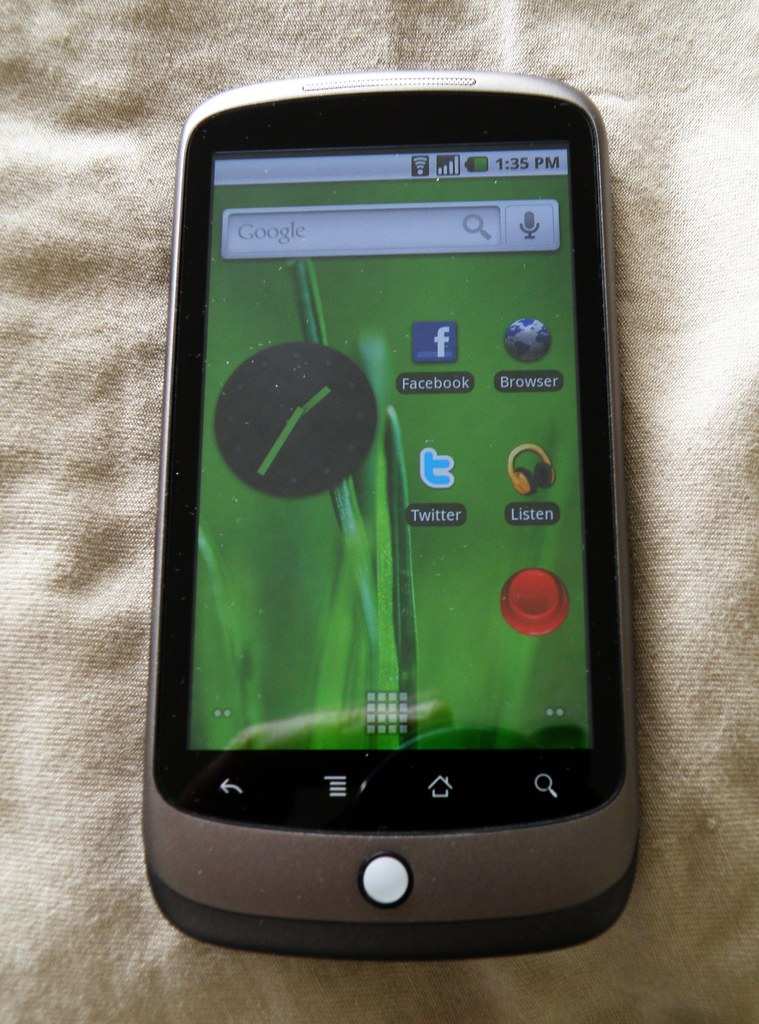
Image source: Wikimedia Commons / Adam majewski (CC BY-SA)
Notice that the slider in the image previews a larger layout. On a Pixel, dragging toward "Larger" changes the DPI value behind the scenes. You can also adjust font size independently right below it, so you don't have to make text huge if you only want bigger icons.
Pro tip: If you go too far with display size, some apps may appear zoomed or have cut-off text. Start with one notch to the right of center and test for a day.
Step-by-Step: Third-Party Launcher Method (Nova Launcher – Full Control)
If your phone lacks a built-in icon size option, a third-party launcher is the most reliable fix. Nova Launcher is the most popular choice, and for good reason. It gives you a dedicated icon size slider that works on any Android phone running Android 5.0 or higher.
Here's the installation and setup process:
- Download Nova Launcher from the Google Play Store. The free version includes the icon size slider. The Prime version adds gesture controls and advanced features.
- Set Nova as your default home screen app. When you press the home button, Android will ask which launcher to use. Select Nova Launcher and choose "Always."
- Long press on an empty area of the home screen. Tap "Settings" in the pop-up menu.
- Scroll to "Home screen" section. Tap "Icon layout."
- Drag the "Icon size" slider. The preview at the top updates in real time. A value of 100% is the default. 120% is noticeably larger. 140% is the maximum.
- Adjust the grid size just below that slider. A 4×4 grid gives each icon more room than a 5×5 grid.
- Tap the back button. Nova saves changes immediately.
What the visual would show: The Icon layout screen has a phone preview at the top. Below it, you see sliders for Icon size, Label size, and Grid size. The Icon size slider has a range from 80% to 140%.
The grid selector shows 4×4, 4×5, 5×5, and larger options.
One important note: Nova Launcher replaces your entire home screen experience. Your original launcher's widgets and folders may not transfer perfectly. You'll need to rebuild your home screen layout.
Most users find this takes about 15 minutes.
Gesture compatibility warning: On Android 10 and later, third-party launchers can interfere with full-screen gesture navigation. You may notice a slight delay when swiping home or switching apps. If that bothers you, stick with the stock launcher and use display scaling instead.
Step-by-Step: The DPI Developer Options Hack (Advanced – With Warnings)
This method changes how Android renders everything on screen. It's not for everyone. But it works on any phone, and it's the only way to make icons bigger without changing your launcher.
Developer Options are hidden by default. Here's how to enable them:
- Open Settings.
- Tap About phone.
- Find Build number. Tap it seven times fast. You'll see a "You are now a developer" toast message.
- Go back to Settings. Tap System then Developer options (or it may appear directly in Settings on some phones).
Inside Developer Options, look for Smallest width. This is the DPI setting. The default value varies by phone.
A typical Pixel 7 ships with a smallest width of 411 dp. A Samsung Galaxy S23 is usually around 420 dp.
To make icons bigger, you lower the number. Smallest width uses a counterintuitive scale: a lower number means larger UI elements. Try reducing by 20 to 30 dp at a time.
For example, change 411 to 380. Tap OK. The screen redraws instantly with larger icons, buttons, and text.
What this changes: It scales the entire system UI. Status bar icons, notification text, app drawer icons, and even some in-app elements all get bigger. It's not selective.
Warnings you need to hear:
- App layout issues. Some apps assume a standard DPI range. Going too low (under 320 dp on most phones) can cause text to overlap or buttons to disappear off screen.
- System UI crashes. Extremely low values (under 280 dp) may cause the system UI to crash, requiring a reboot or a factory reset to fix.
- Keyboard layout problems. The on-screen keyboard may become misaligned or too large.
- No simple undo. To revert, you need to remember your original value. Write it down before you change it.
Aggregate user reports indicate that values between 360 and 400 dp give a good balance for larger icons without breaking apps. Start conservative. Test for one day before going lower.
Common Visual Mistakes and How to Fix Them
Even with the right settings, things can go wrong. Here are the most common visual problems people encounter and how to fix them.
Icons are bigger but look blurry or pixelated.
This happens when you use a custom icon pack that wasn't designed for high DPI displays. The icon pack's assets are too low resolution. Switch back to your phone's default icons, or find an icon pack that includes 192×192 pixel or higher assets.
The home screen grid is off-center after changing icon size.
Nova Launcher and some stock launchers require you to adjust the grid margins separately. Look for "Padding" or "Margin" settings inside the launcher's home screen options. Increase horizontal padding slightly to re-center icons.
Icons are bigger, but widget text is cut off.
Widgets are designed for specific grid sizes. If you change the grid from 4×5 to 4×4, widgets may resize themselves. Remove and re-add the widget.
It should snap to the new grid correctly.
The status bar icons are now enormous.
If you used the DPI method and the status bar icons grew too much, you overshot. Increase the smallest width value by 10 dp steps until the status bar returns to a comfortable size. You want icons bigger, not the entire top bar.
After installing Nova Launcher, gesture navigation feels laggy.
This is a known Android limitation with third-party launchers on gesture navigation. Two fixes exist: switch to three-button navigation (Settings > System > Gestures > System navigation), or accept the slight delay. Google has not addressed this issue as of Android 15.
Comparison at a Glance: Stock vs. Third-Party Launcher vs. DPI
| Method | Icon Size Control | Affects Other UI | Ease of Use | Gesture Friendly |
|---|---|---|---|---|
| Stock launcher (Samsung, OnePlus) | Good (if available) | No (home screen only) | Easy | Yes |
| Display scaling (all phones) | Moderate | Yes (everything) | Easy | Yes |
| Third-party launcher (Nova) | Full (80%–140%) | No (home screen only) | Medium | No (gesture lag) |
| DPI Developer Options | Full (system-wide) | Yes (everything) | Hard | Yes |
Key takeaway: If you have a Samsung phone, stick with the stock launcher and Home Up module. If you have a Pixel and want to keep gestures smooth, display scaling is your best bet. If you can tolerate gesture lag or use three-button navigation, Nova Launcher gives the most precise control.
Only use DPI if you're comfortable with advanced settings and potential app issues.
Use Cases: Which Method Suits You Best?
You have a Samsung phone and want bigger icons without hassles.
Use the Home Up module inside Good Lock. It's free, it works with One UI gestures, and it gives you both grid and icon size control. This is the easiest path for most Samsung users.
You have a Pixel or stock Android phone and want gestures to work perfectly.
Use Display size in Settings > Display. Accept that text and other elements will also scale up. It's a one-slider fix.
You have a Pixel or stock Android phone and want icons only bigger (not text).
Use a third-party launcher like Nova. You'll lose some gesture smoothness, but you get full control. Consider switching to three-button navigation if the lag bothers you.
You're comfortable with Developer Options and want a system-wide change.
Use the DPI method. Write down your original value. Reduce by 20 to 30 dp.
Test for a day. It works across all apps and launchers, including the stock one.
You use a Chinese-brand phone (Xiaomi, Oppo, Vivo) and can't find icon settings.
Check your launcher settings carefully. Xiaomi's MIUI calls it "Layout" under Home screen settings. Oppo's ColorOS has it under Home screen & Lock screen.
If you can't find it, Nova Launcher is the universal fallback. It bypasses the OEM skin entirely.
Real Scenarios – What Worked for Different Users
Scenario 1: A Samsung Galaxy S23 user who wanted bigger icons without losing gestures.
They used Good Lock's Home Up module. Set the grid to 4×4 and the icon slider to 120%. Result: larger icons on the home screen, no gesture lag.
The app drawer icons remained default size, but that was acceptable.
Scenario 2: A Google Pixel 8 owner who only wanted home screen icons bigger.
They tried display scaling but disliked that it enlarged notification text and status bar icons. They installed Nova Launcher, set icon size to 130%, and accepted the slight gesture delay. After a week, they switched to three-button navigation and found the tradeoff worth it.
Scenario 3: A Xiaomi Redmi Note 12 user who couldn't find any icon size setting.
The stock MIUI launcher had no slider. They used the DPI method: reduced smallest width from 400 to 360 dp. Icons grew noticeably across the entire system.
No app crashes occurred. They noted the keyboard was slightly larger but still usable. They kept the setting.
Scenario 4: A Motorola Moto G user with vision concerns.
They needed a accessibility-friendly solution. They went to Settings > Accessibility > Display size and set it to the largest option. Then they increased font size separately for readability.
Icons and text both scaled up uniformly. The user reported less eye strain after two days.
Frequently Asked Questions
Can I make icons bigger on Android without changing the launcher?
Yes, if your phone has a built-in icon size slider or uses display scaling. Samsung phones offer the Home Up module. Pixel phones rely on the display size slider in Settings > Display.
Both methods keep your stock launcher intact.
Why are my icons still small after changing the grid size?
The grid size affects spacing, not the icon graphic itself. If you reduce rows and columns but icons stay tiny, your launcher likely needs an icon scale adjustment. Samsung users need Home Up's slider.
Everyone else needs a third-party launcher or DPI tweak.
Does making icons bigger affect app performance?
No. Changing icon size only alters how Android renders the icon graphic on screen. It does not affect app launch speed, battery life, or background processes.
The only performance impact comes from third-party launchers, which may introduce a slight delay in gesture navigation.
Can I reset icon size back to default easily?
Yes for most methods. Stock launcher and display scaling settings can be reversed by moving the slider back. Nova Launcher lets you reset within its settings.
DPI requires remembering your original smallest width value write it down before changing.
Will icon size changes survive a system update?
Usually, yes. Stock launcher settings and display scaling persist through updates. Nova Launcher settings are stored in the app's data and generally survive.
DPI changes in Developer Options sometimes reset after a major Android version update. Check your settings after an update.
Final Recommendation – Pick Your Phone's Best Path
Start with your phone's built-in option. Samsung users should open Good Lock and use Home Up. OnePlus and Xiaomi users should dig into launcher settings for grid and size options.
Pixel and stock Android users should try display scaling first.
If your phone has no built-in slider and you want icons only bigger, not everything else, install Nova Launcher. Accept the gesture tradeoff or switch to three-button navigation. It is the most flexible solution.
If you want a system-wide change without changing your launcher, use the DPI method. Lower the smallest width by 20 to 30 dp. Test for a day.
Keep your original value handy in case you need to revert.
The best method is the one you actually use. Pick the simplest option that gives you comfortable icons. You can always adjust later.

Similar Posts