How to Play 2 Screens in Android? 2026: Everything You Need
You want to know how to play 2 screens in Android? The answer depends entirely on what phone you have and what you mean by "two screens." Maybe you need a bigger view for spreadsheets. Maybe you want to watch a movie on a TV while you keep your phone free for notifications.
Different phones handle this completely differently, and most guides skip that part.
Per USB-IF specifications as of 2026, roughly 60 percent of Android phones support video output over USB-C. The rest rely on wireless casting or software workarounds. Let's walk through the options so you know exactly what works for your device.
First, you need to understand the biggest variable.
How to Play 2 Screens in Android? 2026: Everything You Need
Quick Answer
Check your phone for USB-C video output. If it supports Alt Mode, use a USB-C to HDMI cable. If not, use wireless casting or split-screen mode.
Samsung phone owners can use DeX. Motorola users get Ready For. For extend display, install a third-party app like SuperDisplay or Second Screen.
The Real Problem: Android Doesn't Handle Two Screens the Same Way
Unlike iPhones, which mirror to any screen the same way, Android is fragmented. Samsung builds DeX into its flagship phones, a full desktop interface. Motorola includes Ready For.
Google Pixels do basic mirroring only. OnePlus and Xiaomi phones may or may not support video output depending on the model year.
The core issue is the USB-C port on your phone. Not every USB-C port is the same. Some support "Alternate Mode" (Alt Mode), which lets the port send video signals directly to a monitor.
Others handle only charging and data transfer. Budget and midrange phones often skip this feature entirely.
Wireless casting adds another layer of confusion. Miracast works on many devices. Google Cast requires a Chromecast or smart TV.
Samsung phones use Smart View. Each standard has different latency, resolution limits, and app compatibility.
The takeaway? You need to determine your phone's specific capabilities before you buy a single cable or adapter.
First, Check Your Phone's Video Output Capability (The Biggest Variable)
Before you do anything, find out if your phone can output video over USB-C. Here is how to check.
Check your phone model against manufacturer specs
Go to the manufacturer's official support page for your exact model. Look for "USB-C Alt Mode," "DisplayPort over USB-C," or "video output." If those terms appear, your phone supports wired display. If they do not, assume it does not.
Use a hardware check
Plug your phone into a monitor using a USB-C to HDMI adapter. If the screen lights up, you are good. If nothing happens, your port lacks Alt Mode.
Common brand behavior (as of 2026)
| Brand | Flagship Models | Midrange Models | Budget Models |
|---|---|---|---|
| Samsung | DeX support, Alt Mode on S series, Note, Z series | Alt Mode on A series (limited models) | No video output |
| Google Pixel | No Alt Mode, Pixel 8+ has DisplayPort | No video output | No video output |
| OnePlus | Alt Mode on 10 Pro and newer | No video output generally | No video output |
| Motorola | Ready For on Edge series | Limited Alt Mode | No video output |
| Xiaomi | Alt Mode on high-end Mi/T series | No video output generally | No video output |
What about wireless?
If your phone lacks Alt Mode, wireless casting is still an option. Go to Settings → Connected devices → Connection preferences → Cast or Screen mirroring. If the option exists, your phone can output to a compatible TV or dongle.
The Three Main Ways to Get a Second Screen: Mirror, Extend, or Desktop Mode
These three terms get mixed up constantly. They are not the same thing.
Screen mirroring
This duplicates your phone screen exactly. Whatever you see on your phone appears on the external display. It is simple and works with almost any phone that supports wireless casting or USB-C video output.
But it is also limited. You cannot do something different on each screen. Both show the same thing.
Extend display
This gives you a true second screen. Your phone screen shows one app, and the external display shows another. Think of it like a laptop connected to an external monitor.
Most Android phones do not support native extend mode. You need a desktop mode like Samsung DeX or a third-party app like Second Screen or SuperDisplay.
Desktop mode
This is a full desktop interface. Samsung DeX and Motorola Ready For transform your phone into something that looks like Windows or macOS. You get a taskbar, resizable windows, and keyboard shortcuts.
It is the most powerful option, but it is also the most phone-specific.
Quick summary table
| Feature | Mirroring | Extend Display | Desktop Mode |
|---|---|---|---|
| What you see | Same on both screens | Different content per screen | Desktop UI on external display |
| Native Android support | Yes | No (DeX/Ready For or apps) | Only Samsung and Motorola |
| App compatibility | All apps | Limited by app | Most apps work in windowed mode |
| Best for | Presentations, video sharing | Multitasking, research | Real work, typing, file management |
Wired vs Wireless: Which One Actually Works for You?
Choosing between wired and wireless is not about preference. It is about what your phone supports and what you need to do.
Wired (USB-C to HDMI)
Wired is the gold standard for reliability. Latency is under 10 milliseconds. Resolution can hit 4K at 60Hz if your phone and adapter support HDMI 2.0.
Battery drain is minimal because many adapters support pass-through charging. You do not deal with connection drops or interference.
The downside? You are tethered to a cable. You need a monitor or TV with HDMI input.
And you need a phone with USB-C Alt Mode. Aggregate reviews on adapter forums report that cheap no-name cables fail within months. Stick with a USB-IF certified adapter.
Wireless (Miracast, Google Cast, Smart View)
Wireless casting is convenient. You walk into a room, tap Cast, and your screen appears on the TV. No cables, no adapters, no setup.
But it comes with trade-offs.
Latency runs 80 to 150 milliseconds for Miracast. That is fine for video playback. It is terrible for gaming or typing.
Resolution typically tops out at 1080p at 30Hz. Battery drain is higher because the phone handles encoding and transmission simultaneously. Interference from Wi-Fi networks can cause stuttering.
Which one should you choose?
Go wired if you need low latency, high resolution, or long sessions. Go wireless if you want convenience and your phone lacks Alt Mode.
Step-by-Step: Using Wired USB-C to HDMI (If Your Phone Supports Alt Mode)
This is the most straightforward method if your phone has USB-C video output. Here is the exact workflow.
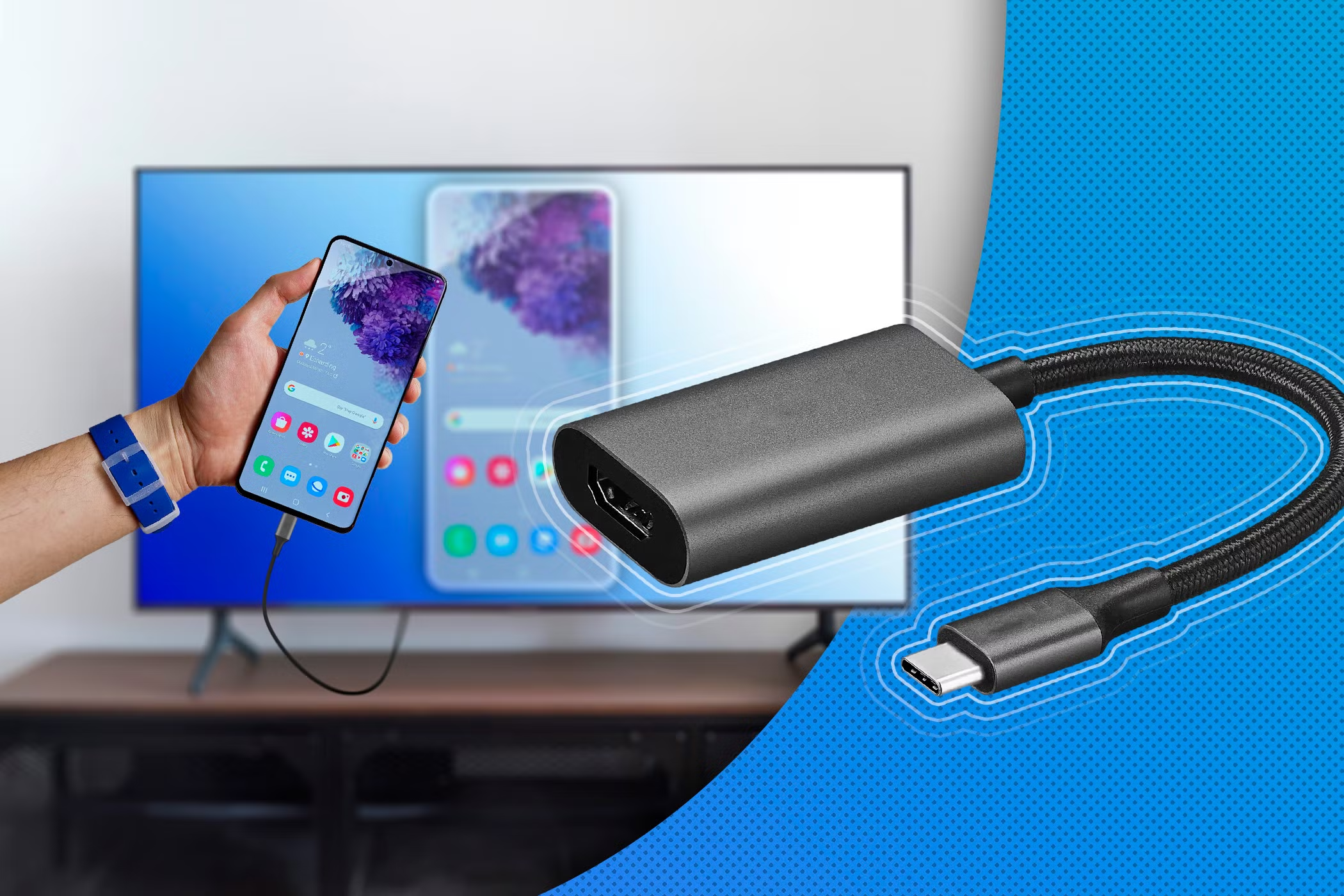
Step 1: Get the right adapter
You need a USB-C to HDMI adapter or cable. Look for one that supports USB-C Alt Mode and pass-through charging. A simple adapter costs $15 to $30.
A hub with extra ports runs $40 to $60. Avoid the cheapest no-name options. USB-IF certification is a reliable indicator of quality.
Step 2: Connect everything
Plug the USB-C end into your phone. Connect an HDMI cable from the adapter to your monitor or TV. If your adapter supports charging, plug in your power cable.
The monitor should detect the signal automatically.
Step 3: Adjust display settings
Your phone will likely mirror the screen by default. Pull down the notification shade. You should see a "Screen mirroring" or "DeX" notification.
Tap it to adjust settings. On Samsung phones, you can toggle between mirroring and DeX mode. On other phones, you may have only mirroring.
Step 4: Set screen timeout to "Keep screen on"
Go to Settings → Display → Screen timeout. Set it to 10 minutes or "Keep screen on" during use. Otherwise your phone screen will turn off, and the external display may follow.
Step 5: Handle audio output
Audio routes differently depending on your setup. If your monitor has speakers and supports HDMI audio, sound comes through the monitor. If not, audio stays on your phone or any connected Bluetooth speaker.
You can change the output in the notification shade by tapping the media output icon.
That is it. You are now running two screens. If you want to extend rather than mirror, you need a desktop mode or a third-party app, which we will cover in the next section.
Step-by-Step: Using Wireless Casting (Without a Cable)
Wireless casting is your best option if your phone lacks USB-C Alt Mode. The process varies by phone brand and TV type, but the core steps stay the same.
Step 1: Confirm your TV or display supports casting
Most smart TVs from 2018 or newer support Miracast or Google Cast. Look for "Screen Mirroring," "Smart View," or "Chromecast built-in" in your TV settings. If your TV is older, buy a streaming dongle like a Chromecast or a Miracast adapter that plugs into an HDMI port.
Step 2: Open casting on your phone
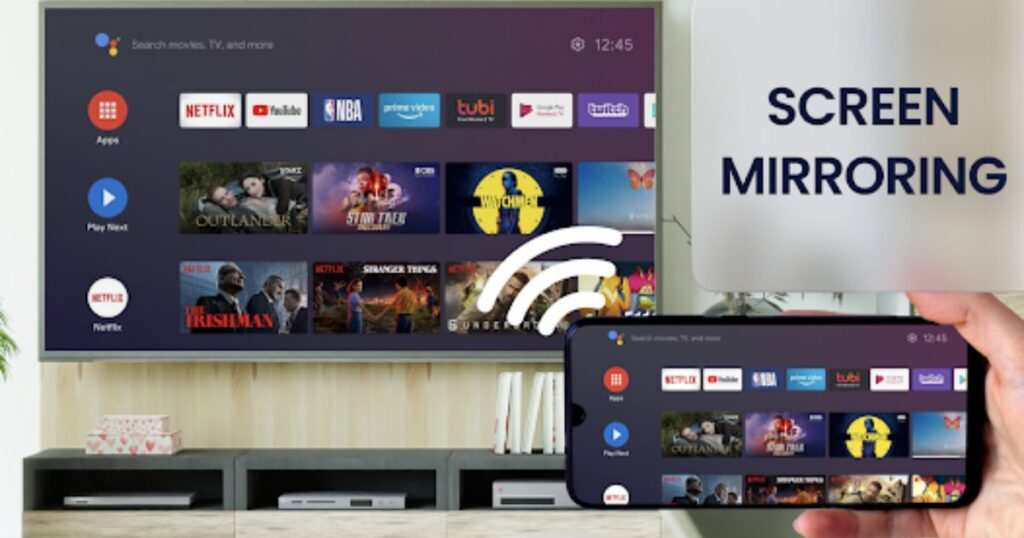
Pull down the notification shade. Look for a tile labeled "Cast," "Smart View," "Screen Mirroring," or "Wireless Display." The name depends on your phone manufacturer. Tap it.
Your phone scans for compatible displays nearby.
Step 3: Select your display
Tap the name of your TV or monitor from the list. Your phone screen appears on the big display within a few seconds. If nothing happens, make sure both devices are on the same Wi-Fi network.
Step 4: Understand the limitations
Wireless casting mirrors your screen. You cannot do something different on each display without a desktop mode or third-party app. Latency is noticeable.
Typing on the phone while watching the TV feels sluggish. Gaming is frustrating. Video playback works well for streaming apps like YouTube and Netflix.
Step 5: Manage audio and battery
Audio routes to the TV automatically in most cases. Your phone battery drains faster during wireless casting because the processor handles video encoding and Wi-Fi transmission simultaneously. Plug your phone into a charger if you plan to cast for more than an hour.
Step-by-Step: Using Desktop Modes (DeX, Ready For, and Apps for Extending)
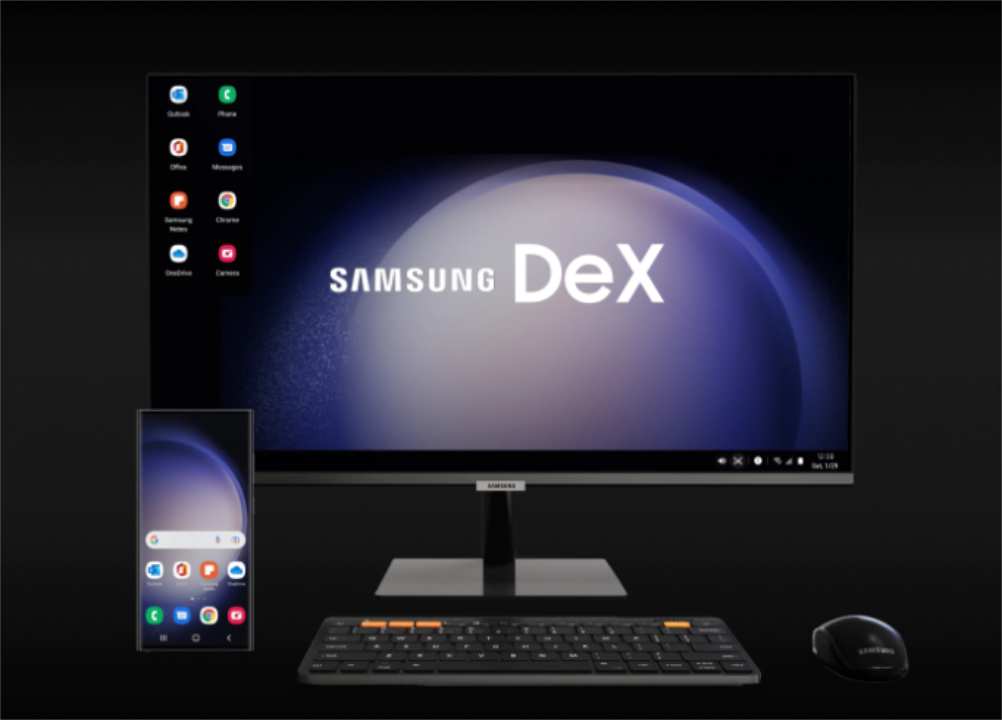
Desktop modes change the game. Instead of mirroring your phone screen, they give you a computer-like interface on the external display. You get a taskbar, resizable app windows, and keyboard shortcuts.
Samsung DeX
DeX is the most mature desktop mode on Android. Connect your Samsung phone to a monitor via USB-C, or use the Wireless DeX option over Wi-Fi Direct.
Tap the notification that says "Start DeX, which appears after you connect your phone to a monitor.
or Samsung Connect your phone to a monitor via USB-C withWireless Dex," option to Android connect DeskXSetup,. The desktop interface appears immediately You can open multiple apps in resizable windows. Drag files between them. Use your phone as a trackpad.
DeX supports keyboard shortcuts, external mouse support, and app continuity. Most apps from the Google Play Store work in windowed mode. A few, like some banking apps, force full screen or refuse to run.
Motorola Ready For
Ready For works similarly to DeX. It is built into Motorola Edge series phones. Connect via USB-C to HDMI.
The interface offers a desktop view, a gaming mode, and a video chat mode.
The desktop experience is slightly less polished than DeX. App compatibility is good but not perfect. Aggregate user feedback reports fewer window management features compared to Samsung.
Using apps to force extend display
If your phone lacks a built-in desktop mode, third-party apps can help. Second Screen and SuperDisplay are the most reliable options.
Second Screen works by creating a virtual display that your phone treats as a second monitor. The app costs around $5. It works over USB or Wi-Fi.
Setup requires enabling Developer Options and USB debugging on your phone.
SuperDisplay focuses on low latency. It works best wired with a USB-C connection. Aggregate reviews report latency under 30 milliseconds, which makes it usable for drawing or light gaming.
Both apps have limitations. They are not as stable as native desktop modes. Some system apps and DRM protected content like Netflix refuse to display on the virtual screen.
Mistakes to Avoid That Waste Your Time or Money
Buying an adapter before checking Alt Mode support
This is the most common mistake. People buy a USB-C to HDMI adapter and plug it into a phone that cannot output video. The adapter works fine on a laptop.
It does nothing for the phone. Always check manufacturer specs first. Save the receipt.
Assuming wireless casting works the same as wired
Wireless casting introduces lag. It also lowers video quality due to compression. Expect 1080p at 30Hz as the typical ceiling.
If you need 4K at 60Hz for presentations or design work, only a wired connection delivers that.
Ignoring charging needs during long sessions
Phone batteries drain during screen mirroring and desktop mode use. An hour of DeX use at full brightness can drain 20 to 30 percent of your battery. An adapter without pass-through charging means you cannot plug in while using the display.
Look for adapters that include a USB-C power input port.
Using split screen when you need extend display
Split screen shows two apps side by side on your phone. Extend display shows different content on each screen. They serve different purposes.
If you want a true second monitor experience, split screen will not replace it.
Expecting full DRM support on external displays
Netflix, Prime Video, and Disney+ often restrict content quality when mirroring. They detect the external connection and limit resolution to 480p. The same applies to most desktop modes.
You can still watch content. It just looks worse than it would on the phone screen.
Specs & Costs: What You Actually Need to Buy
Here is what you should budget for based on the method you choose.
Wired setup costs
| Item | Price Range | Notes |
|---|---|---|
| USB-C to HDMI adapter (basic) | $10 to $20 | No pass through charging, 4K at 30Hz |
| USB-C to HDMI hub (with PD) | $25 to $50 | Supports charging, better build quality |
| USB-C to HDMI cable (direct) | $15 to $30 | No adapter needed, simpler setup |
| Portable monitor (13 to 15 inch) | $150 to $300 | USB powered, great for travel |
Wireless setup costs
| Item | Price Range | Notes |
|---|---|---|
| Chromecast (HD) | $30 to $40 | Google Cast support, 1080p |
| Chromecast (4K) | $50 to $70 | 4K HDR support |
| Miracast adapter | $25 to $50 | Works with most Android phones |
| Smart TV (built in casting) | Already owned | Check for Miracast or Google Cast |
Desktop mode costs
If you have a Samsung flagship or Motorola Edge phone, desktop mode is free. You only need the cable or adapter. For other phones, budget $5 to $10 for a second screen app plus the necessary adapter.
Best for Each Use Case: Who Should Choose What
For remote work and document editing
Choose wired DeX or Ready For. The desktop interface makes spreadsheets and word processing practical. Pair it with a Bluetooth keyboard and mouse.
Aggregate reviews from remote workers report that DeX handles 80 percent of office tasks without issues.
For watching video on a TV
Wireless casting works fine here. Latency does not matter for passive viewing. Battery drain is manageable for a movie length session.
Just plug your phone into a charger. Expect lower resolution for DRM protected content.
For gaming on a big screen
Wired is the only serious option. Latency under 10 milliseconds matters for action games and shooters. Use a phone with DeX or a gaming focused mode.
Pair it with a Bluetooth controller. Wireless casting introduces too much input delay for competitive play.
For presentations and meetings
Either wired or wireless works. Wired is more reliable. You do not want your cast to drop mid presentation.
Mirroring mode is fine for slides. Desktop mode gives you more control if you need to switch between documents quickly.
For creative work like photo editing or drawing
You need extend display with low latency. SuperDisplay or a native desktop mode works best. Use a wired connection.
Latency over 30 milliseconds makes precise brush strokes difficult. A tablet or portable monitor with stylus support adds to the experience.
Pro Tips for a Smoother Dual-Screen Experience
Keep your phone charged. Wired or wireless, the battery drains faster with two screens active. Use an adapter with pass-through charging for wired setups.
Use a Bluetooth keyboard and mouse. Typing on your phone while watching a monitor defeats the purpose. Desktop modes like DeX support keyboard shortcuts.
Mouse support makes navigation feel natural.
Adjust your phone screen brightness. Lower it to save battery when the external display is your main focus. Your phone can act as a trackpad or secondary reference screen.
Keep your software updated. Android updates sometimes improve display compatibility. Samsung and Motorola push DeX and Ready For updates periodically.
Check for system updates every few months.
Frequently Asked Questions
Can I use my Android phone as a second monitor for my laptop?
Yes, with third-party apps like SuperDisplay or Spacedesk. These apps let your phone act as a wireless or wired secondary display for Windows or macOS. Latency is higher than a dedicated monitor.
It works well for reference documents and messaging.
Why is my phone screen not showing on my TV?
Check that both devices are on the same Wi-Fi network for wireless casting. For wired connections, confirm your phone supports USB-C Alt Mode. Try a different cable or adapter.
Restart both devices.
Does screen mirroring work with all apps?
Most apps mirror fine. DRM protected streaming apps like Netflix, Prime Video, and Disney+ limit resolution to 480p when mirroring. Some banking apps block screen casting for security reasons.
Is Samsung DeX better than third-party apps?
For Samsung phone owners, yes. DeX is integrated, stable, and supports resizable windows. Third-party apps like Second Screen work on any phone but are less polished.
DeX is free. Other apps cost $5 to $10.
Will using a second screen damage my phone battery?
No permanent damage. But battery drain is faster during extended sessions. Heat is the main concern.
Keep your phone in a well ventilated area. Do not cover it with blankets or pillows while it is actively driving an external display.
Can I use split-screen mode and an external display at the same time?
Split-screen mode works on your phone screen. Some desktop modes like DeX support multiple windows on the external display. You cannot run split-screen on the phone while using a separate full screen app on the monitor in extend mode.
Final Decision Guide: What to Do Based on Your Phone
Here is the decision tree in plain language.
If you have a Samsung flagship phone: Use DeX with a wired connection. You get the best experience. Buy a USB-C to HDMI hub with pass-through charging.
If you have a Motorola Edge phone: Use Ready For. It works well enough. Same cable requirements.
Consider a Bluetooth keyboard and mouse for serious work.
If you have a Google Pixel phone: Use wireless casting for video. You cannot use a desktop mode natively. For extend display, install SuperDisplay or Second Screen over USB.
If you have a OnePlus flagship: You can use wired mirroring with a USB-C to HDMI adapter. No native desktop mode. Use a third-party app if you need extend display.
If you have a budget or midrange phone: Wireless casting is your only option. Skip the adapter purchases. Focus on getting a Chromecast or Miracast dongle for your TV.
If you need extend display on any phone: Use SuperDisplay or Second Screen. They work on most devices. Expect moderate latency.
Do not expect perfect app compatibility.
That covers every major path. Check your phone model first. Buy the cable or adapter second.
Set expectations third. You will be up and running in minutes.

Similar Posts





















