How To Make Iphone Look Like Android In Simple Steps
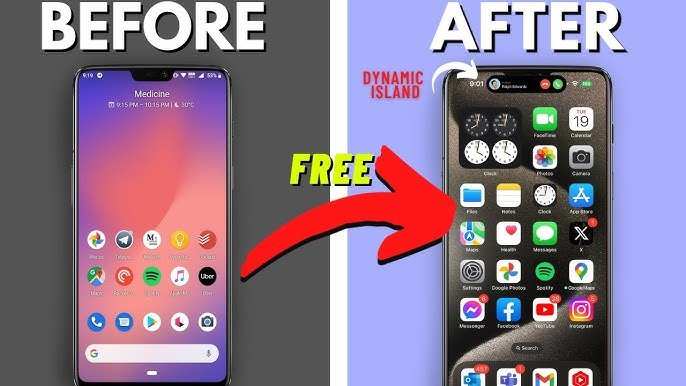
How to Make iPhone Look Like Android
If you’re someone who loves the flexibility and vivid customization options Android offers but still owns an iPhone, you’re in luck. It is absolutely possible to make your iPhone resemble an Android device. In this guide, we’ll explore multiple ways to modify your iPhone’s appearance and behavior, from changing wallpapers to tweaking icons, to give your device that Android feel. This process involves installing themes and apps that mimic Android’s signature look, all while keeping your iPhone secure and functional. Let’s dive into detailed steps to help you turn your iPhone into an Android-like device.Why Would You Want to Make an iPhone Look Like Android?
Many iPhone users find themselves curious about Android’s customization options. Android phones let users change icons, switch launchers, add widgets, and alter home screen layouts freely. For some, it’s about expressing individuality; for others, it’s about improving usability or simply trying something new. If you like the Android experience but prefer iPhone hardware, customizing your device is a great way to bridge the gap.Understanding the Limitations and Possibilities
Before we get started, it’s important to understand what can and cannot be done on an iPhone. Apple’s iOS is a closed system, meaning you cannot directly change system files or install full custom launchers like on Android. However, with the help of third-party apps, wallpapers, and certain tweaks, you can simulate many Android features. Jailbreaking is an option for more extensive modifications, but it comes with risks such as voiding warranty and reducing security. For most users, sticking to non-jailbreak methods is safer and sufficient.Steps to Make Your iPhone Look Like Android
To give your iPhone a complete Android makeover, follow these detailed steps:Choose and Install a Custom Launcher or Theme
While iOS doesn’t support custom launchers like Android does, there are apps that mimic this functionality.- Use Widget Apps: Apps like Widgetsmith or Color Widgets allow you to add widgets that resemble Android widgets, including clocks, weather, and shortcuts.
- Icon Packs: Download icon packs from the App Store or third-party sources that offer icon themes similar to Android icons. You can use these with the Shortcuts app to replace app icons.
- Shortcuts App: Create custom shortcuts that open your apps with custom icons, giving your home screen a uniform Android look.
Changing Wallpapers to Android Style
Android phones often feature vibrant backgrounds and wallpapers. To match this:- Search online for free Android wallpapers or live wallpapers.
- Save your favorite wallpapers to your photo gallery.
- Set them as your home screen or lock screen background through the Settings app.
Adjust Home Screen Layout
Android home screens are typically more cluttered, with widgets and app icons arranged in a grid.- Use the “Edit Home Screen” feature to move apps around.
- Arrange icons in a grid that resembles Android’s layout.
- Add widgets to your home screen using the widget menu and resize them as needed.
Installing Android-like Widgets
Widgets are a core feature of Android, offering quick access to information.- Download widget apps such as Widgetsmith, Color Widgets, or Widgy.
- Create widgets that display weather, calendars, news, or custom info, similar to Android widgets.
- Place these on your home screen for quick access and a more Android-like interface.
Using Third-Party Apps for Customization
Several apps can help you customize your iPhone further:- Icon Changer: Apps like “App Icons” or “Icon Themer” can replace app icons with Android-style icons.
- Launchers: While limited compared to Android, apps like “Launchify” or “Home Screen Widgets” can add some launcher-like features.
- Notifications: Use apps that mimic Android’s notification style for a more authentic look.
Modifying Settings for Android-like Behavior
To emulate Android behavior:- Disable or limit some iOS features like app badges for a cleaner look.
- Set up a custom control center that resembles Android quick settings by using settings and widgets.
- Adjust font styles and sizes in accessibility settings to match Android fonts better.
Tips for Maintaining Functionality and Security
While customizing, ensure your phone stays safe:- Only download apps from trusted sources like the App Store.
- Regularly update your apps and iOS to secure your device.
- Be cautious with third-party apps that claim to modify system features. Read reviews and check permissions.
- Back up your device before making significant changes.
Summary of Best Practices
To wrap up, here are key points to keep in mind:- Use apps like Widgetsmith, Color Widgets, and Shortcut to simulate Android widgets and icons.
- Customize your wallpaper and home screen layout to mimic Android’s look and feel.
- Install icon packs and create shortcuts for app icons.
- Add widgets and rearrange your home screen for a cluttered, Android-style appearance.
- Stay cautious about security and always prefer reputable apps and sources.
Frequently Asked Questions
How can I customize my iPhone’s home screen to resemble an Android device?
You can personalize your iPhone’s home screen by installing third-party launcher apps that mimic Android layouts. These apps often allow you to add new widgets, create app grids similar to Android, and customize icon styles. Additionally, you can organize your app icons and folders to resemble Android’s interface, giving your device a more familiar look.
What are some wallpaper and widget options to give my iPhone an Android appearance?
Selecting wallpapers that are common on Android devices, such as those with vibrant colors or abstract patterns, can help. You can also add third-party widgets that replicate Android widgets for weather, clock, or calendar directly onto your home screen. These small changes create an Android-like aesthetic on your iPhone.
Are there any specific app replacements that make iPhone features resemble Android counterparts?
Yes, you can replace some native iOS apps with alternative apps that function similarly to Android versions. For example, you might choose third-party app launchers, file managers, or notification managers that offer more customization options and resemble Android apps, contributing to the overall Android-like experience.
Can I change my iPhone’s icon style to match Android icons?
While iOS limits icon customization, using a third-party app or applying custom icon packs through Shortcuts can help you replace default icons with Android-style ones. You can find icon packs online and set them manually, which makes your app icons look more like those on Android devices.
What settings should I adjust to make my iPhone feel more like an Android device?
Adjusting notification styles, enabling certain visual effects, and configuring control center options can make your device feel more like Android. For instance, you can prioritize quick access to settings and customize notification banners to resemble Android’s style, creating a more familiar user experience.
Final Thoughts
To make iPhone look like Android, start by changing your wallpaper to a more customizable, vibrant design. Install a third-party launcher that offers Android-style home screens and app icons. Customize your widgets to resemble those found on Android devices, giving your iPhone a more familiar feel. Utilize app icon packs available on the App Store to mimic Android aesthetics. Adjust your control center and notification settings to resemble Android panels for a seamless transition. These steps allow you to personalize your iPhone, making it look like Android effortlessly.
Similar Posts































