How To Make Your Android Look Like An Iphone
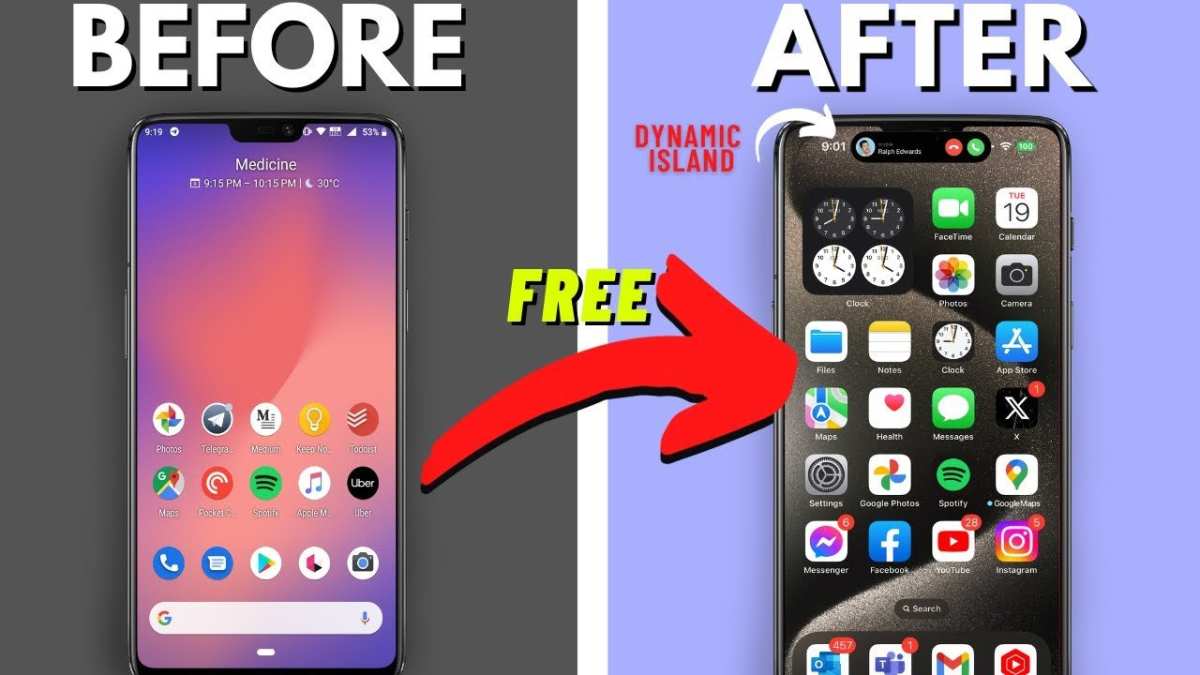

How to Make Your Android Look Like an iPhone
When you look at your Android device, you might wish it had the sleek and elegant design of an iPhone. While both phones are different, you can give your Android a fresh new look that resembles an iPhone without actually buying one. By customizing your device with the right apps, wallpapers, icons, and settings, you can make your Android look almost identical to an iPhone. Let’s explore step-by-step how you can achieve this transformation.Choose the Right Launcher for iPhone-Style Interface
The foundation of making your Android look like an iPhone starts with selecting an appropriate launcher. The launcher controls the overall appearance of your home screen, app drawer, icons, and gestures.What Is a Launcher?
A launcher is an app that replaces your default home screen. It allows you to change how your phone looks and how you navigate through your apps.Recommended Launchers for iPhone Look
- iOS Launcher: This type of launcher mimics the iOS interface with a similar home screen grid and app icon style.
- OneLauncher: Known for its clean design and iOS-like icons, it’s easy to use and customize.
- Phone 12 Launcher & iOS Launcher: These launchers replicate recent iPhone models, offering a close visual match.
Steps to Install and Set Up the Launcher
- Download your preferred iOS-style launcher from the Google Play Store.
- Open the app after installation and follow the on-screen instructions to set it as your default launcher.
- Customize the home screen by adjusting grid size, app icon size, and gesture controls if available.
Customizing Icons and App Layout
Icons play a significant role in giving your Android an iPhone appearance. iOS icons are uniform, rounded, and minimalistic with vibrant colors.Getting iPhone-Style Icons
- Download icon packs designed for iOS aesthetics. For example, “iOS Icon Pack” or “iOS 16 Icons” on Google Play.
- Many launchers allow you to change icons individually or apply a complete icon pack at once.
- To change an icon, press and hold the app, select “Edit” or “Change icon,” then choose an icon from the pack.
Creating a Consistent Icon Set
For a polished look:- Opt for icon packs with uniform style and sizes.
- Apply the pack to all app icons to maintain consistency across your home screen.
- Use a custom icon mask feature if your launcher supports it to give all icons a uniform round shape.
Designing the Home Screen and Widgets
The iPhone’s grid layout is clean, with fewer distractions. Making your Android mirror this involves arranging your apps neatly and adding widgets that resemble iOS features.Arranging Apps
- Place your most-used apps on the first page, similar to iPhone’s layout.
- Use folders for grouping apps, just like on iOS.
- Limit the number of apps on the home screen for a tidy look.
Adding iOS-Like Widgets
Widgets enhance functionality and appearance.- Download widget packs that resemble iOS widgets, like calendar, weather, or clock widgets.
- Use apps like “Widgetsmith” or “KWGT” to create custom widgets that match iPhone style.
- Place the widgets strategically to mimic iPhone’s sleek look. For example, place a large clock widget at the top or a weather widget at the bottom.
Wallpaper and Lock Screen Customization
The wallpaper sets the tone of your device. iPhones typically feature high-resolution, minimalistic backgrounds.Selecting iPhone-Style Wallpapers
- Search for “iPhone wallpapers” online or use apps like “Wallpapers for iPhone” on the Play Store.
- Choose high-quality images with minimal design, soft gradients, or solid colors.
- Set the wallpaper to both your home screen and lock screen for consistency.
Custom Lock Screen
You can mimic iPhone’s lock screen with:- Apps like “Niagara Launcher” or “Lock screen OS 16” that offer clean lock screen styles.
- Adding a live or static wallpaper similar to what appears on iOS.
- Configuring notifications to appear discreetly, similar to iOS notifications.
Notification Center and Gestures
iOS has a distinct notification system and gesture controls that provide a smooth user experience.Replicating iOS Notifications
- Use notification customization apps like “NotiStar” or “Floatify” to change how notifications appear and behave.
- Some launchers also allow you to pull down from the top to access a notification panel similar to iOS.
Gesture Controls
To make your device feel more like an iPhone:- Enable gesture navigation in your launcher or device settings.
- Configure gestures for home, back, and app switcher to mimic iOS swipe gestures.
Additional Tips for the Complete iPhone Look
– Use a minimalistic clock widget with white or black text depending on your background. – Disable app labels or minimize their size for a cleaner look. – Adjust animations in your launcher settings to match iOS smooth transitions. – Keep your device’s overall color scheme neutral and simple to resemble Apple’s aesthetic. Transforming your Android device to resemble an iPhone isn’t complicated. It mainly involves choosing the right launcher, customizing icons, arranging your home screen, and selecting wallpapers that reflect the minimalist iPhone style. With patience and a few downloads, you can enjoy a device that feels and looks like an iPhone, giving you the best of both worlds. Whether for aesthetic pleasure or just fun customization, these steps help you craft an Android that visually matches one of the most iconic smartphones in the world.Frequently Asked Questions
What are the best apps to imitate the iPhone interface on an Android device?
To replicate the iPhone experience, you should look for launchers that offer iOS-style icons, animations, and layout options. Popular options include the “iOS Launcher,” “Cider” or “iOS 16 Launcher.” These apps replace your default Android interface with one that closely resembles iOS, giving you familiar icons, dock, and app switcher styles. Make sure to choose a launcher that is lightweight and easy to customize for optimal performance.
How can I customize my Android home screen to resemble an iPhone’s layout?
Start by installing an iOS-style launcher, then organize your home screen with folders similar to iOS. Add widgets like clock, weather, or calendar in the style and placement of iPhone widgets. Adjust icon sizes and spacing to mirror iOS design. Many launchers allow you to remove app labels and set a consistent icon pack for an authentic look. Additionally, disable app drawer features if you want a static, iPhone-like home screen with all apps visible.
What changes do I need to make to my Android settings to mimic iPhone features?
Switch off app drawer and enable icon grid settings that match iPhone layout. Disable gestures or modify them to resemble iOS gestures. Adjust notification styles to match iOS’s notification center. Also, modify system sounds and animations to match iPhone’s subtle audio cues and transitions. Some launchers include customization options for these elements, allowing you to select themes and settings that resemble iOS behavior and aesthetics.
Can I change my Android’s status bar and navigation buttons to look like those on an iPhone?
Yes, numerous customization apps let you modify the status bar and navigation buttons. Use a status bar customization app to hide Android-specific icons and add iOS-style status icons. For navigation, you can switch to gesture controls or add a virtual home button similar to iOS. Some launchers or themes provide pre-set styles that change these elements instantly. Remember to balance visual changes with usability for the best experience.
Are there any particular themes or icon packs that help make my Android look more like an iPhone?
Yes, you can find themes and icon packs designed specifically to resemble iOS. Look for icon packs that feature minimalistic and rounded icons similar to iPhone app icons. Many launcher apps support these themes, so browse the app stores for “iPhone icon pack” or “iOS theme.” Applying these packs along with an appropriate launcher creates a cohesive, iPhone-like appearance across your device interface.
Final Thoughts
Making your Android look like an iPhone is straightforward with the right apps and settings. Install a launcher’s iOS-style interface, and choose icon packs that mimic Apple’s design. Customize your home screen to resemble an iPhone’s layout by adding widgets and app icons. Use apps like a launcher to change your UI quickly, and adjust the settings to hide Android-specific features. Changing wallpapers also helps achieve a cohesive iPhone appearance. In conclusion, knowing how to make your Android look like a iPhone can be simple and effective. Follow these tips to mimic the sleek iPhone style seamlessly.
Similar Posts































