Effective Tips For Using Android Battery Saver
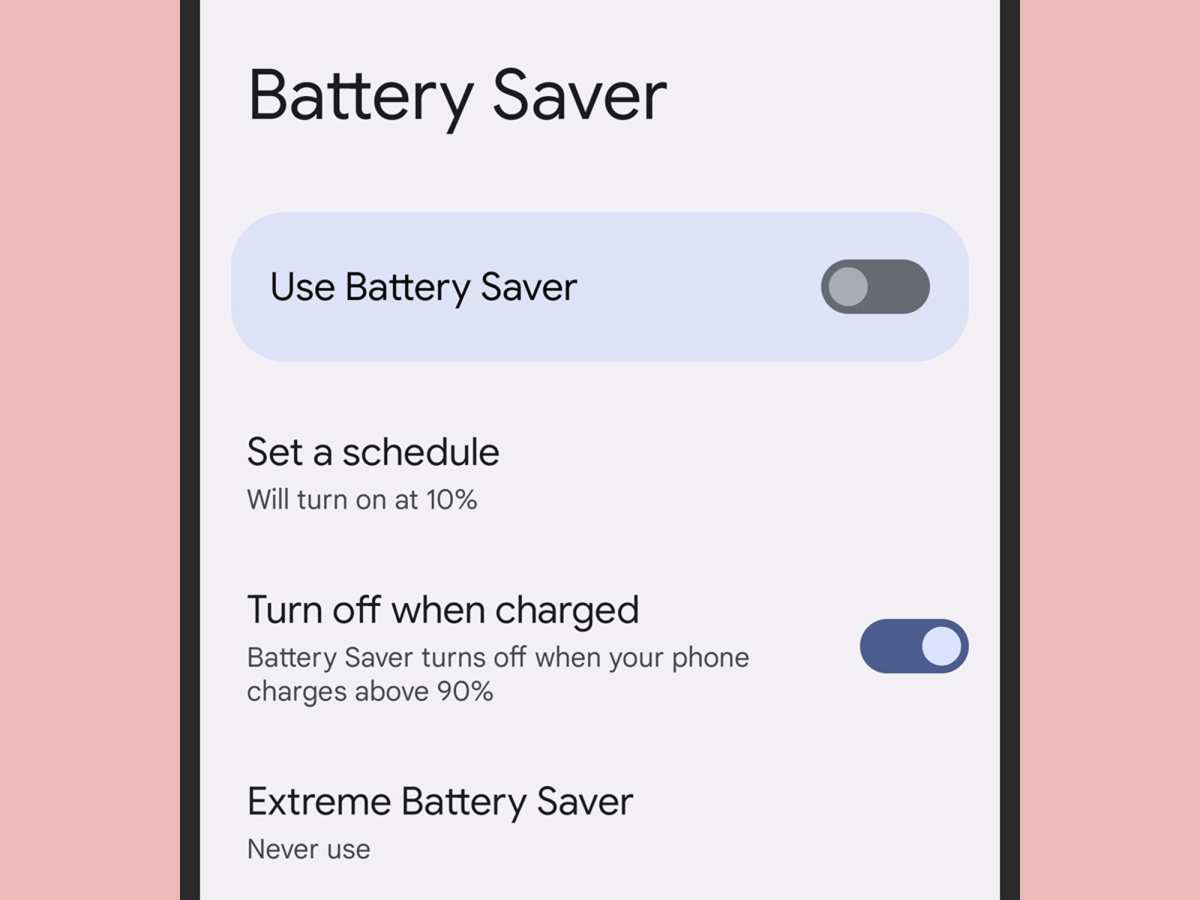
If your Android phone battery drains quickly, the solution lies in using an effective Android battery saver. **Activating the built-in battery saver mode can significantly extend your device’s lifespan on a single charge.** This feature reduces background activity and adjusts settings to conserve power.
Many Android devices have simple options to turn on battery saver from settings or quick access menus. Applying these steps helps keep your phone running longer, especially during busy days.

Understanding Android Battery Saver: Your Guide to Longer-Lasting Phone Power
If your Android phone’s battery runs out faster than you’d like, you’re not alone. Many users face this issue as apps, notifications, and system processes drain power throughout the day. Luckily, Android has a built-in feature called Battery Saver (or Power Saving Mode) that helps stretch your battery life, especially when you’re in a pinch. In this article, we’ll explore everything you need to know about Android Battery Saver, including how it works, when to use it, and tips to make it even more effective.
What Is Android Battery Saver?
Android Battery Saver is a feature designed to limit background activity, reduce performance, and turn off non-essential functions to conserve battery power. When you activate Battery Saver, your device automatically cuts down on things like app activity, location services, and visual effects. This means your phone can last longer between charges, especially during long trips or when you’re away from a charger.
How Does Android Battery Saver Work?
Battery Saver works by adjusting several system settings. Here’s a closer look at what it does:
- Reduces screen brightness and turns off adaptive brightness.
- Limits CPU performance to save energy.
- Suspends background apps—stop apps that run in the background from updating or sending notifications.
- Disables or reduces location services, including GPS.
- Turns off vibration and haptic feedback.
- Switches apps to a simplified version if available, like reduced animations.
These measures work together to cut down on energy consumption, allowing your device to operate longer on a single charge.
When Should You Use Android Battery Saver?
Knowing when to activate Battery Saver can make a big difference. Here are some common scenarios:
- You’re running low on battery and can’t find a charger nearby.
- You plan to spend the day outdoors without easy access to power outlets.
- Your phone’s battery drops quickly due to high app usage or background activity.
- You want to extend your device’s lifespan during busy days.
It’s best to enable Battery Saver early, before your phone’s battery level drops below 20%. This ensures maximum efficiency and longer usage intervals.
How to Enable and Customize Android Battery Saver
Activating Battery Saver on your Android device is straightforward. Here’s how you can do it:
- Pull down the notification shade from the top of your screen.
- Look for the Battery icon or the Power button.
- Tap on the Battery icon directly, which usually opens the battery menu.
- Tap on the “Battery Saver” or “Power Saving Mode” option.
- You can often set it to turn on automatically at a specific battery percentage for convenience.
Customizing Battery Saver Settings
Most Android devices allow you to customize what Battery Saver does. To access these options:
- Open the Settings app.
- Navigate to Battery & Device > Battery.
- Tap on Battery Saver or Power Saving Mode.
- Look for options like “Turn on automatically” at specific battery levels.
- Some phones let you choose which features to disable or keep active during saver mode.
Custom settings can help you decide how aggressive the saving mode should be, based on your preferences.
Tips to Maximize Battery Saver Efficiency
While Battery Saver helps extend your phone’s life, combining it with good usage habits makes a bigger impact. Here are some practical tips:
- Lower screen brightness manually, even when Battery Saver is off, as the display consumes most power.
- Use dark or black wallpapers and themes, especially on OLED screens, to save energy.
- Limit app notifications by managing notification settings; fewer notifications mean less background activity.
- Close apps you aren’t using to prevent them from running in the background.
- Disable Wi-Fi, Bluetooth, and NFC when they are not needed.
- Turn off location services unless necessary.
- Reduce screen timeout duration so your screen turns off quicker when not in use.
Understanding Battery Usage Stats
Checking which apps consume the most power helps you tailor your usage. To access battery usage stats:
- Open Settings.
- Go to Battery & Device > Battery.
- Tap on Battery Usage.
- Review the list to see which apps or services drain your battery the most.
If certain apps are persistent battery hogs, consider restricting their background activity or uninstalling them if they aren’t essential.
Balancing Battery Life and Performance
While Battery Saver limits background activity and reduces performance, some tasks may take longer or seem less smooth. Here’s how to strike a balance:
- Enable Battery Saver during low battery and disable it when charging or when battery is full.
- Use high-performance mode selectively for gaming or intensive tasks, and switch to Battery Saver afterward.
- Keep your apps and operating system updated, so they are optimized for energy efficiency.
Additional Tools and Apps for Battery Management
Besides the built-in Battery Saver, various third-party apps can help monitor and extend your battery life. When choosing such apps:
- Opt for trusted options with good reviews.
- Be cautious of apps that declare to boost battery life without clear evidence—they can sometimes do more harm than good.
- Regularly review app permissions and background activity through your device’s settings.
| Feature | What It Does |
|---|---|
| Battery Saver | Limits background activity, lowers performance, reduces system features |
| Adaptive Brightness | Automatically adjusts screen brightness based on ambient light; disable for manual control during saver mode |
| App Management | Close or restrict apps draining excessive power |
Summary of Best Practices for Android Battery Saving
To get the most out of Battery Saver and keep your Android device running longer, follow these tips:
- Always activate Battery Saver early, before your battery drops below 20%.
- Adjust display settings for lower energy consumption.
- Limit background activity and disable features you don’t need.
- Monitor battery usage regularly to identify apps or settings that consume extra power.
- Use automatic scheduling to turn on Battery Saver during specific times or battery levels.
By combining the built-in Android features with smart usage habits, you can significantly improve your device’s battery life and enjoy longer-lasting phone performance throughout your busy day.
Frequently Asked Questions
How can I extend my Android device’s battery life during the day?
To extend your Android device’s battery life, start by reducing screen brightness and shortening screen timeout duration. Turn off Wi-Fi, Bluetooth, and location services when not in use. Limit background app activity by closing unused apps and disabling auto-sync features. Using the built-in battery saver mode can also help conserve power during long periods without charging.
What features are typically available in Android battery saver modes?
Android battery saver modes usually limit background data and app activity to reduce power consumption. They might also adjust screen brightness, restrict notifications, and disable non-essential features like vibrations or visual effects. Some devices offer customizable options to tailor which functions to disable for optimal battery savings.
When should I activate the battery saver on my Android phone?
Activate the battery saver when your device’s battery drops below 20% or if you anticipate being away from a charger for an extended period. Turning it on early helps prevent sudden shutdowns and maximizes the remaining battery life, especially during critical times or emergencies.
Can third-party apps improve my Android battery performance?
Yes, some third-party apps can help optimize battery performance by identifying battery-draining processes, managing app activity, and providing detailed usage statistics. However, choose reputable apps and use them cautiously, as some may not deliver the promised benefits or could introduce privacy risks.
Are there any settings I should avoid changing to conserve battery effectively?
Avoid disabling essential features like mobile data or notifications that you rely on daily. Also, refrain from overly aggressive background activity restrictions that might hinder app functionality. Adjust settings gradually and monitor how each change affects both your device’s performance and battery life to find the right balance.
Final Thoughts
In summary, using an android battery saver helps extend your device’s battery life efficiently. It reduces background activity and optimizes settings to conserve power throughout the day. By activating this feature, you ensure your phone remains functional when needed most. The android battery saver is a simple yet effective tool to enhance your device’s longevity and performance.

Similar Posts