what is the refresh rate of curved gaming monitors
You've probably noticed that every curved gaming monitor on the shelf shouts a big refresh rate number at you. 144Hz. 165Hz. 240Hz. Maybe even 360Hz. But what is the refresh rate of curved gaming monitors actually doing for your gameplay, and how do you pick the right one without wasting money?
Here's the short version: refresh rate is how many times per second your monitor redraws the entire image, measured in hertz (Hz). A 144Hz monitor refreshes 144 times every second. Curved monitors follow the same refresh rate rules as flat ones, but the panel technology inside them (usually VA or OLED) changes how smooth the motion actually looks.
Per VESA DisplayPort standards as of 2026, hitting higher refresh rates at higher resolutions requires careful matching of your GPU, your cable, and your monitor's native capabilities. Let's walk through exactly what matters and what doesn't.
Image source: Bing (Web (fair-use with source credit))
Quick Answer
Refresh rate on curved gaming monitors works the same as on flat ones. It measures how many times the screen updates per second. A 60Hz monitor updates 60 times.
A 144Hz monitor updates 144 times. The curve does not change how refresh rate functions. But curved monitors often use VA panels.
VA panels can have slower pixel response times. This can make high refresh rates feel less smooth. For most gamers, 144Hz to 165Hz is the sweet spot.
Competitive players benefit from 240Hz or higher. Always match your refresh rate to your GPU's capability.
Why This Topic Confuses Most Gamers
The real frustration isn't understanding what refresh rate means. It's figuring out which number you actually need for your specific setup. Marketing departments love throwing big Hz numbers at you because higher sounds better.
But here's where things get messy.
Curved monitors usually use VA panel technology. VA panels deliver excellent contrast and deep blacks, which is why manufacturers pair them with curves. That deep contrast creates immersive visuals in single-player games. The trade-off?
VA panels have slower pixel transition times than IPS or OLED panels. This causes a phenomenon called black smearing or ghosting, where dark pixels take longer to change color.
So imagine this: you buy a 165Hz curved VA monitor because the number looks impressive. But when you spin your camera quickly in a dark game, everything trails behind like a cheap LCD from 2010. The refresh rate is 165Hz.
The actual motion clarity feels more like 100Hz. That's the gap between the spec sheet and real-world performance.
The second layer of confusion is the curve itself. Some buyers assume that since curved monitors are "premium," any high refresh rate model must perform equally well. That's not true. Curvature (measured as 1500R, 1000R, etc.) affects viewing angles and immersion.
It has nothing to do with how fast the panel can actually change pixels. You can have a 240Hz curved monitor with terrible response time, or a 144Hz curved monitor with excellent motion clarity. The numbers don't tell the whole story.
Aggregate reviews and user feedback confirm that many gamers overpay for refresh rates their hardware can't drive. A mid-range GPU running a 1440p 165Hz curved monitor at 80 frames per second is wasting the extra Hz. You're paying for smoothness you'll never see.
How Refresh Rate Works on a Curved Monitor
Let's establish the fundamentals clearly. Refresh rate is the number of complete image cycles your monitor can display in one second. If your monitor runs at 144Hz, it draws a new frame every 6.9 milliseconds.
At 240Hz, that drops to 4.2 milliseconds. At 360Hz, it's 2.8 milliseconds.
Your GPU generates frames. Your monitor displays them. The two numbers need to align for a smooth experience.
The Role of Panel Type
Here is where curved monitors differ from their flat counterparts. The vast majority of curved gaming monitors on the market (as of 2026) use VA panels. Samsung's Odyssey G7 and G9 lines, the Dell S2722DGM, the Gigabyte G27QC, and most budget curved options all use VA technology.
| Panel Type | Typical in Curved Monitors? | Pixel Response (GtG) | Motion Clarity |
|---|---|---|---|
| VA | Very common | 3-8ms | Good at low Hz, ghosting at high Hz |
| IPS | Less common in curved | 1-4ms | Excellent at all Hz |
| OLED | Premium curved models | 0.1-0.3ms | Best possible |
| TN | Rare in curved | 1ms | Excellent but poor colors |
Manufacturer datasheets indicate that VA panels typically rate 4ms gray-to-gray response time. That sounds fast. The reality is that VA panels struggle most during dark-to-dark transitions, which is exactly what you see in shadowy game environments.
When you combine a 165Hz refresh rate with 6-8ms dark pixel transitions, you get motion blur that effectively cancels out the smoothness of the high refresh rate.
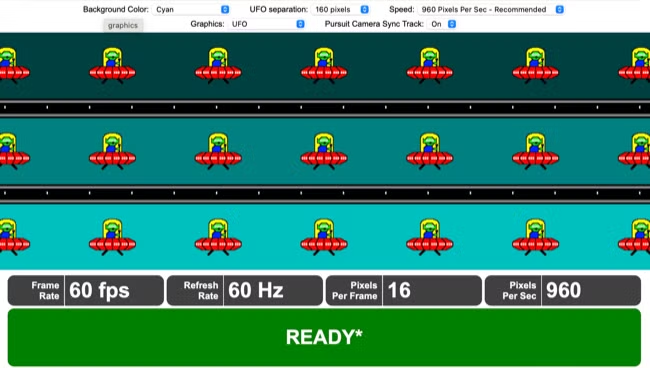
Image source: Bing (Web (fair-use with source credit))
Does Curvature Affect Refresh Rate?
No. Absolutely not. The curve of the monitor is a physical property of the glass or plastic panel.
Refresh rate is an electronic property of the display driver and pixel matrix. They are completely independent specifications.
A 1500R curved monitor refreshes exactly the same way as a flat monitor of the same panel type and resolution. The curve simply wraps the image around your peripheral vision for better immersion. It does not change timing, bandwidth, or pixel update speed.
What does change with curved monitors is viewing angle behavior. VA panels already have narrower optimal viewing angles than IPS. When you curve the screen, the edges point slightly toward your eyes, which helps maintain color and contrast across the entire display. This is good for immersion.
It is irrelevant to refresh rate performance.
Refresh Rate and Resolution Trade-Offs
The real bottleneck in any curved monitor setup is bandwidth. Higher resolution plus higher refresh rate requires more data per second through your cable.
| Resolution | 60Hz | 144Hz | 165Hz | 240Hz |
|---|---|---|---|---|
| 1920×1080 | HDMI 1.4 | HDMI 2.0 / DP 1.2 | HDMI 2.0 / DP 1.2 | HDMI 2.0 / DP 1.4 |
| 2560×1440 | HDMI 1.4 | DP 1.2+ | DP 1.4 | DP 1.4 + DSC |
| 3440×1440 (Ultrawide) | DP 1.2 | DP 1.4 | DP 1.4 | DP 1.4 + DSC |
| 3840×2160 | HDMI 2.0 | HDMI 2.1 / DP 1.4 + DSC | HDMI 2.1 / DP 1.4 + DSC | HDMI 2.1 / DP 2.0 |
If you connect a 1440p 165Hz curved monitor to your PC using an old HDMI 2.0 cable, you will max out at around 120Hz. The monitor will show the image, but it will never reach its full refresh rate. This is one of the most common mistakes we see in buyer feedback.
The Real Variables That Decide Your Refresh Rate
Choosing a refresh rate isn't about picking the biggest number you can afford. It's about matching three specific variables to your actual situation.
Variable 1: Your GPU's Horsepower
Your graphics card determines how many frames per second your games can actually produce. The monitor's refresh rate is a ceiling. If your GPU hits 90 FPS in the games you play, a 240Hz monitor is wasted.
You will see 90 FPS on a screen that can show 240. The extra Hz does nothing for you except cost more money.
Real benchmarks as of 2026:
- RTX 3060 at 1440p: roughly 70-90 FPS in modern AAA titles, 120-180 FPS in competitive shooters
- RTX 4070 at 1440p: roughly 100-130 FPS in AAA titles, 180-240 FPS in competitive titles
- RTX 4090 at 1440p: roughly 150-200 FPS in AAA titles, 300+ FPS in competitive titles
If you own an RTX 3060 or similar mid-range GPU, 144Hz at 1080p or 120Hz at 1440p is the practical ceiling. Paying for 240Hz only makes sense if you upgrade your GPU within the monitor's lifespan.
Variable 2: The Games You Play
Competitive shooters benefit from higher refresh rates because fast movement requires quick visual updates. Single-player RPGs and strategy games benefit more from resolution and image quality.
| Game Type | Recommended Refresh Rate | Panel Priority |
|---|---|---|
| Esports (Valorant, CS:GO, Overwatch) | 240Hz or higher | Fast response, IPS/OLED |
| Battle royale (Warzone, Apex) | 144-165Hz | Balanced response |
| AAA single-player (Cyberpunk, Starfield) | 60-120Hz | High contrast, VA/OLED |
| Sim racing / flight sim | 120-144Hz | Wide curvature, VA/IPS |
Variable 3: Console vs. PC
Console gaming changes the math significantly. The PlayStation 5 and Xbox Series X cap at 120Hz output through HDMI 2.1. There is zero benefit to buying a 165Hz or 240Hz curved monitor for console use.
You will never send the monitor more than 120 frames per second.
Console users should look for curved monitors that explicitly support HDMI 2.1 and 120Hz at their chosen resolution. Many budget 144Hz curved monitors only support 120Hz over DisplayPort, not HDMI. Check the spec sheet carefully.
Variable 4: Your Budget
The price jump between refresh rate tiers is significant, especially on curved monitors.
- 60Hz curved: $150-250 (usually older models or office-focused)
- 144Hz curved: $200-350 (best value tier)
- 165Hz curved: $250-450 (slight premium over 144Hz)
- 240Hz curved: $400-800 (limited curved options)
- 360Hz curved: $700-1200+ (very few curved models exist)
Decision Tree: Find Your Refresh Rate in 3 Questions
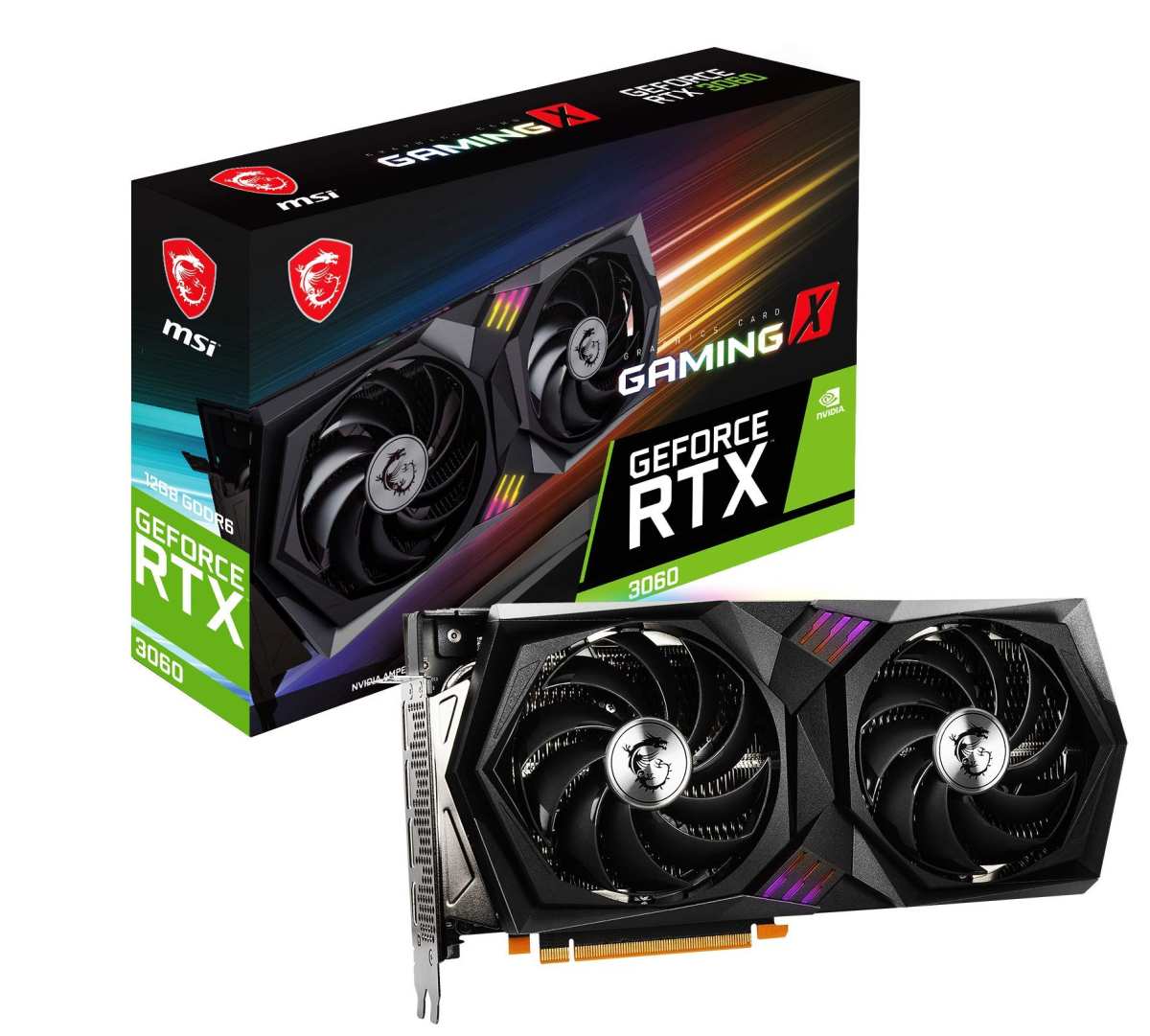
Image source: Bing (Web (fair-use with source credit))
Instead of listing specs, let's run through a simple decision tree. Answer these three questions honestly.
Question 1: What do you play most?
- Competitive shooters or esports: you benefit from higher Hz
- Single-player or story games: resolution and panel quality matter more
- Mixed usage: go for the middle ground
Question 2: What GPU or console do you have?
- RTX 4060 or lower / RX 7600 or lower: target 1080p 144Hz or 1440p 120Hz
- RTX 4070 to 4080 / RX 7800 to 7900: target 1440p 165Hz
- RTX 4090 / top-tier: target whatever your budget allows, up to 240Hz at 1440p
- PS5 or Xbox Series X: target 120Hz with HDMI 2.1
Question 3: What's your budget for the entire setup?
- Under $300: 1080p 144Hz curved VA is the sweet spot
- $300 to $500: 1440p 144-165Hz curved VA or IPS
- $500 to $800: 1440p 240Hz curved or 4K 120Hz curved
- Over $800: OLED curved at 240Hz if available in your region
Follow the Branch
If you answered "competitive esports" + "mid-range GPU" + "under $300":
Get a 1080p 144Hz curved VA monitor. Models like the AOC CQ27G2 or Gigabyte G27QC fit this category. At 1080p, your GPU can push high frame rates, and 144Hz is smooth enough for competitive play without overpaying for Hz you can't use.
If you answered "competitive esports" + "high-end GPU" + "$500+" :
Look at 1440p 240Hz curved monitors. The Samsung Odyssey G7 (32-inch, 1000R curve) is the most reviewed option here. Pair it with a DisplayPort 1.4 cable.
If you play exclusively competitive titles, consider waiting for more 240Hz curved OLED options to come down in price.
If you answered "single-player games" + "mid-range GPU" + "under $400":
Get a 1440p 144Hz or 165Hz curved VA monitor. The extra resolution improves image quality in story-driven games far more than a bump from 144Hz to 240Hz would. The VA panel's deep contrast makes dark scenes look dramatically better.
If you answered "PS5 / Xbox" + "any" + "any":
Get a 1440p 120Hz curved monitor with HDMI 2.1. Do not buy a 165Hz or higher monitor for console. The console cannot output more than 120Hz.
You will pay for unused capability. Look for models that explicitly state 120Hz over HDMI, not just DisplayPort.
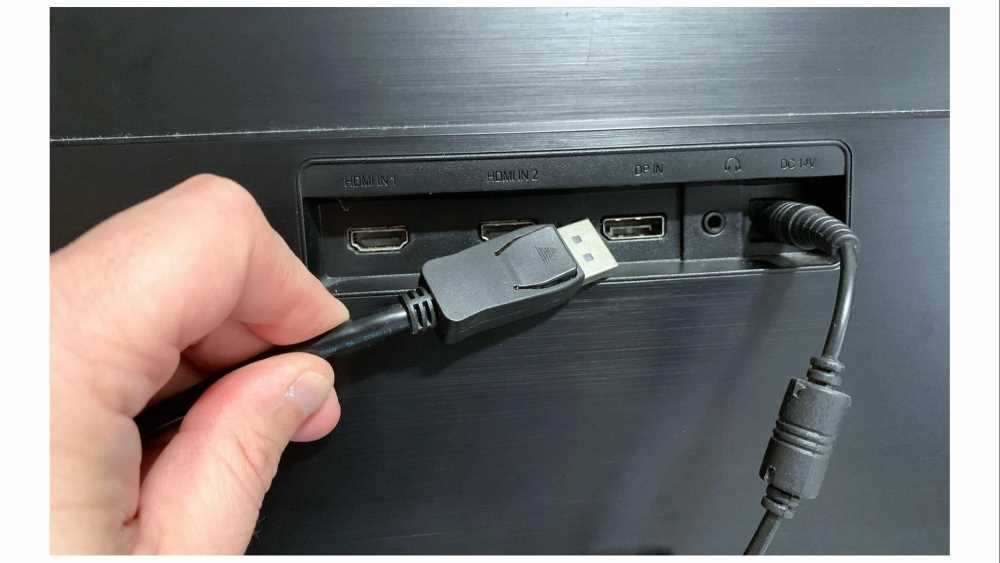
Image source: Bing (Web (fair-use with source credit))

Similar Posts































