Gemini for Gmail
If you've been hearing about Gemini showing up inside Gmail and you're wondering what the fuss is actually about, you're in the right place. Gemini for Gmail is Google's push to bring AI-powered drafting, summarization, and tone adjustment directly into your inbox. No add-ons.
No copy-pasting into a separate tool. It's baked right into Gmail if you have the right subscription.
As of 2026, Google has integrated Gemini 1.5 models (Flash and Pro) into Gmail through a sidebar and a "Help me write" prompt. Access requires either the Google One AI Premium plan or specific Google Workspace admin enablement, depending on your account type. Let's break down exactly what it does, how to turn it on, and where it's genuinely useful versus where it falls flat.
Quick Answer
Gemini in Gmail is an AI writing assistant built into your inbox. It works within Gmail on desktop through a sidebar panel. It requires a Google One AI Premium subscription at $19.99 per month.
Key features include drafting emails from short prompts, summarizing long threads, adjusting reply tone, and suggesting follow-up responses. For Google Workspace accounts, an admin must enable it before users can access it.
What Are the Gemini Features in Gmail?
Gemini isn't just one feature in Gmail. It's a collection of AI-powered tools that show up in different places depending on what you're doing. Some work passively in the background.
Others require you to actively prompt them.
Help Me Write
This is the headline feature. You click a button in the compose window, type a short description of what you want to say, and Gemini drafts the email for you. For example, you could type "Politely decline a meeting invite and suggest next Tuesday instead" and get a full email draft.
The quality of the draft depends heavily on how specific your prompt is. Vague prompts like "write a professional email" produce generic results. Detailed prompts that include context, tone, recipient, and key points produce much stronger drafts.
Aggregate feedback suggests response times for initial drafts take roughly 10 to 20 seconds. This varies based on prompt complexity and server load.
Thread Summarization
When you open a long email thread, Gemini can generate a summary of the entire conversation. This is particularly useful for catching up after a few days away or getting up to speed on a thread you've been added to mid-discussion.
However, because Gemini is an AI-powered language model, summaries are not always complete or factually accurate for very long threads. It may miss key decisions made early in a conversation or misattribute who said what. Always verify important details against the original emails before acting on a summary.
Suggested Replies
Gemini offers contextual reply suggestions based on the email you're reading. These go beyond the basic one-tap Smart Reply options Gmail has offered for years. Gemini-suggested replies tend to be longer, more specific, and more naturally worded.
You'll typically see three suggested replies when viewing an email. Each one represents a different angle, like accepting, declining, or asking a clarifying question. You can tap one to open it in the compose window and edit before sending.
Tone Adjustment
After drafting an email, you can have Gemini adjust the tone. Options typically include formal, friendly, concise, and diplomatic variations. This is useful when you've written something in the heat of the moment and want it to land differently before hitting send.
Tone adjustment works best on drafts that are already reasonably clear. If the base draft is confusing, changing the tone won't fix the underlying problem.
Where Gemini Appears in Gmail
Gemini features are not available in every corner of Gmail. Here's where you'll find it and where you won't:
| Location | Gemini Available? | Notes |
|---|---|---|
| Gmail desktop web (sidebar) | Yes | Primary Gemini panel with all features |
| Gmail compose window (Help me write) | Yes | Button in new message window |
| Gmail mobile app (Android) | Yes | Summarize and suggested replies |
| Gmail mobile app (iOS) | Yes | Summarize and suggested replies |
| Gmail basic web view | No | Limited to standard Gmail interface |
| Third-party email clients | No | Only works within Google's Gmail interface |
How to Access Gemini in Gmail: Where It Works and Where It Doesn't
Getting Gemini working in Gmail is straightforward, but there are a few requirements and gotchas that trip people up.
Subscription Requirements
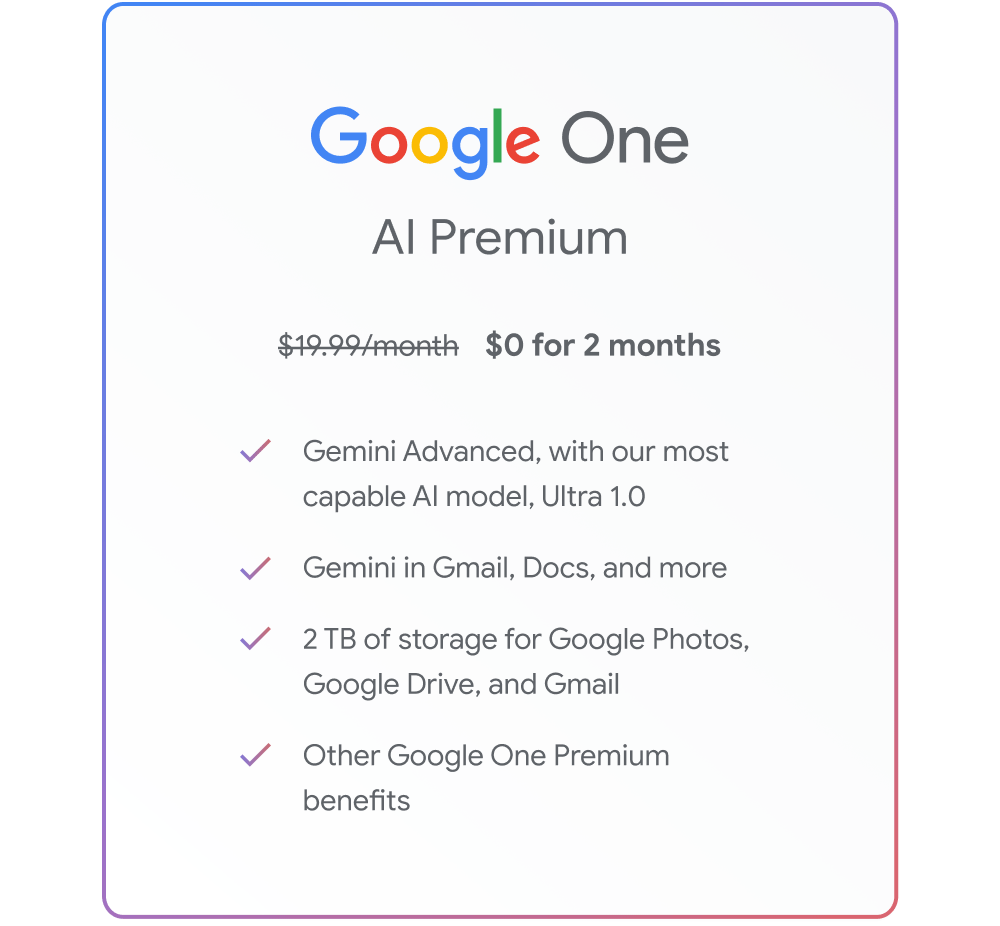
You need an active Google One AI Premium subscription. This costs $19.99 per month and includes 2 TB of Google One storage along with access to Gemini Advanced, Gemini in Docs, Sheets, and Gmail, and a 1 million token context window for longer conversations.
Without that subscription, the Gemini sidebar and Help me write features simply won't appear in your Gmail interface. There is no free tier for Gemini in Gmail as of 2026. Google has experimented with limited free access during promotional periods, but standard access requires the paid plan.
Google Workspace Accounts
If you use Gmail through a company Google Workspace account, your admin needs to enable Gemini features at the organizational level before you can access them. This is controlled through the Admin Console under Apps, Google Workspace, Gmail, and Gemini settings.
Even with your personal Google One AI Premium subscription, your organization's admin policies may restrict or limit Gemini access. This is common in healthcare, financial services, and government sectors where data handling regulations are stricter.
Activation Steps
Once you have the right subscription or admin enablement, Gemini features are generally active by default. No additional setup is needed on your part.
For the sidebar panel:
- Open Gmail in a desktop browser.
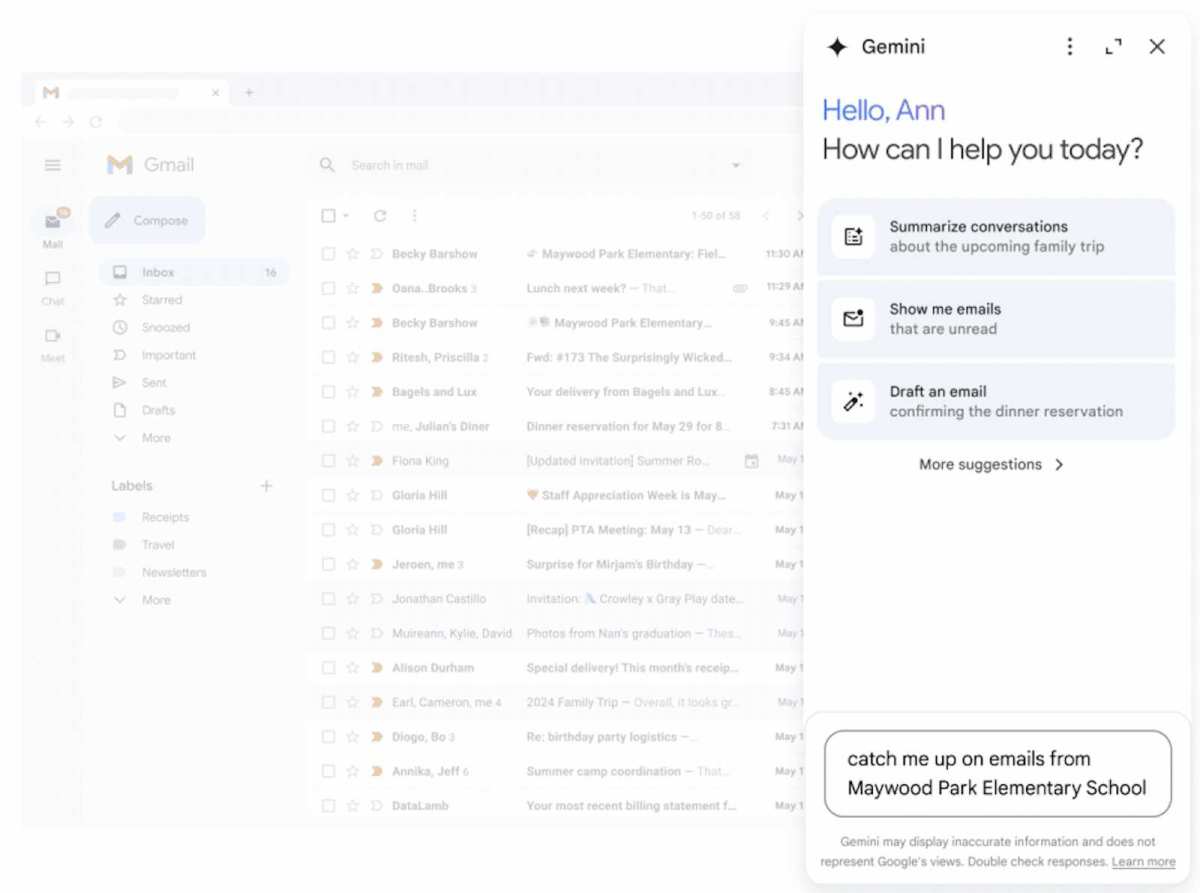
- Look for the Gemini icon in the right sidebar.
- Click it to open the Gemini panel.
- Start typing prompts or select from suggested actions.
For Help me write:
- Click Compose in Gmail.
- Look for the Help me write icon (a pencil with sparkles) in the compose toolbar.
- Enter a brief prompt describing your email.
- Click Insert to add the draft to your compose window.
For thread summarization:
- Open any email thread.
- Look for the summary card at the top of the thread.
- Read the summary and click individual emails to verify key points if needed.
Regional Availability
Gemini in Gmail is available in most major markets including the United States, United Kingdom, Canada, Australia, and Japan. Language support varies. English receives the most robust feature support, while other languages may have limited summarization or drafting quality.
If you're in a region where Google One AI Premium is not yet offered, Gemini features in Gmail will not be accessible regardless of your account type.
Step-by-Step: Getting Gemini to Draft, Summarize, and Improve Emails
Here's the practical workflow for getting real value from Gemini in Gmail.
Drafting a New Email with Gemini
- Click Compose in Gmail.
- In the compose window, click the Help me write button.
- Write a prompt that includes the purpose, recipient context, tone, and key points.
- Example prompt: "Write a thank-you email to a client after a product demo. Mention we enjoyed the conversation, recap next steps around pricing and implementation timeline, and end with a casual but professional tone."
- Review the generated draft carefully.
- Edit as needed, then send.
Vague prompts create vague emails. The more detail you give Gemini, the less editing you'll need to do afterward. Think of it like briefing a competent but literal-minded assistant.
It does exactly what you ask, nothing more.
Summarizing a Long Thread
- Open the email thread you want summarized.
- Look for the Gemini summary card at the top.
- Read through the summary.
- Cross-check against the original emails for accuracy if the thread involves commitments, deadlines, or action items.
Do not blindly trust Gemini summaries for threads involving legal matters, financial commitments, or sensitive personnel discussions. As an AI language model, Gemini can mis attribute statements or paraphrase in ways that change meaning.
Adjusting Tone of an Existing Draft
- Write or paste your email draft into the compose window.
- Open the Gemini sidebar.
- Ask Gemini to adjust the tone, like "Make this more diplomatic" or "Make this more concise and direct."
- Review the revision for accuracy and voice consistency.
- Insert or copy the revised version into your compose window.
Writing Effective Prompts
Prompt quality determines output quality. Here's what works:
- Specify the audience and relationship to the recipient.
- Include the key points you want covered in order.
- Mention the tone you're going for.
- Give a desired length or level of detail.
- Provide context about what came before in the conversation.
Here are some strong prompt examples across common scenarios:
- "Write a brief apology email to a team member who wasn't included in a meeting invite. Acknowledge the oversight, explain it was unintentional, and invite them to the next session. Keep the tone warm and direct."
- "Draft a follow-up message after sending a proposal. Ask if they've had time to review, offer to schedule a call, and mention the proposal is valid through end of month. Tone should be helpful, not pushy."
- "Politely decline a speaking invitation. Express appreciation for the offer, briefly explain a scheduling conflict, and suggest staying in touch for future events. Keep it brief but personable."
Smart Compose vs Gemini — Which Gmail AI Features Should You Use?
Google has been putting AI in Gmail for years. Before Gemini, there were Smart Compose and Smart Reply. So how do you know which tool to reach for?
What Smart Compose Does
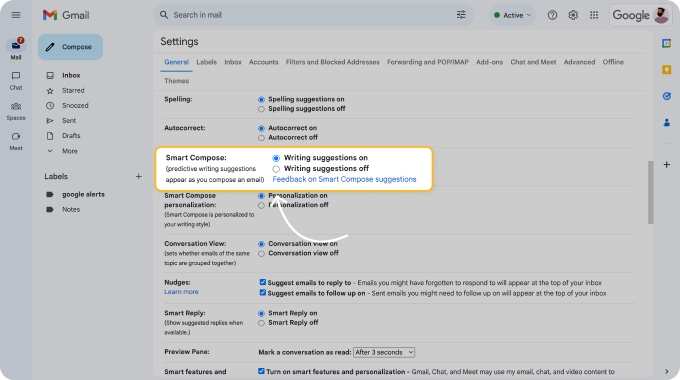
Smart Compose offers autocomplete suggestions as you type. After you've written a few words of a sentence, it suggests how to finish it. You press Tab to accept the suggestion or keep typing and it ignores it.
It's passive and reactive. It only kicks in after you've started typing, and it works at the sentence level. It doesn't draft emails for you.
It doesn't summarize threads. It doesn't adjust tone.
Smart Compose is useful for speeding up the mechanical act of typing common phrases and sentences. Think of it as Gmail finishing your sentences for you Does
Gemini requires active initiation. You prompt it to draft, summarize, or revise. It generates entire emails or responses from short instructions.
It reads full thread context. It works at the paragraph and email level.
Gemini is useful for the thinking and composition side of email. When you don't know what to say or how to say it, Gemini gives you a starting point.
Which One Should You Actually Use?
The short answer: both, for different purposes.
| Situation | Use Smart Compose | Use Gemini |
|---|---|---|
| Typing routine emails quickly | Yes | Not needed |
| You know what to say but want to speed up typing | Yes | Overkill |
| You don't know how to phrase something | No | Yes |
| You need to draft a complex email from scratch | No | Yes |
| You're catching up on a long thread | No | Yes |
| You want to adjust tone of an existing draft | No | Yes |
| You're writing a quick, simple reply | Yes | Optional |
Smart Compose handles the mechanical work. Gemini handles the creative and analytical work. They complement each other more than they compete.
If you only had to pick one, Gemini covers more ground. But Smart Compose is faster for everyday replies where you already know what you want to say.
The other factor is that Smart Compose is free for all Gmail users. Gemini requires the Google One AI Premium subscription. Budget matters here.
When Gemini in Gmail Saves You Time (And When It Creates More Work)
Gemini shines in specific scenarios and falls apart in others. Knowing the difference saves you from wasting time on AI output that needs more editing than just writing the email yourself.
Where Gemini Actually Helps
High-volume email days. When you're grinding through 30 or 40 emails, Gemini's suggested replies and quick drafts cut the time per message significantly. The cumulative savings add up fast.
Unfamiliar situations. Writing a difficult email, like a complaint, a negotiation follow-up, or a sensitive personnel message, is where Gemini earns its keep. It gives you a structured starting point when you're not sure how to phrase things.
Non-native English speakers. Gemini's tone adjustment and drafting features help bridge the gap between knowing what you want to say and expressing it naturally in English. This is one of the most consistently praised use cases in aggregate feedback.
Catching up after time off. Thread summarization is genuinely useful when you return from a few days away and face a inbox full of conversations you weren't part of.
Where Gemini Creates More Work
Highly technical or specialized emails. If you're writing about a niche technical topic, Gemini's drafts tend to be generic or subtly wrong. You'll spend more time correcting inaccuracies than you would have spent writing from scratch.
Emails requiring precise legal or financial language. Gemini is not a lawyer or accountant. Any email involving contractual terms, compliance language, or financial commitments needs human review. Period.
Short, simple replies. For a two-sentence response, opening Gemini, typing a prompt, reviewing the output, and editing takes longer than just typing the reply yourself.
Emails where your personal voice matters. If the recipient knows you well, a Gemini-generated email can feel off. The tone may be technically correct but lack the specific cadence and word choices that make it sound like you.
Common Mistakes People Make With Gemini in Gmail
Trusting Summaries Without Verifying
The biggest mistake is treating Gemini summaries as gospel. They're helpful starting points, not authoritative records. Always verify action items, commitments, and decisions against the original emails before acting.
Using Vague Prompts
"Write a professional email" produces a bland, generic draft. The quality of Gemini's output is directly proportional to the specificity of your input. Spend an extra 15 seconds writing a detailed prompt and save yourself 5 minutes of editing.
Sending Without Reviewing
Gemini can produce emails that sound confident but contain factual errors, wrong names, or misattributed details. Always read the full draft before sending. This is especially important for emails going to clients, executives, or external partners.
Ignoring Tone Mismatch
Gemini's default tone tends toward neutral-professional. If your relationship with the recipient is casual or your company culture is informal, the draft may feel stiff. Use the tone adjustment feature or edit manually to match your natural voice.
Assuming It Works Everywhere
Gemini features are not available in third-party email clients like Outlook, Apple Mail, or Thunderbird. They only work within Google's own Gmail interface. If you access Gmail through another client, you won't see any Gemini features.
Privacy, Compliance, and Safety: What You Need to Know Before Using Gemini
How Google Handles Your Data
Per Google's documentation, content you input into Gemini in Gmail may be used to improve Google's AI models, depending on your account settings. Google Workspace enterprise customers can typically disable this through admin controls. Personal Google account users should review their Google One AI Premium privacy settings to understand what data is retained and how it's used.
Sensitive and Regulated Industries
If you work in healthcare, finance, government, or legal sectors, check with your compliance team before using Gemini in Gmail. Emails containing protected health information (PHI), personally identifiable information (PII), or material nonpublic information may violate HIPAA, GDPR, SEC regulations, or internal data handling policies when processed by AI tools.
Google Workspace admins can restrict Gemini access at the organizational, departmental, or individual user level through the Admin Console. This is the primary control mechanism for organizations that need to limit AI access.
Practical Safety Guidelines
- Never paste confidential client data, passwords, or financial account numbers into Gemini prompts.
- Review your organization's data retention and AI usage policies before enabling Gemini.
- If in doubt, draft sensitive emails manually and use Gemini only for non-sensitive correspondence.
- Remember that Gemini's outputs are generated by an AI language model, not a verified source of truth.
Alternatives to Gmail's Built-in Gemini — And When They're a Better Fit
Gemini in Gmail isn't the only option for AI-assisted email. Several alternatives exist, each with different strengths.
Copy-Paste Workflows with ChatGPT or Claude
Some people prefer drafting emails in ChatGPT or Claude, then copying the output into Gmail. This gives you more control over the prompt and the ability to iterate on the draft in a dedicated chat interface.
This approach works well for complex or high-stakes emails where you want more back-and-forth refinement than Gmail's sidebar allows. The downside is the extra step of switching between tools.
Grammarly
Grammarly focuses on grammar, spelling, clarity, and tone. It doesn't draft emails from prompts, but it catches errors and suggests improvements as you type. It's a complement to Gemini rather than a replacement.
Microsoft Copilot for Outlook
If your organization uses Microsoft 365, Copilot in Outlook offers similar features to Gemini in Gmail. The two are functionally comparable, and your choice between them usually comes down to which email platform your organization uses.
When to Use an Alternative
| Situation | Better Alternative |
|---|---|
| You need extensive back-and-forth refinement | ChatGPT or Claude |
| You want grammar and tone checking without full drafting | Grammarly |
| Your organization uses Microsoft 365 | Copilot for Outlook |
| You need industry-specific language (legal, medical) | Manual drafting with specialized templates |
Pricing and Requirements for Using Gemini in Gmail
Access to Gemini in Gmail requires a Google One AI Premium subscription. As of 2026, pricing is $19.99 per month in the United States. Regional pricing varies, with equivalent pricing in the United Kingdom, Canada, Australia, and other supported markets.
The subscription includes:
- Gemini Advanced access (the full Gemini experience across Google products)
- Gemini in Gmail, Docs, Sheets, Slides, and Meet
- 2 TB of Google One storage
- 1 million token context window for longer conversations
There is no standalone option to purchase only Gemini in Gmail. It's bundled with the broader Google One AI Premium plan.
Google Workspace admins can enable Gemini for their organization, but individual users still need the AI Premium subscription unless their organization has negotiated enterprise licensing that includes Gemini access.
Real Scenarios Where Gemini in Gmail Helps
Scenario 1: The overflowing inbox. You return from a three-day trip to 200 unread emails. Gemini's thread summarization lets you quickly identify which threads need your attention and which you can archive. You spend 20 minutes getting through what would have taken an hour.
Scenario 2: The difficult conversation. You need to tell a long-term vendor you're switching to a competitor. Gemini helps you draft a message that's firm but respectful, preserving the relationship for potential future work.
Scenario 3: The non-native speaker. You're a professional working in English as a second language. Gemini's tone adjustment helps you sound natural and confident in client emails, reducing the anxiety of second-guessing your phrasing.
Scenario 4: The repetitive responses. You're a support manager sending similar responses to common customer issues. Gemini drafts consistent, clear responses that you can quickly personalize and send.
Final Recommendation: Should You Use Gemini in Gmail?
Gemini in Gmail is worth it if you send a lot of emails, struggle with tone or phrasing, or regularly face long threads that need summarizing. The Google One AI Premium subscription pays for itself in time saved if email is a significant part of your daily work.
It's not worth it if you send only a handful of emails per day, work in a regulated industry with strict data policies, or prefer writing everything manually. The subscription cost is hard to justify for light email users.
For most professionals who live in their inbox, Gemini is a practical tool that handles the tedious parts of email communication. Just don't skip the review step. AI drafts are starting points, not finished products.
Frequently Asked Questions
Is Gemini in Gmail free?
No. Gemini in Gmail requires a Google One AI Premium subscription at $19.99 per month. There is no free tier for these features as of 2026.
Does Gemini in Gmail work on mobile?
Yes. Gemini features are available in the Gmail mobile app on both Android and iOS. You'll find thread summarization and suggested replies, though the full sidebar experience is desktop-only.
Can my employer see what I write with Gemini?
If you use a Google Workspace account, your organization's admin may have access to certain data depending on their policies. Check with your IT or compliance team for specifics on your organization's data handling.
Does Gemini store my emails?
Google's data handling policies apply. Content processed by Gemini may be retained according to your account settings. Review Google's privacy documentation and your Google One AI Premium terms for details.
Can I turn off Gemini in Gmail?
Yes. You can disable Gemini features through your Gmail settings or your Google One account settings. Google Workspace admins can also disable it at the organizational level.
Is Gemini in Gmail available outside the United States?
Yes. Gemini in Gmail is available in multiple regions including the United Kingdom, Canada, Australia, and Japan. Feature availability and language support may vary by region.
Gemini vs Other AI Email Assistants (Copy-Paste Workflows, Add-ons)
Gemini in Gmail competes with several other approaches to AI-assisted email. Here's how the main alternatives stack up.
Copy-Paste Workflows (ChatGPT, Claude)
Some professionals prefer drafting in a dedicated AI tool and pasting results into Gmail. This gives more control over the prompt and allows iterative refinement.
Best for: Complex emails where you want multiple rounds of revision. Also useful if you already use ChatGPT or Claude for other work tasks.
Downside: Extra steps. You're switching between tools, which breaks workflow momentum.
Grammarly
Grammarly checks grammar, spelling, clarity, and tone as you type. It doesn't draft emails from prompts, but it catches errors and suggests improvements in real time.
Best for: People who write their own emails but want a safety net for tone and correctness. Works alongside Gemini rather than replacing it.
Downside: No drafting capability. It polishes what you write, it doesn't write for you.
Microsoft Copilot for Outlook
If your organization runs on Microsoft 365, Copilot in Outlook offers similar features to Gemini in Gmail. Drafting, summarization, and tone adjustment are all included.
Best for: Organizations standardized on Microsoft 365. Functionally comparable to Gemini, so your choice depends on your email platform.
Downside: Requires Microsoft 365 E3 or E5 licensing. Not available for personal Outlook accounts.
Quick Comparison
| Tool | Drafts Emails | Summarizes Threads | Tone Adjustment | Works in Gmail | Cost |
|---|---|---|---|---|---|
| Gemini in Gmail | Yes | Yes | Yes | Yes | $19.99/month (Google One AI Premium) |
| ChatGPT / Claude | Yes | No | Yes | Via copy-paste | Free or $20/month (Pro) |
| Grammarly | No | No | Limited | Yes (browser extension) | Free or $12/month (Premium) |
| Microsoft Copilot | Yes | Yes | Yes | No (Outlook only) | Included in M365 E3/E5 |
What Are the Gemini Features in Gmail?
This section consolidates the full feature set for quick reference.
Core Features
- Help me write: Draft emails from short prompts in the compose window.
- Thread summarization: Generate summaries of long email conversations.
- Suggested replies: Context-aware response suggestions based on the email you're reading.
- Tone adjustment: Revise drafts to be more formal, friendly, concise, or diplomatic.
- Gemini sidebar: A persistent panel on desktop for prompts, questions, and assistance.
Feature Availability by Platform
| Feature | Desktop Web | Android App | iOS App |
|---|---|---|---|
| Help me write | Yes | No | No |
| Thread summarization | Yes | Yes | Yes |
| Suggested replies | Yes | Yes | Yes |
| Tone adjustment | Yes | No | No |
| Gemini sidebar | Yes | No | No |
Model Specifications
Gemini in Gmail runs on Google's Gemini 1.5 models. The default is Gemini 1.5 Flash for faster responses. Google One AI Premium subscribers also have access to Gemini 1.5 Pro for more complex tasks through the Gemini Advanced interface.
The 1 million token context window available to AI Premium subscribers means Gemini can process very long email threads and documents. This is significantly larger than the context windows available in most competing tools.
Pricing and Requirements for Using Gemini in Gmail
Access to Gemini in Gmail requires a Google One AI Premium subscription. As of 2026, pricing is $19.99 per month in the United States. Regional pricing varies, with equivalent pricing in the United Kingdom, Canada, Australia, and other supported markets.
The subscription includes:
- Gemini Advanced access (the full Gemini experience across Google products)
- Gemini in Gmail, Docs, Sheets, Slides, and Meet
- 2 TB of Google One storage
- 1 million token context window for longer conversations
There is no standalone option to purchase only Gemini in Gmail. It's bundled with the broader Google One AI Premium plan.
Google Workspace admins can enable Gemini for their organization, but individual users still need the AI Premium subscription unless their organization has negotiated enterprise licensing that includes Gemini access.
Real Scenarios Where Gemini in Gmail Helps
Scenario 1: The overflowing inbox. You return from a three-day trip to 200 unread emails. Gemini's thread summarization lets you quickly identify which threads need your attention and which you can archive. You spend 20 minutes getting through what would have taken an hour.
Scenario 2: The difficult conversation. You need to tell a long-term vendor you're switching to a competitor. Gemini helps you draft a message that's firm but respectful, preserving the relationship for potential future work.
Scenario 3: The non-native speaker. You're a professional working in English as a second language. Gemini's tone adjustment helps you sound natural and confident in client emails, reducing the anxiety of second-guessing your phrasing.
Scenario 4: The repetitive responses. You're a support manager sending similar responses to common customer issues. Gemini drafts consistent, clear responses that you can quickly personalize and send.
Final Recommendation: Should You Use Gemini in Gmail?
Gemini in Gmail is worth it if you send a lot of emails, struggle with tone or phrasing, or regularly face long threads that need summarizing. The Google One AI Premium subscription pays for itself in time saved if email is a significant part of your daily work.
It's not worth it if you send only a handful of emails per day, work in a regulated industry with strict data policies, or prefer writing everything manually. The subscription cost is hard to justify for light email users.
For most professionals who live in their inbox, Gemini is a practical tool that handles the tedious parts of email communication. Just don't skip the review step. AI drafts are starting points, not finished products.
Frequently Asked Questions
Is Gemini in Gmail free?
No. Gemini in Gmail requires a Google One AI Premium subscription at $19.99 per month. There is no free tier for these features as of 2026.
Does Gemini in Gmail work on mobile?
Yes. Gemini features are available in the Gmail mobile app on both Android and iOS. You'll find thread summarization and suggested replies, though the full sidebar experience is desktop-only.
Can my employer see what I write with Gemini?
If you use a Google Workspace account, your organization's admin may have access to certain data depending on their policies. Check with your IT or compliance team for specifics on your organization's data handling.
Does Gemini store my emails?
Google's data handling policies apply. Content processed by Gemini may be retained according to your account settings. Review Google's privacy documentation and your Google One AI Premium terms for details.
Can I turn off Gemini in Gmail?
Yes. You can disable Gemini features through your Gmail settings or your Google One account settings. Google Workspace admins can also disable it at the organizational level.
Is Gemini in Gmail available outside the United States?
Yes. Gemini in Gmail is available in multiple regions including the United Kingdom, Canada, Australia, and Japan. Feature availability and language support may vary by region.

Similar Posts





















