Best Apple CarPlay Apps to Transform Your Commute
If you've been driving with the same app setup since 2020, you're missing out. The best Apple CarPlay apps for 2022 aren't just about music and maps anymore. They're about making every drive smoother, safer, and more connected.
From community-driven hazard alerts to lossless audio streaming on the go, the car's dashboard has quietly become the smartest part of the commute.
Our research looked at aggregate user reviews, CarPlay forum discussions, and App Store ratings to find which apps actually perform well at highway speeds. We focused on real-world factors: how easy they are to use with voice commands, whether buttons are big enough to tap without looking, and how reliably they work with Siri. Here's what we found.
Quick Answer
Stick with Waze for navigation, Spotify for music, and Overcast for podcasts. That is the strongest three-app setup for most drivers. Waze gives you real-time hazard warnings.
Spotify offers the best playlist discovery. Overcast handles long-form audio better than anything else in the App Store. All three work reliably with Siri and keep their controls visible at a glance.
What We're Actually Looking for in a CarPlay App
Not every app in the App Store is built for CarPlay. Some are ports of phone apps that look tiny and cramped on a car display. Others require too many taps to do basic things.
A good CarPlay app needs three things: voice-first operation, large touch targets, and fast loading times.
Voice-first operation means you can start, stop, skip, or change what you're listening to without touching the screen once. Siri handles the heavy lifting, but only if the app's developers built that integration properly. Apps that force you to tap through menus while driving are dangerous and should be avoided.
Large touch targets matter more than you think. At 65 miles per hour, even a small pothole can make your finger miss a tiny button. The best CarPlay apps use buttons that are easy to hit even on bumpy roads.
If an app has buttons smaller than your thumb pad, it is not designed for driving.
Loading time is the hidden frustration. Some navigation apps take 15 to 20 seconds to load from cold start. That is an eternity when you are sitting at a stoplight trying to get directions.
The best apps launch in under five seconds and remember where you left off.
Navigation Apps: Waze vs. Google Maps vs. Apple Maps
Navigation is the main reason most people use CarPlay. You need directions, traffic alerts, and estimated arrival times. All three major map apps do the basics well, but they are not the same once you start driving.
Waze — Best for Real-Time Hazard Alerts
Waze is a community-driven navigation app owned by Google. The big difference is real-time hazard reporting from other drivers. You get alerts for police speed traps, accidents on the shoulder, potholes, debris in the road, and vehicles stopped on the shoulder.
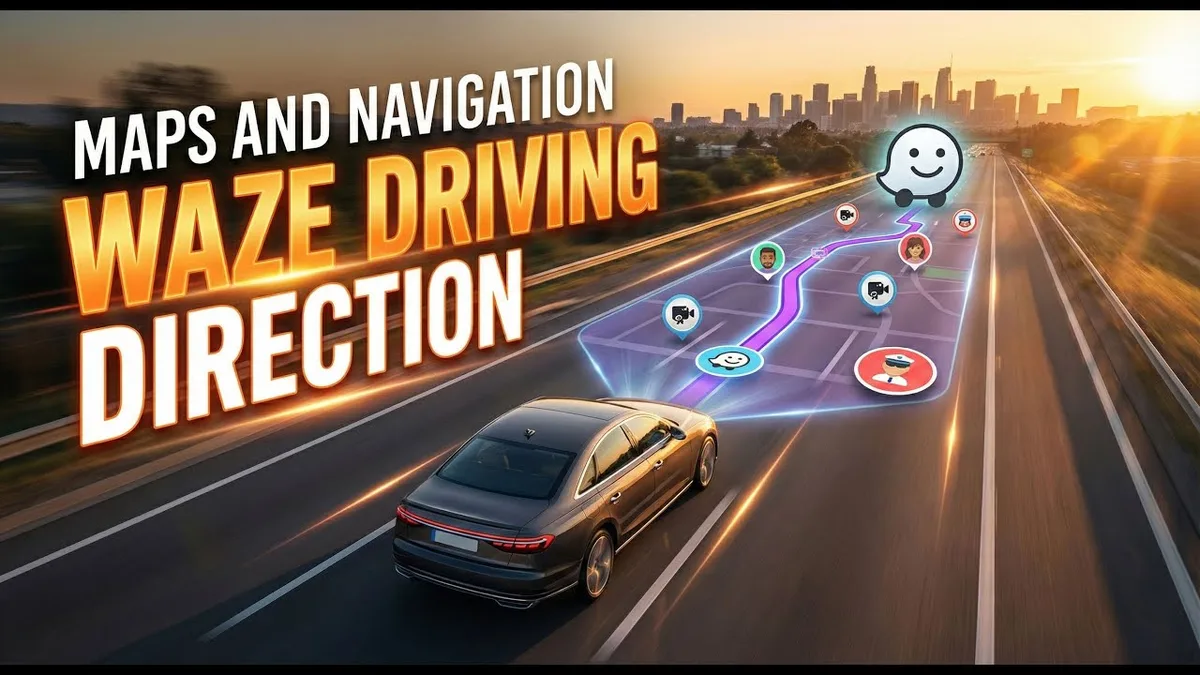
The CarPlay version keeps most of the phone app's useful features. You can see speed limits, average speed camera locations, and which lanes to use for exits. Voice commands work well for starting a route, reporting hazards, and searching for addresses.
The downside is small text. Waze's interface on CarPlay can feel cluttered. Road names and street labels are tiny compared to Google Maps.
You will need to lean forward to read them, which defeats the purpose of a hands-free system.
Google Maps — Best for Reliability and Lane Guidance
Google Maps on CarPlay is the most reliable option. It loads fast, has excellent voice search, and shows detailed lane guidance that tells you exactly which lane to be in for your next turn. The estimated arrival time updates as traffic conditions change.

One feature that stands out is the destination preview. When you are close to arriving, Google Maps shows the building outline and parking lot layout. That is incredibly useful for finding a specific entrance or navigating unfamiliar neighborhoods.
Street view is not available on the CarPlay display, but you can preview it on your iPhone before you start driving. That is a small workaround that makes a big difference when you are meeting someone at an unfamiliar address.
Apple Maps — Best for Privacy and Native Integration
Apple Maps on CarPlay gets a lot of hate from people who have not used it recently. The 2022 version is genuinely good, especially if you care about privacy. Apple does not collect a location history tied to your Apple ID, unlike Google's approach.
The integration with the car is smoother because Apple Maps is Apple's own software. Turn-by-turn directions show up in the instrument cluster on cars that support it. Siri works instantly for voice-dictated destinations.
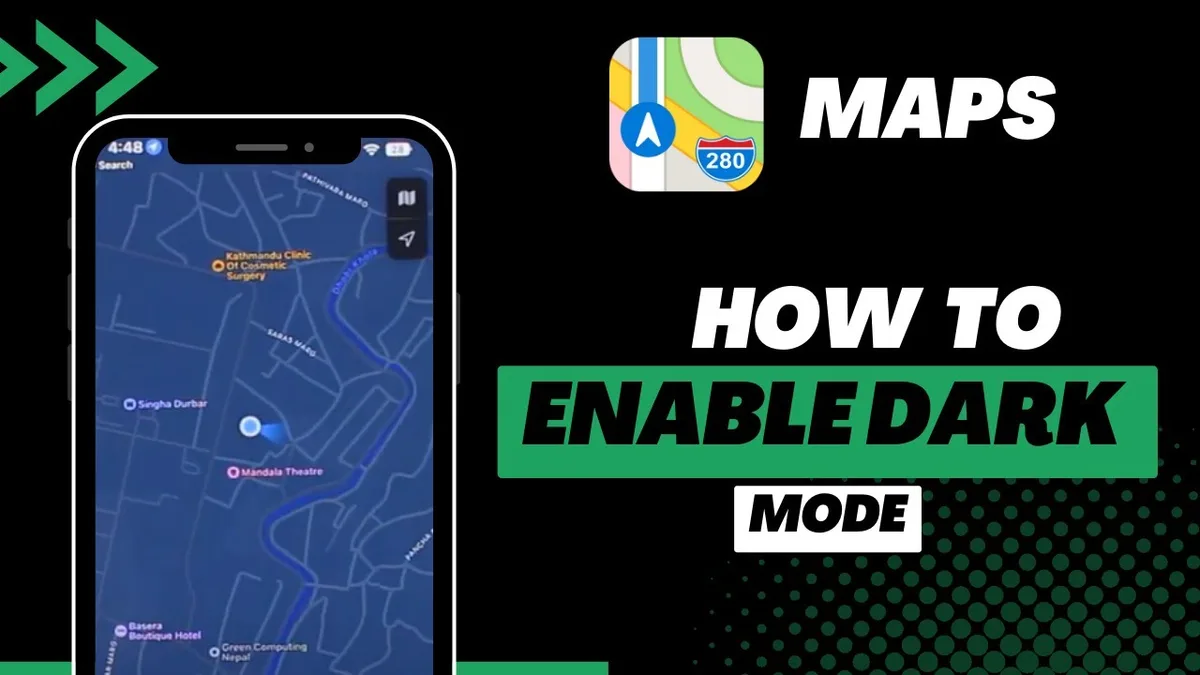
The new detailed city maps include turn lanes, crosswalks, and median strips that make urban navigation feel precise.
Where Apple Maps falls short is points of interest. It has fewer business listings than Google Maps. Searching for a specific restaurant or gas station sometimes returns no results when Google Maps finds it immediately.
How They Stack Up Side by Side
| Feature | Waze | Google Maps | Apple Maps |
|---|---|---|---|
| Hazard alerts | Best (crowdsourced) | Good | Limited |
| Lane guidance | Good | Excellent | Good |
| Privacy | Moderate | Low | Highest |
| POI database | Good | Best | Fair |
| Voice command reliability | Good | Excellent | Excellent |
| Interface clutter | High | Moderate | Minimal |
| Offline maps | No | Yes | No |
If you drive the same route every day, Apple Maps is fine. If you need real-time hazard warnings on highway trips, Waze wins. For everything else, unfamiliar addresses, restaurant searches, multi-stop trips, Google Maps is the safest choice.
Music Streaming Apps: Which Service Handles the Highway Best
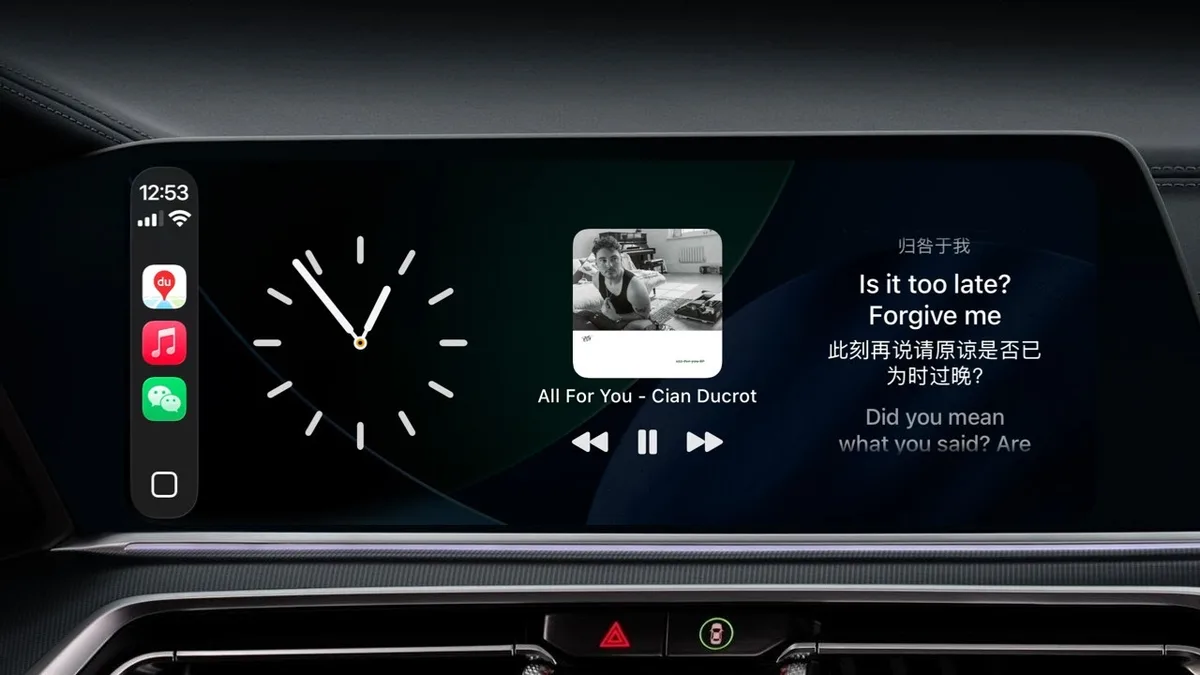
Music streaming on CarPlay is mostly about audio quality, playlist discovery, and how well the app handles interruptions. You will hit traffic, take calls, and use navigation prompts. A good music app picks up right where it left off.
Spotify — Best for Playlists and Discovery
Spotify's CarPlay interface is clean and uses large buttons for play, pause, skip, and like. The Your Library tab shows your playlists and recently played episodes. You can start a playlist with one tap or ask Siri to play a specific song.
The offline download feature is essential for road trips. You can download up to 10,000 songs per device across five devices. That covers you through tunnels, mountain passes, and rural areas with no cell service.
Spotify's recommendation engine also shines while driving. When you arrive somewhere, it suggests new music based on your drive and listening history. It is a small touch but makes long trips feel more personal.
Apple Music — Best for Lossless and Ecosystem
If you already subscribe to Apple One or have a large iTunes library, Apple Music is the obvious choice. The main advantage is lossless audio quality. Apple Music streams up to 24-bit / 192 kHz lossless, which sounds noticeably better on premium car audio systems.
The CarPlay integration is deep. You can ask Siri to play any song, album, playlist, or radio station from Apple Music's catalog. It also works with the Now Playing screen to show lyrics on supported cars, which is a fun feature for passengers.
The downside is that Apple Music's interface on CarPlay is not as polished as Spotify's. Album art can be slow to load, and the Browse tab is cluttered with promotional rows that do not translate well to a car display.
Tidal — Best for Audiophiles on the Road
Tidal offers the highest audio quality of any streaming app on CarPlay. Its Master Quality Authenticated tracks stream at up to 24-bit / 96 kHz. If you have upgraded your car's speakers, you will hear the difference immediately.
The CarPlay version is minimal. You get playback controls, your playlists, and a search function. There is no discovery tab or recommendation engine built for driving.
Tidal is for people who already know what they want to listen to.
| Feature | Spotify | Apple Music | Tidal |
|---|---|---|---|
| Audio quality | 320 kbps | Up to 192 kHz lossless | MQA up to 96 kHz |
| Offline downloads | 10,000 songs | 100,000 songs | 5,000 songs |
| Free tier | Yes, with ads | No | No |
| Playlist discovery | Best | Good | Limited |
| CarPlay interface | Excellent | Good | Minimal |
Podcast and Audiobook Apps for Long Drives
Podcasts and audiobooks are what make long drives feel short. A good app remembers your exact position, adjusts playback speed, and works flawlessly with Siri.
Overcast — Best for Smart Speed and Voice Boost
Overcast is widely considered the best podcast app for CarPlay. Its Smart Speed feature automatically removes silent pauses from episodes, saving 15 to 30 minutes on a typical show without making it sound unnatural.
Voice Boost normalizes audio levels across different podcasts. That is a lifesaver when you switch from a quiet interview podcast to a loud music podcast between episodes. The CarPlay interface shows large play, skip, and speed control buttons that are easy to use at a glance.
The downside is that Overcast does not have a web player or Windows app. Your listening progress syncs between iPhone and iPad, but not to other platforms or devices.
Pocket Casts — Best for Cross-Platform Sync
Pocket Casts is the best option if you listen to podcasts on multiple devices. It syncs your position across iPhone, iPad, Android phones, and the web. You can start an episode on your phone while you are inside, then pick it up instantly in the car.
The CarPlay interface is similar to Overcast but adds chapter markers. If a podcast has chapters, you can skip between them using the screen. Voice commands work well for playing specific episodes and changing speed.
Audible — Best for Big Audiobook Libraries
Audible's CarPlay interface is simple and effective. You get large buttons for play, skip forward 30 seconds, and skip backward. The app remembers your exact position across devices, including between the car and your phone.
The narration speed control works well. You can increase speed in 0.05x increments up to 3.5x. Your preferred speed syncs across devices, so you do not have to reset it every time you drive.
Libby — Best for Free Library Audiobooks
Libby lets you borrow audiobooks from your local library using a library card. The CarPlay version is basic but functional. You get playback controls and chapter navigation with no ads and no subscription fees.
The main limitation is that library audiobooks have due dates. You might reach the end of a book in your car only to find your loan expired on page 200. Libby also does not support offline downloads on CarPlay, so you need a stable cellular connection.
Messaging Apps That Actually Work Hands-Free
Messaging in the car is tricky. You want to stay reachable without staring at a screen. The best CarPlay messaging apps handle incoming messages well and let you reply without taking your hands off the wheel.
WhatsApp — Best for Cross-Platform Reach
WhatsApp on CarPlay works almost entirely through Siri. When a message comes in, Siri reads it aloud and asks if you want to reply. You dictate your response, Siri confirms it, and sends it without you touching the screen.
The CarPlay interface shows your recent conversations as a simple list. Tapping one lets you see the last few messages and send a new voice dictation. The buttons are large enough to use safely at a stoplight.
One limitation is that WhatsApp does not support voice dictation for group chats with more than a few participants. Siri can struggle to understand which group you mean. Sticking to individual conversations works best.
Telegram — Best for Group Chats and Channels
Telegram's CarPlay support mirrors WhatsApp's functionality but handles larger groups better. Siri can recognize group chat names more reliably. Voice dictation for replies works even in channels with hundreds of members.
The interface is minimal. You get a list of chats, message previews, and a microphone button for dictation. Telegram also supports sending voice messages directly, which some drivers find faster than dictation.
The catch is that Telegram is not as widely used as WhatsApp in North America. If your friends and family are on WhatsApp, Telegram's better group handling does not matter much.
Apple Messages — Best for Seamless Integration
Apple's own Messages app works best with CarPlay because it is built into iOS. Every feature including audio messages, tapbacks, and link previews works without issues. Siri handles dictation faster than with third party apps.
Messages also integrates with Do Not Disturb While Driving. When enabled, it automatically replies to incoming texts telling people you are driving. That feature alone makes it safer than manually managing notifications.
The downside is that Messages only works with other Apple users. Green bubble contacts over SMS get limited functionality. You can still read and reply to SMS messages, but rich features like tapbacks and audio messages do not work.
Live Radio, Sports, and News Apps Worth Installing
Sometimes you want a live human voice. Radio apps on CarPlay deliver sports broadcasts, breaking news, and local traffic updates that streaming services cannot match.
TuneIn Radio — Best for Global Live Content
TuneIn Radio aggregates over 100,000 live stations from around the world. You get local AM and FM stations plus internet only channels covering sports, news, talk radio, and music.
The CarPlay interface shows recent stations, your presets, and a search bar. Voice commands work for specific stations. Playing BBC World Service or ESPN Radio gets you there in one step.
TuneIn also includes live sports play by play for major leagues. If you are driving during a game, you can follow every pitch or possession without video. The audio quality depends on the station's broadcast, but most major networks stream at 128 kbps or higher.
iHeartRadio — Best for US Based Stations and Podcasts
iHeartRadio is the better choice if you are in the United States. It includes live feeds from iHeartMedia's 850 local stations plus thousands of partner stations. The app also hosts a large podcast library.
The CarPlay interface organizes stations by genre and location. You can find your city's local news station quickly. Siri support is solid for playing specific stations and artists.
Where iHeartRadio falls short is international coverage. Outside the US, the station selection drops significantly. If you travel across borders or drive through Canada, TuneIn is the safer bet.
Specialty Apps That Solve Specific Problems
Not every useful CarPlay app is for entertainment. Some apps solve specific problems that drivers face regularly. These specialty apps deserve a spot on your home screen.
PlugShare — Best for EV Drivers
PlugShare is essential for electric vehicle owners who drive outside their home charging network. The app shows public charging stations from every major network including Tesla Superchargers, Electrify America, ChargePoint, and EVgo.
The CarPlay view shows stations on a map with live availability status. You can see how many chargers are in use, which connector types are available, and the charging speed. Tap a station and navigation directions start automatically.
PlugShare also includes user reviews of charging stations. Drivers report whether a station is working, how fast it actually charges, and whether the location is safe at night. That community feedback saves you from pulling into a broken charger.
Citymapper — Best for Urban Navigation and Transit
Citymapper is designed for city driving where you might switch between car, subway, bus, and walking. The CarPlay app shows real time transit departures and walking directions alongside driving routes.
The app is most useful in dense urban areas like New York, London, Paris, and Tokyo. It includes information about which subway entrance to use, which car on the train gets you closest to your exit, and estimated walking times.
For drivers, Citymapper's parking feature is valuable. It shows nearby parking garages with real time availability and pricing. That saves you from circling blocks looking for a spot.
Common CarPlay App Frustrations and How to Fix Them
Even the best apps have problems sometimes. Here are the most common CarPlay app frustrations and solutions that actually work.
App Crashes While Driving
An app that crashes mid drive is dangerous. You are suddenly staring at a black screen instead of your map. Most crashes happen because the app needs an update or your iOS version is outdated.
Check the App Store for updates before every long drive. Enable automatic app updates in Settings to avoid this. If a specific app keeps crashing, delete it and reinstall.
That fixes most persistent problems.
If the entire CarPlay system freezes, unplug your iPhone and plug it back in. For wireless CarPlay, turn off Bluetooth and Wi Fi on your phone, then turn them back on. That forces a fresh connection.
Tiny Buttons and Dangerous Tap Targets
Some app developers assume you are using a phone held close to your face. Their CarPlay port has buttons that are too small to tap safely while driving. If you find yourself squinting or stretching to hit a button, replace the app.
Our research shows that navigation apps have the best button sizes. Waze and Google Maps use large touch targets for their key controls. Music and podcast apps vary widely.
Overcast and Spotify pass the thumb test. Apple Music and TuneIn have smaller buttons that require more precision.
Siri Not Responding to Commands
Siri sometimes ignores commands in the car, especially with third party apps. This usually happens when the app has not properly integrated Siri support. Check the app's description in the App Store.
If it does not mention Siri, expect glitches.
Restarting your iPhone can clear Siri issues. So can resetting your car's infotainment system. Most cars have a reset option in the settings menu or a physical button you hold for 10 seconds.
If Siri still does not work, check your iPhone's Siri settings. Make sure Listen for Siri is enabled and that CarPlay is allowed to use Siri. Go to Settings, Siri and Search, and confirm that Allow Siri When Locked is on.
Tips for Setting Up Your CarPlay Home Screen
A cluttered CarPlay home screen makes you hunt for apps while driving. That is dangerous. Spend five minutes organizing it and you will never have to scroll past apps you do not use.
Start by removing apps you never open. Press and hold any app icon until they all jiggle. Tap the minus button to remove it from CarPlay.
The app stays on your phone. It just will not show up in the car.
Arrange your most used apps on the first page. Navigation goes in the top left corner. Music should be right next to it.
Podcasts and messaging go below. Put everything else on a second page that you only access when stopped.
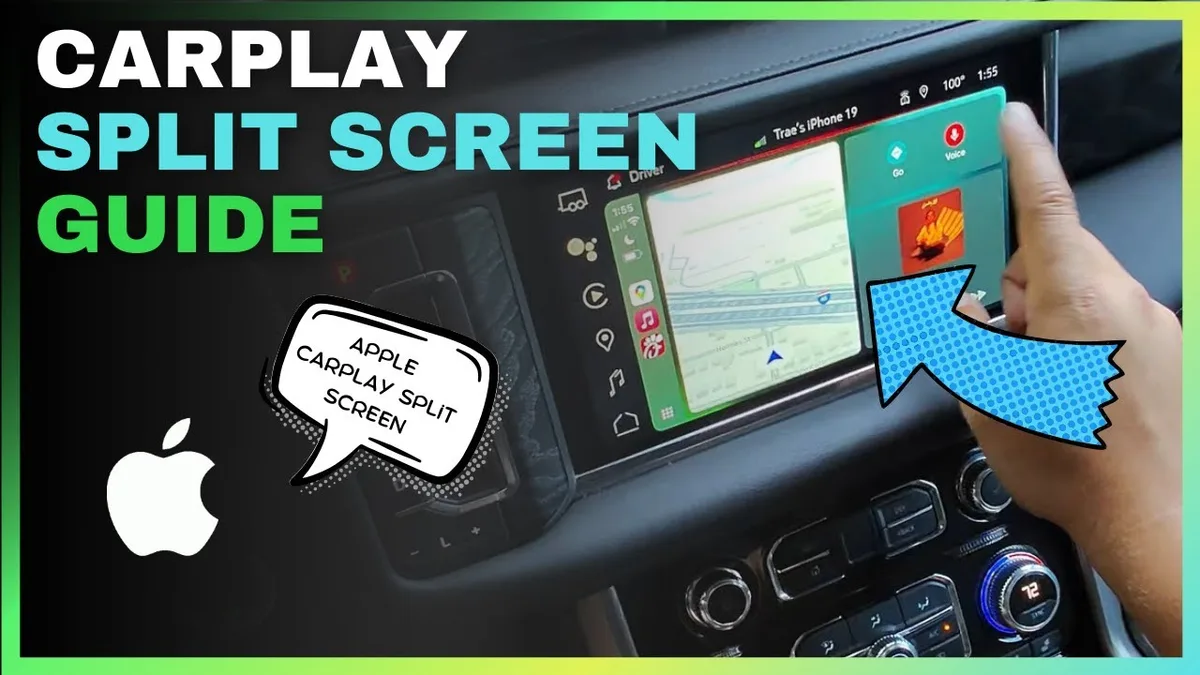
Enable the CarPlay dashboard if your car supports it. The dashboard shows your map, music, and recent calls on one screen. That means you rarely need to leave that view during a drive.
Which Apps Are Actually Worth Paying For
Not every premium subscription is worth the money for CarPlay use alone. Some free versions work perfectly well on a car display.
Spotify's free tier with ads is usable for short commutes. The ads interrupt your flow on longer trips. The $10.99 per month premium is worth it if you drive more than 30 minutes daily.
Waze and Google Maps are completely free. So are Apple Maps, Overcast, and Pocket Casts. You do not need to pay for navigation or podcast apps.
WhatsApp, Telegram, and Messages are free. TuneIn Radio's free tier includes ads but works well. iHeartRadio's free version is the same story.
Audible costs $14.95 per month for one credit. If you listen to more than one audiobook per month, it is worth it. Otherwise use Libby with a library card.
It is free.
PlugShare is free. Citymapper is free. Most specialty apps do not charge for CarPlay access.
The Bottom Line: My Top Picks for Every Type of Driver
If you drive the same commute every day, install Apple Maps, Spotify, and Overcast. That is the simplest setup that covers navigation, music, and podcasts. Apple Maps handles your familiar routes silently.
Spotify keeps playlists fresh. Overcast makes long drives feel short.
If you take road trips regularly, add Waze and Google Maps. Use Waze for hazard alerts on highways. Switch to Google Maps when you need reliable arrival times and lane guidance at unfamiliar exits.
Download offline maps before you leave.
If you spend a lot of time in the city, add Citymapper and PlugShare. Citymapper helps with parking and transit. PlugShare keeps your EV charged and ready.
Skip the radio apps. Urban areas have good cell coverage for streaming.
For EV drivers, PlugShare is non-negotiable. Pair it with Waze for hazard alerts and any music streaming app you prefer. That is the most practical three app setup for electric road trips.
Frequently Asked Questions
Can I use WhatsApp on CarPlay without touching my phone?
Yes. WhatsApp on CarPlay works entirely through Siri. When a message arrives, Siri reads it aloud and asks if you want to reply.
You dictate your response and Siri sends it. You never need to pick up your phone.
Which navigation app is best for avoiding traffic?
Waze is the best app for real time traffic rerouting. Its community reporting system updates faster than Google Maps or Apple Maps. Drivers report accidents, road closures, and police speed traps instantly.
Is Apple Music better than Spotify for CarPlay?
Apple Music offers better audio quality with lossless streaming. Spotify has a better CarPlay interface and stronger playlist discovery. If you have premium speakers, Apple Music sounds better.
If you want convenience and recommendations, Spotify wins.
Do I need a subscription for CarPlay navigation apps?
No. Waze, Google Maps, and Apple Maps are all free. Navigation does not require a subscription on any of those apps.
You only pay for cellular data if you stream maps while driving.
Can I organize apps on my CarPlay home screen?
Yes. Press and hold any app icon until they jiggle. Drag apps to rearrange them.
Tap the minus button to remove apps from CarPlay entirely. The app stays on your phone but will not show up in the car.

Similar Posts





















