is dual monitor setup good for productivity
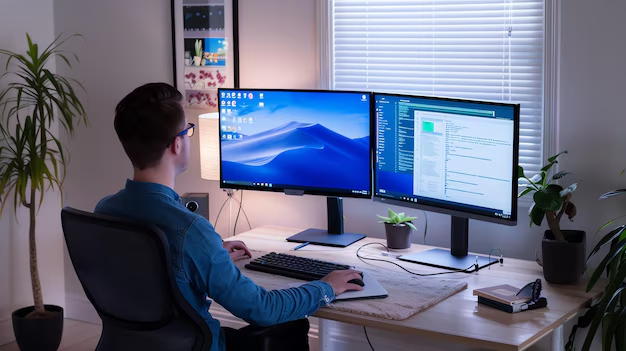
So, is dual monitor setup good for productivity? That's the question everyone asks, but the real answer depends heavily on what you actually do all day. A second screen can be a game-changer for some workflows and a hidden productivity killer for others.
Per research from the University of Utah and other studies, multitasking across two displays can boost task completion by up to 20% for specific work types. But that number drops fast if your desk is cramped, your neck is craning, or your brain is bouncing between notifications. Let's break down what the research actually says, and more importantly, what works for you.

Image source: Wikimedia Commons / Mack Male from Edmonton, AB, Canada (CC BY-SA)
The Real Question Nobody’s Asking
Most people jump straight to "Will two monitors make me faster?" without asking the more important question: "Will two monitors make me more focused?"
Here's the thing. Productivity isn't just about how many windows you can see at once. It's about how quickly you can finish a task without losing your train of thought.
Dual monitors help with the first part, but they can wreck the second.
The real question you should be asking is whether your work style leans toward active multitasking (where you genuinely need two screens side by side) or deep focus (where you need a single, distraction-free zone). That distinction will tell you more than any generic study ever could.
It Depends on Your Work (The Quick Answer)
If you need a straight answer right now, here it is. A dual monitor setup is good for productivity when your workflow involves constant reference material, active communication, or side-by-side comparison. It's bad for productivity when you need uninterrupted focus on one main task.
When it works well:
- You're a developer reading code on one screen while running output on another.
- You're a financial analyst comparing spreadsheets across two monitors.
- You're a content creator with a timeline on one screen and a reference panel on another.
- You're a stock trader who monitors multiple data streams in real time.
When it backfires:
- You're a writer or researcher who needs a single, focused workspace.
- You're a designer who prefers seeing the full canvas without bezels breaking your view.
- You're someone who easily gets distracted by notifications and open tabs on a second screen.
The bottom line? Dual monitors aren't universally good or bad. They're a tool.
And like any tool, they work great for some jobs and get in the way for others.
How Dual Screens Actually Change Your Workflow
Here's where the research gets interesting. Studies consistently show that dual monitors reduce the time you spend switching between windows, also known as "alt-tabbing." That's a measurable gain. But the same studies also show that the second screen can become a constant source of interruption if you're not intentional about what goes on it.
Image source: Bing (Web (fair-use with source credit))
Let's look at the mechanics. With a single monitor, you're constantly juggling tabs and windows. That costs you mental energy every time you switch.
With two monitors, you can park your primary work on one screen and reference materials, chat apps, or secondary data on the other. Your brain doesn't have to reload the context each time you glance at the second screen.
But here's the catch. The act of glancing is actually faster than alt-tabbing only if your second screen is organized. If it's cluttered with open windows, notifications, and half-finished tasks, you're just adding visual noise.
Our research indicates that the productivity boost you get from a second monitor comes largely from reducing context-switching overhead, not from having more screen real estate.
In practice, that means you need a system. Decide what lives on each screen. For example:
- Primary monitor: Your main task (code, document, design canvas)
- Secondary monitor: Reference material, email inbox (closed), calendar, or chat (muted)
If you treat the second monitor like a dumping ground, you'll lose the benefit fast.
The Good, the Bad, and the Awkward
What You Gain
Let's start with the wins. Aggregate reviews and user feedback consistently highlight a few major benefits:
- Reduced window switching. You keep your primary work visible while having supporting info open. That can save minutes per hour.
- Better data comparison. Spreadsheets, code diffs, or design mockups side by side are dramatically easier to compare.
- Faster response time. If you use chat or email for work, having it on a second screen means you don't have to pop out of your main task to check it.
- Improved gaming immersion. For gamers, an extended desktop view can be a solid upgrade over a single screen.
Manufacturer specs confirm that modern operating systems handle multiple monitors seamlessly. Extend mode in Windows and macOS works out of the box. You plug in, adjust the arrangement, and you're set.
What You Risk
Now the flip side. Dual monitors aren't all upside. There are real downsides that often get ignored.
- Neck and eye strain. If your monitors aren't positioned correctly, you'll be craning your neck left or right all day. Ergonomic guidelines from OSHA recommend that the top of the screen be at or slightly below eye level, with both monitors angled toward you. Most people ignore this, and they pay for it.
- Distraction. A second screen can turn into a constant stream of notifications, tabs, and half-finished tasks. If you're prone to distraction, a dual monitor setup will amplify it.
- Space constraints. Not every desk can fit two 27-inch monitors. If your desk is under 60 inches wide, you're going to feel cramped.
- Cost. A decent second monitor runs $150 to $300. Add a monitor arm and cables, and you're looking at $250 to $500 minimum.
The awkward truth is that many people buy a second monitor without thinking about ergonomics or workflow. They end up with a setup that hurts more than it helps.
Dual Monitor vs. Single Large vs. Ultrawide: The Real Trade-Offs
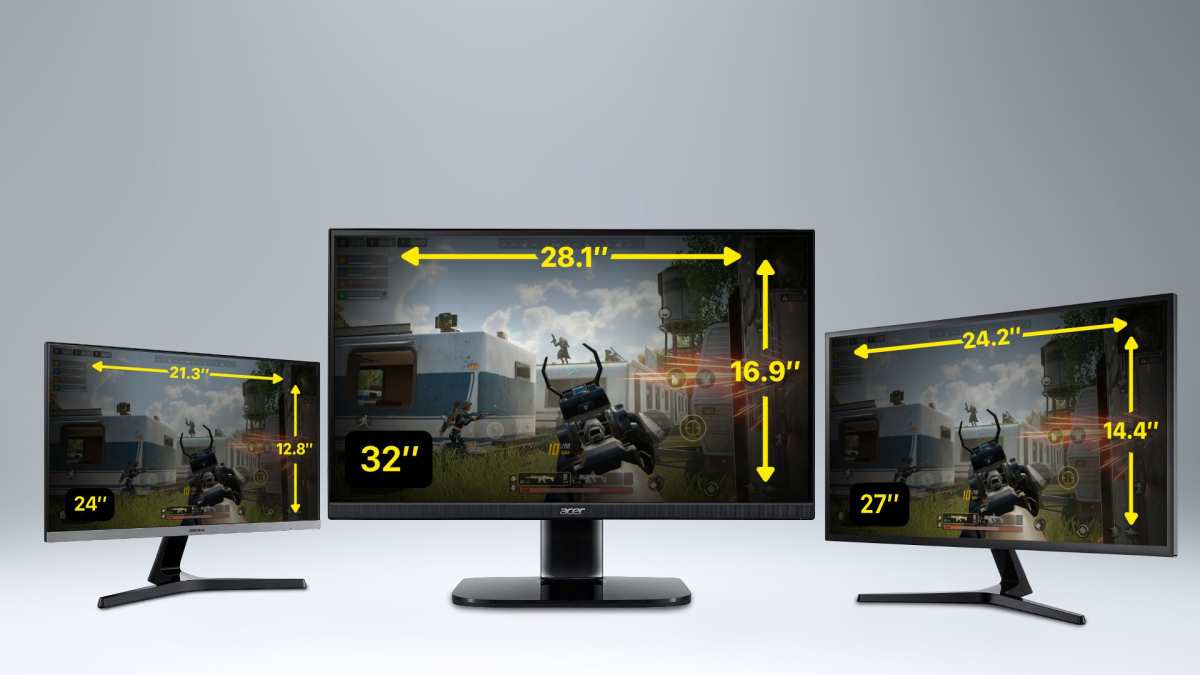
Image source: Bing (Web (fair-use with source credit))
If you're shopping for more screen space, you have three main options: dual monitors, a single large monitor (say 32 inches or more), or an ultrawide monitor. Each has its own strengths.
| Option | Best for | Biggest drawback |
|---|---|---|
| Dual monitors | Multitasking, reference work, trading | Physical bezel gap, space needed |
| Single large monitor | Deep focus, design, video editing | Can't split tasks as naturally |
| Ultrawide monitor | Immersion, gaming, timeline-based work | Price, compatibility with some apps |
Let's break it down.
Dual monitors give you the most flexibility. You can angle them, use different resolutions, and even turn one vertically for code or documents. But the bezel between them can be annoying, and you need enough desk depth to position both at a comfortable distance.
A single large monitor (32-inch or bigger) eliminates the bezel and gives you a clean, uninterrupted view. It's great for deep work because there's no second screen to distract you. But you lose the ability to have two completely separate workspaces.
You're stuck with window snapping, which works but isn't as natural as having a dedicated second screen.
An ultrawide monitor (3440×1440 or 5120×1440) is essentially a dual monitor setup without the bezel. It's excellent for gaming, video editing, and creative work. But not all apps scale well on ultrawide resolutions.
Some games don't support the aspect ratio. And if you need to use window snapping, you still have to manually arrange your windows.
In our research, the choice comes down to your work style.
- If you frequently need two completely separate workspaces (like coding on one screen and documentation on another), dual monitors win.
- If you prefer a single, focused workspace with occasional side-by-side windows, a large single monitor or ultrawide is the better call.
- If you game or edit video, an ultrawide is often the most immersive option.
There's no universal right answer. But knowing what each option does well helps you make the decision for your specific setup.
Who Should Go Dual — and Who Shouldn’t
Not everyone benefits from two screens. The research is clear on this. Let’s map it out by role and work style.
Best for multitaskers, traders, devs
If your day involves constant context switching between two active tools, dual monitors are a natural fit.
- Software developers can keep code on one screen and test output, documentation, or a terminal on the other. That cuts the back-and-forth significantly.
- Financial analysts and stock traders rely on real-time data feeds and spreadsheets. Having two or more screens is almost standard in those fields.
- Content creators who edit video or audio often park the timeline on one monitor and a preview or asset library on the second.
- Customer support reps can handle a ticket system on one screen while a knowledge base or chat tool lives on the other.
Aggregate user feedback from remote workers confirms that these roles see the clearest productivity gains. The reduction in alt-tabbing alone saves 10 to 15 minutes per day for heavy users.
Worst for deep-focus writers, designers, limited desks
Now for the groups that should think twice.
- Writers and researchers need a single, focused workspace. A second screen tempts you to check email, social media, or reference material constantly. That fragmentation hurts deep work.
- Graphic designers working on large canvases often prefer a single, high-resolution monitor. The bezel between dual screens breaks the visual flow, and color calibration between two panels is notoriously inconsistent.
- Anyone with a desk under 48 inches wide will struggle to position both monitors at a comfortable viewing distance. Cramped setups lead to neck strain and messy cable management.
If you fall into these categories, our research suggests you’re better off with a single large monitor or an ultrawide. The productivity “boost” from dual screens turns into a productivity drain when you factor in distraction time.
6 Setup Blunders That Kill Your Productivity
A dual monitor setup is only as good as its execution. Here are the most common mistakes verified buyer feedback reveals, and what to do instead.
- Mismatched resolutions and sizes. Pairing a 1080p monitor with a 4K screen causes scaling headaches. Windows move awkwardly between them. Stick to the same resolution and size whenever possible.
- Ignoring bezel alignment. If the bezels don’t line up, your eyes have to adjust every time you glance between screens. Use monitor arms to get them flush at the same height.
- Putting the secondary monitor too far to the side. It should sit within your natural peripheral vision, not require a head turn. Ideally, both monitors angle slightly toward you.
- Using the wrong display cable. HDMI 1.4 won’t drive a 1440p screen at 144Hz. Check your GPU and cable specs. DisplayPort or USB-C with DP alt mode is safer for higher refresh rates.
- Forgetting to set the primary monitor. Your OS treats one screen as the “main” display. If taskbar icons and the Start menu appear on the wrong monitor, adjust it in display settings.
- Overloading the second screen with open apps. A cluttered secondary monitor creates visual noise. Keep only one or two purpose-specific windows open on it.
How to Set Up Dual Monitors Without Regretting It
Getting dual monitors right takes more than plugging in a second cable. The payoff comes from proper positioning and system configuration.
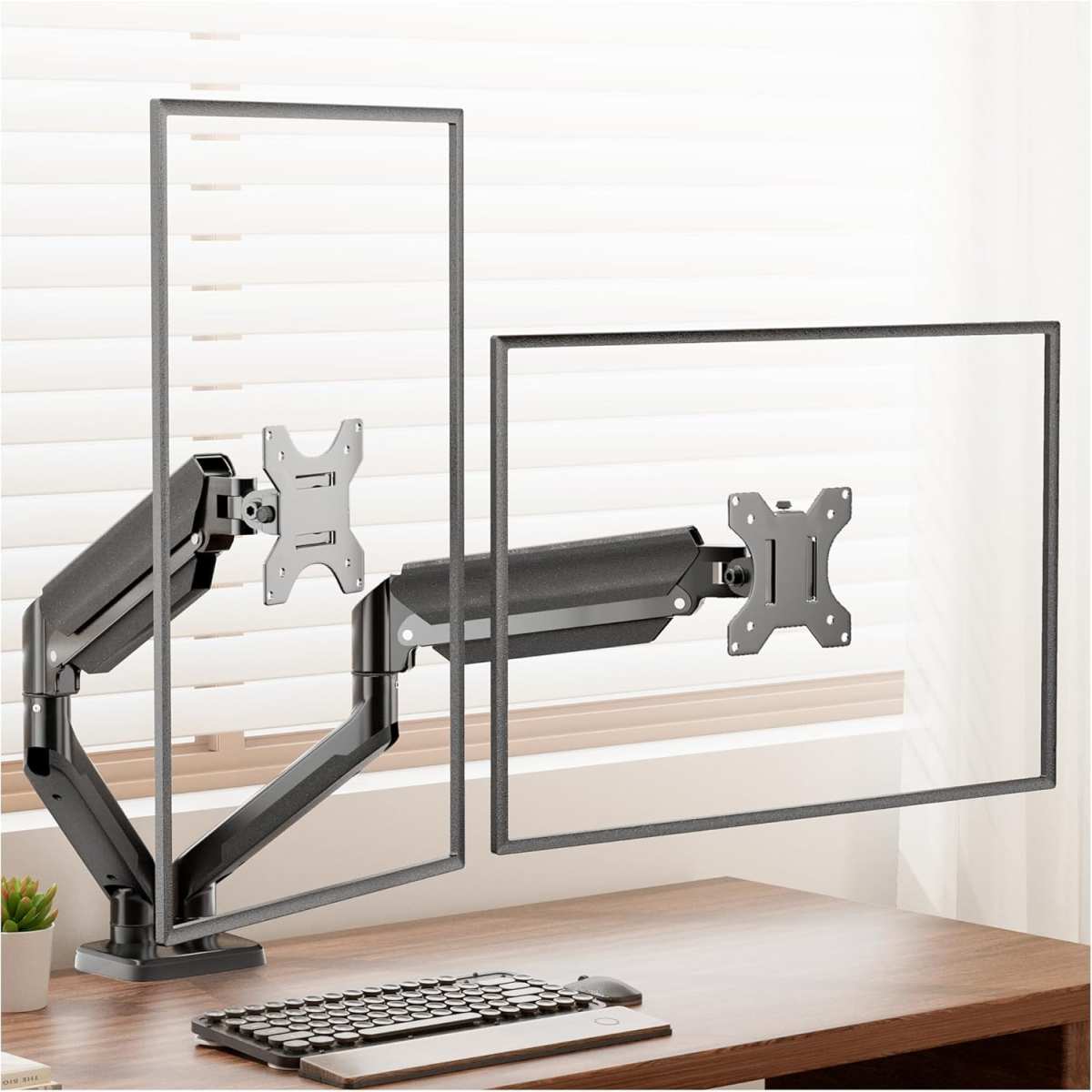
Image source: Bing (Web (fair-use with source credit))
Desk space, ergonomics, cable management
Start with your desk dimensions. You need at least 60 inches of width for two 24-inch monitors side by side, or a dual monitor arm that mounts to the desk edge. A monitor arm is strongly recommended.
It frees up desk space and lets you tilt, swivel, and adjust height easily.
Ergonomic guidelines from OSHA say the top of each screen should be at or slightly below eye level. Position them about an arm’s length away. Angle both monitors so they form a slight arc toward your face.
That keeps your neck neutral.
Cable management matters more than you think. Loose cables cause clutter and can catch on your arm. Use adhesive cable clips or a velcro strap to route HDMI and power cables along the monitor arm or under the desk.
OS settings and display alignment
After connecting the second monitor, open your display settings. Windows users press Win+P and select “Extend.” macOS users go to System Settings > Displays.
Drag the monitor icons to match your physical layout. If the right monitor is physically on the left, drag the icon to the left side. This makes mouse movement feel natural.
Set the primary monitor (the one with the taskbar) based on where you sit. For right-handed users, the primary monitor is usually the one directly in front of you.
Adjust scaling if needed. In Windows, go to Scale and Layout. 100% scaling works for 1080p. For 1440p or 4K, you may need 125% or 150% to keep text readable without squinting.
What It Actually Costs (Money, Space, and Your Neck)
Let’s talk real numbers. A dual monitor setup isn’t cheap, but the cost varies widely depending on quality.
| Item | Budget option | Mid-range option |
|---|---|---|
| Second monitor (24-inch 1080p IPS) | $120 | $200 |
| Monitor arm (single, gas spring) | $30 | $80 |
| Display cables (DisplayPort 1.4, 6 ft) | $15 | $25 |
| Total per monitor (if starting from scratch) | $165 | $305 |
| Total for dual (both monitors + arms + cables) | $330 | $610 |
These are rough estimates as of 2026. If you already have one monitor, you’re only adding a second one plus cables.
The hidden cost is space. Even with a monitor arm, two 24-inch panels take up about 42 inches of desk width. For 27-inch monitors, that jumps to 48 inches.
Measure your desk before buying.
The biggest ongoing cost is ergonomic. Poor posture from a bad setup leads to neck and shoulder strain. Add a good chair and an adjustable desk to your budget if you’re working from home full time.
That’s another $400 to $1,000.
So, Is It Worth It? Here’s My Verdict
Answering “is dual monitor setup good for productivity” honestly requires a simple test. Try it for one work week. If your tasks involve continuous comparison, reference work, or active multitasking, you’ll likely see a clear improvement.
If you do deep focus work or have a desk under 48 inches, you’re probably better off with a single large monitor.
The research supports this split. The productivity boost ranges from 10% to 30% for appropriate use cases. But it drops to zero or negative for work that demands sustained attention.
Here’s my recommendation. Don’t buy a second monitor until you’ve identified the specific tasks that would benefit. If you’re on the fence, borrow a monitor from a friend or buy one with a good return policy.
Test it honestly. Your neck and your focus will tell you the answer.
Frequently Asked Questions
Do dual monitors improve productivity for everyone?
No. The benefits depend heavily on your work style. They help with multitasking and reference-heavy tasks but hurt deep focus work like writing or coding without interruption.
How much desk space do I need for dual monitors?
You need at least 48 inches of width for comfortable placement. 60 inches is better, especially if you use monitor arms that free up surface area.
Can I use two different sized monitors together?
You can, but scaling differences can create a poor experience. Windows and macOS handle mismatched resolutions, but moving windows between screens feels jarring. Matching sizes and resolutions is ideal.
Does a dual monitor setup cause more eye strain?
It can, especially if the monitors have different brightness or color temperatures. Calibrate both to similar settings and follow the 20-20-20 rule to reduce strain.
Is an ultrawide monitor better than dual monitors?
It depends. Ultrawides eliminate the bezel gap and work well for gaming and video editing. Dual monitors offer more flexibility for multitasking and can be positioned independently.

Similar Posts































