do you need two graphics cards for dual monitors
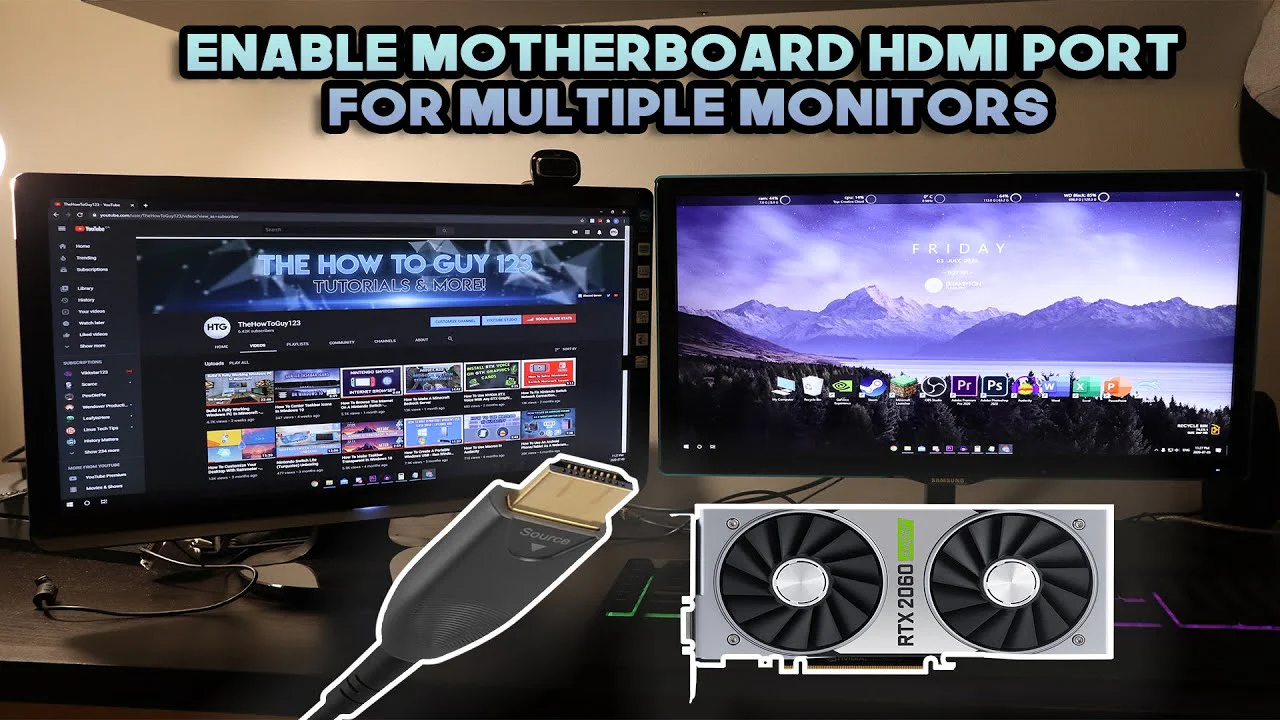
You're looking at your desk with two monitors and one tower and thinking, "Do I need two graphics cards for dual monitors?" It's a fair question. You've probably heard stories about multi-GPU setups, or you're worried that one card can't push two screens at once. The truth is, one modern graphics card handles dual monitors just fine in the vast majority of cases.
Most dedicated GPUs sold as of 2026 include at least three video outputs.
But exceptions exist. Manufacturer specifications indicate that even a budget card with 4GB of VRAM can drive two 4K displays at 60Hz without breaking a sweat. The real question isn't about needing a second card.
It's about whether your specific hardware, ports, power, and motherboard support, is set up to handle the job. Let's walk through exactly how to check.
Image source: Bing (Web (fair-use with source credit))
Problem / Pain Point: Why You're Asking About a Second Graphics Card
You want two monitors working together. Maybe you're a trader watching multiple charts. Maybe you're editing video with a timeline on one screen and preview on another.
Or maybe you just want more desktop space for spreadsheets. Whatever the reason, you've hit a wall: your current setup isn't running both displays.
Here are the common frustrations that send people searching for a second GPU:
- You only see one monitor in Windows display settings. The second screen stays black.
- Your GPU has only one or two video ports. You need three or four.
- Your monitor requires a specific cable type that your card doesn't have.
- You've heard "SLI" or "Crossfire" and assume dual monitors need dual cards.
- You tried plugging into the motherboard and nothing happened.
Most of these problems can be solved without buying another graphics card. You just need to check a few things first.
Quick Answer / Key Insight: One Card Usually Handles Two Monitors
No, you do not need two graphics cards for dual monitors. One modern GPU has enough ports. It can handle two screens easily.
Check your card's output count first. If it has two or more video ports, you are set.
That's the short version. The slightly longer answer is that nearly every dedicated GPU released in the last decade supports at least two independent displays. The exceptions are rare ultra-budget cards with only one HDMI port.
But even those can sometimes be paired with the integrated graphics on your CPU.
Core Explanation / How Dual Monitor Output Actually Works
A graphics card acts like a mini-computer dedicated to rendering images. It outputs video through its physical ports, HDMI, DisplayPort, DVI, or VGA. Each port can drive one monitor independently.
That means a card with three ports can run three separate displays.
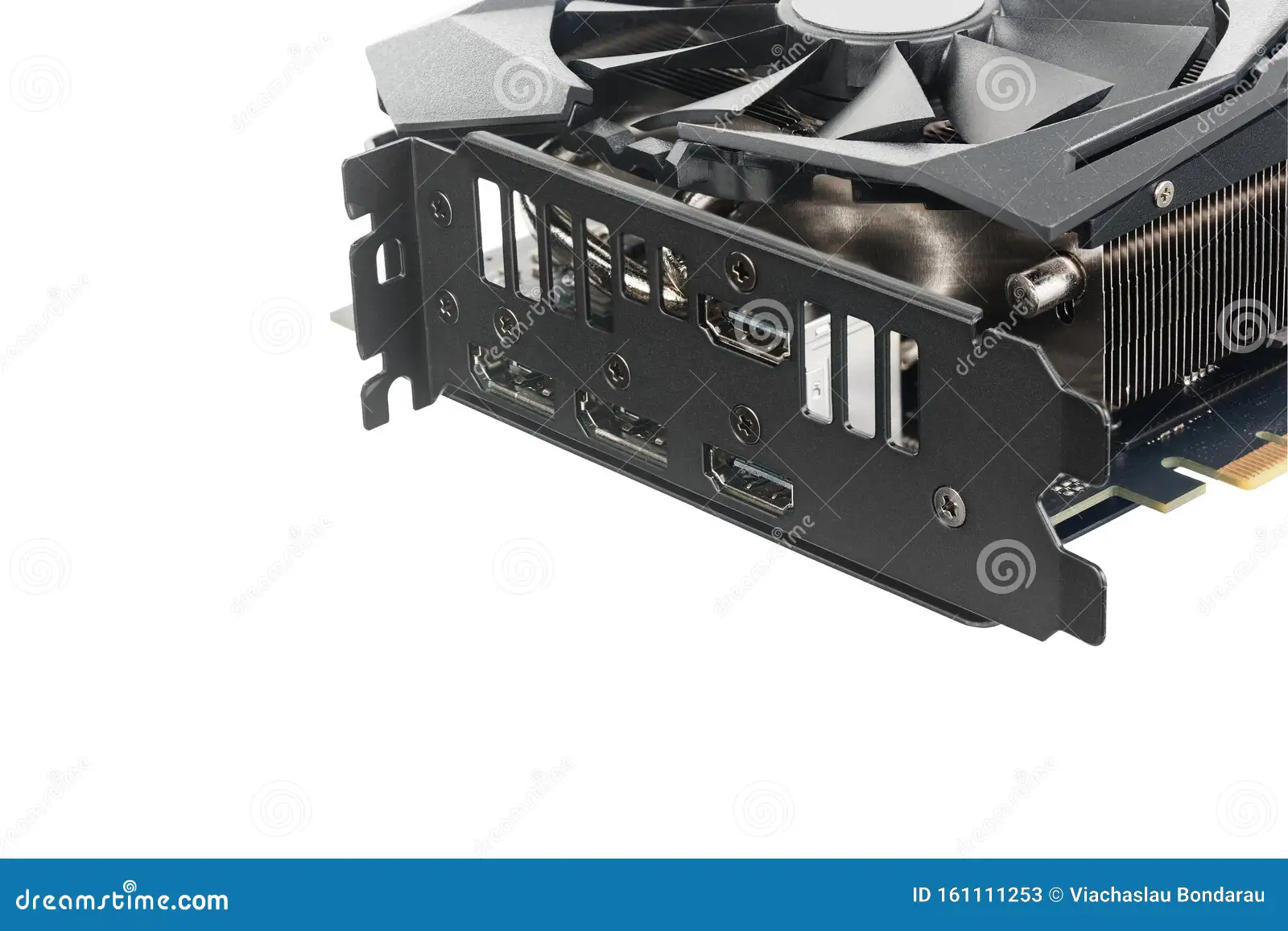
Image source: Bing (Web (fair-use with source credit))
How Many Ports Your GPU Really Has
Check the back of your PC or laptop. Count the video ports that are part of the graphics card (not the motherboard). Here's what you'll typically find:
| GPU Tier | Example Model | Typical Port Count | Max Independent Displays |
|---|---|---|---|
| Entry-level | GT 1030 / Radeon 610 | 2 | 2 |
| Mid-range | RTX 3060 / RX 6600 | 4 | 4 |
| High-end | RTX 4080 / RX 7900 XT | 4 | 4 |
| Integrated | Intel UHD / Radeon Graphics (onboard) | 1–3 (on motherboard) | 1–3 |
If your card has two or more ports, you can connect two monitors right now. No second card needed.
Integrated vs. Discrete GPU: What Each Can Drive
Your system probably has two graphics processors. One is the dedicated GPU (the card you bought or came pre-installed). The other is the integrated graphics built into your CPU.
- Discrete GPU: Drives monitors plugged into the card's ports.
- Integrated GPU: Drives monitors plugged into the motherboard's video ports.
You can use both at the same time. That's called "hybrid graphics" or "IGPU + dGPU" mode. Many people don't realize the motherboard ports are functional even when a discrete card is installed.
You just need to enable the onboard graphics in BIOS.
Condition Variables: What Decides If You Need a Second Card
The answer is situational. Run through these four checks to figure out where you stand.
Check Your GPU's Port Count and Types
Count the ports. Then check what cables your monitors use. A card with two HDMI ports and one DisplayPort can handle three monitors easily.
But if your GPU has only one HDMI and one VGA, you might be stuck if your monitor only accepts HDMI. In that case, an adapter or a cheap DisplayPort-to-HDMI cable often solves the issue without a new card.
Check Your Monitor's Input Requirements
Resolution and refresh rate matter. A 1080p 60Hz monitor uses very little bandwidth. A 4K 144Hz monitor uses a lot.
Older GPUs with HDMI 1.4 top out at 4K 30Hz. If you try to run two high-resolution high-refresh displays, you may hit bandwidth limits per port.
| Output Standard | Max Resolution (single display) | Notes |
|---|---|---|
| HDMI 1.4 | 4K @ 30Hz | OK for office work |
| HDMI 2.0 | 4K @ 60Hz | Good for most dual setups |
| HDMI 2.1 | 4K @ 240Hz / 8K @ 60Hz | Handles demanding setups |
| DisplayPort 1.2 | 4K @ 75Hz | Common in older cards |
| DisplayPort 1.4 | 4K @ 120Hz / 8K @ 60Hz | Modern standard |
If your GPU's ports are below what your monitors need, you may need a newer GPU, but it doesn't have to be a second card. Upgrading the single card is usually cheaper and simpler.
Check Your Motherboard for Integrated Graphics Support
This is the most overlooked solution. Many motherboards allow you to use the integrated GPU alongside a discrete card. You plug one monitor into the GPU and another into the motherboard.
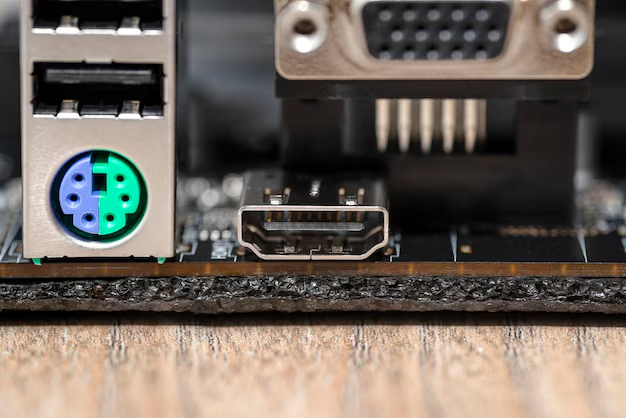
Image source: Bing (Web (fair-use with source credit))
To enable this:
- Enter BIOS/UEFI (usually by pressing F2 or Delete during boot).
- Look for a setting called "iGPU Multi-Monitor" or "IGFX" or "Onboard Graphics".
- Set it to Enabled.
- Save and restart.
This works best if your CPU has integrated graphics. Intel CPUs with a "F" suffix (e.g., i5-13400F) do not. AMD CPUs without a "G" (e.g., Ryzen 5 7600X) also lack onboard graphics.
Check your CPU model.
Check Your Power Supply Headroom
If you're considering adding a second graphics card, your power supply must have enough wattage and the right cables. A second card typically draws 30 to 75 watts for a low-end model, but gaming cards can pull much more. Most power supplies built for single-card systems lack an extra PCIe power cable.
Swapping the PSU adds cost and complexity.
For Path B (using integrated graphics), no extra power is needed. Your motherboard already supplies power to the CPU's integrated graphics.
Decision Branches: Three Paths You Can Take
Now that you've checked your hardware, pick the path that matches your situation.
Path A: One Card Is Enough (Common Scenario)
If your GPU has two or more ports, and the ports match your monitor cables, and you don't need to game across both screens at max settings, then one card is all you need.
Connect both monitors to the GPU. Boot up. Go to Windows Display Settings (or macOS System Preferences) and choose "Extend these displays".
Done.
This covers about 90% of dual monitor setups. No second card, no BIOS changes, no extra power.
Path B: Use Integrated + Discrete Together
If your GPU has only one port, or you need a third monitor, and your CPU has integrated graphics, then enable the onboard GPU in BIOS.
Connect one monitor to the graphics card. Connect the other to the motherboard video port. Boot into BIOS, enable iGPU Multi-Monitor (or similar), save, and restart.
Both monitors should appear.
This path costs nothing extra and works for office work, browsing, and light design. Gaming on the discrete card stays unaffected.
Path C: Add a Second Graphics Card (When It's Actually Needed)
If your GPU has only one port and your CPU lacks integrated graphics, and you can't upgrade to a newer single card, and your power supply has room, then adding a second GPU might be the answer.
You'll need:
- A low-end card (like a GT 710 or Radeon R5 220) that matches the cables your second monitor uses.
- An available PCIe slot on your motherboard.
- Enough power supply wattage and a spare PCIe power cable (if the card requires one).
- Proper driver installation, ideally stick with the same brand (Nvidia with Nvidia) to avoid conflicts.
Plug in the second card, connect your monitor, install drivers, and set up the display in your OS. This is the most expensive and fiddly option. Only choose it if Path A and Path B are impossible.
We've covered the core decision points. Next, we'll walk through a simple step-by-step test you can do right now, and flag the common mistakes that trip people up.
Step-by-Step Process / How to Test Your Setup Right Now
You don't need to buy anything yet. Run through this checklist to confirm whether your current hardware already supports dual monitors.
Step 1: Count your GPU ports. Look at the back of your PC. Locate the graphics card (the expansion card with its own metal bracket). Count every video port.
Write down the types: HDMI, DisplayPort, DVI, VGA.
Step 2: Identify your monitor cables. Check the cable that came with each monitor. Does it match a port on your GPU? If one monitor uses HDMI and your card has one HDMI, that's fine.
If both monitors need HDMI and your card has only one, you may need an adapter or a different cable.
Step 3: Try connecting both monitors. Plug each monitor into the GPU. Boot the PC. Press Windows + P and select "Extend".
If both screens show your desktop, you're done.
Step 4: If the second screen stays black, open Display Settings. Click "Detect" if it doesn't see the monitor. Check the cable connection.
Try a different port on the GPU.
Step 5: If you still get nothing, your GPU might be maxed out. Check the monitor's OSD (on-screen display) menu. Make sure it's set to the correct input source (HDMI 1, DisplayPort, etc.).
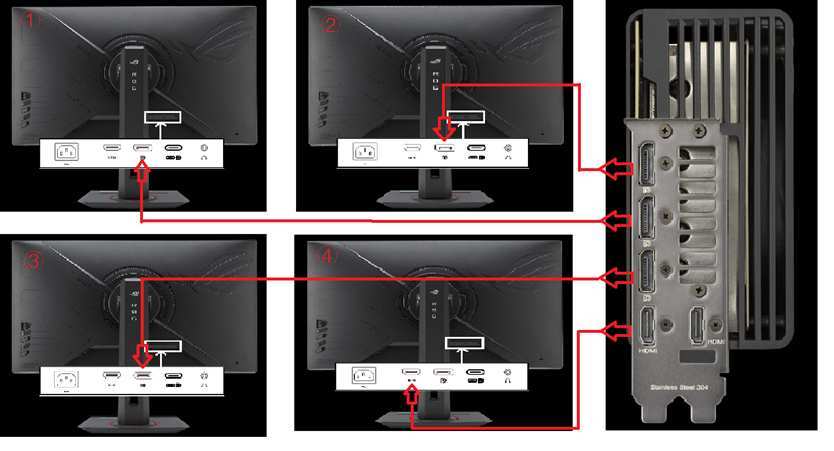
Image source: Bing (Web (fair-use with source credit))
That's the entire test. It takes about five minutes. In most cases, both monitors light up immediately.
Common Mistakes to Avoid
We've seen the same errors pop up in user forums again and again. Skip these pitfalls and you'll save hours of frustration.
Mixing GPU Brands or Drivers
If you do add a second card, stick with the same brand family. Nvidia and AMD use different driver architectures. Running one of each can cause stability issues.
Windows might assign the wrong driver, or the second card might show up but won't output video. Aggregate user reports show that mixing brands works occasionally but not reliably. Our advice: keep it simple.
Use the same brand for both cards, or better yet, skip the second card entirely.
Forgetting to Enable Integrated Graphics in BIOS
This is the number one reason Path B fails. You plug a monitor into the motherboard and nothing happens. That's because by default, motherboards disable onboard graphics when a discrete GPU is detected.
You have to flip a BIOS setting. Look for "iGPU Multi-Monitor", "IGFX", or "Onboard Graphics". Enable it, save, and reboot.
If your monitor still stays dark, check that your CPU actually has integrated graphics. Intel F-series and most non-G AMD Ryzen CPUs do not.
Buying a Second Card When a USB Adapter Works
We see a lot of people order a $60 graphics card when a $15 USB-to-HDMI adapter would solve the problem. If you only need a third monitor for static content like email or spreadsheets, a USB display adapter works fine. It won't handle gaming or high refresh rates.
But for productivity, it's a much cheaper and easier fix. No power cables, no PCIe slots, no driver conflicts.
Use Cases / Who This Really Matters For
Different users have different needs. Here's how the decision plays out in real scenarios.
Gamers Running Multi-Monitor Surround
If you're a gamer who wants to span a game across three monitors, you need a single powerful GPU with enough VRAM and ports. Adding a second card for more ports doesn't help here. Games don't split rendering across two different GPUs for extended desktop.
You need one card that can push the combined resolution of all three screens. An RTX 4060 with three DisplayPort outputs will handle this. A second low-end card would only create headaches.
Creative Pros with Timeline + Preview Displays
Video editors, graphic designers, and 3D artists often run a timeline on one monitor and a full-resolution preview on a second. This is light work for any modern GPU. A single mid-range card with two ports is plenty.
The only exception is if you need a third or fourth monitor for reference images and tool panels. In that case, either upgrade to a card with four ports or use your integrated graphics for the third display.
Office Users with Two Basic Screens
For spreadsheets, documents, and web browsing, almost any GPU from the last ten years works. Even integrated graphics on a 10th-gen Intel Core i5 can drive two 1080p monitors. You absolutely do not need a second card.
Save your money.
Alternatives / Options Beyond a Second GPU
Before you buy a second graphics card, explore these alternatives. They are simpler, cheaper, and often work better.
DisplayPort Daisy-Chaining (MST Hub)
If your GPU has DisplayPort outputs and your monitors support DisplayPort Multi-Stream Transport (MST), you can chain monitors together. One cable from GPU to monitor one, then a second cable from monitor one to monitor two. This works with up to four monitors depending on the GPU.
Check your GPU's spec sheet for "DisplayPort MST support". Most modern cards support it. You just need the right cables.
USB-to-HDMI or USB-C Docking Station
A USB display adapter plugs into any USB port and creates a new video output. These adapters use the CPU to process graphics, so they're only good for 2D work. They cap out at 1080p 60Hz typically.
But for a third or fourth monitor running static content, they're perfect. No driver conflicts with your main GPU. A USB-C dock with HDMI output also works for laptops that lack extra video ports.
Upgrading to a Newer GPU with More Ports
If your current card has only one or two ports and you need more, consider swapping it for a newer model. A used RTX 2060 or RX 5600 has at least four ports and costs less than buying a second low-end card plus the extra power supply. It also delivers better performance for gaming and creative work.
This is often the cleanest solution.
Frequently Asked Questions
Do I need two graphics cards for dual monitors?
No. One modern graphics card supports at least two displays. Only add a second card if your single card lacks ports and your CPU has no integrated graphics.
Can I use integrated graphics and a graphics card together for dual monitors?
Yes. Enable "iGPU Multi-Monitor" in BIOS. Connect one monitor to the motherboard and one to the GPU.
Works for office tasks and web browsing.
Will a second graphics card slow down my first one?
It can. A second card consumes PCIe lanes and power. It may also cause driver overhead.
Sticking with a single card is always faster and more stable.
What if my GPU only has one HDMI port?
Use a DisplayPort-to-HDMI adapter or cable. DisplayPort carries the same video signal. Most monitors work fine with an adapter.
Can I run dual monitors with integrated graphics alone?
If your CPU has integrated graphics and your motherboard has two video ports, yes. You don't need a discrete card at all for basic dual monitors.
Is it worth buying a cheap second GPU for dual monitors?
Rarely. A USB video adapter costs less and solves the problem without opening your case. Only buy a second GPU if you have no other option.
Final Decision Guide / Verdict: Do You Really Need Two?
Here is the short answer. You do not need two graphics cards for dual monitors. One modern GPU handles two screens easily.
The only situation where a second card makes sense is rare. Your single card has only one working port. Your CPU lacks integrated graphics.
You cannot upgrade to a newer card. And you need a second monitor for basic office work.
In that narrow case, a cheap second GPU can work. But even then, a USB-to-HDMI adapter is often cheaper and simpler.
| Scenario | Best Solution | Cost |
|---|---|---|
| GPU has 2+ ports | Connect both to GPU | $0 |
| GPU has 1 port, CPU has iGPU | Enable onboard graphics in BIOS | $0 |
| GPU has 1 port, no iGPU, need 2nd monitor for office | USB video adapter | $15–30 |
| GPU has 1 port, no iGPU, need 2nd monitor for gaming | Upgrade to a newer GPU with more ports | $100–300 |
| GPU has 1 port, no iGPU, need 2nd monitor, no budget | Add a low-end second GPU (last resort) | $30–60 |
Run through the step-by-step test from earlier. That takes five minutes. If it works, you are done.
If not, check Path B (integrated graphics) before buying anything.
Your dual monitor setup is almost certainly possible with what you already own. Skip the second card. Save your money for something that actually improves your experience.

Similar Posts































