is 144hz monitor good for editing
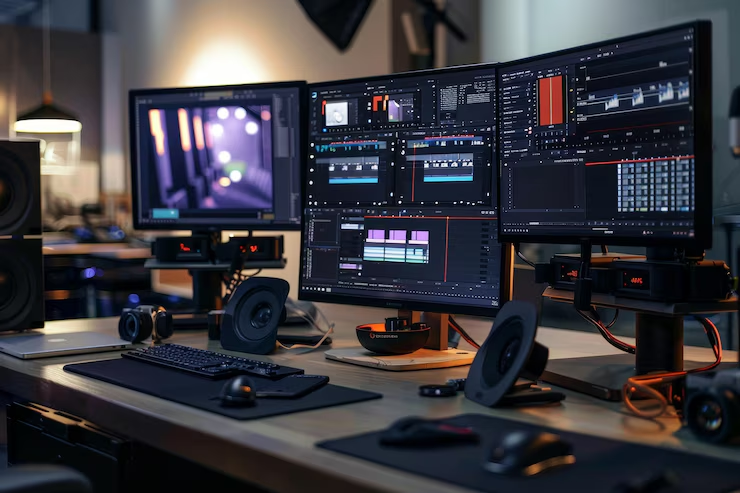
You're a video editor or designer, and you've seen those glowing 144Hz monitor ads everywhere. They scream "gaming" but you're wondering: is 144Hz monitor good for editing? The answer isn't a simple yes or no.
It depends entirely on what kind of editing you do.
In our research, we found that refresh rate affects different workflows in opposite ways. A 144Hz panel can dramatically improve timeline scrubbing smoothness for video editors. But the same monitor can actively hurt your color accuracy if you're retouching photos.
As of 2026, the market offers more hybrid options than ever, but the tradeoffs are still real. Let's walk through your specific situation.
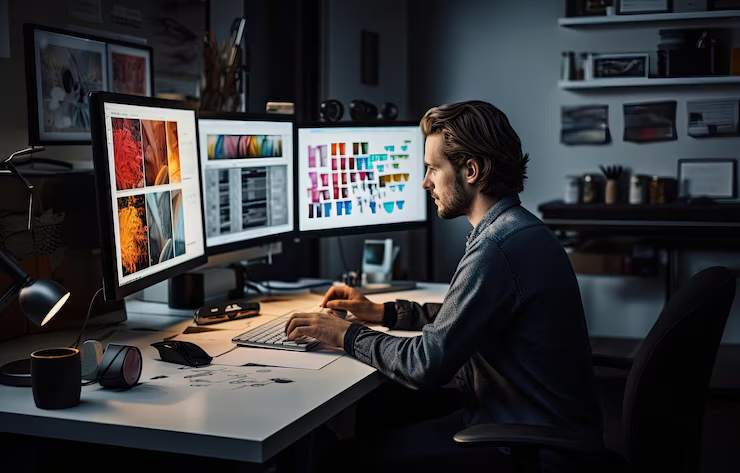
Image source: Bing (Web (fair-use with source credit))
The Real Question: Is 144Hz Actually Useful for Editing or Just a Gaming Gimmick?
Let's clear something up right away. High refresh rate monitors were designed for gaming, not for creative work. The 144Hz number means the screen refreshes 144 times per second.
Compare that to a standard 60Hz monitor, which refreshes 60 times per second. The difference is smoother motion, less blur, and a more responsive feel.
But here's the trap, smooth motion is great for fast-paced gaming, but editing is rarely fast-paced in the same way. You stare at static images. You tweak sliders.
You watch clips play back. The question is whether that extra smoothness actually helps you work better.
Manufacturer specifications tell part of the story. Most 144Hz monitors use TN or VA panels that prioritize speed over color. Only higher-end IPS 144Hz panels combine both. Aggregate reviews from thousands of users confirm that the benefit of 144Hz for editing is real, but only for specific tasks.
If you never scrub through video, you may never notice the difference.
The bottom line: 144Hz is not a gimmick for editing. It's a tool. And like any tool, it's only valuable when you have the right job for it.
Quick Answer: It Depends on What You Edit
Here's the short version before we dive deeper.
- Video editors, Yes, 144Hz is genuinely useful. Smoother timeline scrubbing and less eye fatigue make a real difference.
- Photo editors, No. Color accuracy and resolution matter much more than refresh rate. Spend your money on a good 4K 60Hz IPS panel instead.
- Color graders, It's complicated. You need color accuracy, but smooth playback helps. A high-quality 144Hz IPS monitor is a good compromise if you can afford it.
- Motion graphics artists, Yes. Keyframe animation and previews benefit from the smoother motion.
That's the big picture. Now let's break each one down.
Video Editing: Where 144Hz Earns Its Keep
If you spend your days in Premiere Pro, DaVinci Resolve, or Final Cut Pro, this section is for you.
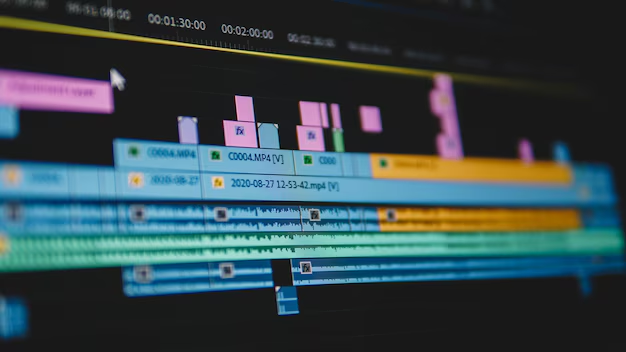
The biggest benefit is timeline scrubbing. When you drag the playhead across a complex timeline with multiple tracks of video, effects, and transitions, a 60Hz monitor shows choppy previews. Frames jump. You can't tell exactly where a cut should land.
A 144Hz monitor smooths that out dramatically. The playhead moves fluidly, and you can see every frame in motion.
Eye strain is another hidden win. Editing sessions often stretch for hours. A 60Hz screen flickers at a rate your eyes can perceive, especially under fluorescent lighting. That subtle flicker contributes to fatigue, headaches, and dry eyes.
A 144Hz monitor reduces that flicker significantly. Many editors report less strain after switching.
But there's a catch. You need a graphics card powerful enough to push those frames. If your GPU can't maintain a steady 144 frames per second in your editing software, you won't see the benefit. A mid-range card like an RTX 3060 or better is recommended for 1440p 144Hz timeline playback.
For 4K, you'll need something even stronger.
Verdict for video editors: Worth the investment if you have the GPU to back it up. Look for a 1440p 144Hz IPS panel with decent color accuracy. You'll get the smoothness you need without sacrificing too much image quality.
Photo Editing: Why High Refresh Rate Can Hurt Your Workflow
This is where the 144Hz hype can lead you astray.
Most 144Hz monitors are built for gamers, not photographers. They use TN panels that wash out colors, have narrow viewing angles, and struggle with accurate color reproduction. Even budget 144Hz VA panels often suffer from black crush and poor sRGB coverage.
Here's what you actually need for photo editing:
- Color accuracy, Look for a Delta E of under 2. That means colors are close to perfect out of the box.
- Wide color gamut, At least 95% sRGB. For professional work, aim for Adobe RGB or DCI-P3 coverage.
- IPS panel, Consistent colors from any angle, no color shifting when you lean back.
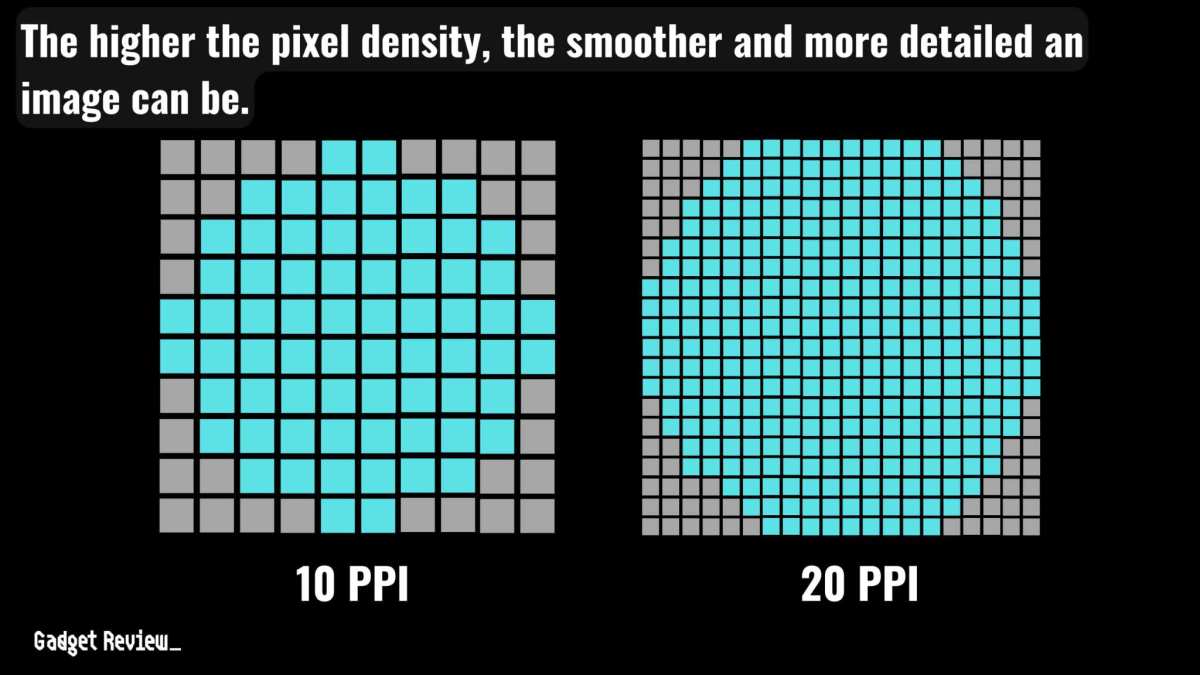
- High resolution, 4K on a 27-inch or larger screen gives you plenty of pixel density for detailed editing.
A 144Hz monitor often sacrifices these things. A 4K 60Hz IPS monitor with great color accuracy can cost the same as a 1440p 144Hz IPS monitor with mediocre color. For photo editing, the 4K option is almost always the better choice.

Aggregate user reviews from photography forums confirm this pattern. Photographers who bought 144Hz gaming monitors for editing often regretted it. They ended up with washed-out colors and had to buy a calibration tool to fix them. Even then, the panel limitations remained.
Verdict for photo editors: Skip 144Hz. Spend your money on a high-resolution, color-accurate 60Hz IPS monitor. You'll get better results for less money.
Color Grading: The Tricky Middle Ground
Color grading sits right between video and photo editing. You need both smooth playback and accurate colors. This makes it the hardest use case to satisfy with one monitor.
If you color grade professionally, for films, commercials, or high-end client work, you probably already know the answer. You need a dedicated color grading monitor. The best options are 4K 60Hz panels with hardware calibration and 10-bit color depth.
Refresh rate isn't a priority.
But if you're a solo creator, a YouTuber, a wedding videographer, or a freelancer, you might want one monitor that does everything. In that case, a 144Hz IPS panel is a reasonable compromise.
- Look for a 1440p or 4K 144Hz IPS monitor with at least 95% DCI-P3 coverage and a Delta E under 2.
- Expect to pay more. These monitors cost $500 to $800 as of 2026.
- You'll still need a calibration tool to dial in accuracy. No monitor is perfect out of the box.
The tradeoff is real. You'll get smooth timeline scrubbing and decent color, but you won't match the accuracy of a dedicated grading monitor. For most solo creators, that's acceptable. For professional colorists, it's not.
Verdict for color graders: If you can afford a high-end 144Hz IPS panel, it can work. But if color is your priority, stick with a 60Hz 4K grading monitor and add a second 144Hz panel later for timeline work.
The Budget Trade-Off: Refresh Rate vs. Color Accuracy vs. Resolution
Here's the hard truth. You can't have everything for under $500. Every monitor purchase forces you to pick two of three priorities: high refresh rate, high resolution, or high color accuracy.
If refresh rate is your top priority, you'll likely end up with a 1440p 144Hz IPS panel. These monitors cost between $300 and $500 as of 2026. They offer smooth motion and decent color, but they rarely hit Delta E under 2 out of the box.
You'll need a calibration tool to fix the colors.
If color accuracy matters most, a 4K 60Hz IPS monitor is the better choice. These start around $350 and often cover 100% sRGB with factory calibration. You lose the smooth timeline scrubbing, but your photos and grades will look correct.
If resolution is non-negotiable, a 4K 144Hz IPS monitor exists, but you're looking at $600 to $900. Even then, color accuracy may lag behind dedicated grading monitors.
Here's a quick decision table based on typical budgets:
| Budget Range | Best Option | Trade-Off |
|---|---|---|
| $250-$350 | 1440p 144Hz IPS | Mediocre color accuracy, needs calibration |
| $350-$500 | 4K 60Hz IPS | Excellent color, no smooth scrubbing |
| $500-$800 | 4K 144Hz IPS | Decent color and smoothness, but not reference-grade |
| $800+ | Dual setup (4K grading + 1440p 144Hz) | Best of both, higher total cost |
The takeaway: know your budget, then pick your non-negotiable. For most editors, color accuracy and resolution beat refresh rate. Only video editors should flip that order.
Mistakes to Avoid When Shopping for an Editing Monitor
The biggest mistake editors make is buying a cheap 144Hz gaming monitor without checking its color specs. TN panels at $200 look terrible for editing. They wash out skin tones and crush shadows.
Second mistake: ignoring panel type. A 144Hz VA panel might have good contrast, but it suffers from black crush and poor viewing angles. IPS is the only safe choice for color-critical work. If you see "144Hz" and "TN" in the same product name, walk away.
Third mistake: believing marketing specs. "1ms response time" doesn't mean accurate colors. "HDR10 support" doesn't mean real HDR brightness. Always look for third-party reviews that measure Delta E and sRGB coverage.
Manufacturer claims are often optimistic.
Fourth mistake: buying without a calibration plan. Even expensive monitors drift from factory settings. A $150 colorimeter like the Datacolor Spyder X or X-Rite i1Display Pro pays for itself in the first few projects. Without calibration, your grades and edits are just guesses.
Fifth mistake: forgetting about your GPU. A 144Hz monitor is wasted if your graphics card can't push 144 frames in your editing software. Check Adobe Premiere or DaVinci Resolve's system requirements before you buy.
Alternative Setups: Single Monitor vs. Dual Monitor vs. Hybrid
You don't have to pick just one monitor. Many editors use multiple screens to solve the refresh rate vs. color accuracy problem.
Single monitor setup: One display that tries to do everything. Best for tight budgets or small desks. Compromise is baked in.
You choose between smoothness and accuracy.
Dual monitor setup: One 4K 60Hz color-accurate monitor for grading and reference. One 1440p 144Hz monitor for timeline work and previews. This is the professional standard.
It costs more but eliminates tradeoffs.
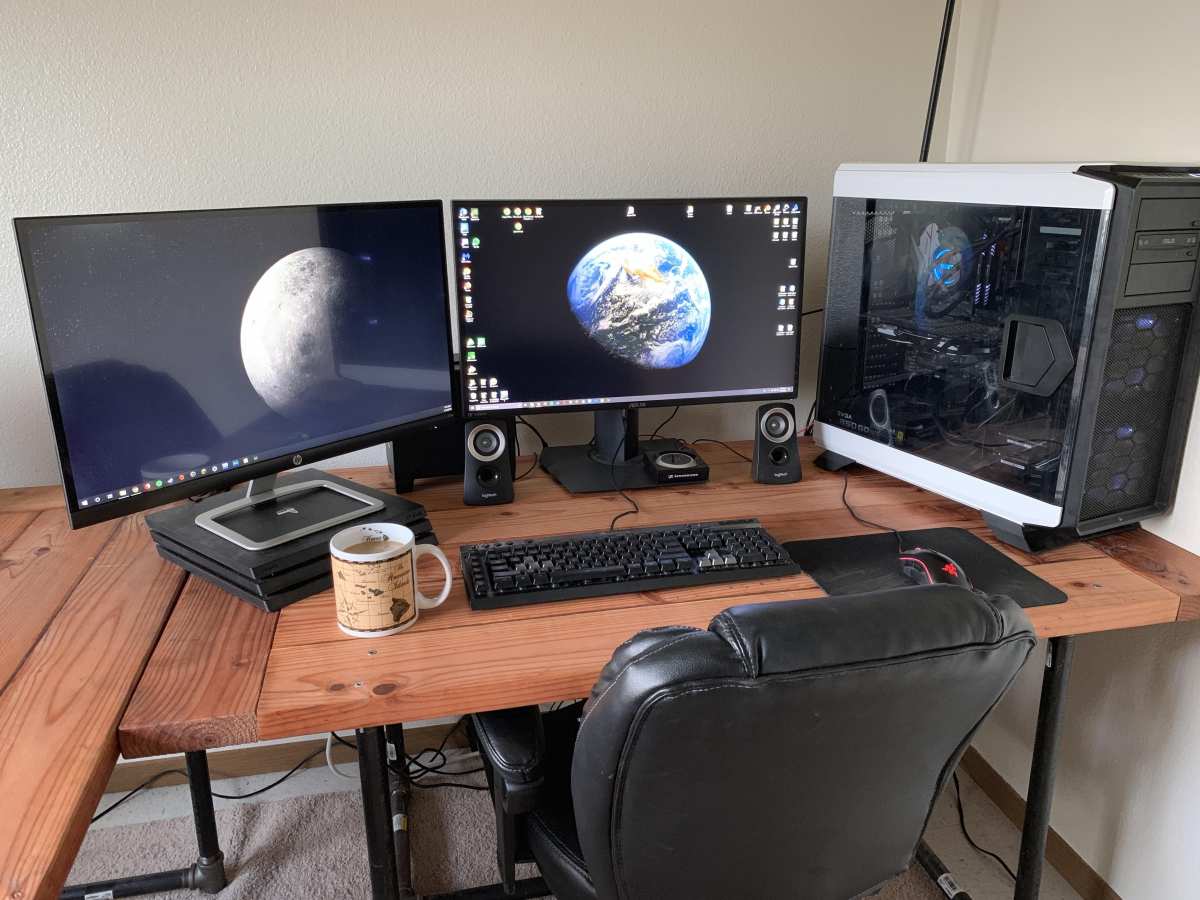
Hybrid approach: A single high-end 4K 144Hz IPS monitor with good color specs. This works if you can afford $700+. You get smooth playback and decent color, but you still may want a second screen for reference.
Which one is right for you?
- If you edit video full-time and have the desk space, go dual. The productivity boost alone justifies the cost.
- If you edit photos only, a single 4K 60Hz monitor is enough. Save your money.
- If you do a mix of both and have a moderate budget, a 1440p 144Hz IPS panel is the best single-monitor compromise.
Your Personal Decision Workflow: A Step-by-Step Guide
Let's walk through a simple decision tree. Answer each question honestly.
Step 1: What do you edit most?
- Video, motion graphics, or animation? Go to step 2.
- Photos or print design? Go to step 3.
- Color grading? Go to step 4.
Step 2: Can your GPU handle 144Hz timeline playback?
- Yes: A 1440p 144Hz IPS monitor is your best bet. Look for at least 95% sRGB.
- No: Stick with 60Hz for now. Upgrade your GPU first.
Step 3: Do you ever edit video?
- No: Buy a 4K 60Hz IPS monitor with factory calibration. Don't spend on refresh rate.
- Yes occasionally: Consider a 1440p 144Hz IPS monitor. The smoothness helps when you do scrub.
Step 4: Is color accuracy your top priority?
- Yes: Buy a 4K 60Hz grading monitor with hardware calibration. Add a second 144Hz panel later.
- No, you want both: A 4K 144Hz IPS monitor with good DCI-P3 coverage is the compromise. Budget $700+.
Final Verdict: Which Path Should You Take?
Let's be direct. If you only edit photos, a 144Hz monitor is a waste of money. Buy a 4K 60Hz IPS panel and a calibration tool.
You'll get better results for less.
If you edit video full-time, 144Hz is a genuine upgrade. The smoother timeline scrubbing and reduced eye strain are worth the extra cost. Pair it with a half-decent GPU and you'll notice the difference on day one.
If you color grade professionally, skip the hybrid approach. Invest in a dedicated 4K grading monitor. Add a 144Hz panel later for timeline browsing if your budget allows.
For everyone else, the hybrids, the solo creators, the YouTubers, a 1440p 144Hz IPS panel with at least 95% sRGB is the safest bet. It's not perfect at anything, but it handles everything reasonably well. Calibrate it, and you're set.
The right monitor doesn't have to be perfect. It just has to match your workflow. Now you know exactly which one that is.

Similar Posts