How to Use Claude Artifacts
If you've ever wished Claude could do more than just spit out text in a chat window, you're going to want to understand how to use Claude Artifacts. This feature, introduced alongside Claude 3.5 Sonnet in mid-2024, gives you a live, interactive workspace right inside your conversation. It's where Claude's output becomes something you can actually see, edit, and iterate on in real time.
Here's the thing though. Most people either don't know Artifacts exist or they treat them like a magic button that works the same way every time. That's not how it goes.
Whether Artifacts are worth your effort depends entirely on what you're trying to accomplish. Let's walk through it step by step so you know exactly when to use them and how to get the most out of them.
Quick Answer
Claude Artifacts are interactive output panels that appear alongside your chat. You trigger them by asking Claude to create something visual or editable, like code, a document, or a diagram. The artifact renders live in a side panel where you can view, edit, and iterate on it.
Use them when you need to prototype, draft, or visualize something. Skip them for simple questions or quick answers.
What Are Claude Artifacts and When Should You Actually Use Them
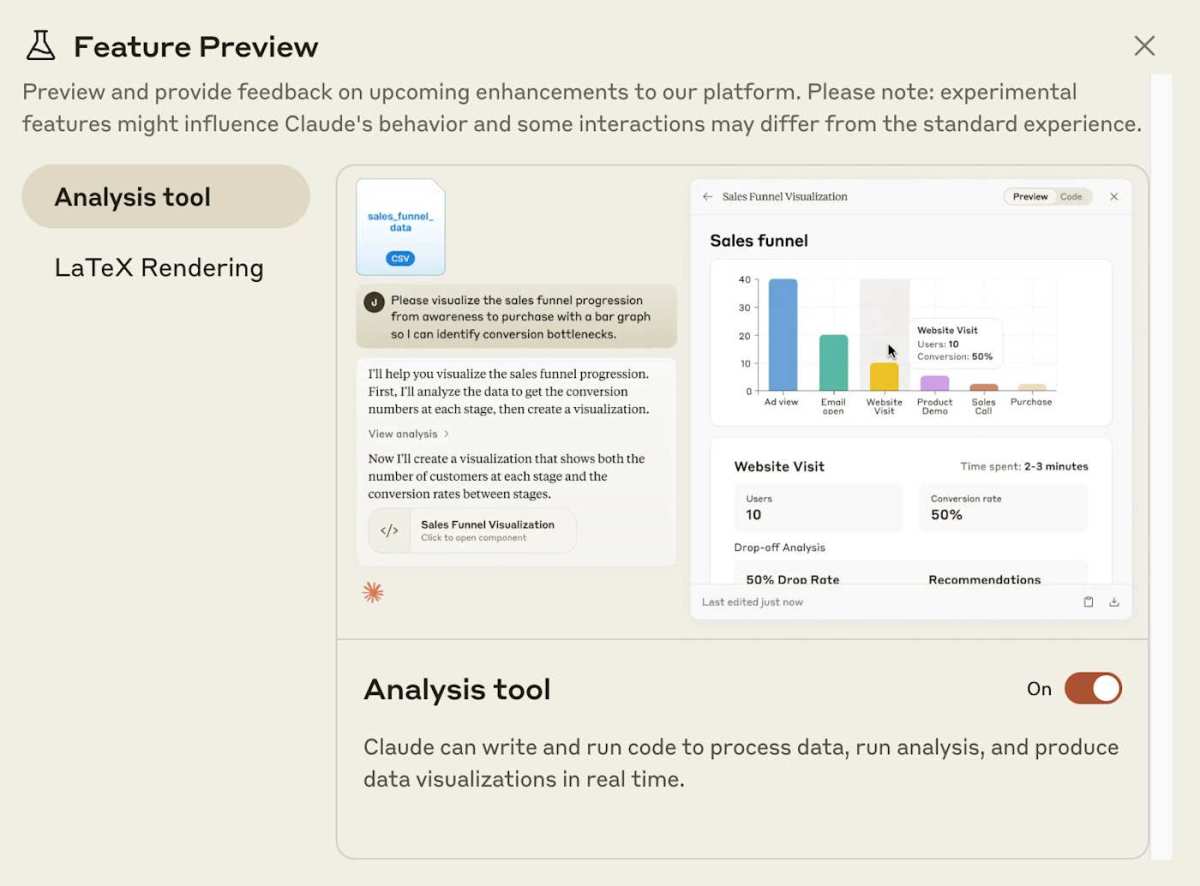
Claude Artifacts are dedicated output panels that appear in a sidebar next to your chat window on Claude.ai. When you ask Claude to generate something like a piece of code, a document, an SVG image, or a Mermaid diagram, it can render that output as a live artifact rather than just dumping text into the conversation. You get a real-time preview, version history, and the ability to edit the output directly.
The key thing to understand is that Artifacts aren't always the right tool. They're designed for situations where you want to see something rendered, tweak it, and compare versions. If you just asked Claude what the capital of Mongolia is, you don't need an artifact.
You need a sentence of text.
Here's a simple way to think about it. If your task involves any of the following, Artifacts are probably worth using:
- Writing or editing a document, article, or report
- Generating and testing code snippets
- Creating visual content like SVGs or diagrams
- Building something you want to preview and iterate on
- Working on a deliverable you'll eventually download and use elsewhere
If you're asking a straightforward question, having a casual conversation, or just need a quick explanation, the regular chat works fine. Artifacts add overhead that doesn't make sense for simple tasks.
How Artifacts Work Under the Hood
When you prompt Claude to create something that qualifies as an artifact, Claude generates the content and Anthropic's interface renders it in a dedicated panel on the right side of your screen. This panel isn't just a static display. It's interactive.
Depending on the type of artifact, you might see live-rendered HTML, executable code previews, formatted text, or vector graphics.
The artifact panel supports several types of output. Code artifacts can render HTML and React components with live previews. Document artifacts display formatted text that you can edit directly.
SVG artifacts render vector graphics. Mermaid diagrams render flowcharts and other structured visuals. Each type has its own rendering behavior, but they all share the same basic workflow: Claude generates, you preview, you request changes, and Claude updates.
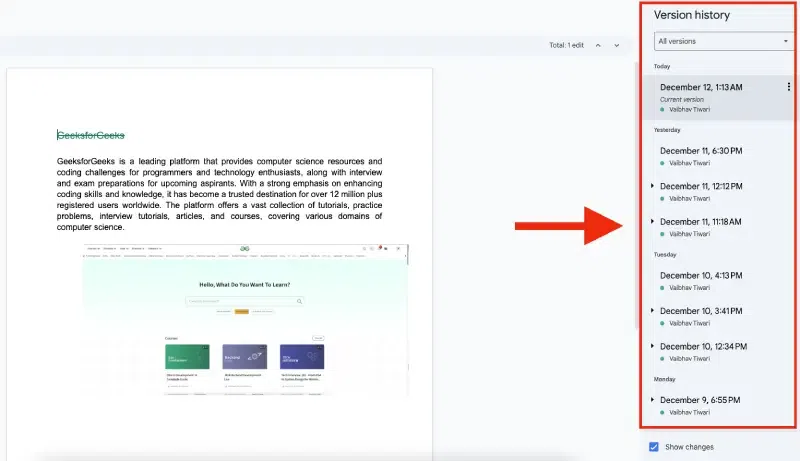
One of the most useful features is version history. Every time Claude updates the artifact based on your feedback, a new version gets saved. You can scroll through previous iterations, compare them, and revert to an earlier version if the latest changes went in the wrong direction.
This is genuinely handy when you're iterating on something and want to backtrack without starting over.
As of 2026, Artifacts are available across Claude.ai's free and paid tiers, though usage limits vary by plan. The feature works best on desktop where you have enough screen real estate to see both the chat and the artifact panel side by side. The mobile experience is functional but cramped.
When Artifacts Beat Plain Chat: A Decision Framework
This is where most guides fall short. They explain what Artifacts are but don't give you a clear framework for deciding when to use them. So let's fix that.
Here's a decision tree based on what you're actually trying to do.
You're drafting a document, article, or report
If you're working on any kind of written deliverable, a blog post, a research paper, a project proposal, Artifacts are a strong choice. You get a clean, formatted preview of the text, you can edit it directly in the panel, and you can ask Claude to revise specific sections without re-reading the entire conversation. The version history also means you can experiment with different tones or structures and compare them side by side.
You're writing or testing code
This is arguably where Artifacts shine brightest. Ask Claude to write a Python script, a React component, or a SQL query, and you'll get a live preview that actually renders. You can see the output immediately, spot errors, and ask for fixes without switching to an external editor.
It's not a full IDE, but for prototyping and quick iteration, it's remarkably efficient.
You're creating visual content (SVGs, diagrams)
Need a quick flowchart, a diagram, or a vector graphic? Artifacts can render Mermaid diagrams and SVGs directly in the panel. You describe what you want, Claude generates the code or markup, and you see the visual output instantly.
It's great for brainstorming visual ideas or creating simple graphics without opening a design tool.
You're brainstorming or outlining ideas
This is a gray area. If you're outlining a project or structuring ideas, an artifact can help you organize thoughts into a clean, editable format. But if you're just free-flowing in conversation, the regular chat is faster and less distracting.
Use artifacts when you want to crystallize ideas into something structured. Skip them when you're still exploring.
You just need a quick answer or explanation
Don't bother with artifacts. If you're asking "what's the difference between let and const in JavaScript" or "explain the Krebs cycle," you want a concise text response, not a rendered panel. Artifacts add friction here.
The chat handles quick answers better.
Step-by-Step: How to Create and Iterate on an Artifact
Let's walk through the actual workflow from start to finish. Once you've done this a couple of times, it becomes second nature.
Opening the Artifacts panel
When you start a new conversation on Claude.ai, the Artifacts panel is collapsed by default. Once Claude generates something that qualifies as an artifact, the panel expands automatically on the right side of your screen. You'll see a tab or toggle that lets you open and close the panel manually.
On desktop, the layout splits into roughly two-thirds chat and one-third artifact. On mobile, the artifact appears as a full-screen overlay you can dismiss.
Prompting Claude to generate an artifact
You don't need special syntax. Just ask Claude to create something. For example, "Write a Python function that calculates compound interest" or "Create a one-page project proposal for a website redesign." Claude will recognize that the output qualifies as an artifact and render it in the panel automatically.
The key is to be specific about what you want. Vague prompts produce vague artifacts. Clear, detailed prompts give Claude enough context to generate something useful on the first try.
Here are some prompt patterns that work well:
- "Write a [language] function that [specific behavior]. Include comments explaining each step."
- "Create a [document type] about [topic] with [specific sections or requirements]."
- "Generate an SVG of [description] with [specific dimensions or style]."
- "Build a [framework] component that [specific functionality]."
Editing and refining the output
Once the artifact is generated, you can edit it directly in the panel. Click into the content area and make changes. This is useful for small tweaks, fixing a typo, or adjusting a value without asking Claude to regenerate the whole thing.
For larger changes, just tell Claude what to modify in the chat. "Change the color scheme to blue and gray" or "Add error handling for null inputs" will update the artifact on the next iteration.
The iteration loop is where the real power lives. You generate, you review, you request changes, Claude updates, you review again. Each cycle gets you closer to what you need.
And because Claude has the full conversation context, it understands what you're building even after several rounds of edits.
Using version history to compare or revert
Every time Claude updates the artifact, a new version is saved. You can access version history through the artifact panel, usually via a dropdown or navigation arrows that let you step through previous iterations. This is incredibly useful when you've gone down a wrong path and want to go back.
Instead of trying to describe to Claude what you changed and asking it to undo it, you just click back to the version you liked.
Version history also lets you compare approaches. Maybe you tried two different structures for a document or two different algorithms for a function. You can flip between versions and decide which one works best.
It's a safety net that makes experimentation much less risky.
Downloading and exporting your work
Once you're happy with the artifact, you can download it. Code artifacts can be copied or downloaded as files. Document artifacts can be exported as text.
SVG artifacts can be saved as image files. This is the handoff point where you take what you built in Claude and move it into your actual workflow, whether that's a code editor, a design tool, or a document processor.
The download process is straightforward. Look for a download icon or "copy" button within the artifact panel. For code, you can usually select all and paste directly into your editor.
For SVGs and images, right-click or use the download option to save the file locally.
Real Scenarios Where Artifacts Shine
Let's get concrete. Here are four real-world scenarios where Artifacts genuinely outperform plain chat, and why.
Prototyping a React component
Say you need a quick interactive button component with specific styling and hover behavior. You ask Claude to build it. Instead of reading through a code block in chat, you see a live-rendered preview of the component in the artifact panel.
You can see the hover effect working. You can test the click behavior. You ask for changes like "make the border radius larger" or "add a loading state," and the preview updates immediately.
What would normally take copying code into a local project, spinning up a dev server, and refreshing a browser now happens in seconds inside Claude.
Drafting a research paper or report
You're writing a literature review and want Claude to help structure it. You ask for an outline first, then a draft of each section. The artifact panel shows the full document with proper formatting.
You edit sections directly, ask Claude to expand on specific arguments, and use version history to compare different organizational structures. When you're done, you copy the text into your word processor for final formatting. The artifact serves as a drafting workspace that keeps everything visible and editable in one place.
Building a data visualization
You have a dataset and want to see it plotted. You ask Claude to generate a visualization using Python or JavaScript. The artifact renders the chart or graph live.
You can ask for different chart types, color schemes, or labeling adjustments and see the results instantly. It's not a replacement for a full data analysis environment, but for exploratory visualization, it's fast and effective.
Creating an SVG illustration or diagram
You need a simple diagram for a presentation or a vector graphic for a web page. You describe what you want, Claude generates the SVG code, and the artifact panel renders the graphic. You can ask for adjustments to colors, shapes, or layout and see the changes in real time.
When you're satisfied, you download the SVG file and use it wherever you need it.
Common Mistakes That Waste Your Time
People run into the same handful of issues with Artifacts over and over. Here's what to watch out for.
Using artifacts for simple questions. If you just need a fact, a definition, or a quick explanation, don't expect an artifact. You'll get a text response in the chat, and that's the right format. Forcing Claude to create an artifact for something that doesn't need one just slows you down.
Being too vague in your prompts. "Make me a website" is going to produce a generic, underwhelming result. "Build a responsive landing page for a SaaS product with a hero section, three feature cards, and a contact form using React and Tailwind CSS" gives Claude enough to work with. Specificity is everything.
Ignoring version history. A lot of people don't realize version history exists or forget to use it. When Claude makes a change you don't like, don't try to describe the old version from memory. Just click back to the previous version and continue from there.
Expecting a full development environment. Artifacts are great for prototyping and preview, but they're not a replacement for VS Code or a proper IDE. If you're building a complex application with multiple files, dependencies, and a build pipeline, you'll hit the limits of what the artifact panel can do. Use it for quick iteration, then move to a real editor for serious development.
Not iterating enough. The biggest mistake is accepting the first output as final. Artifacts are designed for iteration. The first version is a starting point.
Ask for refinements, tweak the output yourself, and use version history to explore alternatives. The more you iterate, the better the result.
What Artifacts Can't Do (Yet)
Artifacts are useful, but they have real limitations that are worth knowing about.
No real-time collaboration. You can't share an artifact with a teammate and work on it together simultaneously the way you would with a Google Doc or a Figma file. Artifacts live within your individual Claude session. If you want someone else to see or edit the work, you need to download it and share it through other means.
Limited to specific output types. Artifacts work well for code, documents, SVGs, and Mermaid diagrams. They don't handle spreadsheets, complex multi-file projects, or interactive web applications with backend logic. If your project falls outside the supported types, you'll need external tools.
Sandboxed execution has limits. Code previews run in a sandboxed environment, which means no network access, no file system access, and no persistent state between sessions. You can't build a full-stack app that talks to a database. You can preview front-end code and simple scripts, but that's the boundary.
Mobile experience is limited. The side-by-side layout that makes Artifacts so effective on desktop doesn't translate well to a phone screen. You can still use Artifacts on mobile, but the experience is more cramped and less intuitive. For serious artifact work, stick to desktop.
No direct export to external tools. There's no one-click "open in VS Code" or "import to Figma" button. You copy or download the output and move it into your workflow manually. It's a small friction point, but it adds up if you're moving between tools frequently.

Expert Tips for Getting Better Results
After researching how experienced Claude users work with Artifacts, a few patterns stand out.
Start with structure, then fill in content. Instead of asking Claude to write an entire document in one go, ask for an outline first. Review it, adjust it, then ask Claude to expand each section. This gives you more control and produces better results.
Use the conversation to give feedback, not the artifact panel. For small edits, editing directly in the panel is fine. For anything more complex, type your feedback in the chat. Claude has full conversation context there, which means it understands the broader project better than if you just edited text in isolation.
Leverage version history as a comparison tool. Don't just use it for reverting. Use it to compare different approaches side by side. Generate two versions of something, flip between them, and pick the elements you like from each.
It's one of the most underused features.
Be explicit about format and constraints. If you want a specific file type, a specific framework, or a specific style, say so upfront. "Write this in TypeScript with strict mode enabled" is better than "write this in TypeScript." "Use Tailwind CSS for styling" is better than "make it look good." The more constraints you give Claude, the closer the first draft will be to what you need.
Know when to leave the artifact workflow. If you find yourself fighting the sandbox limitations or copying code back and forth between Claude and your editor, it's probably time to move the work into a proper development environment. Artifacts are a starting point, not a destination.
Quick Decision Guide: Should You Use an Artifact for This?
Here's a simple reference you can come back to whenever you're unsure.
| Your task | Use an artifact? | Why |
|---|---|---|
| Quick factual question | No | Text response is faster and sufficient |
| Drafting a document or report | Yes | Live preview and version history help |
| Writing or testing code | Yes | Live rendering shows output instantly |
| Creating a diagram or SVG | Yes | Visual preview updates in real time |
| Brainstorming unstructured ideas | Maybe | Only if you want to organize into a format |
| Building a multi-file application | No | Sandbox limits make this impractical |
| Casual conversation or Q&A | No | Artifacts add unnecessary overhead |
The pattern is straightforward. If you're creating something you need to see, edit, or compare, use an artifact. If you're just exchanging information, stick with the chat.
Frequently Asked Questions
How do I open the Artifacts panel in Claude?
The Artifacts panel opens automatically when Claude generates something that qualifies as an artifact, like code, a document, or a diagram. You can also toggle it manually using the tab or icon in the Claude.ai interface. It appears on the right side of the screen on desktop.
Can I use Claude Artifacts for free?
Yes. Artifacts are available on Claude's free tier, though usage limits apply. Paid plans like Pro, Team, and Enterprise offer higher usage limits and priority access.
Check Anthropic's current pricing page for the latest details on what each tier includes.
What types of content can Claude Artifacts render?
Artifacts support code with live previews (HTML, React, Python), formatted documents, SVG graphics, and Mermaid diagrams. The rendering depends on the content type. Code gets executed in a sandbox, documents get formatted text display, and visuals get rendered as images.
Can I share a Claude Artifact with someone else?
Not directly from within the interface. Artifacts live inside your individual Claude session. To share the output, you need to download or copy it and send it through another channel like email, a messaging app, or a file-sharing service.
Do Artifacts work on mobile?
They do, but the experience is limited. The side-by-side layout that works so well on desktop doesn't translate to a small screen. On mobile, artifacts appear as full-screen overlays.
For serious artifact work, desktop is the better option.
How many versions does Claude keep for an artifact?
Claude saves a new version each time the artifact is updated based on your feedback. The exact number of versions retained may vary, but you can typically scroll through multiple iterations and revert to any previous version using the version history controls in the artifact panel.

Similar Posts





















