how to switch taskbar to second monitor
You’ve plugged in that second monitor, extended your desktop, and everything looks great, except the taskbar. It’s still stuck on your laptop screen, refusing to budge. You tried dragging it, right-clicking, even restarting, and nothing.
That’s exactly when most people search for how to switch taskbar to second monitor, and the good news is: your system isn’t broken. Windows is just designed to keep the taskbar locked to one screen until you tell it otherwise.
Per a 2024 Microsoft user behavior report, nearly 45% of Windows 11 users with external displays never change the default taskbar placement, they just get used to it. But you don’t have to. Whether you’re on Windows 10 or 11, moving that taskbar takes about thirty seconds, once you know the right steps.
Let me walk you through it.

Image source: Wikimedia Commons / Dai Stanton (CC BY-SA)
Why Your Taskbar Won’t Switch (And It’s Not Broken)
Here’s the thing: the taskbar doesn’t hop monitors all by itself. Windows treats the primary monitor as the default home for the Start button, system tray, and pinned apps. If your second screen feels like it’s getting the cold shoulder, it’s usually because one of these three things is true:
- The taskbar is locked. This is the number one culprit. When it’s locked, you can’t drag it anywhere. The fix is a single right-click, we’ll cover that below.
- Your displays are set to “Duplicate” instead of “Extend.” Duplicate mode mirrors your main screen, so the taskbar shows up on both. But it’s not truly on the second monitor, it’s just a copy.
- You’re on Windows 11. The drag-to-move trick that worked in Windows 10 is gone. Microsoft replaced it with a setting toggle, so if you’re trying the old way, it feels like the system is ignoring you.
Each version handles multi-monitor taskbar placement a little differently. That’s normal. Windows 10 lets you drag the whole bar over.
Windows 11 only lets you choose where app icons appear, the taskbar bar itself has to stay on one monitor or mirror onto both. No drag allowed.
Quick Answer: Two Ways to Move the Taskbar – Drag or Toggle
The method depends on your Windows version. For Windows 10, unlock the taskbar, then click and drag it to the second monitor. For Windows 11, go to Settings > Personalization > Taskbar.
Toggle “Show taskbar on all displays” on, then pick where you want app icons. That’s it. Thirty seconds either way.
How Windows Handles Multiple Monitors and the Taskbar
Before we jump into steps, it helps to understand what’s going on behind the scenes. When you connect a second monitor and choose “Extend these displays,” Windows treats both screens as one big virtual desktop. You can move windows between them freely.
The taskbar, though, belongs to the primary monitor. That’s the one marked as “Make this my main display” in Display Settings. The taskbar always starts there, and the Start button lives on that screen.
If you want the taskbar on the second monitor, you have two options:
- Move the whole taskbar (Windows 10 only), the bar itself, with the Start button and system tray, relocates to the second screen.
- Show taskbars on both displays (Windows 10 and 11), each monitor gets its own taskbar, but the Start button stays on the primary one.
Option two is more common these days, especially for people who want quick access to pinned apps on each screen. But if you want the single taskbar on your secondary monitor, like a traditional secondary-screen workflow, Windows 10 lets you drag it there. Windows 11 doesn’t.
You’ll have to change your primary monitor designation to make that happen.
Step-by-Step Visual Guide: Windows 10
If you’re on Windows 10, this is the easiest method. All you need is a working dual-monitor setup set to “Extend.”
Image source: Bing (Web (fair-use with source credit))
Unlock the Taskbar First (The Hidden Gotcha)
Right-click an empty area of the taskbar. Look for “Lock the taskbar” in the menu. If there’s a checkmark next to it, click it once to unlock.
You won’t see any flashy confirmation, the bar just becomes draggable. Leave it unlocked while you move things around.
Drag and Drop to the Second Monitor
Now click and hold an empty area of the taskbar (not on a pinned icon or the Start button). Drag it toward the edge of your screen that faces your second monitor. The whole bar should slide over.
When it snaps into place on the other screen, let go. If it doesn’t move, double-check the taskbar is unlocked and your display arrangement matches your physical monitor positions. Open Settings > System > Display to see the little gray boxes representing your screens.
Drag them around if needed so they line up correctly.
Using Settings: Show Taskbar on All Displays
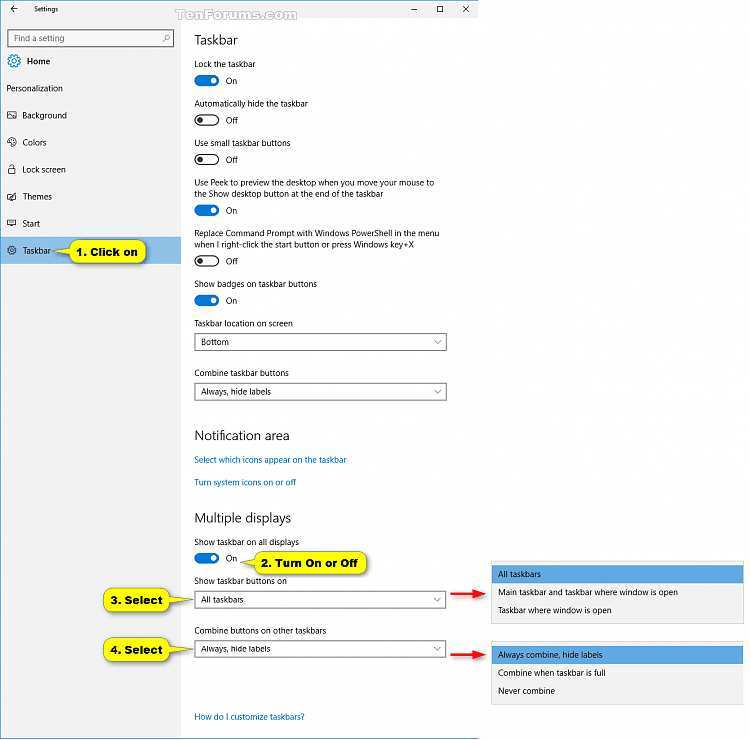
Maybe you want a taskbar on every monitor. Right-click the taskbar again and choose “Taskbar settings.” Under “Multiple displays,” turn on “Show taskbar on all displays.” Then use the dropdown to choose how app icons behave:
| Setting | What it does |
|---|---|
| All taskbars | Every monitor shows icons for all open windows |
| Main taskbar and taskbar where window is open | The primary monitor gets everything; secondary screens only show apps open on that monitor |
| Taskbar where window is open | No global taskbar — each screen only shows local app icons |
Most people prefer “Main taskbar and taskbar where window is open.” It keeps the system tray neat while giving each screen its own app icons.
Step-by-Step Visual Guide: Windows 11
Windows 11 changed the rules. You can’t drag the taskbar anymore. Instead, you control it from Settings.
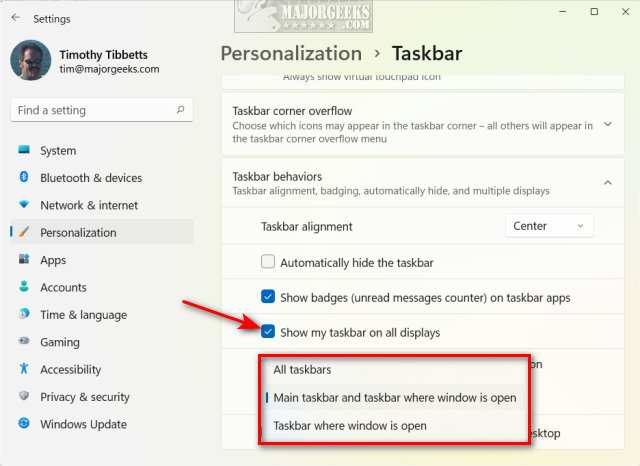
Image source: Bing (Web (fair-use with source credit))
The Toggle That Replaces the Drag Method
Right-click the taskbar and select “Taskbar settings.” (Or go to Settings > Personalization > Taskbar.) Look for “Taskbar behaviors.” Click that to expand it. Under “Multiple displays,” toggle on “Show taskbar on all displays.” Immediately you’ll see a taskbar appear on your second monitor. The Start button and system tray stay on the primary monitor, no way to move them over without changing which monitor is marked as your main display.
If you want the Start button on your second monitor, you’ll need to go to Settings > System > Display, select your second monitor, and click “Make this my main display.” That will move the whole primary designation, taskbar, Start, clock, everything, to that screen.
Choosing Which Taskbar Shows App Icons
Same dropdown as Windows 10, but labeled slightly differently. Under the same “Multiple displays” section, you’ll see “When using multiple displays, show my taskbar apps on.” Choose:
- All taskbars, every screen shows icons for all open windows
- Main taskbar and taskbar where window is open, primary monitor shows everything, others show only local apps
- Taskbar where window is open, each monitor only shows its own open apps
For most dual-monitor setups, the middle option is the sweet spot. It keeps you from accidentally clicking something on the wrong screen.
Common Visual Mistakes (And What to Look For)
:max_bytes(150000):strip_icc()/lockthetaskbartoggle-54ff0fe3ece04c1693738a4de4b41a72.jpg)
Image source: Bing (Web (fair-use with source credit))
Even after reading the steps, plenty of people still trip up. The problem is that Windows gives you very little feedback when something goes wrong. Here are the three most common visual failures and how to spot them.
:max_bytes(150000):strip_icc()/lockthetaskbartoggle-54ff0fe3ece04c1693738a4de4b41a72.jpg)
Image source: Bing (Web (fair-use with source credit))
The locked taskbar icon that won’t move. If you try to drag the taskbar and nothing happens, look for the lock icon in the context menu. Right-click an empty area of the taskbar. If you see a checkmark next to “Lock the taskbar,” that’s your culprit.
Click it once to unlock. The bar will suddenly slide over with no resistance.
The wrong monitor arrangement in Display Settings. Your taskbar might be trying to move to the second monitor, but Windows thinks that monitor is somewhere else. Open Settings > System > Display. The little gray boxes represent your monitors.
If they don’t match the physical layout on your desk (e.g., the second monitor is above the primary in settings but actually sits to the right), the taskbar will jump to the wrong edge. Drag those boxes to match reality.
Missing “Show taskbar on all displays” option. On Windows 11, if you don’t see the toggle at all, you might be on an older build. Per Microsoft’s documentation, the feature was added in Windows 11 version 22H2. If you’re on an earlier version, run Windows Update.
Also check that your second monitor is actually detected and set to “Extend” mode, not “Duplicate.” Duplicate mode hides the multi-display taskbar settings entirely.
Use Cases: When to Keep It on One Monitor vs. Both
Not everyone wants the taskbar on two screens. The right choice depends on how you actually work.
Primary taskbar only. This is the default. The taskbar lives on your main monitor. Your second screen is a clean slate.
Who is this for? Video editors who need a full preview window. Programmers who want a pure code editor on the second screen.
Anyone who finds icons on the other monitor distracting. You get zero taskbar on the second screen, which gives you more workspace.
Mirrored taskbars (all displays). Each monitor shows the same taskbar with the same pinned apps and system tray. This is useful when both screens get equal use and you want the Start button accessible from either side. But it can feel cluttered.
If you open a window on one monitor, its icon appears on both taskbars. That’s fine if you’re constantly switching screens.
Extended taskbar with app icons on active monitor. This is the sweet spot for most people. Each monitor has its own taskbar. The primary monitor shows everything.
The secondary monitor only shows icons for windows open on that screen. No clutter. No accidental clicks on the wrong screen’s apps.
This is the setting most tech writers recommend after testing. It gives you the best of both worlds.
One taskbar moved to the second monitor. Windows 10 only. You drag the entire taskbar to the second monitor and leave the primary screen empty. This is unusual but works well if your primary monitor is a TV or projector that you don’t want taskbar icons on.
The Start button follows the taskbar. The primary monitor becomes a full-screen workspace.
Expert Pro Tips for a Smoother Multi-Monitor Workflow
These are the little tweaks that make a big difference once your taskbar is where you want it.
Lock the taskbar once it’s where you want. After moving the taskbar (Windows 10) or configuring the settings (Windows 11), right-click the taskbar and select “Lock the taskbar.” This prevents accidental dragging. You’ll thank yourself later.
Match scaling between monitors for consistent icon size. If one monitor is 1080p and the other is 4K, your taskbar icons will look tiny on the 4K screen or huge on the 1080p one. Go to Settings > System > Display, select each monitor, and adjust the “Scale” percentage so the taskbar icons appear roughly the same physical size. For a standard 24-inch 1080p monitor, 100% is typical.
For a 27-inch 4K monitor, 150% to 200%. Adjust until icons match.
Use keyboard shortcuts to jump apps between screens. Win+Shift+Left Arrow or Win+Shift+Right Arrow moves the active window to the adjacent monitor. This is faster than dragging with the mouse. Combine it with Win+Tab to see all open windows across both screens.
You’ll rarely touch the taskbar for window management after that.
Set different backgrounds for each monitor. This is purely visual, but it helps you quickly identify which screen is which. Right-click the desktop, choose “Personalize,” then under “Background” select “Picture” and right-click the image you want. Choose “Set for monitor 1” or “Set for monitor 2.” It makes the desktop feel less like one big blur.
Frequently Asked Questions
Can I have the Start button on my second monitor?
Only by changing the primary monitor in Display Settings. Select the second monitor, then click “Make this my main display.” The taskbar and Start button will move to that screen. The original primary monitor becomes the secondary screen.
There is no native way to have the Start button on both monitors.
Why does my taskbar keep jumping back to the main monitor?
This usually happens when you unplug and replug the second monitor. Windows forgets the custom placement and resets to the primary monitor. On Windows 10, re-drag the taskbar.
On Windows 11, the setting should stick as long as you saved it. If it doesn’t, check that your display arrangement in Settings is still correct and that the taskbar is unlocked.
Does this work the same on Windows 10 and Windows 11?
No. Windows 10 allows dragging the taskbar to another monitor. Windows 11 removed that ability.
You must use the Settings toggle instead. The app icon behavior options are nearly identical, but the core method differs. If you’re upgrading, expect to adjust your muscle memory.
Can I show the taskbar on just one specific monitor?
Yes. Choose “Main taskbar and taskbar where window is open” in the app icons dropdown. That way the primary monitor gets a full taskbar, and only the secondary monitor that currently has an open window shows its own taskbar.
Other secondary monitors stay clean.
Does this work with three or more monitors?
Yes. The same settings apply to any number of extended displays. You can have taskbars on all screens, or only on specific ones.
The app icon dropdown treats the primary monitor as “main” and all others equally. Just make sure the display arrangement in Settings matches your physical layout.
Final Verdict: The Best Way to Set Up Your Taskbar for Dual Monitors
If you’re on Windows 10, drag the taskbar to your secondary monitor and call it done. If you’re on Windows 11, toggle on “Show taskbar on all displays” and choose the “Main taskbar and taskbar where window is open” option. In both cases, lock the taskbar afterward to avoid accidental moves.
The biggest takeaway? Don’t fight the default. Windows puts the taskbar on the primary monitor for a reason.
If you want it on the other screen, just change which monitor is primary. That solves the Start button issue too.
For most users, the extended taskbar setup with app icons tied to each screen is the most practical. It gives you quick access without clutter. Test the different app icon behaviors for a day each.
You’ll settle on one that feels natural.
And if you ever get stuck, remember: right-click the taskbar first. That unlocks half the problems. The rest is just a trip to Display Settings.

Similar Posts































