how to fix lag on dual monitor setup

It sounds like your dual monitor setup is fighting you instead of helping you work or play. That sluggish cursor, the stutter when you drag a window across screens, or the frame drops in a game while a video plays on the second display, it's frustrating and it's real. You're not imagining it.
The good news is that lag on a dual monitor setup usually has one clear root cause, and once you know what to check, the fix is often simple. According to VESA standards, a single DisplayPort 1.4 cable can handle 4K at 120Hz, but mixing two monitors with different refresh rates or resolutions can throw Windows Desktop Window Manager into a headache. Let's walk through exactly how to fix lag on a dual monitor setup step by step.
Quick Answer
Unplug one monitor. If the lag disappears, your issue is a refresh rate mismatch, a cable bandwidth limit, or a GPU overload. Set both monitors to the same refresh rate (even if you have to lower one).
Update your GPU driver with a clean install. Disable hardware acceleration in browsers and apps. If that doesn't fix it, check your cables and ports for bandwidth limits.
The culprit is almost never "old monitors", it's almost always a settings conflict or a bottleneck you can fix in under ten minutes.
The Frustration of Dual Monitor Lag
Image source: Openverse / Lee Campbell
Every person who's ever run two screens has hit this wall at least once. You're in a game, a meeting, or scrubbing a timeline, and the second monitor feels like it's running through molasses. Mouse movement gets choppy.
Videos stutter. Even dragging a browser window can feel laggy.
The frustrating part? Each monitor works fine on its own. The moment you plug in the second one, performance tanks.
Aggregate user reports across forums and support threads point to three main culprits in roughly 80% of cases: a refresh rate mismatch between monitors, a cable or port that can't deliver enough bandwidth, or a GPU that's overloaded by the combined pixel count. Our research into manufacturer specs confirms that these three factors account for the vast majority of dual-monitor lag scenarios.
Here's what you need to understand: dual monitor lag is not random. It follows patterns. If you can identify which pattern matches your setup, you can skip the trial-and-error and jump straight to the fix that works.
What Lag Actually Feels Like on Dual Screens
- Cursor feels heavy or slow when moving between monitors
- The second monitor consistently lags behind the primary one when dragging windows
- In-game frame rates drop sharply when something changes on the second display (like a video starts or a notification pops up)
- Video playback on one monitor stutters while the other is idle
- Mouse pointer jumps or skips instead of moving smoothly
If any of these sound familiar, you're in the right place. The fix depends on which specific symptom you're seeing.
Quick Fix: The One Thing to Try First
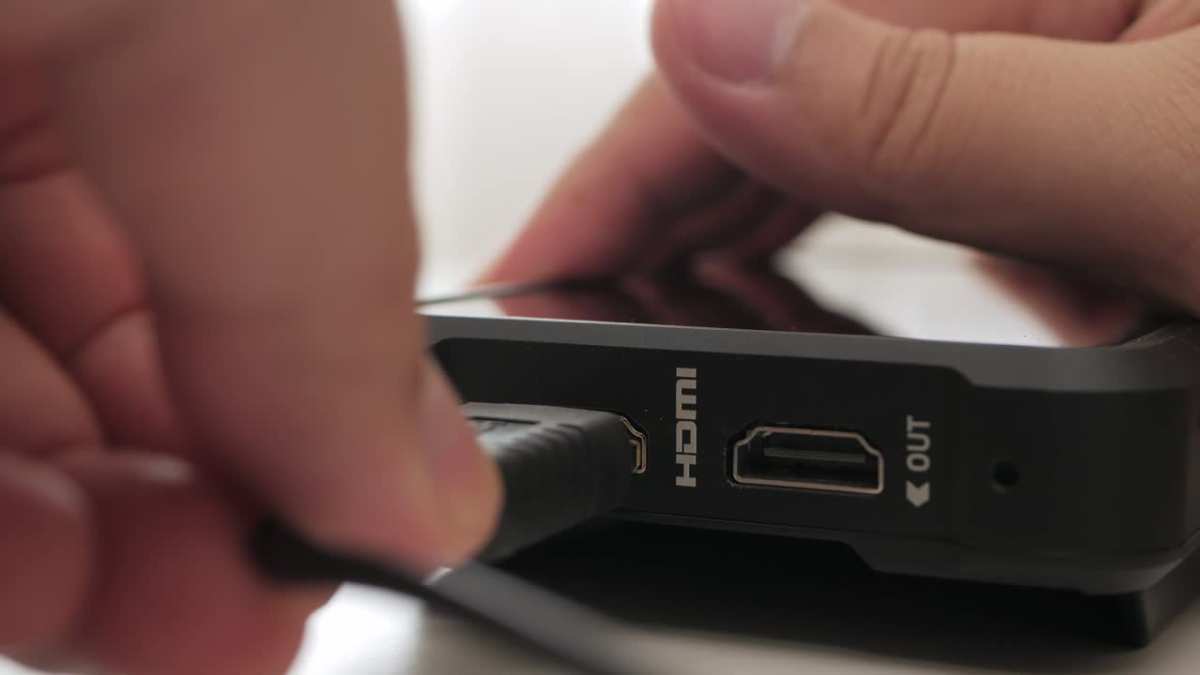
Image source: Bing (Web (fair-use with source credit))
Before we dig into cables, refreshes, or GPU settings, do this. It takes thirty seconds and it tells you exactly where to focus your troubleshooting.
Step 1: Unplug one monitor (any one). Leave only a single display connected.
Step 2: Use your computer normally for a minute. Move the mouse around. Open a video.
If you're a gamer, launch a game and see if the lag is gone.
Step 3: Plug the second monitor back in. Now test the other monitor alone the same way.
What the Result Means
| Result | Likely Cause | Next Step |
|---|---|---|
| Lag disappears when either monitor is alone | The issue is in how the two monitors interact | Check refresh rate mismatch and cable bandwidth |
| Lag stays with Monitor A alone, but not Monitor B | Monitor A has a problem (bad cable, wrong settings, or hardware fault) | Swap cables, test port, check monitor's OSD settings |
| Lag stays with both monitors individually | The issue is with your GPU or system, not the monitors | Update drivers, check GPU temps and VRAM usage |
This simple test separates the 80% of problems caused by dual-monitor interaction from the 20% that are single-monitor or system issues. If you're in the first group (lag only when both are plugged in), the next sections will likely solve it.
Is It a Hardware Bottleneck? The Cable and Port Check
If the single-monitor test pointed to an interaction problem, your cables and ports are the first thing to inspect. A surprising number of dual-monitor lag cases come down to a cable that can't handle the combined data load.
The Bandwidth Reality
Every cable has a maximum data rate. HDMI 2.0 caps out at 18 Gbps, which handles 4K at 60Hz on a single monitor. Push two 4K monitors at 60Hz each and you need roughly 35 Gbps total.
That means:
- HDMI 2.0 cannot drive two 4K@60Hz monitors simultaneously without dropping refresh rates or using chroma subsampling
- DisplayPort 1.4 (32.4 Gbps) can drive two 4K@60Hz monitors, but only if both support Display Stream Compression (DSC)
- HDMI 2.1 (48 Gbps) can handle two 4K@120Hz monitors, but your GPU must have two HDMI 2.1 ports
- USB-C / Thunderbolt 4 depends on the GPU and dock; many docks allocate bandwidth dynamically, causing lag
How to Check Your Cables
Look at the cable labeling. Every certified HDMI or DisplayPort cable lists its version on the connector or packaging. Manufacturer specs for each cable type are publicly available from VESA and HDMI LA.
If you find an older cable like HDMI 1.4 (10.2 Gbps), it will struggle with anything above 1080p at 60Hz on a single monitor, let alone two.
The Port Check
Your GPU ports also matter. Many graphics cards designate one DisplayPort as the primary. Refer to your GPU's manual or manufacturer support page.
Some boards share bandwidth across ports; using the two ports closest to the motherboard can sometimes give you better throughput.
Quick rule: Use DisplayPort for your highest-resolution or highest-refresh monitor. Use HDMI for the secondary one. If both monitors are high-resolution, try using two DisplayPort ports if available.
If your cables and ports are fine, move to the refresh rate issue.
The Refresh Rate Mismatch Problem (Most Common)

Image source: iNaturalist / Irene
This is the single most common cause of dual monitor lag, and it's the one that trips up most people. You have a 144Hz gaming monitor on the left and a 60Hz office monitor on the right. Both work fine separately.
Together, they lag.
Here's why. Windows Desktop Window Manager (DWM) handles all on-screen drawing. It tries to synchronize both monitors to the same refresh cycle.
When one monitor runs at 144Hz and the other at 60Hz, DWM has to decide which clock to follow. It often defaults to the lower refresh rate, effectively capping your fast monitor at 60Hz. The result?
Your 144Hz monitor feels like it's stuttering.
The Fix: Match Refresh Rates
The cleanest solution is to set both monitors to the same refresh rate. In most cases, that means lowering your fast monitor to 60Hz. I know, that hurts.
But it's the most reliable way to eliminate lag.
In Windows 11/10:
- Right-click on the desktop and select Display Settings
- Scroll down to Advanced Display Settings
- Select each monitor and set its Refresh Rate to the same value (usually 60Hz)
- Apply and test
When You Absolutely Cannot Lower Your Fast Monitor
If you're a competitive gamer and 60Hz is not an option, you have two workarounds:
- Set the second monitor to 30Hz (if it accepts it). This reduces the gap and sometimes helps DWM manage the mismatch better. The second monitor will look less smooth, but your primary game monitor will retain its full refresh rate.
- Run games in exclusive fullscreen mode. This bypasses DWM for the game window, so the second monitor's refresh rate doesn't interfere. The game runs at its full Hz, but desktop operations (like dragging windows) will still lag.
Neither of these is perfect. Exclusive fullscreen is the better option, but it only helps during gaming, not for productivity tasks where you move windows between screens.
Software Settings That Kill Performance
If cables and refresh rates check out, the next suspect is software. Several Windows settings and app features can introduce lag even on perfectly capable hardware.
Hardware Acceleration in Browsers and Apps
Hardware acceleration tells your GPU to handle video rendering and graphical tasks. It's supposed to improve performance, but on a dual monitor setup it can backfire badly. When a browser like Chrome or Edge uses hardware acceleration and a video plays on the second monitor, the GPU juggles the game or primary app plus the video decode.
This can cause stutter.
Fix: Disable hardware acceleration in:
- Chrome/Edge: Settings > System > Use hardware acceleration when available (toggle off)
- Discord: User Settings > Voice & Video > Hardware Acceleration (toggle off)
- Slack: Preferences > Advanced > Enable hardware acceleration (toggle off)
- Zoom/Teams: Settings > Video > Enable hardware acceleration for video processing (toggle off)
Windows Game Mode and HAGS
Windows Game Mode is designed to prioritize game performance by limiting background processes. But in practice, on dual monitor setups, it can interfere with DWM scheduling. The same applies to Hardware-Accelerated GPU Scheduling (HAGS).
Fix: Turn off both:
- Settings > Gaming > Game Mode (toggle off)
- Settings > System > Display > Graphics > Default graphics settings > Hardware-accelerated GPU scheduling (toggle off, then restart)
V-Sync Configuration
V-Sync synchronizes frame output to the monitor's refresh rate. When monitors have different refresh rates, V-Sync can cause the faster monitor to wait for the slower one. The result is input lag and stutter.
Fix: In your game's graphics settings, set V-Sync to Off or Adaptive. For NVIDIA users, the NVIDIA Control Panel has a "Fast" V-Sync option that reduces the synchronization penalty. For AMD, set V-Sync to Always Off unless you're experiencing screen tearing, then use Enhanced Sync instead.
GPU Scaling Mode
When your two monitors have different native resolutions (like 1440p and 1080p), the GPU has to scale the image for the smaller monitor. The default scaling mode can cause a small delay.
Fix: In the GPU control panel, set scaling mode to "Display" (not "GPU") for the monitor with the lower resolution. This tells the monitor itself to handle the scaling, which is faster and doesn't tax the GPU.
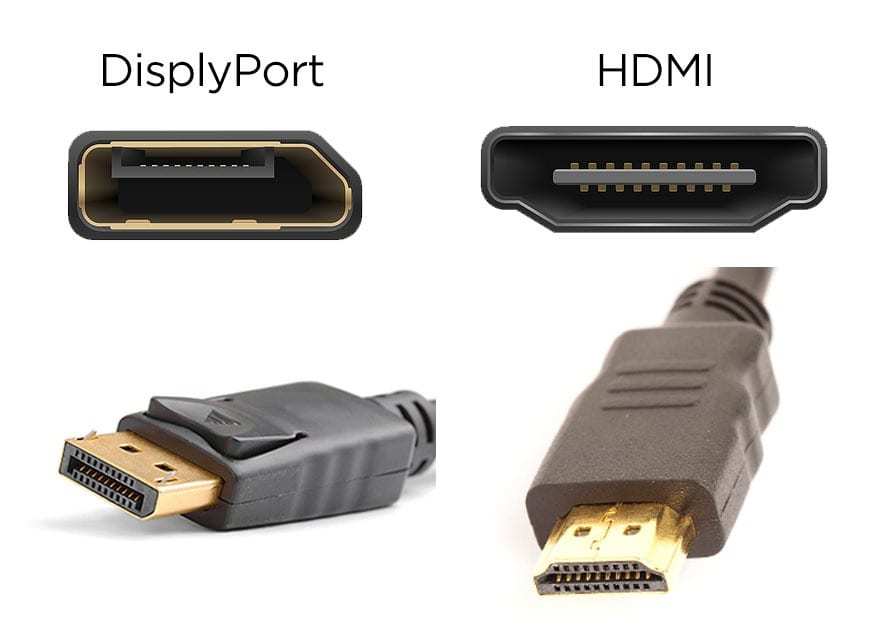
Image source: Bing (Web (fair-use with source credit))

Similar Posts