how to run dual monitors with docking station
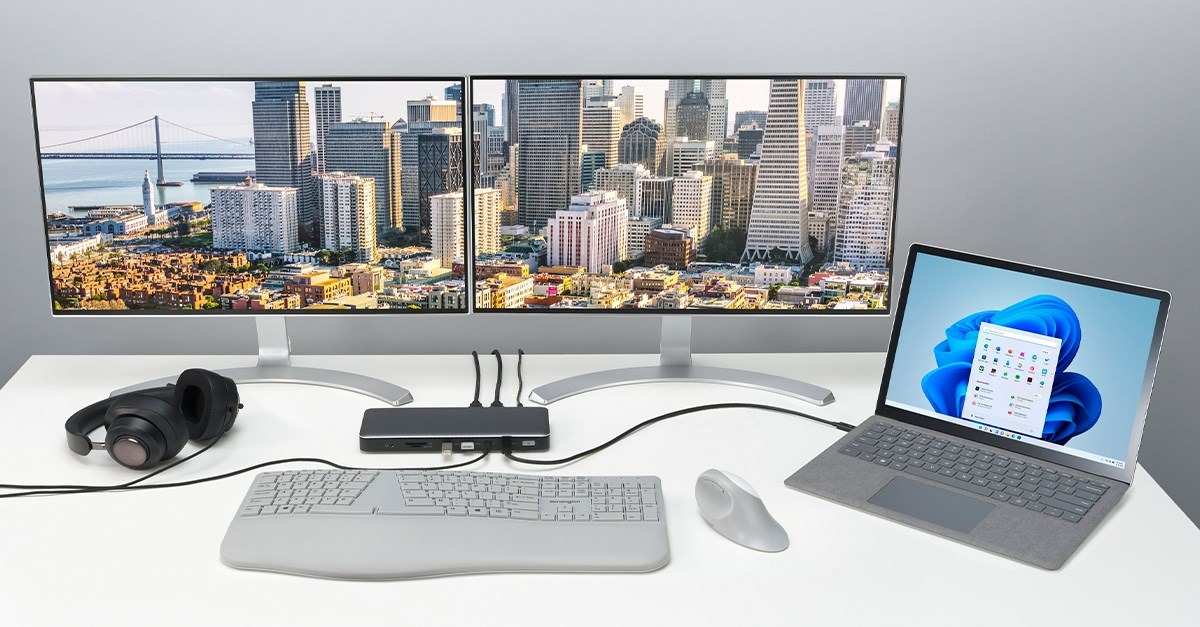
You’ve got a laptop with one video port and two monitors waiting on your desk. If you’re wondering how to run dual monitors with a docking station, the answer isn’t a single cable recipe. It depends on your laptop’s port type, your monitors’ inputs, and the dock’s bandwidth.
Per DisplayPort 1.4 and Thunderbolt 4 standards as of 2026, most docks can handle two 4K displays at 60 Hz. But mismatched hardware will choke that signal. Let’s walk through the conditions that decide your setup.
Quick Answer
Check your laptop port. If it’s Thunderbolt 3 or 4, buy a Thunderbolt dock. If it’s USB-C with DisplayPort Alt Mode, a USB-C dock works.
If it’s a plain USB-C port (no video), you need a DisplayLink dock. Connect monitors with the right cables for your resolution. Set up in Windows or macOS display settings.
Image source: Bing (Web (fair-use with source credit))
Step 1: Check Your Laptop’s Video Output Options
Your laptop’s video output port determines everything downstream. Three common types exist.
Thunderbolt 3 or 4, a port marked with a lightning bolt icon. It delivers 40 Gbps bandwidth, enough for two 4K displays at 60 Hz or one 6K display. Works with Thunderbolt docks and USB-C docks that support Alt Mode.
USB-C with DisplayPort Alt Mode, a USB-C port that also carries video. Look for a “DP” symbol or check your laptop’s spec sheet. Bandwidth maxes out at 10 Gbps for USB 3.2 Gen2, so dual 4K at 60 Hz may not work.
You’ll need a USB-C dock that supports dual video output.
Plain USB-C (no video), common on older budget laptops and some Chromebooks. This port charges and transfers data but cannot send a video signal. You’ll need a DisplayLink dock, which uses a software driver to push video over USB.
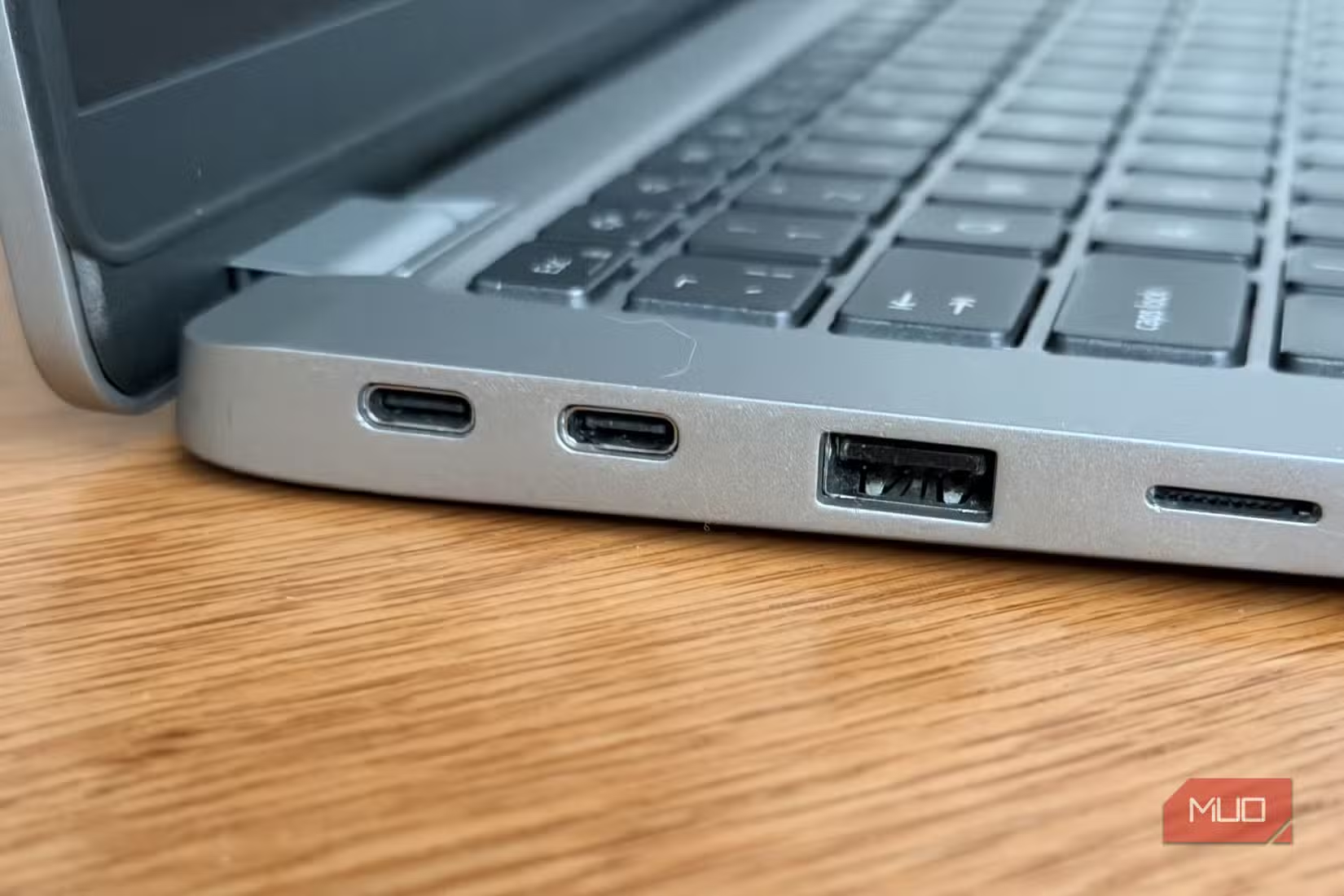
Image source: Bing (Web (fair-use with source credit))
How to check on Windows: Open Device Manager, expand “Universal Serial Bus controllers” or “Display adapters.” Look for “Thunderbolt” or “USB-C.” Also check the port physically.
How to check on macOS: Click the Apple menu > About This Mac > System Report. Under “Hardware,” look for Thunderbolt or USB.
If your laptop has an HDMI or DisplayPort port, you can use that directly. But then you don’t need a dock for video. This guide focuses on laptops with limited ports.
Common gotcha: a USB-C port that charges your laptop but cannot send video. Many Dell and Lenovo laptops have dual USB-C ports, one supports video, the other does not. Check the port symbol or manual.
Step 2: Look at Your Monitor’s Inputs and Capabilities
Now flip both monitors around. Check the back or bottom for available ports. Most monitors have HDMI and DisplayPort.
Some include USB-C with video support.
Port types matter for bandwidth. HDMI 1.4 tops at 4K 30 Hz. HDMI 2.0 does 4K 60 Hz. DisplayPort 1.2 handles 4K 60 Hz, while 1.4 can do 4K 120 Hz or 8K 60 Hz.
Does your monitor support daisy chaining? Look for a DisplayPort Out port (or “MST” in the on-screen menu). If both monitors have DisplayPort In and Out, you can connect one monitor to the dock and the second to the first. No extra cable needed.
But if either lacks DisplayPort Out, daisy chain is dead.
Resolution and refresh rate limits. A monitor with a 1080p 60 Hz spec needs less bandwidth than a 4K 144 Hz panel. Know what each monitor wants before buying cables or a dock.
Quick way to check monitor specs: search the model number plus “specifications.” Manufacturer’s page lists exact port types and supported resolutions.
If both monitors are the same model, life is easier. If they’re different, make sure your dock can drive the higher-resolution one first. Some docks have one high-bandwidth port and one lower-bandwidth port.
Step 3: Choose Your Connection Method (Decision Branch)
Here’s where you pick a path. The right method depends on your laptop port and your monitors’ capabilities.
Branch A – Thunderbolt dock (best for dual 4K or high refresh)
If your laptop has Thunderbolt 3 or 4, get a Thunderbolt dock. It gives you 40 Gbps, enough for two 4K 60 Hz monitors or one 4K 144 Hz plus a second 1080p. Most Thunderbolt docks have two DisplayPort or HDMI ports.
Connect each monitor directly. No daisy chain needed.
Best for: MacBooks, high-end Windows laptops, gamers, video editors.
Branch B – USB-C dock with DisplayLink (for laptops without Thunderbolt)
If your laptop has a plain USB-C port (no video) or a USB-C port that supports only one external display, use a DisplayLink dock. DisplayLink is a software driver that compresses video data and sends it over USB. It works on Windows, macOS, and even some Chromebooks.
Performance is good for office work but not ideal for gaming or video editing.
Best for: budget laptops, older devices, offices with mixed hardware.
Branch C – Daisy chain via DisplayPort MST (no dock needed)
If your laptop has a DisplayPort or Thunderbolt output, and both monitors support DisplayPort Out, you can daisy chain. Connect the dock or laptop to Monitor 1, then Monitor 1 to Monitor 2 with a DisplayPort cable. Enable MST in Monitor 1’s menu.
This method uses no extra dock, just cables. But monitor support is critical.
Best for: setups with two identical monitors that both have DisplayPort Out, desktop PCs with a dedicated GPU.
Branch D – Adapters and a hub (last resort)
You can use a USB-C to dual HDMI adapter (passive or active) plus a USB hub for extra ports. Performance is mixed. Adapters may cap resolution or introduce lag.
This works if you already have the gear, but a proper dock is more reliable.
Best for: temporary setups, testing, very low budget.
Decision table
| Your laptop port | Monitor support | Recommended method |
|---|---|---|
| Thunderbolt 3/4 | Any | Thunderbolt dock |
| USB-C Alt Mode | Both have HDMI/DP | USB-C dock (check bandwidth) |
| Plain USB-C (no video) | Any | DisplayLink dock |
| DisplayPort out only | Both have DP Out | Daisy chain |
| HDMI out only | Any | Use HDMI splitter (only duplicate) or adapter |
Common mistake: assuming a USB-C dock will run dual 4K when your laptop’s USB-C port is limited to 5 Gbps. Verify your laptop’s port spec first.
Step 4: Pick the Right Cables and Adapters
Cables are where most setups fail. Two monitors need two cables that match the dock’s output ports and the monitors’ input ports.
Cable generation matters. HDMI 2.0 supports 4K 60 Hz. HDMI 2.1 supports 4K 120 Hz and 8K. Use the highest generation both devices can handle.
DisplayPort 1.4 cables handle 4K 120 Hz. DisplayPort 1.2 cables max at 4K 60 Hz.
Use certified cables. Look for “Ultra High Speed HDMI” label or “VESA Certified DisplayPort.” Cheap uncertified cables can cause flickering, black screens, or limited resolution.
Passive vs. active adapters. A passive USB-C to HDMI adapter works if your laptop’s USB-C port outputs a native HDMI signal. But if the dock or laptop can’t output two HDMI signals natively, you need an active adapter (often called “DisplayLink adapter”) that compresses video. Active adapters have a chip inside and cost more.
They’re required for DisplayLink docks.
Common cable mistakes:
- Using a laptop’s USB-C port that doesn’t support video, with a passive adapter, no signal.
- Daisy chaining with a standard HDMI cable when monitors need DisplayPort cables for MST.
- Buying a 30-foot HDMI cable that doesn’t meet 4K 60 Hz specs.
- Mixing HDMI 2.0 cable with HDMI 2.1 monitor, you’ll only get 2.0 speeds.
Cable length. Keep it under 10 feet for 4K 60 Hz. Longer cables introduce signal loss. If you need longer runs, use active cables (fiber optic) or a signal booster.
What to buy: for most setups, two HDMI 2.0 or DisplayPort 1.4 cables, 3 to 6 feet, certified. If your monitor supports USB-C input, a single USB-C cable can carry video and power, but only if the monitor has power delivery passthrough.
Step 5: Physically Connect Everything
Plugging things in the right order prevents headaches. Start with the dock’s power adapter. Connect it to a wall outlet.
A powered dock delivers stable video output and charges your laptop.
Next, connect the dock to your laptop using the included cable. Thunderbolt docks use a Thunderbolt cable. USB-C docks use a USB-C cable.
Don’t use a cheap third-party cable here. It affects bandwidth and charging.
Now connect your monitors. Use the ports on the dock that match your chosen method. For a Thunderbolt or USB-C dock, plug each monitor into a separate video port.
For daisy chain, plug Monitor 1 into the dock via DisplayPort, then run a DisplayPort cable from Monitor 1’s DisplayPort Out to Monitor 2’s DisplayPort In.
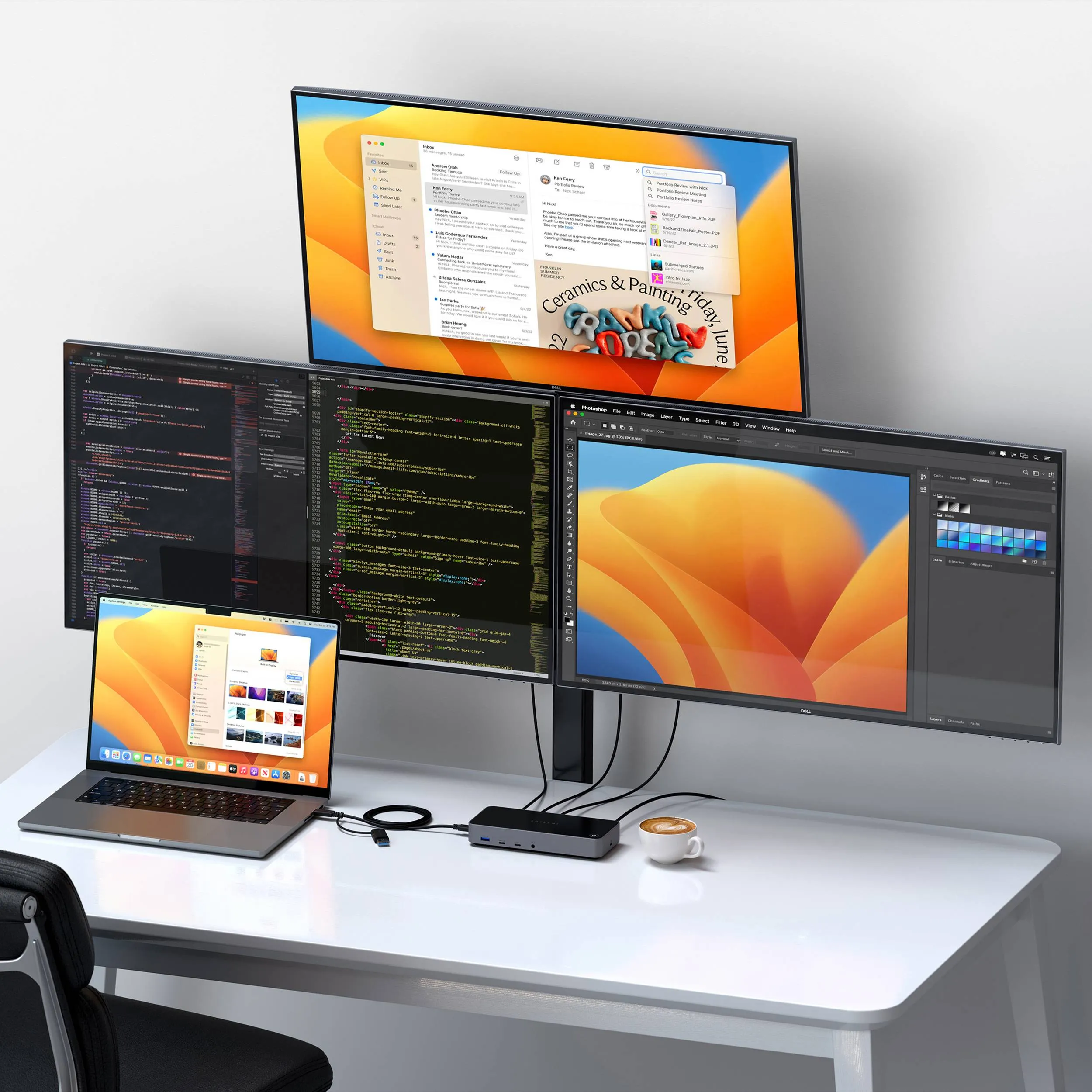
Image source: Bing (Web (fair-use with source credit))
Power on the monitors first. Then turn on or wake your laptop. This order helps the dock negotiate video signals properly.
If you use a DisplayLink dock, install the DisplayLink driver before connecting the dock. Download it from the DisplayLink website. Plugging in without the driver may show a black screen.
Check for signal. Each monitor should show your laptop’s desktop. If one stays black, cycle its input source. Use the monitor’s on-screen menu to select the correct HDMI or DisplayPort input.
Step 6: Configure Your Operating System
Once both monitors show something, you need to set them up in software.
On Windows 10 and 11:
Right-click the desktop and choose Display settings. You’ll see two rectangles labeled 1 and 2. Drag them to match your physical monitor placement.
Left monitor on the left, right monitor on the right. Click “Identify” if unsure which is which.
Scroll down to Multiple displays. Choose “Extend these displays.” This lets you move windows between monitors. “Duplicate” shows the same screen on both. “Second screen only” turns off your laptop display.
Set the primary monitor. Select the rectangle you want as main. Check “Make this my main display.” The taskbar and Start menu will appear there.
Adjust scaling if text looks small or large. Windows recommends scaling for each monitor. You can set a custom percentage.
On macOS:
Open System Settings > Displays. Click the monitor icon for each display. Choose “Extend display” or “Mirror display.” Drag the white menu bar to the monitor you want as primary.
On ChromeOS:
Settings > Device > Displays. Arrange monitors by dragging. Choose “Extend desktop” or “Mirror.”
Resolution and refresh rate:
In Windows under Advanced display settings, check each monitor’s refresh rate. Set it to the highest your monitor and cable support. For office work, 60 Hz is fine.
For gaming, set 144 Hz if available.
Common issue: One monitor runs at 30 Hz instead of 60 Hz. Usually a cable problem or bandwidth limit. Try a different cable or a lower resolution.
Common Mistakes That Kill Your Dual‑Monitor Setup
Most dual monitor failures come from the same few oversights. Here’s what to avoid.
Using a USB-C hub that doesn’t support video on both ports. Many cheap hubs have one video port and a second port that only charges or transfers data. Read the spec list. Look for “dual video output” or “two HDMI ports supporting extended desktop.”
Daisy chaining when one monitor lacks MST support. MST must be enabled on both monitors. Check the on-screen menu under “DisplayPort” or “MST.” If one monitor lacks DisplayPort Out, daisy chain won’t work. You need separate cables.
Overlooking driver updates. DisplayLink drivers update frequently. So do Intel, NVIDIA, and AMD graphics drivers. Old drivers can cause flickering, no signal, or resolution caps.
Check for updates every few months.
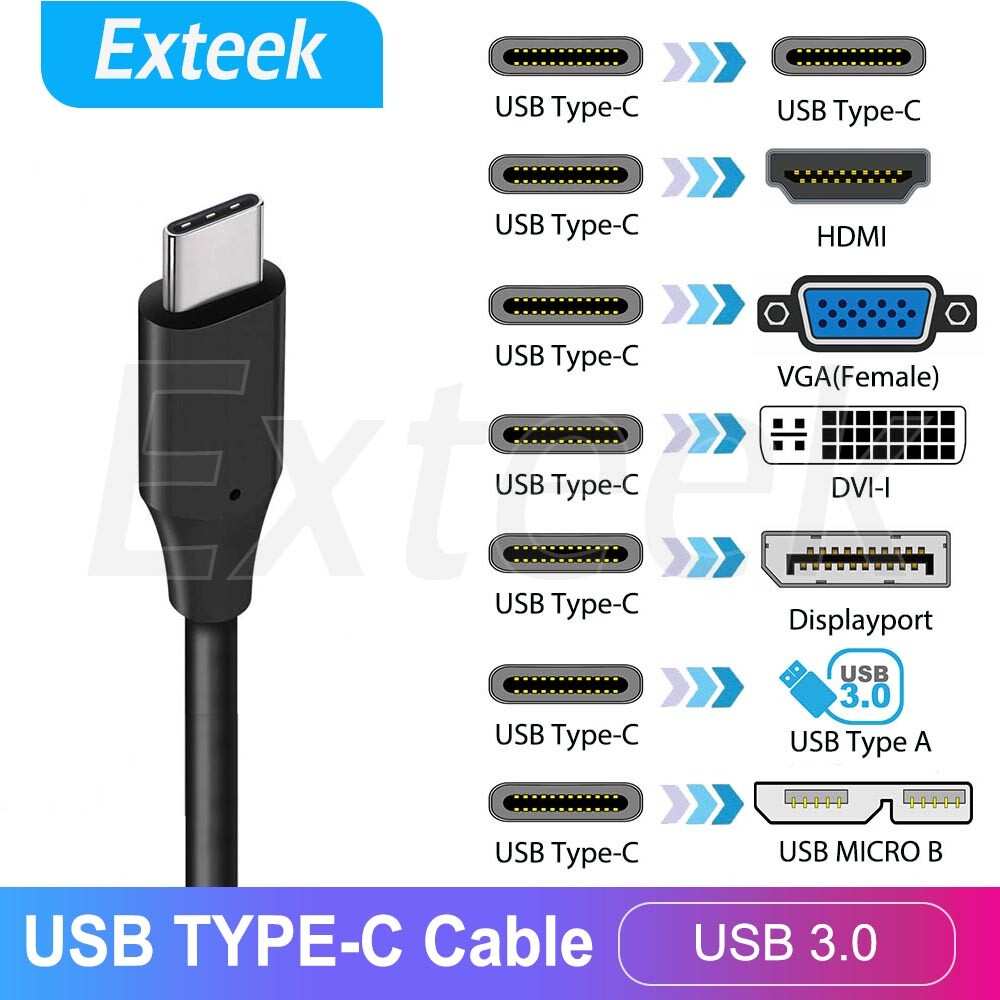
Image source: Bing (Web (fair-use with source credit))
Expecting high refresh on both monitors with a low bandwidth dock. A USB 3.2 Gen2 dock can’t drive two 4K 144 Hz monitors. Bandwidth caps at 10 Gbps. You’ll need to lower resolution or refresh rate.
For high refresh dual setups, use a Thunderbolt dock.
Using the wrong cable generation. An HDMI 1.4 cable caps at 4K 30 Hz. Your monitor may say 4K but look blurry. Check the cable’s packaging or markings.
Plugging into the laptop’s charging port instead of the video port. Some laptops label ports differently. A USB-C port with a battery icon may only charge. The port with a monitor icon carries video.
Troubleshooting When a Monitor Won’t Show Up
Scenario: “No signal” on one monitor.
Check the cable connections at both ends. Reseat them. Verify the monitor’s input source is set correctly.
Try a different cable. If it works with a different cable, the original cable is bad.
Scenario: Monitor detected in settings but black.
Lower the resolution in Windows display settings to 1080p temporarily. If the screen appears, the cable or dock can’t handle the higher resolution. Try a DisplayPort cable instead of HDMI.
Scenario: Flickering or stuttering.
Bandwidth too low or refresh rate mismatch. Set both monitors to the same refresh rate if possible. Use a certified cable.
Disconnect any USB 3.0 devices that share bandwidth on the dock (external drives, high-speed webcams).
Scenario: Only one monitor works.
Check if the dock supports dual monitors at your resolution. Some docks list “dual 4K 60 Hz” but only when using DisplayPort, not HDMI. Try switching one monitor to DisplayPort.
Also reboot the dock by unplugging power for 30 seconds.
Scenario: macOS shows “Unsupported” monitor.
Update macOS to the latest version. Some monitors require a firmware update from the manufacturer. Try connecting via HDMI instead of USB-C.
Scenario: DisplayLink shows “Driver not installed.”
Go to DisplayLink.com and download the latest driver for your OS. Restart your laptop after installation. The dock should be detected automatically.
Quick test. Unplug both monitors from the dock. Connect one monitor directly to your laptop’s built-in video port. If it works, the problem is the dock or cable.
If it doesn’t, the monitor or cable is faulty.
Real‑World Setup Examples (Use Cases)
Remote worker with a thin lightweight laptop.
Ports: one USB-C (plain, no video) and no Thunderbolt. Solution: DisplayLink dock with two HDMI ports. Connected to a 1080p and a 1440p monitor.
Works for spreadsheets, Zoom calls, and email. Minor lag when dragging large windows. Cost about $80 for the dock.
Graphic designer with a MacBook Pro.
Ports: three Thunderbolt 4 ports. Solution: Thunderbolt 4 dock with two DisplayPort outputs. Connected to two 4K 60 Hz monitors.
Color accuracy holds up. Single cable handles power delivery (96W) and data. Total setup time under 15 minutes.
Gamer with a high end Windows laptop.
Ports: Thunderbolt 4 plus dedicated HDMI from GPU. Solution: Use the laptop’s HDMI for the primary gaming monitor (1440p 165 Hz). Connect the second monitor (1080p 60 Hz) via a Thunderbolt dock to keep game performance unimpacted.
Dual monitors work, but only the primary runs at high refresh.
Hot desking office.
Multiple employees share desks with universal docks. Solution: Dell WD19S or similar USB-C dock with dual DisplayPort and HDMI. Each employee connects their laptop via a single USB-C cable.
Docks are pre-configured with DisplayLink drivers. Monitors auto-detect. IT manages drivers centrally.
Dual monitor for a desktop PC.
The desktop has a dedicated GPU with multiple video ports. No need for a docking station. Connect monitors directly to GPU via DisplayPort or HDMI.
Use a KVM switch only if you need to share monitors with a laptop.
Student on a budget.
One laptop with HDMI out and one USB-A port. Already has a USB hub. Solution: Use the HDMI for one monitor.
For the second, buy a cheap USB-A to HDMI adapter (DisplayLink based). Works for homework and video calls. Not ideal for gaming or video editing.
Decision Guide: Which Path Should You Take?
Three questions decide your path. First, does your laptop have Thunderbolt? If yes, use a Thunderbolt dock.
Second, do your monitors support daisy chaining? If yes and your laptop has DisplayPort, daisy chain works. Third, are you running 4K or high refresh?
If yes, bandwidth matters. Thunderbolt handles it. USB-C or DisplayLink may not.
| Situation | Best Method |
|---|---|
| Thunderbolt laptop, any monitors | Thunderbolt dock |
| USB-C Alt Mode, mixed monitors | USB-C dock (check bandwidth) |
| Plain USB-C (no video) | DisplayLink dock |
| Both monitors have DisplayPort Out | Daisy chain |
| Gaming with high refresh primary | Use laptop’s dedicated GPU port for primary, dock for secondary |
Extra Pro Advice for a Clean, Reliable Setup
Label your cables at both ends. It saves time when troubleshooting. Keep cable runs short under 10 feet.
Use a powered dock, not bus powered. Bus powered docks struggle with two monitors and USB devices. Update dock firmware every six months.
Manufacturers fix bandwidth bugs and compatibility issues. Place monitors at eye level and an arm’s length away. Your neck will thank you.
When to Call in a Pro (or Rethink the Hardware)
If your laptop has no USB-C video output and no Thunderbolt, a standard dock won’t help. You need a DisplayLink dock or a USB video adapter. If you need more than two monitors from a single dock, most consumer docks max at two.
Enterprise docks like the Dell WD19DC support triple monitors but cost more. If you consistently hit bandwidth limits, consider upgrading to a laptop with Thunderbolt 4. It saves headaches long term.
Still Stuck? Here’s Your Next Step
Go back to Step 1. Double check your laptop’s port type. Many people think they have Thunderbolt but actually have plain USB-C.
Check the port symbol. If you have a cable that works with one monitor but not two, swap cables using known good ones from a friend. If nothing works, call your IT department or laptop manufacturer support.
Nine times out of ten, the fix is a different cable or a driver update.
Frequently Asked Questions
Can I use a docking station with two different monitors?
Yes. Your dock will output the resolution each monitor supports. The main limit is bandwidth.
If the dock can’t handle both resolutions at 60 Hz, lower the second monitor’s refresh rate.
Do I need the same brand of monitors for dual setup?
No. Mixing brands works fine. The only requirement is that each monitor has the video input your dock supports.
Why is only one monitor working with my dock?
The dock may not support dual video at the same time. Check its spec list. Or one cable may be faulty.
Swap cables to test.
Can I run dual monitors with a USB-A port on my laptop?
Not directly. USB-A carries no video signal. You need a USB-A to HDMI adapter using DisplayLink technology.
It works for office tasks but not gaming or video editing.
How long does it take to set up dual monitors with a docking station?
Physical setup takes 10 minutes. Software configuration takes 5 more minutes. Driver downloads add 5 minutes.
Allow 20 minutes total for first time setup.

Similar Posts































