how to connect dual monitors to desktop pc
Your desktop is sitting there with one monitor, and you're tired of alt-tabbing between fifteen windows. Adding a second screen is one of the best productivity upgrades you can make, but the cable situation trips up almost everyone.
In our research, the biggest mistake people make is buying the wrong cable or adapter before checking their PC's ports. As of 2026, most desktop graphics cards still ship with a mix of DisplayPort 1.4 and HDMI 2.0 outputs, and your monitors likely have something similar. Get that match right, and the rest is just a few clicks in Windows.

Image source: Wikimedia Commons / Mack Male from Edmonton, AB, Canada (CC BY-SA)
Quick Answer
Check the ports on your PC and your monitors. Buy matching cables or adapters. Turn everything off.
Connect both monitors. Power on. Open Windows display settings.
Click Detect if needed. Choose Extend and arrange the screens.
Before You Start: What Actually Matters
The whole process boils down to one thing: what ports your PC can actually output to two displays at the same time. Not all ports are created equal.
Your desktop PC either has a dedicated graphics card (a separate GPU from NVIDIA, AMD, or Intel) or relies on integrated graphics built into the CPU. Dedicated cards typically support two to four monitors without issue. Integrated graphics are more limited, many Intel and AMD chips support two displays, but only if the motherboard has the right ports and the BIOS allows it.
Here's what you need to know before buying anything:
- The number of physical video ports on your PC. Count them.
- The type of each port: HDMI, DisplayPort, DVI, VGA, or USB-C with DisplayPort Alt Mode.
- Whether your GPU can drive both ports simultaneously. Some motherboards disable certain ports if integrated graphics are active.
- The resolution and refresh rate you want. Higher resolutions (1440p, 4K) need newer cable versions.
Skip this step, and you'll likely end up with a cable that doesn't fit or a port that won't output. We'll walk through exactly how to check each one.
Step 1: Check What Ports You're Working With
Look at the back of your PC tower. Don't just glance at the cluster of ports near the USB and audio jacks, those are from the motherboard. For a dual monitor setup using a dedicated graphics card, you need to use the ports on the graphics card itself.
It's usually lower down, with its own set of horizontal or vertical ports.

Image source: Wikimedia Commons / c-g. (CC BY)
If you don't have a dedicated card, the motherboard's video ports are your only option. That's fine for basic dual monitor use, but expect lower performance for gaming or video editing.
Common port shapes (quick ID guide)
| Port | Shape | Common uses | Max typical resolution |
|---|---|---|---|
| HDMI | Flat, six-sided rectangle | TVs, monitors, projectors | 4K at 60Hz (HDMI 2.0) |
| DisplayPort | Rectangular with one corner cut off | PC monitors, high refresh rate | 4K at 144Hz (DP 1.4) |
| DVI | White, wider, with pins | Older monitors, 1080p | 1920×1080 at 60Hz |
| VGA | Blue, trapezoid, 15 holes | Very old monitors | 1920×1080 at 60Hz (fuzzy) |
| USB-C | Small oval, reversible | Modern laptops, some desktops | 4K at 60Hz (if Alt Mode) |
Write down exactly which ports you have. Next, check your monitors the same way.
Step 2: Match Your Monitor Inputs to Your PC Outputs
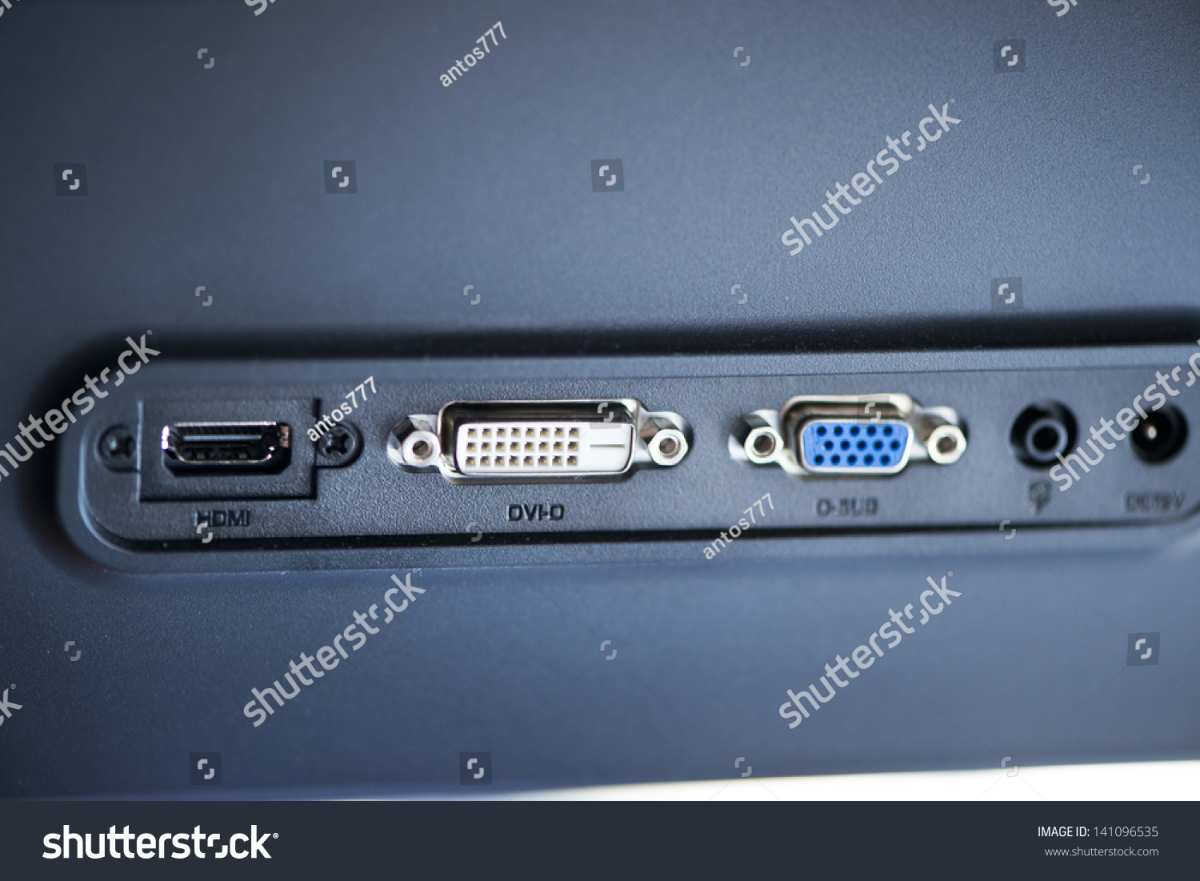
Flip your monitors around or check the manual. Every monitor has at least one input port, often more. You need to find an input that matches one of your PC's output ports.
Image source: Bing (Web (fair-use with source credit))
The ideal situation: you have at least two matching ports on both ends. For example, your PC has two HDMI ports, and both monitors have HDMI inputs. In that case, you just need two standard HDMI cables.
Done.
If they don't match, you need an adapter or a different cable. Here's how to handle the most common mismatches:
- PC has DisplayPort, monitor has HDMI. Use a DisplayPort to HDMI cable or an adapter. Most are passive and cost around $10.
- PC has HDMI, monitor has DisplayPort. This is trickier. Many passive adapters won't work. You need an active adapter that converts the HDMI signal to DisplayPort.
- PC has USB-C, monitor has HDMI. A simple USB-C to HDMI cable works if your USB-C port supports DisplayPort Alt Mode. Check your PC spec.
- One port is DVI or VGA. For modern monitors, avoid these if possible. If you must, use an HDMI to DVI cable for digital quality, or a VGA cable for analog (low quality).
Important: Never force a connector. If it doesn't slide in easily, you have the wrong cable.
The Adapter Decision Tree: Passive vs. Active
This is where most people get stuck. Not all adapters work in both directions.
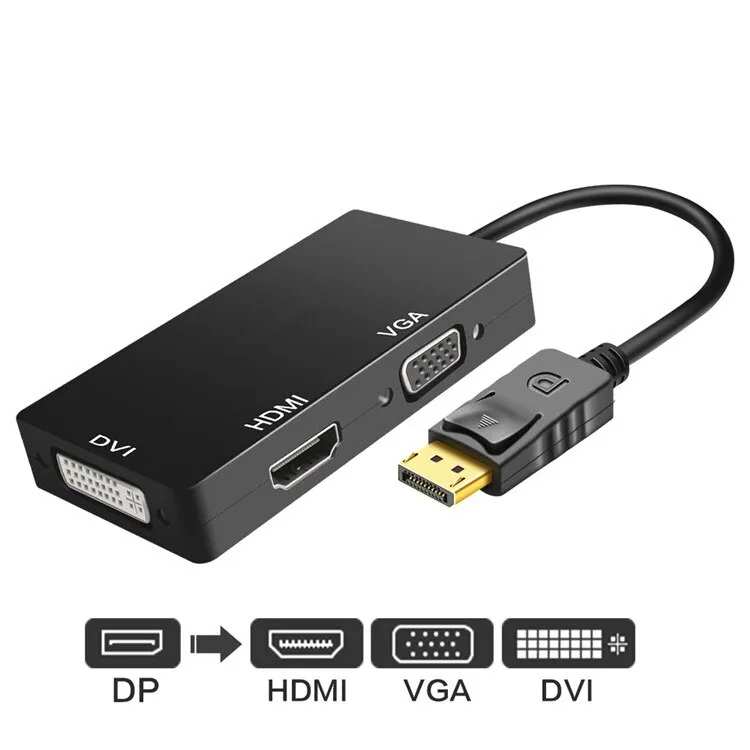
Image source: Bing (Web (fair-use with source credit))
The rule: passive adapters only convert one signal format to another without changing the underlying protocol. Active adapters contain a chip that actively converts the signal.
When to use a passive adapter
- DisplayPort to HDMI (DP source to HDMI display). Always passive. Works every time.
- HDMI to DVI (both are digital). Works fine.
- USB-C to HDMI (if the source supports Alt Mode). Passive.
When you must use an active adapter
- HDMI to DisplayPort (HDMI source to DP display). Passive versions often fail because the DP display expects a different signal timing.
- Any conversion involving VGA. VGA is analog, so you need an active converter.
- Dual-link DVI (for high resolution), needs active if converting from HDMI.
Quick reference table
| Source port | Display port | Adapter type | Notes |
|---|---|---|---|
| DisplayPort | HDMI | Passive | Most reliable |
| HDMI | DisplayPort | Active | Passive may not work |
| USB-C | HDMI | Passive | Check Alt Mode support |
| HDMI | DVI | Passive | DVI carries same digital signal |
| DVI | HDMI | Passive | Works both ways |
| Any | VGA | Active | Analog conversion needed |
If you're unsure, buy an active adapter. It costs a bit more ($20-$30) but eliminates compatibility headaches. Many user reviews confirm that passive HDMI-to-DP adapters are a gamble.
One more thing: if your PC has only one video output port and you want two monitors, you need a splitter or a USB video adapter. But a splitter only duplicates the screen, it doesn't extend your desktop. For true dual extended monitors, you need two separate ports on the GPU.
If you only have one, consider a USB 3.0 to HDMI adapter (works for office use, not for gaming).
Step 3: Connect the Cables and Boot Up
You've got your cables and adapters. Now it's time to plug everything in.
The right connection order
- Turn off your PC completely. Don't just put it to sleep.
- Turn off both monitors at the wall or unplug them.
- Connect the first monitor to your preferred port on the GPU. This will be your primary display.
- Connect the second monitor to the next available port.
- If you're using an adapter, attach it to the PC side first, then the cable to the monitor.
- Plug both monitors back in and turn them on.
- Power on your PC.
Why go through this sequence? Some GPUs and monitors negotiate the display signal at boot. If a monitor is off or disconnected during startup, the system might not detect it.
Turning everything off and on in order gives the cleanest handshake.
If a monitor stays black after boot
Don't panic. The most common cause is a loose connection or the PC defaulting to single display. Try these fixes in order:
- Open Windows display settings (right-click desktop, select Display settings).
- Click the Detect button under "Multiple displays".
- If the second monitor still doesn't show, check the cable connection at both ends.
- Swap cables between monitors to see if it's a cable issue.
- Try a different port on the GPU.
- Update your graphics card driver from the manufacturer's website (NVIDIA, AMD, or Intel).
If none of those work, the issue might be your GPU not supporting two monitors. That's rare with a dedicated card, but possible with integrated graphics on some older motherboards. Check your motherboard manual or GPU specs online.

Similar Posts































