How To Play Android On Tv: Easy Steps For A Better Experience
To play Android on TV, connect your device via an HDMI cable or use a wireless casting option like Chromecast. **This quick setup allows you to display Android content directly on your TV screen.** Simply ensure both devices are on the same Wi-Fi network, and follow the casting instructions.
Knowing how to play Android on TV makes it easy to enjoy apps, games, and videos on a larger display without hassle. Setting up is straightforward and requires minimal technical know-how. Now, you’re ready to enjoy your Android content on the big screen with ease.

How to Play Android on TV
Playing Android apps and games on your TV can make the screen larger and your experience more fun. Whether you want to watch videos, play games, or use your favorite apps, connecting your Android device to your TV is a simple process. In this guide, we’ll walk through all the ways you can play Android on your TV, the equipment you need, and some helpful tips to make everything work smoothly.
Understanding Why You Might Want to Play Android on Your TV
People enjoy playing Android on TV for many reasons:
- Enjoy big-screen gaming with friends or family
- Watch movies and videos from your Android device on a larger display
- Use Android apps that are better suited for bigger screens
- Share photos, presentations, or other content with a group
Once you’re clear on the benefits, you can choose the best method to connect your device to your TV.
Methods to Play Android on TV
There are several ways to connect your Android device to your TV, depending on what equipment you have. The main options are:
- Using an HDMI cable
- Screen mirroring with built-in features
- With a Chromecast device
- Using a smart TV with Android TV OS
- Wireless display adapters
Let’s go over each method in detail so you can find the best fit.
Connecting via HDMI Cable
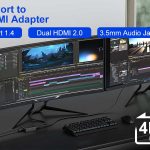
This method works best if your Android device supports HDMI output or has a special port called MHL or SlimPort.
What You Need
- HDMI cable
- HDMI-to-Micro USB or USB-C adapter, if your device doesn’t have a direct HDMI port
- TV with an available HDMI input
Steps to Connect
- Connect the adapter to your Android device
- Plug the HDMI cable into the adapter and your TV
- Turn on your TV and select the correct HDMI input
- Your Android screen should appear on the TV automatically
Advantages and Tips
- High-quality video and audio
- Reliable connection with minimal lag
- Best for gaming or streaming videos
Remember: Not all Android devices support HDMI output directly. Check your device specifications first.
Screen Mirroring with Built-In Features
Many Android phones and tablets include screen mirroring options like Miracast, Smart View, or Cast.
Understanding Screen Mirroring
Screen mirroring sends your device’s display wirelessly to your TV. It’s a quick way to view everything on a larger screen without cables.
How to Use Screen Mirroring
- Ensure your Android device and TV are connected to the same Wi-Fi network
- On your Android device, open the Settings menu
- Look for options like “Cast,” “Screen Mirroring,” or “Smart View”
- Enable the feature and select your TV from the list of available devices
- Wait for the connection to establish. Your Android screen should now appear on the TV
Tips for Better Mirroring
- Make sure your Wi-Fi signal is strong
- Disable other streaming devices that might interfere
- If the connection is slow or lagging, try restarting your devices
Using Chromecast for Android TV
Google Chromecast is a popular device that allows you to cast content from your Android device directly to your TV.
Setting Up Chromecast
- Connect the Chromecast to your TV’s HDMI port
- Ensure Chromecast and Android device are on the same Wi-Fi network
- Download the Google Home app from the Play Store
- Follow the app instructions to link Chromecast to your Wi-Fi and set it up
Casting Content from Android Devices
- Open an app that supports casting, like YouTube or Netflix
- Tap the Cast icon (usually looks like a rectangle with Wi-Fi waves)
- Select your Chromecast device from the list
- The content will appear on your TV, and you can control it from your device
Best Uses for Chromecast
- Streaming videos and music
- Playing mobile games on the big screen
- Sharing photos with friends and family
Playing Android Apps on Smart TVs with Android OS
Some modern smart TVs have Android built-in, making it very easy to enjoy Android apps directly.
Accessing the App Store
- Press the Home button on your TV remote
- Navigate to the Google Play Store or Apps section
- Search for your favorite Android apps or games
- Download and install them directly onto your TV
Using Android Apps on Your TV
Once installed, open the apps from your TV’s menu. Use a remote control or a connected game controller for easier navigation. This method is ideal for streaming apps, casual games, and browsing content without needing a separate device.
Wireless Display Adapters and Other Devices
If your TV doesn’t have smart features, you can still connect wirelessly using adapters or streaming devices.
Popular Devices
- Amazon Fire TV Stick
- Roku Streaming Stick
- Anycast or Miracast adapters
How to Use These Devices
- Plug the device into your TV’s HDMI port
- Follow the setup instructions to connect it to your Wi-Fi network
- Use your Android device’s screen mirroring or casting feature to connect
- Your Android content should appear on the TV through the device
Troubleshooting Common Issues
Even with the best setup, you might face some hiccups. Here are tips to fix common problems:
- Connection lag or buffering: Restart your Wi-Fi router and devices.
- No picture or sound: Check cable connections or select the correct HDMI input.
- Device not detected: Ensure both devices are on the same Wi-Fi network and compatible.
- Apps not working: Update your Android device and the apps, or clear cache.
How to Enhance Your Android on TV Experience
To get the most out of playing Android on your TV, consider the following tips:
- Use a wireless keyboard or remote for easier control
- Keep your devices updated for the latest features and security
- Ensure your Wi-Fi network is fast and stable
- Invest in quality adapters and cables for better performance
Having multiple options allows you to choose the setup that best fits your needs. You can enjoy Android games, apps, and content on your TV with a clear picture and smooth operation. Whether you prefer wired connections with HDMI, wireless casting, or a dedicated smart TV, each method offers an enjoyable way to extend your device’s capabilities to a larger screen.
Frequently Asked Questions
What equipment do I need to connect my Android device to a TV?
To connect your Android device to a TV, you typically need a compatible cable or a wireless device. For wired connections, use an HDMI cable with an adapter suitable for your Android device, such as a USB-C to HDMI or MHL adapter. For wireless options, a Chromecast device or a smart TV that supports screen mirroring can be used. Ensure that your TV and Android device support the connection method you choose.
How can I mirror my Android screen on a smart TV without using cables?
You can mirror your Android screen wirelessly by using built-in casting features or third-party apps. Most modern Android devices support Google Cast, which works with devices like Chromecast or smart TVs with built-in Chromecast support. Enable the casting option on your Android device through the quick settings menu and select your TV from the list of available devices. Make sure both your device and TV are connected to the same Wi-Fi network for a seamless connection.
What steps should I follow to set up a wired connection between my Android device and a TV?
Begin by connecting your Android device to the TV using the appropriate adapter and HDMI cable. Once connected, switch your TV to the correct HDMI input. Your device should automatically detect the connection and display your screen on the TV. If it doesn’t, check that your device supports the connection type and that all cables and adapters are functioning correctly. Adjust display settings on your Android device if necessary to optimize the output.
Are there any apps that facilitate Android screen sharing on TVs?
Yes, various apps help you share your Android screen with a TV. Apps like Google Home, Miracast, and third-party screen mirroring apps such as AirScreen or AllCast can make the process easier. Download and install the app compatible with your devices, ensure both are connected to the same Wi-Fi network, and follow the app’s instructions to establish a connection. These apps often offer additional streaming options for media files as well.
Can I connect multiple Android devices to one TV simultaneously?
Connecting multiple Android devices to a single TV at the same time is possible using certain tools. For example, you can use a wireless display receiver or a smart TV that supports multiple connections via apps or built-in features. However, most standard setups only support one device at a time, so switching between devices involves changing the connection or broadcasting source. For simultaneous viewing, consider using a device that supports multiple inputs or a media server setup.
Final Thoughts
To play Android on TV, you can use devices like Chromecast or connect via a Miracast-enabled TV. Installing apps such as Screen Mirroring or using built-in features makes the setup straightforward. Ensure your TV and device are on the same Wi-Fi network for a seamless connection.
In conclusion, knowing how to play Android on TV involves simple steps like using suitable streaming devices or built-in mirroring options. By following these methods, you can enjoy your Android apps and games directly on your television effortlessly.

Similar Posts