how to optimize curved gaming monitor for fps games
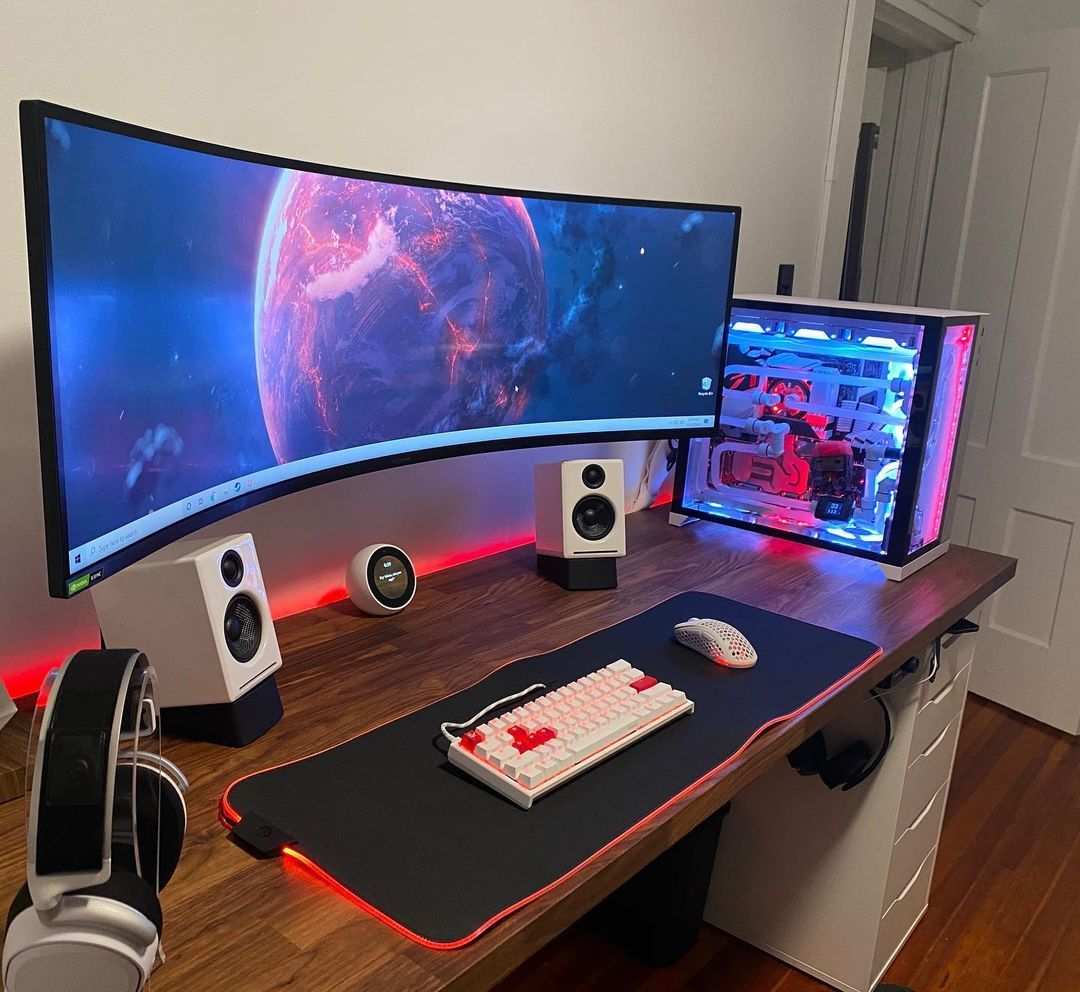
You bought a curved gaming monitor for that immersive feel, but something’s off. Your flicks feel sluggish. Edges look warped.
You’re losing gunfights you know you should win. Figuring out how to optimize curved gaming monitor for fps games isn’t just about turning settings up or down. It’s about matching the monitor’s unique physics to how you aim.
Manufacturer specs confirm that curved displays introduce subtle distortion at the periphery, especially on VA panels. As of 2026, most 240Hz curved monitors use an 1800R curve, which bends the image around your field of view. That immersion helps in RPGs but can mess with your muscle memory in fast FPS titles.
Here’s the fix.
Quick Answer
Set your overdrive to “Normal” or “Faster.” Never use “Extreme.”
Disable motion blur and vsync in-game.
Enable G-Sync or FreeSync in your GPU driver.
Cap your in-game FPS at 10 frames below your refresh rate.
Adjust black equalizer to 60% for dark maps, 50% for bright maps.
Test with a motion UFO pattern to confirm no ghosting.
Why Your Curved Monitor Might Be Holding You Back in FPS Games
The curve warps straight lines near the edges. In a game like Valorant, you track enemies across the screen. On a flat monitor, that movement is linear.
On a curved one, the crosshair path bends slightly because the screen surface isn’t flat across your retina. It’s a tiny distortion, but your brain compensates by adding micro‑corrections. Those corrections cost milliseconds.
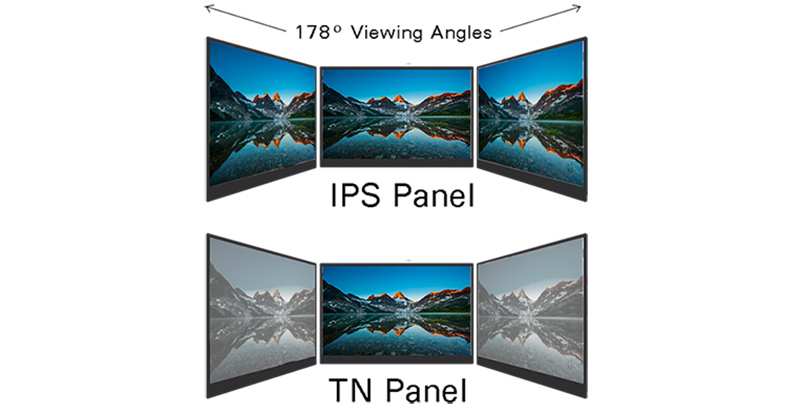
There’s another layer. Most curved monitors use VA panels for deep blacks and good contrast. VA panels have slower pixel transitions when moving from dark to dark.
That means more motion blur in dim corners. Your eyes see smearing. Your reaction time drops.
Curvature and Distortion – What’s Really Happening on the Edges
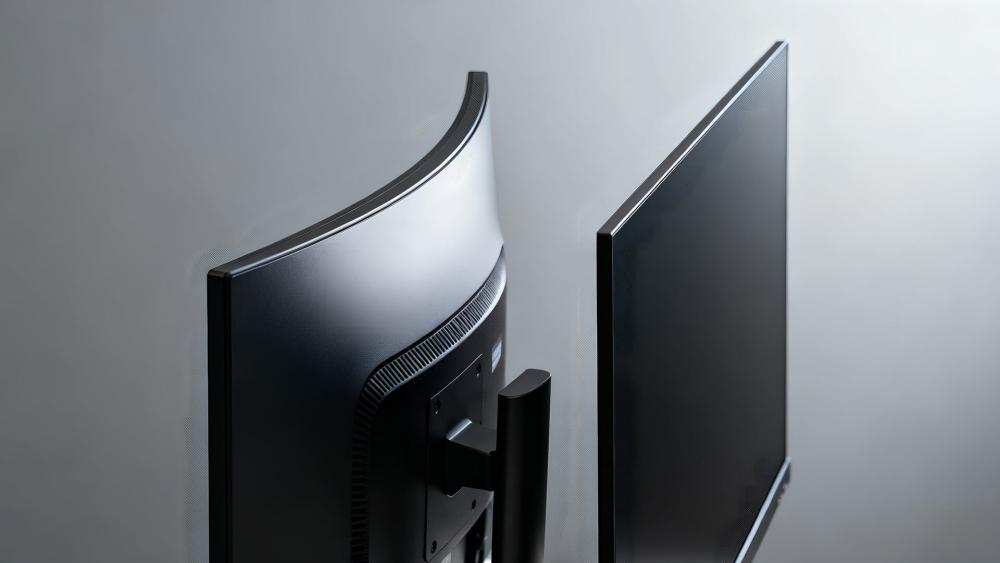
Curvature is measured in radius, like 1800R. That means the circle needed to match that curve has an 1800mm radius. The tighter the radius (1000R), the more the edges pull toward you.
For competitive FPS, 1800R or 1500R is the sweet spot. At 1000R, the side distortion becomes noticeable during wide flicks.
Check your monitor’s radius using the OSD or the box. If it’s 1000R and you play on a 27‑inch screen, sit closer to the center. Your peripheral vision will still catch the curve, but your focal point stays straighter.
If it’s 1800R or less, you’re fine. The distortion is minimal.
The Decision Tree: Start With Your Panel Type (VA vs. IPS vs. OLED)
Your panel type dictates which settings matter most. Here’s the breakdown:
| Panel Type | Overdrive Sweet Spot | Black Equalizer Need | VRR Behavior | Best For |
|---|---|---|---|---|
| VA | Normal or Faster (not Extreme) | High (60–70%) | Can flicker at low fps | High contrast, budget curve |
| IPS | Fast (often middle setting) | Low (40–50%) | Smooth across range | Consistent response, no smearing |
| OLED | Low or Off (1ms native) | Minimal (30–40%) | Instant | Zero ghosting, best clarity |
If you have a VA panel
Set overdrive to one step below maximum. On many monitors that’s “Faster” but not “Extreme.” Extreme creates inverse ghosting, a bright trail behind moving objects. That’s worse than normal blur.
Raise black equalizer to 60% or 65% to pull detail out of shadows. VA panels crush blacks, so you lose enemies hiding in corners.
If you have an IPS panel
IPS has faster pixel response, so overdrive can be set to “Fast” or the middle option. Black equalizer stays low, around 40, 50%. IPS already shows shadows well.
Pushing equalizer too high washes out the image. Enable G‑Sync or FreeSync without worries. IPS handles VRR flicker better than VA.
If you have an OLED panel
OLED is king for motion clarity. Use the lowest overdrive setting (often “Off” or “Low”). Black equalizer is nearly irrelevant, OLED has perfect blacks.
Just set your frame cap and let the panel do its thing.
Game-Specific Tweaks Worth Doing
Each FPS engine responds differently to monitor settings. Here’s what to change per game.
Valorant and CS2 – Fast Flick Games
Disable “Enhance Pointer Precision” in Windows mouse settings. That’s not monitor‑related, but curve distortion amplifies smoothing. In the game, set “Multicore Rendering” to ON.
Cap FPS at 237 if your monitor is 240Hz, or 141 if 144Hz. For the curve, sit dead center and keep your head still. The edges distort less.
Apex and Overwatch – Tracking and Movement
These games require smooth tracking. Drop your overdrive one notch lower than your panel maximum. For VA, use “Normal” instead of “Faster.” For IPS, use “Normal” instead of “Fast.” The slight lag from lower overdrive reduces overshoot during fast strafes.
Set black equalizer to 55%, enough to see in shaded areas without washing out the bright landscape.
Warzone and Siege – Dark Corners and Visual Clutter
Warzone has lots of dark interiors. Increase black equalizer to 65% for VA, 50% for IPS. Siege has deep shadows.
Use a custom crosshair color (bright green or pink) so the curve doesn’t hide the dot near screen edges. Disable HDR if your monitor isn’t DisplayHDR 600 or higher. Fake HDR adds input lag.
We’ve covered the core panel types, curvature physics, and game‑specific tweaks. Next, we’ll tackle the common mistakes that waste all this work.
Common Setup Mistakes That Wreck Your Curve Advantage
Overdrive on Extreme (and Other Overshoot Nightmares)
Setting overdrive to the highest level seems like the right move for speed. It’s often labeled “Extreme” or “Fastest.” In reality, it introduces inverse ghosting. Dark objects appear with a bright trailing edge.
This makes motion look blurry and unnatural.
The fix is easy. Set overdrive to one notch below maximum. If your monitor has Normal, Faster, and Extreme, choose Faster.
If it has Off, Low, Medium, High, choose Medium or High but never the top setting. Test with a UFO motion test pattern. You want a clean trailing edge, not a bright halo.
Letting Windows or GPU Software Override Your OSD
Your monitor’s own settings are the final authority. Windows Scale and Layout, GPU scaling, and driver‑level sharpening can undo your careful adjustments. For example, enabling “Image Sharpening” in the NVIDIA Control Panel adds a processing delay.
That’s extra input lag.
Turn off any GPU‑based sharpening, contrast enhancement, or digital vibrance for FPS gaming. Set Windows scaling to 100% if your screen size is 27 inches or smaller. Use the monitor’s OSD for brightness, contrast, and color.
The OSD runs on the monitor’s own processor, which is faster than the GPU pipeline.
Ignoring the Refresh Rate Cap in GPU Settings
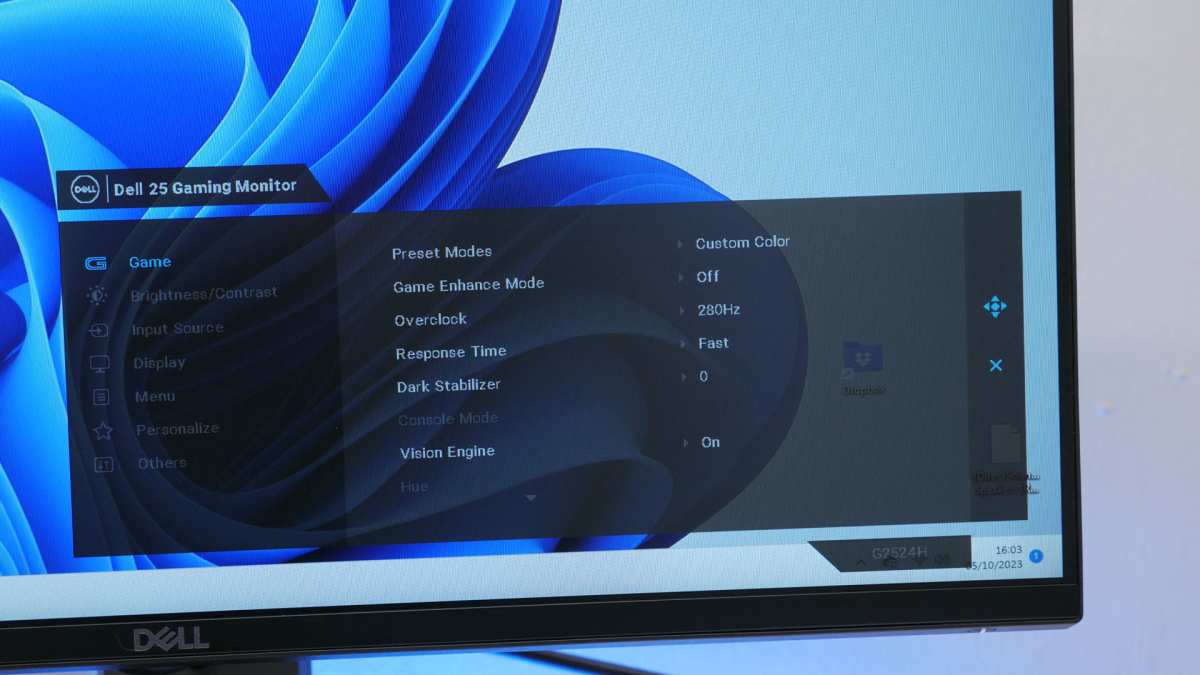
You set your monitor to 240Hz in Windows Display Settings. That’s good. But you also need to set the refresh rate inside your GPU control panel.
Go to NVIDIA Control Panel or AMD Adrenalin, find the “Change Resolution” section, and confirm the correct refresh rate. If it’s stuck at 60Hz, your 240Hz monitor is running at a quarter speed.
Forgetting to Disable Mouse Acceleration in Windows
This isn’t a monitor setting, but it matters more on curved displays. Mouse acceleration adds a lag between your physical movement and the cursor. With a curved screen, your brain already adjusts for peripheral distortion.
Mouse acceleration adds another layer of unpredictability. Turn it off in Windows Mouse Settings (uncheck “Enhance pointer precision”) and in-game.
The One Curve Radius That Competitive Players Swear By
Curve radius is measured in millimeters. 1800R has been the standard for years. As of 2026, 1500R is gaining popularity for competitive gaming. Why?
Because it matches the natural arc of human vision more closely without distorting the edges as much as 1000R.
For FPS games, 1800R is the safe choice for most players. It provides enough wrap to improve peripheral awareness but not enough to cause noticeable distortion during flicks. If you’re looking to buy a curved monitor specifically for FPS, look for 1800R or 1500R.
Avoid 1000R unless you play slower, immersive games.
If you already own a 1000R panel, sit closer to the screen. The distortion effect decreases as your face approaches the focal point of the curve. Keep your eyes about 30 to 35 inches from the screen.
That reduces the bending effect on the edges.
Ultrawide Curved for FPS – Yes, No, or Only in Certain Games?
Ultrawide monitors (21:9 or 32:9) offer a wider field of view. That lets you see enemies earlier at the edge of your peripheral vision. The tradeoff is that the curve is more aggressive on ultrawides.
Common ultrawide curves are 1800R and 1500R.
For some FPS games, ultrawide works great. Call of Duty and Battlefield benefit from the extra horizontal space. You spot movement in your side vision before it enters your crosshair zone.
For competitive shooters like Valorant and CS2, the wider view can actually hurt. Those games are designed around a 16:9 aspect ratio. Ultrawide stretches the HUD and can make the minimap harder to read quickly.
If you play a mix of competitive and casual FPS, consider a 16:9 curved monitor instead. 27 inches at 1800R is the sweet spot. If you mostly play immersive, slower shooters, an ultrawide curved display adds atmosphere. But for pure performance in ranked play, 16:9 wins.
Real Scenario: Setting Up a Samsung G7 (VA) for Ranked Play
The Samsung Odyssey G7 is a popular curved gaming monitor with a 1000R curve and a VA panel. It hits 240Hz and 1ms response on paper. In practice, it requires careful setup.
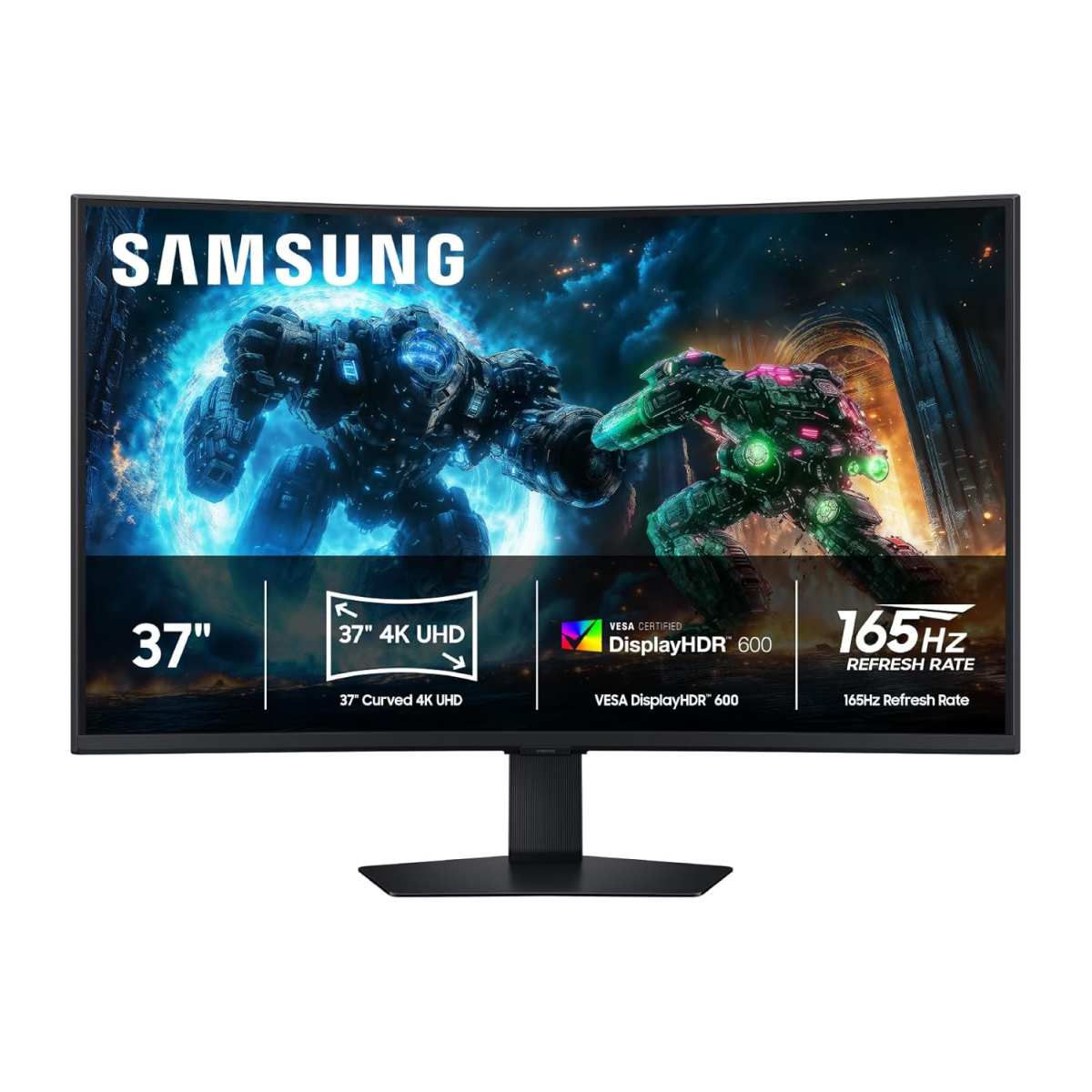
Start by turning off adaptive sync for the initial calibration. Some G7 units have flickering issues with VRR enabled. Set overdrive to “Faster” not “Fastest.” The “Fastest” setting causes massive overshoot.
Raise the black equalizer to 15 (out of 20) to reveal shadow detail. The default is 10, which crushes blacks.
Caps in-game FPS at 237 fps using the game engine limiter, not the GPU driver. The G7’s FreeSync range is 80 to 240Hz. Keeping FPS below 240 ensures VRR stays active.
In Valorant, the image becomes smooth. In Warzone, the darker maps become playable without losing enemy outlines.
Test with the UFO motion test. You should see a sharp UFO with a faint gray trail. If you see bright white edges, drop overdrive to “Normal.” If you see black smearing, raise black equalizer to 18.
Maintenance – When to Recalibrate and Why
Your monitor’s settings drift over time. Brightness and contrast can shift after a few months of use. Panel aging, especially on VA screens, changes the black level.
Recalibrate every three months if you play competitively.
What to check:
- Brightness: Reset to 50% and readjust to match room lighting. For a dark room, brightness at 30%. For a bright room, 70%.
- Black equalizer: If you notice loss of shadow detail, bump it up by 2 or 3 clicks.
- Overdrive: Run a UFO test. If you see new ghosting, reduce overdrive one step.
- Refresh rate: Verify in Windows and GPU settings. Sometimes driver updates reset it to 60Hz.
If you use a calibration tool like a colorimeter, run it every six months. For most players, the free UFO test and eye test are enough. Trust your aim.
If your flicks start feeling late, check your overdrive first.
Frequently Asked Questions
How do I know if my curved monitor is causing input lag?
Check your monitor’s input lag rating in aggregate reviews or manufacturer specs. Most modern curved monitors have 3 to 5ms of input lag at 240Hz. If you feel a delay, disable all post-processing like dynamic contrast, HDR below DisplayHDR 600, and any motion smoothing.
Those features add extra frames of processing.
Should I use G-Sync or FreeSync on a curved monitor?
Yes, if your GPU supports it. G-Sync and FreeSync eliminate screen tearing without the input lag penalty of traditional vsync. On VA curved panels, be aware that VRR flicker can occur at low frame rates.
Cap your FPS at least 10 frames below max refresh. That keeps VRR active and flicker minimal.
What’s the best curve radius for competitive FPS gaming?
1800R is the safest choice for 27-inch monitors. 1500R works well for 32-inch screens. Avoid 1000R for pure competitive play. The tight curve distorts edges during fast flicks.
If you already own a 1000R panel, sit closer to the center to reduce the effect.
Can I use the same settings for every FPS game?
No. Each game engine handles color, motion blur, and field of view differently. Use the baseline from your panel type setup.
Then adjust black equalizer per game. Darker games like Warzone need a higher black equalizer. Bright games like Overwatch need lower.
Always test with a motion test pattern after changing games.
Why does my curved monitor look blurry in dark scenes?
That’s black smear. VA panels have slow pixel transitions in dark to dark shades. Raise the black equalizer to 60% or higher.
That lifts the dark end of the gamma curve and reduces the visible smearing. If your monitor has an “overdrive” for dark transitions only, enable that setting.
Final Decision Guide – Pick Your Path Based on Your Hardware
Here’s a quick cheat sheet based on what you’re working with right now.
If you have a VA curved monitor (like Samsung G7, Dell S2722DGM, or AOC CQ27G2):
Use overdrive at one notch below maximum. Raise black equalizer to 60-70%. Disable any adaptive sync if you see flicker.
Cap FPS at 10 below refresh rate.
If you have an IPS curved monitor (like LG 27GP850-B or ASUS PG27AQDM):
Set overdrive to “Fast” or middle setting. Keep black equalizer low at 40-50%. Enable G-Sync or FreeSync.
Caps FPS at the same 10 below refresh. You’ll have less black smear but slightly lower contrast.
If you have an OLED curved monitor (like Alienware AW3423DWF):
Use the lowest overdrive setting. Black equalizer is mostly unnecessary. Enjoy the instant response.
Just set your FPS cap and keep the panel clean.
If you have an ultrawide curved monitor:
Stick to games that support 21:9 natively for competitive play. For Valorant and CS2, consider running the game in a centered 16:9 window to avoid HUD stretching. Adjust black equalizer to 50% as a starting point.
Remember the golden rule. Test each change with a motion pattern before taking it into a match. Your eyes and your rank will thank you.

Similar Posts