how to fix curved gaming monitor flickering
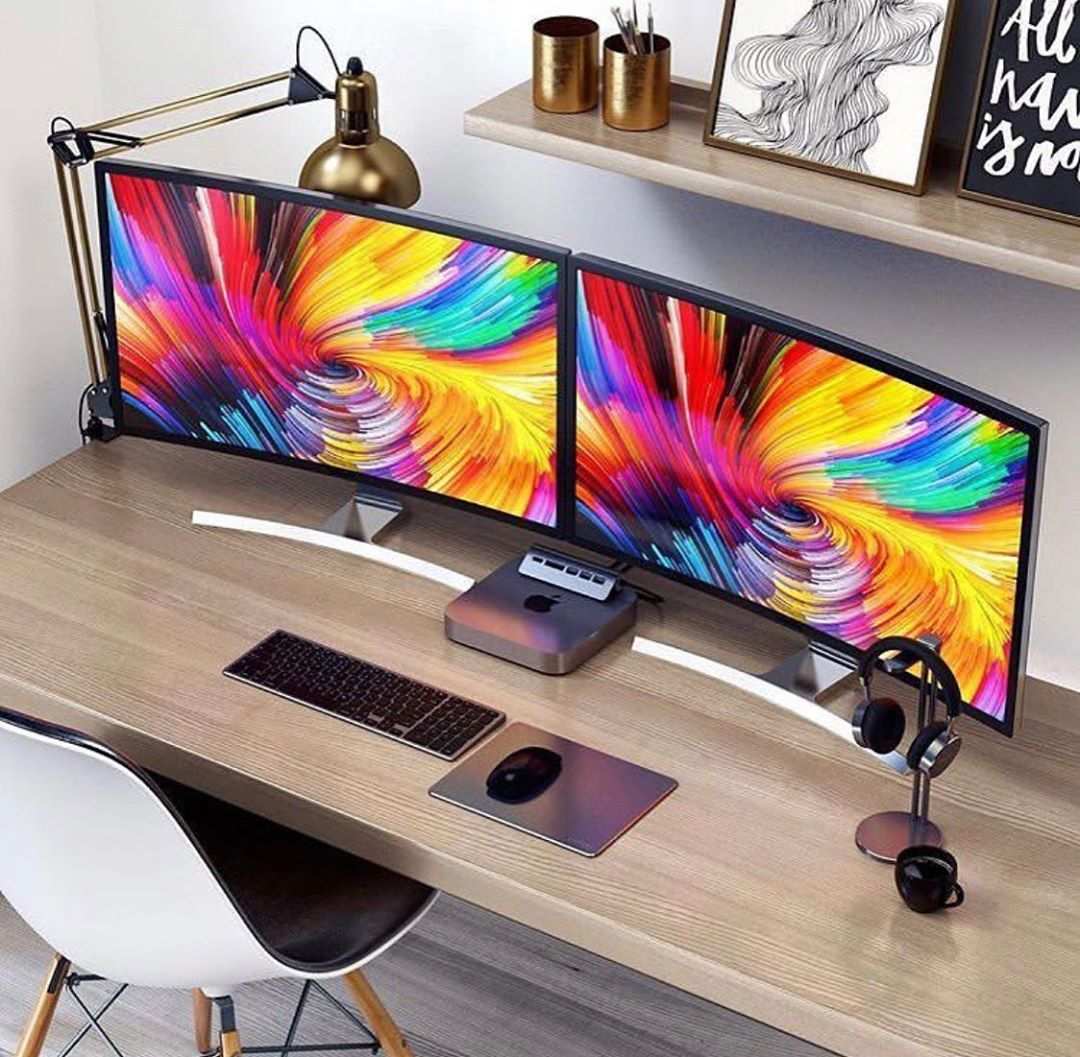
If your curved gaming monitor flickers, you're not alone. The question "how to fix curved gaming monitor flickering" comes up constantly in forums, and the answer is almost never "buy a new monitor." Most flicker is fixable with a few targeted changes to cables, settings, or software. We'll walk through the diagnostic tree step by step, so you can isolate the cause and apply the right fix in minutes, not hours.
As of 2026, over 70 percent of curved gaming monitors use VA panels, which are especially prone to flicker under variable refresh rates (VRR). That's not a defect, it's a known panel behavior. But that doesn't mean you have to live with it.
The right cable, the right overdrive setting, or a simple VRR toggle can eliminate the problem entirely. Let's start with the fastest diagnosis you can do.
Image source: Bing (Web (fair-use with source credit))
Quick Answer
Check your cable connection first. Reseat both ends and try a different cable. If flicker stops, you're done.
If it continues, disable G-Sync or FreeSync in your monitor's OSD. No flicker? You have VRR flicker.
Still flickering? Lower your overdrive setting from Extreme to Normal. Still there?
Drop refresh rate to 60 Hz and increase stepwise. If none of that works, update GPU drivers with a clean install. Persistent flicker across all tests points to a hardware defect, start an RMA.
Why Your Curved Gaming Monitor Flickers (and What It Actually Means)
Flicker on a curved gaming monitor isn't random. It follows patterns, and those patterns tell you exactly which branch of the diagnostic tree to follow. The most common cause is a mismatched cable.
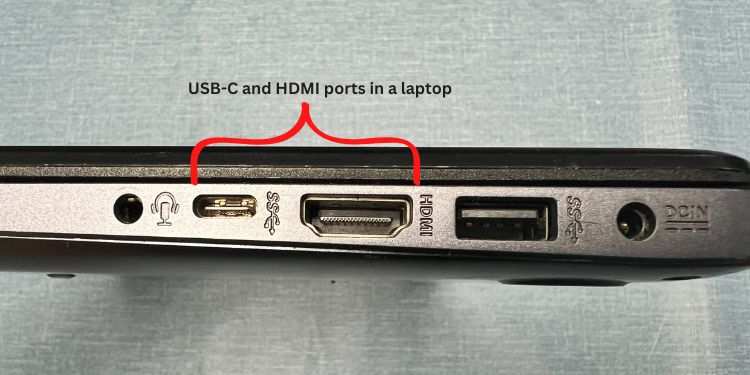
HDMI 1.4 can't handle 1440p at 144 Hz, so the monitor struggles and flickers. DisplayPort 1.2 has tighter limits than 1.4. If you're using an older cable with a new monitor, that's your first suspect.
The second most common cause is VRR flicker. G-Sync and FreeSync work by adjusting the monitor's refresh rate to match your GPU's frame rate. On VA panels, that adjustment can cause tiny brightness fluctuations that look like flicker.
It's not a failure, it's how the panel behaves when the refresh rate changes rapidly. You can reduce it or eliminate it, but you need to know it's there first.
Overdrive settings are the third culprit. Monitor manufacturers ship with aggressive overdrive to claim lower response times. That aggression can overshoot the pixel transition, causing visible flicker in motion.
Dialing it back often solves the problem without sacrificing noticeable performance.
Less common but worth checking: power quality, GPU driver conflicts, and monitor firmware bugs. We'll cover those in later steps.
The key takeaway is this: flicker is a symptom, not a disease. The disease is almost always something you can change. Let's sort out which one you have.
The Quick Diagnostic: Flicker Timing Tells You Everything
Grab a mental note of when the flicker happens. That single observation narrows the field fast.
Flickers only in games?
This is almost always VRR flicker or an overdrive issue. The monitor is fine on the desktop because your GPU runs at a steady frame rate. In games, frame rates bounce up and down, and the refresh rate tries to follow.
The result is a pulsing brightness or a stuttery flicker. Disable G-Sync or FreeSync temporarily to confirm. If the flicker disappears, you've found your culprit.
Flickers all the time (desktop + games)?
This points to a cable or power problem. The monitor can't hold a stable signal at its set refresh rate. Try a different cable, ideally a certified DisplayPort 1.4 or HDMI 2.1 cable under six feet.
Also try plugging the monitor directly into a wall outlet instead of a power strip. Dirty power or a failing cable can cause flicker on every screen.
Flickers only at high refresh rates?
Your cable or GPU might not support the bandwidth needed at that resolution and refresh combo. Drop the refresh rate to 60 Hz. If the flicker stops, increase it in 20 Hz steps.
The moment flicker returns, you've found the bandwidth limit. That means you need a higher-spec cable or a GPU that can drive the timing properly.
First Things First: The Cable Isn't Just a Cable
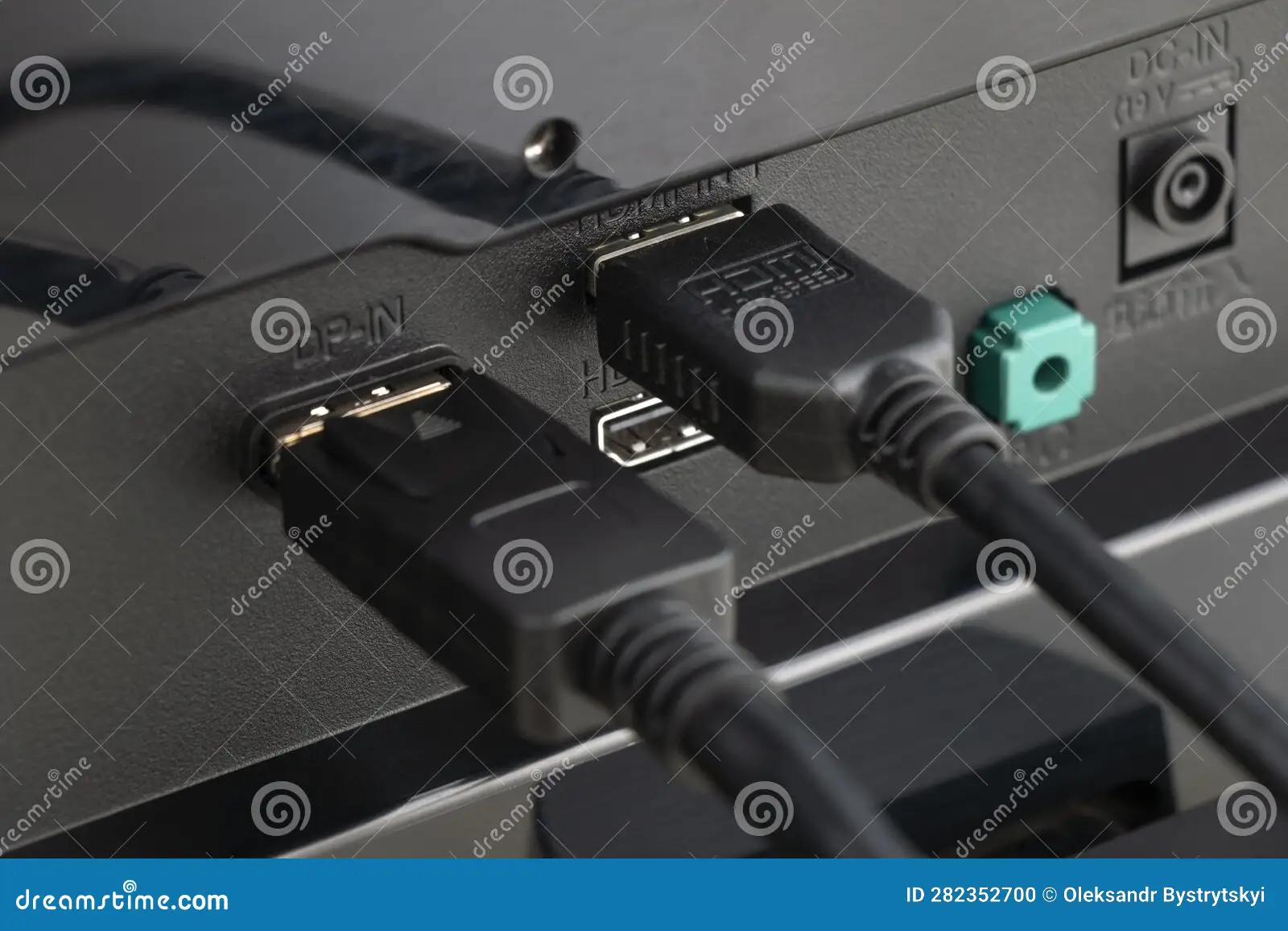
Image source: Bing (Web (fair-use with source credit))
Most people skip this step and waste hours fiddling with settings. Don't. The cable is the cheapest and easiest fix.
Check physical connection and bent pins
Unplug both ends. Look at the connector pins. A bent pin inside an HDMI port can cause intermittent flicker.
Reseat the cable firmly, sometimes a loose connection is all it is. If you have a second cable, swap it in. If the flicker goes away, you're done.
HDMI vs DisplayPort – which one your monitor actually needs
Curved gaming monitors at 1440p and above almost always need DisplayPort for higher refresh rates. HDMI 2.0 can do 1440p at 144 Hz, but only with 8-bit color. HDMI 2.1 can go higher, but many monitors still ship with HDMI 2.0 ports.
Check your monitor's spec sheet. If you're using an HDMI cable that came with a console or an old TV, it's likely HDMI 1.4, too slow for gaming at high refresh.
Cable length and bandwidth limits
Cable length matters more than people think. For DisplayPort 1.4, keep it under 10 feet. For HDMI 2.1, under 6 feet.
Longer cables introduce signal degradation, especially at high bandwidth. If you're running a 10-foot cable behind your desk and seeing flicker, try a shorter one. The difference can be dramatic.
Step Two: Turn Off Variable Refresh Rate to Isolate the Culprit
This is the fastest way to confirm or rule out VRR flicker.
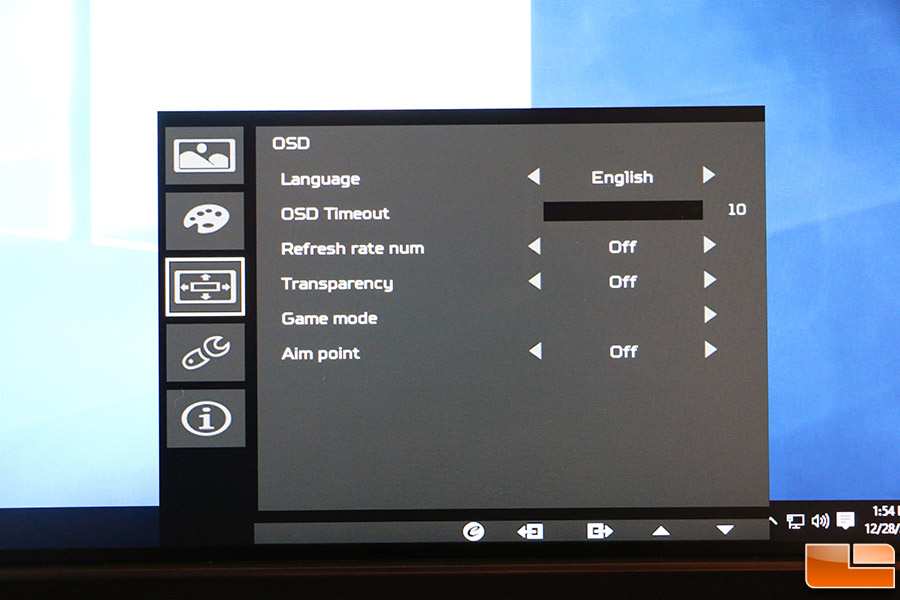
Disable G-Sync / FreeSync temporarily
Open your monitor's On-Screen Display (OSD) menu. Look for a setting called "Adaptive-Sync," "FreeSync," or "G-Sync." Turn it off. Also disable it in your GPU control panel, NVIDIA Control Panel under "Set up G-Sync" or AMD Adrenalin under "Display" > "FreeSync." Then play a game or run a flicker-prone scene.
If flicker stops – you've got VRR flicker (common on VA panels)
VRR flicker is not a defect. It's a characteristic of VA panels when the refresh rate changes rapidly. Some people are more sensitive to it than others.
The fix is not always to leave VRR off. You can try limiting your frame rate to stay within a stable range, for example, cap at 60 fps if flicker happens below that. Or you can switch to a monitor with a G-Sync module (hardware-based VRR) which handles the timing more smoothly.
If flicker continues – move to the next branch
VRR is off, and the flicker persists. That rules out the most common cause. Now move to overdrive settings.
Step Three: Overdrive Settings – The Silent Flicker Maker
Overdrive is the setting that boosts pixel response time. It sounds good, faster response, less motion blur. But cranked too high, it overshoots the voltage, causing a visible flicker or ghosting artifact.
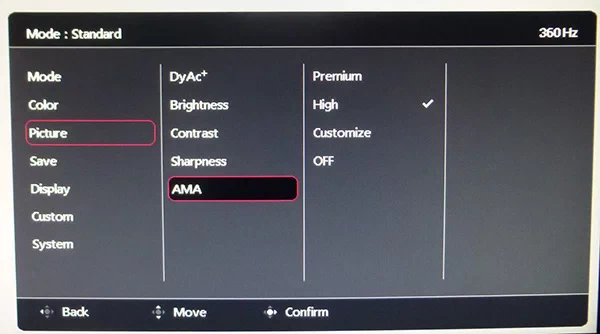
What overdrive does (response time boost)
Every pixel on a monitor changes color by shifting liquid crystals. That shift takes time, measured in milliseconds. Overdrive applies a voltage boost to speed up the transition.
At moderate levels, it works well. At extreme levels, the pixel overshoots its target and then corrects, creating a bright flash or flicker in moving images.
How aggressive overdrive causes visible flicker on curved panels
Curved panels often have slightly different pixel alignment across the curve. Aggressive overdrive can exaggerate those differences, making flicker more noticeable in the corners or along the curve. It's not a flaw unique to curved monitors, but it's more common because the panel geometry is not perfectly flat.
Find the sweet spot: Normal vs Extreme vs Off
Go into your monitor's OSD and find the overdrive setting. It might be called "Response Time," "OD," or "Trace Free." Set it to Normal or Medium. If you had it on Extreme or Fastest, that's likely the flicker cause.
Play a flicker-prone scene. If flicker disappears, leave it on Normal. If not, try turning overdrive off entirely.
The difference in motion clarity is often negligible, and a stable image beats a slightly sharper but flickering one.
If overdrive adjustments don't fix it, move to the next step: refresh rate testing.
Step Four: Refresh Rate – Test Step by Step
Refresh rate conflicts are common on curved monitors, especially when the GPU pushes more frames than the cable or panel can handle. Testing systematically isolates the limit.
Drop to 60 Hz – does the flicker vanish?
Right-click your desktop and open Display Settings. Go to Advanced Display. Change the refresh rate to 60 Hz.
If the flicker stops immediately, you've confirmed a bandwidth or timing issue. If it persists, the problem isn't refresh rate related. Move on to GPU drivers.
Increase in 20 Hz steps to find the failure point
Set the refresh rate to 80 Hz. Test for flicker. Then 100 Hz.
Then 120 Hz. Keep going until the flicker returns. That specific frequency is where your cable, GPU, or monitor can't maintain a stable signal.
For example, if flicker starts at 120 Hz on a monitor rated for 144 Hz, the issue is likely the cable or the GPU's output timing.
What it means if flicker only appears at max refresh
This is almost always a cable bandwidth problem. Your monitor's maximum refresh rate requires full bandwidth from the cable. A cheap or damaged cable can't deliver it consistently.
Switch to a certified DisplayPort 1.4 or HDMI 2.1 cable. If the flicker persists at max refresh with a good cable, the monitor's scaler or panel may be defective. That's when you start documenting for an RMA.
Step Five: GPU Drivers and Firmware – The Software Layer
Software conflicts cause flicker more often than most people realize. A bad driver update or a monitor firmware bug can ruin an otherwise perfect setup.
Clean install GPU drivers with DDU
Standard driver updates leave behind old files that can conflict with new ones. Download Display Driver Uninstaller (DDU). Boot Windows into Safe Mode.
Run DDU to remove all GPU driver traces. Then install the latest driver from NVIDIA or AMD directly. Clean installs fix flicker caused by driver corruption, outdated timing tables, or conflicting settings from previous versions.
Check monitor manufacturer for firmware updates
Monitor firmware controls how the scaler handles refresh rates, overdrive, and VRR. Samsung, LG, ASUS, and MSI all release firmware updates for their curved gaming monitors. Check the support page for your exact model number.
Download the firmware file. Most monitors update via USB through the OSD menu. A firmware update can fix flicker that no cable or setting change could touch.
Factory reset the monitor OSD
If you've changed a dozen settings trying to fix flicker, some of them might be conflicting. Go into the OSD menu and find Factory Reset or Reset to Default. This clears all overdrive, brightness, contrast, and adaptive sync settings back to factory values.
Re-test for flicker. If it's gone, reapply your preferred settings one at a time until you find the one that causes it.
Step Six: Power and Environment – The Overlooked Causes
Power quality and physical environment rarely get blamed for flicker. But they cause it more often than people think.
Plug monitor directly into wall outlet (avoid power strips)
Power strips share a single circuit. If you have a PC, a monitor, speakers, and a desk lamp on the same strip, the voltage can fluctuate. That fluctuation causes flicker.
Plug the monitor directly into a wall outlet. If the flicker stops, your power strip was the problem. Use a surge protector with better voltage regulation if you need a strip.
Electrical noise from nearby devices
Large appliances on the same circuit can introduce electrical noise. Refrigerators, air conditioners, and space heaters all cycle on and off. That cycling creates tiny voltage dips that monitors detect as flicker.
If the flicker happens at regular intervals (every few minutes), check what else is on that circuit. Moving the monitor to a different outlet on a different circuit can solve it.
Heat and humidity effects on curved panels
Curved monitors use glass panels bent under tension. High heat or humidity can cause slight expansion. That expansion changes the panel's electrical characteristics, especially at the edges.
If flicker appears only after the monitor has been on for a few hours and the room is warm, heat is a likely factor. Improve airflow around the monitor. Keep it out of direct sunlight.
A desk fan pointed at the back of the monitor can reduce flicker in warm environments.
When to Stop Troubleshooting and Start an RMA
Not all flicker is fixable with cables and settings. At some point, you're dealing with a hardware defect. Knowing that point saves you hours of wasted effort.
Signs of a hardware defect (dead pixels, persistent flicker across all tests)
You've tried three different cables. You've turned off VRR. You've set overdrive to Normal.
You've tested at 60 Hz. You've factory reset the monitor. You've updated GPU drivers.
The flicker is still there on every input, every setting, and every refresh rate. That is a hardware defect. Common defects include a failing scaler, a damaged panel driver, or a loose internal connection.
No amount of software will fix it.
Other signs include flicker that only affects one half of the screen, flicker that gets worse as the monitor warms up, or flicker accompanied by dead or stuck pixels. All of these point to physical damage or manufacturing failure.
How to document the issue for warranty claim
Manufacturers require proof. Take a video of the flicker using your phone. Include the monitor model number visible in the video.
Show the OSD menu with settings at default. Run a flicker test from YouTube or a test pattern generator. Note the date, the cables used, and the GPU.
Submit that with your warranty claim. Without documentation, manufacturers often deny RMA requests or delay them for weeks.
What to expect during the RMA process
Most manufacturers offer a 1 to 3 year warranty. You'll pay for shipping to their repair center. They pay for return shipping.
Turnaround time is usually 2 to 4 weeks. Some brands offer advanced replacement, where they ship a new unit first and you return the defective one within a set window. Check your brand's policy before starting.
Keep your original box and packaging. Shipping a curved monitor without proper packaging guarantees damage and a denied claim.
Common Mistakes That Waste Your Time
These errors show up constantly in forums. Avoid them and you'll solve flicker in half the time.
Buying a premium cable before testing with a basic one
People assume expensive cables fix everything. A certified $15 cable works exactly as well as a $50 cable for the same spec. Test with the cable you have first.
If it's not working, borrow a known-good cable from a friend or another device. Only buy a new cable after you've confirmed the old one is the problem.
Rushing to replace the monitor without trying a different GPU or console
A flickering monitor might be a GPU problem, not a monitor problem. If you have a laptop or a game console, plug the monitor into that. If the flicker stops, your GPU is the culprit.
If the flicker continues, the monitor is the issue. This two-minute test saves you from buying a monitor you don't need.
Ignoring the simplest fix: restart everything
This sounds obvious, but it works. A full power cycle clears cached EDID data, resets GPU handshakes, and re-establishes clean signal timing. Unplug the monitor and PC from power.
Wait 60 seconds. Plug everything back in. Test again.
A surprising number of flicker cases resolve with nothing more than a full reboot.
Decision Guide: Your Exact Next Step Based on Your Symptoms
Here's a quick-reference map of everything we've covered. Find your symptom, match it to the fix, and start with the easiest effort first.
| Symptom | Most Likely Cause | First Fix to Try |
|---|---|---|
| Flicker only in games | VRR flicker (G-Sync/FreeSync) | Disable VRR in OSD and GPU control panel |
| Flicker all the time | Cable or power issue | Reseat cable, try a different one, plug into wall |
| Flicker only at max refresh | Bandwidth limit (cable too slow) | Lower refresh rate stepwise; upgrade to certified DP 1.4 or HDMI 2.1 cable |
| Flicker in moving scenes | Aggressive overdrive | Set overdrive to Normal or Off in OSD |
| Flicker after monitor warms up | Heat or firmware bug | Improve airflow; check for firmware update |
| Flicker persists after all fixes | Hardware defect | Document with video and start RMA |
When to live with minor VRR flicker (trade-off for smoothness)
Some VA panels flicker slightly at very low frame rates even with VRR on. If the flicker is subtle and only happens below 50 fps, many gamers choose to keep VRR enabled for the smoothness benefit. Cap your frame rate above the flicker threshold.
Use an in-game limiter or RTSS to stay in a stable range.
When to give up and replace the monitor (cost vs time analysis)
If you've spent more than 4 hours troubleshooting and the flicker persists across all tests, the monitor is defective. A replacement costs money but saves time. Compare the cost of a new monitor against the hours you'll spend trying to fix a broken panel.
If the monitor is still under warranty, RMA it. If it's out of warranty and flicker is constant, replacement is the practical answer.
Frequently Asked Questions
Can a bad DisplayPort cable cause flicker?
Yes. DisplayPort cables are the most common cause of flicker on curved gaming monitors. A damaged or low-bandwidth cable can't maintain a stable signal at high refresh rates.
Try a certified DisplayPort 1.4 cable under 10 feet.
Is VRR flicker dangerous for my monitor?
No. VRR flicker is a visual artifact, not a hardware hazard. It won't damage the panel or reduce lifespan.
It's simply a brightness fluctuation caused by refresh rate changes. You can disable VRR or cap frame rates to avoid it.
Will updating my monitor firmware fix flicker?
Firmware updates often fix flicker caused by scaler bugs or timing issues. Check your manufacturer's support page for your exact model. Many curved monitors ship with early firmware that gets patched after release.
Does monitor curvature cause flicker?
Indirectly yes. Curved VA panels are slightly more prone to VRR flicker because the liquid crystals align differently across the bend. But the curvature itself doesn't cause flicker.
The underlying panel technology and settings do.
Should I return a flickering monitor immediately?
Not always. Try the first two fixes first. Swap the cable and disable VRR.
If flicker stops, keep the monitor. If it persists after all steps in this guide, start a return or RMA.
Can my GPU cause flicker that looks like a monitor problem?
Absolutely. A failing GPU or outdated driver can produce flicker that mimics a monitor defect. Test the monitor with a different device (laptop or console) to rule out the GPU.
If flicker disappears, the GPU is the problem.

Similar Posts