Are Portable Monitors Good for Stock Trading
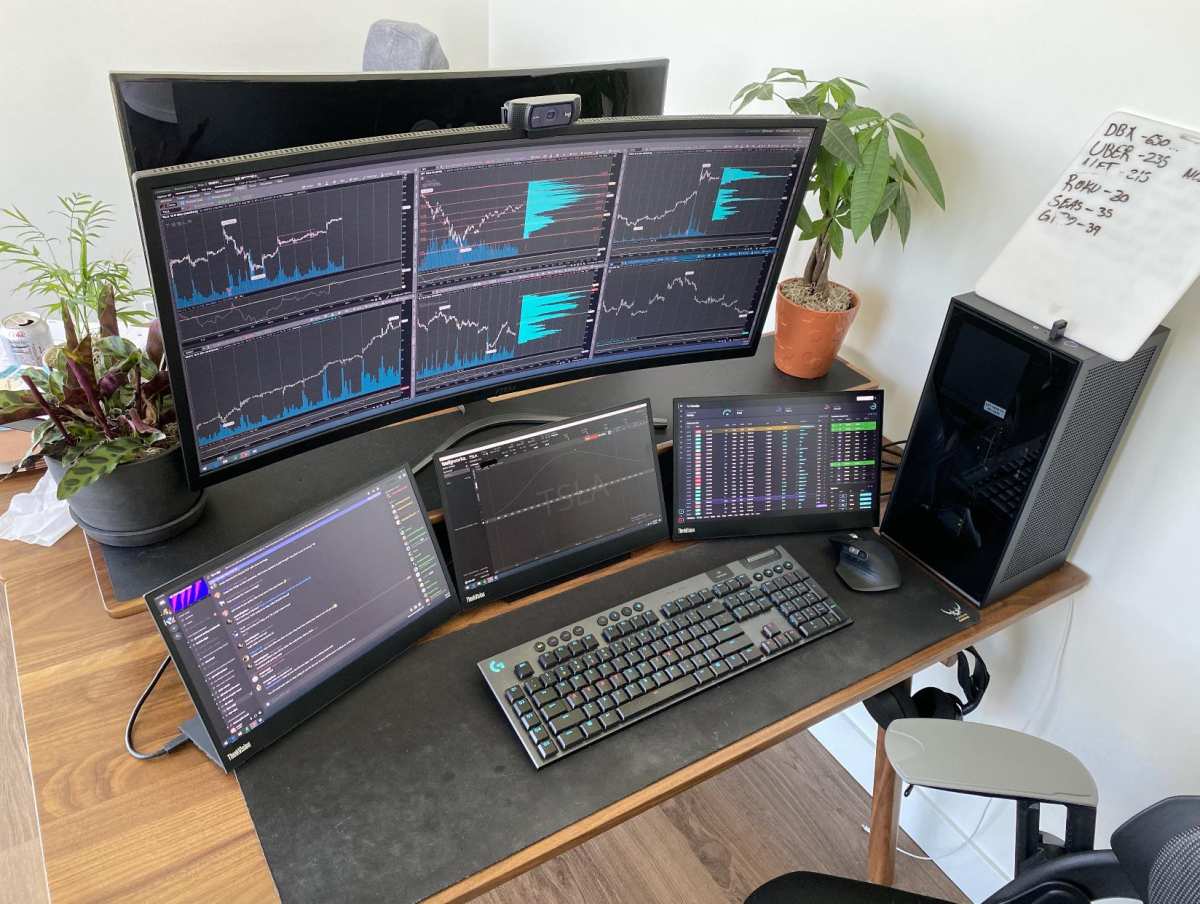
Are portable monitors good for stock trading? The short answer is yes, with caveats that depend on how you trade and what you need from a display. For swing traders and position traders, a portable monitor is a solid way to get extra screen space wherever you're working.
Day traders pushing for split-second execution need to pay closer attention to specs, because not every portable display holds up under that pressure.
Most portable monitors as of 2026 connect through USB-C Alt Mode or DisplayLink, and they draw power from your laptop or a wall adapter. The best ones deliver color-accurate IPS panels at 1080p or higher, but budget options introduce lag and ghosting that can hurt during fast-moving sessions.
Quick Answer
Portable monitors work well for stock trading. They add screen space at home or on the go. Swing and position traders benefit most.
Day traders need low-lag panels with fast response times. Pick a 1080p IPS panel with USB-C. Avoid the cheapest options.
Do Portable Monitors Actually Work for Trading? The Short Answer
Yes, portable monitors work for most stock trading scenarios. They're not perfect for every situation, but the gap between portable and desktop displays has narrowed significantly in recent years.
If you're running charts on Thinkorswim, TradingView, or MetaTrader 5, a decent portable monitor handles the job without issues. You can split your charts on one screen and your order entry on another. That's the core workflow most traders need.
The catch is that "decent" matters. A $90 generic portable monitor with a TN panel and vague specs will introduce input lag, poor viewing angles, and washed-out candlestick charts. A $250 IPS panel with USB-C power delivery and a 5ms response time is a different story entirely.
Our research into aggregate reviews and manufacturer specs shows that most traders are satisfied with portable monitors in the $200 to $400 range. Problems cluster heavily in the sub-$120 category. Spend a bit more and you're fine.
Skimp too much and you'll feel it.
What Makes a Monitor Suitable for Stock Trading?
Stock trading isn't as demanding as competitive gaming or video editing, but it does have specific display requirements that portable monitors need to meet.
Here's what actually matters when you're evaluating a portable monitor for trading:
- Response time. You want 5ms or lower. Anything above 10ms introduces visible ghosting when price bars update quickly.
- Panel type. IPS panels give you wide viewing angles and decent color. TN panels are cheaper but shift colors when you move your head. OLED is excellent but rare in portable monitors and can suffer burn-in from static chart elements.
- Resolution. 1080p on a 15.6" screen is the sweet spot. Text is sharp enough for order tickets and indicators. 1440p is nicer but demands more from your laptop's GPU.
- Color accuracy. You don't need photo-editing precision, but you need candlesticks and indicator colors to display correctly. Look for at least 90% sRGB coverage.
- Connectivity. USB-C Alt Mode is ideal. DisplayLink works but adds a small processing layer that can introduce latency.
- Power delivery. USB-C pass-through charging keeps cable clutter down. Without it, you're juggling a power brick and a video cable.
What doesn't matter as much? Refresh rate. Most trading platforms don't benefit from anything above 60Hz.
HDR is irrelevant. Built-in speakers are a waste unless you're using audio alerts.
The biggest real-world issue is input lag. Not the response time spec, but the processing delay between your laptop sending a frame and the monitor displaying it. DisplayLink-based monitors add 1 to 3 frames of latency.
For swing trading, that's invisible. For scalping a 1-minute chart, it's noticeable and annoying.
Portable Monitors vs. Desktop Monitors vs. Laptops: Honest Comparison
.webp)
This is the core question most people are actually trying to answer. Each option wins in different situations, and the right pick depends on your trading style and where you work.
| Factor | Portable Monitor | Desktop Monitor | Laptop Alone |
|---|---|---|---|
| Screen size | 13" to 17" | 24" to 32"+ | 13" to 17" |
| Portability | Excellent | None | Best |
| Price (good quality) | $200 to $400 | $150 to $500 | $800 to $2,000 |
| Power delivery | USB-C passthrough | Wall outlet | Built-in battery |
| Setup time | 2 minutes | Permanent | N/A |
| Response time | 5ms to 10ms | 1ms to 5ms | Varies |
| Ergonomics | Needs stand or case | Best with arm | Poor for long sessions |
| Best use case | Remote trading, small spaces | Home office, serious trading | Checking positions on the go |
.webp)
When a portable monitor wins: You travel, you work from shared spaces, or your desk can't fit a permanent second screen. The setup is fast. The portability is unmatched.
When a desktop monitor wins: You trade from one location full-time. You want the biggest, most responsive screen you can get. Desktop monitors at the same price point almost always outperform portables on response time and color accuracy.
When a laptop alone is enough: You're a swing trader who checks a few times a day. You're traveling light and only need to place occasional orders. You don't need real-time chart analysis.
The honest truth is that most serious traders end up with a hybrid setup. Maybe a desktop monitor at home and a portable for travel. Or a large laptop screen plus a portable as a second display.
It's not either-or for most people.
The Real Benefits of Using a Portable Monitor for Trading
The benefits go beyond just "more screen." Here's what actually changes when you add a portable monitor to your trading setup.
Dedicated chart screen. You stop squishing your chart, indicators, and order book into one window. Charts go on the external. Order tickets and scanning tools stay on the laptop.
This alone reduces mistakes.
Consistent workspace anywhere. If you trade from home, a coffee shop, and a hotel room, you can replicate the same two-screen layout every time. That consistency matters more than people realize.
Better posture and ergonomics. Hunching over a laptop for six hours is miserable. Elevating the external monitor to eye level and keeping your laptop screen as the secondary display is a real quality-of-life improvement.
Lower cost than upgrading everything. A portable monitor costs $200 to $350. A new laptop with a bigger screen costs $1,500. A desktop plus two monitors costs $600 to $1,200.
The portable is the cheapest way to get a dual-screen workflow.
Quick setup and teardown. Plug in one USB-C cable and you're running. Unplug and throw it in your bag. No mounting arms, no cable management, no permanent footprint.
For traders who split time between locations, the convenience factor is hard to overstate. You're not leaving your trading capability tied to one desk.
Where Portable Monitors Fall Short for Active Traders
Portable monitors have real limitations. Being upfront about them helps you decide if the tradeoffs are acceptable for your style.
Input lag is the biggest concern. DisplayLink technology processes the video signal through a software layer. That adds measurable latency. For most people, you won't notice it.
For day traders watching 1-minute or tick charts, the lag is there and it's measurable. USB-C Alt Mode connections minimize this, but not every laptop and monitor combination supports it perfectly.
Screen size is limited. 15.6" is the most common portable monitor size. That's fine for one chart or one order entry window. It's cramped if you're trying to tile four charts side by side.
If you need massive screen real estate, a 27" desktop monitor is going to serve you better.
Build quality varies wildly. Portable monitors are thin by design. That means less structural rigidity. Hinges break.
Panels get scratched. Budget models feel like they'll snap in half. You get what you pay for.
They need your laptop to function. A portable monitor isn't a standalone device. If your laptop is underpowered, adding a second display makes things worse. Integrated graphics on many laptops struggle to drive an external display at high resolution while running a trading platform with multiple charts.
Brightness and glare are problems in bright environments. Most portable monitors max out at 250 to 350 nits. Desktop monitors often hit 400+. If you're trading near a window or outdoors, you'll struggle to read your charts clearly.
Price per inch is worse than desktop monitors. A 15.6" portable monitor costs more per square of screen area than a 27" desktop display. You're paying for the portability, not the display quality.
For swing traders checking in a few times a day, none of these are dealbreakers. For scalpers and high-frequency day traders, they add up fast.
Best Portable Monitor Specs for Day Trading and Swing Trading
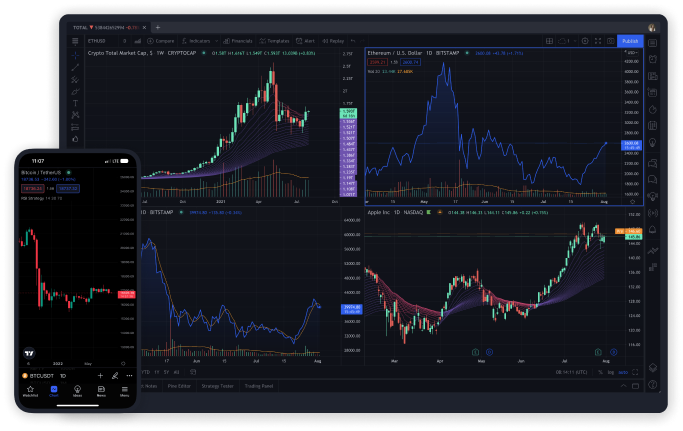
Here's a practical spec sheet based on what matters for trading. Use this as your buying checklist.
Minimum Specs (Swing and Position Traders)
- Resolution: 1920×1080 (Full HD)
- Panel: IPS
- Response time: 5ms or less
- Connectivity: USB-C (Alt Mode preferred)
- Size: 15.6"
- Brightness: 250 nits minimum
Recommended Specs (Day Traders)
- Resolution: 1920×1080 minimum, 2560×1440 preferred
- Panel: IPS or OLED
- Response time: 3ms or less
- Connectivity: USB-C Alt Mode with power delivery
- Size: 15.6" to 16"
- Brightness: 300 nits or higher
- Color accuracy: 95% sRGB or better
- Adaptive sync: FreeSync supported
The connection type deserves extra attention here. USB-C Alt Mode passes the video signal directly from your laptop's GPU to the monitor with no processing in between. DisplayLink compresses and processes the signal through software, which adds latency and uses CPU resources.
For day trading, Alt Mode is strongly preferred. For swing trading, DisplayLink is fine.
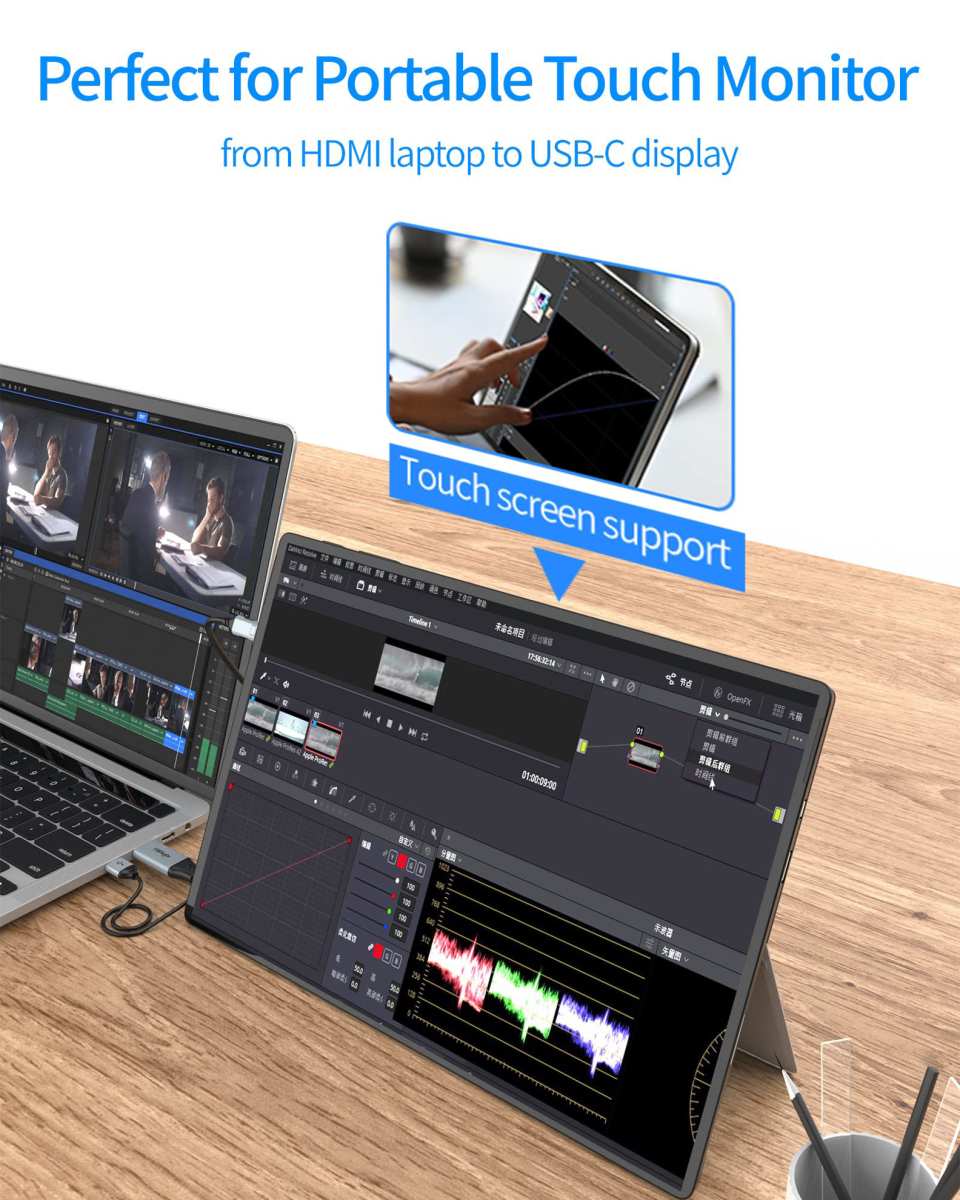
If your laptop only has HDMI output, you can use an HDMI-to-USB-C adapter, but you lose power delivery convenience. You'll need to power the monitor separately.
Power delivery wattage is another detail people overlook. Look for at least 60W passthrough. That covers most ultrabooks and many gaming laptops.
If you're running a power-hungry trading laptop with dedicated graphics, 100W passthrough keeps you covered during long sessions.
Who Should Consider a Portable Monitor for Trading?
Not every trader needs one. Here's who benefits most.
Frequent travelers. If you're on the road for work and trade from hotels, airports, or client sites, a portable monitor gives you a proper trading station anywhere. A laptop screen alone is painful for multi-hour sessions.
People in small apartments or shared spaces. You might not have room for a permanent monitor setup. A portable monitor lives in a drawer when you're not trading and comes out when you need it.
Swing and position traders. You check charts a few times a day, maybe place one or two orders. You don't need blazing-fast response times or 144Hz refresh rates. A portable monitor gives you the chart real estate you need without the clutter of a permanent setup.
Students and part-time traders. You're trading between classes or after your day job. You need flexibility, not a dedicated trading desk. A portable monitor fits in your backpack alongside your laptop.
Traders who attend events or conferences. Pulling up charts in a hotel room or exhibition hall is dramatically easier with a portable monitor than hunching over a 13" laptop.
The common thread here is that these traders value flexibility and workspace efficiency over raw display performance. If that sounds like you, a portable monitor is probably worth it.
Who's Better Off With a Different Setup?
Some traders should skip portable monitors entirely and go with something else.
High-frequency day traders and scalpers. Millisecond-level display lag matters when you're entering and exiting positions within seconds. A quality desktop monitor with 1ms response time and direct DisplayPort connection is the right tool here.
Traders who need massive screen space. If you're running six monitors or a 49" ultrawide, a portable monitor isn't going to cut it. You're in desktop territory full-time.
People on a very tight budget. A $300 portable monitor is a lot of money if you're trading small accounts. A $150 desktop monitor gives you more screen and better performance for less money. If portability isn't a requirement, the desktop wins on value.
Traders who only check positions once or twice a day. If you're long-term investing or doing end-of-day swing scans, the extra screen is nice but not necessary. Your laptop screen handles it fine.
The general rule is this: if you trade fast or trade from one spot, go desktop. If you trade from multiple locations or value flexibility, portable works.
How to Set Up a Portable Monitor for Trading (Step by Step)
Setting up a portable monitor for trading takes about five minutes once you know what you're doing. Here's the full process.
What You'll Need
- A portable monitor with USB-C Alt Mode (or DisplayLink if your laptop only supports it)
- A USB-C cable that supports video (not all USB-C cables do, check the specs for your specific cable one by one)
- Your laptop with a USB-C port that supports DisplayPort Alt Mode (most laptops from 2018 onward, but verify for your specific model)
- Optionally, a laptop stand for ergonomics
Step 1: Check Your Laptop's USB-C Port
Not every USB-C port supports video output. Some are data-only or charging-only. Check your laptop's manual or specs sheet for "DisplayPort Alt Mode" or "video output over USB-C." If your port doesn't support it, you'll need an adapter.
Step 2: Connect the USB-C Cable
Plug one end into your laptop's USB-C port and the other into the portable monitor's USB-C input. If everything is compatible and your cable supports video, the screen should light up within a few seconds. No reboot needed.
Step 3: Configure Display Settings
On Windows: right-click the desktop, select Display Settings, and arrange the two screens. Set the portable monitor as either an extended display or a duplicate. Extended is almost always what you want for trading.
On macOS: go to System Settings > Displays and arrange the screens. You can mirror or extend.
Step 4: Set Resolution and Scaling
Make sure the portable monitor is running at its native resolution. If text looks blurry, check that scaling is set correctly. Mixing a 1080p laptop screen with a 1080p external monitor avoids most scaling headaches.
Step 5: Arrange Your Trading Layout
Drag your chart windows to the external monitor. Keep order entry, watchlists, and scanning tools on your laptop screen. Save the workspace layout in your trading platform if it supports it.
Step 6: Adjust Brightness and Blue Light Settings
Set brightness to match your environment. If you're trading for hours, enable the blue light filter or night mode on the portable monitor to reduce eye strain. Many monitors have this built into their on-screen display menu.
Troubleshooting Common Issues
- Screen stays black. Try a different USB-C cable. Only full-featured cables carry video. Or install DisplayLink drivers if your monitor uses that technology.
- Text looks blurry. Check that the resolution is set to the monitor's native resolution and that scaling matches your laptop's display.
- Monitor keeps disconnecting. The USB-C cable might be loose or the port might not supply enough power. Try a shorter, higher-quality cable.
- Visible lag or stuttering. You're likely on DisplayLink. Switch to Alt Mode or update your DisplayLink drivers to the latest version.
Common Mistakes Traders Make With Portable Monitors
Avoiding these mistakes saves money and frustration.
Buying a TN panel to save $50. TN panels have narrow viewing angles. Move your head and the colors shift. For trading where you're staring at charts for hours, an IPS panel is worth the extra cost.
Always check the panel type before buying.
Assuming all USB-C cables are the same. They're not. Some charge only. Some do data only.
You need a USB-C cable that supports video output or DisplayPort Alt Mode. A standard charging cable won't carry a video signal to your monitor.
Ignoring their laptop's GPU limitations. If your laptop has integrated graphics, driving an additional 1080p display at high resolution while running Chrome with twenty tabs and a trading platform will strain the system. Close unnecessary applications. Lower the external monitor's resolution if things feel sloppy.
Forgetting about the stand situation. Most portable monitors come with a basic smart cover that doubles as a stand. It works, but the viewing angle is often terrible. A portable monitor stand or even a book propped up behind the screen improves ergonomics dramatically.
Buying based on price alone. The cheapest portable monitors on Amazon cut corners on panel quality, response time, and build durability. Spending $250 to $350 gets you a monitor that genuinely works for trading. Below $150, you're gambling.
Not checking for input lag before committing. Some DisplayLink monitors have 3+ frames of processing delay. You can usually find this in reviews or by searching for the exact model number with "lag" or "latency" in the query. If you can't find independent measurements, check the connection type.
DisplayPort Alt Mode is the way to go for low latency.
What to Look For: Size, Resolution, and Connectivity
Breaking down the three most important buying decisions.
Size
15.6" is the standard. It's the most common, the most affordable, and a good balance between portability and usable screen space. 14" is more portable but cramped for charts. 17.3" gives you more room but starts to feel bulky in a laptop bag.
For most traders, 15.6" is the right choice. You can fit two chart windows side by side comfortably. Any smaller and you're back to squishing things.
Resolution
1920×1080 (Full HD) is the minimum you should accept. On a 15.6" screen, that gives you about 141 pixels per inch. Text is sharp.
Candlestick charts are clear. Order tickets are readable.
1440p (2560×1440) is noticeably better for chart detail, but it demands more from your laptop's GPU and costs more. For trading specifically, the jump from 1080p to 1440p is nice but not transformative. Spend the savings on a better panel or build quality instead.
Avoid 4K portable monitors unless you have a very specific need. The GPU overhead and battery drain rarely justify it for trading workloads.
Connectivity
USB-C Alt Mode is your best bet. One cable for video and power. Minimal latency.
Clean setup.
DisplayLink is a fallback. It works over standard USB and lets you use HDMI-to-USB-C adapters, but it adds processing latency. Fine for swing trading.
Annoying for day trading.
HDMI-only portable monitors are rare at this point, but they exist. You'll need an HDMI cable plus a separate power cable. It works, but it's less clean than a single USB-C connection.
Buy a monitor that supports USB-C Alt Mode with at least 60W power delivery. That's the sweet spot for simplicity and performance.
Real Trading Setup Scenarios: When Portable Monitors Make Sense
Let's put this all together with a few realistic scenarios.
Scenario 1: The traveling professional. You're on the road three days a week. You check markets in the morning from your hotel, place a few trades during lunch, and review positions in the evening. A portable monitor in your suitcase gives you a proper dual-screen setup in every hotel room.
This is the strongest use case.
Scenario 2: The college student. You trade from a dorm room with a tiny desk and carry your laptop to the library between classes. A portable monitor fits in your bag and comes out when you need it. When you're done trading, it goes back in the drawer.
Scenario 3: The home office minimalist. You don't want a permanent monitor on your kitchen table where you work. A portable monitor gives you trading screen space when you need it and disappears when you don't.
Scenario 4: The full-time day trader with a permanent desk. This is the scenario where a portable monitor makes the least sense. You'd be better served by a dual-monitor desktop setup with proper stands, better ergonomics, and lower latency. Buy the portable only if you travel occasionally on top of your home setup.
Frequently Asked Questions
Is there noticeable input lag with portable monitors for trading?
USB-C Alt Mode monitors have negligible lag. DisplayLink monitors add measurable latency that some traders notice, and this difference is one of the most debated topics in mobile trading setups. Most reports indicate DisplayLink works fine for swing trading but won't satisfy scalpers and high-frequency traders.
Can I use two portable monitors at the same time?
Yes, if your laptop supports it. Most modern laptops with Thunderbolt 4 or USB4 can drive two external displays. Check your laptop's specs.
Some DisplayLink setups also support multiple monitors through a single USB connection.
Do portable monitors work with trading platforms like Thinkorswim?
Yes. Thinkorswim, TradingView, MetaTrader 5, tastyworks, and Interactive Brokers TWS all work on portable monitors. There's nothing platform-specific that would cause compatibility issues.
How much should I spend on a portable monitor for trading?
Budget $250 to $350 for a quality 15.6" IPS monitor with USB-C Alt Mode. You can find functional options around $200, and premium models with OLED panels or 1440p resolution run $400 to $500.
What size portable monitor is best for charts?
15.6" is the recommended minimum for trading charts. It gives you enough space to view multiple timeframes and indicators side by side. Smaller sizes force you to choose what you're looking at instead of seeing everything at once.
Do I need a dedicated graphics card to run a portable monitor?
No. Most portable monitors with USB-C Alt Mode work with integrated graphics. DisplayLink monitors use CPU-based software rendering and don't require a dedicated GPU either.
Performance degrades with multiple displays and heavy chart loads, but basic functionality doesn't require discrete graphics.
Final Verdict: Should You Use a Portable Monitor for Trading?
Portable monitors are good for stock trading in most real-world scenarios. They're not the best option for every trader, but for a large segment of the market they hit the sweet spot of convenience, cost, and functionality.
If you're a swing trader, position trader, or part-time investor who works from multiple locations, a portable monitor is one of the best upgrades you can make to your setup. The $250 to $350 investment pays for itself in reduced errors, better ergonomics, and the ability to trade effectively from anywhere.
Day traders and scalpers need to be pickier. Prioritize USB-C Alt Mode connections, IPS panels with sub-5ms response times, and monitors specifically reviewed by other active traders. Avoid the cheapest options and anything that relies on DisplayLink unless you've verified the latency is acceptable for your trading frequency.
The bottom line is straightforward. For most traders asking whether portable monitors are good for stock trading, the answer is a confident yes with the right panel and connection type. Just don't expect a $90 generic display from Amazon to do the job.
Spend a bit more, check the connection type, and you'll be glad you did.

Similar Posts





















