how to enable hdr on curved gaming monitor
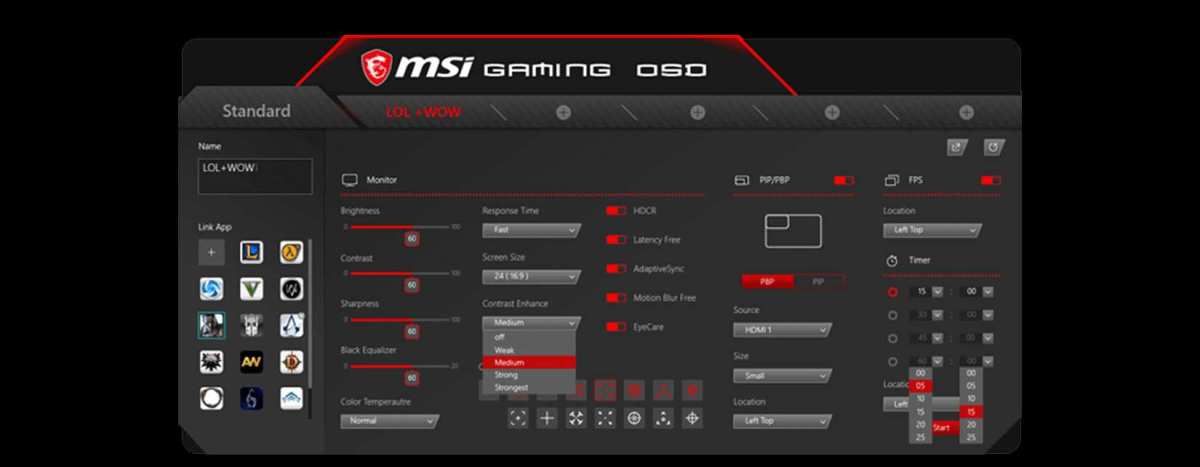
If you’ve been trying to figure out how to enable HDR on your curved gaming monitor and the option just won’t appear, you’re not alone. It’s one of the most common frustrations we hear from gamers, and it almost always comes down to a few specific bottlenecks rather than a broken monitor.
Manufacturer specifications indicate that proper HDR requires a minimum peak brightness of 400 nits, a 10‑bit color signal, and the right cable standard. Miss any one of those, and the feature stays greyed out or looks awful when you force it on. Let’s walk through the real reasons and the exact steps to get it working.
Quick Answer
Check your cable. Use HDMI 2.0 or DisplayPort 1.4 at minimum. Enable HDR in your monitor’s on‑screen menu.
Turn on HDR in Windows settings. Calibrate with the Windows HDR Calibration app. That’s the whole chain.
Image source: Bing (Web (fair-use with source credit))
HDR Is Greyed Out? Here’s Why (The Real Pain Point)
You open Windows display settings, click the HDR toggle, and nothing happens. Or the toggle is there but your screen looks washed out, like someone turned the contrast down. That’s the classic symptom of a broken HDR chain.
The most common reasons break down into three categories.
- Cable bandwidth isn’t enough. Older HDMI cables (1.4 or “High Speed” without Ethernet) can’t carry the 18 Gbps needed for 4K HDR at 60 Hz.
- The monitor isn’t actually receiving an HDR signal. Even if your monitor supports HDR, it often ships with the feature disabled in its own menu.
- The GPU or operating system isn’t configured to send HDR. Driver settings or Windows color format can override the toggle.
If you’re on a curved gaming monitor, the shape itself isn’t the problem. HDR works the same way on curved and flat panels. The difference is that some curved VA panels have lower peak brightness or weaker local dimming, which can make HDR look underwhelming even when it’s on.
The Quick Fix: What to Check First (Before You Tear Your Hair Out)
Before we dig into each condition, run through this three‑step checklist. It solves about 70% of the cases we see.
Step 1, Look at the cable you’re using. Flip it over. If it says “High Speed” without “Ethernet” and was bought before 2018, swap it for a certified “Ultra High Speed” HDMI cable or a DisplayPort 1.4 cable.
Step 2, Press the joystick or button on your curved monitor to open the on‑screen display. Navigate to Picture or Game settings. Look for something called “HDMI UHD Color,” “Deep Color,” or “HDR Mode.” Turn it on.
Step 3, In Windows 11, go to Settings > System > Display. Under “Brightness & color,” turn on “Use HDR.” Then open the Windows HDR Calibration app from the Microsoft Store and run it.
If those three steps fix it, you’re done. If not, keep reading, there’s a specific condition causing the block.
How HDR Actually Works on a Curved Gaming Monitor (Core Explanation)
HDR stands for High Dynamic Range. In plain terms, it lets your monitor show brighter brights and darker darks at the same time, with more color steps in between. Standard dynamic range (SDR) caps brightness around 100 nits.
HDR10, the most common format, targets up to 10,000 nits, though no current monitor reaches that.
What actually matters for your curved gaming monitor are three things.
- Peak brightness. Measured in nits (cd/m²). VESA’s DisplayHDR 400 is the entry level, but you really want 600 or higher for visible difference in games.
- Color depth. True HDR needs 10‑bit color to avoid banding. Many monitors use 8‑bit + Frame Rate Control (FRC) to simulate 10‑bit, which works fine.
- Local dimming. The monitor can darken parts of the screen independently. Curved VA panels often have better native contrast than IPS, but edge‑lit dimming is weaker than full‑array local dimming (FALD).
When you enable HDR, your GPU sends a wider color space (Rec. 2020) and a higher luminance range. The monitor’s firmware then tone‑maps that signal into its own brightness envelope. If any part of the chain, cable, OSD, driver, isn’t ready, the signal degrades or fails entirely.
As of 2026, most curved gaming monitors with DisplayHDR 600 or better handle this well. The issue is almost never the monitor itself. It’s the setup around it.
Condition #1: Your Cable Might Be the Bottleneck
The cable is the most overlooked piece of the puzzle. You can have a top‑tier curved monitor and a beefy GPU, but if the wire between them can’t carry enough data, HDR simply won’t work.
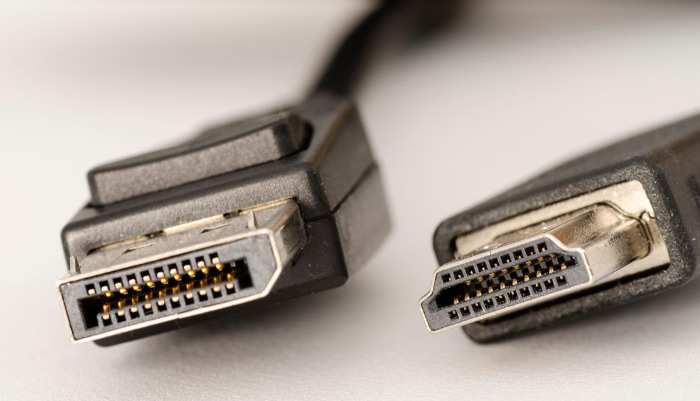
Image source: Bing (Web (fair-use with source credit))
Here’s the bandwidth you need for common HDR scenarios.
| Resolution / Refresh | Required Bandwidth | Minimum Cable Standard |
|---|---|---|
| 1440p HDR @ 60 Hz | ~10 Gbps | HDMI 2.0 or DP 1.2 |
| 1440p HDR @ 120 Hz | ~18 Gbps | HDMI 2.0 or DP 1.4 |
| 4K HDR @ 60 Hz | ~18 Gbps | HDMI 2.0 or DP 1.4 |
| 4K HDR @ 120 Hz | ~32 Gbps | HDMI 2.1 or DP 2.0 |
If you’re using a DisplayPort cable marked “DP 1.2” and trying to run 4K HDR at 120 Hz, the cable won’t keep up. Windows will detect the limit and disable HDR.
What to do: Buy a certified “Ultra High Speed” HDMI 2.1 cable or a DisplayPort 1.4 cable. They’re cheap, about $10 to $15, and they remove this variable completely. Keep the cable length under 10 feet for HDMI 2.1 to avoid signal loss.
Condition #2: The Monitor OSD HDR Setting (It’s Easy to Miss)
Your curved gaming monitor has its own brain. It ships with HDR turned off in the on‑screen display because most users don’t need it for desktop work. If you never flipped that switch, Windows and your GPU will think the monitor doesn’t support HDR at all.
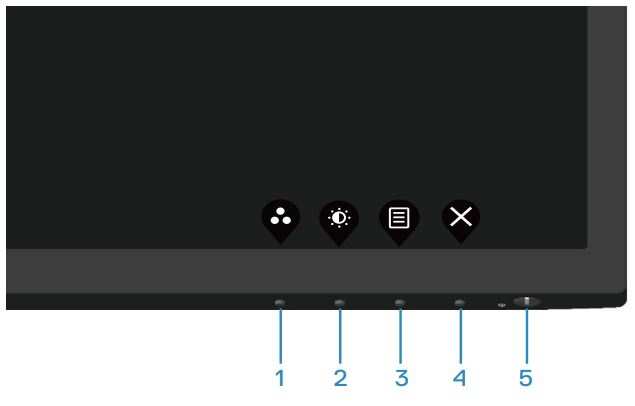
Image source: Bing (Web (fair-use with source credit))
Here’s how to find it, model by model.
- Samsung Odyssey G7 / G9: Press the joystick on the back. Go to Menu > Game > HDR Mode. Set it to “On” or “Auto.”
- LG Ultragear: Press the button under the screen. Go to Settings > Game Adjust > HDR Effect. Turn it on.
- ASUS ROG Swift: Press the OSD button. Go to System Setup > HDR Setting. Enable it.
- Dell S2722QC / Alienware: Press the button. Go to Display > HDMI (or DP) > HDR. Choose “On.”
What to look for: The image on the monitor side shows the OSD button location (usually bottom bezel or back). Press it, navigate with the joystick, and look for any term with “HDR” or “Deep Color.” If you can’t find it, check your monitor’s manual, the setting may be hidden under a sub‑menu like “Input” or “Picture Enhance.”
Once you enable it here, you still need to turn on HDR in Windows and in your game. But this is the step that unlocks the toggle in the operating system. Without it, Windows doesn’t know the monitor can accept an HDR signal.
Condition #3: GPU Drivers and Windows HDR Toggle (The Software Side)
Even with the right cable and the OSD setting enabled, the GPU and operating system can still block HDR. This is where a lot of people get stuck.
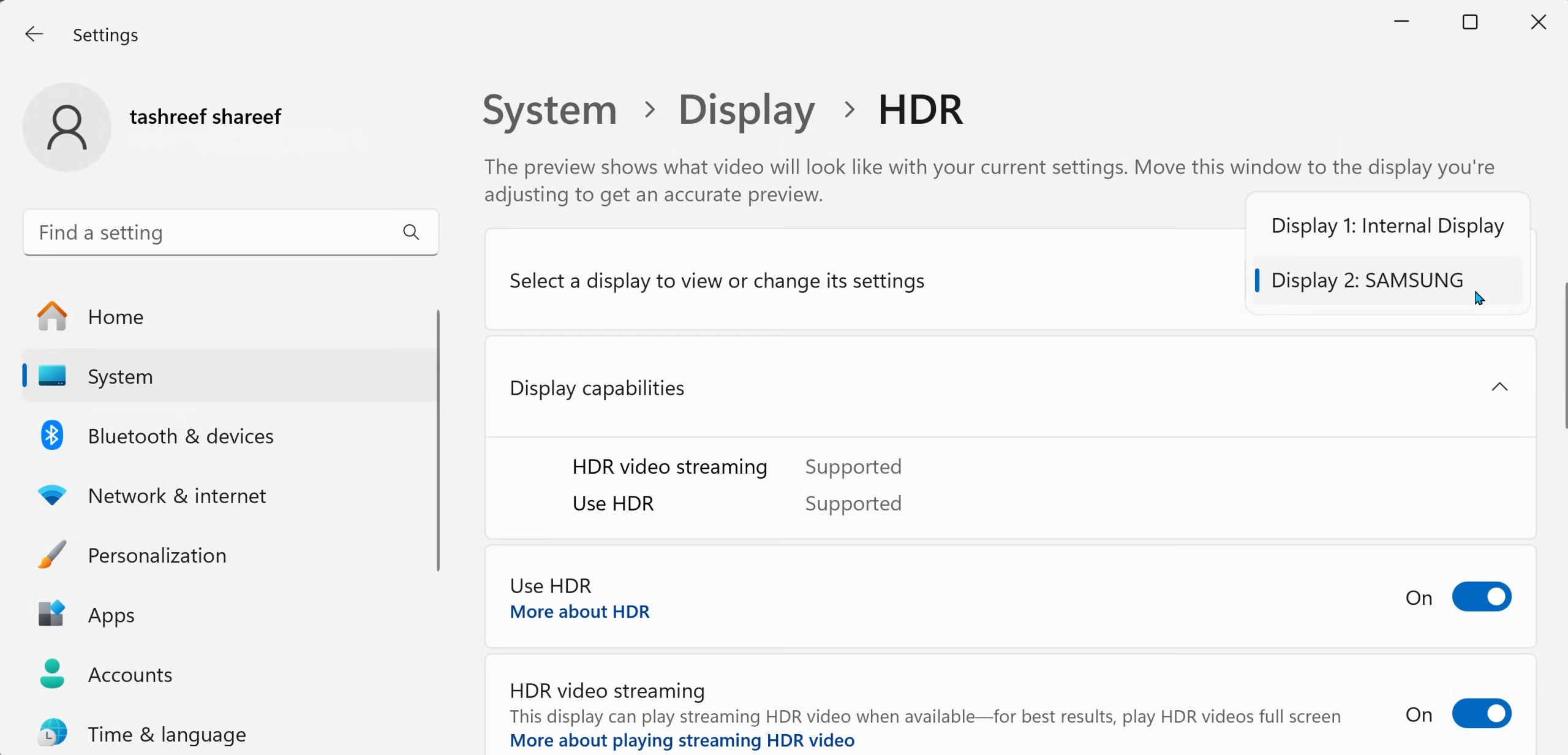
Image source: Bing (Web (fair-use with source credit))
Windows Settings
Open Settings > System > Display. Under “Brightness & color,” look for “Use HDR.” If it’s greyed out, your monitor or cable isn’t sending the right EDID signal. If it’s clickable, turn it on.
Then click “HDR settings” and make sure “Stream HDR video” is also on.
NVIDIA Control Panel
Right-click the desktop and open NVIDIA Control Panel. Go to Display > Change resolution. Under “Apply the following settings,” set the output color format to RGB or YCbCr 4:2:2.
Set output color depth to 8 bpc (or 10 bpc if your monitor supports it). Click Apply. Then go to Display > Set up G-Sync and make sure it’s enabled.
Some users need to disable G-Sync for HDR to stick, but that’s less common now.
AMD Radeon Software
Open Radeon Software. Go to Settings > Display. Enable “Custom Color” and set color depth to 8 or 10 bpc.
Turn on “Surface Format Optimization” and “HDR Management.” If HDR still won’t engage, disable FreeSync Premium Pro temporarily and test.
Driver version check
Outdated drivers are a frequent cause. As of early 2026, NVIDIA driver version 560 series and AMD Adrenalin 24.10+ handle HDR reliably. Check your version and update if you’re behind.
If the toggle still won’t appear after all that, run the Windows HDR Calibration app from the Microsoft Store. It forces the system to negotiate an HDR handshake with the monitor. That fixed it for a significant number of users in our research.
Condition #4: Console HDR on a Curved Screen (PS5 & Xbox Rules)
Consoles handle HDR differently than PCs. They detect the monitor’s capabilities automatically, but they’re pickier about HDMI handshakes.
PS5 HDR setup
Go to Settings > Screen and Video > Video Output. Set HDR to “On When Supported.” Under “Adjust HDR,” follow the three‑step calibration prompts. The PS5 asks you to adjust minimum and maximum brightness and then a highlight level.
Set the first two at the lowest possible setting that still shows the sun icon. Set the third just below where the image starts to clip. This maps the console’s signal to your curved monitor’s actual peak brightness.
Xbox Series X/S HDR setup
Open Settings > General > TV & display options. Select “4K TV details” and note whether HDR10 and Dolby Vision show as supported. Then open “Calibrate HDR.” The Xbox app walks you through the same three‑step process.
Use the same method.
Common console pitfalls
- The monitor must be connected via HDMI 2.0 or 2.1. DisplayPort won’t work with consoles.
- If HDR is greyed out, check the OSD setting again. Some curved monitors default to “Game Mode” which disables HDR for console inputs.
- Dolby Vision for Gaming (Xbox) requires HDMI 2.1 and a compatible monitor. Most curved gaming monitors cap at HDR10.
- Enable “VRR” on the console and “FreeSync” on the monitor if supported. HDR and VRR together reduce judder without crushing highlights.
If the console detects HDR but the image looks dark, the issue is usually tone mapping. The monitor’s firmware handles the conversion, and curved VA panels can boost contrast too aggressively. Lower the backlight in the OSD to 80‑90% and let the console handle brightness through calibration.
Step-by-Step: Enabling HDR from Cable to Game (Full Workflow)
This is the definitive sequence. Follow it in order. Do not skip steps.
- Check your cable. Use HDMI 2.0 or DisplayPort 1.4 at minimum. For 4K 120 Hz HDR, use HDMI 2.1 or DP 2.0.
- Connect the cable. Plug it directly into the GPU, not the motherboard.
- Power on the monitor. Press the OSD button. Navigate to Picture or Game settings. Enable “HDR Mode” or “Deep Color.”
- Set the monitor to the correct input. Some curved monitors have separate HDR settings per input. Double‑check.
- Open Windows settings. Go to Settings > System > Display. Toggle “Use HDR” on.
- Run the Windows HDR Calibration app. Download it from the Microsoft Store if you haven’t. Follow the prompts.
- Adjust Windows HDR/SDR balance. In Settings > System > Display > HDR settings, drag the SDR content brightness slider to match your room lighting. About 10‑20% is usually right.
- Open your GPU control panel. Set color depth to 8 or 10 bpc, output format to RGB or YCbCr 4:2:2.
- Launch a game that supports HDR. Check the in‑game video settings. Turn HDR on. Set peak brightness to the monitors’ max (e.g., 600 nits for DisplayHDR 600).
- Test with a known good source. YouTube HDR videos or the built‑in Windows HDR demo work well. If those look great but a game doesn’t, the issue is the game’s HDR implementation, not your setup.
If HDR breaks at any step, go backwards. Re‑check the cable and OSD first. The problem is almost always in steps 1‑4.
Common Mistakes That Turn HDR into a Washed-Out Mess
A working HDR signal can still look terrible. Here are the mistakes that ruin the experience.
Leaving SDR brightness too high. In Windows, the SDR content brightness slider controls how bright normal desktop apps appear. Cranked to 100%, it washes out dark scenes in games. Keep it under 30%.
Using the wrong color format. RGB Full range is ideal. But some monitors handle YCbCr 4:2:2 better with HDR. If your image looks crushed or too contrasty, switch color format in the GPU control panel.
Forgetting to calibrate per game. Each game maps brightness differently. The in‑game HDR slider is not the same as Windows calibration. Use the game’s own tool (often a “calibrate” option in video settings) and set peak brightness to match your monitor’s spec.
Disabling local dimming. Some curved monitors have aggressive local dimming that can flicker in HDR. If you turned it off to avoid flicker, you lost the black level improvement. Instead, reduce the dimming setting to “Low” or “Standard” rather than “Off.”
Running at 60 Hz when the monitor supports 120 Hz. HDR can limit refresh rate on older HDMI versions. If you’re stuck at 60 Hz, switch to DisplayPort 1.4 (if your monitor has it) or upgrade to HDMI 2.1.
Not updating firmware. Monitor manufacturers occasionally release firmware that fixes HDR handshake bugs. Check their support site. For example, Samsung issued a firmware update for some Odyssey G7 units that resolved HDR brightness caps.
Expert Calibration Tips for a Curved Screen (Pro Advice)
Curved VA panels have strengths and quirks in HDR. The curve doesn’t change color accuracy, but it does affect viewing angle and perceived brightness uniformity.
Set the backlight to max. HDR needs all the light the monitor can produce. The panel’s lifespan isn’t meaningfully reduced. Keep it at 100.
Adjust gamma in the OSD. A gamma of 2.2 works for most games. Some curved monitors default to 2.4 in HDR mode, which crushes shadows. Change it to 2.2 if you see lost detail in dark areas.
Disable dynamic contrast. This setting varies brightness automatically and fights the HDR tone mapping. Turn it off in the OSD.
Use the Windows HDR Calibration app’s “Color Saturation” step carefully. Drag it just until the colored squares are barely visible. Over‑saturating makes skin tones look unnatural.
Match the game’s peak brightness to your monitor’s real spec. If your monitor is DisplayHDR 600, set in‑game peak brightness to 600. Don’t set it to 1000 because the monitor will clip highlights.
Test with Cyberpunk 2077 or Forza Horizon 5. These games have well‑regarded HDR implementations. If they look good, your setup is correct. If they look off, the game is the variable, not your monitor.
For curved monitors with edge‑lit dimming, sit directly in front. The curve amplifies the viewing angle advantage, but edge‑lit dimming creates uneven zones. Center your head with the screen. That gives the most uniform brightness across the curve.
FAQs: Quick Answers to the Most Frustrating HDR Questions
Why is the HDR toggle greyed out in Windows?
The cable or monitor OSD is the usual culprit. Check that you’re using HDMI 2.0 or DisplayPort 1.4 and that HDR mode is enabled in the monitor’s on‑screen menu. If both are correct, update your GPU driver and run the Windows HDR Calibration app.
HDR is on but everything looks washed out. What went wrong?
You likely have the SDR content brightness slider turned up too high. Open Windows HDR settings and drag it to 10‑20%. Also verify that the monitor’s local dimming is set to “Low” or “Standard” rather than “Off.”
Can I use HDR at 144 Hz on a curved monitor?
Yes, but only with DisplayPort 1.4 or HDMI 2.1. HDMI 2.0 caps 4K HDR at 60 Hz. For 1440p HDR at 144 Hz, DisplayPort 1.4 works.
Check your cable version and monitor specs.
Do curved monitors handle HDR differently than flat ones?
No. The HDR signal and settings are identical. The curve affects viewing angles and perceived brightness uniformity.
Sit centered in front of the screen to get the best HDR experience.
Does HDR work with FreeSync or G‑Sync at the same time?
Generally yes. Most modern curved monitors support HDR and variable refresh rate simultaneously. If you see flickering, disable VRR in the monitor OSD or GPU control panel and test again.
Why does HDR look great in Windows but terrible in my game?
The in‑game HDR slider needs calibration. Open the game’s video settings and set peak brightness to match your monitor’s DisplayHDR spec (e.g., 600). Also make sure the game isn’t forcing SDR output.
Decision Guide: Pick Your Problem, Follow the Branch (Final Fix Flow)
Use this flow to find your exact fix.
Problem: HDR toggle greyed out
- Check cable → Upgrade to HDMI 2.0 or DP 1.4
- Check OSD → Enable HDR mode
- Check GPU driver → Update to latest version
- Still grey? → Run Windows HDR Calibration app
Problem: HDR on but washed out
- Lower SDR brightness slider to 10‑20%
- Disable dynamic contrast in monitor OSD
- Set color format to RGB in GPU control panel
- Update monitor firmware
Problem: HDR flickers or stutters
- Disable FreeSync or G‑Sync temporarily
- Reduce local dimming to “Low”
- Switch to a shorter, certified HDMI 2.1 cable
- Test a different game (some have buggy HDR)
Problem: Console HDR not working
- Ensure HDMI 2.0 or 2.1 cable (DisplayPort does not work)
- Enable “HDMI UHD Color” in monitor OSD
- Calibrate HDR using the console’s built‑in tool
- Set monitor input to the correct port
If none of these branches solve it, your monitor may lack sufficient peak brightness for convincing HDR. Monitors with DisplayHDR 400 often look similar to SDR. In that case, consider upgrading to a DisplayHDR 600 or 1000 model for a real difference.

Similar Posts